
XF40-Q1765 - Sicherheitskamera AXIS - Kostenlose Bedienungsanleitung
Finden Sie kostenlos die Bedienungsanleitung des Geräts XF40-Q1765 AXIS als PDF.


| Produkttyp | Sicherheitskamera |
| Modell | XF40-Q1765 |
| Marke | AXIS |
| Auflösung | 1080p (Full HD) |
| Bildsensor | 1/2.8'' Progressive Scan CMOS |
| Objektiv | Festbrennweite, 2.8 mm, F2.0 |
| Blickwinkel | 112° (horizontal) |
| Nachtsicht | Ja, IR-LEDs bis 20 m |
| Video-Komprimierung | H.264, H.265, MJPEG |
| Netzwerkanbindung | 10/100 Ethernet, Wi-Fi optional |
| Protokolle | IPv4, IPv6, HTTP, HTTPS, RTSP |
| Stromversorgung | PoE (IEEE 802.3af) oder 12 V DC |
| Leistungsaufnahme | max. 6 W |
| Schutzart | IP66 (staub- und wasserdicht) |
| Betriebstemperatur | -30 °C bis 50 °C |
| Maße (B x H x T) | 78 x 91 x 170 mm |
| Gewicht | 450 g |
| Montageart | Wand- oder Deckenmontage |
| Speicher | microSD-Karte (bis 128 GB) |
| Ereignisaufzeichnung | Bewegungserkennung, Zeitplan |
| Reinigung | Gehäuse mit weichem, trockenem Tuch abwischen |
| Wartung | Regelmäßige Firmware-Updates |
| Sicherheit | HTTPS-Verschlüsselung, Kennwortschutz |
| Ersatzteile/Reparatur | Kontaktieren Sie den AXIS-Support |
| Garantie | 2 Jahre |
Häufig gestellte Fragen - XF40-Q1765 AXIS
Benutzerfragen zu XF40-Q1765 AXIS
0 Frage zu diesem Gerät. Beantworten Sie die, die Sie kennen, oder stellen Sie Ihre eigene.
Eine neue Frage zu diesem Gerät stellen
Laden Sie die Anleitung für Ihr Sicherheitskamera kostenlos im PDF-Format! Finden Sie Ihr Handbuch XF40-Q1765 - AXIS und nehmen Sie Ihr elektronisches Gerät wieder in die Hand. Auf dieser Seite sind alle Dokumente veröffentlicht, die für die Verwendung Ihres Geräts notwendig sind. XF40-Q1765 von der Marke AXIS.
BEDIENUNGSANLEITUNG XF40-Q1765 AXIS
XF40-Q1765 Explosion Protected Fixed Network Camera
AboutthisDocument
ThismanualisintendedforadministratorsandusersofXF40-Q1765 ExplosionProtectedFixedNetworkCamera, andisapplicable to firmware 5.55 and later. It includes instructions for using and managing the product on your network. Previous experience of networking will be found when using this product. Some knowledge of UNIX or Linux-based systems may also be beneficial, for developing shell scripts and applications. Later version of this document will be posted to the Axis website, as required. See also the product's online help, available via the web-based interface.
Legalconsiderations
Videosurveillancecanberegulatedbylawsthatvaryfromcountryto country.Checkthelawsinyourlocalregionbeforeusingthisproduct forsurveillancepurposes.
Thisproductincludesone(1)H.264decoderlicense.Topurchase furtherlicenses,contactyourreseller.
Liability
Everycarehasbeentakeninthepreparationofthisdocument.Please informyourlocalAxisofficefanyinaccuraciesoromissions.Axis CommunicationsABcannotbeheldresponsibleforanytechnical or typographicalerrorsandreservestherighttomakechangestothe productandmanualswithoutpriornotice.AxisCommunicationsAB makesnowarrantyfanyakindwithregardtothematerialcontained withinthisdocument,including,butnotlimitedto,theimplied warrantiesofmerchantabilityandfitnessforaparticularpurpose.Axis CommunicationsABshallnotbeliablenorresponsibleforincidental or consequentialdamagesinconnectionwiththefurnishing,performance oruseofthismaterial.Thisproductisonlytobeusedforitsintended purpose.
Intellectualpropertyrights
AxisABhasintellectualpropertyrightsrelatingtotechnologyembodied intheproductdescribedinthisdocument.Inparticular,andwithout limitation,theseintellectualpropertyrightsmayincludeoneormore ofthepatentslistedatwww.axis.com/patent.htmandoneormore additionalpatentsorpendingpatentapplicationsintheUSandother countries.
Thisproductcontainslicensedthird-partysoftware.Seethemenuitem "About"intheproduct'suserinterfaceformoreinformation.
ThisproductcontainssourcecodecopyrightAppleComputer, Inc.,underthetermsofApplePublicSourceLicense2.0(see www.opensource.apple.com/apsl).Thesourcecodeisavailablefrom https://developer.apple.com/bonjour/
Equipmentmodifications
This equipment must be installed and used in strict accordance with the instructions given in the user documentation. This equipment contains nouser-serviceable components. Unauthorized equipment changes or modifications will invalidate all applicable regulatory certifications and approvals.
Trademarkacknowledgments
AXISCOMMUNICATIONS, AXIS, ETRAX, ARTPEC and VAPIX are registered trademarks to trademark applications of Axis AB in various jurisdictions. All other company names and products are trademarks or registered trademarks of their respective companies.
Apple,Boa,Apache,Bonjour,Ethernet,InternetExplorer,Linux,Microsoft,Mozilla,Real,SMPTE,QuickTime,UNIX,Windows,Windows VistaandWWWareregisteredtrademarksoftherespectiveholders. JavaandallJava-basedtrademarksandlogosaretrademarkor registeredtrademarksofOracleand/oritsaffiliates.UPnP ^TM is certificationmarkoftheUPnP ^TM ImplementersCorporation. SD,SDHCandSDXCaretrademarkorsorregisteredtrademarksofSD-3C,LLCintheUnitedStates,othercountriesorboth.Also,miniSD,microSD, miniSDHC,microSDHC,microSDXCarealltrademarksorregistered trademarksofSD-3C,LLCintheUnitedStates,othercountriesorboth.
Regulatoryinformation
Europe

ThisproductcomplieswiththeapplicableCEmarkingdirectives andharmonizedstandards:
- Electromagnetic Compatibility (EMC) Directive 2014/30/EU. See Electromagnetic Compatibility (EMC) on page 2.
LowVoltage(LVDDirective2014/35/EUSeeSafetyorpag2
- Restrictions of Hazardous Substances (RoHS) Directive 201 1/65/EU. See Disposal and recycling on page 3. Acopy of the original declaration of conformity may be obtained from Axis Communications AB. See Contact information on page 3.
Electromagnetic Compatibility(EMC)
This equipment has been designed and tested to fulfill applicable standards for:
- Radiofrequencyemissionwheninstalledaccordingtothe instructionsandusedinitsintendedenvironment.
- Immunitytoelectricalandelectromagneticphenomenawhen installedaccordingtotheinstructionsandusedinitsintended environment.
USA
This equipment has been tested using a shielded network cable (STP) and found to comply with the limits for a Class Digital device, pursuant to part 15 of the FCC Rules. These limits are designed to provide reasonable protection against harmful interference in residential installation. This equipment generates, uses and can radiate radio frequency energy and, if not installed and used in accordance with the instructions, may cause harmful interference or radio communications. However, there is no guarantee that interference will not occur in particular installation. If this equipment does cause harmful interference or radio television reception, which can be determined by turning the equipment off and on, the user is encouraged to try to correct the interference by one or more of the following measures:
•Reorientorrelocatethereceivingantenna.
- Increase these separation between the equipment and receiver.
- Connecttheequipmentintoanoutletonacircuitdifferentfrom thattowhichthereceiverisconnected.
- Consultthedealeroranexperiencedradio/TVtechnicianforhelp. Theproductshallbeconnectedusingashieldednetworkcable(STP) thatisproperlygrounded.
Canada
ThisdigitalapparatuscomplieswithCANICES-3(ClassB).Theproduct shallbeconnectedusingashieldednetworkcable(STP)thatis properlygrounded.Cetappareilnumériqueestconformeålanorme CANNMB-3(classB).Leproduitdoîtêtreconnectéal'aided'uncâble réseaublindé(STP)quiestcorrectementmisålaterre.
Europe
This digitalequipmentfulfillstherequirementsforRFemission according to the ClassBlimitofEN55022. The product shall be connected using ashieldednetworkcable(STP) that is properly grounded.
Thisproductfulfillstherequirementsforemissionandimmunity accordingtoEN50121-4andIEC62236-4railwayapplications.
This product fulfill therequirements for immunity according to EN61000-6-1 residential, commercial and light-industrial environments.
Thisproductfulfillstherequirementsforimmunityaccordingto EN61000-6-2industrialenvironments.
Thisproductfulfillstherequirementsforimmunityaccordingto EN55024officeandcommercialenvironments.
Australia/NewZealand
This digitalequipmentfulfillstherequirementsforRFemission according to the ClassBlimitofAS/NZSCISPR22. The product shall be connected using ashieldednetworkcable(STP) that is properly grounded.
Japan
この装置は、クラスB情報技術装置です。この装置は、家庭環境で使用することを目的としていますが、この装置がラジオやテレビジョン受信機に近接して使用されると、受信障害を引き起こすことがあります。取扱説明書に従って正しい取り扱いをして下さい。本製品は、シールドネットワークケーブル(STP)を使用して接続してください。また適切に接地してください。
Safety
ThisproductcomplieswithIEC/EN60950-1,SafetyofInformation TechnologyEquipment.
Ifitsconnectingcablesareroutedoutdoors, theproductshallbe groundedeitherthroughashieldednetworkcable(STP)orother appropriatemethod.
The powersupply used with this product shall fulfill therequirements for Safety Extra Low Voltage (SELV) and Limited Power Source (LPS) according to IEC/EN/UL60950-1.
Disposalandrecycling
Whenthisproducthasreachedtheendofitsusefullife,disposeof itaccordingtolocallawsandregulations.Forinformationabout yournearestdesignatedcollectionpoint,contactyourlocalauthority responsibleforwastedisposal.Inaccordancewithlocallegislation, penaltiesmaybeapplicableforincorrectdisposalofthiswaste.
Europe

Thissymbolmeansthattheproductshallnotbedisposedof togetherwithhouseholdorcommercialwaste. Directive2012/19/EU onwasteelectricalandelectronicequipment(WEEE)isapplicable in theEuropeanUnionmemberstates.Topreventpotentialharmto humanhealthandtheenvironment,theproductmustbedisposed ofinanapprovedandenvironmentallysaferecyclingprocess.For informationaboutyournearestdesignatedcollectionpoint,contact yourlocalauthorityresponsibleforwastedisposal.Businessesshould contacttheproductsupplierforinformationabouthowtodispose ofthisproductcorrectly.
ThisproductcomplieswiththerequirementsofDirective2011/65/EUon therestrictionoftheuseofcertainhazardoussubstancesinelectrical andelectronicequipment(RoHS).
China

Thisproductcomplieswiththerequirementsofthelegislative actAdministrationontheControlofPollutionCausedbyElectronic InformationProducts(ACPEIP).
Contactinformation
AxisCommunicationsAB
Emdalavägen14
22369Lund
Sweden
Tel:+46462721800
Fax:+4646136130
www.axis.com
Support
Should you require any technical assistance, please contact your Axis reseller. If your questions cannot be answered immediately, your reseller will forward your queries through the appropriate channel to ensure a rapid response. If you are connected to the Internet, you can:
- downloaduserdocumentationandsoftwareupdates
• findanswerstoresolvedproblemsintheFAQdatabase.Search byproduct, category, orphrase
• reportproblemstoAxissupportstaffbyloggingintoyourprivate supportarea
- chatwithAxissupportstaff
- visitAxisSupportatwww.axis.com/techsup/
Learnmore!
VisitAxislearningcenterwww.axis.com/academy/forusefultrainings, webinars,tutorialsandguides.
TableofContents
Hardwareoverview....5
CameraUnit....5
SDcardslot....6
ConnectorsandButtons....6
LEDIndicators....6
Howtoaccesstheproduct....8
AccessfromaBrowser......8
Accessfromthelnternet......8
SettheRootPassword....9
SetPowerLineFrequency....9
TheLiveViewPage....9
MediaStreams
HowtoStreamH.264....1.1
1 1____ MJPEG
AXISMediaControl(AMC)....1.1.
AlternativeMethodsofAccessingtheVideoStream....12.
SetUptheProduct....13
BasicSetup....13
Video....14
SetUpVideoStreams....14.
Aboutstreamprofiles....15.
CameraSettings....15.
Aboutoverlaytext....17.
Aboutprivacýmasks....18.
Focus&Zoom....18.
Configure the liveViewPage
PTZ(PanTiltZoom)....20
Aboutpresetpositions....20.
Detectors....21
CameraTampering....21.
MotionDetection....21
Applications....24
ApplicationLicenses....24.
UploadApplication....24.
ApplicationConsiderations....24.
Events....25
SetUpActionRules....25.
Add Recipients....27.
CreateSchedules....28.
SetUpRecurrences....28.
Recordings
RecordingList....29.
ContinuousRecording....29.
Languages....30
SystemOptions....31
31 Security
33 Date Time
Network....34.
Storage....39.
Maintenance....40.
Support......40.
Advanced....41.
Resettofactorydefaultsettings....41.
Troubleshooting....43
ChecktheFirmware....43.
UpgradetheFirmware....43
Symptoms, Possible Causes and Remedial Actions......44.
Technicalspecifications....47
PerformanceConsiderations....47.
Hardwareoverview
Fospecifications of hardware components see Technical specifications or page 47.
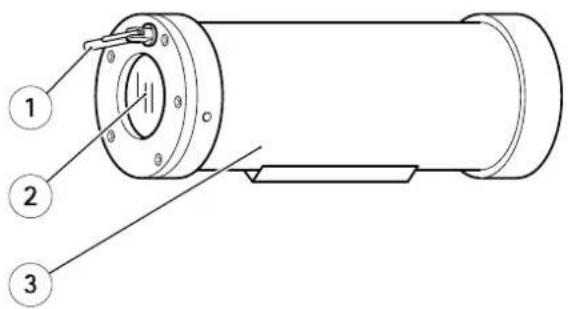
1 Wiper
2 Protectivewindow
3 Camerahousing
CameraUnit
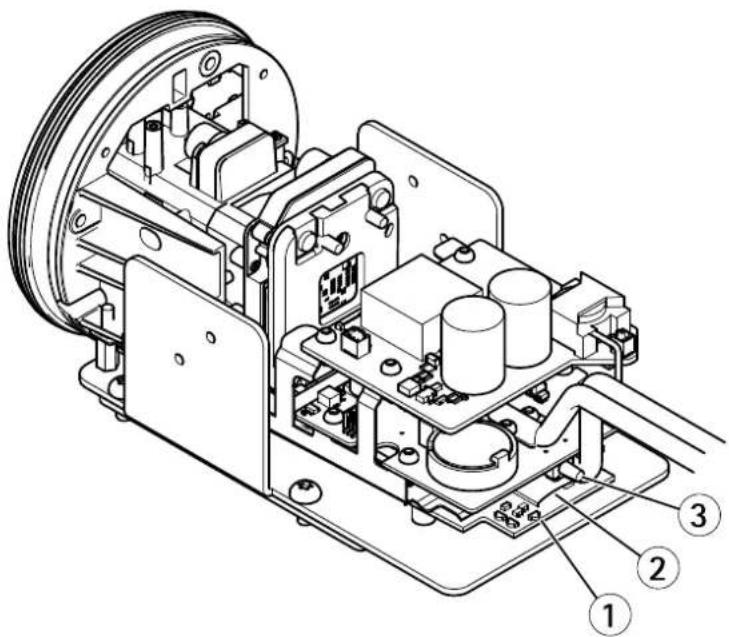
1 StatusLEDindicator
2 MicroSDmemorycardslot
3 Controlbutton
SDcardslot
NOTICE
- Riskofdamage to SDcard. Donotuses sharptools, metal objects are excessive force when inserting or removing the SDcard. Use your fingersto insert and remove the card.
- Riskofdatalossandcorruptedrecordings.DonotremovetheSDcardwhiletheproductisrunning.Disconnectpoweror unmounttheSDcardfromtheAxisproduct'swebpagesbeforeremoval.
ThisproductsupportsmicroSD/microSDHC/microSDXCcards(notincluded).
ForSDcardrecommendations,see www.axis.com
ConnectorsandButtons
Networkconnector
RJ45EthernetconnectorwithPoweroverEthernet(PoE).
NOTICE
The product shall be connected using a shielded network cable (STP). All cables connecting the product to thenetwork shall be intended for their specific use. Makes sure that thenetwork devices are installed in accordance with the manufacturer's instructions for information about regulatory requirements see Electromagnetic Compatibility (EMC)brpag2
ControlButton
Forlocationofthecontrolbutton,seeHardwareoverviewonpage5.
Thecontrolbuttonisusedfor:
- Resetting the product to factory default settings. See page 41.
ConnectingarAXISidedHostingSystemsService6epage35connectpressandholdhouttorfonbou8secondsuntiltheStatusLEDflashesgreen.
Connecting to AXIS Interne Dynamic DNS Service Seepage35 To connect press and hold the button for about seconds.
LEDIndicators
Note
The StatuLEDcarbeconfigured downlituringnormabperationToconfiguregetSetupSystemsPorts &Devices>LED.Seetheonlinehelpformoreinformation.
- TheStatusLEDcanbeconfiguredtoflashwhileaneventisactive.
The StatusLED car configured dlaslfoid identifying the unit Gd Setup System Options Maintenance.
| StatusLED | Indication |
| Unlit | Connectionandnormaloperation. |
| GreenShowssteadygreenfor10secondsfornormaloperationafterstartupcompleted. | |
| Amber | Steadyduringstartup.Flashesduringfirmwareupgradeorresettofactorydefault. |
| mBen/RedRedworkconnectionisunavailableorlost. | |
| e. Red | |
Flashesam Ben/Red/Redworkconnectionisunavailableorlost. mwareupgradefailure. Red
Note
The NetworkLED car disabled that does not flash whether the network traffic configuration to Setup System Options >Ports & Devices >LED. Seetheonline help form more information.
Howtoaccesstheproduct
ToinstalltheAxisproduct,seetheInstallationGuidesuppliedwiththeproduct.
Theproductcanbeusedwithmostoperatingsystemsandbrowsers.Werecommendthefollowingbrowsers:
- InternetExplorer ^® withWindows ^®
- Safari ^ withOSX ^
- Chrome TM orFirefox® withotheroperatingsystems.
ToviewstreamingvideoinInternetExplorer, allowinstallationofAXISMediaControl(AMC)whenprompted.
TheAxisproductincludesone(1)H.264decoderlicenseforviewingvideostreams. ThelicenseisautomaticallyinstalledwithAMC. Theadministratorcandisabletheinstallationofthedecoderstoppreventinstallationofunlicensedcopies.
Note
- QuickTime TM is alsosupportedforviewingH.264streams.
AccessfromaBrowser
1.Startawebbrowser.
2.EntertheIPaddressorhostnameoftheAxisproductinthebrowser'sLocation/Addressfield.
ToaccesstheproductfromaMaccomputer(OSX),gotoSafari,clickonBonjourandselecttheproductfromthe drop-downlist.
If you donot know the I paddress, use AXISIP Utility to locate the product on thenetwork. For information about how to discover and assign I paddress, the document Assign I P Address and Access the video Stream or Axis Support web at www.axis.com/techsup
Note
ToshowBonjourasabrowserbookmark, gotoSafari>Preferences.
- Enteryourusernameandpassword.Ifthisisthefirsttimetheproductisaccessed,therootpasswordmustfirstbe configured.Forinstructions,seeSettheRootPasswordonpage9.
- The product'sLiveViewpageopensinyourbrowser.
Note
The controls and layout of the liveView page may have been customized to meet specific installation requirements and user preferences. Consequently, some of the examples and functions featured her may differ from those displayed in your own live view page.
Accessfromthelnternet
Onceconnected,theAxisproductisaccessibleonyourlocalnetwork(LAN).ToaccesstheproductfromtheInternetyoumust configureyournetworkroutertoallowincomingdatatrafficctotheproduct.Todothis,enabletheNAT-traversalfeature,which wilattemptautomaticallyconfiguretheroutetallowaccesstheproductThisenabledronSetupSystemOptions>Network>TCP/IPAdvanced.
FomoreinformationedNATraversa(portmappingforPv4orpage36SeAlsoAXISnterneDynamidDNServicat www.axiscam.net
ForTechnicalnotesonthisandothertopics,visittheAxisSupportwebatwww.axis.com/techsup
SettheRootPassword
Tacces the Axi product you must the password for the default administrator user of this slonerth Configure Root Passworddialog, which opens when the product is accessed for the first time.
Topreventnetworkeavesdropping,therootpasswordcanbesetviaanencryptedHTTPSconnection,whichrequiresanHTTPS certificate. HTTPS(HypertextTransferProtocoloverSSL)isaprotocolusedtoencrypttrafficbetweenwebbrowsersandservers.The HTTPScertificateensuresencryptedexchangeofinformation.SeeHTTPSonpage31.
The default administrator names are root permanent and cannot be deleted the password for root, the product must be reset which factory default setting. See Reset factory default settings page 4.1.
TosetthepasswordviaastandardHTTPconnection, enteritdirectlyinthedialog.
TosetthepasswordviaanencryptedHTTPSconnection,followthesesteps:
- ClickUseHTTPS.
A temporary certificate(validforoneyear)iscreated,enabling encryptionofalltraffictoandfromtheproduct,andthe passwordcannowbesetsecurely.
2.Enterapasswordandthenre-enterittoconfirmthespelling.
3.ClickOK.Thepasswordhasnowbeenconfigured.
SetPowerLineFrequency
PowelinfrequencysetfirstimtheAxiproductaccessedandonlychangedfromPlainConfig(sepage41) orbyresettingtheproducttofactorydefault.
Selectthepowerlinefrequency(50Hzor60Hz)usedatthelocationoftheAxisproduct.Selectingthewrongfrequencymaycause imageflickeriftheproductisusedinfluorescentlightenvironments.
When using 50Hz, the maximum framerate is limited to 25fps.
Note
Powerlinefrequencyvariesdependingongeographicregion.TheAmericasusuallyuse60Hz,whereasmostotherpartsoftheworlduse50Hz.Localvariationscouldapply.Alwayscheckwiththelocalauthorities.
TheLiveViewPage
The controls and layout of the liveView pagemay have been customized to meet specific installation requirements and user preferences. Consequently, some of the examples and functions featured her may differ from those displayed in your own live view page. The following provides an overview of each available control.
ControlsontheLiveViewPage


ClicViewsiztoscalethemagedowrto80pixelswidodtfulscaleOnlyavailableinMJPEG.
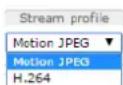
SelectstreamprofileoftheLiveViewpagefromtheStreamProfiledrop-downlistEoinformation abouthowtoconfigurestreamprofiles,see page 15.
UschManuaTriggerbuttortdriggeractionrulefromtheLiveViewpageEoinformationabout howtoconfigureandenablethebutton,seeManualTriggeronpage10.

ClickSnapshots=snapshottheimageThisbuttonprimarilyntendedforwhen theAXISMediaControlviewertoolbarisnotavailable.EnablethisbuttonfromLiveViewConfig>ActionButtons.

The product'sheateriscontrolledbytheambienttemperatureandisturnedonandoffautomatically. If required the heaterabactivated manually by clicking the heatebutton to show the button, go SetupLivViewConfigUndeActionButtons; select Showheatebutton and specify the number of minutes the heaters should be activated.
ManualTrigger
The ManualTriggeruseddriggeractionulfromtheLiveViewpageThemanuatriggecarfoexamplebusedo validateactionsduringproductinstallationandconfiguration.
Toconfigurethemanualtrigger:
- GotoSetup>Events.
2.ClickAddtoaddanewactionrule.
BonthTriggerdrop-downlistselectnpuSignal.
- From these second drop-down list, select Manual Trigger.
- Select the desired action and configure the other settings as required.
Formoreinformationaboutactionrules,seeEventsonpage25.
ToshowthemanualtriggerbuttonsintheLiveViewpage:
1.GotoSetup>LiveViewConfig.
2ndeActionButtonsselecShowmanuatriggebutton.
AXISMediaControlviewertoolbar
TheAXISMediaControlviewetoolbarsavailableInterneExploreOnlySeeAXISMediaControl(AMCbrpage1fomore information.Thetoolbardisplaysthefollowingbuttons:

ThePlaybuttonconnectstotheAxisproductandstartsplayingamediastream.

TheStopbuttonstopsthemediastream.

TheSnapshotbuttontakesasnapshotofthevideoimage.

ClickhViewFullScreenbuttonandthevideimagovilfilthentirescreenPressES(Escape)rthecomputer keyboardtocancelfullscreenview.

The Recordbuttonisused record the current video stream any computer Thdocation wherthecordings saved carb specified the AMControlPaneEnable this button from LiveViewConfigVieweSettings.
MediaStreams
TheAxisproductprovidesseveralvideostreamformats.Yourrequirementsandthepropertiesofyournetworkwilldeterminethe typeyouuse.
TheLiveViewpageintheproductprovidesaccessoH.264andMotionJPEGvideostreams,andtothelistofavailablestream profiles.Otherapplicationsandclientscanaccessvideostreamsdirectly,withoutgoingviatheLiveViewpage.
HowtoStreamH.264
H.264can, without compromising image quality, reduce the size of a digital video file by more than 80% compared with the Motion JPEG format and as much as 50% more than the MPEG-4 standard. This means that much less network bandwidth and storage space are required for a video file. Or seen another way, much higher video quality can be achieved for a given bitrate.
Deciding which combination of protocols and method stoused depends on your viewing requirements, and on the properties of your network. The available options in AXIS Media Control are:
| UnicastRTP | Thisunicastmethod(RTPoverUDP)isused forliveunicastvideo,especiallywhenitis importanttohaveanup-to-datevideostream, evenifsomeframesaredropped. | Unicastingisusedforvideo-on-demand transmissionsothatthereisnovideotraffic onthenetworkuntilaclientconnectsand requeststhestream.Notethatthereareamaximumof20 simultaneousunicastconnections. |
| RTPoverRTSP | Thisunicastmethod(RTPtunneledoverRTSP) isusefulasitisrelativelysimpletoconfigure firewallstoallowRTSPtraffic. | |
| RTPoverRTSPoverHTTP | Thisunicastmethodcanbeusedtotraverse firewalls.Firewallsarecommonlyconfiguredto allowtheHTTPprotocol,thusallowingRTPto betunneled. | |
| MulticastRTP | Thismethod(RTPoverUDP)shouldbeusedforlivemulticastvideo.Thevideostreamisalways up-to-date,evenifsomeframesaredropped.Multicastingprovidesthemostefficientusageofbandwidthwhentherearelargenumbersof clientsviewingsimultaneously.Amulticastcannothowever,passanetworkrouterunlesstherouterisconfiguredtoallowthis.Itisnotpossibletomulticastoverthelnternet,forexample.Notealsothatallmulticastviewerscountasoneunicastviewerinthemaximumtotalof20 simultaneousconnections. | |
AXISMediaControlnegotiateswiththeAxisproducttodeterminethetransportprotocoltouse.Theorderofpriority,listedintheAMCControlPanel,canbechangedandtheoptionsdisabled,tosuitspecificrequirements.
Note
H.264islicensedtechnology.TheAxisproductincludesoneH.264viewingclientlicense.Installingadditionalunlicensed copiesoftheclientisprohibited.Topurchaseadditionallicenses,contactyourAxisreseller.
MJPEG
This formatusesstandardJPEGstillimagesforthevideostream. These images are displayed and updated at a rather sufficient to create stream that shows constantly updated motion.
TheMotionJPEGstreamusesconsiderableamountsofbandwidth,butprovidesexcellentimagequalityandaccesstoeveryimage containedinthestream.TherecommendedmethodofaccessingMotionJPEGlivevideofromtheAxisproductistousetheAXISMediaControlinInternetExplorerinWindows.
AXISMediaControl(AMC)
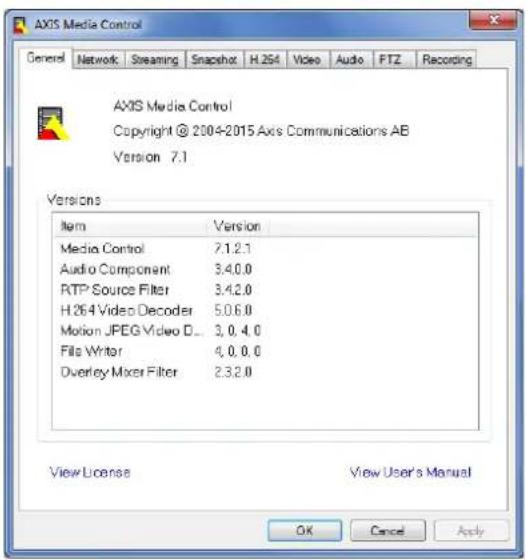
AXISMediaControl(AMC)inInternetExplorerinWindowsistherecommendedmethodofaccessinglivevideofromtheAxisproduct.
TheAMCControlPanelcanbeusedtoconfigurevariousvideosettings.PleaseeseetheAXISMediaControlUser'sManualformore information.
TheAMCControlPanelisautomaticallyinstalledonfirstuse,afterwhichitcanbeconfigured.OpentheAMCControlPanelfrom:
- WindowsControlPanel(fromtheStartscreenorStartmenu)
Alternatively right-click the video image Interne Explore and click Settings.
AlternativeMethodsofAccessingtheVideoStream
YoucanalsoaccessvideoandimagesfromtheAxisproductinthefollowingways:
MotiodPEGervepush(ifupported by the client Chromo Firefox;example) This option maintains a proper HTTP connection to the browser and sends data as and when required, for as long as required.
Window Media Player This requires AXIS Media Control and the 264 decoder installed. The following paths can be used:
- QuickTime TM. The following pathscanbeused:
Note
=IPaddress
•TheAxisproductsupportsQuickTime6.5.1andlater.- QuickTimemayaddlatencytothevideostream.
- It maybe possible to use other player to view the H.264 stream using the paths above, although Axis does not guarantee this.
SetUptheProduct
The Axi product are configured by users with administrator operator rights to the product's setup pages, including the top-right-hand corner of the Live View page.
- Administratorshaveunrestrictedaccesstoallsettings.
Operator have restricted access settings used by user page 31
Seealsotheonlinehelp

BasicSetup
BasicSetupprovidesshortcutstothesettingsthatshouldbemadebeforeusingtheAxisproduct:
1.Users.Seepage31.
2.TCP/IP.Seepage34.
3. Date&Time.Seepage33.
4.VideoStream.Seepage14.
TheBasicSetupmenucanbedisabledfromSystemOptions>Security>Users.
Video
ItispossibletoconfigurethefollowingvideofeaturesinyourAxisproduct:
•Videostream.See page 14.
- Streamprofiles.See page 15.
- Camerasettings.See page 15.
•Overlayimage.See page 17.
- Privacymask.See page 18.
SetUpVideoStreams
Tosetuphproduct'sideostreamsgdVideoVideStream.
Thevideostreamsettingsaredividedintothefollowingtabs:
- Image.Seepage14.
•H.264.Seepage15. - MJPEG.Seepage15.
PixelCounter
Thepixelcountershowsthenumberofpixelsinanareaoftheimage. Thepixelcounterisusefulinsituationswherethereis aspecificsizerequirement,forexampleinfacerecognition.
Thepixelcountercanbeused:
When setting a video stream setup / video streams or page 14, the Preview clic Oper and elect the Show pixel counterption enabled rectangle iThemag Usethmous to mov and size the rectangle pent the number pixels in the Width and Height fields and click Apply.
When setting focusedZoomPageSelectShowpixelConnection enable the rectangle the imageUse themouse movement and size the rectangle pent the number pixels in the Width and Height fields and clickApply.
- When accessing theLiveViewpageinInternetExplorerwithAXISMediaControl(AMC)inWindows.Right-clickinthe imageandselectPixelcounter.Usethemousetomoveandresizetherectangle.
Image
ThedefaultmagsettingscanbeconfiguredundeVideoVideStreamSelectdmagtab.
The followingsettingsareavailable:
- Resolution.Selectthedefaultresolution.
CompressionThe compressionlevel affects the imagequalitybandwidthandfilesize of saved imagesthedowethe compression, the higherthe imagequalitywithhigherbandwidthrequirementsandlargerfilesizes.
- Mirrorimage.lfrequired, theimagecanbemirrored.
Maximunframecate avoid bandwidth problems the frame cat allowed each viewer car limited to fixed amount Alternatively the frame cat car sets Unlimited which means the Axiproduct always delivers the highest framerate possible under the current conditions.
OverlayettingSeeAboutoverlaytextpage17.
ClickSavetoapplythenewsettings.
AboutH.264
H.264,alsoknownasMPEG-4Part10/AVC,isavideocompressionstandardthatprovideshighqualityvideostreamsatlowbitrates. AnH.264videostreamconsistsofdifferenttypesofframessuchasl-framesandP-frames.Anl-frameisacompleteimage,whereas P-framesonlycontainthedifferencesfrompreviousframes.
MJPEG
Sometimes the imagesize is large du et low light or complex scenery. Adjusting them a maximum framesize help to control the bandwidth and storage used by the Motion PEG video stream in these situations. Setting the framesize the Default setting provides consistently good image quality at the expense of increased bandwidth and storage usage in low light. Limiting the frame size optimizes bandwidth and storage usage, but may result in poor image quality.
Aboutstreamprofiles
Astreamprofileisasetofpredefinedstreamsettingsincludingresolution,compression,framerateandoverlaysettings.Stream profilescanbeused:
- Whensettinguprecordingusingactionrules.SeeEventsonpage25.
- Whensettingupcontinuousrecording.SeeContinuousRecordingonpage29.
In the live view pages select the stream profile from the Stream profile drop-down list.
To create new profile to modify existing profile and Setup VideoStreamProfiles.
To select default stream profile for the live/view page and setup live/view config.
CameraSettings
The Video Camer Settings page provides access to advanced image settings for the Axi product.
ImageAppearance
TochangimageAppearance@themenusundeSetupVideoCameraSettings.
Increasing hColo level Increase the colosaturation The value 0 produces maximum colosaturation and the value results in black and white image.
Thémage Brightness arbedjusted the range 0–100 where high value produces brighter image.
Increasingh Sharpness an increase bandwidth usage sharper magenight Increase magenoises especially inflowight conditions. Alowersetting reduces magenoise, but the whole imagewill appear less sharp.
The Contrastangesthrelativdifferencbteweerlightandlarktcarbadjustedsingtholdebar.
WhiteBalance
TochangethissettinggotoSetup>Video>CameraSettings
Whitebalanceisusedtomakecolorsintheimageappearthesameregardlessofthecolortemperatureofthelightsource.TheAxis productcanbesettoautomaticallyidentifythelightsourceandcompensateforitscolor.Alternatively,selectthetypeoflight
sourcefromthedrop-downlist.Foradescriptionofeachavailablesetting,seetheonlinehelp

The white balance window enabled the Automatic and Automatic outdoor options that appear the White balance drop-down list Select of the options from the drop-down list the white balance window properties Select Automatic and the
Video
defaultsettingsfortheAutomatiandAutomaticoutdooption(intheWhitebalancedrop-downlist)SelectCustommanually setareferencewindowforwhitebalanceintheviewarea.
WideDynamicRange
Widdynamic range Dynamic Contrast can improve the exposure whether there is considerable contrasbetween light and dark areas in the image. Enable WDRin intense backlight conditions. Disable WDRin low light conditions for optimale exposure.
Note
Thissettingisonlypossiblewhenusingautomaticexposurecontrol.
ExposureSettings
Exposureistheamountoflightthecamera'ssensorcapturesforascene.Toomuchlightresultsinawashedoutimageandtoo littlelightresultsinadarkimage.
ExposurevalueUsedExposurevalueclidetadjusttheoveralbrightnessofhimage.
Exposurecontrol-Selectasuitableoptiontocontroleexposure.
FomostcenestheAutomaticoptionwilprovidthebestresultTheshutterspeedsautomaticallysetproduceoptimum imagequality.Fluorescentlampsorotherlightsourcescansometimescauseflickeringintheimage.Toreduceflickerintheimage, selecttheFlickeroptionthatmatchsthepowerlinefrequency. TheHoldcurrentoptionlocksthecurrentexposuresettings.
Enable Backlight compensation Enable this option for bright spot fights such as light bulb causes the area in the image to appeartoodark.
Exposurezone This setting determines which part the image used to calculate the exposure from the situation, the Auto setting can be used.
YoucanselectapredefinedareabydefiningIncludeandExcludewindowswithintheimage.Excludewindowsexcludeareaasthatare toobrightordark,andIncludewindowsincludeareasinthescenethathavebetterlightingwhichwillcontributetotheexposuredata. Theremustbeatleastonelcludewindow.TherecanbeatotaloftenIncludeandExcludewindowstotailortheexposurezone. NotethatanExcludewindowiseffectiveonlywhenplacedinsideancludewindow.
Tip: Ifanareaisextremelybright, drawanIncludewindowtocoverthewholeareaanddefineExcludewindowswithinitto blockoutthebrightareas.
Shutter&Gain
Theshutterandgainsettingsaffecttheamountofmotionblurandnoiseintheimage.Toadapttodifferentlighting,available storagespaceandbandwidth,itisoftennecessarytoprioritizeeitherlowmotionblurorlownoise.TheAxisproductallowsdifferent prioritizationinnormallightandinlowlight.
Shutterspeeds related the amount of time the shutters opened and measured second(s) slow shutters speed allows more lighttoreachthesensorandcanhelpproduceabrighterimageinlowlightsituations. On the other hand, aslowshutter speed can cause moving object to appear blurry.
SetWidDynamiRangedWDRffandeShutteto
AutodsetshutterspeedautomaticallylfrequiredusMashutterdimthshutterspeedpreventhrame ratefrombeingreduced.
Forexample,toget30fps,setMaxshutterto1/30.
•Fixedtouseafixedshutterspeed.
Gainmeasureddecibe(dB)is the amount amplification applied the imageHighaimay provide better image low lightsituations but will increase the amount of image noise.
SetGainto
AetdosethegainautomaticallylfrequireduseMaxaintdimithappliedgain.
Video
- Fixedtouseafixedgain.
Example
Ifstoragespaceorbandwidth this limited, try using a lowerergain. This will reduce image noise and produces smaller image files.
Day/Night
TheIRcutfilterpreventsinfrared(IR)lightfromreachingtheimagesensor.Inpoorlightingconditions,forexampleatnight,orwhenusingarexternalRampsetheIRcutfiltertoOffThisincreasesightsensitivityandallowstheproductto"seeInfraredightTheimageisshowninblackandwhitewhentheIRcutfilterisoff.
IfisingautomaticExposurecontrolsettheRutfilterAutoautomaticallyswitchbetweenOnandOffaccordingthe lightingconditions.
The Day/NightshiftevebahelpsleterminewhtherecamerawilshiffromdaymodeonightmodeNormallythecamera automaticallychangesmodefromdayonightwherverydarklevel0OrtheliderByettingDay/Nightshifteveta lowervalue,thecamerawillchangetonightmodeearlier.
Aboutoverlaytext
Anoverlaytextcancludethecurrentdateandtime,oratextstring.Whenusingatextstring,so-calledmodifierscanbeusedto display,forexample,thecurrentbitrateorthecurrentframerate.
You can choose between the following text overlays:
| Size | TextheightBackgroundheight | |
| Small | 10pixels20pixels | |
| Medium16pixels28pixels | ||
| Large21pixels36pixels |
Itals possible displaytext when action rule triggered how to include overlay text frame rules page 18.
Howtodisplaythepanortiltpositionasatextoverlay
Itmaybeusefultoretrieve,forinstancefromarecordedvideo,thepanortiltposition(indegrees)inwhichaneventhastaken place.Thiscanbeobtainedbyincludingthepositionintheimageasatextoverlay,usingamodifier.Todisplaythepanpositionasa textoverlay:
GoSetupVideoVideStream.
UndeOverlayoutingsselectncludtext.
Enter#×toshowthepanposition.
Enter#ytoshowthetiltposition.
Configuretheoptionalsize,colorandpositionofthetextoverlay.
@lickSave.
GototheLiveViewpagetoconfirmthesetting.
Aboutoverlayimages
Anoverlayimageisastaticimagesuperimposedoverthevideostream.Theimage,forexampleacompanylogo,isfirstuploadedto theAxisproductandthenusedtoprovideextrainformationortomaskapartoftheimage.
Imagespecifications:
Video
- The uploaded images should be a Windows 24-bit BMP image with maximum 250 colors.
- Theimagewidthandheight,inpixels,mustbeexactlydivisiblebyfour.
- The image cannot be larger than the maximum image resolution.
- If you combine atextoverlay with and image overlay, the text overlayalway stakes presidence over the overlay image in height. A text overlayalways stretches across the whole video image which means you cannot shrink the overlay stripto maktoon for an image. Information about the different tex overlay heights see About overlay text.
TalwayscoverselectedfarbthemonitoredareauseprivacymaskSeeAboutprivacymasksrpage18.
Howtoincludeoverlaytextinanactionrule
Example
TolisplaytheTextMotiondetectedWhenmotionslectectedente#Dithacludetexfieldandente/MotiondetectedIn theTextfieldwhensettinguptheactionrule.
GoldVideoVideStreamandelecthImagtab.
UndeOverlaySettingsselectncludtext.
Entethemodifier# DWherthrulestriggered# Displacedbythextspecifiedrthactionrule.
Additional text in this field will be displayed as when the action rule is not active.
@ddEventsActionRulesandcreateyouactionrule.
From the Actions list selec OverlayText.
6.EnterthetexttodisplayintheTextField.
Specify DurationThe text bar displayed while the rule active for fixed number seconds.
Aboutprivacymasks
Aprivacymaskisauser-definedareathatcoverspartsofthemonitoredarea.Privacymasksappearasblocksofsolidcolorandare appliedonthevideostream.PrivacymaskscannotbebypassedusingtheVAPIX®applicationprogramminginterface(API).
The PrivacyMaskList(VideoPrivacyMask) shows all the mask that are currently configured in the Axis product and indicates if they are enabled.
Youcanaddanewmask,re-sizethemaskwiththemouse,chooseacolorforthemask,andgivethemaskaname.
Formoreinformation,seetheonlinehelp

Important
Adding many privacy masks may affect the product's performance.
Focus&Zoom
GoVideoFocusZoomchangefocusandoomsettings.
SethZoonteldimitdimihowfathcameracbozoomedrontheiviewpageThdigitazoomlevelsindicated withtheletterD.Tocheckthezoomtelelimit,clickGoto.
SelectAutofocustoenableautofocus.
Seth FocusLimit prevent the camera front focusing projects that are closed through this an improve the auto focus speed.
ConfiguretheLiveViewPage
YoucancustomizetheLiveViewpageandalterittosuityourrequirements.ItispossibletedefinethefollowingfeaturesoftheLiveViewpage.
- StreamProfile.Seepage15.
- DefaultViewerforBrowser.See page 19.
-ViewerSettings.Seepage19.
ActionButtonsThesearchbuttondescribedControlsorthelviewPageorpag
-UserDefinedLinks.Seepage19.
DefaultViewerforBrowsers
FromLiveViewConfigDefaultVieweselectdefaultmethodofviewingvideimagesyoubrowserTheproductattempts toshowthevideoimagesintheselectedvideoformatandviewer.Ifthisisnotpossible,theproductoverridesthesettingsand selectsthebestavailablecombination.
| BrowserViewerDescription | ||
| WindowsInternetExplorer | AMC | RecommendedviewerinInternetExplorer(H.264/MotionJPEG). |
| QuickTime | H.264. | |
| StillimageDisplaysstillimagesonly.ClicktheRefreshbuttoninyourbrosertoviewa newimage. | ||
| Otherbrowsers | ServerPush | Recommendedviewerforotherbrowsers(MotionJPEG). |
| QuickTime | H.264. | |
| StillimageDisplaysstillimagesonly.ClicktheRefreshbuttoninyourbrosertoviewa newimage. | ||
Formoreinformation,pleaseetheonlinehelp.

ViewerSettings
Toconfigureoptionsfortheviewer, gotoLiveViewConfig>ViewerSettings.
SelectShowewetoolbatalisplaytheAXISMediaControl(AMC)theQuickTimeviewetoolbaundethideoimageinyourbrowser.
H264lecodeinstallationThe administrator and disable installation of the 1.264lecode included with AXISMedia Control. This is used to prevent installation of unlicensed copies. Further decoder licenses can be purchased from your Axisreseller.
SelectEnablerecordingbuttonEnablerecordingfromtheLiveViewpageThisbuttonisavailablewhenusingtheAMCviewer.TherecordingsaresavedtothelocationspecifiedintheAMCControlPanel.SeeAXISMediaControl(AMC)onpage1 1.
UserDefinedLinks
Todisplayuser-definedinkirthLiveViewpageselectShowcustomlinkoptiongivthinknamandherentethURL tolinkto.Whendefiningaweblinkdonotremovethehttp://fromtheURLaddress.Customlinkscanbeusedtorunscriptor activateexternaldevicesconnectedtotheproduct,ortheycanlinktoawebpage.Customlinksdefinedascgilinkswillrunthe scriptinthebackground,inahiddenframe.Definingthelinkasaweblinkwillopenthelinkinanewwindow.
PTZ(PanTiltZoom)
Aboutpresetpositions
Apresetpositionisasavedviewthatcanbeusedtoquicklysteerthecameratoaspecificposition.Apresetpositionconsistsof thefollowingvalues:
• Focusposition(manualorautomatic)
Howtoaccessthepresetpositions
Presetpositionscanbeaccessedinseveralways:
- Whensettingupactionrules.Seepage25.
Howtoaddapresetposition
Note
The focus window rectangle will disappear after awhile, but the focus window will still be active.
-
GotoSetup>PTZ>PresetPositions.
-
Clickintheimageorusethecontrolstosteerthecameraviewtothedesiredposition.
BaddfocuswindowselectFocuswindowPlacethmouspointeorthepartheimagthatyouwantfocuson, clickanddragtocreatearectanglearoundditandreasethemousebutton.
Therectanglewillturngreenwhenthefocuswindowhasbeenset.Thecamerawillautomaticallyadjusttheimage focustothisarea.
Formoreinformationaboutfocuswindows,seepage20.
- WriteanameintheCurrentpositionfield.
5.ClickAddtosavethepresetposition.
SettheHomePosition
Aboutthefocuswindow
The focus window makes it possible to select an area of the camera's image otherwise that focus should be applied. This can be useful if there is a part of the image where focus is more critical, or if a part of the images should be ignored by the autofocus.
When the focus window is set from the Live View page, any change in the cameraposition will return the autofocus the entire window.
When clicking the FocusWindowbutton in the prese position page, then most recently focus window from the live view page appears.
If you set the focus window from the preset positions page, it is included in these settings for that preset. The focus window can be redefined for the preset, but it cannot be deleted unless the preset is deleted.
Detectors
CameraTampering
CameraTamperingcangenerateanalarmwheneverthecameraisrepositioned,orwhenthelensiscovered,spray-paintedorseverely defocused.Tosendanalarm,forexampleanemail,anactionrulemustbesetup.
Toconfigure tampering detection:
- GotoDetectors > CameraTampering.
SethMinimundurationthattheimthatmustlapsbeforealarmgeneratedincreaseimdprevent falsealarmsforknownconditionsthataffecttheimage.
Select Alarmfodarkimages&alarmshouldbegeneratedfightaredimmedturnedofforthdenisprayed, covered,orrenderedseverelyoutoffocus.
4.ClickSave.
Toconfiguretheproducttosendanalarmwhentamperingoccurs:
- GotoEvents>ActionRules.
2.ClickAddtosetupanewactionrule.
- EnteraNamefortheactionrule.
UndeConditionselecDetectorsfromthTriggerist.
-
SelectTamperingfromthelistofdetectors.
-
Optionally, select as schedule and set additional conditions.
SelectactionTo sendaremailselectSendNotificationandselectRecipientfromthedisbfefinedrecipients.
Note
The Which Executive Option Unde Duration cannot be used with cameramperings since camerampering does not have duration and onceithasbeentriggereditwillnotautomaticallyreturntoitsuntriggeredstate.
Formoreinformationonactionsrules,seeEventsonpage25.
MotionDetection
Motiondetectionisusedtogenerateanalarmwhenevermovementstartsorstopsinthecameraview.
Motiondetectionisconfiguredbydefiningupto10IncludeandExcludewindows:
- Includewindows—defineareaswheremotionsshouldbedetected
Exclude windows defin areas within a window that should be ignored (areas outside include windows are automatically ignored).
Forinstructions, see SetupMotionDetectionWindowsonpage22.
To control the number of motion detection alarm parameters ObjectSizeHistory and Sensitivity can be adjusted to see MotionDetectionParameter on page 22.
Oncemotiondetectionwindowsareconfigured, theAxisproductcanbeconfiguredtoperformactionswhenmotionisdetected. Possible actions include uploading images and startecording. From more information se SetupActionRules or page 25.
Note
- Usingthemotiondetectionfeaturemaydecreasetheproduct'soverallperformance.
- ThepositionoftheMotionDetectionWindowisrelativetotheorientationoftheCamera.ChangingtheorientationofthecamerawillalsochangethepositionoftheMotionDetectionWindow.
SetUpMotionDetectionWindows
TosetupamotiondetectionIncludeWindow, followtheseinstructions:
- GotoDetectors > MotionDetection.
Select the Configure included Window option and click New Select the new window with this of windows and enter adescriptivename.
- Adjustthesize(dragthebottomright-handcorner)andtheposition(clickonthetextatthetopanddragtothedesired position)ofthewindow.
Adjust the Object Size History and Sensitivity profile slider (see Motion Detection Parameters for details) Any detected motion within an active window is indicated by red peaks in the Activity window.
5.ClickSave.
To exclude parts of the inclusion window select the Configur Excluded Windows an position the exclusion window within the inclusion window.
ToletanincludeexcludowindowsselecthowindowirthdisbwindowsandlicDel.
MotionDetectionParameters
The parameters controlling motion detection are described in the table below:
| Parameter | ObjectSize | History | Sensitivity |
| Description | Objectsizerelativetowindow size. | Objectmemorylength. | Differenceinluminance betweenbackground and object. |
| Highlevel(100%) | Onlyverylargeobjectstrigger motiondetection. | Anobjectthatappearsin thewindowtriggersmotion detectionforalongtime beforeitisconsideredas non-moving. | Ordinarycoloredobjectson ordinarybackgroundstrigger motiondetection. |
| Mediumlevel(50%) | Alargedifferenceinluminance isrequiredtotriggermotion detection. | ||
| Lowlevel(0%) | Evenverysmallobjectstrigger motiondetection. | Anobjectthatappearsin thewindowtriggersmotion detectiononlyforaveryshort timebeforeitisconsideredas non-moving. | Onlyverybrightobjectson adarkbackgroundtrigger motiondetection. |
| Recommendedvalues | 5–15%60–90%75–95% | ||
| Defaultvalue(80%) | 15%90% |
Detectors
Note
- Totriggeronsmallobjectsormovements,useseveralsmallmotiondetectionwindowsratherthanonelargewindow,andselectalowobjectsize.
- To avoid triggering on small objects, select a high object size.
- Whilemonitoringanareawheremovingobjectsarenotexpected,selectahighhistorylevel.Thiswillcausemotion detectiontotriggeraslongastheobjectispresentinthewindow.
- Toonlydetectflashinglight,selectalowsensitivity.Inothercaseshighsensitivityisrecommended.
Applications
AXISCameraApplicationPlatform(ACAP)isanopenplatformthatenablesthirdpartiestodevelopanalyticsandotherapplications forAxisproductsForminformationaboutavailableapplicationsdownloadstrialsandicensesgetwww.axis.com/applications
Note
- Itisrecommendedtorunoneapplicationatatime.
- Avoidrunningapplicationswhenthebuilt-inmotiondetectionisactive.
ApplicationLicenses
Someapplicationsneedalicensetorun.Licensescanbeinstalledintwoways:
•Automaticinstallation—requiresaccesstothelnternet
- Manualinstallation—obtainthelicensekeyfromtheapplicationvendoranduploadthekeytotheAxisproduct
Torequestalicense, theAxisproductserialnumber(S/N) is required. The serial number can be found on the product label and under SystemOptions > Support > SystemOverview.
UploadApplication
Touploadandstartanapplication:
1.GotoSetup>Applications.
2ndeUploadApplicationclicBrowseLocateapplicationfileandclicUploadPackage.
3. Install the license (if applicable). For instructions, seethedocumentation provided by the application vendor.
Start the applicationGd page Applications select the application in the db installed applications and click Start.
5. Configuretheapplication.Forinstructions,seethedocumentationprovidedbytheapplicationvendor.
Note
- Applicationscanbeuploadedbyproductadministrators.
- ApplicationsandlicensescanbeinstalledonmultipleproductsatthesametimeusingAXISCameraManagement,version 3.10andlater.
To generate of file to the application to Application Select the application and click Log.
ApplicationConsiderations
Ifanapplicationisupgraded, applicationsettings, including the license, will be removed. The license must be installed and the application reconfigured.
If the Axis product's firmware is upgraded, uploaded applications and their settings will remain unchanged, although this is not guaranteed by Axis Communications. Not that the application must be supported by the new firmware. For information about firmware upgrades, see Upgrade the Firmware on page 43.
If the Axis product is restarted, running applications will restart automatically.
If the Axis product is restored or reset to factory default, uploaded applications and their settings are removed. For information about restoring the Axis product, see Maintenance page 4. For information about factory default, see Reset to factory default settings on page 41.
XF40-Q1765 Explosion Protected Fixed Network Camera
Events
Events
TheEventpagesallowyoutoconfiguretheAxisproducttoperformactionswhendifferenteventsoccur. Forexample, theproduct canstartarecordingorsendanemailnotificationwhenmotionisdetected.Thesetofconditionsthatdefineshowandwhen theactionistriggerediscalledanactionrule.
SetUpActionRules
Anactionruledefinestheconditionsthatmustbemetfortheproducttoperformanaction,forexemplerecordvideoorsendan emailnotification.Ifmfultipleconditionsaredefined,allofthemmustbemettotriggertheaction.
Fomoreinformationaboutavailabletriggersandactionsseedriggersopage25andActionsopage26.
The following example describes how to setup an action rule to record video to an network share if there is movement in the camera's field of view.
Setupmotiondetectionandaddanetworkshare:
GdDetectorsMotionDetectionandconfiguremotiondetectionwindowSepage22.
QoSystemOptionsStorageandetupthenetworkshareSepage39.
Setuptheactionrule:
GetEventsActionRulesandClickAdd.
- SelectEnableruleandenteradescriptivenamefortherule.
SelectDetectorsfromtheTriggedrop-downlist.
SelectMotionDetectionfromthedrop-downlistSelectthemotiondetectionwindowtouse.
OptionallyselectScheduleandAdditionalconditionsSebelow.
UnderActions;selectRecordVidedfromtheTypedrop-downlist.
SelectStreampro IandconfiguretheDurationsettingsdescribedbelow.
- SelectNetworkSharefromtheStoragedrop-downlist.
Touse mortharon trigge fo the action rules elect Additional conditions and click Add add additional triggers When using additional conditions, all conditions must bemettotrigger the action.
To prevent aaction from being triggered repeatedly, Waiteastime can be set Entethimere hours minutes and seconds, during which the triggers should be ignored before the action rule can be activated again.
The recording Duration of o actions can be set in each immediately before and after the even Select Pre-trigger time and/or Post-trigger time to the number of seconds. When while the active is enabled and the action is triggered again during the post-trigger time, there cording timewill be extended with another post-trigger time period.
Formoreinformation,seetheonlinehelp
Triggers
Available action rulerigger and conditions include:
ApplicationsUsed installed applicationstriggethe rule SeeApplicationsorpage24.
- Detectors
Events
Day/NightModeTriggerthe rule whether product switches between day mode (IRcutilteon) and night mode (IRcutfilteroff). This can forexample be used to control an external infrared (IR) light connected to an output port.
LivStreamAccessedTrigger the rule when any stream is accessed and during ed storage playback. This can forexample be used to send notifications.
MotionDetectionTrigger rule when motions detected. See Motion Detection on page 21.
-Tampering-Triggertherulewhentamperingisdetected.See.
- Hardware
NetworkTriggertheulenetworkconnectionsosbrestoredThisarfoexampleusedstart recordingtotheSDcard.
TemperatureTriggetheulethtemperaturfallsoutsideinsidtheoperatingangotheproductThis canforexamplebeusedtosendmaintenancenotifications.
- InputSignal
ManualTriggerTrigger rules using the ManualTriggerbutton in the ViewPageSeeControl on theLiveViewPageonpage9.Thiscanforexamplebeusedtovalidateactionsduringproductinstallation andconfiguration.
VirtualInputscanused by MSVidedManagementSystem;driggeactionsVirtualInputscanfor example,beconnectedtobuttonsintheVMSuserinterface.
•Storage
DisruptionTrigger the rule storage problems are detected for example of storage devices unavailable, removed, full, locked or if other reader or write problems occur. This can forexample be used to send maintenance notifications.
RecordingTriggertheulwhertheAxiproductrecordsthoragdeviceTherecordingstatusrigger canbeusedtonotifytheoperator,forexamplebyflashingLEDlights,iftheproducthasstartedorstoppedto recordtothestoragedevice.Notethat,thistriggercanbeusedonlyforedgestoragerecordingstatus.
•System
SystemReadyTriggertheulwhertheproduchabeerstartedandalservicesareunningThisarfor examplebeusedtosendanotificationwhentheproductrestarts.
•Time
RecurrenceTrigger the rul periodically See Setup Recurrences or page 28 This afo example used to upload an image every 5 minutes.
UsScheduleTriggertheulaccordingtheselectedscheduleSeeCreateScheduleorpage28.
Actions
Availableactionsinclude:
Day/NightVisionModeSetlaymodel(Rufilterp)nightmodel(Rufilterpff).
OverlayTextDisplayoverlaytextSedHowtincludeoverlaytextinteractionpage18.
- RecordVideo–Recordvideotoaselectedstorage.
- SendImages–Sendimagestoarecipient.
- SendNotification-Sendanotificationmessagetoarecipient.
Events
SendSNMTrapSendSNMRapmessage the operator Make surchaSNMP enabled and configured under SystemOptionsNetworkSNMP.
- SendVideoClip-Sendavideocliptoarecipient.
Statul EDFlas the EIndicator This afo example should validate triggers such motion detection during product installation and configuration.
AddRecipients
Theproduct cansendmediafilesandmessagesto notifyusersaboutevents.Beforetheproduct cansendmediafilesornotification messagesyoumustdefineonoremorerecipientsFoimformationaboutavailableoptionsseeRecipienttypespage27.
Toaddarecipient:
GoEventsRecipientandclicAdd.
2.Enteradescriptivename.
3.SelectarecipientType.
- Enter the information needed for the recipient type.
5.ClickTesttotesttheconnectiontotherecipient.
6.ClickOK.
RecipientTypes
The following recipients are available:
| RecipientUsewithaction | Notes | |
| SendImagesSendNotificationSendVideoClip | Anemailrecipientcancontainmultipleemailaddresses. | |
| FTP | SendImagesSendVideoClip | |
| HTTP | SendImagesSendNotificationSendVideoClip | |
| HTTPSSendImages | SendNotificationSendVideoClip | EncryptedfiletransferusingHyperTextTransferProtocolSecure(HTTPS).SpecifylogininformationfortheHTTPSserverandvalidatetheserver'scertificate.IfthereisaproxybetweentheAxisproductandtheHTTPSserver,alsospecifytheproxysettings. |
| NetworkShareSendImages | SendVideoClip | Anetworksharecanalsobeusedasastoragedeviceforrecordedvideo.GoSystemOptions>Storagetoconfigureanetworksharebeforesettingupacontinuousrecordingoranactionruletorecordvideo.Formoreinformationaboutstoragedevices,seeStorageonpage39. |
| TCP |
SendNotification
SetUpEmailRecipients
Emailrecipientscanbeconfiguredbyselectingoneofthelistedemailproviders,orbyspecifyingtheSMTPserver,portand authenticationusedby,forexample,accorporateemailserver.
Note
Some email providers have security filter that prevent users from receiving or viewing large attachments, from receiving scheduled emails and similar. Check the email provider's security policy to avoid delivery problems and locked email accounts.
Tosetupanemailrecipientusingoneofthelistedproviders:
GddEventsRecipientandclickAdd.
EnterNamandelecEmaifronthTypeist.
Entethemailaddresses send emails forth field uscommasseparatemultipladdresses.
- Select the email provider from the Provider list.
5.Entertheuser|Dandpasswordfortheemailaccount.
6.ClickTesttosendatestemail.
TsetupremailrecipientusingforexamplecorporatemaierverfollowthinstructionsaboveductUsedefineds ProviderEntethemailaddressappeansendeinthFromfieldSelectAdvancedsettingsandspecify&MTBerver addressportandauthenticationmethodOptionallyselectUsencryptionsendmailsoarencryptedconnectionTheserver certificatecanbevalidatedusingthecertificatesavailableintheAxisproduct.Forinformationonhowtuploadcertificates,see Aboutcertificatesonpage32.
CreateSchedules
Schedulescanbeusedasactionruletriggersorasadditionalconditions,forexampletorecordvideoifmotionisdetectedoutside officehours.Useoneofthepredefinedschedulesorcreateanewscheduleasdescribedbelow.
Tocreateanewschedule:
GddEventsSchedulesandliclAdd.
- Enteradescriptivename and the information needed for daily, weekly, monthly or yearly schedule.
3.ClickOK.
Taus the scheduler action rule selects the schedule from the Schedule drop-down list the Action Rule Setup page.
SetUpRecurrences
Recurrencesareusedtotriggeractionrulesrepeatedly,forexampleevery5minutesoreveryhour.
Tosetuparecurrence:
GddEventsRecurrenceandlicAdd.
2.Enteradescriptivenameandrecurrencepattern.
3.ClickOK.
To set the recurrence in action rule first select Time from the Trigger drop-downlist the Action Rule Setup page and then select the recurrence from these second drop-downlist.
To modify remove recurrences, select the recurrence in the Recurrence List and click Modify Remove.
Recordings
TheAxisproductcanbeconfiguredtorecordvideocontinuouslyoraccordingtoanactionrule:
•Tostartacontinuousrecording,seepage29.
- Tosetupactionrules,seepage25.
•Toaccessrecordings,seeRecordingListonpage29.
•Toconfigurecameracontrolledstorage,seeStorageonpage39.
RecordingList
Recorded videos related to the Recordings List page. The shows each recording's start date and time duration and the event that triggered the recording.
Toplayordownloadarecording, followthesesteps:
- GotoRecordings>List.
Use the filter to narrow the disfecording Enteth desired filter criteria and lic Filte Some filters may take along timetocomplete.
- Selecttherecording.
@licPlayplaythecordingcirclicDownloaddownloadthecording.
Multiple recordingscarbdownloadedtheSamTimeSelectrecordingsandlicDownloadThedownloadedfilezipfile containingaminimumofthreefiles,ofwhichtheMatroska(mkv)filesaretheactualrecordings.Therecordingsaretime-stamped withthedateandtimetheyweredownloaded(asopposedtothedatetherecordingsweremade).
Note
ToplayrecordingsinWindowsMediaPlayer,AXISMatroskaFileSplittermustbeinstalled.AXISMatroskaFileSplitter canbedownloadedfromwww.axis.com/techsup/software
For detailed recording and video information, select recording and click Properties.
Toremovearecording,selecttherecordingandclickRemove.
ContinuousRecording
The Axproduct are configured continuously saved for storage device information about storage devices. Storage or page 39 prevent the disk from becoming full if recommended configuration is automatically removed in recordings.
Ifanewstreamprofileisselectedwhilearecordingisongoing,therecordingwillbestoppedandsavedintherecordinglistanda newrecordingwiththenewstreamprofilewillstart.Allpreviouscontinuousrecordingswillremainintherecordinglistuntilthey areremovedmanuallyorthroughautomaticremovalofoldrecordings.
Tostartacontinuousrecording,followthesesteps:
- GotoRecordings>Continuous.
2.SelectEnabled. - Select the type of storage device from the Storagelist.
- SelectaStreamprofiletouseforcontinuousrecordings.
5.ClickSavetosaveandstarttherecording.
Languages
MultiplelanguagescanbeinstalledintheAxisproduct.AllwebpagesincludingtheonlinehelpwillbedisplayedintheselectedlanguageTo switchlanguagesgoSetupLanguagesandfirstuploadthenewLanguagefileBrowseandocatchefilandclicktheUploadLanguagebutton.SelectthenewlanguagefromthelistandclickSave.
Note
- Resetting the product to factory default settings will erase any uploaded language files and reset the product language to English.
- ClickingtheRestorebuttonontheMaintenancepagewillnotaffectthelanguage.
- Afirmwareupgradewillnotaffectthelanguageused. However if you have uploaded an ewlanguageto the product and later upgradethe firmware, it may happen that the translation no longer match the product's web pages. In this case, upload an updated language file.
- Alanguagealreadyinstalledintheproductwillbereplacedwhenacurrentoralaterverersionofthelanguagefileisuploaded.
SystemOptions
Security
Users
Use access controlled enabled by default and a configuration under SystemOptions Security Users Administrator can setup other users by giving them usernames and passwords. It is also possible to allow anonymous viewer login, which means that anybody may access the live view page.
Theuserlistdisplaysauthorizedusersandusergroups(accesslevels):
•ViewershaveaccesstotheLiveViewpage
-Operatorshaveaccesstoallsettingsexcept:
-creatingandmodifyingprivacymasksettings
-uploadingapplicationsandlanguagefiles
-anyofthesettingsincludedintheSystemOptions
Administrator have unrestricted accessal settings The administrator can add modify and remove other users.
Note
Not that whether option Encrypted unencrypted selected the web server will encrypt the password This default option for anewunitor a unit reset to factory default settings.
UndeHTTP/RTSIPasswordSettingsselecttheTypeofpasswordallowYoumayneedallowunencryptedpasswordsifthereareviewingclientsthatdonotsupportencryption,orifyouupgradedthefirmwareandexistingclientssupportencryptionbutneedtologinagainandbeconfiguredtousethisfunctionality.
UndeUseSettingsselecttheEnablanonymousviewelogioptionallowanonymoususersaccesstheLiveViewpage.
DeselecttheEnablBasiSetupoptionthetaBasiSetupmenuBasiSetupproviderquicaccesssettingsthathouldbe madebeforeusingtheAxisproduct.
ONVIF
ONVIF(OpenNetworkVideoInterfaceForum)isaglobalinterfacestandardthatmakesiteasierforendusers,integrators,consultants,andmanufacturerstotakeadvantageofthepossibilitiesofferedbynetworkvideotechnology.ONVIFenablesinteroperabilitybetweendifferentvendorproducts,increasedflexibility,reducedcostandfuture-proofsystems.
BycreatingauseryouautomaticallyenableONVIFcommunication.UsetheusernameandpasswordwithallONVIFcommunication withtheproduct.Formoreinformationseewww.onvif.org
IPAddressFilter
IAddress filtering enabledorth System Options Security,Address Filtepage. Once enabled the listed address are allowed denied access the Axiproduct SelectAllowDenFromthe distanceApply enableAddress filtering.
The administrator can add up to 256IP addressentriestothelist (asingleentry can contain multiple IP addresses).
HTTPS
HTTPS(HyperTextTransferProtocoloverSecureSocketLayer,orHTTPoverSSL)isawebprotocolprovidingencryptedbrowsing. HTTPScanalsobeusedbyusersandclientstoverifythatthecorrectdeviceisbeingaccessed.Thesecuritylevelprovidedby HTTPSisconsideredadequateformostcommercialexchanges.
TheAxisproductcanbeconfiguredtorequireHTTPSwhenusersfromdifferentusergroups(administrator, operator, viewer)login.
TousHTTPSarHTTPScertificatenusfirstbeinstalledGoSystemOptionsSecurityCertificatesinstallandmanage certificates.SeeAboutcertificatesonpage32.
ToenableHTTPSontheAxisproduct:
- GotoSystemOptions>Security>HTTPS
- SelectanHTTPCertificatefromthelistofinstalledcertificates.
- Optionally, click Ciphers and select the encryption algorithm for SSL.
- SettheHTTPSConnectionPolicyforthedifferentusergroups.
5.ClickSavetoenablethesettings.
Taccess the Axis product via desired protocol, the address field in browser content https://forthHTTPProtocol and http://fortheHTTPProtocol.
The HTTP Sport change orth System Options Network TCP/IP Advance page.
IEEE802.1X
IEEE802.1Xisastandardforport-basedNetworkAdmissionControlprovidingsecureauthenticationofwiredandwirelessnetwork devices.IEEE802.1XisbasedonEAP(ExtensibleAuthenticationProtocol).
ToaccessanetworkprotectedbyIEEE802.1X,devicesmustbeauthenticated.Theauthenticationisperformedbyanauthentication servertypicallyRADIUServerexampleswhicharFreeRADIUSandMicrosoftInternetAuthenticationService.
InAxisimplementation, theAxisproductandtheauthenticationserveridentifythemselveswithdigitalcertificatesusingEAP-TLS (ExtensibleAuthenticationProtocolTransportLayerSecurity)ThecertificatesareprovidedbyCertificationAuthorityCA). Youneed:
- aCAcertificatetoauthenticatetheauthenticationserver.
- aCA-signedclientcertificatetoauthenticatetheAxisproduct.
To create and install certificates and System Options Security Certificates See About certificates or page 32.
ToallowtheproducttoaccessanetworkprotectedbyIEEE802.1X:
- GotoSystemOptions>Security>IEEE802.1X.
SelectCAcertificatandClientCertificatfromthdistofinstalledcertificates.
UndeSettingsselect the EAPOversion and provide the EARidentity associated with the client certificate.
- ChecktheboxtoenableIEEE802.1XandclickSave.
Note
Forauthenticationtoworkproperly, the date and timesettings in the Axis product should be synchronized with an NTP server. See Date & Time on page 33.
Aboutcertificates
Certificatesareusedtoauthenticatedevicersonanetwork.Typicalapplicationsincludeencryptedwebbrowsing(HTTPS),network protectionviaIEEE802.1Xandsecureuploadofimagesandnotificationmessagesforexampleviaemail.Twotypesofcertificates canbeusedwiththeAxisproduct:
Server/Clientcertificates: To authenticate the Ax product Server/Client certificate can be self-signed issued by Certificate Authority(CA). Aself-signed certificate offers limited protection and can be used before a CA-issued certificate has been obtained.
CAcertificatesAuthenticatpeercertificatesforexamplethecertificatoauthenticationserveincastheAxisproducts connectedtoanIEEE802.1Xprotectednetwork.TheAxisproductisshippedwithseveralpreinstalledCAcertificates.
Note
- If the product is reset to factory default, all certificates, except preinstalled CA certificates, will be deleted.
- If the product is reset to factory default, all preinstalled CA certificate that have been deleted will bere installed.
Howtocreateaself-signedcertificate
- GotoSetup>SystemOptions>Security>Certificates.
- ClickCreateself-signedcertificateandprovidetherequestedinformation.
HowtocreateandinstallaCA-signedcertificate
Create self-signed certificates How to create self-signed certificate on page 3.
2. GotoSetup>SystemOptions>Security>Certificates.
ClickCreatecertificatesigningequestanprovidetherequestedinformation.
4. CopythePEM-formattedrequestandsendtotheCAofyourchoice.
Whether signed certificates returned clicked install certificate and upload certificate.
HowtoinstalladditionalCAcertificates
- GotoSetup>SystemOptions>Security>Certificates.
- ClickInstallcertificateanduploadthecertificate.
Date&Time
The Axi product's lat and dim settings are configured under System Options Dat eTime.
CurrenServeTimedisplaythecurrentlatandime(24clock)Thetimecarbeisplayednl2clockirthetexoverlay(see below).
TohangthedatandimsettingsselecthepreferredTimmodundeNewServeTime:
SynchronizewithcomputetimeSetslatandimaccordingthecomputer'slockWiththisoptiondatandtimearesetonceandwillnotbeupdatedautomatically.
SynchronizewithNTServerObtainslatandimfromNTServerWiththisoptiondatandimsettingsare updatedcontinuouslyEoinformationonNTSettingsedNTPConfigurationorpage86.
IfusinghostnamefortheNTServer,DNServermustconfiguredSeeDNSConfigurationpage35.
- Setmanually—Allowsyoutomanuallysetdateandtime.
If using NTBerverselect your Time zone from the drop-down list, required check Automatically adjust todaylight saving time changes.
The DateTimeFormUsedImagestheDateandimformadisplayedstexoverlaythevidestreamUsthe
predefinedformatsorseeFileNaming&Date/TimeFormatsintheonlinehelp forinformationonhowtocatecustomdateand timformatsIncluddatandimethoverlaytext QatarvideandelectIncluddatandIncludtime.
Network
BasicTCP/IPSettings
TheAxisproductsupportsIPversion4andIPversion6.Bothversionscanbeenabledsimultaneously, andatleastoneversion mustalwaysbeenabled.
IPv4AddressConfiguration
Bydefault,theAxisproductissettouseIPv4(IPversion4)andtoobtaintheIPaddressautomaticallyviaDHCP.TheIPv4settingsare configuredunderSystemOptions>Network>TCP/IP>Basic.
DHCP(DynamicHostConfigurationProtocol) allows network administrator to centrally manage and automate the assignment of IP addresses. DHCP should only be enabled if using dynamicIP address notification, or if the DHCP can update a DNS server. It is then possible to access the Axis product by name (hostname).
If DHCPisenabledandtheproductcannotbeaccessed,runAXISIPUtilitytosearchthenetworkforconnectedAxisproducts,orresettheproductthefactorydefaultsettings(sepage 1)andherperformtheninstallationagain.
ToustatidAddresscheckUschfollowingAddressandspecifytheAddresssubnetmaslanddefaultrouter.
IPv6AddressConfiguration
IfIPv6(IPversion6)isenabled,theAxisproductwillreceiveanIPaddressaccordingtotheconfigurationinthenetworkrouter.
TænabldPv6gdtSystemOptionsNetworkTCP/IPBasicOthesettingsforPvShouldbeconfiguredrthetworkouter.
ARP/Ping
The product's Address can be assigned using ARP and PingForm instructions see AssignIPAddress Using ARP/Pingprpage34.
TheARP/Pingserviceisenabledbydefaultbutisautomaticallydisabledtwominutesaftertheproductisstarted,orassoonasanIP addressisassigned.Tore-assignIPaddressusingARP/Ping,theproductmustberestartedtoenableARP/Pingforanadditional twominutes.
TalisabletheServicegtoSystemOptionsNetworkTCP/IPBasicandcleathoptionEnableARP/PingettingofAddress.
Pinging the product is still possible when the service is disabled.
AssignIPAddressUsingARP/Ping
Theproduct'sIPaddresscanbeassignedusingARP/Ping.Thecommandmustbeissuedwithin2minutesofconnectingpower.
- AcquireafreestaticlPaddressonthesamenetworksegmentasthecomputer.
- Locatetheserialnumber(S/N) on the product label.
3.Openacommandpromptandenterthefollowingcommands:
Linux/Unixsyntax
arp-s<IPaddress><serialnumber>temp
ping-s408<IPaddress>
Linux/Unixexample
arp-s192.168.0.12500:40:8c:18:10:00temp
ping-s408192.168.0.125
Windowssyntax(thismayrequirethatyourunthecommandpromptasanadministrator)
arp-s<IPaddress><serialnumber>
ping-1408-t<IPaddress>
Windowsexample(thismayrequirethatyourunthecommandpromptasanadministrator)
arp-s192.168.0.12500-40-8c-18-10-00
ping-1408-t192.168.0.125
- Check that thenetwork cable is connected and then restart the product by disconnecting and reconnecting power.
GlostheommanpromptwhertheproductespondwithReplyfrom92.168.0.125:..osimilar.
Openbrowseandyphttp://
For themethods of assigning the address, the document Assign and Address and Access the video Stream or Axis Support web at www.axis.com/techsup
Note
ToperformmanpromptWindowsoperthStartmenuandypecmdrtheRun/Searchfield.
- TousetheARPcommandinWindows8/Windows7/WindowsVista,right-clickthecommandprompticonandselectRunasadministrator.
ToperformmanpromptPrMacOSOpertheTerminalutilityfromApplicationUtilities.
AXISVideoHostingSystem(AVHS)
AVHSusedinconjunctionwithanAVHSservice,provideaseasyandsecureInternetaccesstoliveandrecordedvideoaccessiblefromanylocation.FormoreinformationandheliptofindalocalAVHSServiceProvidergotowww.axis.com/hosting
The AVHSettings are configured under System Options Network TCP Basic the possibility to connect an AVHService is enabled by default. Todisable, clear the Enable AVHSbox.
One-clickenabledPressandholdtheproduct'sontrobutor(sedHardwareovervieworpagforaboutSecondtoconnectoarAVHServicovethInternetOncregisteredAlwayswilbenabledandtheAxisproductstaysconnectedtheAVHService.Iftheproductisnotregisteredwithin24hoursfromwhenthebuttonispressed,theproductwilldisconnectfromtheAVHService.
Always The AxiproductwilconstantlyattemptconnecttheAVHServicovethenternetOnceregisteredthproductwill stayconnectedtotheservice.Thisoptioncanbeusedwhentheproductisalreadyinstalledanditisnotconveniettousethe one-clickinstallation.
AXISInternetDynamicDNSService
AXISnterneDynamidDNServiceassignshostnamefoeasyaccesstahproductFomoreinformationsewww.axiscam.net
To register the Axis product with AXIS Interne Dynamic DNS service system Options Network TCP/IPBasid Under Services click the AXIS Interne Dynamic DNS Service Setting button (requires access to Internet) The domain name currently registered at AXIS Internet Dynamic DNS service for the product can at any time be removed.
Note
AXISInternetDynamicDNSServicerequiresIPv4.
AdvancedTCP/IPSettings
DNSConfiguration
DNS(DomainNamService)provides the translation of names to addresses The DNS settings are configured under System Options > Network > TCP/IP > Advanced.
Select Obtain DNServeaddressidHCRusethDNSettingprovidedbytheDHCRerver.
TomakemanuasettingsselectUsethefollowingDNServeaddressandspecifythefollowing:
DomainnameEntethdomain(s)searchforthoshameusedbytheAxiproductMultipldomainscarbseparated by semicolonsThehoshamisalwaytheirsparbfullyqualifieddomainameforexamplenyserveristhoshamerthefullyqualifieddomainamemyserver.mycompany.comwheremycompany.comishdomainame.
Primary/SecondaryDNServeEntethdAddressesofthprimaryandsecondaryDNServersThesecondaryDNServes optionalandwillbeusediftheprimaryisunavailable.
NTPConfiguration
NTP(NetworkTimeProtocol)isusedtosynchronizetheclocktimesofdevicesinanetwork.TheNTPsettingsareconfiguredunder SystemOptions>Network>TCP/IP>Advanced.
SelectObtainNTBerveaddressidHCRustheNTBettingprovidedbythDHCServer.
TomakemanuasettingsselectUsethfollowingNTBerveaddressandentethosthamofAddressoftheNTBerver.
HostNameConfiguration
TheAxisproductcanbeaccessedusingahostnameinsteadofanIPaddress.ThehostnameisusuallythesameastheassignedDNS nameThehostnameconfiguredundesystemOptionsNetworkTCP/IBAdvanced.
SelectObtainmoshamv4Pv4DHCRushoshamprovidedbytheDHCServerunningnIPv4.
SelectUsethehostnametosetthehostnamemanually.
SelectEnableDynamidDNS updates dynamically update local DNS servers whenever the Axis product's address changes.
Formoreinformation,seetheonlinehelp
Link-LocalIPv4Address
Link-LocalAddress enabled by default and assign the Axi product additional address which can be used to access the product from other hosts on the same segment on the local network. The product can have a Link-LocalIPandastic or DHCP-suppliedIPaddressatthesametime.
This function can be disabled under System Options Network TCP/IP Advanced.
HTTP
The HTTP port used by the Axiproductar be changed under SystemOptionsNetworkTCP/IP Advanced addition the default setting, which is 80, any port in therange 1024-65535 can be used.
HTTPS
The HTTP sport used by the Axi product are changed under SystemOptions Network TCP/IP Advanced addition to the default setting, which is 443, any portion in the range 1024-65535 can be used.
TenableHTTPSgdSystemOptionsSecurityHTTPSFomoreinformationsedHTTPSorpage31.
NATtraversal(portmapping)forIPv4
Anetworkrouterallowsdevicesonaprivatenetwork(LAN)toshareasingleconnectiontothelnternet.Thisisdonebyforwarding networktrafficfromtheprivatenetworktothe"outside",thatis,theInternet.Securityontheprivatenetwork(LAN)isincreased sincemostroutersarepre-configuredtostopattemptsstoaccesstheprivatenetwork(LAN)fromthepublicnetwork(Internet).
Use NATraversalwhentheAxisproductlocatedbraintrane(LAN)andyouwishtomaketavailablefromthe(WAN)ide ofaNATrouter.WithNATtraversalproperlyconfigured,allHTTPtraffictoanexternalHTTPportintheNATrouterisforwardedto theproduct.
NATraversal configured under System Options Network TCP/IP Advanced.
Note
- ForNATtraversaltowork, this must be supported by the router. Therouter must also support UPnP TM.
- In this context, router refer to an any network routing devices such as NATrouter, Networkrouter, Internet Gateway, Broadbandrouter, Broadband sharing device, or as softwares such as firewall.
Enable/Disable Where enabled the Axi product attempts to configure port mapping nA Trout by you network using UPnP NotethatUPnP ^TM must be enabled in the product (see System Options > Network > UPnP).
Usmanually selected NATouteSelect this option manually select NAToute and entethdaddress other route in the field. If norouter is specified, the product automatically searches for NATrouterson your network. If more than one router is found, the default router is selected.
Alternative HTTP port Select this option manually defines externa HTTP Port Enter port the range 024-65535. The portfield isemptyor contains the default setting, which is 0, a port number is automatically selected when enabling NAT traversal.
Note
- AnalternativeHTTPportcanbeusedorbeactiveevenifNATtraversalisdisabled. ThisisusefulifyourNATrouterdoesnot supportUPnPandyouneedtomanuallyconfigurereportforwardingintheNATrouter.
- If you attempt to manually enter a port that is already in use, another available port is automatically selected.
Wherth port selected automatically its displayed this field to change this pentemewport number and click Save.
FTP
TheFTPserverrunningintheAxisproductenablesuploadofnewfirmware,userapplications,etc.TheFTPservercanbedisabled underSystemOptions>Network>TCP/IP>Advanced.
Note
ThisFTPserverhasnothingtodowiththeproduct'sabilitytotransferimagesviaFTPtootherlocationsandservers.
RTSP
TheRTSPserverrunningintheAxisproductallowsaconnectingclienttostartanH.264stream.TheRTSPportnumbercanbe changedundeSystemOptionsNetworkTCP/IPAdvancedThedefaultports554.
Note
H.264videostreamswillnotbeavailableiftheRTSPserverisdisabled.
SOCKS
SOCKSisanetworkingproxyprotocol.TheAxisproductcanbeconfiguredtouseaSOCKSserververtoreachnetworksontheother sideofafirewallorproxyserver.ThisfunctionalityisusefuliftheAxisproductislocatedonalocalnetworkbehindafirewall,and notifications,uploads,alarms,etcneedtobesenttoadestinationoutsidethelocalnetwork(forexamplethelnternet).
SOCKSconfiguredundesystemOptionsNetworkSOCKSFomoreinformationsethonlinehelp

QoS(QualityofService)
QoS(QualityofService)guaranteesacertainlevelofaspecifiedresourcetoselectedtrafficonanetwork.AQoS-awarenetwork prioritizesnetworktrafficandprovidesagreaternetworkreliabilitybycontrollingtheamountofbandwidthanapplicationmayuse.
The DoSettings are configured under SystemOptions Network QoS Using DSCR Differentiated Services Codepoint values the Axisproduct can mark different types of traffic.
SNMP
TheSimpleNetworkManagementProtocol(SNMP)allowsremotemanagementofnetworkdevices.AnSNMPcommunityisthe groupofdevicesandmanagementstationrunningSNMP.Communitynamesareusedtoidentifygroups.
AXISVideoMIB(ManagementInformationBase)forvideohardwarecanbeusedtomonitorAxis-specific,hardware-related issues that may need administrative attention. FormoreinformationaboutAXISVideoMIBandtodownloadMIBfiles, goto www.axis.com/techsup
Tenable and configure SNMPrtheAxisproductgctthSystemOptionsNetworkSNMPage.
Dependingonthelevelofsecurityrequired,selecttheversiononSNMPtouse.
Trapsareused by the Axis product send messages to management system important events and status changes Check Enable traps and enter the address where the trap message should be sent and the Trap community that should receive the message.
Note
IfHTTPSisenabled,SNMPv1andSNMPv2cshouldbedisabled.
TrapfoSNMR1/v2areused by the Axiproduct send messages to management system important events and status changes. Check Enable raps and enteth address where the rmap message should be sent and the rap community that should receive them message.
The followingtrapsareavailable:
•Coldstart
•Warmstart
- Linkup
- Authenticationfailed
Note
AllAXISVideoMIBtrapsareenabledwhenSNMPv1/v2ctrapsareenabled.Itisnotpossibletoturnonoroffspecifictraps.
SNMR3 provide encryption and secure passwords to strap with SNMR3 or SNMR3 management application required.
TousSNMR3HTTPSmustenablededsHTPSorpage8 TenableSNMR3checkboxanprovidethinitiauser password.
Note
The initial password can only be set once. If the password is lost, the Axis product must be reset to factory default, see Reset to factory default settings on page 41.
UPnP ^TM
TheAxisproductincludessupportforUPnP ^TM .UPnP ^TM isenabledbydefaultandtheproductisautomaticallydetectedbyoperating systemsandclientsthatsupportthisprotocol.
UPnP™ canbedisabledunderSystemOptions>Network>UPnP
RTP/H.264
The RTportangandmulticastsettingsareconfiguredundeSystemOptionsNetworkRTP.
The RTP portranged defines the range of ports from which the video ports are automatically selected. Form multicast streams, only certain IP addresses and port numbers should be used.
SelectAlwaysMulticastVidedostarmulticaststreamingwithoubpeningRTSSession.
Bonjour
TheAxisproductincludessupportforBonjour.Bonjourisenabledbydefaultandtheproductisautomaticallydetectedbyoperating systemsandclientsthatsupportthisprotocol.
BonjourcanbedisabledunderSystemOptions>Network>Bonjour.
Storage
SDCard
NOTICE
Topreventdatacorruption, the SDcardshouldbeunmountedbeforeremoval.
Note
ForSDcardrecommendationssee www.axis.com
TheAxisproductsupportsmicroSD/microSDHC/microSDXCcards.
The following SDcardfilesystemsaresupported:
ext4-recommended but resilienc against data loss if cards ejected if there is bruppoweloss to access data store done on the card from the Windows operating system, at third-party ext4 driver or application is required.
• vFAT—supportedbymostoperatingsystemsforpersonalcomputers.
The SDcardsmanagedorthSystemOptionsStoragePageClickSDCardoperStorageManagement.
If the card's status shows a failed topic Checkisk to be the problem can be found and then Repair This option is only available for SD cards with next 4. For SD cards with v FAT, use a card reader or computer to troubleshoot the card.
To avoid filling the card if recommended to remove recordings continuously. UndeGenera Settings select Remove recordings older than and select then number of days or weeks.
To stop writing the card and protect recordings from being removed, select Lockunde Genera Settings.
NetworkShare
NetworkshareallowsyoutoaddnetworkstoragesuchasaNAS(network-attachedstorage).TheNASshallbededicatedfor recordingsanddatafromtheAxisproductsconnectedtothenetwork.ForinformationaboutreferenceNASdevices,goto www.axis.com/products/axis-camera-companion/support-and-documentation
Note
ForNASrecommendationsseewww.axis.com
Toaddanetworkshare:
- GotoSystemOptions>Storage.
2.ClickNetworkShare.
3.EntertheIPaddress,DNSorBonjourametothehostserverintheHostfield.
4.EnterthenameoftheshareintheSharefield.Subfolderscannotbeused.
I ^s required ^e selectThe ^s hare ^r require ^s ogirandentethesenaman ^a password.
6.ClickConnect.
To eal recording and data from the Axiproduct'soldeorthdesignatedshareclickCleaundeStorageTools.
T avoid filling the share if recommended remove recordings continuously Under Recording Settings; select Remove recordings older than and select then number of days or weeks.
Tstopwriting the share an protect recordings from being removed select Lockunde Recording Settings.
Maintenance
The Axisproduc provides several maintenance functions. These are available under System Options Maintenance.
ClickRestart perform correct start the Axiproductsobehaving expected This will have any of the current settings.
Note
ArestartclearsallentriesintheServerReport.
ClickRestoreesmostettings(d) the factory default values The following settings are not affected:
•thebootprotocol(DHCPorstatic)
- thestaticIPaddress
- thedefaultrouter
- thesubnetmask
- thesystemtime
• theIEEE802.1Xsettings
Note
If theAxisproductisrestored, uploadedapplicationsandtheirsettingsareremoved.
ClicDefaultresetsettingsincludinghdaddress,thefactorydefaultvaluesThisbuttonshouldusedwithcautionTheAxiproductaralsdresetfactorydefaultusingthetronbuttonsedResetfactorydefaultsettingspage4.1.
To identify the product testh Status LEDclicFlashLEDundelentify and specify the duration in seconds minutes hours. This can be useful for identifying the product among other products installed in the same location.
Forinformationaboutfirmwareupgrade,seeUpgradetheFirmwareonpage43.
Support
SupportOverview
ThSystemOptionsSupportSupportOverviewpageprovidesinformationtroubleshootingandcontactInformation, shouldyourequiretechnicalassistance.
See also Troubleshooting on page 43.
SystemOverview
Together overview of the Axi product's status and settings and System Options Support System Overview Information that can be found here includes firmware version, IP address, network and security settings, event settings, images settings and recent log items.
Logs&Reports
The SystemOptionsSupportLogReportpageneratesogsndeportusefuofosystemanalysisandroubleshootingf contactingAxisSupport,pleaseprovideaServerReportwithyourquery.
SystemLog-Providesinformationaboutsystemevents.
AccesLogListalfailed attempts to access the product The AccesLogar also configured disal connections to the product(see below).
ServeReport Provides information about the product status: pop-up window TheAccessLog automatically included in the Server Report.
Youcanviewordownloadtheserverreport.Downloadingtheserverreportcreatesa.zipfilethatcontainsacompleteserverreport texfilerUTF-8FormatSelectdIncludsnapshowwithdefaultmagsettingsoptiortincludesnapshotoftheproductive View.Theserverreport.zipfileshouldalwaysbeincludedwhencontactingsupport.
ParametetisShowtheproduct'parametersandheicurrensettingThismayprove useful whertroubleshooting when contactingAxisSupport.
ConnectionList-Listsallclientsthatarecurrentlyaccessingmediastreams.
CrashReport-Generatesanarchivewithdebugginginformation.Thereporttakesseveralminutestogenerate.
TheogelvelsothSystemLogandheAccessLogarsetundeSystemOptionsSupportLogReportsConfiguration TheAccessLogcanbeconfiguredtolistallconnectionstotheproduct(selectCritical,Warnings&Info).
Advanced
Scripting
Scriptingallowsexperienceduserstocustomizeandusetheirownscripts.
NOTICE
Improperuse may cause unexpected behavior and loss of contact with the Axis product.
Axisstronglyrecommendsthatyoudonotusethisfunctionunlessyouunderstandtheconsequences.AxisSupportdoesnotprovide assistanceforproblemswithcustomizedscripts.
To Perth Script Editor and System Options Advanced Scripting, Scriptause problems, reset product to factory default settings, see page 41.
Formoreinformation,seewww.axis.com/developer
FileUpload
Files,forexamplewebpagesandimages,canbeuploadedtotheAxisproductandusedascustomsettings.Tuploadafile,go toSystemOptions>Advanced>FileUpload.
Uploadedfile accessed through http://
PlainConfig
PlainConfigisforadvanceduserswithexperienceofAxisproductconfiguration.Mostparameterscanbesetandmodifiedfrom thispage.
TooperPlainConfigdoSystemOptionsAdvancedPlainConfigAxiSupportdoesnoprovideassistancewiththisfeature.
Resettofactorydefaultsettings
Important
Resettofactorydefaultshouldbeusedwithcaution.Aresettofactorydefaultwillresetallsettings,includingtheIP address,tothefactorydefaultvalues.
Note
The installation and management software tools are available from the support pages on www.axis.com/techsup
Toresettheproducttothefactorydefaultsettings:
- Disconnectpowerfromtheproduct.
PresandholdthecontrobuttonandeconnectpowerSedHardwareovervieworpag5 - Keep the control button pressed for 15–30 seconds until the status LED indicator flashes amber.
- Releasethecontrolbutton. The process is complete when the status LED indicator turns green. The product has been reset to the factory default settings of DHC server available on the network the default address 192.168.0.90
- Using the installation and management software tools, assign an Paddress, set the password, and access the videostream.
It's also possible to re parameters factory default via web interface Go Setup System Options Maintenance and clickDefault.
Troubleshooting
ChecktheFirmware
Firmwareissoftwarethatdeterminesthefunctionalityofnetworkdevices.Oneofyourfirstactionswhentroublershootingaproblem shouldbetocheckthecurrentfirmwareversion.Thelatestversionmaycontainacorrectionthatfixesyourparticularproblem.The currentfirmwareversiontheAxiproductsdisplayedthepagSetupBasiSetupandrSetupAbout.
UpgradetheFirmware
Important
- Yourdealerreservestherighttochargeforanyrepairattributabletofaultyupgradebytheuser.
- Preconfiguredandcustomizedsettingsaresavedwhenthefirmwareisupgraded(providingthefeaturesareavailableinthenewfirmware)althoughthisisnotguaranteedbyAxisCommunicationsAB.
Note
- After the upgrade process has completed, the product will restart automatically. If restarting the product manually after the upgrade, wait 10 minutes every you suspect the upgrade has failed.
- WhenyouupgradetheAxisproductwiththelatestfirmwarefromAxiswebsite,theproductreceivesthelatestfunctionality available.Alwaysreadthepugradeinstructionsandreasenotesavailablewitheachnewreleasebeforeupgrading thefirmware.
Toupgradetheproduct'sfirmware:
- Download the latest firmware file to your computer, available free of charge at www.axis.com/techsup
- GotoSetup>SystemOptions>Maintenanceintheproduct'swebpages.
UndeUpgradServerclickBrowseandocatchfileyourcomputer.
4.ClickUpgrade. - Wait approximately 10 minutes while the product is being upgraded and restarted. Then access the product.
6.GotoSetup>BasicSetuptoverifythefirmwareupgrade.
AXIScameraManagementabusedomultipleupgradesSeewww.axis.comfromoreinformation.
EmergencyRecoveryProcedure
If power or network connection is lostduring the upgrade, the process fails and the product may become unresponsive. Flashing red Status indicator indicates a failed upgrade. Torecover the product, follow the steps below. The serial number is found on the product's label.
1. In UNIX/Linux, typethefollowing from the commandline:
arp-s<IPaddress><serialnumber>temp
ping-1408<IPaddress>

In Window type of following from command/DOS prompt(this may require that your the command prompts an administrator):

arp-s<IPaddress><serialnumber>
ping-1408-t<IPaddress>
- If the product does not reply in 30 seconds, restart it and wait for a reply. Press CTRL + Ctstop Ping.
Openbrowseandypérthproduct'sAddressLthepagthappensustheBrowsbuttontoelectheupgrade filetouse.ThenclickLoadtorestarttheupgradeprocess.
- After the upgrade is complete (1–10 minutes), the product automatically restarts and shows a steady green on the Status indicator.
- Reinstall the product, referring to the Installation Guide.
If the emergency recovery procedure does not get the product up and running again, contact Axissupport at www.axis.com/techsup/
Symptoms, Possible Causes and Remedial Actions
| Problemsupgradingthefirmware | |
| Firmwareupgradefailure | Ifthefirmwareupgradefails,theproductreloadsthepreviousfirmware.Checkthefirmware fileandtryagain. |
| ProblemssettingthelPaddress | |
| WhenusingARP/Ping | Trytheinstallationagain.ThelPaddressmustbesetwithintwominutesafterpowerhasbeen appliedtotheproduct.EnsurethePinglengthissetto408.Forinstructions,seeAssignIPAddress UsingARP/Pingonpage34. |
| Theproductislocatedona differentsubnet | IfthelPaddressintendedfortheproductandthelPaddressofthecomputerusedtoaccessthe productarelocatedondifferentsubnets,youwillnotbeabletosethelPaddress.Contactyour networkadministratortoobtainanIPaddress. |
| ThelPaddressisbeingused byanotherdevice | DisconnecttheAxisproductfromthenetwork.RunthePingcommand(inaCommand/DOS window,typepingandthelPaddresssoftheproduct):Ifyoureceive:Replyfrom:bytes=32;time=10... thismeansthatthelPaddressmayalreadybeinusebyanotherdeviceonthenetwork. ObtainanewIPaddressfromthenetworkadministratorandreinstalltheproduct.Ifyoureceive:Requesttimedout,thismeansthatthelPaddressisavailable forusewiththeAxisproduct.Checkallcablingandreinstalltheproduct. |
| PossibleIPaddressconflict withanotherdeviceonthe samesubnet | ThestaticIPaddressintheAxisproductisusedbeforetheDHCPserversetsadynamicaddress. ThismeansthatifthesamedefaultstaticIPaddressisalsousedbyanotherdevice,theremay beproblemsaccessingtheproduct. |
| Theproductcannotbeaccessedfromabrowser | |
| Cannotlogin | WhenHTTPSisenabled,ensurethatthecorrectprotocol(HTTPorHTTPS)isusedwhenattempting tdoginYoumayneedmanuallytypehttphttpithebrowser'saddressfield.Ifthepasswordfortheuserrootislost,theproductmustberesettothefactorydefaultsettings.SeeResettofactorydefaultsettingsonpage41. |
| ThelPaddresshasbeen changedbyDHCP | IPaddressesobtainedfromaDHCPserveraredynamicandmaychange.IfthelPaddresshas beenchanged,useAXISIPUtilityorAXISCameraManagementtolocatetheproductonthe network.Identifytheproductusingitsmodelorserialnumber,orbytheDNSname(ifthename hasbeenconfigured).Ifrequired,astaticIPaddresscanbeassignedmanually.Forinstructions,seethedocumentAssign andAccesstheVideoStreamorAxisSupportwebatwww.axis.com/techsup. |
| Certificateerrorwhenusing IEEE802.1X | Forauthenticationtoworkproperly,thedateandtimesettingsintheAxisproductshouldbe synchronizedwithanNTPserver.SeeDate&Timeonpage33. |
Theproductisaccessiblelocallybutnotexternally
| RouterconfigurationToconfigureyourroutertoallowincomingdatatrafficitotheAxisproduct,enabletheNAT-traversalfeaturewhichwillattempttoautomaticallyconfiguretheroutertoallowaccesstotheAxisproductsedNATraversaportmappingforIPv4onpage36TheoutemustupportUPnP | TM. | |
| Firewallprotection | CheckthelInternetfirewallwithyournetworkadministrator. | |
| Defaultroutersrequired | CheckifyouneedtoconfiguretheroutersettingsfromSystemOptions>Network>TCP/IP>Basic. | |
| ProblemswithstreamingH.264 | ||
| ProblemswithAXISMediaControl(InternetExploreronly) | ToenabletheupdatingofvideoimagesinInternetExplorer,setthebrowsertoallowActiveXcontrols.Also,makesurethatAXISMediaControlisinstalledonyourcomputer. | |
| NoH.264displayedintheclient | CheckthattherelevantH.264connectionmethodsandcorrectinterfaceareenabledintheAMCControlPanel(streamingtab).SeeAXISMediaControl(AMC)onpage11. | |
| IntheAMControPanelselecthH.264andliclSetdefaultH.264decoder. | ||
| CheckhaRTSPenabledindeSystemOptionsNetworksTCP/IPAdvanced. | ||
| MulticastH.264onlyaccessiblebylocalclients | Checkifyourroutersupportsmulticasting,orifteroutersettingsbetweentheclientandtheproductneedtobeconfigured.TheTTL(TimeToLive)valuemayneedtobeincreased. | |
| NomulticastH.264displayedintheclient | CheckwithyournetworkadministratorthatthemulticastaddressesusedbytheAxisproductarevalidforyournetwork. | |
| Checkwithyournetworkadministratorortoseefthereisafirewallpreventingviewing. | ||
| PoorrenderingofH.264images | Ensurethatyourgraphicscardisusingthelatestdriver.Thelatestdriverscanusuallybedownloadedfromthemanufacturer'swebsite. | |
| ColorsaturationisdifferentinH.264andMotionJPEG | Modifythesettingsforyourgraphicsadapter.Refertoheadapter'sdocumentationformoreinformation. | |
| Lowerframeratethanexpected | SeePerformanceConsiderationsonpage47. | |
| Reducethenumberofapplicationsrunningontheclientcomputer. | ||
| Limitthenumberofsimultaneousviewers. | ||
| Checkwiththenetworkadministratorthatthereisenoughbandwidthavailable. | ||
| CheckintheAMCControlPanel(H.264tag)thatvideoprocessingisnotsettoDecodeonlykeyframes. | ||
| Lowertheimageresolution. | ||
| Themaximumframespersecondisdependentontheutilityfrequency(60/50Hz)oftheAxisproduct. | ||
Videoandimageproblems,general
| Imageunsatisfactory | CheckthevidestreamandcamersettingsundeSetupVideoVideStreamandSetupVideo>CameraSettings. |
| MotionDetectiontriggersunexpectedly | |
| Changesinluminance | Motiondetectionisbasedonchangesinluminanceintheimage.Thismeansthatiftherearesuddenchangesinthelighting,motiondetectionmaytriggermistakenly.Lowerthesensitivitysettingtoavoidproblemswithluminance. |
Troubleshooting
Storageanddiskmanagementproblems
| Storagedisruption | Astoragedisruptionalarmissentifastoragedeviceisunavailable,removed,full,lockedorifotherreadwriteproblemsoccurTidentifythesourcofheproblemchecktheSystemLogunderSystemOptions>Support>Logs&Reports.Dependingontheproblem,itmightbenecessarytore-mountthestoragedevice.Forinformationonhowtosetupastoragedisruptionalarm,seeEventsonpage25. |
| Videocannotberecorded | CheckthattheSDcardisnotwriteprotected(thatis,readonly). |
| SDcardcannotbemountedReformattheSDcardandthenclickMount. | |
NOTICE
Formattingthecardwillremoveallcontent,includingallrecordings,fromtheSDcard.
Technicalspecifications
You can find the latest version of the technical specifications at www.axis.com
PerformanceConsiderations
Whensettingupyour system, it is important to consider how various settings and situations will affect performance. Some factors affect the amount of bandwidth (the bitrate) required, others can affect the framerate, and some affect both. If the load on the CPU reaches its maximum, this will also affect the framerate.
The following factors are among them most important to consider:
- Highimageresolutionand/orlowercompressionlevelsresultinimagescontainingmoredata.Bandwidthaffected.
- AccessbylargenumbersofMotionJPEGand/orunicastH.264clients.Bandwidthaffected.
- Simultaneousviewingofdifferentstreams(resolution, compression)bydifferentclients.Effectonframerateand bandwidth.
- AccessingMotionJPEGandH.264videostreamssimultaneously.Framerateandbandwidthaffected.
- Heavyusageofeventsettingsaffecttheproduct'sCPUload.Framerateaffected.
- UsingHTTPSmayreduceframerate, inparticularifstreamingMotionJPEG.
- Heavynetworkutilizationduetopoorinfrastructure.Bandwidthaffected.
•Viewingonpoorlyperformingclientcomputerslowersperceivedperformance.Framerateaffected. - RunningmultipleAXISCameraApplicationPlatform(ACAP)applicationssimultaneouslymayaffecttheframerateand thegeneralperformance.
- AboutthisDocument
- Legalconsiderations
- Liability
- Intellectualpropertyrights
- Equipmentmodifications
- Trademarkacknowledgments
- Regulatoryinformation
- Electromagnetic Compatibility(EMC)
- USA
- Canada
- Europe
- Australia/NewZealand
- Japan
- Safety
- Disposalandrecycling
- China
- Contactinformation
- Support
- Learnmore!
- TableofContents
- Hardwareoverview
- CameraUnit
- SDcardslot
- NOTICE
- ConnectorsandButtons
- Networkconnector
- ControlButton
- LEDIndicators
- Note
- Howtoaccesstheproduct
- AccessfromaBrowser
- Accessfromthelnternet
- SettheRootPassword
- SetPowerLineFrequency
- TheLiveViewPage
- ControlsontheLiveViewPage
- ManualTrigger
- AXISMediaControlviewertoolbar
- MediaStreams
- HowtoStreamH.264
- MJPEG
- AXISMediaControl(AMC)
- AlternativeMethodsofAccessingtheVideoStream
- SetUptheProduct
- BasicSetup
- Video
- SetUpVideoStreams
- PixelCounter
- Image
- AboutH.264
- Aboutstreamprofiles
- CameraSettings
- ImageAppearance
- WhiteBalance
- WideDynamicRange
- ExposureSettings
- Shutter&Gain
- Day/Night
- Aboutoverlaytext
- Howtodisplaythepanortiltpositionasatextoverlay
- Aboutoverlayimages
- Howtoincludeoverlaytextinanactionrule
- Aboutprivacymasks
- Focus&Zoom
- ConfiguretheLiveViewPage
- DefaultViewerforBrowsers
- ViewerSettings
- UserDefinedLinks
- PTZ(PanTiltZoom)
- Aboutpresetpositions
- Howtoaccessthepresetpositions
- Howtoaddapresetposition
- SettheHomePosition
- Aboutthefocuswindow
- Detectors
- CameraTampering
- MotionDetection
- SetUpMotionDetectionWindows
- MotionDetectionParameters
- Applications
- ApplicationLicenses
- UploadApplication
- ApplicationConsiderations
- XF40-Q1765 Explosion Protected Fixed Network Camera
- Events
- SetUpActionRules
- Triggers
- Actions
- AddRecipients
- RecipientTypes
- SetUpEmailRecipients
- CreateSchedules
- SetUpRecurrences
- Recordings
- RecordingList
- ContinuousRecording
- Languages
- SystemOptions
- Security
- Users
- ONVIF
- IPAddressFilter
- HTTPS
- IEEE802.1X
- Aboutcertificates
- Howtocreateaself-signedcertificate
- HowtocreateandinstallaCA-signedcertificate
- HowtoinstalladditionalCAcertificates
- Date&Time
- Network
- BasicTCP/IPSettings
- IPv4AddressConfiguration
- IPv6AddressConfiguration
- ARP/Ping
- AssignIPAddressUsingARP/Ping
- AXISVideoHostingSystem(AVHS)
- AXISInternetDynamicDNSService
- AdvancedTCP/IPSettings
- DNSConfiguration
- NTPConfiguration
- HostNameConfiguration
- Link-LocalIPv4Address
- HTTP
- NATtraversal(portmapping)forIPv4
- FTP
- RTSP
- SOCKS
- QoS(QualityofService)
- SNMP
- UPnP TM
- RTP/H.264
- Bonjour
- Storage
- SDCard
- NetworkShare
- Maintenance
- SupportOverview
- SystemOverview
- Logs&Reports
- Advanced
- Scripting
- FileUpload
- PlainConfig
- Resettofactorydefaultsettings
- Important
- Troubleshooting
- ChecktheFirmware
- UpgradetheFirmware
- EmergencyRecoveryProcedure
- Technicalspecifications
- PerformanceConsiderations
Marke : AXIS
Modell : XF40-Q1765
Kategorie : Sicherheitskamera