DSK2F16GB-HOU - USB-Stick Centon - Kostenlose Bedienungsanleitung
Finden Sie kostenlos die Bedienungsanleitung des Geräts DSK2F16GB-HOU Centon als PDF.


| Produkttyp | USB-Stick |
| Marke | Centon |
| Modell | DSK2F16GB-HOU |
| Speicherkapazität | 16 GB |
| Schnittstelle | USB 2.0 |
| Kompatibilität | Windows, macOS, Linux, Android (OTG) |
| Abmessungen (ca.) | 56 × 18 × 9 mm |
| Gewicht (ca.) | 10 g |
| Betriebsspannung | 5 V (über USB) |
| Stromverbrauch | Max. 500 mA |
| Dateisystem | FAT32 (werksseitig), exFAT/NTFS formatierbar |
| Lesegeschwindigkeit (ca.) | 15 MB/s |
| Schreibgeschwindigkeit (ca.) | 5 MB/s |
| Schutzklasse | IP20 (kein Wasser-/Staubschutz) |
| Betriebstemperatur | 0 °C bis 60 °C |
| Lagertemperatur | -20 °C bis 85 °C |
| Gehäusematerial | Kunststoff |
| Lieferumfang | USB-Stick, Kurzanleitung |
| Reinigung | Mit einem trockenen, fusselfreien Tuch abwischen. Keine Flüssigkeiten verwenden. |
| Sicherheitshinweise | Nicht Feuchtigkeit oder extremen Temperaturen aussetzen. Vor dem Entfernen ordnungsgemäß auswerfen. |
| Entsorgung | Elektro-Altgeräte nicht im Hausmüll entsorgen, sondern an einer Sammelstelle abgeben. |
| Reparatur | Nicht reparierbar; bei Defekt ersetzen. |
Häufig gestellte Fragen - DSK2F16GB-HOU Centon
Benutzerfragen zu DSK2F16GB-HOU Centon
0 Frage zu diesem Gerät. Beantworten Sie die, die Sie kennen, oder stellen Sie Ihre eigene.
Eine neue Frage zu diesem Gerät stellen
Laden Sie die Anleitung für Ihr USB-Stick kostenlos im PDF-Format! Finden Sie Ihr Handbuch DSK2F16GB-HOU - Centon und nehmen Sie Ihr elektronisches Gerät wieder in die Hand. Auf dieser Seite sind alle Dokumente veröffentlicht, die für die Verwendung Ihres Geräts notwendig sind. DSK2F16GB-HOU von der Marke Centon.
BEDIENUNGSANLEITUNG DSK2F16GB-HOU Centon
USB DataStick Memory
natural_image
Close-up of a car's front panel showing two metallic buttons and a button (no text or symbols visible)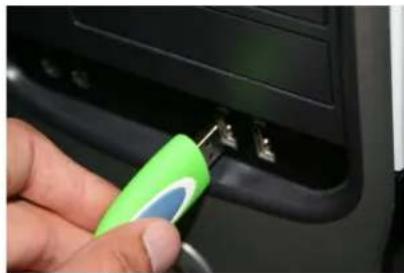
natural_image
Close-up of a hand inserting a green key into a black electronic device (no text or symbols visible)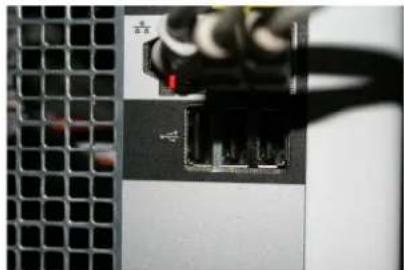
natural_image
Close-up of a server rack with an attached port and cable, no visible text or symbols1. LOCATING YOUR USB SLOT(S)
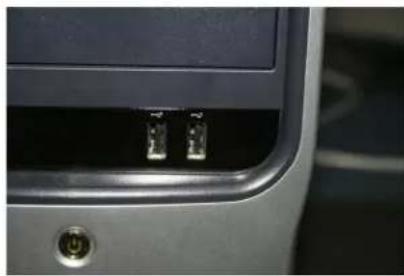
Most computers have USB slots on the front panel, while others may be located in the back of the machine. Occasionally, the front/external USB ports on some new computers are un-powered. If so, connecting instead to the ports on the back of the computer will usually solve the issue.
2. INSERT THE DRIVE INTO THE USB SLOT
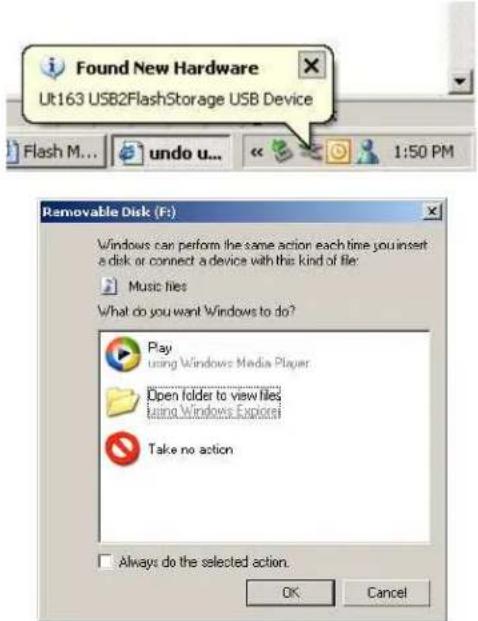
Most USB DataSticks have a removable cap which will reveal the USB drive, while others have a notch you must push up to expose the USB drive. Then simply plug your DataStick into the USB slot and your computer will recognize a device has been inserted. If your USB drive comes with drives, be sure to run the install disc to install the drives. Otherwise Windows will automatically recognize the device and you will be prompted to choose an action to take with the drive.
3. COPY FILES TO/FROM YOUR USB DATASTICK
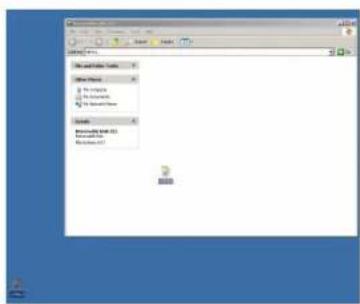
You can simply click on a file on your computer/desktop and drag it into the window of your DataStick. Just click on the file and hold down the left mouse button and drag it into the DataStick window (typically labeled "Removable Disk") using your mouse and let go of the left mouse button. The same can also be done with dragging files from your DataStick window to your computer/desktop.
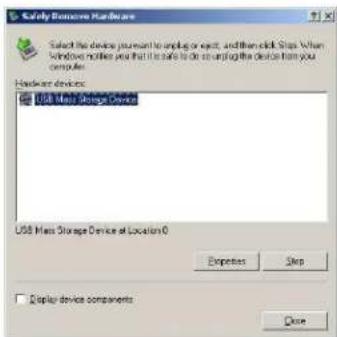
4. REMOVING YOUR USB DATASTICK
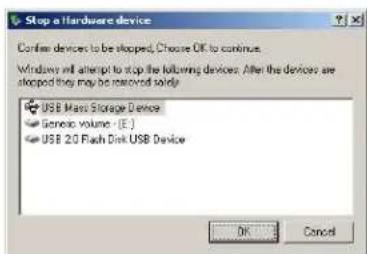
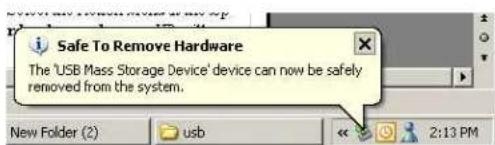
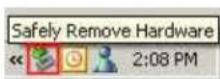
Simply click on the "Safely Remove Hardware" icon in the lower right corner of your Start Menu. A window will open up asking you which device you want to unplug. Click on "USB Mass Storage Device" and click on STOP. Then when prompted at the next window, click on "USB Mass Storage Device" and the click OK. In the lower right corner of your screen you will see a message confirming your USB DataStick is safe to remove.