
P3215-V - Sicherheitskamera AXIS - Kostenlose Bedienungsanleitung
Finden Sie kostenlos die Bedienungsanleitung des Geräts P3215-V AXIS als PDF.


| Produkttyp | Festkuppel-Netzwerkkamera |
| Marke | Axis |
| Modell | P3215-V |
| Bildsensor | Progressiver Scan RGB CMOS 1/2.8" |
| Objektiv | Varifokal 3,0–10,5 mm, F1.4, Fernfokus und -zoom, P-Iris, IR-korrigiert |
| Tag-/Nachtsicht | Automatisch entfernbarer IR-Sperrfilter |
| Minimale Beleuchtung | Farbe: 0,25 Lux, S/W: 0,05 Lux (F1.4) |
| Videokompression | H.264 (Baseline, Main, High Profile), Motion JPEG |
| Maximale Auflösung | 1920 × 1080 (Full HD) |
| Bildrate | Bis zu 25/30 fps (50/60 Hz) |
| Digitaler PTZ | Ja (Schwenken, Neigen, Zoomen) |
| Stromversorgung | Power over Ethernet (PoE) IEEE 802.3af/802.3at Typ 1 Klasse 2, max. 4,8 W, typ. 3,5 W |
| Gehäuse | Aluminium-Innenmodul mit Polycarbonat-Außengehäuse, IK08 schlagfest, IP42 staub- und spritzwassergeschützt |
| Abmessungen (B × H × T) | 101 × 149 × 149 mm |
| Gewicht | 550 g |
| Speicher | microSD/microSDHC/microSDXC (nicht im Lieferumfang), NAS-Unterstützung |
| Netzwerkanschluss | RJ45 10BASE-T/100BASE-TX mit PoE |
| Sicherheit | Passwortschutz, IP-Adressfilter, HTTPS-Verschlüsselung, IEEE 802.1X |
| Betriebstemperatur | 0 °C bis 50 °C |
| Reinigung und Wartung | Gehäuse mit trockenem Tuch reinigen; keine beweglichen Teile, die gewartet werden müssen; Batteriewechsel nur durch Fachpersonal |
| Ersatzteile und Reparierbarkeit | Interne CR2032-Batterie für Echtzeituhr; defekte Einheit muss durch Axis-Support ersetzt werden |
| Lieferumfang | Installationsanleitung, Windows-Decoder-Lizenz (1 Benutzer), Montagehalterung, Kabeldichtung, Widerstand, T20-Inbusschlüssel, Bohrschablone |
| Garantie | 3 Jahre |
Häufig gestellte Fragen - P3215-V AXIS
Benutzerfragen zu P3215-V AXIS
0 Frage zu diesem Gerät. Beantworten Sie die, die Sie kennen, oder stellen Sie Ihre eigene.
Eine neue Frage zu diesem Gerät stellen
Laden Sie die Anleitung für Ihr Sicherheitskamera kostenlos im PDF-Format! Finden Sie Ihr Handbuch P3215-V - AXIS und nehmen Sie Ihr elektronisches Gerät wieder in die Hand. Auf dieser Seite sind alle Dokumente veröffentlicht, die für die Verwendung Ihres Geräts notwendig sind. P3215-V von der Marke AXIS.
BEDIENUNGSANLEITUNG P3215-V AXIS
AXISP3215-VNetworkCamera
Aboutthisdocument
Thismanualisintendedforadministratorsandusersofthe AXISP3215-VFixedDomeNetworkCamera,andisapplicableto firmware6.10andlater.Itincludesinstructionsforusingandmanaging theproductonyournetwork.Previousexperienceofnetworking willbeofusewhenusingthisproduct.SomeknowledgeofUNIXor Linux-basedsystemsmayalsobebeneficial,fordevelopingshellscripts andapplications.Laterverersionsofthisdocumentwillbepostedtothe Axiswebsite,asrequired.Seealsotheproduct'sonlinehelp,available viatheweb-basedinterface.
LegalConsiderations
Videosurveillancecanberegulatedbylawsthatvaryfromcountryto country.Checkthelawsinyourlocalregionbeforeusingthisproduct forsurveillancepurposes.
Thisproductincludesone(1)H.264decoderlicense.Topurchase furtherlicenses,contactyourreseller.
Liability
Everycarehasbeentakeninthepreparationofthisdocument.Please informyourlocalAxisofficefanyinaccuraciesoromissions.Axis CommunicationsABcannotbeheldresponsibleforanytechnical or typographicalerrorsandreservestherighttomakechangestothe productandmanualswithoutpriornotice.AxisCommunicationsAB makesnowarrantyfanyakindwithregardtothematerialcontained withinthisdocument,including,butnotlimitedto,theimplied warrantiesofmerchantabilityandfitnessforaparticularpurpose.Axis CommunicationsABshallnotbeliablenorresponsibleforincidental or consequentialdamagesinconnectionwiththefurnishing,performance oruseofthismaterial.Thisproductisonlytobeusedforitsintended purpose.
IntellectualPropertyRights
AxisABhasintellectualpropertyrightsrelatingtotechnologyembodied intheproductdescribedinthisdocument.Inparticular,andwithout limitation,theseintellectualpropertyrightsmayincludeoneormore ofthepatentslistedatwww.axis.com/patent.htmandoneormore additionalpatentsorpendingpatentapplicationsintheUSandother countries.
Thisproductcontainslicensedthird-partysoftware.Seethemenuitem "About"intheproduct'suserinterfaceformoreinformation.
ThisproductcontainssourcecodecopyrightAppleComputer, Inc.,underthetermsofApplePublicSourceLicense2.0(see www.opensource.apple.com/apsl).Thesourcecodeisavailablefrom https://developer.apple.com/bonjour/
EquipmentModifications
This equipment must be installed and used in strict accordance with the instructions given in the user documentation. This equipment contains nouser-serviceable components. Unauthorized equipment changes or modifications will invalidate all applicable regulatory certifications and approvals.
TrademarkAcknowledgments
AXISCOMMUNICATIONS, AXIS, ETRAX, ARTPEC and VAPIX are registered trademarks to trademark applications of Axis AB in various jurisdictions. All other company names and products are trademarks or registered trademarks of their respective companies.
Apple,Boa,Apache,Bonjour,Ethernet,InternetExplorer,Linux,Microsoft,Mozilla,Real,SMPTE,QuickTime,UNIX,Windows,Windows VistaandWWWareregisteredtrademarksoftherespectiveholders. JavaandallJava-basedtrademarksandlogosaretrademarkor registeredtrademarksofOracleand/oritsaffiliates.UPnP ^TM ia certificationmarkoftheUPnP ^TM ImplementersCorporation. SD,SDHCandSDXCaretrademarksorregisteredtrademarksofSD-3C,LLCintheUnitedStates,othercountriesorboth.Also,miniSD,microSD, miniSDHC,microSDHC,microSDXCarealltrademarksorregistered trademarksofSD-3C,LLCintheUnitedStates,othercountriesorboth.
RegulatoryInformation
Europe

ThisproductcomplieswiththeapplicableCEmarkingdirectives andharmonizedstandards:
- Electromagnetic Compatibility (EMC) Directive 2014/30/EU. See Electromagnetic Compatibility (EMC) on page 2.
LowVoltage(LVD)Directive2014/35/EUSeSafetyorpag8
- Restrictions of Hazardous Substances (RoHS) Directive 201 1/65/EU. See Disposal and Recycling on page 3. Acopy of the original declaration of conformity may be obtained from Axis Communications AB. See Contact Information on page 3.
Electromagnetic Compatibility(EMC)
This equipment has been designed and tested to fulfill applicable standards for:
- Radiofrequencyemissionwheninstalledaccordingtothe instructionsandusedinitsintendedenvironment.
- Immunitytoelectricalandelectromagneticphenomenawhen installedaccordingtotheinstructionsandusedinitsintended environment.
USA
Usinganunshieldednetworkcable(UTP)—Thisequipmenthas beentestedusinganunshieldednetworkcable(UTP)andfoundto complywiththelimitsforaClassAdigitaldevice,pursuantopart 15oftheFCCRules.Theselimisaredesignedtoprovidereasonable protectionagainstharmfulinterferencewhentheequipmentis operatedinacommercialenvironment.Thisequipmentgenerates, uses,andcanradiatoradiofrequencyenergyand,ifnotinstalledand usedinaccordancewiththeinstructionmanual,maycauseharmful interferencetoradiocommunications.Operationofthisequipmentina residentialareaislikelytocauseharmfulinterferenceinwhichcase theuserwillberequiredtocorrecttheinterferenceathisownexpense.
Usingashieldednetworkcable(STP)—Thisequipmenthasalso beentestedusingashieldednetworkcable(STP)andfoundtocomply withthelimitsforaClassBdigitaldevice,pursuanttopart15ofthe FCCRules.Theselimitsaredesignedtoprovidereasonableprotection againstharmfulinterferenceinaresidentialinstallation.This equipmentgenerates,usesandcanradiateradiofrequencyenergyand,ifnotinstalledandusedinaccordancewiththeinstructions,maycause harmfulinterferencetoradiocommunications.However,thereisno guaranteeethatinterferencewillnotoccurinaparticularinstallation.If thisequipmentdoescauseharmfulinterferencetoradioortelevision reception,whichcanbedeterminedbyturningtheequipmentoffand on,theuserisencouragedtotrytocorrecttheinterferencebyoneor moreofthefollowingmeasures:
•Reorientorrelocatethereceivingantenna.
- Increase these separation between the equipment and receiver. - Connect the equipment into an outlet on a circuit different from that which there receiver is connected.
- Consultthedealeroranexperiencedradio/TVtechnicianforhelp. Tobeusedinaresidentialareaorademandingelectricalenvironment, theproductshallbeconnectedusingashieldednetworkcable(STP) thatisproperlygrounded.
Canada
ThisdigitalapparatuscomplieswithCANICES-3(ClassB).Theproduct shallbeconnectedusingashieldednetworkcable(STP)thatis properlygrounded.CetappareilnumériqueestconformeàlanormeCANNMB-3(classB).Leproduitdoîtêtreconnectéal'aided'uncâble réseaublindé(STP)quiestcorrectementmisàlaterre.
Europe
This digitalequipmentfulfillstherequirementsforRFemission according to the ClassBlimitofEN55022. Theproduct shall be connected usingashieldednetworkcable(STP) that is properly grounded.
Thisproductfulfillstherequirementsforemissionandimmunity according to EN50121-4 and EC62236-4 railway applications. Thisproductfulfillstherequirementsforimmunity according to EN61000-6-1 residential, commercial and light-industrial environments.
Thisproductfulfillstherequirementsforimmunityaccordingto EN55024officeandcommercialenvironments.
Australia/NewZealand
This digitalequipmentfulfillstherequirementsforRFemission according to the ClassBlimitofAS/NZSCISPR22. The product shall be connected using ashieldednetworkable(STP) that is properly grounded.
Japan
この装置は、クラスB情報技術装置です。この装置は、家庭環境で使用することを目的としていますが、この装置がラジオやテレビジョン受信機に近接して使用されると、受信障害を引き起こすことがあります。取扱説明書に従って正しい取り扱いをして下さい。本製品は、シールドネットワークケーブル(STP)を使用して接続してください。また適切に接地してください。
Korea
이기기는가정용(B급)전자파적합기기로서주로가정에서사용하는것을목적으로하며,모든지역에서사용할수있습니다.적절히접지된STP(shieldedtwistedpair)케이블을사용하여제품을연결하십시오.
Safety
ThisproductcomplieswithIEC/EN/UL60950-1,SafetyofInformation TechnologyEquipment.Ifitsconnectingcablesareroutedoutdoors, theproductshallbegroundedeitherthroughshieldednetworkcable (STP)orotherappropriatemethod.
Battery
TheAxisproductusesa3.0VCR2032lithiumbatteryasthepower supplyforitsinternalreal-timeclock(RTC).Undernormalconditions thisbatterywilllastforaminimumoffiveyears.
LowbatterypoweraffectstheoperationoftheRTC,causingittoresetateverypower-up.Whenthebatterynneedsreplacing,alogmessagewillappearintheproduct'sserverreport.Formoreinformationabouttheserverreport,seetheproduct'ssetuppagesorcontactAxissupport.
The battery should not bereplaced unless required, but if the battery does need replacing, contact Axissupport at www-axis.com/techsupfor assistance.
Lithiumcoincell3.0Vbatteriescontain1,2-dimethoxyethane;ethylene glycoldimethylether(EGDME),CASno.110-71-4.
WARNING
- Riskofexplosionifthebatteryisincorrectlyreplaced.
- Replaceonlywithanidenticalbatteryorabatterywhichis recommendedbyAxis.
- Disposeofusedbatteriesaccordingtolocalregulationsor thebatterymanufacturer'sinstructions.
DisposalandRecycling
Whenthisproducthasreachedtheendofitsusefullife,disposeof itaccordingtolocallawsandregulations.Forinformationabout yournearestdesignatedcollectionpoint,contactyourlocalauthority responsibleforwastedisposal.Inaccordancewithlocallegislation, penaltiesmaybeapplicableforincorrectdisposalofthiswaste.
Europe

Thissymbolmeansthattheproductshallnotbedisposedof togetherwithhouseholdorcommercialwaste.Directive2012/19/EU onwasteelectricalandelectronicnequipment(WEEE)isapplicablein theEuropeanUnionmemberstates.Topreventpotentialharmto humanhealthandtheenvironment,theproductmustbedisposed ofinanapprovedandenvironmentallysaferecyclingprocess.For informationaboutyournearestdesignatedcollectionpoint,contact yourlocalauthorityresponsibleforwastedisposal.Businessesshould contacttheproductsupplierforinformationabouthowtodispose ofthisproductcorrectly.
ThisproductcomplieswiththerequirementsofDirective2011/65/EUon therestrictionoftheuseofcertainhazardoussubstancesinelectrical andelectronicequipment(RoHS).
China

Thisproductcomplieswiththerequirementsofthelegislative actAdministrationontheControlofPollutionCausedbyElectronic InformationProducts(ACPEIP).
ContactInformation
AxisCommunicationsAB
Emdalavägen14
22369Lund
Sweden
Tel:+46462721800
Fax:+4646136130
www.axis.com
Support
Should you require any technical assistance, please contact your Axis reseller. If your questions cannot be answered immediately, your reseller will forward your queries through the appropriate channel to ensure rapid response. If you are connected to the Internet, you can:
- downloaduserdocumentationandsoftwareupdates
•findanswerstoresolvedproblemsintheFAQdatabase.Search byproduct, category, orphrase
• reportproblemstoAxissupportstaffbyloggingintoyourprivate supportarea - chatwithAxissupportstaff
- visitAxisSupportatwww.axis.com/techsup/
LearnMore!
VisitAxislearningcenterwww.axis.com/academy/forusefultrainings, webinars,tutorialsandguides.
SafetyInformation....6
HazardLevels....6
OtherMessageLevels......6
HardwareOverview....7
ConnectorsandButtons....7
LEDIndicators......8
AccesstheProduct....9
AccessfromaBrowser....9
AccessfromtheInternet....9
SettheRootPassword....10
CameraOrientation....10
SetPowerLineFrequency....10
TheLiveViewPage....1 1
MediaStreams
HowtoStreamH.264....13
MJPEG....13
AXISMediaControl(AMC)....13
AlternativeMethodsofAccessingtheVideoStream....14
SetUptheProduct....15
BasicSetup....15
Setfocusandzoom....15
Video....16
SetUpVideoStreams....16
StreamProfiles....18
ONVIFMediaProfiles....18
CameraSettings....18
ViewArea....20
Aboutoverlays....20
PrivacyMask....22
Configure the liveViewPage
PTZ(PanTiltZoom)....25
PresetPositions....25
GuardTour....25
Advanced....26
ControlQueue....26
Detectors....27
CameraTampering....27
Applications
ApplicationLicenses......28
UploadApplication....28
ApplicationConsiderations....28
AXIS/idedMotionDetection
Considerations....30
StartandStoptheApplication....30
ConfigureApplication....30
UsingtheApplicationinanActionRule....33
Events....35
SetUpActionRules....35
Add Recipients....37
CreateSchedules....38
SetUpRecurrences....39
Recordings....40
FindRecordings....40
PlayRecording....40
ExportVideoClip....41
ContinuousRecording....41
Languages....42
SystemOptions....43
Security....43
Date&Time....45
Network......46
TableofContents
Storage....51
Maintenance....53
Support....54
Advanced....54
ResettoFactoryDefaultSettings....55
Troubleshooting....56
ChecktheFirmware....56
UpgradetheFirmware....56
Symptoms, Possible Causes and Remedial Actions....57
TechnicalSpecifications....59
PerformanceConsiderations....61
SafetyInformation
HazardLevels
DANGER
Indicatesahazardoussituationwhich,ifnotavoided,willresultindeathorseriousinjury.
⚠ WARNING
Indicatesahazardoussituationwhich,ifnotavoided,couldresultindeathorseriousinjury.
CAUTION
Indicatesahazardoussituationwhich,ifnotavoided,couldresultinminorormoderateinjury.
NOTICE
Indicatesasituationwhich,ifnotavoided,couldresultindamagetoproperty.
OtherMessageLevels
Important
Indicatessignificantinformationwhichisessentialfortheproducttofunctioncorrectly.
Note
Indicatesusefulinformationwhichhelpsingettingthemostoutoftheproduct.
HardwareOverview
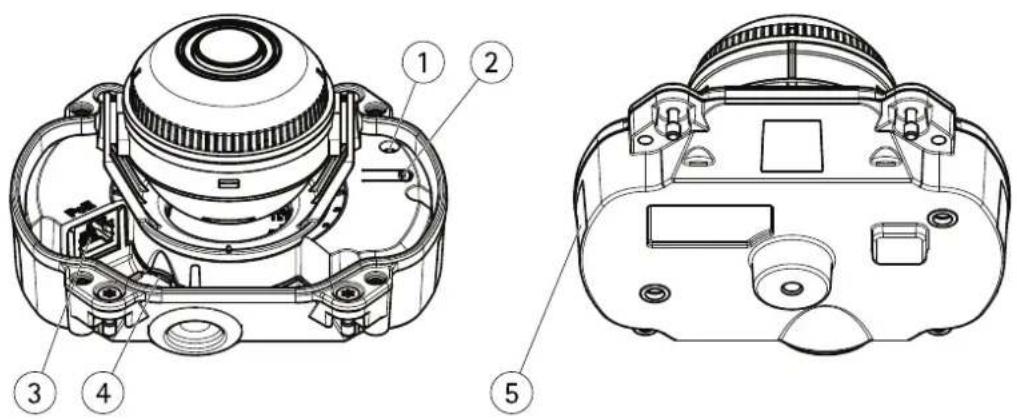
1 StatusLEDindicator
2 Controlbutton
3 Networkconnector(PoE)
4 SDmemorycardslot
5 Partnumber(P/N)&Serialnumber(S/N)
ConnectorsandButtons
Fortechnicalspecifications,seepage59.
NetworkConnector
RJ45EthernetconnectorwithPoweroverEthernet(PoE).
NOTICE
Duetolocalregulationsortheenvironmentalandelectricalconditionsinwhichtheproductistobeused,ashieldednetwork cable(STP)maybeappropriateorrequired.Allcablesconnectingtheproducttotherenetworkandthatareroutedoutdoors orindemandingelectricalenvironmentsshallbeintendedfortheirspecificuse.Makesurethatthenetworkdevices areinstalledinaccordancewiththemanufacturer'sinstructions.Forinformationaboutregulatoryrequirements,see ElectromagneticCompatibility(EMC)onpage2.
SDCardSlot
NOTICE
- Riskofdamage to SDcard. Donotuses harptools, metal objects are excessive force when inserting or removing the SDcard. Use your fingersto insert and remove the card.
- Riskofdatalossandcorruptedrecordings.DonotremovetheSDcardwhiletheproductisrunning.Disconnectpoweror unmounttheSDcardfromtheAxisproduct'swebpagesbeforeremoval.
ThisproductsupportsmicroSD/microSDHC/microSDXCcards(notincluded).
ForSDcardrecommendations,seewww.axis.com
ControlButton
Forlocationofthecontrolbutton,seeHardwareOverviewonpage7.
Thecontrolbuttonisusedfor:
- Resetting the product to factory default settings. See page 55.
Connecting an AXIS/ided Hosting Systems Service Page 4.1 connect press and hold the button for about seconds until the Status LED flashes green.
ConnectingoAXlInterneDynamidDNServiceSepage47connectpressandholdhdbuttorfonaboußseconds.
LEDIndicators
| StatusLED | Indication |
| Unlit | Connectionandnormaloperation. |
| GreenShowssteadygreenfor10s | secondsfornormaloperationafterstartupcompleted. |
| Amber | Steadyduringstartup.Flashesduringfirmwareupgrade. |
| Amber/RedFlashesamber/redifnetworkconnectionisunavailableorlost. | |
| RedFlashesredforfirmwareupgradedefailure. | |
AccesstheProduct
ToinstalltheAxisproduct,seetheInstallationGuidesuppliedwiththeproduct.
Theproductcanbeusedwithmostoperatingsystemsandbrowsers.Werecommendthefollowingbrowsers:
- InternetExplorer ^® withWindows ^®
- Safari ^ withOSX ^
- Chrome TM orFirefox® withotheroperatingsystems.
ToviewstreamingvideoinInternetExplorer,allowinstallationofAXISMediaControl(AMC)whenprompted.
TheAxisproductincludesone(1)H.264decoderlicenseforviewingvideostreams. ThelicenseisautomaticallyinstalledwithAMC. Theadministratorcandisabletheinstallationofthedecoderstoppreventinstallationofunlicensedcopies.
Note
- QuickTime ^TM is also supported for viewing H.264 streams.
AccessfromaBrowser
1.Startawebbrowser.
2.EntertheIPaddressorhostnameoftheAxisproductinthebrowser'sLocation/Addressfield.
ToaccesstheproductfromaMaccomputer(OSX),gotoSafari,clickonBonjourandselecttheproductfromthe drop-downlist.
If you donot know the I paddress, use AXISIP Utility to locate the product on thenetwork. For information about how to discover and assign I paddress, the document Assign I P Address and Access the video Stream or Axis Support web at www.axis.com/techsup
Note
ToshowBonjourasabrowserbookmark, gotoSafari>Preferences.
- Enteryourusernameandpassword.Ifthisisthefirsttimetheproductisaccessed,therootpasswordmustfirstbe configured.Forinstructions,seeSettheRootPasswordonpage10.
- The product'sLiveViewpageopensinyourbrowser.
Note
The controls and layout of the liveView page may have been customized to meet specific installation requirements and user preferences. Consequently, some of the examples and functions featured her may differ from those displayed in your own live view page.
Accessfromthelnternet
Onceconnected,theAxisproductisaccessibleonyourlocalnetwork(LAN).ToaccesstheproductfromtheInternetyoumust configureyournetworkroutertoallowincomingdatatrafficctotheproduct.Todothis,enabletheNAT-traversalfeature,which wilattemptautomaticallyconfiguretheroutetallowaccesstheproductThisenabledronSetupSystemOptions>Network>TCP/IPAdvanced.
FomoreinformationedNATraversa(portmappingforPv4orpage4SeAlsoAXISnterneDynamidDNServicat www.axiscam.net
ForTechnicalnotesonthisandothertopics,visittheAxisSupportwebatwww.axis.com/techsup
SettheRootPassword
Taccess the Axi product you must the password for the default administrator user or this is longer than the Configure Root Passworddialog, which opens when the product is accessed for the first time.
Topreventnetworkeavesdropping,therootpasswordcanbesetviaanencryptedHTTPSconnection,whichrequiresanHTTPS certificate. HTTPS(HypertextTransferProtocoloverSSL)isaprotocolusedtoencrypttrafficbetweenwebbrowsersandservers.The HTTPscertificateensuresencryptedexchangeofinformation.SeeHTTPSonpage44.
The default administrator usenameroortpermanent and cannot be deleted the password for root post the product must be reset which factory default setting See Reset Factor Default Settings page 55.
TosetthepasswordviaastandardHTTPconnection,enteritdirectlyinthedialog.
TosetthepasswordviaanencryptedHTTPSconnection,followthesesteps:
- ClickUseHTTPS.
A temporary certificate(validforoneyear)iscreated,enabling encryptionofalltraffictoandfromtheproduct,andthe passwordcannowbesetsecurely.
2.Enterapasswordandthenre-enterittoconfirmthespelling.
3.ClickOK.Thepasswordhasnowbeenconfigured.
CameraOrientation
ThisettingsdefinedthfirstimethoproductsaccessedDependingprhowtheAxisproductinstalledselectceilingwall
Tochangethesesettings, the product must be restored to the original factory default settings. To restore restore the product, goto SetupSystemOptionsMaintenanceProduct's webpages. For information about these and restored Maintenance page 53.

Camera Orientation
How is this camera mounted?


OK
This camera works differently depending on if it is wall mounted or ceiling mounted. Make sure to select the correct camera orientation before saving.
SetPowerLineFrequency
PowelinfrequencysetfirstimtheAxiproductaccessedandaronlychangedronPlainConfig(sepage55) orbyresettingtheproducttofactorydefault.
Selectthepowerlinefrequency(50Hzor60Hz)usedatthelocationoftheAxisproduct.Selectingthewrongfrequencymaycause imageflickeriftheproductisusedinfluorescentlightenvironments.
Whenusing50Hz, themaximumframerateislimitedto25fps.
Note
Powerlinefrequencyvariesdependingongeographicregion.TheAmericasusuallyuse60Hz,whereasmostotherpartsoftheworlduse50Hz.Localvariationscouldapply.Alwayscheckwiththelocalauthorities.
TheLiveViewPage
The controls and layout of the liveView pagemay have been customized to meet specific installation requirements and user preferences. Consequently, some of the examples and functions featured her may differ from those displayed in your own live view page. The following provides an overview of each available control.
ControlsontheLiveViewPage

Click the viewsize button to show the imageful size (right button) to scale down the image to fit the browser window (left button).
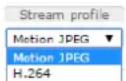
SelectstreamprofileofthLiveViewpagfromhStreamProfiledrop-downlistEoinformation abouthowtoconfigurestreamprofiles,see page 18.

The ManualTriggerbutton is used to trigger an action rule from the Live View page. Information about how to configure and enable the button, see ManualTrigger on page 1.

ClickSnapshotsav snapshotthe videoimage this button primarily intended for when the AXISMediaControlviewertoolbarisnotavailable. Enable this button fromLiveViewConfig> ActionButtons.
ManualTrigger
The ManualTriggerusedTriggeraction rule from the LiveViewpage. The manual trigger can be used to validate actions during product installation and configuration.
Toconfigurethemanualtrigger:
1.GotoSetup>Events.
2.ClickAddtoaddanewactionrule.
BonthTriggedrop-downlistselectnpuSignal.
- From these second drop-downlist, select Manual Trigger.
- Select the desired action and configure the other settings as required.
Formoreinformationaboutactionrules,seeEventsonpage35.
ToshowthemanualtriggerbuttonsintheLiveViewpage:
1.GotoSetup>LiveViewConfig.
2ndeActionButtonsselecShowmanuatriggebutton.
AXISMediaControlviewertoolbar
TheAXISMediaControlviewetoolbaisavailableInterneExploreonlySeeAXISMediaControl(AMC)prpage1fromore information.Thetoolbardisplaysthefollowingbuttons:

ThePlaybuttonconnectstotheAxisproductandstartsplayingamediastream.

TheStopbuttonstopsthemediastream.

TheSnapshotbuttontakesasnapshotofthevideoimage.

ClickhViewFulScreenbuttonandtheimagewilfilthentirescreenPresESC(Escape)thcomputer keyboardtocancelfullscreenview.

The Recordbuttonisused record the current video stream any you computer The location where the recordings saved carb specified the AMControlPane Enable the button from LiveViewConfigViewSettings.
PTZControls
Note
These controls are available if glitaPTZ enabled the selected view areased/viewAreorpage20.
With the PTZ control queue enabled the time each user is controlled by the PTZ setting limited click buttons request release control of the PTZ control the PTZ control queue setup under PTZ control queue.

Click the Emulate joystick mode button and click the image to move the camera view in the direction of the mousepointer.

Click the Centemode button and click the image to cent the camera view that position.
Thecentermodebuttoncouldalsobeusedtozoominonaspecificarea.Clickintheimageanddragtodrawa rectanglesurroundingtheareatobemagnified.Tozoomout,rotatethemousewheel.
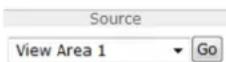
Toviewaspecificviewareaorpresetposition,selectitfromtheSourceList.
ParandTilbarsUsdharrowspanandiltheamereviewoclicorpositionrthbatsteethameraviewto thatposition.
Zoombar-Usethearrowstozoominandout,orclickonapositiononthebartozoomtothatposition.
Clicking Zoom out to overview image will set the camera at the minimum zoom position, this position the camera cannot panortilt. Zoom out to overview image
The PTZ control can be disabled under PTZ Advanced Controlssee Control or page 26.
MediaStreams
TheAxisproductprovidesseveralvideostreamformats.Yourrequirementsandthepropertiesofyournetworkwilldeterminethetypeyouuse.
TheLiveViewpageintheproductprovidesaccesstoH.264andMotionJPEGvideostreams,andtothelistofavailablestream profiles.Otherapplicationsandclientscanaccessvideostreamsdirectly,withoutgoingviatheLiveViewpage.
HowtoStreamH.264
H.264can, without compromising image quality, reduce the size of a digital video file by more than 80% compared with the Motion JPEG format and as much as 50% more than the MPEG-4 standard. This means that much less network bandwidth and storage space are required for a video file. Or seen another way, much higher video quality can be achieved for a given bitrate.
Deciding which combination of protocols and method stoused depends on your viewing requirements, and the properties of your network. The available options in AXIS Media Control are:
| UnicastRTP | Thisunicastmethod(RTPoverUDP)isused forliveunicastvideo,especiallywhenitis importanttohaveanup-to-datevideostream, evenifsomeframesaredropped. | Unicastingisusedforvideo-on-demand transmissionsothatthereisnovideotraffic onthenetworkuntilaclientconnectsand requeststhestream.Notethatthereareamaximumof20 simultaneousunicastconnections. |
| RTPoverRTSP | Thisunicastmethod(RTPtunneledoverRTSP) isusefulasitisrelativelysimpletoconfigure firewallstoallowRTSPtraffic. | |
| RTPoverRTSPoverHTTP | Thisunicastmethodcanbeusedtotraverse firewalls.Firewallsarecommonlyconfiguredto allowtheHTTPprotocol,thusallowingRTPto betunneled. | |
| MulticastRTP | Thismethod(RTPoverUDP)shouldbeusedforlivemulticastvideo.Thevideostreamisalways up-to-date,evenifsomeframesaredropped.Multicastingprovidesthemostefficientusageofbandwidthwhentherearelargenumbersof clientsviewingsimultaneously.Amulticastcannothowever,passanetworkrouterunlessthe routerisconfiguredtoallowthis.ItisnotpossibletomulticastovertheInternet,forexample.Notealsothatallmulticastviewerscountasoneunicastviewerinthemaximumtotalof20 simultaneousconnections. | |
AXISMediaControlnegotiateswiththeAxisproducttodeterminethetransportprotocoltouse.Theorderofpriority,listedintheAMCControlPanel,canbechangedandtheoptionsdisabled,tosuitspecificrequirements.
Note
H.264islicensedtechnology.TheAxisproductincludesoneH.264viewingclientlicense.Installingadditionalunlicensed copiesoftheclientisprohibited.Topurchaseadditionallicenses,contactyourAxisreseller.
MJPEG
This formatusesstandardJPEGstillimagesforthevideostream. These images are then displayed and updated at a ratesufficient to create stream that shows constantly updated motion.
TheMotionJPEGstreamusesconsiderableamountsofbandwidth,butprovidesexcellentimagequalityandaccesstoeveryimage containedinthestream.TherecommendedmethodofaccessingMotionJPEGlivevideofromtheAxisproductistousetheAXISMediaControlInInternetExplorerinWindows.
AXISMediaControl(AMC)
AXISMediaControl(AMC)inInternetExplorerinWindowsistherecommendedmethodofaccessinglivevideofromtheAxisproduct.
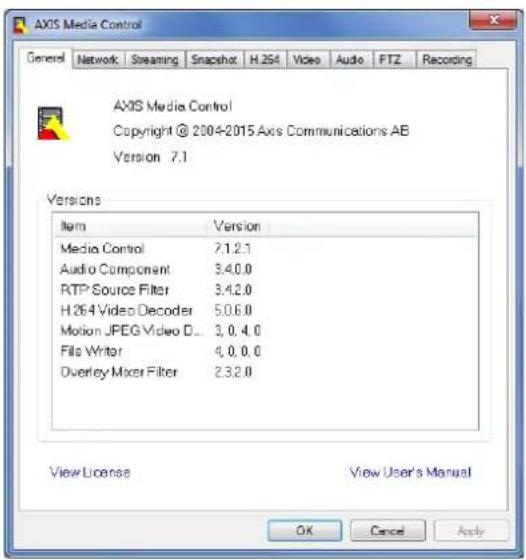
TheAMCControlPanelcanbeusedtoconfigurevariousvideosettings.PleaseeseetheAXISMediaControlUser'sManualformore information.
TheAMCControlPanelisautomaticallyinstalledonfirstuse,afterwhichitcanbeconfigured.OpentheAMCControlPanelfrom:
- WindowsControlPanel(fromtheStartscreenorStartmenu)
Alternatively right-click the video image Interne Explore and click Settings.
AlternativeMethodsofAccessingtheVideoStream
YoucanalsoaccessvideoandimagesfromtheAxisproductinthefollowingways:
MotiodPEGervepush(ifupported the client Chromo Firefoxfor example) This option maintains a proper HTTP connection to the browser and sends data as and when required, for as long as required.
Window Media Player This requires AXIS Media Control and the 264 decoder installed. The following paths can be used:
- QuickTime TM. The following pathscanbeused:
Note
=IPaddress
•TheAxisproductsupportsQuickTime6.5.1andlater.- QuickTimemayaddlatencytothevideostream.
- It maybe possible to use other player to view the H.264 stream using the paths above, although Axis does not guarantee this.
SetUptheProduct
The Axproduct are configured by users with administrator operator rights to the product's setup pages, including the copyright-hand corner of the Live View page.
- Administratorshaveunrestrictedaccesstoallsettings.
Operator have restricted access settings used on page 43
Seealsotheonlinehelp

BasicSetup
BasicSetupprovidesshortcutstothesettingsthatshouldbemadebeforeusingtheAxisproduct:
1.Users.Seepage43.
2.TCP/IP.Seepage46.
3. Date&Time.Seepage45.
4.VideoStream.Seepage16.
5.Focus&Zoom.See page 15.
TheBasicSetupmenucanbedisabledfromSystemOptions>Security>Users.
Setfocusandzoom
- Install the camera as described in the Installation Guide.
@VideoFocusoom.
OrthBasicabsethezoomevelusinghølider.
Clicktheobuttortomovthezoompositiononstep.
Clickthe
Note
Movementsinfrontofthecamerashouldbeavoidedwhenperformingautofocus.
4.ClickPerformautofocus.
5. If the autofocus was not satisfying, goto the Advanced tab.
OntheAdvancedtab, focuscanbeadjustedmanually:
ClickOpenrisopertherisotsmaximumpositionThisgiveshsmallestlepthofieldanprovideshbest conditionsforfocusing.
- FocusissetintheFocuswindow. Usethemousetomoveandresizethefocuswindow.
3.ClickintheFocuspositionbartofocusonadesiredlocation.
Clicktheorbuttonmovthfocuspositiononstep.
Clickthe
- Whensatisfied, clickEnableiristoenabletheiris.
Video
ItispossibletoconfigurethefollowingvideofeaturesinyourAxisproduct:
•Videostream.See page 16.
- Streamprofiles.See page 18.
•ONVIFMediaProfiles.Seepage18.
- Camerasettings.See page 18.
•Viewareas.Seepage20.
•Overlayimage.Seepage20.
- Privacymask.Seepage22.
- Focusandzoom.See page 15.
SetUpVideoStreams
Toetuphproduct'sideestreamsgdVideoVideStream.
Thevideostreamsettingsaredividedintothefollowingtabs:
- Image.Seepage16.
•H.264.Seepage17. - MJPEG.Seepage17.
PixelCounter
Thepixelcountershowsthenumberofpixelsinanareaoftheimage. Thepixelcounterisusefulinsituationswherethereis aspecificsizerequirement,forexampleinfacerecognition.
Thepixelcountercanbeused:
When setting a video stream setup, video streams or page 1. UndePreview clic Open and select this show pixel counterption enable the rectangle in the image Us thermous domov and size the rectangle pent the number pixels in Width and height fields and clic Apply.
When setting focus see Set focus and zoom or page SelectShowpixel counter option enable the rectangle in themageUse themouse to move and desize the rectangle pentethumber pixels in the Width and Height fields and click Apply.
- When accessing theLiveViewpageinInternetExplorerwithAXISMediaControl(AMC)inWindows.Right-clickinthe imageandselectPixelcounter.Usethemousetomoveandresizetherectangle.
Image
ThedefaultmagsettingscarbeconfiguredundevideoVideStreamSelectdImagtab.
The followingsettingsareavailable:
- Resolution.Selectthedefaultresolution.
CompressionThe compressionlevel affects the image quality bandwidth and file size of saved images through the compression, the higher the image quality with higher bandwidth requirements and larger file sizes.
- Mirrorimage.lfrequired, theimagecanbemirrored.
- Rotateimage.lfrequired, theimagecanberotated.
Maximunframeate avoid bandwidth problems the frameat allowed each viewer can be limited to fixed amount Alternatively the frameat car base at Unlimited which means the Axis product always delivers the highest framerate possible under the current conditions.
OverlayettingSeeAboutoverlaytextpage20.
ClickSavetoapplythenewsettings.
H.264
H.264,alsoknownasMPEG-4Part10/AVC,isavideocompressionstandardthatprovideshighqualityvideostreamsatlowbitrates. AnH.264videostreamconsistsofdifferenttypesofframessuchasl-framesandP-frames.Anl-frameisacompleteimagewhereas P-framesonlycontainthedifferencesfrompreviousframes.
The H.264streamsettings are configured from the Video Video Streampage Select the H.264 tab The settings defined this pagewill apply to all H.264stream that donotuse a stream profile.
The GOPength the number frames between two consecutive frames Increasing the GOPength may have considerably on bandwidth requirements in some cases, but may also have an adverse effect on image quality.
TheAxisproductsupportsthefollowingH.264profile(s):
BaselineTheBaselineprofileRecommendedforclientsthation'supportCABACentropycoding.
MainTheMairprofilprovideshighercompressionwithmaintainedvidequalitycomparedtheBaselineprofilbut requiresmoreprocessingpowertodecode.
Thebitateaibeta5Variablebitate(VBR)Maximunbitate(MBR)VBRadjustthebitateaccordingtheimage complexity,usingupmorebandwidthforincreasedactivityintheimage,andlessforlowerimageactivity.Whentheactivityin thesceneincreases,thebitratewouldusuallyincreaseaswell.Ifthereisasurplusinbandwidth,thismaynotbeanissueand selectingVariablebitate(VBR)wilb sufficientButbandwidthlimiteditrecommendedcontrothbitatobselectingMaximunbitate(MBR)WhertheactivitythecencreasesVBRadjustthebitataccordingthecomplexityusingup morebandwidthforincreasedactivityinthescene,andlessforlowersceneactivity.MBRallowsyoutosetatargetbitratethat limitsthebandwidthconsumption.
TheMBRtargetbitrateworksliketheceilingofatent.Itlimitsthebitrate,whilemaintainingsomeflexibility.Thebitrate maybounceupanddownwithinthesettargetbutwhenitnearsthesettargetvalue,thelimitationkicksin.However,because MBRwillalwaysprioritizeacontinuousvideostream,itallowstemporaryovershootsfromthetargetbitrate.Becausesettinga targetvaluepreventsthebitratefromincreasing,framerateandimagequalityareaffectednegatively.Topartlycompensatefor this,selectwhichvariableshallbeprioritized,framerateorimagequality.Notsettingaprioritymeansthatframerateand imagequalityareequallyaffected.
The current coordinate set appears to overlay UndeOverlay Settings, select include text and the t h modifier #binthefield.
Toapplythesettings,clickSave.
MJPEG
Sometimes the imagesize is large duolow light or complex scenery. Adjusting them a maximum framesize help to control the bandwidth and storage used by the Motion PEG video stream in these situations. Setting the framesize default setting provides consistently good image quality at the expense of increased bandwidth and storage usage in low light. Limiting the frame size optimizes bandwidth and storage usage, but may give poor image quality. Toprevent increased bandwidth and storage usage, the maximum framesizes should be set to an optimal value.
StreamProfiles
Astreamprofileisasetofpredefinedstreamsettingsincludingresolution,compression,framerateandoverlaysettings.Stream profilescanbeused:
- Whensettinguprecordingusingactionrules.SeeEventsonpage35.
- Whensettingupcontinuousrecording.SeeContinuousRecordingonpage41.
In the live view pages select the stream profile from the Stream profile drop-down list.
For quick setup, use one of the predefined stream profiles. Each predefined profile has a descriptiven name, indicating its purpose. If required, the predefined stream profile is can be modified and new customized stream profiles can be created.
To create new profile to modify existing profile to Setup VideoStreamProfiles.
To select default stream profile for the live/view page and Setup Live View Config.
ONVIFMediaProfiles
AnONVIFmediaprofileconsistsofasetofconfigurationsthatcanbeusedtochangemediastreamsettings.ONVIFmediaprofiles canbesetthroughtheONVIFMediaProfileSettingspageandbeusedbyaclienttoconfiguremediastreamproperties.
The ONVIMediaProfilepagedistalsuchpre-configureprofile. These profiles cannot be removed. Pre-configured media profiles have been included in the product for quick setup. It is also possible to configure new ONVIMedia profile as per required specifications. To add new ONVIMedia profile click Add and then the required information You can also modify remove profile from this page.
CameraSettings
The Video Camer Setting page provides access to advanced image settings for the Axi product.
ImageAppearance
TochangemagAppearance@dthemenusindeSetupVideoCameraSettings.
Increasing the Colorevel Increase the colosaturation The value 0 gives maximum colosaturation and the value gives minimum colorsaturation.
Thimag Brightness arbe adjusted the range 0–100 where highewalu produces brighte image.
Increasing h Sharpness can increase bandwidth usage sharper image might increase image noises especially now light conditions. Alowersetting reduces image noise, but the whole image will appear less sharp.
The ContrastangestrelativdifferencbteweerlightandarktcaradjustedusingtheSlidebar.
WhiteBalance
TochangethissettngotoSetup>Video>CameraSettings
Whitebalanceisusedtomakecolorsintheimageappearthesameregardlessofthecolortemperatureofthelightsource.TheAxis productcanbesettoautomaticallyidentifythelightsourceandcompensateforitscolor.Alternatively,selectthetypeoflight
sourcefromthedrop-downlist.Foradescriptionofeachavailablesetting,seetheonlinehelp

The white balance window enabled for the Automatic and Automatic outdoor options that appear in the White balance drop-down list. Select of the options from the drop-down list the white balance window properties Select Automatic use the default settings for the Automatic and Automatic outdoor options (in the White balance drop-down list). Select Custom manually set a reference window for white balance in the view area.
WideDynamicRange
Widdynamicrange(DynamicContrast) can improve the exposure whether there is considerable contrasts between light and dark areas in the image. Enable WDRinintensebacklightconditions. Disable WDRinlowlightconditions for optimalexposure.
Note
Thissettingisonlypossiblewhenusingautomaticexposurecontrol.
ExposureSettings
Exposure is the amount of light the camera's sensor captures for ascene. To much light results in a washed out image and too little light results in a dark image.
ExposurevalueUsedExposurevaluelidetadjustoveralbrightnessofimage.
Exposurecontrol-Selectasuitableoptiontocontroleexposure.
Fomostcenesh Automation will provide best results. The huttespeeds automatically set produce optimum imagequality.
If the mageflicker that a because of fluorescent samples, the light sources are reduced to flicker the images select the Flicker option that matches the power line frequency.
TheHoldcurrentoptionlocksthecurrentexposuresettings.
MaxexposureShutterspeedalscalledexposuretimestandsothdengthofimthecamershutterspenthereby exposingthecamerasensortolight.Ifshutterspeedisfastitcanfreezeactioneffectively.Ifshutterspeedisslow,itcancause movingobjectstoappearblurred.Decreasingtheexposuretimewillreducemotionblur.
Enable Backlight compensation Enable this option bright pot fights such as light bulb causes the area in the image to appeartoodark.
Exposure zones This setting determines which part of the image used to calculate the exposure from the situation that the Auto setting can be used.
YoucanselectapredefinedareabydefiningIncludeandExcludewindowswithintheimage.Excludewindowsexcludeareaasthatare toobrightordark,andIncludewindowsincludeareasinthescenethathavebetterlightingwhichwillcontributetotheexposuredata. Theremustbeatleastonelcludewindow.TherecanbeatotaloftenIncludeandExcludewindowstotailortheexposurezone.
NotethatanExcludewindowiseffectiveonlywhenplacedinsideanincludewindow.
Tip: IfanareaisextremelybrightdrawanIncludewindowtocoverthewholeareaanddefineExcludewindowswithinitto blockoutthebrightareas.
Shutter&Gain
NormalLightUschelidetgethPrioritybetweenLowmotionBluandLownoisdWhenprioritizingownois(disler allthewaytotheleft)theAxisproductwillautomaticallydecreaseshutterspeedasbrightnessdecreases.Whentheshutter speedeaches/3GtheAxisproductwillincreasingauntithesetmaximungairfonormalightsreachedSelecthMax gainvalufronthdrop-downlistThisdefinestheppelimifogainirthecontextbnormalighMaxfasthuttersets shutterspeedlimitinnormallightconditions.Dependingonascenario,theshutterspeedlimitmayneedtobedefined.Thiss donethroughSystemOptionsAdvancedPlainConfig.
LowLightUstheclidetsethePrioritybetweenLowmotionbluandwnoiseWheprioritizingowmotionblu(slider allthewaytotheright)thecamerawillautomaticallyincreasegainasbrightnessdecreases.Whenthegainreachesthet maximumgainforlowlight,thecamerawilldecreaseshutterspeeduntilthesetmaximumshutterforlowlightisreached. Thisisthedefaultprioritysettingforlowlight.
Irisadjustment
Select Enable automatic adjustment automatically compensate for changing light conditions. This option is not available if a fixed diris used.
UsethdisadjustmentlidetcethpreferredF-valueThecalerepresentshəmountherisopenfsetothirisopenedasmuchaspossible.Ifsetto100,theirisisclosedasmuchaspossible.TheactualF-valueisshownbelowtheslider.Ifautomaticirisadjustmentisenabled,theiriswillstayatthispositionaslongaslightconditionsarefavorable.Iflightconditionschange,theiriswilladjustitselftothebestirissettings.Ifautomaticirisadjustmentisdisabled,theiriswilllockonthesetpositionregardlessoflightconditions
Day/Night
TheIRcutfilterpreventsinfrared(IR)lightfromreachingtheimagesensor.Inpoorlightingconditions,forexampleatnight,orwhenusingarexternalRampsethdRcutfiltertoOffThisincreasesightsensitivityandallowsheproducto"seeInfraredightTheimageisshowninblackandwhitewhenthelRcutfilterisoff.
If using automatic exposure control, the R-rfilter to Auto automatically switch between Brand Off according to the lighting conditions.
The Day/NighthiftevebahelpsterminwhethercamerawilthiffrondaymodtonightmodeNormallythecamera automaticallychangesmodrondayonightwhervdarklevel0ortheliderByettingDay/Nighthifteveta lowervalue,thecamerawillchangetonightmodeearlier.
ViewArea
AivewareascroppefarbfthfulviewEachvievearestreatedawideosourcerLivViewandhastownvideostreamandPTZsettings.
When setting up avieware aitis recommended that the videostream resolution is the same size as smaller than the view area size. Setting the videostream resolution larger than the view area size implies digitally scaled up video aftersensor capture, requiring more bandwidth without adding image information.
TenablegddVideoCameraSettingsandelecEnableViewAreas.
Toaddanewviewarea:
- GotoVideo>ViewArea.
2.ClickAdd.
The new view appears under Selected view area. EnterscriptivenamertheNamefield.
SelectnAspectation and Videostreamresolution.
5.Anewviewareacoversthewholeimage.Usethemousetomoveandresizetheviewarea.
- SelectEnablePTZtoenabledigitalPTZfortheviewarea.
7.ClickSavetosavethesettings.
TomodifyviewareaselecttheviewareartheistandmodifythsettingsasequiredClickSave.
Toremoveaviewarea,selecttheviewareaandclickRemove.
Note
ThePTZfunctionalityisusefulduringinstallationoftheAxisproduct.Useaviewareatocropoutaspecificpartofthefullview.
Aboutoverlays
Overlays a superimposed over the videostream. They are used to provide extra information during recordings, such as timestamp, or during product installation and configuration.
Aboutoverlaytext
Anoverlaytextcandisplaythecurrentdateandtime,oratextstring.Whenusingatextstring,so-calledmodifierscanbeusedto displayinformationsuchasthecurrentbitrateorthecurrentframerate.
Italspossible displaytextwhenactionrulestriggeredsedHowtincludeoverlaytransactionrulepage21.
Howtoincludeoverlaytext
GoVideoVideStreamandelecthmagtab.
Tincludelatandimeselectncludelatandncludetime.
TincludetextstringselectncludetextandentethextrthfieldModifiersbanusedseFileNamingt
Date/TimeFormatsintheonlinehelp

- Selectsize, color, and placement of the text string.
5.ClickSave.
TomodifytheDateandimformatgdsystemOptionsDateTimeSecDateTimeorpage45.
Howtoincludeoverlaytextinanactionrule
Note
Todisplayoverlaytextinmultipleviewareas, overlaytextmustbeenabledineachviewarea.
GdVideoVideStreamandelecthImagtab.
UndeOverlaySettingsselectncludtext.
Entethemodifier# DWherthrulestriggered# Displacedbythextspecifiedrthactionrule.
Additional text in this field will be displayed also when the action rule is not active.
@dcEventsActionRulesandcreateyouactionrule.
From the ActionList selec OverlayText.
6.EnterthetexttodisplayintheTextField.
SpecifyDurationThextarbe displayedwhiletheuleactiveoffixednumberseconds.
Aboutoverlayimages
Anoverlayimageisastaticimagesuperimposedoverthevideostream.Theimage,forexampleacompanylogo,isfirstuploadedto theAxisproductandthenusedtoprovideextrainformationortomaskapartoftheimage.
Imagespecifications:
- The uploadedimages should be a Windows 24-bit BMP image with maximum 250 colors.
- Theimagewidthandheight,inpixels,mustbeexactlydivisiblebyfour.
- The image cannot be larger than the maximum image resolution.
- If combining text and image overlays, take into consideration that the text overlay occupies 16 or 32 pixels in height (depending on the resolution) and has the same width the video image.
Sinceitisstatic, the position and size of an overlay image will remain the sameregardless of resolution and span, tiltor zoom movements.
To always over selected part of the monitored area, se Privacy Mask See Privacy Mask page 22.
Howtuploadanoverlayimage
- GotoVideo>OverlayImage.
2.ClickBrowseandbrowsetothefile.
3.ClickUpload.
4.TheTransparencySettingspageisnowdisplayed:
TomakcoloithoverlaymagetransparentselectUstransparencyandentetheRGBhexadecimalvalue forthecolor.Example:Tomakwhitetransparent,enterFFFFFF.
Formoreexamplesofhexadecimalvalues,seetheonlinehelp

TscaltheimageautomaticallyselectScalewithresolutionThimagwillscaledlowrtothe resolutionusedbytheAxisproduct.
5.ClickSave.
Howtoincludeanoverlayimage
- GotoVideo>OverlayImage.
SelectimagedousfronthdUsoverlaymageistandliclSave.
GoVideoVideStreamandelectdImageab.
UndeOverLayoutingsselectinclude overlaymagath coordinates.
For the image position in the horizontal and vertical coordinates, the = and = positions the top left corner. If a part of the image is positioned outside the video image, the overlay image will be removed so that the whole image is visible.
6.ClickSave.
PrivacyMask
Aprivacymaskisauser-definedareathatpreventusersfromviewingpartsofthemonitoredarea.Privacymasksappearasblocks ofsolidcolorandareappliedonthevideostream.PrivacymaskscannotbebypassedusingtheVAPIX®applicationprogramming interface(API).
The PrivacyMaskList(VideoPrivacyMask) shows all the mask that are currently configured in the Axiproduct and indicates if they are enabled.
Youcanaddanewmask,re-sizethemaskwiththemouse,chooseacolorforthemask,andgivethemaskaname.
Formoreinformation,seetheonlinehelp

Important
Adding many privacy masks may affect the product's performance.
ConfiguretheLiveViewPage
YoucancustomizetheLiveViewpageandalterittosuityourrequirements.ItispossibletodefinethefollowingfeaturesoftheLiveViewpage.
- StreamProfile.Seepage 18.
- DefaultViewerforBrowser.Seepage23.
-ViewerSettings.Seepage23.
ActionButtonsThesearchbuttonsdescribednControlsorthLiveViewPage0rpage1.
-UserDefinedLinks.Seepage24.
DefaultViewerforBrowsers
FromLiveViewConfigDefaultVieweselecthedefaultmethodofviewingideoimagesyoubrowserTheproductattempts toshowthevideoimagesintheselectedvideoformatandviewer.Ifthisisnotpossible,theproductoverridesthesettingsand selectsthebestavailablecombination.
| BrowserViewerDescription | ||
| WindowsInternetExplorer | AMC | RecommendedviewerinInternetExplorer(H.264/MotionJPEG). |
| QuickTime | H.264. | |
| StDisplaystillImage | gesonly.ClicktheRefreshbuttoninyourbrosertoviewa newimage. | |
| Otherbrowsers | ServerPush | Recommendedviewerforotherbrowsers(MotionJPEG). |
| QuickTime | H.264. | |
| StDisplaystillImage | gesonly.ClicktheRefreshbuttoninyourbrosertoviewa newimage. |
Formoreinformation,pleaseetheonlinehelp

ViewerSettings
Toconfigureoptionsfortheviewer, gotoLiveViewConfig>ViewerSettings.
SelectShowewetoolbatalisplaytheAXISmediaControl(AMC)theQuickTimeviewetoolbaundethideoimageinyourbrowser.
H264decodeinstallationThe administrator and disable installation of the 1.264 decode included with AXIS Media Control. This is used to prevent installation of unlicensed copies. Further decoder licenses can be purchased from your Axisreseller.
SelectShowcrosshainPTJoystickmode enable crosshat will indicate the center of the image PTJoystick mode.
SelectUsePTZoystickmodasdefaultenablejoystickmodehemodecanchangedemporarilyfromthe PTZcontrolpanel.
SelectEnablerecordingbutton enablerecordingfromtheLiveViewpageThisbuttonisavailablewhenusingtheAMCviewer.TherecordingsaresavedtothelocationspecifiedintheAMCControlPanel.SeeAXISMediaControl(AMC)onpage13.
UserDefinedLinks
Todisplayuser-definedinkintheLiveViewpageselecthShowcustomlinkoptiongivthdlnanamandherentethURL tolinkto.Whendefiningaweblinkdonotremovethehttp://fromtheURLaddress.Customlinkscanbeusedtorunscriptor activateexternaldevicesconnectedtotheproduct,ortheycanlinktoawebpage.Customlinksdefinedascgilinkswillrunthe scriptinthebackground,inahiddenframe.Definingthelinkasaweblinkwillopenthelinkinanewwindow.
PTZ(PanTiltZoom)
ThePTZmenuisavailableifdigitalPTZ(pan,tiltandzoom)isenabledintheselectedviewarea.Formoreinformationonviewareas, seeViewAreaonpage20.
PresetPositions
Apresetpositionisasavedviewthatcanbeusedtoquicklysteerthecameratoaspecificposition.Apresetpositionconsistsof thefollowingvalues:
•Panandtiltpositions
- Zoomposition
Eachviewareahasitsownpresetpositions.
AccessthePresetPositions
Presetpositionscanbeaccessedinseveralways:
- ByselectingthepresetfromtheSourcedrop-downlistintheLiveViewPage.
- Whensettingupactionrules.Seepage35.
AddaPresetPosition
- GotoPTZ>PresetPositions.
Click them agous the control to te the camera view the desire position see Preset Positions.
3.EnteradescriptivenameintheCurrentpositionfield.
4.ClickAddtosavethepresetposition.
To include these positionamaint overlay text guide, select include overlay and enteth modified by the field. From more information about modifiers or FileNaming Date/TimeFormat Online help

SettheHomePosition
The entire view area is treated with a composition which readily accessible by clicking the HomeButton or the LiveView page and in the Preset Position setup window.
TheproductcanbeconfiguredtoreturntotheHomepositionwhenthePTZfunctionalityhasbeeninactiveforaspecifiedlengthoftimeEntethengthoftimethReturnhomeftefieldandlicSavSethdimderdpreventheproducfromautomaticallyreturningtotheHomeposition.
GuardTour
Aguardtourdisplaysthevideostreamfromdifferentpresetpositions,one-by-one,inapredeterminedorderoratrandomandforconfigurabletimeperiods.Theenabledguardtourwillkeeprunningaftertheuserhasloggedofforclosedthebrowser.
Toaddaguardtour:
GdPTZGuardTouandclicAdd.
2.Enteradescriptivename.
3. Specify the pause length between runs.
-
SelectanavailablepresetpositionandclickApply.
-
Specify theViewTimeinsecondsorminutes.
Specify the View Order Select the Random View Word option.
7.ClickSave.
TomodifyremoveguardoursgdtPTZGuardTourselectheguardouritheGuardTouListandlicModify/Remove.
Formoreinformationseetheonlinehelp

Advanced
Controls
AdvancedPTZsettingscanbeconfiguredunderPTZ>Advanced>Controls.
The PaneShortcutCommandButtonisshowtheuser-definedbuttonthataraccessedfromtheViewpage'Ctrl panelThe buttons are used to provide direct access command issued using the APIX® application programming interface. ClickAddtoaddanewshortcutcommandbutton.
The following PTZ controls are enabled by default:
•Pancontrol
- Tiltcontrol
- Zoomcontrol
Todisable specific controls deselect options unde Enable/Disable controls.
Ifusing multiple view areas, deselecting a control will only disable the control in these selected view area.
ControlQueue
Note
- The administratorcanenableanddisablePTZcontrolsforselectedusers.
- Toidentifydifferentusersintheviewergroup,cookiesmustbeenabledontheclient.
The Controqueupoltime measured seconds from information set online help

The administrator can setup one to PTZ controller from PTZ Control Due. Once setup the PTZ Control Due buttons appear in the View page offering one viewer exclusive control for a limited period of time. Other users will be placed in queue.
Auser who belongs to grouped users or page 43 with higher PT priority and before the user in the queue and take control of the product. The order of priority is as follows:
Administrator-AradministratorotakesovePTZcontrolregardlessofwhofirstqueueTheadministratorwilbe removedfromthequeue60secondsafterthelastPTZcontrolcommand.
Event-TheAxisproductarbeconfiguredtoqpresepositionwhertriggeredvalarm(seeEventsorpage35). Theeventwillimmediatelybeplacedfirstinthequeueexceptwhenanadministratorisincontrol.
- Operator—Sameas administrator but with lower priority
Viewer-Multiplicity viewers must wait their return. The view has second PTZ control before control passed onto the next viewing queue.
Detectors
CameraTampering
CameraTamperingcangenerateanalarmwheneverthecameraisrepositioned,orwhenthelensiscovered,spray-paintedorseverely defocused.Tosendanalarm,forexampleanemail,anactionrulemustbesetup.
Toconfigure tampering detection:
- GotoDetectors > CameraTampering.
SethMinimundurationthattheimthatmustlapsbeforealarmigeneratedincreaseimdprevent falsealarmsforknownconditionsthataffecttheimage.
Select Alarmfodarkimagesfalarmshouldbegeneratedfightaredimmedturnedoffpithdenisprayed, covered,orrenderedseverelyoutoffocus.
4.ClickSave.
Toconfiguretheproducttosendanalarmwhentamperingoccurs:
- GotoEvents>ActionRules.
2.ClickAddtosetupanewactionrule.
- EnteraNamefortheactionrule.
UndeConditionselecDetectorfromthTriggerlist.
-
SelectTamperingfromthelistofdetectors.
-
Optionally, select as schedule and set additional conditions.
SelectactionTo send emailselectSendNotificationandselectRecipientfromtheDisbDefinedrecipients.
Note
The Which rule is active option under Duration cannot be used with cameramperings since camerampering does not have duration and once it has been triggered, it will not automatically return to its untriggered state.
Formoreinformationonactionsrules,seeEventsonpage35.
Applications
AXISCameraApplicationPlatform(ACAP)isanopenplatformthatenablesthirdpartiestodevelopanalyticsandotherapplications forAxiproductsFoinformationaboutavailableapplicationsdownloadstrialsandicensesgovwww.axis.com/applications
Note
The application AXIS/ided Motion Detection is included with this product. See AXIS/ided Motion Detection.
- Several applications can run at the same time but some applications might not be compatible with each other. Certain combination of applications might require to much processing power or memory resources when run in parallel. Verify that the applications work together before deployment.
ApplicationLicenses
Someapplicationsneedalicensetorun.Licensescanbeinstalledintwoways:
•Automaticinstallation—requiresaccesstothelnternet
- Manualinstallation—obtainthelicensekeyfromtheapplicationvendoranduploadthekeytotheAxisproduct
Torequestalicense, theAxisproductserialnumber(S/N) is required. The serial number can be found on the product label and under SystemOptions > Support > SystemOverview.
UploadApplication
Touploadandstartanapplication:
- GotoSetup>Applications.
2ndeUploadApplicationclickBrowseLocatchapplicationfileandclickUploadPackage.
- Install the license (if applicable). For instructions, seethedocumentation provided by the application vendor.
Start the applicationGd page Applications select the application in the disf installed applications and click Start.
- Configure the application. For instructions, seethedocumentation provided by the application vendor.
Note
- Applicationscanbeuploadedbyproductadministrators.
- ApplicationsandlicensescanbeinstalledonmultipleproductsatthesametimeusingAXISCameraManagement,version 3.10andlater.
To generate of file that application to Application Select the application and click Log.
ApplicationConsiderations
Ifanapplicationisupgraded, applicationsettings, including the license, will be removed. The license must be installed and the application reconfigured.
If the Axis product's firmware is upgraded, uploaded applications and their settings will remain unchanged, although this is not guaranteed by Axis Communications. Not that the application must be supported by thenew firmware. For information about firmware upgrades, see Upgrade the Firmware.
If the Axis product is restarted, running applications will restart automatically.
If the Axis product is restored, uploaded applications remain unchanged but must be restarted. Tostart the application, goto Setup Application Select the application in the dis installed applications and click Start Information about restoring the Axis product, see Maintenance.
If theAxisproductisresettofactorydefault, uploadedapplicationsandtheirsettingsareremoved.Forinformationaboutfactory default, see ResettoFactoryDefaultSettings.
AXISVideoMotionDetection
AXISVideoMotionDetectionisanapplicationthatdetectsmovingobjectsinthecamera'sfieldofview.Whenamovingobject isdetected,AXISVideoMotionDetectionssendsanalarmthatcanbeusedbytheAxisproductorbythird-partysoftware,to,forexample,recordvideoorsendanotification.
AXIS/ided MotionDetection included with the Axis product and available under SetupApplications. Use AXIS/ideo MotionDetection, the application must first best started. To avoid detecting unwanted objects, the applications should be configured. During configuration, visual confirmation can be used to help understand the effect of the different filters. When visual confirmation is enabled, red polygonsshow which objectsthe application detects and green polygonsshow which objectsthe application ignores.
Considerations
BeforeusingAXISVideoMotionDetection3,takethefollowingintoconsideration:
- Smallanddistantobjectsmightnotbedetected.
- Detection accuracy may be affected by weather conditions such as heavy rainorsnow.
- MakesurethatthelightingconditionsarewithintheAxisproduct'sspecification.Addadditionallightingifneeded.
- Makesurethatthecameraisnotsubjecttoexcessivevibrations.Vibrationsmightcausefalsedetections.
StartandStoptheApplication
TstarthapplicationselectrthInstalledApplicationsisbrtheApplicationspagandclickStart.
Tostoptheapplication,selectitinthelistandclickStop.
ConfigureApplication
The application is available from SetupApplicationsMotionDetectionGoSettingsandherelickAXIS AXIS AXIS Video Motion Motion Detection Settings for the application's webpage.
ToconfigureAXISVideoMotionDetection3,followthesesteps:
Modify the size of position of include area This there are in which moving objects will be detected. Send include Area on page 30.
Optionally added more exclud areas Objects are excluded will be ignored See Exclude Are on page 1.
3.ClickSavetoapplythechanges.
Use visual confirmation to verify the settings. See Visual Confirmation on page 1.
Iso many unwanted objects are detected, enable and configure non more of the ignore filter. See ignore Filters on page 32.
After modifying setting click save apply the changes. The video stream will be restarted and may take few seconds before the change is applied.
IncludeArea
Theincludeareaistheareainwhichmovingobjectswillbedetected.Objectsmovingoutsidetheincludeareawillbeignored. Theobjectwillbedetectedalsoifonlyapartoftheobjectisinsidetheincludearea.
Note
Tomodifytheincludearea,InternetExplorerandAXISMediaControl(AMC)mustbeused.
Thedefaultincludeareaisasquarethatcoversthewholeimage.Clickontheicontohighlighthearea.
Usethemousetoreshapeandresizetheareasothatitonlycoversthepartoftheimageinwhichmovingobjectsshouldbedetected. Thedefaultsquarecanbechangedtoapolygonwithupto20points(corners).
- Toaddanewpoint, clickontheincludeareaborder.Dragthepointtothedesiredposition.
- Toremoveapoint, right-clickonthepoint.
- Tomoveapoint, dragthepointtothenewposition.
- Tomovetheentireincludearea, placethemousepointerinsidethearea. Whenthepointerbecomesacross, dragthe areatothenewposition.
- Toselecttheincludearea,clickontheborder.
Toresettheincludeareatoitsdefaultsize,clickReset.
ExcludeArea
Anexcludeareaisanareainwhichmovingobjectswillbeignored.Useexcludeareasifthereareareasinsidetheincludearea thattriggeralotofunwanteddetectedobjects.Upto10excludeareascanbeused.
Note
Toaddandmodifyexcludeareas,InternetExplorerandAXISMediaControl(AMC)mustbeused.
To address excluding a click Add default exclude a rectangle placed in the center of the image. The theme to remove, reshape and resize the areas so that it covers the desired part of the image. The defaults square can be changed to a polygon with up to 20 points (corners).
- Tomovetheexcludearea, placethemousepointerinsidethearea. When the pointer becomes across, drag the area to thenew position.
- Toaddanewpoint, clickontheexcludeareaborder.Dragthepointtothedesiredposition.
- Toremoveapoint, right-clickonthepoint.
- Tomoveapoint, dragthepointtothenewposition.
- Toselectanexcludearea,clickontheborder.
Toremoveanexcludearea,selecttheareaandthenclickRemove.
Tohighlighttheexcludeareas,clickonthe

icon.
VisualConfirmation
Visualconfirmationisusedtovalidatethatthesettingsarecorrect,thatis,thatalobjectsthatshouldbedetectedaredetected.
Note
Tousevisualconfirmation, Internet Explorer and AXIS Media Control (AMC) must be used.
When visual confirmation is enabled, all moving objects found by the application will be circled and followed by polygons. A red polygon indicates that the object is found and detected as a moving object. Agreen polygon indicates that the object is found but is ignored because it is not in the include area or because of one of the ignore filters.
Toenablevisualconfirmation:
- Select the Enable visual confirmation option.
2.ClickSave.
Note
- Visualconfirmationisdisabledafter15minutes.
After modifying setting click Save apply the change The video stream will be restarted and may take few seconds before the change is applied.
- Enablingvisualconfirmationmayintroducevideolatency.
IgnoreFilters
IfAXISVideoMotionDetection3detectstoomanyunwantedobjects,startbymodifyingtheincludeandexcludeareas.Ifstilltoo manyobjectssaredetected,useoneormoreoftheignorefilters.
Supportedignorefilters:
- Swayingobjects—Usedtoignoreobjectsthatonlymoveashortdistance
- Short-livedobjects—Usedtoignoreobjectsthatonlyappearintheimageforashortperiodoftime
- Smallobjects—Usedtoignoresmallobjects
Ignorefiltersareappliedtoallmovingobjectsfoundbytheapplicationandshouldbeconfiguredwithcaretoensurethatno importantobjectsareignored.
Onlyuseignorefiltersifneededanduseasfewfiltersaspossible. Enableandconfigureonefilteratatimeandusevisualconfirmation toverifythesettingsbeforeenablinganotherfilterWhenconfiguringfilterstartwithsmallfiltersizeclicSavendusevisual confirmationtoverifythesettings.lfrequired,increasethefiltersizeinsmallstepsuntilthenumberofunwantedobjectsisreduced.
SwayingObjectIgnoreFilter
Theswayingobjectfilterisusedtoavoiddetectingobjectsthatonlymoveashortdistance,forexamplemovingtrees,flagsandtheir shadows.Usethefilterifsuchobjectscausealotoffalsedetections.Iftheswayingobjectsinthescenearelarge,forexamplelarge pondsorlargetrees,useexcludeareasinsteadofthefilter.Thefilterwillbeappliedtoallmovingobjectsinsceneand,ifsettoavaluetoolarge,importantobjectsmightnotbedetected.
When the waying object filter is enabled and the application finds a moving object, the object will not be reported as detected (red polygon in visual confirmation) until the travelled distance larger than the set filtersize. The alarms sent by the application will be sent when the object is detected. If the alarm is used to start are recording, configure the pre-trigger times that there are cording also include the time the object moved in the scene before being detected.
Toenablethefilter:
- Select the Swaying objectsoption.
- Clickonthe icontoshowthefiltersizeintheimage.
- Usethemousetoadjustthefiltersize.Startwithasmallsize.Objectsmovingadistanceshorterthanthedistancefrom thecenterofthecrosstooneofthearrowheadswillbeignored.Thefiltercanbemovedtothelocationofaswaying objecttomakeiteasiertoadjustthesize.Notethatthefilterwillbeappliedtoallobjectsintheimage,notonlytothe onesatthelocationwherethefilterisplaced.
4.ClickSavetoapplythefilter. - Usevisualconfirmation to verify the settings.
- If the result is not satisfactory, increase the filtersize in small steps.
Thefiltersizecanalsobesetbyenteringavaluebetween10and50inthefield.Thevaluecorrespondstothedistancefromthe centerofthecrosstooneofthearrowheads.Thevalue100impliesthatanobjectmusttravelfromitsinitialpointtoonethirdofthe imagewidthtorheightbeforebeingdetected.Thevalue50implieshalfthatdistance,thatis,theobjectmusttraveladistanceof onesixthoftheimagewidthtorheightbeforebeingdetected.
Short-LivedObjectIgnoreFilter
Theshort-livedobjectfilterisusedtoavoiddetectingobjectsthatonlyappearforashortperiodoftime,suchaslightbeamsfroma passingcarandquicklymovingshadows.Usethefilterifsuchobjectscausealotoffalsedetections.
Whentheshort-livedobjectfilterisenabledandtheapplicationfindsamovingobject,theobjectwillnotbereportedasdetected(redpolygoninvisualconfirmation)untilthesetimeaspassed.Thealarmsentbytheapplicationwillbesentwhentheobjectis detected.Ifthealarmisusedtostartarecording,configurethepre-triggertimesothattherecordingalsoincludesthetimethe objectmovedinthescenebeforebeingdetected.
Toenablethefilter:
- SelecttheShort-livedobjectsoption.
2.Enterthenumberofsecondsinthefield.Thenumberofsecondsistheminimumtimethatmustpassbeforetheobjectis detected.Startwithasmallnumber.
3.ClickSavetoapplythefilter. - Usevisualconfirmation to verify the settings.
- If the result is not satisfactory, increase the filtersize in small steps.
SmallObjectIgnoreFilter
Thesmallobjectfilterisusedtoavoiddetectingobjectsthataretoosmall.Forexample,ifonlymovingcarsshouldbedetected,the smallobjectfiltercanbeusedtoavoiddetectingpeopleandanimals.
Ifusingthesmallobjectfilter, take into consideration that an object far from the camera appears smaller than an object closet to the camera. If the filter is set to ignore object sthesize of a person, people that are closet to be cameracan still be detected because they are larger than the filters size.
Toenablethefilter:
- SelecttheSmallobjectsoption.
2.Clickonthe

icontoshowthefiltersizeintheimage.
- Usethemousetoadjustthefiltersize.Startwithasmallsize.Movingobjectsthatfitinsidetherectanglewillbeignored. Thefilterdisplayedintheimagecanbemovedtomakeiteasiertocomparethefiltersizewiththesizeofobjects intheimage.Notethatthefilterwillbeappliedtoalobjectsintheimage,alsotoobjectsthatarenotlocatedat thepositionofthedisplayedfilter.
4.ClickSavetoapplythefilter. - Usevisualconfirmation to overify the settings.
- If the result is not satisfactory, increase the filtersize in small steps.
Thefiltersizecanalsobesetbyenteringthewidthandheightinthefields. Thewidthhandheightarethemaximumwidthand maximumheightoftheobjectstoignoreandaremeasuredinpercentoftheimagewidthandheight.Valuesbetween5and100 canbeused.
Using the Application in an Action Rule
The following examples show to configure the Axis product to record video when AXIS Video Motion Detection 3 detectsmotion.
InsertarS deardrtheAxiproductogd SetupSystemOptionsStoragertheAxiproduct'swebpagesand configuretheproducttouseanetworkshare.
Optionallygd:SetupVideoStreamProfilesandcreatestreamprofileusforecording.
GdoSetupEventsActionRulesandclickAddcreatenewactionrule.
FrontheTriggeredrop-downlistselectApplicationsandtherselectVMD.
Configure the settings required. For example only record video during certain time periods, select Schedule.
UndeActionsselectRecordVidedfromthTypdrop-downlist.
-
Selectthestreamprofileandstoragedevicetouseandconfigurethepre-andpost-triggertimes.
-
MakesurethattheruleisenabledandthenclickOK.
Note
TappearthTriggeristthapplicationomusbstartedandtstatusmustedloRunning.
Events
TheEventpagesallowyoutoconfiguretheAxisproducttoperformactionswhendifferenteventsoccur. Forexample, theproduct canstartarecordingorsendanemailnotificationwhenmotionisdetected.Thesetofconditionsthatdefineshowandwhen theactionistriggerediscalledanactionrule.
SetUpActionRules
Anactionruledefinestheconditionsthatmustbemetfortheproducttoperformanaction,forexemplerecordvideoorsendan emailnotification.Iffmultipleconditionsaredefined,allofthemmustbemettotriggertheaction.
FomoreinformationaboutavailabletriggersandactionssedTriggersorpage35andActionsorpage36.
The following example describes how to setup an action rule to record video to an network share if there is movement in the camera's field of view.
Setupmotiondetectionandaddanetworkshare:
GdoApplicationsstartandconfigureAXIS/idedMotionDetectionSeeAXIS/idedMotionDetection.
QdsSystemOptionsStorageandsetupthetworkshareSeepage53.
Setuptheactionrule:
GdEventsActionRulesandclicAdd.
- SelectEnableruleandenteradescriptivenamefortherule.
SelectApplicationsfromtheTriggerdrop-downlistandheselect/MD3
OptionallyselectScheduleandAdditionaConditionSebelow.
UndeActionsselectRecordVidedfromthTypedrop-downlist.
SelectStreamprofilandconfiguretheDurationsettingsdescribedbelow.
- SelectNetworkSharefromtheStoragedrop-downlist.
Touse mortharondriggefothaction rules elect Additional conditions and lic Add add additionatriggers When using additional conditions, all conditions must bemettotrigger theaction.
To prevent an action from being triggered repeatedly, Waiteastime can be set Entethdimer hours minutes and seconds, during which the triggers should be ignored before the action rule can be activated again.
The recording Duration of actions can be set into a threshold immediately before and after the event. Select Pre-trigger time and oPost-triggered number of seconds When while the active enabled and action is triggered again during the post-trigger time, thereocording timewill be extended with another post-trigger time period.
Formoreinformation,seetheonlinehelp

Triggers
Available actionultriggersandconditionsinclude:
ApplicationsUsinstalledapplicationsstriggetheRuleSeeApplicationsorpage28.
VMD3Trigger rule when AXIS/ided Motion Detection detects moving object See AXIS/ided Motion Detection.
- Detectors
Events
Day/NightModeTrigger rule whether product switches between day mode (IRcutilten) and night mode (IRcutilteroff). This can forexample be used to control an external infrared (IR) light connected to an output port.
LivStreamAccessedTrigger the rule when any stream is accessed and during ed storage playback. This can forexample be used to send notifications.
TamperingTriggetheulewhertamperingsdetectedSeeCameraTamperingpage27.
- Hardware
NetworkTriggertheulefetworkconnectionisobrestoredThisaforexampleusedstart recordingtotheSDcard.
TemperatureTriggetheulethtemperaturfallsoutsideinsidethoperatingangofthproductThis canforexamplebeusedtosendmaintenancenotifications.
- InputSignal
ManualTriggerTriggertheULusinghManualTriggerbuttonintheLiveViewpageSeeControlson theLiveViewPageonpage11.Thiscanforexamplebeusedtovalidateactionsduringproductinstallation andconfiguration.
VirtualInputsearchused by MSVidedManagementSystem;driggeractionsVirtualInputscanfor example,beconnectedtobuttonsintheVMSuserinterface.
•PTZ
MovingTrigger the rule whether the camera view moves due to PT operation This is a example based as an additional condition to prevent an action rule triggered by motion detection to record video while the camera view moves due to PT operation.
PreseReachedTriggertheulewherthecameratopsapresepositionThisareofexampleused withtheSendImagesactiontouploadimagesfromthepresetposition.
•Storage
DisruptionTrigger the rule for storage problems are detected for example of storage device is unavailable, removed, full, locked or if other reader or write problems occur. This can forecast be used to send maintenance notifications.
RecordingTriggertheulwhertheAxiproductrecorddthestoragedeviceTherecordingstatusrigger canbeusedtonotifytheoperator,forexamplebyflashingLEDlights,iftheproducthasstartedorstoppedto recordtothestoragedevice.Notethat,thistriggercanbeusedonlyforedgestoragerecordingstatus.
•System
SystemReadyTriggetheulewhertheproduchabeerstartedandalservicesareunningThisarfor examplebeusedtosendanotificationwhentheproductrestarts.
•Time
RecurrenceTrigger the ul periodically Se Set Up Recurrences page 39 This far example used to upload an image every 5 minutes.
UsScheduleTriggertheRuleaccordingtheSelectedScheduleSeeCreateSchedulesorpage38.
Actions
Availableactionsinclude:
Day/NightVisionModeSetlaymodel(Reufilteon)nightmode(Reufilteoff).
OverlayTextDisplayoverlaytextSeeHowincludeoverlaytextinteractionpage21.
Events
- PTZControl
-PresetPosition-Gotoapresetposition.
- RecordVideo–Recordvideotoaselectedstorage.
- SendImages–Sendimagestoarecipient.
- SendNotification-Sendanotificationmessagetoarecipient.
SendSNMTrapSendSNMRapmessagechoperatorMakeurchaSNMPenabledandconfigured undeSystemOptionsNetworkSNMP.
- SendVideoClip-Sendavideocliptoarecipient.
AddRecipients
Theproduct cansendmediafilesandmessagesto notifyusersaboutevents.Beforetheproductcansendmediafilesornotification messagesyoumustdefinonoremorerecipientsForinformationaboutavailableoptionsseeRecipienttypesorpage37.
Toaddarecipient:
GdEventsRecipientandclicAdd.
2.Enteradescriptivename.
3.SelectarecipientType.
- Enter the information needed for the recipient type.
5.ClickTesttotesttheconnectiontotherecipient.
6.ClickOK.
RecipientTypes
The following recipients are available:
| RecipientUsewithaction | Notes | |
| SendImagesSendNotificationSendVideoClip | Anemailrecipientcancontainmultipleemailaddresses. | |
| FTP | SendImagesSendVideoClip | |
| SFTPSendImages | SendVideoClip | EncryptedfiletransferusingSSHFileTransportProtocol (SFTP).SFTPisamoresecuremethodthanFTPbutfile transfermightbeslower,especiallyforlargefilessuchashigh resolutionvideo.SpecifylogininformationfortheSFTPserverandtheserver's publickeyMD5fingerprint(32hexadecimaldigits).TheSFTPrecipientsupportsSFTPserversusingSSH-2with RSAandDSAhostkeytypes.RSAisthepreferredmethod.To useDSA,disabletheRSAkeyontheSFTPserver. |
| HTTP | SendImagesSendNotificationSendVideoClip | |
| HTTPSSendImages | SendNotificationSendVideoClip | EncryptedfiletransferusingHyperTextTransferProtocol Secure(HTTPS).SpecifylogininformationfortheHTTPSserverandvalidate theserver'scertificate.IfthereisaproxybetweentheAxis productandtheHTTPSserver,alsospecifytheproxysettings. |
| NetworkShareSendImages | SendVideoClip | Anetworksharecanalsobeusedasastoragedevicefor recordedvideo.GoSystemOptions>Storagetoconfigure anetworksharebeforesettingupacontinuousrecordingor anactionruletorecordvideo.Formoreinformationabout storagedevices,seeStorageonpage51. |
| TCPSendNotification |
SetUpEmailRecipients
Emailrecipientscanbeconfiguredbyselectingoneofthelistedemailproviders,orbyspecifyingtheSMTPserver,portand authenticationusedby,forexample,accorporateemailserver.
Note
Some email providers have security filter that prevent users from receiving or viewing large amount of attachments, from receiving scheduled emails and similar. Check the email provider's security policy to avoid delivery problems and locked email accounts.
Tosetupanemailrecipientusingoneofthelistedproviders:
GdEventsRecipientandclicAdd.
EnterNamandelecEmaifronthTypeist.
Entethemailaddresses send emails forth field use commands separate multiple addresses.
- Select the email provider from the Provider list.
5.Entertheuser|Dandpasswordfortheemailaccount.
6.ClickTesttosendatestemail.
To setup email recipient using example corporat email server follow the instructions above but select used as ProviderEnteth email address appears to send forth Fromfield Select Advanced Settings and specify SMTServer address port and authentication method. Optionally select Us encryption to send emails over encrypted connection. The server certificate can be validated using the certificates available in the Axis product. For information on how to upload certificates, see Certificates on page 45.
CreateSchedules
Schedulescanbeusedasactionruletriggersorasadditionalconditions,forexampletorecordvideoifmotionisdetectedoutside officehours.Useoneofthepredefinedschedulesorcreateanewscheduleasdescribedbelow.
Tocreateanewschedule:
GdEventsSchedulesandliclAdd.
2.Enteradescriptivenameandtheinformationneededforadaily,weekly,monthlyoryearlyschedule.
3.ClickOK.
Taus the schedule in action rules select the schedule from the Schedule drop-down list the Action Rule Setup page.
SetUpRecurrences
Recurrencesareusedtotriggeractionrulesrepeatedly,forexamplevery5minutesoreveryhour.
Tosetuparecurrence:
GdEventsRecurrencesandliclAdd.
2.Enteradescriptivenameandrecurrencepattern.
3.ClickOK.
ToustherecurrencenaractionulefirstselectTimefromtheTriggedrop-downlisttheActionRulSetuppagandhen selecttherecurrencefromthesecondrop-downlist.
To modify remove recurrences select the recurrence path Recurrence List and click Modify Remove.
Recordings
TheAxisproductcanbeconfiguredtorecordvideocontinuouslyoraccordingtoanactionrule:
- Tostartacontinuousrecording,seepage41.
- Tosetupactionrules,seepage35.
• Toaccessrecordings, see FindRecordings on page 40.
• Toplayrecordings, see PlayRecordingonpage40.
• Toexportarecordingasavideoclip, see ExportVideoCliponpage41. - Toconfigurecameracontrolledstorage,seeStorageonpage51.
FindRecordings
RecordingstorebirthSCardnetworksharcarbaccessedrothRecordingsListpageThepagdistallrecordingon thestoragedeviceandshowseachrecording'sstartdateandtime,durationandtheeventthattriggeredtherecording.
Note
Therecording'sstartdateandtimeissetaccordingtotheAxisproduct'sdateandtimesettings.IftheAxisproductisconfiguredusatimezonedifferenfromthocatimezonemakeureconfigurehRecordingimefiltersaccordingtchproduct'stizoneDatandtimesettingsareconfiguredundeSystemOptionsDateTimesedDateTimeonpage45.
Tofindarecording, followthesesteps:
- GotoRecordings>List.
Dreducethnumberfecordingsdisplayedselecthe desireoptionsundeFilter:
RecordingtimeListecordingthatstartedbetweenFromanddimes.
EventListecordingthatwerdriggeredbyspecificEventSelectcontinuoudistontinuousrecordings.
Storage-Listrecordingsfromaspecificstoragedevice.
Sort-Specifyhowrecordingsshouldbesortedinthelist.
Results–Specify maximum number of recording stodisplay.
To apply the filters click the Filte button Some filters may take long time complete.
- TherecordingsaredisplayedintheRecordinglist.
T play recording select the recording and click Play Se also Play Recording or page 40.
To view detailed information about recording, select the recording and lic Properties.
To export recording, part of recording via eclip select the recording and lic Export Seals Export/ided Clip on page 41.
To remove recording from the storage device, select the recording and click Remove.
PlayRecording
RecordingsontheSDcardornetworksharecanbeplayeddirectlyfromtheAxisproduct'swebpages.
Toplayarecording, followthesesteps:
- GotoRecordings>List.
DreducethenumberofecordingsdisplayedselecthdesiredoptionsundeFilteandclickthFiltebuttorto applythefilters.SeealsoFindRecordingsonpage40.
Select recording and click Play The recording will be played a new browser window.
ExportVideoClip
Recordings on the SD cardornetworkshare can be exported as videoclips. It is possible to export a complete recording or part of are cording.
Note
TheexportedrecordingisaMatroskavideofile.(mkv).ToplaytherecordinginWindowsMediaPlayer,AXISMatroskaFileSplittemusbinstalledAXISMatroskaFilSplittercanDownloadedfromwww.axis.com/techsup/software
Toexportavideoclip, followthesesteps:
- GotoRecordings>List.
DreducethnumbeofecordingdisplayedselecthdesiredoptionsundeFilteandclickthFiltebuttorto applythefilters.SeealsoFindRecordingsonpage40.
Select recording and click Export The Export Recording dialog opens.
-
Bydefault, the completerecording is selected. To export a part of the recording, modify the start and stop times.
-
Optionally, enterafilename for therecording.
6.ClickExport.
Note
Recordingscanalsobeexportedfromtheplaybackwindow.
ContinuousRecording
The Axiproductarbeconfigured continuously saved storage device information about storage devices see Storage or page 5 to prevent the disk from becoming full is recommended configuration disk automatically removed in recordings.
Ifanewstreamprofileisselectedwhilearecordingisongoing,therecordingwillbestoppedandsavedintherecordinglistanda newrecordingwiththenewstreamprofilewillstart.Allpreviouscontinuousrecordingswillremainintherecordinglistuntilthey areremovedmanuallyorthroughautomaticremovalofoldrecordings.
Tostartacontinuousrecording,followthesesteps:
- GotoRecordings>Continuous.
2.SelectEnabled.
-
SelectthetypeofstoragedevicefromtheStoragelist.
-
SelectaStreamprofiletouseforcontinuousrecordings.
5.ClickSavetosaveandstarttherecording.
Languages
MultiplelanguagescanbeinstalledintheAxisproduct.AllwebpagesincludingtheonlinehelpwillbedisplayedintheselectedlanguageTo switchlanguagesgoSetupLanguagesandfirstuploadthenewLanguagefileBrowseandocatchthe landfillclicktheUploadLanguagebutton.SelectthenewlanguagefromthelistandclickSave.
Note
- Resetting the product to factory default settings will erase any uploaded language files and reset the product language to English.
- ClickingtheRestorebuttonontheMaintenancepagewillnotaffectthelanguage.
- Afirmwareupgradewillnotaffectthelanguageused. However if you have uploaded an ewlanguageto the product and later upgradethe firmware, it may happen that the translation no longer match the product's web pages. In this case, upload an updated language file.
- Alanguagealreadyinstalledintheproductwillbereplacedwhenacurrentoralaterverersionofthelanguagefileisuploaded.
SystemOptions
Security
Users
Use access controlled enabled by default and bar configured under SystemOptions Security Users Administrator can setup other users by giving them usernames and passwords. It is also possible to allow anonymous viewer login, which means that anybody may access the live view page.
Theuserlistdisplaysauthorizedusersandusergroups(accesslevels):
•ViewershaveaccesstotheLiveViewpage
-Operatorshaveaccesstoallsettingsexcept:
-creatingandmodifyingPTZpresets
-creatingandmodifyingPTZcontrolsettings
-creatingandmodifyingprivacymasksettings
-uploadingapplicationsandlanguagefiles
-anyofthesettingsincludedintheSystemOptions
Administrator have unrestricted accessal settings. The administrator can add modify and remove other users.
Note
Note: wherthe option Encrypted unencrypted selected the webservewilencrypt the password This default option for anewunitor a unit reset to factory default settings.
UndeHTTP/RTSIPasswordSettingsselecttheTypeofpasswordallowYoumayneedallowunencryptedpasswordsthereareviewingclientsthatdonotsupportencryption,orifyouupgradedthefirmwareandexistingclientssupportencryptionbutneedtologinagainandbeconfiguredtousethisfunctionality.
UndeUseSettingsselecttheEnablanonymousviewelogiroptiortallowanonymoususersaccesstheLiveViewpage.
Select the Enable Anonymou PTZ control input allow an anonymous user access the PTZ controls.
DeselecttheEnablBasiSetupoptionthetaBasiSetupmenuBasiSetupprovidesquickaccesssettingsthatshouldbe madebeforeusingtheAxisproduct.
ONVIF
ONVIF(OpenNetworkVideoInterfaceForum)isaglobalinterfacestandardthatmakesiteasierforendusers,integrators,consultants,andmanufacturerstotakeadvantageofthepossibilitiesofferedbynetworkvideotechnology.ONVIFenablesinteroperabilitybetweendifferentvendorproducts,increasedflexibility,reducedcostandfuture-proofsystems.
BycreatingauseryouautomaticallyenableONVIFcommunication.UsetheusernameandpasswordwithallONVIFcommunication withtheproduct.Formoreinformationseewww.onvif.org
IPAddressFilter
IAddressfiltering enableorth SystemOptions Security IAddressFilterpage Once enabled the listed address are allowed denied access the Axiproduct Select Allow Den from the distance Apply to enable the address filtering.
The administrator can add up to 256IP addressentriestothelist (asingleentry can contain multipleIP addresses).
HTTPS
HTTPS(HyperTextTransferProtocoloverSecureSocketLayer,orHTTPoverSSL)isawebprotocolprovidingencryptedbrowsing. HTTPScanalsobeusedbyusersandclientstoverifythatthecorrectdeviceisbeingaccessed. Thesecuritylevelprovidedby HTTPSisconsideredadequateformostcommercialexchanges.
TheAxisproductcanbeconfiguredtorequireHTTPSwhenusersfromdifferentusergroups(administrator, operator, viewer)login.
TouseHTTPSarHTTPScertificatenusfirsbeinstalledGoSystemOptionsSecurityCertificatesinstallandmanage certificates.See Certificatesonpage45.
ToenableHTTPSontheAxisproduct:
- GotoSystemOptions>Security>HTTPS
- SelectanHTTPCertificatefromthelistofinstalledcertificates.
- Optionally, click Ciphers and select the encryption algorithm for SSL.
- SettheHTTPSConnectionPolicyforthedifferentusergroups.
5.ClickSavetoenablethesettings.
Taccess the Axis product via desired protocol, the address field browser, https://fortheHTTPprotocol. and http://fortheHTTPprotocol.
The HTTP Sport change or the System Options Network TCP/IP Advance page.
IEEE802.1X
IEEE802.1Xisastandardforport-basedNetworkAdmissionControlprovidingsecureauthenticationofwiredandwirelessnetwork devices.IEEE802.1XisbasedonEAP(ExtensibleAuthenticationProtocol).
ToaccessanetworkprotectedbyIEEE802.1X,devicesmustbeauthenticated.Theauthenticationisperformedbyanauthentication servertypicallyRADIUServerexampleswhichareFreeRADIUSandMicrosoftInternetAuthenticationService.
InAxisimplementation, theAxisproductandtheauthenticationserveridentifythemselveswithdigitalcertificatesusingEAP-TLS (ExtensibleAuthenticationProtocolTransportLayerSecurity)ThecertificatesareprovidedbyCertificationAuthorityCA). Youneed:
- aCAcertificatetoauthenticatetheauthenticationserver.
- aCA-signedclientcertificatetoauthenticatetheAxisproduct.
To create and install certificates go to System Options Security Certificates See Certificates or page 45 Many CA certificates are preinstalled.
ToallowtheproducttoaccessanetworkprotectedbyIEEE802.1X:
- GotoSystemOptions>Security>IEEE802.1X.
SelectCAcertificatandClienCertificatfromtheistoInstalledcertificates.
UndeSettingsselecttheEAPVersionanprovidetheEARidentityassociatedwiththeClientertificate. - ChecktheboxtoenableIEEE802.1XandclickSave.
Note
Forauthenticationtoworkproperly, the date and timesettings in the Axis product should be synchronized with an NTP server. See Date & Time on page 45.
Certificates
Certificatesareusedtoauthenticatedevicesonanetwork.Typicalapplicationsincludeencryptedwebbrowsing(HTTPS),network protectionviaIEEE802.1Xandsecureuploadofimagesandnotificationmessagesforexampleviaemail.Twotypesofcertificates canbeusedwiththeAxisproduct:
Server/Clientcertificates-ToauthenticatetheAxisproduct.
CAcertificatesToauthenticatpeecertificatesfoexamplethecertificatoofauthenticationserveincastheAxisproducts connectedtoanIEEE802.1Xprotectednetwork.
Note
Installedcertificates,exceptpreinstalledCAcertificates,willbedeletediftheproductisresettofactorydefault.Preinstalled CAcertificatesthathavebeendeletedwillbereinstalled.
Server/Client certificate can be self-signed issued by Certificate Authority(CA) and self-signed certificate offers limited protection and can be used before CA-issued certificate has been obtained.
Toinstallaself-signedcertificate:
- GotoSetup>SystemOptions>Security>Certificates.
- ClickCreateself-signedcertificateandprovidetherequestedinformation.
TocreateandinstallaCA-signedcertificate:
- Createaself-signedcertificateasdescribedabove.
- GotoSetup>SystemOptions>Security>Certificates.
ClickCreatecertificatesigningequestanprovidetherequestedinformation. - CopythePEM-formattedrequestandsendtotheCAofyourchoice.
Whether signed certificates returned clicked install certificate and upload certificate.
Server/Clientcertificates:baninstalled.Certificatfronsigningequesta.CertificatanprivatkeySelectCertificate andprivatekeyiftheprivatekeyistobeuploadasaseparatefileorifthecertificateisinPKCS#12format.
The Axis product shipped with severapreinstalled CAcertificates, required additional CAcertificates, can be installed:
- GotoSetup>SystemOptions>Security>Certificates.
- ClickInstallcertificateanduploadthecertificate.
Date&Time
The Axi product's lat and dim settings are configured under System OptionsDateTime.
CurrenServeTimedisplaythecurrentlatandtime(24clock)Thetimecarbeisplayednl2hclockthetexoverlay(see below).
TachangthedatandimsettingsselecthepreferredTimmodundeNewServeTime:
SynchronizwithcomputetimeSetslatandimaccordingthecomputer'slockWiththisoptiondatandtimearesetonceandwillnotbeupdatedautomatically.
SynchronizwithNTServerObtainslatandimfromNTServerWiththisoptiondatandimsettingsare updatedcontinuouslyEoinformationnNTBettingsseeNTPConfigurationorpage48.
IfusingnostamefothNTServerDNServermustconfiguredSeeDNSConfigurationorpage48.
- Setmanually—Allowsyoutomanuallysetdateandtime.
Ifusing NTServerselectyouTimezonefrontthedrop-downlistrequiredcheckAutomaticallyadjustodaylightsaving timechanges.
The DateTimeFormatUsedImageshedatandimformatdisplayedstexoverlaythevidestreamUsethe
predefinedformatsorsee FileNaming&Date/TimeFormatsintheonlinehelp forinformationonhowtocatecustomdateand timeformatsIncluddatandimethoverlaytextgVideoandelectIncluddatandIncludtime.
Network
BasicTCP/IPSettings
TheAxisproductsupportsIPversion4andIPversion6.Bothversionscanbeenabledsimultaneously, andatleastoneversion mustalwaysbeenabled.
IPv4AddressConfiguration
Bydefault, theAxisproductissettouseIPv4(IPversion4) and to obtain theIPaddress automatically via DHCP. TheIPv4settings are configured under SystemOptions > Network > TCP/IP > Basic.
DHCP(DynamicHostConfigurationProtocol) allows network administrator to centrally manage and automate the assignment of IP addresses. DHCP should only be enabled if using dynamicIP address notification, or if the DHCP can update a DNS server. It is then possible to access the Axis product by name (hostname).
If DHCP is enabled and the product cannot be accessed, run AXISIP Utility to search then network for connected Axis products, or reset the product that factory default settings (see page 55) and perform then installation again.
To usestatid PaddresscheckUsech following Paddress and specify the Paddress subnet mask and default router.
IPv6AddressConfiguration
IfIPv6(IPversion6)isenabled,theAxisproductwillreceiveanIPaddressaccordingtotheconfigurationinthenetworkrouter.
TenablePv6gctSystemOptionsNetworkTCP/IPBasicOthesettingsforIPvShouldbeconfiguredrthetworkouter.
ARP/Ping
The product's Address can be assigned using ARP and Ping for instructions see Assign/Address Using ARP/Ping or page 46.
TheARP/Pingserviceisenabledbydefaultbutisautomaticallydisabledtwominutesaftertheproductisstarted,orassoonasanIP addressisassigned.Tore-assignIPaddressusingARP/Ping,theproductmustberestartedtoenableARP/Pingforanadditional twominutes.
TodisabletheServicegtoSystemOptionsNetworkTCP/IPBasicandleathoptionEnableARP/PingettingofPaddress.
Pinging the product is still possible when the service is disabled.
AssignIPAddressUsingARP/Ping
Theproduct'sIPaddresscanbeassignedusingARP/Ping.Thecommandmustbeissuedwithin2minutesofconnectingpower.
- AcquireafreestaticIPaddressonthesamenetworksegmentasthecomputer.
- Locatetheserialnumber(S/N) on the product label.
3.Openacommandpromptandenterthefollowingcommands:
Linux/Unixsyntax
arp-s<IPaddress><serialnumber>temp
ping-s408<IPaddress>
Linux/Unixexample
arp-s192.168.0.12500:40:8c:18:10:00temp
ping-s408192.168.0.125
Windowssyntax(thismayrequirethatyourunthecommandpromptasanadministrator)
arp-s<IPaddress><serialnumber>
ping-1408-t<IPaddress>
Windowsexample(thismayrequirethatyourunthecommandpromptasanadministrator)
arp-s192.168.0.12500-40-8c-18-10-00
ping-l408-t192.168.0.125
- Check that thenetwork cable is connected and then restart the product by disconnecting and reconnecting power.
ClosthecommanpromptwhertheproductespondswithReplyfrom92.168.0.125:..osimilar.
Openbrowseandyphttp://
For themethods of assigning the addresses the document Assignor/Address and Access the Video Stream or Axis Support web at www.axis.com/techsup
Note
To open command prompt Windowsoperth Start menu and type cmdth Run/Searchfield.
- TousetheARPcommandinWindows8/Windows7/WindowsVista,right-clickthecommandprompticonandselectRunasadministrator.
To open command prompt Mac OS Xoperth Termin utility from Application Utilities.
AXISVideoHostingSystem(AVHS)
AVHSusedinconjunctionwithanAVHSservice,provideseasyandsecureInternetaccesstoliveandrecordedvideoaccessiblefromanylocation.FormoreinformationandhelptofindalocalAVHSServiceProvidergotowww.axis.com/hosting
The AVHSettings are configured under SystemOptionsNetworkTCPBasic the possibility to connect AVHService is enabled by default. Todisable, clear the Enable AVHSbox.
One-clickable Press and hold the product's contro button (sed Hardware Overview page) on bous Second so connect to AVHS service over the Internet. Once registered Always will be enabled and the Ax product stays connected to the AVHS service. If the product is not registered within 24 hours from when the button is pressed, the product will disconnect from the AVHS service.
AlwaysTheAxiproductwilconstantlyattemptconnecttheAVHServiceovethinternetOnceregisteredtheproductwill stayconnectedtotheservice.Thisoptioncanbeusedwhentheproductisalreadyinstalledanditisnotconveniettousethe one-clickinstallation.
AXISInternetDynamicDNSService
AXISnterneDynamidDNSServiceassignshostnamefoeasyaccesstdthproductFomoreinformationsewww.axiscam.net
To e gisteth Axi product with AXIS interne Dynamic DNS service d System Options Network TCP/IPBasid Under Services click the AXIS interne Dynamic DNS Service Setting button (require access the Internet) The domain name currently registered at AXIS Internet Dynamic DNS service for the product can at any time be removed.
Note
AXISInternetDynamicDNSServicerequiresIPv4.
AdvancedTCP/IPSettings
DNSConfiguration
DNSDomainNamServiceprovideshtranslationofhostnameidAddressesTheDNSettingsareconfiguredundecSystem Options>Network>TCP/IP>Advanced.
SelectObtainDNServeaddress via DHCP, used the DNSetting provided by the DHCP server.
TomakemanuasettingsselectUsethe followingDNServeaddressandspecifythe following:
DomainamEntethelomain(s)searchfothenoshamusedbytheAxiproductMultipledomainsarseparated by semicolonsTheoshnameiswaythefirsparbfullyqualifieddomainameforexamplenyserverithoshamerthefullyqualifieddomainamenyserver.mycompany.comwheremycompany.comthelomainame.
Primary/SecondaryDNServerEntethAddressofthprimaryandsecondaryDNServerThesecondaryDNServes optionalandwillbeusediftheprimaryisunavailable.
NTPConfiguration
NTP(NetworkTimeProtocol)isusedtosynchronizetheclocktimesofdevicesinanetwork.TheNTPsettingsareconfiguredunder SystemOptions>Network>TCP/IP>Advanced.
SelectObtainNTBerveaddressviaDHCRousetheNTBettingsprovidedbytheDHCRerver.
TomakmanuasettingsselectUsethe following NTRerveaddressandentethostnameofAddressoftheNTRerver.
HostNameConfiguration
TheAxisproductcanbeaccessedusingahostnameinsteadofanIPaddress.ThehostnameisusuallythesameastheassignedDNS nameThehostnameconfiguredundesystemOptionsNetworkTCP/IBAdvanced.
SelectObtainmoshamviaPv4DHCR@shoshamprovidedbytheDHCServerunningrlPv4.
SelectUsethehostnametosetthehostnamemanually.
SelectEnablDynamiDNSUpdates dynamically update docaDNServers whenever the Axis product's Paddress changes.
Formoreinformation,seetheonlinehelp
Link-LocalIPv4Address
Link-LocalAddress enabled default assignment the product additional address which can be used to access the product from other hosts on the same segment on the local network. The product can have a Link-LocalIPandastic or DHCP-suppliedIPaddressatthesametime.
This function can be disabled under System Options Network TCP/IP Advanced.
HTTP
The HTTP port used by the Axiproductar be changed under SystemOptionsNetworkTCP/IP Advanced addition the default setting, which is 80, any port in therange 1024-65535 can be used.
HTTPS
The HTTPSportused by the Axi product are changed under SystemOptions Network TCP/IP Advanced addition to the default setting, which is 443, any portion in the range 1024-65535 can be used.
TenableHTTPSgdsystemOptionsSecurityHTTPSFomoreinformationsedHTTPSorpage44.
NATtraversal(portmapping)forIPv4
Anetworkrouterallowsdevicesonaprivatenetwork(LAN)toshareasingleconnectiontothelnternet.Thisisdonebyforwarding networktrafficfromtheprivatenetworktothe"outside",thatis,theInternet.Securityontheprivatenetwork(LAN)isincreased sincemostroutersarepre-configuredtostopattemptsstoaccesstheprivatenetwork(LAN)fromthepublicnetwork(Internet).
Use NATraversawhthertheAxisproductlocatedbraintranet(LAN)andyouwishtomakitavailablefromthe(WAN)side ofaNATrouter.WithNATtraversalproperlyconfigured,allHTTPtraffictoanexternalHTTPportintheNATrouterisforwardedto theproduct.
NATraversalsconfiguredundesystemOptionsNetworkTCP/IPAdvanced.
Note
- ForNATtraversaltowork, this must be supported by the router. Therouter must also support UPnP TM.
- In this context, router refer to an any network routing devices such as NATrouter, Networkrouter, Internet Gateway, Broadbandrouter, Broadband sharing device, or as softwares such as firewall.
Enable/Disable Where enabled the Axi product attempts to configure port mapping in NAT route by you network using UPnP Notethat UPnP ^TM must be enabled in the product (see System Options > Network > UPnP).
TM.
Usmanually selected NATouteSelect this option manually select NAToute and the address that the route in the field. If norouter is specified, the product automatically searches for NATrouterson your network. If more than one router is found, the default router is selected.
Alternative HTTP port Select this option manually defines external HTTP Enter port the range 024-65535. The portfield isempty or contains the default setting, which is 0, a port number is automatically selected when enabling NAT traversal.
Note
- AnalternativeHTTPportcanbeusedorbeactiveevenifNATtraversalisdisabled.ThisisusefulifyourNATrouterdoesnot supportUPnPandyouneedtomanuallyconfigurereportforwardingintheNATrouter.
- If you attempt to manually enter a port that is already in use, another available port is automatically selected.
WherthportselectedautomaticallyitsdisplayedthisfieldTochangthisentenewportnumberandclickSave.
FTP
TheFTPserverrunningintheAxisproductenablesuploadofnewfirmware,userapplications,etc.TheFTPservercanbedisabled underSystemOptions>Network>TCP/IP>Advanced.
Note
ThisFTPserverhasnothingtodowiththeproduct'sabilitytotransferimagesviaFTPtootherlocationsandservers.
RTSP
TheRTSPserverrunningintheAxisproductallowsaconnectingclienttostartanH.264stream.TheRTSPportnumbercanbe changedundeSystemOptionsNetworkTCP/IBAdvancedThedefaultport554.
Note
H.264videostreamswillnotbeavailableiftheRTSPserverisdisabled.
SOCKS
SOCKSisanetworkingproxyprotocol.TheAxisproductcanbeconfiguredtouseaSOCKSservertoreachnetworksontheother sideofafirewallorproxyserver.ThisfunctionalityisusefuliftheAxisproductislocatedonalocalnetworkbehindafirewall,and notifications,uploads,alarms,etcneedtobesenttoadestinationoutsidethelocalnetwork(forexamplethelnternet).
SOCKSconfiguredundesystemOptionsNetworkSOCKSFomoreinformationsettheonlinehelp

QoS(QualityofService)
QoS(QualityofService)guaranteesacertainlevelofaspecifiedresourcetoselectedtrafficonanetwork.AQoS-awarenetwork prioritizesnetworktrafficandprovidesagreaternetworkreliabilitybycontrollingtheamountofbandwidthanapplicationmayuse.
The DoSettings are configured under SystemOptions Network QoS Using DSCP Differentiated Service Codepoint values the Axisproduct can mark different types of traffic.
SNMP
TheSimpleNetworkManagementProtocol(SNMP) allows remotemanagementofnetworkdevices.AnSNMPcommunityisthe groupofdevicesandmanagementstationrunningSNMP.Communitynamesareusedtoidentifygroups.
AXISVideoMIB(ManagementInformationBase)forvideohardwarecanbeusedtomonitorAxis-specific,hardware-related issuesthatmayneedadministrativeattention. FormoreinformationaboutAXISVideoMIBandtodownloadMIBfiles,goto www.axis.com/techsup
Tenable and configure SNMPth the Axi product get th System Options Network SNMP page.
Dependingonthelevelofsecurityrequired,selecttheversiononSNMPtouse.
Trapareused by the Axis product send messages to management system important events and status changes Check Enable transparented the Address where the trap message should be sent and the community that should receive the message.
Note
IfHTTPSisenabled,SNMPv1andSNMPv2cshouldbedisabled.
TrapfoSNMR1/v2areused by the Axiproduct sendmessage management system important events and status change Check EnabletrapamentethAddress where the trap message should be sent and the trap community that should receive them message.
The followingtrapsareavailable:
•Coldstart
•Warmstart
- Linkup
- Authenticationfailed
Note
AllAXISVideoMIBtrapsareenabledwhenSNMPv1/v2ctrapsareenabled.Itisnotpossibletoturnonoroffspecifictraps.
SNMR3provide:encryptionandsecurepasswordsTostrapswithSNMR3arSNMR3managementapplicationrequired.
TousSNMR3HTTPSmustenablededsethTPSorpage4tenableSNMR3checkboxanprovidethenitialuser password.
Note
The initial password can only be set once. If the password is lost, the Axis product must be reset to factory default, see ResettoFactoryDefaultSettingspage55.
UPnP ^TM
TheAxisproductincludessupportforUPnP ^TM .UPnP ^TM isenabledbydefaultandtheproductisautomaticallydetectedbyoperating systemsandclientsthatsupportthisprotocol.
UPnPTM canbedisabledunderSystemOptions>Network>UPnP
RTP/H.264
The RTportangandmulticastettings are configured under SystemOptionsNetworkRTP.
The RTP portranged defines the range of ports from which the video ports are automatically selected. Form multicast streams, only certain IP addresses and port numbers should be used.
SelectAlwayMulticastVidedstartmulticaststreamingwithoutpeningarRTSBession.
Bonjour
TheAxisproductincludessupportforBonjour.Bonjourisenabledbydefaultandtheproductisautomaticallydetectedbyoperating systemsandclientsthatsupportthisprotocol.
BonjourcanbedisabledunderSystemOptions>Network>Bonjour.
Storage
SDCard
NOTICE
Topreventdatacorruption, the SDcardshouldbeunmountedbeforeremoval.
Note
ForSDcardrecommendationssee www.axis.com
TheAxisproductsupportsmicroSD/microSDHC/microSDXCcards.
The following SDcardfilesystemsaresupported:
ext4-recommendedludditsresiliencagainstdatalossifthecardsjectedifhereabruppowelossToaccess
datastoredonthecardfromtheWindowsoperatingsystem,athird-partyext4driverorapplicationisrequired.
• vFAT—supportedbymostoperatingsystemsforpersonalcomputers.
The SDcardsmanagedorthSystemOptionsStoragePageClickSICardopenStorageManagement.
If he card's tatushows a failed click Check disk to see if problem can be found and her try Repair this option only available for SD cards with next 4. For SD cards with v FAT, use acard reader or computertot roubles hoot the card.
T avoid filling the card is recommended to remove recordings continuously. UndeGenera Settings select Remove recordings older than and select then number of days or weeks.
Tstopwriting the card an protectecording from being removed select Lockunde Genera Settings.
MountandUnmountSDCard
NOTICE
Topreventcorruptionofrecordings,theSDcardshouldalwaysbeunmountedbeforeitisejected.
TheSDcardisautomaticallyymountedwhenthecardisinsertedintotheAxisproductorwhentheproductisstarted.Amanual mountisonlyrequiredifthecardhasbeenunmountedandnotejectedandre-inserted.
TounmounttheSDcard:
OpertheAxiproduct'swebpagesandSetupSystemsOptionsStorage.
2.ClickSDCard.
3.ClickUnmount.
- The card can now be removed.
FormatSDCard
NOTICE
FormattingtheSDcardwillremovealldataandrecordingsstoredonthecard.
TheAxisproductcanbeconfiguredtoautomaticallyformatSDcardsthataareinsertedintotheproduct.lfautoformatisenabledandanSDcardisinserted,theproductwillcheckiftheSDcardhastheext4filesystem.Ifthecardhasadifferentfilesystem,thecardwillautomaticallybeformattedtoext4.
Important
Ifautoformatisenabled,onlyuseneworemptySDcards.Anydatastoredonthecardwillbelostwhenthecardisinserted intotheAxisproduct.
Toenableautomaticformatting, followthesesteps:
OpertheAxisproduct'swebpagesandSetupSystemsOptionsStorage.
2.ClickSDCard.
UndeGeneraSettingsselectAutoformato.
4.ClickOKtosavesettings.
AnSDcardinsertedintotheproductcanbemanuallyformattedtooneofthesupportedfilesystems.Tomanuallyformatthe SDcard,followthesesteps:
- Insert the SD card in the SD card slot.
OpertheAxisproduct'swebpagesandSetupSystemsOptionsStorage.
3.ClickSDCard.
- ClickFormatandselectthedesiredfilesystem.
5.ClickOKtostartformattingthecard.
EncryptSDCardData
Topreventunauthorizedindividualsandsystemstoaccessrecordedvideo,theSDcardcontentcanbeencrypted.Encryptioncanonly beenabledwhenthecardisunmounted.Afterenablingencryption,theSDcardmustbeformattedsothatnounencrypteddata remainonthecard.Thecardmustalsobemountedbeforeitcanbeused.
Note
Ifautoformatisenabled, thecardwillbeformattedandmountedautomaticallywhenencryptionisenabled. Theformatand mountstepsbelowshouldthenbeskipped.
ToencrypttheSDcardcontent:
OpertheAxisproduct'swebpagesandSetupSystemsOptionsStorage.
Click CardoperStorageManagement.
- If the SD card is mounted, click Unmounttounmountthecard.
4.ClickEncrypt.
-
SelectEnableSDcardencryptionandenterapassphrase.
-
BackinStorageManagement, clickFormattoformattheSDcard.
7.ClickMounttomounttheSDcard.
It possible changing the passphrase without e formatting the card Open Storage Management clic Encrypted ethold and new passages. The passphrase can only be changed when the card is mounted. Ongoing recordings will not be affected if the passphrase is changed.
Talisable encryption unmounted Card and follow the steps above but leath Enable Card encryption option The card must be formatted and mounted when encryption has been disabled.
NetworkShare
NetworkshareallowsyoutoaddnetworkstoragesuchasaNAS(network-attachedstorage).TheNASshallbededicatedfor recordingsanddatafromtheAxisproductsconnectedtothenetwork.ForinformationaboutreferenceNASdevices,goto www.axis.com/products/axis-camera-companion/support-and-documentation
Note
ForNASrecommendationsseewww.axis.com
Toaddanetworkshare:
- GotoSystemOptions>Storage.
2.ClickNetworkShare.
3.EntertheIPaddress,DNSorBonjourametothehostserverintheHostfield.
4.EnterthenameoftheshareintheSharefield.Subfolderscannotbeused.
I ^s required ^e selectTheshare requires ogirandentethusenamananspassword.
6.ClickConnect.
TeleaalrecordingsandatafromtheAxiproduct'soldeorthdesignatedshareclickCleaundeStorageTools.
To avoid filling the share if recommended remove recordings continuously Under Recording Settings; select Remove recordings older than and select then number of days or weeks.
Tstopwriting@shareanprotectecordingfrombeingemovedselectLockundeRecordingSettings.
Maintenance
The Axis product provides several maintenance functions. These are available under System Options Maintenance.
ClickRestart perform correct start the Axiproducts no behaving expected This will have affected any of the current settings.
Note
ArestartclearsallentriesintheServerReport.
ClickRestoreresetmostsettingsdhfactorydefaultvaluesThefollowingsettings are not affected:
- thestaticIPaddress
- thedefaultrouter
- thesubnetmask
- thesystemtime
• theIEEE802.1Xsettings
•thebootprotocol(DHCPorstatic)
•thefocusposition
- uploadedapplicationsarekeptbutmustberestarted
ClicDefaultresetSettingsincludinghAddressthefactorydefaultvaluesThisbuttonshouldusedwithcautionTheAxiproductaralsdresetfactorydefaultusinghecontrolbuttonsedResetFactoryDefaultSettingspage55.
Toesethoptics, click Calibrate under System Options Maintenance Optics This may be necessary situations where the optics has lost its calibration during transportor has been exposed to extreme vibrations. If necessary configure focus and zoom again (see Basic Setup on page 15).
Forinformationaboutfirmwareupgrade,seeUpgradetheFirmwareonpage56.
Support
SupportOverview
The SystemOptionsSupportSupportOverviewpage provides information on troubleshooting and contact information, should you require technical assistance.
See also Troubleshooting on page 56.
SystemOverview
Together overview of the Axis product's status and settings and System Options Support System Overview Information that can be found here includes firmware version, IP address, network and security settings, event settings, imagesettings and recent log items. Many of the captions are linked to the proper setup page.
Logs&Reports
ThSystemOptionsSupportLogReportpaggeneratelogsandeportusefufosystemanalysisandroubleshootingf contactingAxisSupport,pleaseprovideavalidServerReportwithyourquery.
SystemLog-Providesinformationaboutsystemevents.
AccesLogists failed attempts to access the product The AccesLogans also configured distal connections the product (see below).
ServeReport Provides information about the product status: pop-up window The Access Log automatically included in the Server Report.
Youcanviewordownloadtheserverreport.Downloadingtheserverreportcreatesa.zipfilethatcontainsacompleteserverreport texfileUTF-formatSelectdIncludensnapshowwithdefaultmagsettingsoptionincludesnapshobfthproductlive View.Theserverreport.zipfileshouldalwaysbeincludedwhencontactingsupport.
ParametelisShowProduct parameters and their current setting This may prove useful when troubleshooting or when contacting AxisSupport.
ConnectionList-Listsallclientsthatarecurrentlyaccessingmediastreams.
CrashReport-Generatesanarchivewithdebugginginformation.Thereporttakesseveralminutestogenerate.
Advanced
Scripting
Scriptingallowsexperienceduserstocustomizeandusetheirownscripts.
NOTICE
Improperuse may cause unexpected behavior and loss of contact with the Axis product.
Axisstronglyrecommendsthatyoudonotusethisfunctionunlessyouunderstandtheconsequences.AxisSupportdoesnotprovide assistanceforproblemswithcustomizedscripts.
To Perth Script Editor System Options Advanced Scripting Scriptause problems reset the product of factory default settings, see page 55.
Formoreinformation,seewww.axis.com/developer
FileUpload
Files,forexamplewebpagesandimages,canbeuploadedtotheAxisproductandusedascustomsettings.Touloadafile,go toSystemOptions>Advanced>FileUpload.
Uploadedfile accessed through http://
PlainConfig
PlainConfigisforadvanceduserswithexperienceofAxisproductconfiguration.Mostparameterscanbesetandmodifiedfrom thispage.
TooperPlainConfigdSystemOptionsAdvancedPlainConfigAxisSupportdoesnoprovidassistance.
ResettoFactoryDefaultSettings
Important
Resettofactorydefaultshouldbeusedwithcaution.Aresettofactorydefaultwillresetallsettings,includingtheIP address,tothefactorydefaultvalues.
Note
The installation and management software tools are available from the support pages on www.axis.com/techsup
Toresettheproducttothefactorydefaultsettings:
- Disconnectpowerfromtheproduct.
PresandholdthecontrobuttonandreconnectpowerSeeHardwareOvervieworpag - Keep the control button pressed for 15–30 seconds until the status LED indicator flashes amber.
- Releasethecontrolbutton. The process is complete when the status LED indicator turns green. The product has been reset td hefactorydefaultsettings in DHCServer available on the network the default address is 92.168.0.90
- Using the installation and management software tools, assign an IP address, set the password, and access the videostream.
It is possible to set parameters for factory default via web interface and Setup System Options Maintenance and clickDefault.
Troubleshooting
ChecktheFirmware
Firmwareissoftwarethatdeterminesthefunctionalityofnetworkdevices.Oneofyourfirstactionswhentroublershootingaproblem shouldbetocheckthecurrentfirmwareversion.Thelatestversionmaycontainacorrectionthatfixesyourparticularproblem.The currenfirmwareversiontheAxiproductdisplayedthepagSetupBasiSetupandrSetupAbout.
UpgradetheFirmware
Important
- Yourdealerreservestherighttochargeforanyrepairattributabletofaultyupgradebytheuser.
- Preconfiguredandcustomizedsettingsaresavedwhenthefirmwareisupgraded(providingthefeaturesareavailableinthenewfirmware)althoughthisisnotguaranteedbyAxisCommunicationsAB.
Note
- Aftertheupgradeprocesshascompleted, theproductwillrestartautomatically. Ifrestartingtheproductmanuallyafterthe upgrade, wait10minutesevenifyoususpecttheupgradehasfailed.
- When you upgrade the Axis product with the latest firmware from Axis website, the product receives the latest functionality available. Always read the upgrade instructions and releases notes available with each new release before upgrading the firmware.
Toupgradetheproduct'sfirmware:
- Download the latest firmware file to your computer, available free of charge at www.axis.com/techsup
- GotoSetup>SystemOptions>Maintenanceintheproduct'swebpages.
UndeUpgradServeryclicBrowse and locate the file your computer.
4.ClickUpgrade. - Wait approximately 10 minutes while the product is being upgraded and restarted. Then access the product.
AXIScameralManagementcarbusedomultiplupgradesSeewww.axis.comfromoreinformation.
EmergencyRecoveryProcedure
If powerornetworkconnectionislostduringtheupgrade, the process fails and the product may become unresponsive. Flashing redStatusindicator indicates a failed upgrade. Torecover the product, follow the steps below. The serial number is found on the product's label.
- In UNIX/Linux, typethefollowing from the commandline:
arp-s<IPaddress><serialnumber>temp
ping-1408<IPaddress>
In Window styp ch following from command/DO prompt(this may require that your the command prompts an administrator):
arp-s<IPaddress><serialnumber>
ping-1408-t<IPaddress>
- If the product does not reply in 30 seconds, restart it and wait for areply. Press CTRL + Ctstop Ping.
Openbrowseandyparthproduct'sAddressrthepagdhabpensustheBrowsbuttontoselectheupgrade filetouse.ThenclickLoadtorestarttheupgradeprocess.
- After the upgrade is complete (1–10 minutes), the product automatically restarts and shows a steady green on the Status indicator.
- Reinstall the product, referring to the Installation Guide.
If the emergency recovery procedure does not get the product up and running again, contact Axissupport at www.axis.com/techsup/
Symptoms, Possible Causes and Remedial Actions
| ProblemssettingtheIPaddress | |
| WhenusingARP/Ping | Trytheinstallationagain.TheIPaddressmustbesetwithintwominutesafterpowerhasbeen appliedtotheproduct.EnsurethePinglengthissetto408.Forinstructions,seeAssignIPAddress UsingARP/Pingonpage46. |
| Theproductislocatedona differentsubnet | IfthelPaddressintendedfortheproductandthelPaddressofthecomputerusedtoaccessthe productarelocatedondifferentsubnets,youwillnotbeabletosethelPaddress.Contactyour networkadministratortoobtainanIPaddress. |
| ThelPaddressisbeingused byanotherdevice | DisconnecttheAxisproductfromthenetwork.RunthePingcommand(inaCommand/DOS window,typepingandthelPaddressoftheproduct):Ifyoureceive:Replyfrom:bytes=32;time=10... thismeansthatthelPaddressmayalreadybeinusebyanotherdeviceonthenetwork. ObtainanewIPaddressfromthenetworkadministratorandreinstalltheproduct.Ifyoureceive:Requesttimedout,thismeansthatthelPaddressisavailable forusewiththeAxisproduct.Checkallcablingandreinstalltheproduct. |
| PossibleIPaddressconflict withanotherdeviceonthe same subnet. | ThestaticIPaddressintheAxisproductisusedbeforetheDHCPserversetsadynamicaddress. ThismeansthatifthesamedefaultstaticIPaddressisalsousedbyanotherdevice,theremay beproblemsaccessingtheproduct. |
| Theproductcannotbeaccessedfromabrowser | |
| Cannotlogin | WhenHTTPSisenabled,ensurethatthecorrectprotocol(HTTPorHTTPS)isusedwhenattempting todognYoumayneedmanuallytypehttporthpithebrowser'saddressfield.Ifthepasswordfortheuserrootislost,theproductmustberesettothefactorydefaultsettings.SeeResettoFactoryDefaultSettingspage55. |
| ThelPaddresshasbeen changedbyDHCP | IPaddressesobtainedfromaDHCPserveraredynamicandmaychange.IfthelPaddresshas beenchanged,useAXISIPUtilityorAXISCameraManagementtolocatetheproductonthe network.Identifytheproductusingitsmodelorserialnumber,orbytheDNSname(ifthename hasbeenconfigured).Ifrequired,astaticIPaddresscanbeassignedmanually.Forinstructions,seethedocumentAssign andIPIddressandAccesstheVidestramorAxisSupportwebatwww axis.com/techsup. |
| Certificateerrorwhenusing IEEE802.1X | Forauthenticationtoworkproperly,thedateandtimesettingsintheAxisproductshouldbe synchronizedwithanNTPserver.SeeDate&Timeonpage45. |
| Theproductisaccessiblelocallybutnotexternally | |
| RouterconfigurationToconfigureyourroutertoallowincomingdatatrafficitotheAxisproduct,enabletheNAT-traversal featurewhichwillattempttoautomaticallyconfiguretheroutertoallowaccesstotheAxis productsedNATtraversa(portmapping)forIPv4brpage49TheroutermustsupportUPnP | TM. |
| Firewallprotection | ChecktheInternetfirewallwithyournetworkadministrator. |
| Defaultroutersrequired | CheckifyouneedtoconfiguretheroutersettingsfromSystemOptions>Network>TCP/IP>Basic. |
ProblemswithstreamingH.264
| ProblemswithAXISMedia Control(InternetExplorer only) | ToenabletheupdatingofvideoimagesinInternetExplorer,setthebrowsertoallowActiveX controls.Also,makesurethatAXISMediaControlisinstalledonyourcomputer. |
| NoH.264displayedinthe client | CheckthattherelevantH.264connectionmethodsandcorrectinterfaceareenabledintheAMC ControlPanel(streamingtab).SeeAXISMediaControl(AMC)onpage 13.IntheAMCControPaneSelectdH.264andLlicSetdefaultH.264decoder.CheckthatRTSRenabledundeSystemOptionsNetworkTCP/IPAdvanced. |
| MulticastH.264only accessiblebylocalclients | Checkifyourroutersupportsmulticasting,orifteroutersettingsbetweentheclientandthe productneedtobeconfigured.TheTTL(TimeToLive)valuemayneedtobeincreased. |
| NomulticastH.264 displayedintheclient | CheckwithyournetworkadministratorthatthemulticastaddressesusedbytheAxisproduct arevalidforyournetwork.Checkwithyournetworkadministratortoseeifthereisafirewallpreventingviewing. |
| PoorrenderingofH.264 images | Ensurethatyourgraphicscardisusingthelatestdriver.Thelatestdriverscanusuallybe downloadedfromthemanufacturer'swebsite. |
| Colorsaturationisdifferent inH.264andMotionJPEG | Modifythesettingsforyourgraphicsadapter.Refertoheadapter'sdocumentationformore information. |
| Lowerframeratethan expected | SeePerformanceConsiderationsonpage61.Reducethenumberofapplicationsrunningontheclientcomputer.Limitthenumberofsimultaneousviewers.Checkwiththenetworkadministratorthatthereisenoughbandwidthavailable.CheckintheAMCControlPanel(H.264tag)thatvideoprocessingisNOTsettoDecodeonly keyframes.Lowertheimageresolution.Themaximumframespersecondisdependentontheutilityfrequency(60/50Hz)oftheAxis product.SeeTechnicalSpecificationsonpage59. |
Videoandimageproblems,general
| Imageunsatisfactory | CheckthevidestreamandcamersettingsundesetupVideoVideStreamandSetup>Video>CameraSettings. |
| Storageanddiskmanagementproblems | |
| Storagedisruption | Astoragedisruptionalarmissentifastoragedeviceisunavailable,removed,full,lockedorifotherreadwriteproblemsoccurToidentify thesourceoftheproblemcheckSystemLogunderSystemOptions>Support>Logs&Reports.Dependingontheproblem,itmightbenecessaryto re-mountthestoragedevice.Forinformationonhowtosetupastoragedisruptionalarm,seeEventsonpage35. |
| Videocannotberecorded | CheckthattheSDcardisnotwriteprotected(thatis,readonly). |
| SDcardcannotbemountedReformattheSDcardandthenclickMount. | |
NOTICE
Formattingthecardwillremoveallcontent,includingallrecordings,fromtheSDcard.
TechnicalSpecifications
Camera
| Imagesensor | ProgressivescanRGBCMOS1/2.8" |
| LensVarifocal,3.0-10.5mm,F1.4Horizontalfieldofview:95°-34°Verticalfieldofview:49°-20°Remotefocusandzoom,P-Iriscontrol,IRcorrected | |
DayandnightAutomaticallyremovableinfrared-cutfilter
| Minimum illumination | Color:0.25lux,F1.4B/W:0.05lux,F1.4 |
Shuttertime 1/33500sto2s
| Cameraangle adjustment | Pan ± 180°,Tilt90°,Rotation ± 95° |
Video
| Video compression | H.264(MPEG-4Part10/AVC)Baseline,MainandBaselineProfile MotionJPEG |
Resolutions 1920x1080to160x90
| Framerate | Upto25/30fpswithpowerlinefrequency50/60Hzinallresolutions |
| Video streaming | Multiple,individuallyconfigurablestreamsinH.264andMotionJPEG Controllableframerateandbandwidth,VBR/MBRH.264 |
Multi-view streaming 2individuallycroppedoutviewareas
| Imagesettings Compression,Color,Brightness,Sharpness,Contrast,Whitebalance,Exposurecontrol(includingautomaticgain control),Exposurezones,Backlightcompensation,Finetuningofbehavioratdifferentlightlevels,WDR-Dynamic Contrast,Textandimageoverlay,Mirroringofimages,Privacymask Rotation:0°,90°,180°,270°,includingCorridorFormat |
Pan/Tilt/Zoom DigitalPTZ
Network
| SecurityPasswordprotection,IPaddressfiltering,HTTPS authentication,Useraccesslog,CentralizedCertificateManagement | ^a encryption,IEEE802.1X ^a networkaccesscontrol,Digest |
| Supported protocols | IPv4/v6,HTTP,HTTPSa,SSL/TLSa,QoSLayer3DiffServ,FTP,CIFS/SMB,SMTP,Bonjour,UPnPTM,SNMP v1/v2c/v3(MIB-II),DNS,DynDNS,NTP,RTSP,RTP,SFTP,TCP,UDP,IGMP,RTCP,ICMP,DHCP,ARP,SOCKS,SSH |
Systemintegration
| Application | OpenAPIforsoftwareintegration,includingVAPIX®andAXISCameraApplicationPlatform;specifications |
| Programming | atwww.axis.com |
| Interface | AXISVideoHostingSystem(AVHS)withOne-ClickConnectionONVIFProfileS,specificationatwww.onvif.org |
| AnalyticsVideomotiondetection,ActivetamperingalarmSupportforAXISCameraApplicationPlatformenablinginstallationofAXISVideoMotionDetection3,AXISCrossLineDetection,AXISDigitalAutotrackingandthird-partyapplications,seewww.axis.com/acap |
EventtriggersAnalytics, Edgestorage events
| Eventactions | Fileupload:FTP,SFTP,HTTP,HTTPS,networkshareandemailNotification:email,HTTP,HTTPS,TCPandSNMPtrapVideorecordingtoedge storagePre-andpost-alarmvideobuffering |
TechnicalSpecifications
| SendvideoclipOverlaytext | |
| Data streaming | Eventdata |
| Built-in installation aids | Remotezoom,Remotefocus,Pixelcounter |
| General | |
| Casing | AluminuminnercameramodulewithencapsulatedelectronicsIK08impact-resistant,dust-resistant,polycarbonate casingwithdehumidifyingmembraneColor:WhiteNCSS1002-BForrepaintinginstructionsofskincoverorcasingandimpactonwarranty,contactyourAxispartner. |
| SustainabilityPVCfree | |
| Memory256MBRAM,128MBFlash | |
| Power | PoweroverEthernetIEEE802.3af/802.3atType1Class2Max4.8W,Typical3.5W |
| Connectors | RJ4510BASE-T/100BASE-TXPoE |
| Storage | SupportformicroSD/microSDHC/microSDXCcardSupportforrecordingtodedicatednetwork-attachedstorage(NAS)ForSDcardandNASrecommendationsseewww axis.com |
| Operating conditions | 0°Cto50°C(32°Fto122°F)Humidity10to85%RH(non-condensing) |
| Storage conditions | -40°Cto65°C(-40°Fto149°F) |
| Approvals | EN55022ClassB,EN61000-6-1,EN61000-6-2,EN55024,EN50121-4,IEC62236-4,FCCPart15SubpartBClassA+B,ICES-003ClassB,VCCIClassB,C-tickAS/NZSCISPR22ClassB,IEC/EN/UL60950-1,IEC60068-2-1,IEC60068-2-2,IEC60068-2-6,IEC60068-2-14,IEC60068-2-27,IEC60068-2-78,IEC/EN60529IP42,IEC/EN62262IK08 |
| Weight | 550g(1.2lb) |
| Dimensions | 101x149x149mm(4.0x5.9x5.9in) |
| Included accessories | InstallationGuide,Windowsdecoder1-userlicense,Mountingbracket,Cablegasket,ResistorxT20L-key,Drill template |
| Optional accessories | AXIST90BlluminatorsAXISACIConduitBracketBAXIST94S01SMountingBracketAXISACIConduitAdaptersAXIST94K01LRecessedMountAXIST94K01DPendantKitAXISSkinCoverC,Black |
| Video management software | AXISCameraCompanion,AXISCameraStation,VideomanagementsoftwarefromAxis'ApplicationDevelopment Partnersavailableonwww-axis.com/techsup/software |
| Languages | German,French,Spanish,Italian,Russian,SimplifiedChinese,Japanese,Korean,Portuguese |
| Warranty | Axis3-yearwarrantyandAXISExtendedWarrantyoption,seewww axis.com/warranty |
aThisproductincludessoftwarelevelopedbytheOpenSSIProjectfousertheOpenSSIToolkit(www.openssl.org)andcryptographicsoftwarewrittenbyEricYoung(eay@cryptsoft.com).
Environmental responsibility: www.axis.com/environmental-responsibility
PerformanceConsiderations
Whensettingupyour system, it is important to consider how various settings and situations will affect performance. Some factors affect the amount of bandwidth (the bitrate) required, others can affect the framerate, and some affect both. If the load on the CPU reaches its maximum, this will also affect the framerate.
The following factors are among them most important to consider:
- Highimageresolutionand/orlowercompressionlevelsresultinimagescontainingmoredata.Bandwidthaffected.
- AccessbylargenumbersofMotionJPEGand/orunicastH.264clients.Bandwidthaffected.
- Simultaneousviewingofdifferentstreams(resolution, compression)bydifferentclients.Effectonframerateand bandwidth.
- AccessingMotionJPEGandH.264videostreamssimultaneously.Framerateandbandwidthaffected.
- Heavyusageofeventsettingsaffecttheproduct'sCPUload.Framerateaffected.
- UsingHTTPSmayreduceframerate, inparticularifstreamingMotionJPEG.
- Heavynetworkutilizationduetopoorinfrastructure.Bandwidthaffected.
- Viewingonpoorlyperformingclientcomputerslowersperceivedperformance.Framerateaffected.
- Running multiple AXISCameraApplicationPlatform(ACAP)applicationssimultaneouslymayaffecttheframerateand thegeneralperformance.
- Aboutthisdocument
- LegalConsiderations
- Liability
- IntellectualPropertyRights
- EquipmentModifications
- TrademarkAcknowledgments
- RegulatoryInformation
- Electromagnetic Compatibility(EMC)
- USA
- Canada
- Europe
- Australia/NewZealand
- Korea
- Safety
- Battery
- WARNING
- DisposalandRecycling
- China
- ContactInformation
- Support
- LearnMore!
- TableofContents
- SafetyInformation
- HazardLevels
- DANGER
- ⚠ WARNING
- CAUTION
- NOTICE
- OtherMessageLevels
- Important
- Note
- HardwareOverview
- ConnectorsandButtons
- NetworkConnector
- SDCardSlot
- ControlButton
- AccesstheProduct
- AccessfromaBrowser
- Accessfromthelnternet
- SettheRootPassword
- CameraOrientation
- Camera Orientation
- SetPowerLineFrequency
- TheLiveViewPage
- ControlsontheLiveViewPage
- ManualTrigger
- AXISMediaControlviewertoolbar
- PTZControls
- MediaStreams
- HowtoStreamH.264
- MJPEG
- AXISMediaControl(AMC)
- AlternativeMethodsofAccessingtheVideoStream
- SetUptheProduct
- BasicSetup
- Setfocusandzoom
- Video
- SetUpVideoStreams
- PixelCounter
- Image
- H.264
- StreamProfiles
- ONVIFMediaProfiles
- CameraSettings
- ImageAppearance
- WhiteBalance
- WideDynamicRange
- ExposureSettings
- Shutter&Gain
- Irisadjustment
- Day/Night
- ViewArea
- Aboutoverlays
- Aboutoverlaytext
- Howtoincludeoverlaytext
- Howtoincludeoverlaytextinanactionrule
- Aboutoverlayimages
- Imagespecifications:
- Howtuploadanoverlayimage
- Howtoincludeanoverlayimage
- PrivacyMask
- ConfiguretheLiveViewPage
- DefaultViewerforBrowsers
- ViewerSettings
- UserDefinedLinks
- PTZ(PanTiltZoom)
- PresetPositions
- AccessthePresetPositions
- AddaPresetPosition
- SettheHomePosition
- GuardTour
- Advanced
- Controls
- ControlQueue
- Detectors
- CameraTampering
- Applications
- ApplicationLicenses
- UploadApplication
- ApplicationConsiderations
- AXISVideoMotionDetection
- Considerations
- StartandStoptheApplication
- ConfigureApplication
- IncludeArea
- ExcludeArea
- VisualConfirmation
- IgnoreFilters
- SwayingObjectIgnoreFilter
- Short-LivedObjectIgnoreFilter
- Toenablethefilter:
- SmallObjectIgnoreFilter
- Using the Application in an Action Rule
- Events
- SetUpActionRules
- Triggers
- Actions
- AddRecipients
- RecipientTypes
- SetUpEmailRecipients
- CreateSchedules
- SetUpRecurrences
- Recordings
- FindRecordings
- PlayRecording
- ExportVideoClip
- ContinuousRecording
- Languages
- SystemOptions
- Security
- Users
- ONVIF
- IPAddressFilter
- HTTPS
- IEEE802.1X
- Certificates
- Date&Time
- Network
- BasicTCP/IPSettings
- IPv4AddressConfiguration
- IPv6AddressConfiguration
- ARP/Ping
- AssignIPAddressUsingARP/Ping
- AXISVideoHostingSystem(AVHS)
- AXISInternetDynamicDNSService
- AdvancedTCP/IPSettings
- DNSConfiguration
- NTPConfiguration
- HostNameConfiguration
- Link-LocalIPv4Address
- HTTP
- NATtraversal(portmapping)forIPv4
- FTP
- RTSP
- SOCKS
- QoS(QualityofService)
- SNMP
- UPnP TM
- RTP/H.264
- Bonjour
- Storage
- SDCard
- MountandUnmountSDCard
- FormatSDCard
- EncryptSDCardData
- NetworkShare
- Maintenance
- SupportOverview
- SystemOverview
- Logs&Reports
- Scripting
- FileUpload
- PlainConfig
- ResettoFactoryDefaultSettings
- Troubleshooting
- ChecktheFirmware
- UpgradetheFirmware
- EmergencyRecoveryProcedure
- TechnicalSpecifications
- PerformanceConsiderations
Marke : AXIS
Modell : P3215-V
Kategorie : Sicherheitskamera