Air 2310 - Netzwerkkarte / Adapter AirTies - Kostenlose Bedienungsanleitung
Finden Sie kostenlos die Bedienungsanleitung des Geräts Air 2310 AirTies als PDF.


| Produkttyp | WLAN-USB-Adapter |
| Modell | Air 2310 |
| Marke | AirTies |
| Schnittstelle | USB 2.0 |
| WLAN-Standard | 802.11 b/g/n |
| Frequenzband | 2,4 GHz |
| Maximale Datenrate | 150 Mbit/s |
| Sicherheit | WEP, WPA, WPA2 |
| Antennentyp | Intern |
| Abmessungen (ca.) | 60 x 20 x 10 mm |
| Gewicht (ca.) | 20 g |
| Stromversorgung | Über USB |
| Betriebssysteme | Windows, Mac, Linux |
| Temperaturbereich | 0 °C bis 40 °C |
| Zertifizierungen | CE, FCC |
| Lieferumfang | Adapter, Treiber-CD, Bedienungsanleitung |
| Garantie | 2 Jahre |
| Reinigung | Mit trockenem Tuch abwischen |
| Sicherheitshinweise | Keine besonderen Hinweise |
| Reparierbarkeit | Keine vom Benutzer austauschbaren Teile; Reparatur nur durch Fachpersonal |
| Hersteller | AirTies |
Häufig gestellte Fragen - Air 2310 AirTies
Benutzerfragen zu Air 2310 AirTies
0 Frage zu diesem Gerät. Beantworten Sie die, die Sie kennen, oder stellen Sie Ihre eigene.
Eine neue Frage zu diesem Gerät stellen
Laden Sie die Anleitung für Ihr Netzwerkkarte / Adapter kostenlos im PDF-Format! Finden Sie Ihr Handbuch Air 2310 - AirTies und nehmen Sie Ihr elektronisches Gerät wieder in die Hand. Auf dieser Seite sind alle Dokumente veröffentlicht, die für die Verwendung Ihres Geräts notwendig sind. Air 2310 von der Marke AirTies.
BEDIENUNGSANLEITUNG Air 2310 AirTies

AirTies
150 Mbps Wireless USB Adapter
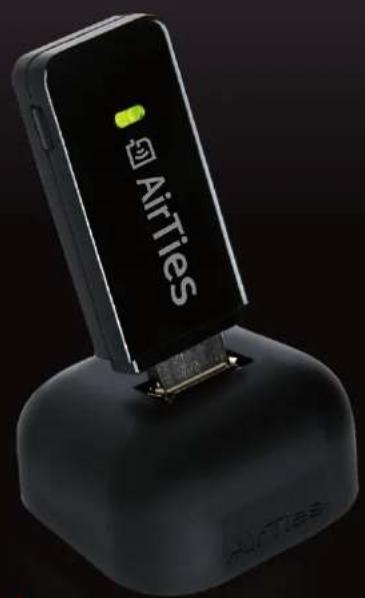
User
manual
Air 2310

natural_image
Abstract decorative swirl pattern with red-orange gradients and floral motifs on a black background (no text or symbols)
Поддержка 7/24

8 800 100 02 80

0 800 507 44 4
Table of Contents
Manual Overview
Safety and Maintenance
3 1 INTRODUCTION
3 1.1 Main Features
1.2 Minimum System Requirements
1.3 Package Contents
1.4 Applications
2 STATUS LEDS
4 3 INSTALLATION SETTINGS 6
4 3.1 Loading the driver 6
4 3.2 Connecting to the Wireless Network 7
4 3.3 Uninstalling the driver 7
5 4 TECHNICAL SPECIFICATIONS 8
5 5 PHYSICAL CHARACTERISTICS 8

natural_image
Decorative orange swirl pattern with floral motifs (no text or symbols)Manual Overview
This manual guides you through the steps necessary for setting up and configuring your AirTies device. Please read this manual carefully before beginning the installation process.
The Warranty does not cover failure or damage as a result of not following the instructions in the manual. AirTies will not be held responsible in such circumstances.
The User Manual is an important resource you can refer to for safe and proper use of your device. Please retain it for future reference.
Safety and
Maintenance
- In order to prevent damage to your device, be sure to keep it in its original box during transportation.
- If you encounter any problems, do not open or disassemble the device. Instead, call AirTies Technical Support at 8 800 100 02 80, 0 800 507 44 4
- In order to prevent electric shock, do not operate the device in wet or damp areas. Avoid contact with liquids.
- Avoid using the device in dusty environments. If dust buildup should occur, use a dry cloth to remove the dust.
- To clean the exterior of the device use a dry cloth. Do not attempt to clean the interior. There are no user serviceable components inside.
- For information regarding the installation and configuration of the device consult the remainder of this manual.
- Remove all protective plastic on the top and bottom of your device before you start using it.
- The average usage life of the device is 7 years as determined by the Authority of Industry and Trade.
1 INTRODUCTION
The Air 2310 brings wireless freedom to your desktop and laptop computers that do not have wireless capability. With the Air 2310 which uses 11N technology, transfer data, watch videos or upload your pictures to the Internet wirelessly at speeds of up to 150Mbps. Backward compatible with the wireless 802.11b/g devices, the Air 2310 provides 6 times faster wireless communications compared to earlier technologies. Dead spots and packet losses on your wireless network becomes a thing of the past with the MIMO (Multiple Input Multiple Output) technology and the advanced error recovery system contained in the 802.11n standard. MIMO technology can extend your wireless range up to 4 times.
You can get rid of the clutter of meters of cable that you have to use to connect your computers. Small enough to fit in your pocket, you can install the Air 2310 using the Easy Setup CD and use it anytime, anywhere you want. By connecting the Air 2310 to the USB port, you can bring wireless capability to even your old desktop or laptop PCs.
AirTies Air 2310 is compatible with all 802.11b/g/n access points. It provides fast, uninterrupted data communications at wireless speeds of up to 150 Mbps and USB 2.0 data transfer rates of 480Mbps.
Easy to carry around, you can plug in the Air 2310 to your computer anywhere you like and enjoy the comfort of wireless connectivity.
Using the extension cable provided, you can position your device for best possible reception, thus increasing your access range.
Air 2310 supports the latest encryption standards enabling your computers to connect to the wireless network securely. Configuring wireless security is fast and easy.
The Easy Setup CD and user manual make it easy to install and use the Air 2310 anywhere. All you need to do is to run the Easy Setup CD.
1.1 Main Features
- Wireless communications at speeds of up to 150Mbps with 802.11N: Data rates of up to 150 Mbps with 802.11n compatible access points and routers. Backward compatible with 802.11b/g
- MIMO: Up to 4 times greater range with Multiple Input Multiple Output antenna architecture
• USB 2.0: 480 Mbps USB2.0 technology. Backward compatible with USB1.1
• Extension cable: Best positioning for wireless access and fixed usage
• Easy installation: Easy setup CD
• Uninterrupted technical support: 7/24 AirTies technical support line
• Extended warranty: 3 years
1.2 Minimum System Requirements
- A computer that has an USB port and is running any of Win 2000/XP//Vista operating systems.
1.3 Package Contents
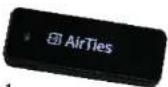
- AirTies Air 2310 150 Mbps Wireless USB Adapter
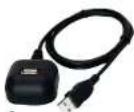
- USB extension cable
- Quick installation guide
- Warranty card
- Easy setup CD
3
4
5
1.4 Applications
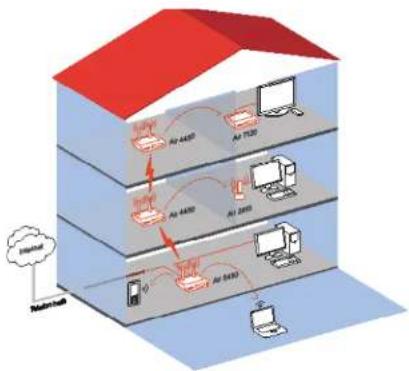
At Home: Freedom to connect to the internet wirelessly from your chair, from any room in the house, or from your porch or garden.
In the Office: Access your company's wireless network from anywhere in the office, any conference room, the break room, etc.
Temporary local area networks (LANs) constructed for special projects
Commercial fairs and shows, construction sites: places where a computer network needs to be setup in a very short time
A practical solution for those home office or small business users that need fast and easy network setup
flowchart
graph TD
    A["User"] --> B["Server"]
    B --> C["AI 4480"]
    C --> D["Computer"]
    D --> E["AI 7120"]
    E --> F["Mobile Device"]
    F --> G["AI 3910"]
    G --> H["Computer"]
    H --> I["AI 5480"]
    I --> J["Mobile Device"]
    J --> K["User"]
    style A fill:#f9f,stroke:#333
    style K fill:#bbf,stroke:#333
2 STATUS LEDS
The following table describes the device activity that the LEDs indicate.
| LEDLIGHTSTATUSIGHT | STATUS | |
| USB | Green Connected | Connected |
| Off Not connected | Not connected | |
| Wireless Network | Green (solid) Connected | Connected |
| Green (flashing) Data Exchange | Data Exchange | |
| Off Not connected | Not connected | |
3 INSTALLATION SETTINGS
3.1 Loading the driver
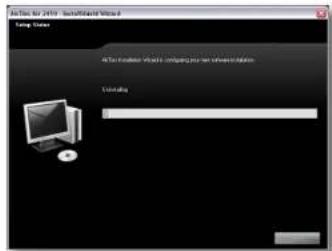
- Insert the CD provided into the CD drive of your computer. The InstallShield program will start automatically. First, select the installation language.
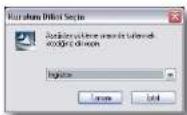
- Click "Next>" in the window that comes up to proceed with the installation.
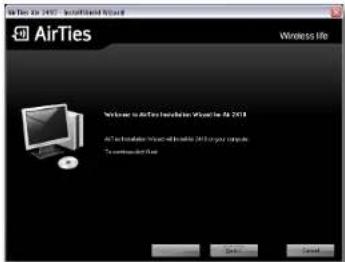
- The installation program will start to load the driver for the Air 2310 Wireless USB Adapter.
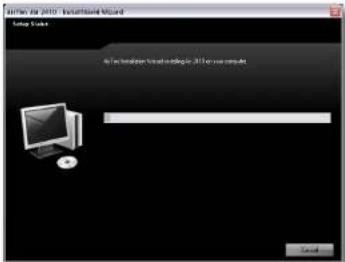
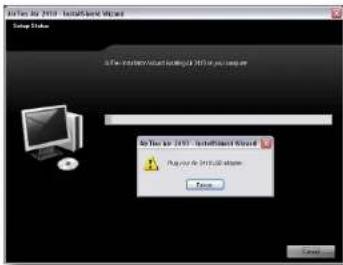
- This may take a few minutes. If you haven't connected the Air 2310, then you will be asked to connect your adapter to the USB port. Click "Continue" to resume the installation process.
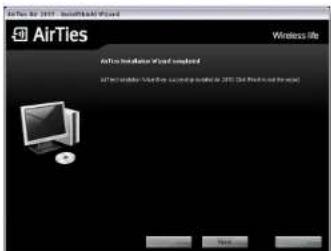
- When the driver installation is done, the following screen will come up. Click "Finish" to complete the installation.
3.2 Connecting to the Wireless Network
To connect to a wireless network using the Air 2310 Wireless USB adapter, you need to use Windows Zero Config (WZC).
Click on the network adapter icon on the system tray to open the Wireless Configuration Program window.

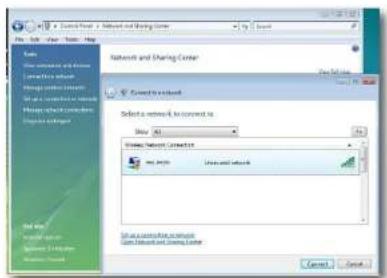
If the wireless network you would like to connect to is a security enabled network, enter the network key and click "Connect".
3.3 Uninstalling the driver
Go to Start->Programs->AirTies. Here, you will find the shortcut for uninstalling the driver for the Air 2310 USB adapter. When you click on this shortcut, the following screen will come up.
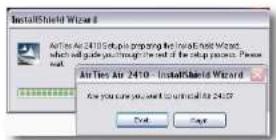
Click "Yes" to remove all the Air 2310 drivers from your computer.
If you have not connected the Air 2310 to your computer before you start the installation process, after the driver is loaded, you will be prompted to insert the Air 2410 for the installation to be completed.
4 TECHNICAL SPECIFICATIONS
• Wireless Standards: IEEE 802.11n, IEEE 802.11g, IEEE 802.11b
- Wireless Data Rates (Mbps): 1, 2, 5.5, 6, 9, 11, 12, 24, 36, 48, 54, 72, 144, 150, Mbps (automatic speed adjustment)
- Frequency Interval: ETSI 2400 MHz(min) - 2483.5 MHz(max) (13 channels - 3 non-overlapping)
• Maximum Transmit Power: 16 dBm EIRP
• Connection and wireless activity LEDs
• Wireless Security: WPA2, WPA, WEP, and 802.1x support
• Low Power Consumption Mode
• WMM (Wireless Multi Media) support
• DPT (Direct Packet Transmission) feature: full speed data exchange between clients without an access point
- Class 2 device
5 PHYSICAL CHARACTERISTICS
• Dimensions: 62 mm x 22 mm x 9 mm
• Weight: 12 grams
• Power: Over USB port
• Operating Temperatures: 0°C \~ 40°C
• Storage Temperature: -20°C \~ 70°C
• Humidity: %5 \~ %90 non-condensing

AirTies
www.airties.com

CD простой установки

Гарантия 3 года

Поддержка 7/24

8 800 100 02 80

0 800 507 44 4


ME61