M2014-E - Sicherheitskamera AXIS - Kostenlose Bedienungsanleitung
Finden Sie kostenlos die Bedienungsanleitung des Geräts M2014-E AXIS als PDF.


| Produkttyp | Netzwerkkamera, feste Kuppel (Fixed Dome) |
| Modell | AXIS M2014-E |
| Marke | Axis Communications |
| Auflösung | HDTV 720p (1280 x 720) bei 30 Bildern/s |
| Bildsensor | 1/4" Progressive Scan RGB CMOS |
| Tag-Nacht-Funktion | Automatisch, entfernbarer IR-Sperrfilter |
| Minimale Beleuchtung | 0,4 Lux (Farbe), 0,02 Lux (S/W) |
| Objektiv | 2,8 mm, F2.0, feste Brennweite, fester Fokus |
| Sichtfeld | Horizontal: 105°, Vertikal: 55° |
| Videokompression | H.264 (MPEG-4 Part 10/AVC), Motion JPEG |
| Audio | Eingang (Mikrofon) und Ausgang (Lautsprecher) optional über AXIS T83-Bridge |
| Netzwerk | Ethernet 10/100 Base-T, RJ-45, Power over Ethernet (PoE) IEEE 802.3af |
| Anschlüsse | I/O-Anschluss: 1 Eingang, 1 Ausgang (12 V DC, max. 50 mA) |
| Speicher | MicroSD-Kartenslot (SD/SDHC/SDXC) für Aufnahme |
| Abmessungen (HxBxT) | 82 mm x 82 mm x 50 mm |
| Gewicht | 180 g (nur Kamera) |
| Stromversorgung | PoE (Class 2) oder 5 V DC (nicht im Lieferumfang) |
| Schutzart | IP42, NEMA 4X (Innen- und Außeneinsatz) |
| Betriebstemperatur | -20 °C bis 50 °C |
| Hauptfunktionen | Bewegungserkennung, Alarmeingänge, AXIS Video Hosting System (AVHS) |
| Wartung und Reinigung | Gehäuse mit trockenem Tuch reinigen; keine aggressiven Lösungsmittel |
| Sicherheit | Passwortschutz, IP-Adressfilter, HTTPS-Verschlüsselung, IEEE 802.1X |
| Ersatzteile und Reparierbarkeit | Ersatzteile über Axis-Vertriebspartner; Reparatur durch autorisierte Service-Center |
| Allgemeine Informationen | Lieferumfang: Kamera, Installationsanleitung, Montageschablone, Netzwerkkabel (nicht im Lieferumfang) |
Häufig gestellte Fragen - M2014-E AXIS
Benutzerfragen zu M2014-E AXIS
0 Frage zu diesem Gerät. Beantworten Sie die, die Sie kennen, oder stellen Sie Ihre eigene.
Eine neue Frage zu diesem Gerät stellen
Laden Sie die Anleitung für Ihr Sicherheitskamera kostenlos im PDF-Format! Finden Sie Ihr Handbuch M2014-E - AXIS und nehmen Sie Ihr elektronisches Gerät wieder in die Hand. Auf dieser Seite sind alle Dokumente veröffentlicht, die für die Verwendung Ihres Geräts notwendig sind. M2014-E von der Marke AXIS.
BEDIENUNGSANLEITUNG M2014-E AXIS
USERMANUAL
AXISM2014-ENetworkCamera
Aboutthisdocument
ThismanualisintendedforadministratorsandusersoftheAXIS M2014-ENetworkCamera, andisapplicabletofirmware5.40andlater. Itincludesinstructionsforusingandmanagingtheproductonyour network. Previousexperienceofnetworkingwillbeofusewhenusing thisproduct. SomeknowledgeofUNIXorLinux-basedsystemsmayalso bebeneficial, fordevelopingshellscriptsandapplications. Laterversion of thisdocumentwillbepostedtotheAxiswebsite, asrequired. See also theproduct'sonlinehelp, availableviatheweb-basedinterface.
LegalConsiderations
Videosurveillancecanberegulatedbylawsthatvaryfromcountryto country.Checkthelawsinyourlocalregionbeforeusingthisproduct forsurveillancepurposes.
Thisproductincludesone(1)H.264decoderlicense.Topurchase furtherlicenses,contactyourreseller.
Liability
Everycarehasbeentakeninthepreparationofthisdocument.Please informyourlocalAxisofficefanyinaccuraciesoromissions.Axis CommunicationsABcannotbeheldresponsibleforanytechnicalor typographicalerrorsandreservestherighttomakechangestothe productandmanualswithoutpriornotice.AxisCommunicationsAB makesnowarrantyofanykindwithregardtothematerialcontained withinthisdocument,including,butnotlimitedto,theimplied warrantiesofmerchantabilityandfitnessforaparticularpurpose.Axis CommunicationsABshallnotbeliablenorresponsibleforincidentalor consequentialdamagesinconnectionwiththefurnishing,performance oruseofthismaterial.Thisproductisonlytobeusedforitsintended purpose.
IntellectualPropertyRights
AxisABhasintellectualpropertyrightsrelatingtotechnologyembodied in the product described in this document. In particular, and without limitation, these intellectual property rights may include one or more of the patents listed at http://www.axis.com/patent.htm and done more additional patents or pending patent applications in the US and other countries.
Thisproductcontainslicensedthird-partysoftware.Seethemenuitem "About"intheproduct'suserinterfaceformoreinformation.
ThisproductcontainssourcecodecopyrightAppleComputer, Inc.,underthetermsofApplePublicSourceLicense2.0(see http://www.opensource.apple.com/apsl).Thesourcecodeisavailable from http://developer.apple.com/darwin/projects/bonjour/
EquipmentModifications
This equipment must be installed and used in strict accordance with the instructions given in the user documentation. This equipment contains no user-serviceable components. Unauthorized equipment changes or modifications will invalidate all applicable regulatory certifications and approvals.
TrademarkAcknowledgments
AXISCOMMUNICATIONS, AXIS, ETRAX, ARTPECandVAPIXare registeredtrademarksortrademarkapplicationsofAxisABinvarious jurisdictions. All other company names and products are trademarksor registeredtrademarksof their respective companies.
Apple,Boa,Apache,Bonjour,Ethernet,InternetExplorer,Linux, Microsoft,Mozilla,Real,SMPTE,QuickTime,UNIX,Windows,Windows VistaandWWWareregisteredtrademarksotherespectiveholders. JavaandallJava-basedtrademarksandlogosaretrademarkors registeredtrademarksofOracleand/oritsaffiliates.UPnP ^TM is certificationmarkoftheUPnP ^TM ImplementersCorporation.
SD, SDHC and SDXC are trademarks or registered trademarks of SD-3C, LLC in the United States, other countries or both. Also, miniSD, microSD, miniSDHC, microSDHC, microSDXC are all trademarks or registered trademarks of SD-3C, LLC in the United States, other countries or both.
RegulatoryInformation
Europe
CE ThisproductcomplieswiththeapplicableCEmarkingdirectives andharmonizedstandards:
- ElectromagneticCompatibility(EMC)Directive2004/108/EC.See ElectromagneticCompatibility(EMC),onpage2.
LowVoltage(LVD)Directive2006/95/ECSecSafetyprpag@
- Restrictions of Hazardous Substances (RoHS) Directive 2011/65/EU. See Disposal and Recycling, on page 2. Acopy of the original declaration of conformity may be obtained from Axis Communications AB. See Contact Information, on page 3.
Electromagnetic Compatibility(EMC)
This equipment has been designed and tested to fulfill applicable standards for:
- Radiofrequencyemissionwheninstalledaccordingtothe instructionsandusedinitsintendedenvironment.
- Immunitytoelectricalandelectromagneticphenomenawhen installedaccordingtotheinstructionsandusedinitsintended environment.
USA
This equipment has been tested using a shielded network cable (STP) and found to comply with the limits for a Class Digital device, pursuant to part 15 of the FCC Rules. These limits are designed to provide reasonable protection against harmful interference in residential installation. This equipment generates, uses and can radiate radio frequency energy and, if not installed and used in accordance with the instructions, may cause harmful interference or radio communications. However, there is no guarantee that interference will not occur in particular installation. If this equipment does cause harmful interference or radio television reception, which can be determined by turning the equipment off and on, the user is encouraged to try to correct the interference by one or more of the following measures:
•Reorientorrelocatethereceivingantenna.
- Increase these separation between the equipment and receiver.
- Connecttheequipmentintoanoutletonacircuitdifferentfrom thattowhichthereceiverisconnected.
- Consultthedealeroranexperiencedradio/TVtechnicianforhelp. Canada
ThisClassBdigitalapparatuscomplieswithCanadianICES-003.
Europe
This digitalequipmentfulfillstherequirementsforRFemission according to the ClassBlimitofEN55022.
This product fulfill therequirements for immunity according to EN61000-6-1 residential, commercial and light-industrial environments.
Thisproductfulfillstherequirementsforimmunityaccordingto EN55024officeandcommercialenvironments
Australia/NewZealand
This digitalequipmentfulfills therequirements for RFemission according to the Class B limit of AS/NZSCISPR22.
Japan
この装置は、クラスB情報技術装置です。この装置は、家庭環境で使用することを目的としていますが、この装置がラジオやテレビジョン受信機に近接して使用されると、受信障害を引き起こすことがあります。取扱説明書に従って正しい取り扱いをして下さい。
Korea
이기기는가정용(B급)전자파적합기기로서주로가정에서사용하는것을목적으로하며,모든지역에서사용할수있습니다.
Safety
ThisproductcomplieswithIEC/EN60950-1andIEC/EN60950-22, SafetyofInformationTechnologyEquipment.
The powersupply used with this product shall fulfill therequirements for Safety Extra Low Voltage (SELV) and Limited Power Source (LPS) according to IEC/EN/UL60950-1.
DisposalandRecycling
Whenthisproducthasreachedtheendofitsusefullife,disposeof itaccordingtolocalrawsandregulations.Forinformationabout yournearestdesignatedcollectionpoint,contactyourlocalauthority responsibleforwastedisposal.Inaccordancewithlocallegislation, penaltiesmaybeapplicableforincorrectdisposalofthiswaste.
Europe

Thissymbolmeansthattheproductshallnotbedisposedof togetherwithhouseholdorcommercialwaste.Directive2012/19/EU onwasteelectricalandelectronicequipment(WEEE)isapplicablein theEuropeanUnionmemberstates.Topreventpotentialharmto humanhealthandtheenvironment,theproductmustbedisposed ofinanapprovedandenvironmentallysaferecyclingprocess.For informationaboutyournearestdesignatedcollectionpoint,contact yourlocalauthorityresponsibleforwastedisposal.Businessesshould contacttheproductsupplierforinformationabouthowtodispose ofthisproductcorrectly.
ThisproductcomplieswiththerequirementsofDirective2011/65/EU ontherestrictionoftheuseofcertainhazardoussubstancesin electricalandelectronicequipment(RoHS).
China
Thisproductcomplieswiththerequirementsofthelegislative actAdministrationontheControlofPollutionCausedbyElectronic InformationProducts(ACPEIP).
ContactInformation
AxisCommunicationsAB
Emdalavägen14
22369Lund
Sweden
Tel:+46462721800
Fax:+4646136130
www.axis.com
Support
Shouldyourequireanytechnicalassistance,pleasecontactyourAxis reseller.Ifyourquestionscannotbeansweredimmediately,your resellerwillforwardyourqueriesthroughtheappropriatechannelsto ensurearapidresponse.Ifyouareconnectedtothelnternet,youcan:
- downloaduserdocumentationandsoftwareupdates
• findanswerstoresolvedproblemsintheFAQdatabase.Search byproduct, category, orphrase
• reportproblemstoAxissupportstaffbyloggingintoyourprivate supportarea
- chatwithAxissupportstaff(selectedcountriesonly)
- visitAxisSupportatwww.axis.com/techsup/
LearnMore!
VisitAxislearningcenterwww.axis.com/academy/forusefultrainings, webinars,tutorialsandguides.
TableofContents
HardwareOverview....5
Connectors....5
LEDIndicators......6
ShortenCameraUnitCable....7
AccessingtheProduct....9
AccessfromaBrowser....9
AccessfromtheInternet....10
SettheRootPassword....10
TheLiveViewPage....11
MediaStreams....13
HowtoStreamH.264....13
MJPEG....13
AXISMediaControl(AMC)....13
AlternativeMethodsofAccessingtheVideoStream....14
SettingUptheProduct....16
BasicSetup....16
Video....17
VideoStream....17
StreamProfiles....18
CameraSettings....19
Overlay....19
PrivacyMask....20
LiveViewConfig....22
Detectors....25
CameraTampering....25
MotionDetection....25
Applications....27
Events....28
SettingUpanActionRule....29
Recipients....29
Schedules....30
Recurrences....30
Recordings....31
RecordingList....31
ContinuousRecording....31
SystemOptions....32
Security....32
Date&Time....33
Network....34
Storage....39
Ports&Devices....40
Maintenance....40
Support......41
Advanced....41
ResettoFactoryDefaultSettings....42
Troubleshooting....43
CheckingtheFirmware....43
UpgradingtheFirmware....43
EmergencyRecoveryProcedure....43
Symptoms, Possible Causes and Remedial Actions....44
TechnicalSpecifications....47
PerformanceConsiderations....49
HardwareOverview
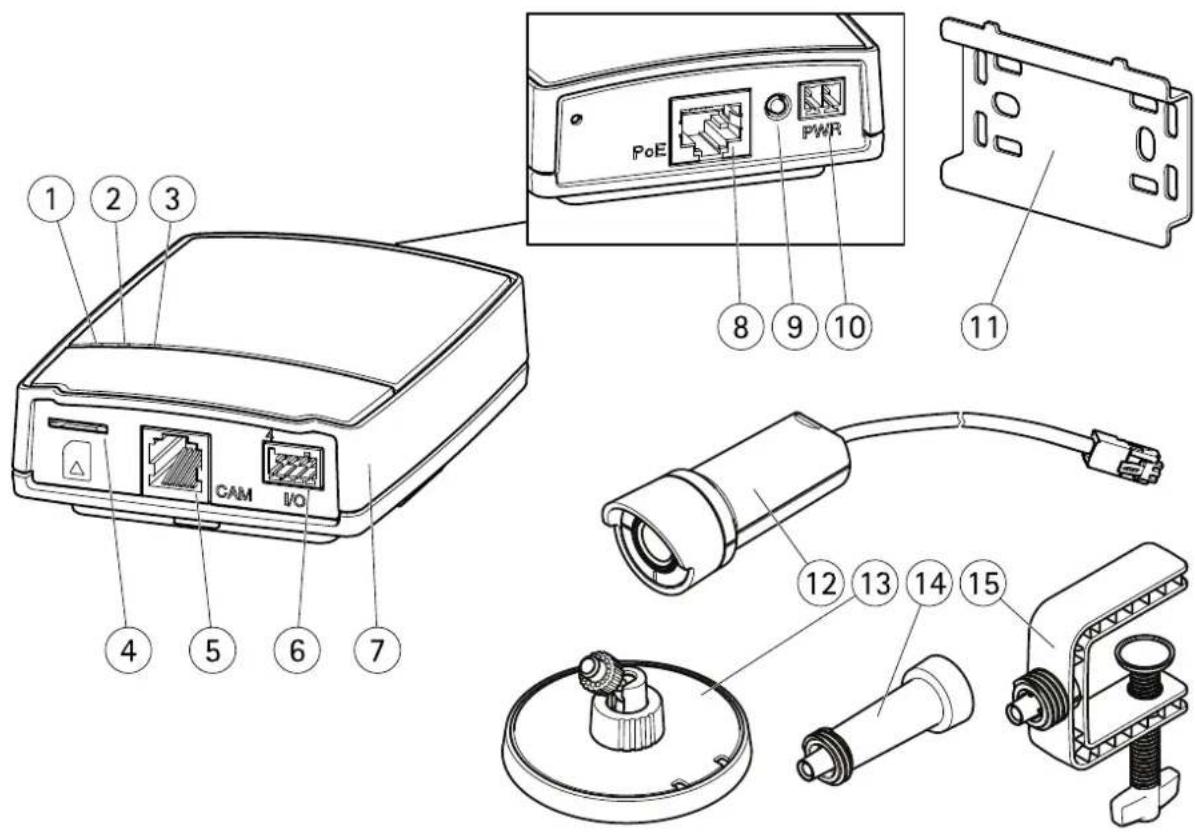
1 PowerindicatorLED
2 StatusindicatorLED
3 NetworkindicatorLED
4 SDcardslot(microSDcard)
5 Cameraconnector
6 I/Oterminalconnector
7 Mainunit
8 Networkconnector
9 Controlbutton
10 Powerconnector
11 Mountingrail
12 Cameraunit
13 Stand
14 Standextension
15 Mountingclamp
Connectors
Fortechnicalspecifications,seepage47.
Networkconnector-RJ45Ethernetconnector.SupportsPoweroverEthernet(PoE).
NOTICE
The product shall be connected using a shielded network cable (STP). All cables connecting the product to thenetwork switch shall be shielded (STP) and intended for their specific use. Makes sure that thenetwork switch is properly grounded. For information about regulatory requirements, eRegulatoryInformationprpag2
SDardlot/standard/high-capacitymicroSDcard(notincluded)carbusedforocalecordingwithremovablestorage.
NOTICE
Tpreventorruption recording the SCard should be unmounted before removal. Unmount and Setup System Options > Storage > SCD card and click Unmount.
Controlbutton-Thecontrolbuttonisusedfor:
- Resetting the product to factory default settings. Seepage42.
Connecting an AXI Video Hosting Systems Service Sep 31 to connect pres and hold the button for about 1 second until the Status LED flashes green.
ConnectingAXISinterneDynamidDNServiceSepage35connectpressandholdbuttonfor about3seconds.
Powerconnector2-pirterminablockpowerinputUselimitedpowersource(LPS)witheitherratedoutputpower limited ≤ 100 Varatedoutputcurrentlimited ≤ 5 .
I/OrminatconnectorUserapplicationfor.gmotiondetectioneventriggeringtimeapsrecordingandalarmotifications. InadditiontoanauxiliarypowerandaGNDpin,thel/Oterminalconnectorprovidestheinterfaceto:
DigitabOutputForconnectingexternaldevicessuchrelays andLEDsConnecteddevices are activated by theVAPIX®ApplicationProgrammingInterface, outputbuttonsontheLiveViewpageorbyanActionRule. The outputwillshowactiv(shownundeSystemOptionsPortsDevices) the alarmdevicactivated.
DigitalInputAlarminputforconnectingdevices thatartogglebetweenamperandclosedcircuitforexample:PIRs,door/windowcontacts,glassbreakdetectors,etc.Whenasignalisreceivedthestatechangesandtheinputbecomesactive(shownunderSystemOptions>Ports&Devices).
LEDIndicators
| LED | Color | Indication |
| Network | Green | Steadyforconnectiontoa100MBit/snetwork.Flashesfornetworkactivity. |
| Amber | Steadyforconnectiontoa10MBit/snetwork.Flashesfornetworkactivity. | |
| UnlitNonetwork | connection. | |
| Status | GreenSteadygreen | enformormaloperation. |
| Amber | Steadyduringstartupandwhenrestoringsettings. | |
| Red | Slowflashforfailedupgrade. | |
| UnlitNoconnectionbetweencameraunitandmainunit. | ||
| Green | Normaloperation. Power | |
| Amber | Flashesgreen/amberduringfirmwareupgrade. | |
Note
The Status LED can be configured downlituring normabperation To configure grid Setup System Options Ports & Devices > LED. Seetheonline help form more information.
- TheStatusLEDcanbeconfiguredtoflashwhileaneventisactive.
TheStatusEDcarbeconfiguredoflashfoidentifyinghunitGdoSetupSystemOptionsMaintenance
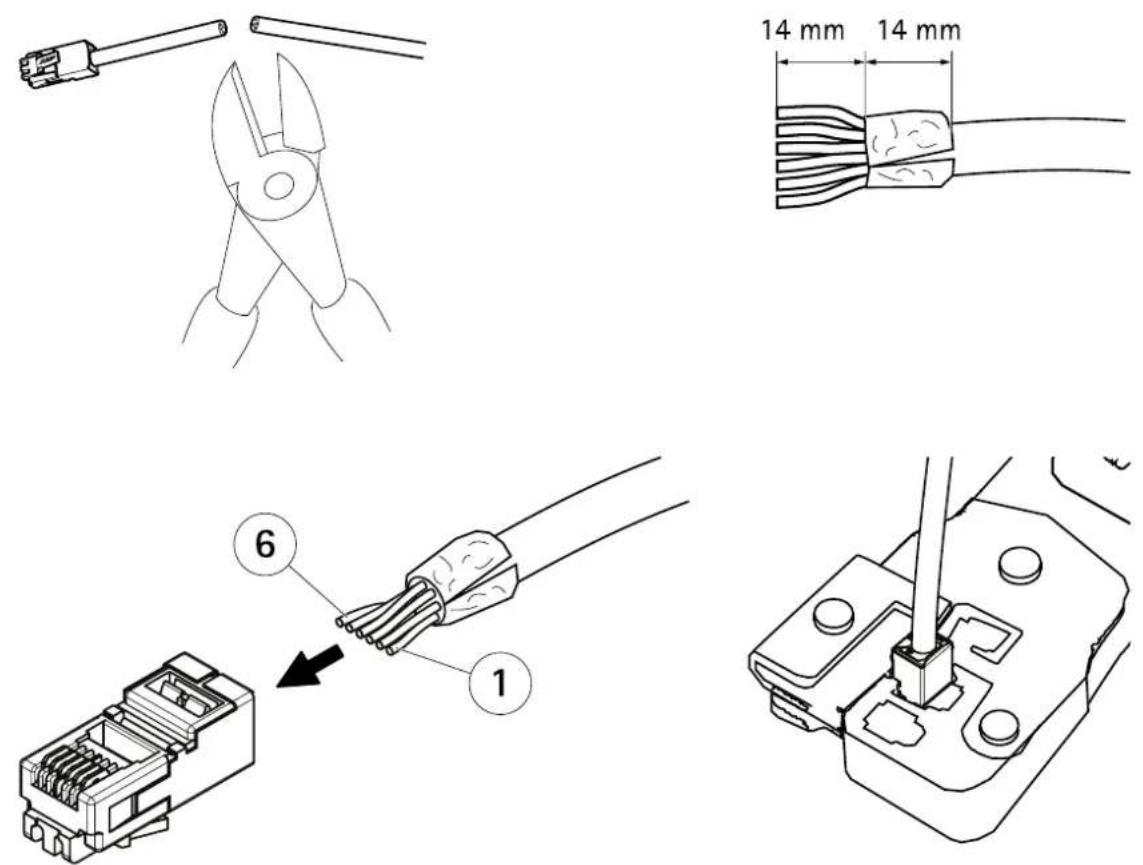
ShortenCameraUnitCable
Thecameraunitisdeliveredwitha8m(26ft)cable.
Toshortenthecablefollowthesesteps:
- Cutthecabletothedesiredlength.Measurefromthecameraunit.
2.Striptheplasticoutercoatingfromtheendofthecable.
3.Peelbacktheshield.
4.Flattenthecoloredwiresintheorderdescribedbelow.
| 1 | Brown |
| 2 | White/brown |
| 3 | Notused |
| 4 | Notused |
| 5 | White/blue |
| 6 | Blue |
- Insert the wires all the way into a shielded 6P6CRJ12 connector. Makes sure that the wires stay in the correct order.
- Use acrimping tool to fast the connector to the cable.
HardwareOverview
AccessingtheProduct
ToinstalltheAxisproduct, refertothel InstallationGuidesupplied with the product.
Theproductcanbeusedwithmostoperatingsystemsandbrowsers.TherecommendedbrowsersareInternetExplorerwithWindows, SafarwithMacintoshandFirefoxwiththeoperatingsystemsSeeTechnicalSpecificationspage4Viewstreamingvideon InternetExplorer,allowinstallationofAXISMediaControl(AMC)whenprompted.
TheAxisproductincludesone(1)H.264decoderlicenseforviewingvideostreams.ThelicenseisautomaticallyinstalledwithAMC. Theadministratorcandisabletheinstallationofthedecoders,topreventinstallationofunlicensedcopies.
Note
- QuickTime TM isalsosupportedforviewingH.264streams.
- If your computer restrict the use of additional software components, the product can be configured to use a Java applet for viewing Motion JPEG.
AccessfromaBrowser
- Startabrowser(InternetExplorer, Firefox, Safari).
2.EntertheIPaddressorhostnameoftheAxisproductinthebrowser'sLocation/Addressfield.ToaccesstheproductfromaMacintoshcomputer(MacOSX),clickontheBonjourtabandselecttheproductfromthedrop-downlist.
If you donot know the I paddress, use AXISIP Utility to locate the product on thenetwork. For information about how to discover and assign a P address through installation and management software. Do the document Assign and Address and Access the Video Stream on Axis Support web at www axis.com/techsup
- Enteryourusernameandpassword.Ifthisisthefirsttimetheproductisaccessed,therootpasswordmustfirstbe configured.Forinstructions,seeSettheRootPassword,onpage 10.
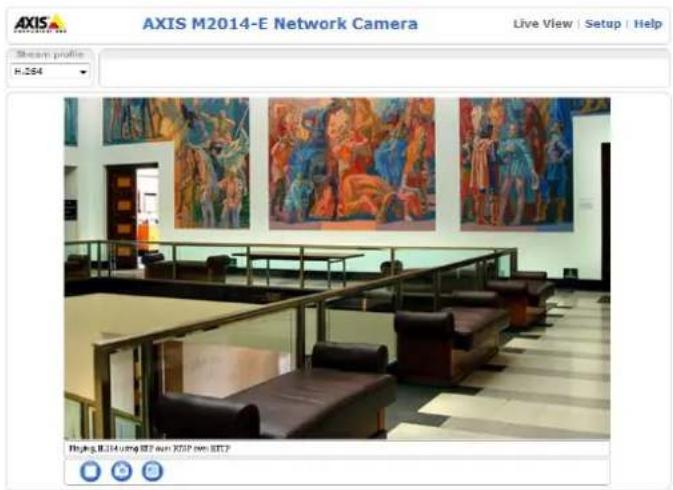
- The product'sLiveViewpageappearsinyourbrowser.
Note
ThecontrolsandlayoutoftheLiveViewpagemayhavebeencustomizedtomeetspecificinstallationrequirementsanduserpreferences.Consequently, someoftheexamplesandfunctionsfeaturedheremaydifferfromthosedisplayedinyourownLiveViewpage.
AccessfromtheInternet
Onceconnected,theAxisproductisaccessibleonyourlocalnetwork(LAN).ToaccesstheproductfromtheInternetyoumust configureyournetworkroutertoallowincomingdatatraffictotheproduct.Todothis,enabletheNAT-traversalfeature,which wilattemptautomaticallyconfigurehroutertallowaccesstheproductThisenabledfromSetupSystemOptions>Network>TCP/IPAdvanced.
FomoreinformationpleasedNATraversalportmappingfoiPv4prpag3SealsAXISnterneDynamidDNServicatwww.axiscam.netForTechnicalnotesonthisandothertopics,visittheAxisSupportwebatwww.axis.com/techsup
SettheRootPassword
To gain access the Axi product you must the password for the default administrator user or this longer the Configure RootPassword dialog, which appears when the product is accessed for the first time.
Topreventnetworkeavesdropping,therootpasswordcanbesetviaanencryptedHTTPSconnection,whichrequiresanHTTPS certificate. HTTPS(HypertextTransferProtocoloverSSL)isaprotocolusedtoencrypttrafficbetweenwebbrowsersandservers.The HTTPScertificatensure:encryptedexchangofinformationSedHTTPSprpage36.
The default administrator user name root permanent and cannot be deleted the password for root lost the product must be reset the factory default settings See Reset Factory Default Settings page 42.
TosetthepasswordviaastandardHTTPconnection, enteritdirectly in the firstdialog.
TosetthepasswordviaanencryptedHTTPSconnection,followthesesteps:
- ClickCreateself-signedcertificate.
Provide the requested information and click OK The certificate created and password camovbsetecurely All traffic to and from the product is encrypted from this point on.
Enterpasswordandhere-enterconfirnthspellingClickOKThepasswordhasnowbeenconfigured.
![Create Certificate Secure configuration of the root password via HTTPS requires a self- certificate. Create self-signed certificate... Configure Root Password using HTTP User name: root Password (max 64 characters): Confirm password: OK The password for the pre-configured administrator root must be changed before the product can be used. If the password for root is lost, the product must be reset to the factory default settings, by pressing the button located in the product's casing. Please see the user documentation for more information. ONVIF will be disabled. To enable ONVIF go to Setup > System Options > Security > ONVIF Create Self-Signed Certificate Common name: 10.92.25.211 Validity: 365 days [1..9644] *The name of the entity to be certified, i.e. the IP address or host name of this product. Once the certificate is created, this page will close and you will be able to configure the root password via HTTPS. OK Cancel AXIS Configure Root Password using HTTPS User name: root Password (max 64 characters): Confirm passwords: OK The password for the pre-configured administrator root must be changed before the product can be used. If the password for root is lost, the product must be reset to the factory default settings, by pressing the button located in the product's casing. Please see the user documentation for more information. ONVIF will be disabled. To enable ONVIF go to Setup > System Options > Security > ONVIF](/content/2026/05/1022289/images/8ccd043d93fa677c5267fdb40dfe641ab365a5a0932f5eb209b8226bd6f94db7.jpg)
SetPowerLineFrequency
PowerInfrequencysethe firstime the Axiproductaccessed and aonlychangedfromPlainConfig(sepage42) orbyresettingtheproducttofactorydefault.
Selectthepowerlinefrequency(50Hzor60Hz)usedatthelocationoftheAxisproduct.Selectingthewrongfrequencymaycause imageflickeriftheproductisusedinfluorescentlightenvironments.
When using 50Hz, the maximum framerate is limited to 25fps.
Note
Powerlinefrequencyisdifferentindifferentgeographicregions.IntheAmericas,60Hzisusuallyused;mostotherpartsof theworlduse50Hz.Localvariationsmayapply,alwayscheckwiththelocalauthorities.
TheLiveViewPage
The controls and layout of the liveView pagemay have been customized to meet specific installation requirements and user preferences. Consequently, some of the examples and functions featured her may differ from those displayed in your own live view page. The following provides an overview of each available control.
ControlsontheLiveViewPage

ClicViewsizetoscaletheimagedowrto800pixelswidotofulscaleOnlyavailableMJPEG.
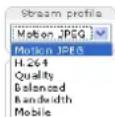
SelectstreamprofilefortheLiveViewpagfromthStreamProfiledrop-downlistInformationabouthowtoconfigurestreamprofiles,see page 18.
ClicPuls activate the product's output for define period of time. Information about how to enable and configure output buttons, see page 23.
Click the Active/Inactive button to manually activate and activate the product output port information about how to enable and configure output buttons, see page 23.

The ManualTriggerbutton is used to trigger an action rule from the live/view page. For information about how to configure and enable the button, see ManualTrigger, on page 11.

ClickSnapshot savesnapshot the video image Right-click the video image save in PEG format your computer. This button is primarily intended for use when the AXIS Media Control view to toolbar is not available. Enable this button fromLiveViewConfig>ActionButtons.
ManualTrigger
The ManualTrigger used trigger action rule from the live View page. The manual trigger carfo example should validate actions during product installation and configuration.
Toconfigurethemanualtrigger:
1.GotoSetup>Events.
2.ClickAddtoaddanewactionrule.
BonthTriggerdrop-downlistselectnpusignal.
- From these second drop-down list, select Manual Trigger.
- Select the desired action and configure the other settings as required.
Formoreinformationaboutactionrules,seeEvents,onpage28.
AccessingtheProduct
ToshowthemanualtriggerbuttonsintheLiveViewpage:
- GotoSetup>LiveViewLayout.
2ndeActionButtons;selectShowmanuatriggebutton.
AXISMediaControlviewertoolbar
TheAXISMediaControlviewetoolbarsavailableInterneExploreonlySeeAXISMediaControl(AMC)prpagefomore information.Thetoolbardisplaysthefollowingbuttons:
ThePlaybuttonconnectstotheAxisproductandstartsplayingamediastream.
TheStopbuttonstopsthemediastream.
ThSnapshobuttortakesnapshotofthevideimageTheocationwherethimagesavedcarspecifiedintheAMCControlPanel.
ClickhViewFulScreenbuttonandtheideoimagovilfilthentirescreenPressES(Escape)rthecomputer keyboardtocancelfullscreenview.
The Recordbuttonused record the current video stream The location where the recordings saved are specified in the AMControlPaneEnable this button from LiveViewConfigVieweSettings.
MediaStreams
TheAxisproductprovidesseveralvideostreamformats.Yourrequirementsandthepropertiesofyournetworkwilldeterminethetypeyouuse.
TheLiveViewpageintheproductprovidesaccesstoH.264andMotionJPEGvideostreams,andtothelistofavailablestreamprofiles. Otherapplicationsandclientscanaccessvideostreamsdirectly,withoutgoingviatheLiveViewpage.
HowtoStreamH.264
The videocompressionstandardH.264 makes good use of bandwidth, and can provide high quality video streams at less than 1 Mbit/s.
Deciding which combination of protocols and method stoused depends on your viewing requirements, and on the properties of your network. The available options in AXISMediaControl are:
| UnicastRTP | Thisunicastmethod(RTPoverUDP)isused forliveunicastvideo,especiallywhenitis importanttoalwayshaveanup-to-datevideo stream,evenifsomeimagesaredropped. | Unicastingisusedforvideo-on-demand transmissionsothatthereisnovideotraffic onthenetworkuntilaclientconnectsand requeststhestream.Notethatthereareamaximumof20 simultaneousunicastconnections. |
| RTPoverRTSP | Thisunicastmethod(RTPtunneledoverRTSP) isusefulasitisrelativelysimpletoconfigure firewallstoallowRTSPtraffic. | |
| RTPoverRTSPoverHTTP | Thisunicastmethodcanbeusedtotraverse firewalls.Firewallsarecommonlyconfiguredto allowtheHTTPprotocol,thusallowingRTPto betunneled. | |
| MulticastRTP | Thismethod(RTPoverUDP)shouldbeusedforlivemulticastvideo.Thevideostreamisalways up-to-date,evenifsomeimagesaredropped.Multicastingprovidesthemostefficientusageofbandwidthwhentherearelargenumbersof clientsviewingsimultaneously.Amulticastcannothowever,passanetworkrouterunlessthe routerisconfiguredtoallowthis.ItisnotpossibletomulticastoverthelInternet,forexample.Notealsothatallmulticastviewerscountasoneunicastviewerinthemaximumtotalof20 simultaneousconnections. | |
AXISMediaControlnegotiateswiththeAxisproducttodeterminethetransportprotocoltouse.Theorderofpriority,listedintheAMCControlPanel,canbechangedandtheoptionsdisabled,tosuitspecificrequirements.
Note
H.264islicensedtechnology.TheAxisproductincludesoneH.264viewingclientlicense.Installingadditionalunlicensed copiesoftheclientisprohibited.Topurchaseadditionallicenses,contactyourAxisreseller.
MJPEG
This formatusesstandardJPEGstillimagesforthevideostream. These images are then displayed and updated at a rate sufficient to create stream that shows constantly updated motion.
TheMotionJPEGstreamusesconsiderableamountsofbandwidth,butprovidesexcellentimagequalityandaccesstoeveryimage containedinthestream.TherecommendedmethodofaccessingMotionJPEGlivevideofromtheAxisproductistousetheAXISMediaControlInInternetExplorerinWindows.
AXISMediaControl(AMC)
AXISMediaControl(AMC)inInternetExplorerinWindowsistherecommendedmethodofaccessinglivevideofromtheAxisproduct.
MediaStreams
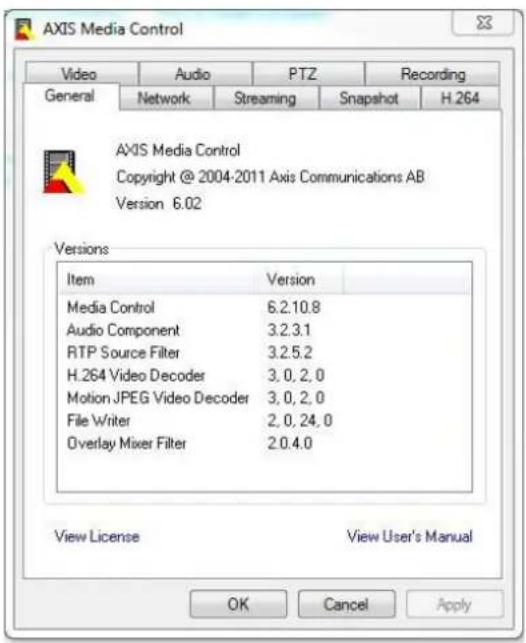
TheAMCControlPanelcanbeusedtoconfigurevariousvideosettings.PleaseeseetheAXISMediaControlUser'sManualformore information.
TheAMCControlPanelisautomaticallyinstalledonfirstuse,afterwhichitcanbeconfigured.OpentheAMCControlPanelfrom:
- WindowsControlPanel(fromtheStartmenu)
Alternatively right-click the video image Interne Explore and click Settings.
AlternativeMethodsofAccessingtheVideoStream
YoucanalsoaccessvideoandimagesfromtheAxisproductinthefollowingways:
MotionPEGervepush(fupported by the client Firefox fo example) This option maintains proper HTTP connection to the browser and sends data as and when required, for as long as required.
StiUPEGimagesbrowserEntethepathhttp://
Window Media Player This requires AXIS Media Control and the 1.264 decoder to installed the following paths can be used:
-UnicastviaRTP:axrtpu://<ip>/axis-media/media.amp
-UnicastviaRTSP:axrtsp://<ip>/axis-media/media.amp
-UnicastviaRTSP,tunneledviaHTTP:axrtsphttp://<ip>/axis-media/media.amp
-Multicast:axrtpm://<ip>/axis-media/media.amp
- QuickTime TM. The following pathscanbeused:
-rtsp://<ip>/axis-media/media.amp
-rtsp://<ip>/axis-media/media.3gp
Note
=|Paddress
•TheAxisproductsupportsQuickTime6.5.1andlater.- QuickTimeaddslatencytothevideostream.
- It maybe possible to use other player to view the H.264 stream using the paths above, although Axis does not guarantee this.
SettingUptheProduct
The Axproduct are configured by users with administrator operator rights to the product's setup pages, including the copyright-hand corner of the Live View page.
- Administratorshaveunrestrictedaccesstoallsettings.
- OperatorshaveaccesstoallsettingsexceptSystemOptions
Seealsotheonlinehelp

BasicSetup
BasicSetupprovidesshortcutstothesettingsthatshouldbemadebeforeusingtheAxisproduct:
1.Users.Seepage32.
2.TCP/IP.Seepage34.
3. Date&Time.Seepage33.
4.VideoStream.Seepage17.
TheBasicSetupmenucanbedisabledfromSystemOptions>Security>Users.
Video
ItispossibletoconfigurethefollowingvideofeaturesinyourAxisproduct:
•Videostream.Seepage17.
- Streamprofiles.See page 18.
- Camerasettings.See page 19.
• Overlayimage.See page 19.
- Privacymask.Seepage20.
VideoStream
You can define the following video stream settings from Video Stream:
- Image.Seepage18.
•H.264.Seepage18. - MJPEG.Seepage18.
![Video Stream Settings Image H.264 MJPEG Image Appearance Resolution: 1250x720 (16x9) pixels Compression: 30 [0..100] Mirror image Rotate image: 0 degrees Video Stream Maximum frame rate: Unlimited Limited to [1..30] fps per viewer Overlay Settings Include overlay image at the coordinates: X 0 [0..] Y 0 [0..] Include data Include time Include text: Text color: white Text background color: black place text/data/time at top of image Preview View image stream while configuring. Video format: MJPEG Open... Save Reset](/content/2026/05/1022289/images/d3e19ef4627bb51f10e6562991f0c67de48c893fa54345ba9641d9aa0f407835.jpg)
PixelCounter
Thepixelcountershowsthenumberofpixelsinanareaoftheimage. Thepixelcounterisusefulinsituationswherethereisa requirementthattheimageisacertainsize,forexampleinfacerecognition.
Thepixelcountercanbeaccessedfrom:
VideoVideStreamUndePreviewclickOpenandelecthShowpixelcounteroptiontenabletherectangleithemagdUsethmousctomovandesiztherectanglepentethnumberpixelsirthWidthandHeightfieldsandclickApply.
The LivViewpagerInterneExploreinWindowsRight-clickthimagandelecPixelcounterUschemouse tomoveandresizetherectangle.
Image
ThedefaultmagsettingscarbeconfiguredindeVideo>VideStreamSelectdImagtab.
The followingsettingsareavailable:
- Resolution.Selectthedefaultresolution.
CompressionThe compressionlevelaffect the imagequalitybandwidthlandilsizeofavedmagesthdowethe compression, the higher the imagequalitywith higher bandwidthrequirementsandlargerfilesizes.
- Rotateimage.lfrequired, theimagecanberotated.
- Mirror.Ifrequired, theimagecanbemirrored.
Maximunframeate avoid bandwidth problems the frame at allowed each view car limited to fixed amount Alternatively the frame at car but unlimited which means the Axis product always delivers the highest framerate possible under the current conditions.
OverlayettingSeeOverlayprpage19.
ClickSavetoapplythenewsettings.
H.264
H.264,alsoknownasMPEG-4Part10/AVC,isavideocompressionstandardthatprovideshighqualityvideostreamsatlowbitrates. AnH.264videostreamconsistsofdifferenttypesofframessuchasl-framesandP-frames.Anl-frameisacompleteimagewhereas P-framesonlycontainthedifferencesfrompreviousframes.
The GOVength the number frames between two consecutive frames increasing the GOVength may save considerably on bandwidth requirements in some cases, but may also have an adverse effect on image equality.
ThebitatcarbeseVariableBiRate(VBR)ConstantBiRate(CBR)VBRadjustthebitataccordingdheimage complexity,usingupmorebandwidthforincreasedactivityintheimage,andlessforlowerimageactivity.CBRallowsyoutoseta fixedtargebitathatconsumespredictableamountbandwidthAthebitatowouldusuallyneedincreasfoincreased imageactivity,butinthiscasecannot,framerateandimagequalityareaffectednegatively.Topartlycompensateforthis,itis possibletoprioritizeeitherframerateorimagequality.Notsettingaprioritymeansthatframerateandimagequalityareequally affected.Youmustsaveyoursettingsbeforetheycantakeeffect.
The current table shows a set of appearance overlay. This selection includes the checkbox option under Overlay Settings and enter them modifier # binthe field.
MJPEG
Sometimes the imagesize is large duolow light or complex scenery. Adjusting them a maximum framesize help to control the bandwidth and storage by the Motion PEG video stream in these situations. Setting the framesized default setting provides consistently good image quality at the expense of increased bandwidth and storage usage in low light. Limiting the frame size optimizes bandwidth and storage usage, but may give poor image quality. Top prevent increased bandwidth and storage usage, the maximum framesize should be set to an optimal value.
StreamProfiles
Astreamprofileisasetofpredefinedstreamsettingsincludingresolution,compression,framerateandoverlaysettings.Stream profilescanbeused:
- Whensettinguprecordingusingactionrules.SeeEvents,onpage28.
- Whensettingupcontinuousrecording.See ContinuousRecording,onpage31.
In the ViewpageselectstreamprofilfromtheStreamprofildrop-downlist.
Video
Forquicksetup, useoneofthepredefinedstreamprofiles. Each predefinedprofilehasadescriptivename, indicatingitspurpose. If required, thepredefinedstreamprofilescanbemodifiedandnewcustomizedstreamprofilescanbecreated.
To create new profile to modify existing profile and Setup VideoStreamProfiles.
To select default stream profile for the live view page and Setup Live View Config.
CameraSettings
The Video Camer Settings page provides access to advanced image settings for the Axis product.
ImageAppearance
Increasing hColo level Increase the colosaturation The value gives maximum colosaturation The value gives black and white image.
Thémage Brightness can be adjusted the range 0–100 where higher value produces brighter image.
IncreasinghSharpness an increase bandwidth usage sharper image might increase image noise especially low light conditions. Alowersetting reduces image noise, but the whole image will appear less sharp.
The Contrastangestrelativdifferencbetweenlightandarkcarbadjustedusingthe Sldebar.
WhiteBalance
Whitebalanceisusedtomakecolorsintheimageappearthesameregardlessofthecolortemperatureofthelightsource.TheAxis productcanbesettoautomaticallyidentifythelightsourceandcompensateforitscolor.Alternatively,selectthetypeoflight sourcefromthedrop-downlist.Foradescriptionofeachavailablesetting,seetheonlinehelp
ExposureSettings
Configuretheexposuresettingstosuittheimagequalityrequirementsinrelationtolighting,framerateandbandwidth considerations.
Exposurevalue-Clickinthebartofine-tunetheexposure.
Exposure control These settings used adapt the amount of fight used Automatic default settings caused most situations. The hutterspeed automatically set produce optimum image quality. Flicker-free 5060 is used to remove flicker which can be caused by fluorescent and the light source. The hold current option lock the current exposure settings.
Enable Backlight compensation Enable this option brightspotfightfoexamplelightbulbcauses the area in theimagetoappeartoodark.
Exposure zones This settings determines which parofhimages used to calculate the exposure of most situations the Auto setting can be used. For particular requirement, select a predefined area.
Exposure priority When Motion prioritized and maximum Shutter times at a small value emotion blur the images minimized. This can be useful for recognition of moving objects such as people and vehicles. However, prioritizing motion may cause an increase in image noise especially in low light situations. When Low noise prioritized and Gain settings a small value image noise is minimized. The filesize is reduced, which can be useful for storages space or bandwidth this limited. However, prioritizing low noise may result in a very dark image, especially in low light situations.
Overlay
Overlaysareusedtoprovideextrainformation,forexampleforforensicvideoanalysisorduringproductinstallationand configuration.Overlaysaresuperimposedoverthevideostream.
Video
Anoverlaytextcandisplaythecurrentdateandtime,oratextstring.Whenusingatextstring, modifierscanbeusedtodisplay informationsuchshcurrenbitatothcurrenframcateoinformationaboutavailablemodifiersseFileNaminglt
Date/TimeFormatsintheonlinehelp.

Toenableoverlays:
GoVideoVideStreamandelecthæmagetab.
Tinclude overlaymageselectncludoverlaymagatheordinatesTheoverlaymagenusfirstbauploadedo theAxisproduct,seeOverlayImage.
Tincludatandimeselectncludatandncludeime.
TincludatextstringselectncludtextandentethextrthfieldModifiersabusedseFileNaming
Date/TimeFormatsintheonlinehelp

- Definetextoverlaycharacteristicsintherelevantfields.
6.ClickSave.
TomodifytheDateandimFormatgdsystemOptionsDateTimeSeeDateTimepage33.
OverlayImage
Anoverlayimageisastaticimagesuperimposedoverthevideostream.Theimage,forexamplecompanylogo,isusedtoprovide extrainformationortomaskapartoftheimage.
Touseanoverlayimage, theimagemustfirstbeuploadedtotheAxisproduct:
GoVideoOverlaymage.
2.ClickBrowseandbrowsetothefile.
3.ClickUpload.
- Select the imagetouse from the Use overlay imagelist.
5.ClickSave.
Todisplaytheoverlayimage:
GoVideoVideStreamandelecthldmagtab.
UndeOverlapSettingsselectincludeoverlaymagathcoordinatesandentethandcoordinates.
3.ClickSave.
Forinformationaboutsupportedimageformats,seetheonlinehelp

PrivacyMask
Aprivacymaskisanareaofsolidcolorthatprohibitsusersfromviewingpartsofthemonitoredarea.Privacymaskscannotbe bypassedviatheVAPIX®ApplicationProgrammingInterface(API).
The Privacy MaskList(VideoPrivacyMask) shows the mask that are currently configured in the Axiproduct and indicates if they are enabled.
Youcanaddanewmask,re-sizethemaskwiththemouse,chooseacolorforthemask,andgivethemaskaname.
Formoreinformation,seetheonlinehelp

Important
Adding many privacy masks may affect the product's performance.
LiveViewConfig
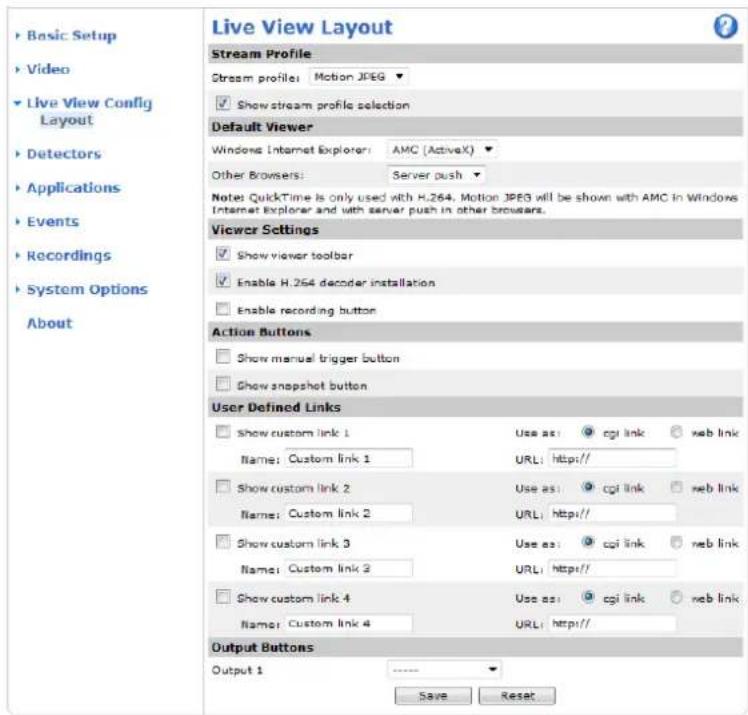
YoucancustomizetheLiveViewpageandalterittosuityourrequirements.ItispossibletedefinethefollowingfeaturesoftheLiveViewpage.
- StreamProfile.Seepage18.
- DefaultViewerforBrowser.Seepage22.
-ViewerSettings.Seepage23.
ActionButtonsThesearchbuttonsdescribednControlstheLiveViewPageprpage1.
-UserDefinedLinks.Seepage23.
- OutputButtons.Seepage23.
DefaultViewerforBrowsers
FromLiveViewConfigDefaultVieweselecthedefaultmethodforviewingvideimagesyoubrowserTheproductattempts toshowthevideoimagesinthesetectedvideoformatandviewer.Ifthisisnotpossible,theproductoverridesthesettingsand selectsthebestavailablecombination.
| BrowserViewerDescription | ||
| WindowsInternetExplorer | AMC | RecommendedviewerinInternetExplorer(H.264/MotionJPEG). |
| QuickTime | H.264. | |
| Javaapplet | AslowerimagingalternativetoAMC(MotionJPEG).Requiresoneofthe followinginstalledontheclient:•JVM(J2SE)1.4.2orhigher.•JRE(J2SE)5.0orhigher. | |
| StillimageDisplaysstillimagesonly.ClicktheRefreshbuttoninyourbrosertoviewa newimage. | ||
| Otherbrowsers | ServerPush | Recommendedviewerforotherbrowsers(MotionJPEG). |
| QuickTime | H.264. | |
| Javaapplet | AslowerimagingalternativetoServerPush(MotionJPEGonly). | |
| StillimageDisplaysstillimagesonly.ClicktheRefreshbuttoninyourbrosertoviewa newimage. | ||
Formoreinformation,pleaseetheonlinehelp.

ViewerSettings
Toconfigureoptionsfortheviewer,gotoLiveViewConfig>ViewerSettings.
SelectShowewetoolbatalisplaytheAXISmediaControl(AMC)theQuickTimeviewetoolbaundethevideoimageinyourbrowser.
H.264lecodeinstallationThe administratorandisableinstallationofH.264lecodeincludedwithAXISMedia Control.Thisisusedtopreventinstallationofunlicensedcopies.Furtherdecoderlicensescanbepurchasedfromyour Axisreseller.
SelectEnablerecordingbuttonEnablerecordingfronttheLiveViewpageThisbuttonisavailablewhenusingtheAMCviewer.TherecordingsaresavedtothelocationspecifiedintheAMCControlPanel.SeeAXISMediaControl(AMC),onpage 13.
UserDefinedLinks
Tolisplayuser-definedinkirthdLiveViewpageselecthShowcustomlinkoptiongivthdklnamandherentethURLtolinkto.Whendefiningaweblinkdonotremovethehttp://'fromtheURLaddress.Customlinkscanbeusedtorunscriptoractivateexternaldevicesconnectedtotheproduct,ortheycanlinktoawebpage.Customlinksdefinedascgilinkswillrunthescriptinthebackground,inahiddenframe.Definingthelinkasaweblinkwillopenthelinkinanewwindow.
OutputButtons
Externall/OdevicesconnectedtotheAxisproduct'soutputportscanbecontrolleddirectlyfromtheLiveViewpage.
TodisplayoutputbuttonsintheLiveViewpage:
1.GotoSetup>LiveViewConfig.
2. UnderOutputButtons, select the type of controltouse:
Pulsactivates the output for define period of time the pulse time can be from 1/10 seconds to 60 seconds.
-Active/Inactive displaywobuttons, oneoreachaction.
ToconfigureactivandnactivstatesgodSystemOptionsPortsDevicesl/Portandethport'sNormastate.
Formoreinformationaboutl/Oports,seeI/OPorts,onpage40.
Detectors
CameraTampering
CameraTamperingcangenerateanalarmwheneverthecameraisrepositioned,orwhenthelensiscovered,sprayedorseverely defocused.Tosendanalarm,forexampleanemail,anactionrulemustbesetup.
Toconfiguretampering:
- GotoDetectors > CameraTampering.
SethMinimundurationthattheimehatmustlapsbeforealarmigeneratedThisahelprevent falsealarmsforknownconditionsthataffecttheimage.
Select Alarmfor dark images for alarm should be generated fights and dimmed turned off or then is sprayed, covered, or rendered severely out of focus.
4.ClickSave.
Toconfiguretheproducttosendanalarmwhentamperingoccurs:
- GotoEvents>ActionRules.
2.ClickAddtosetupanewactionrule.
- EnteraNamefortheactionrule.
UndeConditionselecDetectorsfromtheTriggerlist.
-
SelectTamperingfromthelistofdetectors.
-
Optionally, select as schedule and set additional conditions.
SelectactionTo send emailselectSendNotificationandselectRecipientfromtheisbfdefinedrecipients.
Note
The Whileu1active option under Duration can be used with cameramperings since camerampering does not have duration and once it has been triggered until not automatically return to its untriggered state.
Formoreinformationonactionsrules,seeEvents,onpage28.
MotionDetection
Motiondetectionisusedtogenerateanalarmwhenevermovementstartsorstopsinthecameraview.
Motiondetectionisconfiguredbydefiningupto10IncludeandExcludewindows:
- Includewindows—defineareaswheremotionsshouldbedetected
Exclude windows define areas within a window that should be ignored (areas outside include windows are automatically ignored).
Forinstructions, see SetUpMotionDetectionWindows, onpage26.
To control the number of motion detection alarms, parameter ObjectSizeHistory and Sensitivity, arbadjusted See Motion Detection Parameters, on page 26.
Oncemotiondetectionwindowsareconfigured, theAxisproductcanbeconfiguredtoperformactionswhenmotionisdetected. Possible actions include uploading images and start recording. From information setting up an Action Rule page 29.
Note
Usingthemotiondetectionfeaturemaydecreasetheproduct'soverallperformance.
SetUpMotionDetectionWindows
TosetupamotiondetectionIncludeWindow, followtheseinstructions:
- GotoDetectors > MotionDetection.
Select the Configure included Windows option and click New Select the new window with the disp windows and enter adescriptivename.
- Adjustthesize(dragthebottomright-handcorner) and the position(clickonthetextatthetopanddragtothedesired position) of the window.
Adjust the Object Size History and Sensitivity profile of leaders (sed Motion Detection Parameters for details) Any detected motion within an active window is indicated by red peaks in the Activity window.
5.ClickSave.
To exclude parts of the inclusion window, select the Configure Excluded Windows an position the exclusion window within the inclusion window.
ToletenincludeexcludovindowselectehwindowirthdistofwindowsandlicDel.
MotionDetectionParameters
The parameters controlling motion detection are described in the table below:
| Parameter | ObjectSize | History | Sensitivity |
| Description | Objectsizerelativetowindow size. | Objectmemorylength. | Differenceinluminance betweenbackground and object. |
| Highlevel(100%) | Onlyverylargeobjectstrigger motiondetection. | Anobjectthatappearsin thewindowtriggersmotion detectionforalongtime beforeitisconsideredas non-moving. | Ordinarycoloredobjectson ordinarybackgroundstrigger motiondetection. |
| Mediumlevel(50%) | Alargedifferenceinluminance isrequiredtotriggermotion detection. | ||
| Lowlevel(0%) | Evenverysmallobjectstrigger motiondetection. | Anobjectthatappearsin thewindowtriggersmotion detectiononlyforaveryshort timebeforeitisconsideredas non-moving. | Onlyverybrightobjectson adarkbackgroundtrigger motiondetection. |
| Recommendedvalues | 5–15%60–90%75–95% | ||
| Defaultvalues | 15%90%90% |
Note
- Totriggeronsmallobjectsormovements, useseveralsmallmotiondetectionwindowsratherthanonelargewindow andselectalowobjectsize.
- To avoid triggering on small objects, select a high object size.
- While monitoring an are a where removing objects are not expected, select a high history level. This will cause motion detection to trigger as long as the object is present in the window.
- Toonlydetectflashinglight,selectalowsensitivity.Inothercaseshighsensitivityisrecommended.
Applications
Applications
ThirdpartyapplicationscanbeuploadedtoandinstalledontheAxisproduct. Applicationsaddfunctionalitytotheproduct,for examplevideoanalyticsandintelligentvideocapabilitiessuchasrecognition,tracking,detectionandcounting.Forinformation aboutavailableapplications,downloads,trialsandlicenses,goto www.axis.com/applications
Note
- Itisrecommendedtorunoneapplicationatatime.
- Avoidrunningapplicationswhenthebuilt-inmotiondetectionisactive.
Events
TheAxisproductcanbeconfiguredtoperformactionswhendifferenteventsoccur,forexample,startarecordingwhenmotionis detectedThesecondditionsthatefineshowandwhetheractionstriggeredcalledActionRule.
AvailableActionRuletriggersandconditionsinclude:
Applications=usinstalled applicationsdriggetheuleseApplicationsprpage27.
- Detectors
MotionDetection-triggered Rule when motion is detected see MotionDetectionpage25.
Tampering-triggered rule whertamperings detected see CameraTamperingpage25.
- Hardware
Network-triggered network connections is restored. This example used start recording to the SDcard.
- InputSignal
DigitalInputPort trigger rule when Port receives signa from connected devices, 0 Ports, on page 40.
ManualTrigger-triggered using the ManualTriggerbutton in the liveViewpages Control on theLiveViewPage, on page 11. This can forexample be used to validate actions during product installation and configuration.
•Storage
Available trigger the rule whether storage devices unmounted removed This can example be used to send maintenance notifications.
Full-triggeredwherthestorage device full Undenormaboperationtholdestecordingswill be overwritten to prevent the storage device from becoming full.
-Locked—triggertheruleifthestoragedeviceislocked(writeprotected).
•System
Systeminitializing-triggeredwherthproductbeingstartedThisarfoexampleusedsend notificationwhentheproductrestarts.
•Time
Recurrence-triggered ul periodically see Recurrences page 30 This afo example should upload an image every 5 minutes.
UsSchedule-triggeth#ulaccordingdtheselectedscheduleseeSchedulesprpage80.
Availableactionsinclude:
- OutputPort—activateanl/Oporttocontrolanexternaldevice.
- RecordVideo—recordvideotoaselectedstorage.
- SendImages—sendimagestoarecipient.
- SendNotifications—sendanotificationmessagetoarecipient.
Status:ED-flask the ED Indicator This afo example should validate triggers such motion detection during product installation and configuration.
Events
SettingUpanActionRule
Anactionruledefinestheconditionsthatmustbemetfortheproducttoperformanaction,forexemplerecordvideoorsendemail notifications.Ifmultipleconditionsaredefined,allmustbemettotriggertheaction.
The following example describes how to setup an action rule to record video to an network share if there is movement in the camera's field of view.
Setupmotiondetectionandaddanetworkshare:
GoDetectorsMotionDetectionandconfiguremotiondetectionwindowsepage26
QoSystemOptionsStorageandetupthenetworksharesepage40.
Setuptheactionrule:
GetEventsActionRuleandClicAdd.
- SelectEnableruleandenteradescriptivenamefortherule.
SelectDetectorsfromthTriggedrop-downlist.
SelectMotionDetectionfromthetrop-downlistSelectthemotiondetectionwindowtause.
OptionallyselectSchedule and Additionaconditionssebelow.
UndeActionsselecRecordVidedfromthTypdrop-downlist.
SelectStreamprofilandconfiguretheDurationsettingsdescribedbelow.
- SelectNetworkSharefromtheStoragedrop-downlist.
To additiona criterion, select the Addition conditions option and additionatriggers to prevent aaction from being triggered repeatedly. Wait eastime arbe Entethim hours minutes and seconds during which the trigger should be ignored before the action rule can be activated again.
TherecordingDurationofomactionsarbeetincluddimmediatelybeforeandafterthevenSelectPre-triggetime and/oPost-triggetimendentethumbersecondsWherWhiletheulactivivenabledactionstriggered againduringthepost-triggertime,therecordingtimewillbeextendedwithanotherpost-triggertimeperiod.
Formoreinformation,seetheonlinehelp

Recipients
Recipientsreceivemediafilesandnotificationmessages.Thefollowingrecipientsareavailable:
| RecipientUsewithaction | |
| SendImagesSendNotification | |
| FTP | SendImages |
| HTTP | SendImagesSendNotification |
| NetworkShareSendImages | |
| TCPSendNotification |
Note
AnetworksharealsobsusedstoragedeviceforecordedvidedGoSystemOptionsStorageconfigurenetworkshareforsettingpontinuousecordingaractionrulrecordvideoSeStoragepage9gmoreinformationaboutstoragedevices.
Toaddarecipient:
GaddEventsRecipientandlicAdd.
2.Enteradescriptivename.
3.SelectarecipientType.
4.Entertheinformationneededfortherecipienttype.
5.ClickTesttotesttheconnectiontotherecipient.
6.ClickOK.
Schedules
Schedulescanbeusedasactionruletriggersorasadditionalconditions,forexampletorecordvideoifmotionisdetectedoutside officehours.Useoneofthepredefinedschedulesorcreateanewscheduleasdescribedbelow.
Tocreateanewschedule:
GetEventsSchedulesandClickAdd.
2.Enteradescriptivenameandtheinformationneededforadaily,weekly,monthlyoryearlyschedule.
3.ClickOK.
Taus the scheduled Action Rule selects the scheduled from the Schedule drop-down list the Action Rule Setup page.
Recurrences
RecurrencesareusedtotriggerActionRulesrepeatedly,forexampleevery5minutesoreveryhour.
Tosetuparecurrence:
GdEventsRecurrencesandclicAdd.
2.Enteradescriptivenameandrecurrencepattern.
3.ClickOK.
TarstherecurrencenActionRulefirstelectTimefromthTriggerdrop-downlisttheActionRulSetuppagand thenselecttherecurrencefromthesecondrop-downlist.
To modify remove recurrences select the recurrence in the Recurrence List and click Modify Remove.
Recordings
TheAxisproductcanbeconfiguredtorecordvideocontinuouslyoraccordingtoanactionrule:
- Tostartacontinuousrecording,see page31.
- Tosetupactionrules,seepage29.
•Toaccessrecordings,seeRecordingList,onpage31.
•Toconfigurecameracontrolledstorage,seeStorage,onpage39.
RecordingList
Recorded videos and the Recordings List page the shows a recording start at and time duration and the event that triggered therecording.
Toplayordownloadarecording, followthesesteps:
- GotoRecordings>List.
Use filter to narrow disb recording Enteth desired filter criterion and lic Filte Some filters may take along timetocomplete.
- Selecttherecording.
@licPlayplaythecordingpclipDownloaddownloadhrecording.
Multiple recordingscarbdownloadedatthesamtimeSelectrecordingsandlicDownloadThedownloadedfilezipfile containingaminimumofthreefiles,ofwhichtheMatroska(mkv)filesaretheactualrecordings.Therecordingsaretime-stamped withthedateandtimetheyweredownloaded(thatis,notthedatetherecordingsweremade).
Note
ToplayrecordingsinWindowsMediaPlayer,AXISMatroskaFileSplittermustbeinstalled.AXISMatroskaFileSplitter canbedownloadedfromwww.axis.com/techsup/software
For detailed recording and video information, select recording and lic Properties.
Toremovearecording,selecttherecordingandclickRemove.
ContinuousRecording
The AxiproductarbeconfiguredcontinuouslyavoidedstoragedeviceSeeStorageprpage9gomoreinformation aboutstoragedevices.Topreventthediskfrombecomingfull,itisrecommendedtoconfigurethedisktoautomaticallyremoveold recordings.Ifanewstreamprofileisselectedwhilearecordingisongoing,therecordingwillbestoppedandsavedintherecording listandanewrecordingwiththenewstreamprofilewillstart.Allpreviouscontinuousrecordingswillremainintherecordinglist untiltheyareremovedmanuallyyorthroughautomaticremovalofoldrecordings.
Tostartacontinuousrecording,followthesesteps:
- GotoRecordings>Continuous.
2.SelectEnabled. - SelecttypeofstoragedevicefromtheDisklist.
- SelectaStreamprofiletouseforcontinuousrecordings.
5.ClickSavetosaveandstarttherecording.
SystemOptions
Security
Users
Use access controlled enabled by default and bar configured under System Options Security Users Administrator can setup other users by giving them usernames and passwords. It is also possible to allow anonymous viewer login, which means that anybody may access the Live View page.
Theuserlistdisplaysauthorizedusersandusergroups(accesslevels):
Viewer-AccesstotheLiveViewpage
Operator-Access to theLiveViewpage and to all settingsexceptSystemOptions
Administrator-Unrestrictedaccesstoallsettings;canadd,modifyandremoveotherusers.
UndeHTTP/RTSIPasswordSettingsselectthypopasswordallowYoumayneedallowunencryptepasswordsthere areviewingclientsthatdonotsupportencryption,orifyouupgradedthefirmwareandexistingclientssupportencryptionbutneed tologinagainandbeconfiguredtousethisfunctionality.
UndeUseSettingsselecttheEnablanonymousviewelogimptionallowanonymoususersaccesstheLiveViewpage.
Deselect the Enable Basi Setup option to hide the Basi Setup menu Basi Setup provides quick access settings that should be made before using the Axis product.
ONVIF
ONVIF(OpenNetworkVideoInterfaceForum)isaglobalinterfacestandardthatmakesiteasierforendusers,integrators,consultants,andmanufacturerstotakeadvantageofthepossibilitiesofferedbynetworkvideotechnology.ONVIFenablesinteroperabilitybetweendifferentvendorproducts,increasedflexibility,reducedcostandfuture-proofsystems.
BycreatingauseryouautomaticallyenableONVIFcommunication.UsetheusernameandpasswordwithallONVIFcommunication withtheproduct.Formoreinformationseewww.onvif.org
IPAddressFilter
IAddressfiltering enableorthSystemOptionsSecurityAddressFiltepageOnce enabledthestdAddressare alloweddeniedaccesstheAxiproductSelectAllowDenfronthdistandlicApplyenabledAddressfiltering.
The administrator can add up to 2561 Paddressentriestothelist (asingleentry can contain multiple Paddresses).
HTTPS
The Axis product supports encrypted browsing using HTTP This configured by the System Options Security HTTP page.
Self-signed certificate has been used until Certificate Authority-issued certificate have been obtained. Click Create self-signed certificate install self-signed certificate Although self-signed certificates and offer some protection trust security only implemented after the installation of a signed certificate issued by a Certificate Authority.
To obtain signed certificate from issuing Certificate Authorityclic Create Certificate Request Whether signed certificate is returned click installed signed certificate import the certificate The properties any certificate request currently resident in the productor installed can be viewed by clicking Properties.
TenableHTTPSrtheAxiproductthdHTTPConnectionPolicymusbseforeachusegroup.
Formoreinformation,seetheonlinehelp

SystemOptions
IEEE802.1X
IEEE802.1Xisastandardforport-basedNetworkAdmissionControlprovidingsecureauthenticationofwiredandwirelessnetwork devices.IEEE802.1XisbasedonEAP(ExtensibleAuthenticationProtocol).
ToaccessanetworkprotectedbyIEEE802.1X,devicesmustauthenticatethemselves.Theauthenticationisperformedbya third-partyentitycalledauthenticationservertypicallyRADIUServerexamplesofwhichareFreeRADIUSandMicrosoft InternetAuthenticationService.
InAxis'implementation, thenetworkdeviceandtheauthenticationserverauthenticatethemselveswiththehelpofdigitalcertificatesusingEAP-TLS(ExtensibleAuthenticationProtocol-TransportLayerSecurity).ThecertificatesareprovidedbyanCertificationAuthority(CA). Youneed:
- aCAcertificatetovalidatetheidentityoftheauthenticationserver
- aCA-signedclientcertificateandaprivatekeytoauthenticatethenetworkdevice.
ToallowthenetworkdevicetoaccessanetworkprotectedbyIEEE802.1X:
- Obtain a CA certificate, a client certificate and a client private key (contact your network administrator).
QoSetupSystemOptionsSecurityIEEE02.1X and upload the certificate, the client certificate and the client private key.
UndeSettingsselecttheEAPVersionprovideyouEAPidentityandprivatkeypassword.
- ChecktheboxtoenableIEEE802.1XandclickSave.
Certificates
CACertificateTheCAcertificateisusedtovalidatetheidentityoftheauthenticationserver.Enterthepathto thecertificatdirectlyprocatethefusinghBrowsebuttonTheclickUploadto remove acertificate,clickRemove.
Clientcertificate Theclientcertificateandprivatekeyareusedtoauthenticatethenetworkdevice.Theycanbe uploadedasseparatefilesorinonecombinedfile(e.g.aPFXfileoraPEMfile).UsetheClient privatekeyfieldifuploadingonecombinedfile.Foreachfile,enterthepathtothefile,orlocatethe fileusingtheBrowseButtonTheclickUploadRemovefileclicRemove.
Settings
EAPOLversion SelecttheEAPOLversion(1or2)asusedinyournetworkswitch.
EAPidentity Entertheuseridentity(maximum16characters)associatedwithyourcertificate.
Privatekeypassword Enterthepassword(maximum16characters)fortheprivatekey.
EnableIEEE802.1X ChecktheboxtoenabletheIEEE802.1Xprotocol.
Date&Time
The Axi product's datandim settings are configured under System OptionsDateTime.
CurrenServeTime display the current lat and time (24hclock) The time car be displayed in 2hclock the text overlay (see below).
TochangthelatandimsettingsselecthepreferredTimmodundeNewServeTime:
Synchronizovitcomputetimsetslatandimeaccordingthecomputer'slockWiththisoptiondatandtimearesetonceandwillnotbeupdatedautomatically.
SynchronizewithNTServerobtainslatandimfromanNTServerWiththisoptiondatandimsettingsare updatedcontinuouslyEoinformationorNTBettingsseeNTPConfigurationorpage36.
SystemOptions
IfusinghostnamefortheNTServerDNServemusbconfiguredSeeDNSConfigurationprpage36.
- Setmanuallyallowsyoutomanuallysetdateandtime.
If using NTServer select your Timezone from the drop-down list, required check Automatically adjust for daylight saving time changes.
The DateTimFormaUsedImagesethdatandimformatdisplayedstexoverlaythevidestreamUshe
predefinedformatsorseeFileNaming&tDate/TimeFormatsintheonlinehelp forinformationonhowtocreatecustomdateand timeformatsIncluddatandimethoverlaytextg@dvideandelectIncluddatandIncludtime.
Network
BasicTCP/IPSettings
TheAxisproductsupportsIPversion4andIPversion6.Bothversionscanbeenabledsimultaneously, andatleastoneversion mustalwaysbeenabled.
IPv4AddressConfiguration
Bydefault,theAxisproductissettouseIPv4(IPversion4)andtoobtaintheIPaddressautomaticallyviaDHCP.TheIPv4settingsare configuredunderSystemOptions>Network>TCP/IP>Basic.
DHCP(DynamicHostConfigurationProtocol) allows network administrator to centrally manage and automate the assignment of IP addresses. DHCP should only be enabled if using dynamicIP address notification, or if the DHCP can update a DNS server. It is then possible to access the Axis product by name (hostname).
If DHCPisenabledandtheproductcannotbeaccessed,runAXISIPUtilitytosearchthenetworkforconnectedAxisproducts,orresettheproductcdthefactorydefaultsetting(sepage42)andherperformtheninstallationagain.
TouestatidAddresscheckUsthfollowingAddressandspecifytheAddresssubnetmaslanddefaultrouter.
IPv6AddressConfiguration
IfIPv6(IPversion6)isenabled,theAxisproductwillreceiveanIPaddressaccordingtotheconfigurationinthenetworkrouter.
TenablePv6gctSystemOptionsNetworkTCP/IPBasicOthersettingsforIPvShouldbeconfiguredrthenetworkrouter.
ARP/Ping
The product's Address can be assigned using ARP and Ping for instructions, see AssignIP Address using ARP/Pingprpage34.
TheARP/Pingserviceisenabledbydefaultbutisautomaticallydisabledtwominutesaftertheproductisstarted,orassoonasanIP addressisassigned.Tore-assignIPaddressusingARP/Ping,theproductmustberestartedtoenableARP/Pingforanadditional twominutes.
TalisabletheServicegdsSystemOptionsNetworkTCP/IPBasicandClearoptionEnableARP/PingettingofAddress.
Pinging the product is still possible when the service is disabled.
AssignIPAddressusingARP/Ping
Theproduct'sIPaddresscanbeassignedusingARP/Ping.Thecommandmustbeissuedwithin2minutesofconnectingpower.
- AcquireafreestaticIPaddressonthesamenetworksegmentasthecomputer.
- Locatetheserialnumber(S/N) on the product label.
3.Openacommandpromptandenterthefollowingcommands:
SystemOptions
Linux/Unixsyntax
arp-s<IPaddress><serialnumber>temp
ping-1408<IPaddress>
Linux/Unixexample
arp-s192.168.0.12500:40:8c:18:10:00temp
ping-1408192.168.0.125
Windowssyntax(thismayrequirethatyourunthecommandpromptasanadministrator)
arp-s<IPaddress><serialnumber>
ping-l408-t<IPaddress>
Windowsexample(thismayrequirethatyourunthecommandpromptasanadministrator)
arp-s192.168.0.12500-40-8c-18-10-00
ping-l408-t192.168.0.125
- Check that thenetwork cable is connected to the Axis product and then restart the product by disconnecting and reconnecting power.
Glosthe command prompt whether products respond with Reply from 92.168.0.125:.. osimilar.
Openbrowseandyphttp://
For themethods, assigning the Address, the installation and Management Software, the document Assigned IP Address and Access the Video Stream on Axis Support web at www.axis.com/techsup
Note
ToperformmanpromptWindowspperthStartmenuandtypemdrtheRun/Searchfield.
- TousetheARPcommandinWindows7/WindowsVista,right-clickthecommandprompticonandselectRunas administrator.
TopencommandpromptMacOSxperthTerminalutilityfromApplicationUtilities.
AXISVideoHostingSystem(AVHS)
AVHSusedinconjunctionwithanAVHSservice,provideseasyandsecureInternetaccesstoliveandrecordedvideoaccessiblefromanylocation.FormoreinformationandhelptofindalocalAVHSServiceProvidergotowww.axis.com/hosting
AVHSenabledbydefaultThesettingsareconfiguredundeSystemOptionsNetworkTCPBBasic.
One-clickenabledPresthproduct'sontrobuttonisedHardwareOverviewprapg&connectionAVHServicovethe InternetOnceregisteredAlwayswilbenabledtheAxiproductstaysconnectedtheAVHServicoftheproductsnot registeredwithin24hoursfromwhenthebuttonispressed,theproductwilldisconnectfromtheAVHSservice.
Always The AxiproductwillconstantlyattemptconnecttheAVHServicovethInternetOnceregisteredthproductwill stayconnectedtotheservice.Thisoptioncanbeusedwhentheproductisalreadyinstalledanditisnotconvenienttousethe one-clickinstallation.
AXISInternetDynamicDNSService
AXISInternetDynamicDNSServiceassignsahostnameforeasyaccesstotheproduct.Formoreinformation,seewww.axiscam.net
ToregistethAxisproductwithAXISnterneDynamidDNServicedSystemOptionsNetworkTCP/IPBasidUnderServicesclicktheAXISnterneDynamidDNServiceSettingsbutton(requireaccess@thInternet)ThdomainamcurrentlyregisteredatAXISInternetDynamicDNSservicefortheproductcanatanytimeberemoved.
AdvancedTCP/IPSettings
DNSConfiguration
DNSDomainNamServiceprovides the translation of names to addresses The DNSettings are configured under System Options > Network > TCP/IP > Advanced.
Select Obtain DNServeaddress via DHCP to the DNSetting provided by the DHCP server.
TomakemanuasettingsselectUsethefollowingDNServeaddressandspecifythefollowing:
DomainnameEntethelomain(s)searchforthoshnameusedbytheAxiproductMultipledomainsarbeseparated by semicolonsThehoshnameiswaythefirsparbfullyqualifieddomainameforexamplemyserverithhoshnamethefullyqualifieddomainamemyserver.mycompany.conwheremycompany.conishdomainame.
Primary/SecondaryDNServerEntethdAddressesofthprimaryandsecondaryDNServersThesecondaryDNServes optionalandwillbeusediftheprimaryisunavailable.
NTPConfiguration
NTP(NetworkTimeProtocol)isusedtosynchronizetheclocktimesofdevicesinanetwork.TheNTPsettingsareconfiguredunder SystemOptions>Network>TCP/IP>Advanced.
SelectObtainNTBerveaddress via DHCP, use the NTBetting provided by the DHCPerver.
TomakemanuasettingsselectUsethfollowingNTBerveaddressandentethosnameofAddressoftheNTBerver.
HostNameConfiguration
TheAxisproductcanbeaccessedusingahostnameinsteadofanIPaddress.ThehostnameisusuallythesameastheassignedDNS nameThehostnameconfiguredundesystemOptionsNetworkTCP/IPAdvanced.
SelectObtainmoshamviaPv4DHCRushoshamprovidedbytheDHCServerunningrlPv4.
SelectUsethehostnametosetthehostnamemanually.
SelectEnabledynamidDNSupdates dynamicallyupdateocaDNServerswhenevertheAxiproduct'sAddresschanges.
Formoreinformation,seetheonlinehelp
Link-LocalIPv4Address
Link-LocalAddress=enabledbyleafulandassigntheAxiproduct:additionalAddresswhichcarbused:access theproductfromotherhostsonthesamesegmentonthelocalnetwork.TheproductcanhaveaLink-LocalIPandastatic orDHCP-suppliedIPaddressatthesametime.
This function can be disabled under SystemOptionsNetworkTCP/IPAdvanced.
HTTP
The HTTP port used by the Axisproduct can be changed under SystemOptionsNetworkTCP/IP Advanced addition to the default setting, which is 80, any port in therange 1024-65535 can be used.
HTTPS
The HTTPSportused by the Axi product are changed under SystemOptions Network TCP/IP Advanced addition to the default setting, which is 443, any portion in the range 1024-65535 can be used.
TenableHTTPSg0SystemOptionsSecurityHTTPSFomoreinformationsepage32.
SystemOptions
NATtraversal(portmapping)forIPv4
Anetworkrouterallowsdevicesonaprivatenetwork(LAN)toshareasingleconnectiontotheInternet.Thisisdonebyforwarding networktrafficfromtheprivatenetworktothe"outside",thatis,theInternet.Securityontheprivatenetwork(LAN)isincreased sincemostroutersarepre-configuredtostopattemptsstoaccesstheprivatenetwork(LAN)fromthepublicnetwork(Internet).
UsNATraversawhetherAxiproductlocatedbraintrane(LAN)andyouwistomaketavailablefromtheother(WAN)sideofaNATrouter.WithNATtraversalproperlyconfigured,allHTTPtraffictoanexternalHTTPportintheNATrouterisforwardedtotheproduct.
NATraversalconfiguredundeSystemOptionsNetworkTCP/IPAdvanced.
Note
- ForNATtraversaltowork, this must be supported by the router. Therouter must also support UPnP
TM. - Therouterhasmanydifferentnames:"NATrouter","Networkrouter","InternetGateway","Broadbandrouter","Broadband sharingdevice"or"Homefirewall"buttheessentialpurposeofthedeviceisthesame.
Enable/Disable Where enabled the Axi product attempts to configure port mapping in NAT route by you network using JPnP Notethat UPnP ^TM must be enabled in the product (see System Options > Network > UPnP).
TM.
Usmanually selected NATouterSelect this option manually select NAToute and entethed address for router in the field. If norouter is specified, the product automatically searches for NATrouterson your network. If more than one router is found, the default router is selected.
Alternative HTTP port Select this option manually defines externa HTTP port Enteth port numberth fieldports entered here, a port number is automatically selected when NAT traversalisenabled.
Note
- AnalternativeHTTPportcanbeusedorbeactiveevenifNATtraversalisdisabled. ThisisusefulifyourNATrouterdoesnot supportUPnPandyouneedtomanuallyconfigureportforwardingintheNATrouter.
- If you attempt to manually enter a port that is already in use, another available port is automatically selected.
WherthportselectedautomaticallyitsdisplayedthisfieldTochangthisentenewpornumbeandclickSave.
FTP
TheFTPserverrunningintheAxisproductenablesuploadofnewfirmware,userapplications,etc.TheFTPservercanbedisabled underSystemOptions>Network>TCP/IP>Advanced.
Note
ThisFTPserverhasnothingtodowiththeproduct'sabilitytotransferimagesviaFTPtootherlocationsandservers.
RTSP
TheRTSPserverrunningintheAxisproductallowsaconnectingclienttostartanH.264stream.TheRTSPportnumbercanbe changedindeSystemOptionsNetworkTCP/IPAdvancedThedefaultport554.
Note
H.264videostreamswillnotbeavailableiftheRTSPserverisdisabled.
SOCKS
SOCKSisanetworkingproxyprotocol.TheAxisproductcanbeconfiguredtouseaSOCKSservertoreachnetworksontheother sideofafirewallorproxyserver.ThisfunctionalityisusefuliftheAxisproductislocatedonalocalnetworkbehindafirewall,and notifications,uploads,alarms,etcneedtobesenttoadestinationoutsidethelocalnetwork(forexamplethelnternet).
SOCKSconfiguredundeSystemOptionsNetworkSOCKSFomoreinformationsethonlinhelp

SystemOptions
QoS(QualityofService)
QoS(QualityofService)guaranteesacertainlevelofaspecifiedresourcetoselectedtrafficonanetwork.AQoS-awarenetwork prioritizesnetworktrafficandprovidesagreaternetworkreliabilitybycontrollingtheamountofbandwidthanapplicationmayuse.
TheQoSettingsareconfiguredundesystemOptionsNetworkQoSUsingDSCPDifferentiatedServiceCodepointValuestheAxisproductcanmarkthefollowingtypesoftraffic:livevideo,event/alarmtrafficandmanagementtraffic.
SMTP(email)
TosendemailmessagesfromtheAxisproductviaSMTP(SimpleMailTransferProtocol),anSMTPmailservermustbesetup.This isdoneunderSystemOptions>Network>SMTP(email).
Entethosnames:Addresses:fornumberfothprimaryandsecondarymaiterversitheldprovidedFrom emailaddress:alsorequired themaiterverequiresauthenticationcheckUseauthenticationdogirdthiserveandenter thenecessaryinformation.
SNMP
TheSimpleNetworkManagementProtocol(SNMP) allows remotemanagementofnetworkdevices.AnSNMPcommunityisthe groupofdevicesandmanagementstationrunningSNMP.Communitynamesareusedtoidentifygroups.
The Axiproductarbe configured support SNMPorth SystemOptionsNetworkSNMPage.
Dependingonthelevelofsecurityrequired,selecttheversiononSNMPtouse.
SNMR1/v2provide the lowest eveb security The community name can be specified as password for a read/write access supported SNMR device The default password for the Community public and the default password for the Write community is write.
Note
IfHTTPSisenabled,SNMPv1 and SNMPv2 should be disabled.
TrapfoSNMR1/v2areused by the Axiproduct sendmessage management system important events and status changes Check Enable traps and the address where the trap message should be sent and the trap community that should receive them message.
The following traps are available:
•Coldstart
•Warmstart
- Linkup
- Authenticationfailed
SNMR3provide:encryptionandsecurpasswordsTostrapwithSNMR3arSNMR3managementapplicationrequired.
TousENMR3HTTPSmusbenabledsedHTTPSprpage32enableENMR3checkboxanprovidethenitialuser password.
Note
The initial password can only be set once. If the password is lost, the Axis product must be reset to factory default, see ResettoFactoryDefaultSettings, on page 42.
UPnP ^TM
TheAxisproductincludessupportforUPnP ^TM .UPnP ^TM isenabledbydefaultandtheproductisautomaticallydetectedbyoperating systemsandclientsthatsupportthisprotocol.
UPnP ^TM canbedisabledunderSystemOptions>Network>UPnP
TM.
SystemOptions
RTP/H.264
The RTportangandmulticastettings are configured under SystemOptionsNetworkRTP.
The RTP portranged defines the range of ports from which the video ports are automatically selected. Form multicast streams, only certain IP addresses and port numbers should be used.
SelectAlwayMulticastVidedstartmulticaststreamingwithoutopeningRTSBession.
Bonjour
TheAxisproductincludessupportforBonjour.Bonjourisenabledbydefaultandtheproductisautomaticallydetectedbyoperating systemsandclientsthatsupportthisprotocol.
BonjourcanbedisabledunderSystemOptions>Network>Bonjour.
Storage
SDCard
NOTICE
Topreventcorruptionofrecordings,theSDcardshouldalwaysbeunmountedbeforeitisejected.
TheAxisproductsupportsSDcardswiththefollowingfilesystems:
ext4-recommendedludditsresiliencagainstdataosifhecardsjecteditheresbruppowelossToaccess datastoredonthecardfromtheWindowsoperatingsystem,athird-partyext4driverorapplicationisrequired.
- vFAT—mostSDcardsarepre-formattedwithvFATwhenpurchased.
Ifrequired, theSDcardcanbemanuallyformattedtothedesiredfilesystem.ToformattheSDcard:
- Insert the SD card in the SD card slot.
@dsystemOptionsStorageandlicSICard.
3.ClickFormatandselectthedesiredfilesystem.
Note
During formatting any previous data stored on the disk will belost.
Mountingisdoneautomaticallywhenthecardisinsertedorwhentheproductisstarted.Amanualmountisonlyrequiredifthe cardhasbeenunmountedandnotejectedandre-inserted.
TounmounttheSDcard:
GoSystemOptionsStorageandlicSICard.
2.ClickUnmount.
- Thecardcannowberemoved.
The SDcardsmanagedorthSystemOptionsStoragePageClickSDCardopenStorageManagement.
If the card's status shows failed, click Check disk to see if problem can be found and then repair this option only available for SD cards with next 4. For SD cards with v FAT, use a card reader or computer to troubleshoot the card.
Tavoidilling the card is recommended to remove recordings continuously. Under Recording Settings select Remove recordings older than and select then number of days or weeks.
TstopwritingthecardanprotectecordingsfrombeingemovedselectLockundeRecordingSettings.
SystemOptions
NetworkShare
NetworkshareallowsyoutoaddnetworkstoragesuchasaNAS(NetworkAttachedStorage)oranyserverthatusesCIFS(Common InternetFileSystem)andusethemforstorageofrecordings.
Toaddanetworkshare:
- GotoSystemOptions>Storage.
2.ClickNetworkShare.
3.EntertheIPaddress,DNSorBonjourametothehostserverintheHostfield.
4.EnterthenameoftheshareintheSharefield.Subfolderscannotbeused.
I ^s requiredselectThesharerequiresoginandentethusenamananspassword.
6.ClickConnect.
To eal recordings and data from the Axi product's folderth designated share click Clearunde Storage Tools.
T avoid filling the share if recommended remove recordings continuously Under Recording Settings; select Remove recordings older than and select then number of days or weeks.
To topwriting the share an protectecording from being removed select Lock under Recording Settings.
Ports&Devices
I/OPorts
TheAxisproductprovidesoneinputportandoneoutputportforconnectionofexternaldevices.Forinformationonhowtoconnectexternaldevices,seeConnectors,onpage5.
The/Oports are configured under System Options/Ports Devices/Ports the ports are given descriptive names and their Norm states are configured as Open circuit Grounded circuit.
PortStatus
The disbrth System Options Ports Devices Port status page shows the status of the product's input and output ports.
Maintenance
The AxiproducprovideseveramaintenancefunctionsTheseareavailableundeSystemOptionsMaintenance.
ClickRestartperformcorrectestarttheAxiproductnobehavingsexpectedThiswillhoffectanyofthecurrent settings.
ClickRestoreresetmostsettingsthefactorydefaultvaluesThefollowingsettingsarenotaffected:
•thebootprotocol(DHCPorstatic)
- thestaticIPaddress
- thedefaultrouter
- thesubnetmask
- thesystemtime
• theIEEE802.1Xsettings
- uploadedapplicationsarekeptbutmustberestarted
SystemOptions
ClickDefaultResetSettingsincludingtheAddressFactorydefaultValuesThisbuttonshouldusedwithcautionTheAxiproductandalsbeseftfactordefaultusingthecontrolbuttonseeResetFactorDefaultSettingspage42.
To identify the product test the Status LED click Flash LED undel identify and specify the duration in seconds minutes hours. This can be useful for identifying the product among other products installed in the same location.
Forinformationaboutfirmwareupgrade,see UpgradingtheFirmware,onpage43.
Support
SupportOverview
The SystemOptionsSupportSupportOverviewpageprovidesinformationortroubleshootingandcontactinformation, shouldyourequiretechnicalassistance.
See also Troubleshooting, on page 43.
SystemOverview
To get overview of the Axi product status and settings go System Options Support System Overview Information that can be found here includes firmware version, IP address, network and security settings, event settings, imagesettings and recent log items. Many of the captions are linked to the proper Setup page.
Logs&Reports
The SystemOptionsSupportLogReportpag generatedogsandreportsusefuforsystemanalysisandroubleshootingf contactingAxisSupport,pleaseprovideavalidServerReportwithyourquery.
SystemLog-Providesinformationaboutsystemevents.
AccesLog listsfailed attempts to access the product The AccesLog can also be configured distal connections to the product(see below).
ServeReportProvidesinformationaboutthproductstatusrapop-upwindowTheAccessLogautomaticallyincludedintheServerReport.
Youcanviewordownloadtheserverreport.Downloadingtheserverreportcreatesa.zipfilethatcontainsacompleteserverreport textilerUTF-FormatSelecthIncludenapshowthdefaultImagesettingsoptionincludeSnapshottheproduct's LiveViewthatalshowshsettingsspecifiedundevideStream>Image>ImageAppearanceTheserverreportzipfileshould alwaysbeincludedwhencontactingsupport.
ParametelisShow the product's parameters and their current setting This may prove useful when troubleshooting or when contacting AxisSupport.
ConnectionList-Listsallclientsthatarecurrentlyaccessingmediastreams.
CrashReport-Generatesanarchivewithdebugginginformation.Thereporttakesseveralminutestogenerate.
ThegevelsothSystemLogandheAccessLogaretundeSystemOptionsSupportLogReportsConfiguration. TheAccessLogcanbeconfiguredtolistallconnectionstotheproduct(selectCritical,Warnings&Info).
Advanced
Scripting
Scriptingallowsexperienceduserstocustomizeandusetheirownscripts.
NOTICE
ImproperusemaycauseunexpectedbehaviorandlossofcontactwiththeAxisproduct.
SystemOptions
Axisstronglyrecommendsthatyoudonotusethisfunctionunlessyouunderstandtheconsequences.AxisSupportdoesnotprovide assistanceforproblemswithcustomizedscripts.
To Perth Script Editor to System Options Advanced Scripting Script cause problems;set the product its factory default settings, see page 42.
Formoreinformation,seewww.axis.com/developer
FileUpload
Files,forexamplewebpagesandimages,canbeuploadedtotheAxisproductandusedascustomsettings.Touloadafile,go toSystemOptions>Advanced>FileUpload.
Uploadedfile accessed through http://
PlainConfig
PlainConfigisforadvanceduserswithexperienceofAxisproductconfiguration.Mostparameterscanbesetandmodifiedfromthis page.Helpisavailablefromthestandardhelppages.
TooperPlainConfigdSystemOptionsAdvancedPlainConfigAxisSupportdoesnoprovideassistance.
ResettoFactoryDefaultSettings
Important
Resettofactorydefaultshouldbeusedwithcaution.Aresettofactorydefaultwillresetallsettings,includingtheIP address,tothefactorydefaultvalues.
Toresettheproducttothefactorydefaultsettings:
- Disconnectpowerfromtheproduct.
PresandholdthecontrobuttonandeconnectpowerSedHardwareOverviewprpag6 - Keep the control button pressed for about 15 seconds until the status LED indicator flashes amber.
- Releasethecontrolbutton. TheprocessiscompletewhenthestatusLEDindicatorturnsgreen. Theproducthasbeenreset tdhefactorydefaultsettings. In DHCServerisavailableorthenetworkthdefaultAddress: 92.168.0.90
- Usethetools provided on the Installation and Management Software CD to assign an Paddress, set the password and access the videostream. This information is also available from the support pages on www.axis.com/techsup
It's also possible to rese parameters factory default via web interface Gdo Setup System Options Maintenance.
Troubleshooting
CheckingtheFirmware
Firmwareissoftwarethatdeterminesthefunctionalityofnetworkdevices.Oneofyourfirstactionswhentroubleshootingaproblem shouldbetocheckthecurrentfirmwareversion.Thelatestversionmaycontainacorrectionthatfixesyourparticularproblem.The currenfirmwareversiontheAxiproductsdisplayedthepagSetupBasiSetupandSetupAbout.
UpgradingtheFirmware
When you upgrade the product with the latest firmware from Axis website, the product receives the latest functionality available. Always read the upgrade instructions and releases notes available with each new release, before upgrading the firmware.
Toupgrade, followtheseinstructions:
- Savethefirmwarefiletoyourcomputer. The latest version of the firmware is available free of charge from Axis website at www.axis.com/techsup
- GotoSetup>SystemOptions>Maintenanceintheproductswebpages.
UndeUpgradServerClicBrowsandocatchfileyourcomputerClicUpgrade.
Afterstartingtheupgradeprocess,alwayswaitatleast5–10minutesbeforerestartingtheproduct,evenifyoususpectthe upgradehasfailed.
AXISCameraManagementcanbeusedformultipleupgrades.Seewww.axis.comformoreinformation.
Note
- Yourdealerreservestherighttochargeforanyrepairattributabletofaultyupgradebytheuser.
- Preconfiguredandcustomizedsettingsaresavedwhenthefirmwareisupgraded(providingthefeaturesareavailableinthenewfirmware)althoughthisisnotguaranteedbyAxisCommunicationsAB.
![AXIS M2014-E Network Camera Live View | Setup | Help Server Maintenance Maintain Server Restart Restart the AXIS P1214-E Network Camera. Restore... Resets all parameters, except the JP parameters, to the original factory settings. Default Resets all parameters to the original factory settings. Upgrade Server Upgrade the AXIS P1214-E with the latest firmware. Specify the firmware to upgrade to: VlglB, Ingen fill bar volts and click Upgrade Note Do not disconnect power to the unit during the upgrade. The unit restarts automatically after the upgrade has completed. (1-10 minutes.) Identify Flash LED for 10 seconds [1,50] Basic Setup Video Live View Config Detectors Applications Events Recordings System Options Security Date & Time Network Storage Ports & Devices Maintenance Support Advanced About](/content/2026/05/1022289/images/46fa8eab8fd9ff0b7f1d4d2a01423f9f06ff621f0a9a6d9a208bb729a97c65ac.jpg)
EmergencyRecoveryProcedure
If powerornetworkconnectionislostduringtheupgrade, the process fails and the product becomes unresponsive. FlashingredStatus indicator indicates a failed upgrade. Torecover the product, follow the steps below. The serial number is found on the product's label.
- In UNIX/Linux, typethefollowing from the commandline:
Troubleshooting
arp-s<IPaddress><serialnumber>temp
ping-1408<IPaddress>

InWindow stypeth following from command/DO prompt(this may require that your the command prompts an administrator):

arp-s<IPaddress><serialnumber>
ping-1408-t<IPaddress>
- If the product does not reply in 30 seconds, restart it and wait for areply. Press CTRL + Ctostop Ping.
Openbrowseandyparthproduct'sAddressirthepagthatappearsustheBrowsbuttontoselectheupgradefiletouse.ThenclickLoadtorestarttheupgradeprocess.
- After the upgrade is complete (1–10 minutes), the product automatically restarts and shows a steady green on the Status indicator.
- Reinstall the product, referring to the Installation Guide.
If the emergency recovery procedure does not get the product up and running again, contact Axissupport at www.axis.com/techsup/
Symptoms, Possible Causes and Remedial Actions
ProblemssettingtheIPaddress
| WhenusingARP/Ping | Trytheinstallationagain.TheIPaddressmustbesetwithintwominutesafterpowerhasbeen appliedtotheproduct.EnsurethePinglengththissetto408.Forinstructions,seeAssignIPAddress usingARP/Ping,onpage34. |
| Theproductislocatedona differentsubnet | IfthelPaddressintendedfortheproductandthelPaddressofthecomputerusedtoaccessthe productarelocatedondifferentsubnets,youwillnotbeabletosethelPaddress.Contactyour networkadministratortoobtainanIPaddress. |
| ThelPaddressisbeingused byanotherdevice | DisconnecttheAxisproductfromthenetwork.RunthePingcommand(inaCommand/DOS window,typepingandthelPaddressoftheproduct:·Ifyoureceive:Replyfrom:bytes=32;time=10... thismeansthatthelPaddressmayalreadybeinusebyanotherdeviceonthenetwork. ObtainanewIPaddressfromthenetworkadministratorandreinstalltheproduct.·Ifyoureceive:Requesttimedout,thismeansthatthelPaddressisavailable forusewiththeAxisproduct.Checkallcablingandreinstalltheproduct. |
| PossibleIPaddressconflict withanotherdeviceonthe samesubnet. | ThestaticIPaddressintheAxisproductisusedbeforetheDHCPserversetsadynamicaddress. ThismeansthatifthesamedefaultstaticIPaddressisalsousedbyanotherdevice,theremay beproblemsaccessingtheproduct. |
| Theproductcannotbeaccessedfromabrowser | |
| Cannotlogin | WhenHTTPSisenabled,ensurethatthecorrectprotocol(HTTPorHTTPS)isusedwhenattempting tdognYoumayneedmanuallytypehttphttpsithebrowser'saddressfield.Ifthepasswordfortheuserrootislost,theproductmustberesettothefactorydefaultsettings.SeeResettoFactoryDefaultSettings,onpage42. |
Troubleshooting
| TheIPaddresshasbeen changedbyDHCP | IPaddressesobtainedfromaDHCPserveraredynamicandmaychange.IftheIPaddresshas beenchanged,useAXISIPUtilityorAXISCameraManagementtolocatedtheproductonthe network.Identifytheproductusingitsmodelorserialnumber,orbytheDNSname(ifthename hasbeenconfigured).Ifrequired,astaticIPaddressscanbeassignedmanually.Forinstructions,seethInstallationand ManagemenSoftwareCDothedocumentAssignandAddressandAccesstheVideStreamonAxisSupportwebatwww.axis.com/techsup |
| Certificateerrorwhenusing IEEE802.1X | Forauthenticationtoworkproperly,thedateandtimesettingsintheAxisproductshouldbe synchronizedwithanNTPserver.SeeDate&Time,onpage33. |
Theproductisaccessiblelocallybutnotexternally
| RouterconfigurationToconfigureyourroutertoallowincomingdatatraffictotheAxisproduct,enabletheNAT-traversalfeaturewhichwillattempttoautomaticallyconfiguretheroutertoallowaccesstotheAxisproduct;seNA traversal(portmapping)forIPv4prpage3 TheroutemustupporUPnP TM. | |
| Firewallprotection | Checkthelnternetfirewallwithyournetworkadministrator. |
| Defaultroutersrequired | CheckifyouneedtoconfiguretheroutersettingsfromSystemOptions>Network>TCP/IP>Basic. |
ProblemswithstreamingH.264
| ProblemswithAXISMedia Control(InternetExplorer only) | ToenabletheupdatingofvideoimagesinInternetExplorer,setthebrowsertoallowActiveX controls.Also,makesurethatAXISMediaControlisinstalledonyourcomputer. |
| NoH.264displayedinthe client | CheckthattherelevantH.264connectionmethodsandcorrectinterfaceareenabledintheAMC ControlPanel(streamingtab).SeeAXISMediaControl(AMC),onpage13.IntheAMCcontroPaneSelecthd.264bandlicSetdefaultH.264decoder.CheckthaRTSRenabledundesystemOptionsNetworkTCP/IPAdvanced. |
| MulticastH.264only accessiblebylocalclients | Checkifyourroutersupportsmulticasting,orifteroutersettingsbetweentheclientandthe productneedtobeconfigured.TheTTL(TimeToLive)valuemayneedtobeincreased. |
| NomulticastH.264 displayedintheclient | CheckwithyournetworkadministratorthatthemulticastaddressesusedbytheAxisproduct arevalidforyournetwork.Checkwithyournetworkadministratortoseeifthereisafirewallpreventingviewing. |
| Installationofadditional ActiveXcomponent restrictedorprohibited | ConfiguretheAxisproducttouseaJavaappletforupdatingvideoimagesinyourbrowser.Goto SetupLiveViewConfigandselectLavaappletundeDefaultviewer. |
| PoorrenderingofH.264 images | Ensurethatyourgraphicscardisusingthelatestdriver.Thelatestdriverscanusuallybe downloadedfromthemanufacturer'swebsite. |
| Colorsaturationisdifferent inH.264andMotionJPEG | Modifythesettingsforyourgraphicsadapter.Refertoheadapter'sdocumentationformore information. |
Troubleshooting
| Lowerframeratethan expected | SeePerformanceConsiderations,onpage49. |
| Reducethenumberofapplicationsrunningontheclientcomputer. | |
| Limitthenumberofsimultaneousviewers. | |
| Checkwiththenetworkadministratorthatthereisenoughbandwidthavailable. | |
| CheckintheAMCControlPanel(H.264tag)thatvideoprocessingisNOTsettoDecodeonly keyframes. | |
| Lowertheimageresolution. | |
| Themaximumframespersecondisdependentontheutilityfrequency(60/50Hz)oftheAxis product.SeeTechnicalSpecifications,onpage47. |
StatusandNetworkindicatorLEDsareflashingredrapidly
| Hardwarefailure | ContactyourAxisreseller. |
| Videoandimageproblems,general | |
| Imageunsatisfactory | CheckthevideestreamandcamersettingsundesetupVideoVideStreamandSetup>Video>CameraSettings. |
| MotionDetectiontriggersunexpectedly | |
| Changesinluminance | Motiondetectionisbasedonchangesinluminanceintheimage.Thismeansthatiftherearesuddenchangesinthelighting,motiondetectionmaytriggermistakenly.Lowerthesensitivitysettingtoavoidproblemswithluminance. |
| Storageanddiskmanagementproblems | |
| Videocannotberecorded | CheckthattheSDcardisnotwriteprotected(thatis,readonly). |
| SDcardcannotbemountedReformattheSDcardandthenclickMount. | |
| Focus,zoom,andfan | |
| Remotefocusandzoomdo notwork | Duringstartupinacoldenvironment,functioninthesemechanicalpartsissuspendeduntiltheyaresufficientlyheated. |
| FancannotbeactivatedDuringstartupinacoldenvironment,functioninthismechanicalpartissuspendeduntilitsufficientlyheated. | |
TechnicalSpecifications
| Function/group | Item | Specifications |
| Camera | Model | AXISM2014-E |
| Imagesensor | ProgressivescanRGBCMOS1/4" | |
| Lensf=2.8mm,F2.0,fixediris,fixedfocusHorizontalangleofview:81°Verticalangleofview:44°Diagonalangleofview:87° | ||
| Lightsensitivity1.0lux-10000lux,F2.0 | ||
| Shuttertime | 1/24500sto1/6s | |
| Video | Videocompression | H.264(MPEG-4Part10/AVC,Baselineprofile)MotionJPEG |
| Resolutions | 1280x720to320x180 | |
| FramerateH.264 | Upto25/30fps(50/60Hz)inallresolutions | |
| FramerateMotionJPEG | Upto25/30fps(50/60Hz)inallresolutions | |
| Videostreaming | Multiple,individuallyconfigurablestreamsinH.264andMotionJPEGControllableframerateandbandwidthVBR/CBRH.264 | |
| Imagesettings | Compression,color,brightness,sharpness,contrast,whitebalance,exposurevalue,exposurecontrol,exposurezones,backlightcompensation,finetuningofbehaviorat lowlightRotation:0°,90°,180°,270°MirroringofimagesTextandimageoverlayPrivacymaskAXISCorridorFormat | |
| Network | SecurityPasswordprotection,IPaddressfiltering,HTTPSencryption*,IEEE802.1Xnetworkaccess control*,digestauthentication,useraccesslog*ThisproductincludessoftwaredevelopedbytheOpenSSLProjectforuseintheOpen SSLToolkit(www.openssl.org) | |
| Supported protocols | IPv4/v6,HTTP,HTTPS*,SSL/TLS*,QoSLayer3DiffServ,FTP,CIFS/SMB,SMTP,Bonjour,UPnP,SNMPv1/v2c/v3(MIB-II),DNS,DynDNS,NTP,RTSP,RTP,TCP,UDP,IGMP,RTCP,ICMP,DHCP,ARP,SOCKS*ThisproductincludessoftwaredevelopedbytheOpenSSLProjectforuseintheOpen SSLToolkit(www.openssl.org) | |
TechnicalSpecifications
| Function/group | Item | Specifications |
| System Integration | Application Programming Interface | OpenAPIforsoftwareintegration,includingVAPIX®andAXISCameraApplication PlatformfromAxisCommunications;specificationsavailableatwww.axis.com IncludestheONVIFspecificationavailableatwww.onvif.org SupportforAXISVideoHostingSystem(AVHS)withOne-ClickCameraConnection |
| Intelligentvideo | Videomotiondetection,activetamperingalarm,SupportforAXISCameraApplication Platformenablinginstallationofadditionalapplications | |
| Eventtriggers | Intelligentvideo,digitall/O,manualtrigger,networklost,storagestatus,system initializing | |
| EventactionsFileupload | adviaFTP,HTTPandemail Notificationviaemail,HTTPandTCP Videorecordingtoedgestorage Pre-andpost-alarmvideobuffering Externaloutputactivation StatusLED | |
| Videoaccessfrom webbrowser | Cameraliveview Videorecordingtofile(ASF) CustomizableHTMLpages Windows7,WindowsVista,WindowsXP,WindowsServer2008,WindowsServer2003 DirectX9corhigher Forotheroperatingsystemsandbrowsers,seewww axis.com/techsup | |
| Management and maintenance | AXISCameraManagementtoolonCDandweb-basedconfiguration FirmwareupgradesoverHTTPForFTP,firmwareavailableonwww-axis.com | |
| InstallationaidsPixelcounter | ||
| General | Casing | Mainunit:polycarbonatecasing Cameraunit:IP66ratedUVresistantpolymercasing |
| Memory256MBRAM | 128MBFlash | |
| Power | 8-28VDCmax4.7W PoweroverEthernet(PoE)IEEE802.3afClass2,max.6.4W | |
| Connectors | RJ-45for10BASE-T/100BASE-TXPoE RJ-12forcameraunit Terminalblocksforpower,1alarminputand1output | |
| Edgestorage | MicroSD/SDHCmemorycardslot(cardnotincluded) Supportforrecordingtonetworkshare(NetworkAttachedStorageorfileserver). | |
| Operating conditions | Temperature:-20°Cto50°C(-4°Fto122°F) Humidity10-85%RH(non-condensing) | |
| Approvals | EN55022ClassB,EN61000-3-2,EN61000-3-3,EN61000-6-1,EN55024,FCCPart15 SubpartBClassB,ICES-003ClassB,VCCIClassB,C-tickAS/NZSCISPR22,KCCClassB, EN/IEC60950-1,IEC60068-2-6(Vibration)class4M4,IEC60068-2-27(shock)Class 4M3,IEC60068-2-1.IEC60068-2-2,60068-2-78Class3K3 Cameraunit:EN/IEC60950-22,IEC60529IP66,IEC60068-2-78Class4K3,IEC 60068-2-14,IEC60068-2-30 | |
| Dimensions (HxWxD) | Mainunit:31x76x103mm(1.1"x3.0"x4.1") Cameraunit:diameter32mm(1.3"),depth76mm(3.0") | |
| Weight | Mainunit:109g(0.24lb.) Cameraunit:270g(0.6lb.) | |
| Included accessories | Mountingkit,InstallationGuide,AxisWarrantyDocument,AVHSAuthenticationkey, InstallationandManagementSoftwareCD,Windowsdecoder1-userlicense | |
TechnicalSpecifications
| Function/group | Item | Specifications |
| Video management software(sold separately) | AXISCameraStation—Videomanagementsoftwareforviewingandrecordingupto50 camerasSeewww.axis.com/products/video/software/formoresoftwareapplicationsviapartners | |
| Optional accessories | AXIST8412InstallationDisplayAxisPoEMidspansAXISCameraStationandvideomanagementsoftwarefromAxis'Application DevelopmentPartnersFormoresoftwareinformation,seewww.axis.com/products/video/software/ |
PerformanceConsiderations
Whensettingsupyoursystem, it is important to consider how various settings and situations will affect performance. Some factors affect the amount of bandwidth (the bitrate) required, others can affect the framerate, and some affect both. If the load on the CPU reaches its maximum, this will also affect the framerate.
The following factors are among them most important to consider:
- Highimageresolutionand/orlowercompressionlevelsresultinimagescontainingmoredata.Bandwidthaffected.
- AccessbylargenumbersofMotionJPEGand/orunicastH.264clients.Bandwidthaffected.
- Simultaneousviewingofdifferentstreams(resolution, compression)bydifferentclients.Effectonframerateand bandwidth.
- AccessingMotionJPEGandH.264videostreamssimultaneously.Framerateandbandwidthaffected.
- Heavyusageofeventsettingsaffecttheproduct'sCPUload.Framerateaffected.
- Heavynetworkutilizationduetopoorinfrastructure.Bandwidthaffected.
- Viewingonpoorlyperformingclientcomputerslowersperceivedperformance.Framerateaffected.