TRUST Zanoo Bluetooth Mouse - Computermaus

Zanoo Bluetooth Mouse - Computermaus TRUST - Kostenlose Bedienungsanleitung

Finden Sie kostenlos die Bedienungsanleitung des Geräts Zanoo Bluetooth Mouse TRUST als PDF.

📄 2 Seiten Deutsch DE Herunterladen 💬 KI-Frage 10 Fragen ⚙️ Technik
Notice TRUST Zanoo Bluetooth Mouse - page 1
Waehlen Sie Ihre Sprache und Ihre E-Mail-Adresse: wir senden Ihnen eine speziell uebersetzte Version.
Produkttyp Drahtlose Bluetooth-Maus
Marke Trust
Modell Zanoo Bluetooth Mouse
Abmessungen (ca.) 100 x 60 x 30 mm
Gewicht 80 g (ohne Batterie)
Stromversorgung 1x AA-Batterie (nicht im Lieferumfang)
Batterielebensdauer ca. 6 Monate bei normaler Nutzung
Konnektivität Bluetooth 5.0
Reichweite bis zu 10 m
Kompatibilität Windows, macOS, Android, iOS
Anzahl der Tasten 3 (links, rechts, Scrollrad)
Scrollrad Ja, mit Klickfunktion
DPI-Einstellung umschaltbar zwischen 800/1200/1600 DPI
Gehäusematerial Kunststoff
Farbe Schwarz
Reinigung und Pflege Mit einem trockenen, weichen Tuch reinigen. Keine Flüssigkeiten verwenden.
Sicherheitshinweise Batterie bei längerer Nichtnutzung entfernen. Nicht dem Regen aussetzen.
Ersatzteile und Reparatur Batterie austauschbar. Keine anderen vom Benutzer zu wartenden Teile.
Garantie 2 Jahre

Häufig gestellte Fragen - Zanoo Bluetooth Mouse TRUST

Wie verbinde ich die Trust Zanoo Bluetooth Maus mit meinem Computer?
Schalten Sie die Maus ein (Seitenschalter). Aktivieren Sie Bluetooth auf Ihrem Computer und suchen Sie nach neuen Geräten. Wählen Sie 'Zanoo Mouse' aus der Liste aus. Bei Bedarf den PIN '0000' eingeben.
Welche Batterie wird benötigt?
Die Maus benötigt eine AA-Batterie (nicht im Lieferumfang enthalten). Öffnen Sie das Batteriefach an der Unterseite und legen Sie die Batterie entsprechend der Polarität ein.
Wie lange hält die Batterie?
Die Batterielebensdauer beträgt bei normaler Nutzung etwa 6 Monate. Dies kann je nach Nutzungsintensität variieren.
Kann ich die Maus mit einem iPad oder iPhone verwenden?
Ja, die Maus ist kompatibel mit iOS und iPadOS. Gehen Sie in die Bluetooth-Einstellungen und koppeln Sie das Gerät wie gewohnt.
Wie ändere ich die DPI-Einstellung?
Drücken Sie die kleine Taste auf der Oberseite der Maus (hinter dem Scrollrad). Die DPI wird zwischen 800, 1200 und 1600 umgeschaltet. Eine kurze LED-Anzeige signalisiert die aktuelle Stufe.
Die Maus funktioniert nicht. Was kann ich tun?
Überprüfen Sie, ob die Batterie eingelegt und richtig ausgerichtet ist. Schalten Sie die Maus aus und wieder ein. Entfernen Sie das Gerät aus der Bluetooth-Liste und koppeln Sie es erneut. Starten Sie ggf. Ihren Computer neu.
Wie reinige ich die Maus?
Verwenden Sie ein trockenes, weiches Tuch, um die Oberfläche abzuwischen. Verwenden Sie keine chemischen Reinigungsmittel oder Flüssigkeiten, da diese in das Gehäuse eindringen könnten.
Kann ich die Maus mit mehreren Geräten gleichzeitig verbinden?
Nein, die Maus unterstützt nur eine aktive Bluetooth-Verbindung zu einem Gerät. Sie muss für jedes neue Gerät neu gekoppelt werden.
Was ist die Reichweite der Maus?
Die maximale Reichweite beträgt 10 Meter bei freier Sichtlinie. Dicke Wände oder Störungen können die Reichweite verringern.
Was mache ich, wenn die Maus keinen Strom mehr hat?
Ersetzen Sie die Batterie durch eine neue AA-Batterie. Achten Sie auf die korrekte Polarität. Die Maus ist sofort wieder einsatzbereit.

Benutzerfragen zu Zanoo Bluetooth Mouse TRUST

0 Frage zu diesem Gerät. Beantworten Sie die, die Sie kennen, oder stellen Sie Ihre eigene.

Eine neue Frage zu diesem Gerät stellen

Die E-Mail bleibt privat: Sie dient nur dazu, Sie zu benachrichtigen, wenn jemand auf Ihre Frage antwortet.

Noch keine Fragen. Stellen Sie die erste.

Laden Sie die Anleitung für Ihr Computermaus kostenlos im PDF-Format! Finden Sie Ihr Handbuch Zanoo Bluetooth Mouse - TRUST und nehmen Sie Ihr elektronisches Gerät wieder in die Hand. Auf dieser Seite sind alle Dokumente veröffentlicht, die für die Verwendung Ihres Geräts notwendig sind. Zanoo Bluetooth Mouse von der Marke TRUST.

BEDIENUNGSANLEITUNG Zanoo Bluetooth Mouse TRUST

Trust
TRUST Zanoo Bluetooth Mouse - 1

TRUST Zanoo Bluetooth Mouse - 2

TRUST Zanoo Bluetooth Mouse - 3

Quick Installation Guide

16980
Zanoo Bluetooth Mouse16981
16982

1
1 a b Windows 7 → 2 Windows XP/Vista → 6

2
Windows 7

TRUST Zanoo Bluetooth Mouse - 5

TRUST Zanoo Bluetooth Mouse - 6

Add a Device

Show Devices

Send a File

Receive a File

Join a Personal Area Network

Open Settings

Remove Icon

TRUST Zanoo Bluetooth Mouse - 7

TRUST Zanoo Bluetooth Mouse - 8

TRUST Zanoo Bluetooth Mouse - 9

TRUST Zanoo Bluetooth Mouse - 10

3
Add a device Select a device to add to this computer Windows will display new devices as soon as if finds them. Windows will constantly keep looking. LG XP30 Bluetooth Phone MTC_670 Bluetooth Phone What if Windows there's find my device? Start Cancel 5 sec.

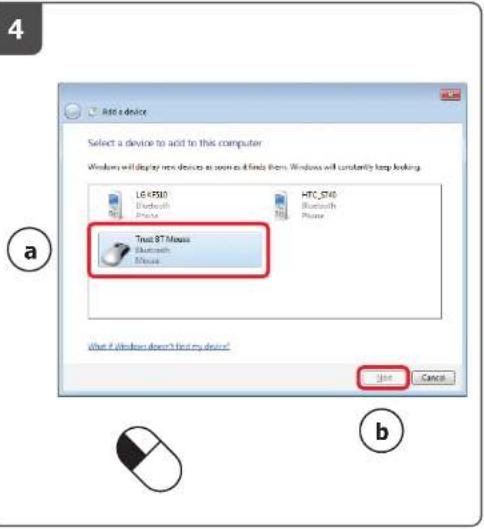
Add a device Select a device to add to this computer Windows will display new devices as soon as finds them. Windows will constantly keep looking. LG KP500 Bluetooth Phone HTC ST40 Bluetooth Phone Trust BT Mouse Bluetooth Mouse What if Windows doesn't find any device? Add Cancel a b

5
Add a device This device has been successfully added to this computer. Windows is now checking for devices and will install them if necessary. You may need to wait for this to finish before your device is ready to use. To verify if this device finished installing property, back for it in Devices and Boxes. Mouse Close

Windows XP / Vista Add a Bluetooth Device Show Bluetooth Devices Send a File Receive a File Join a Personal Area Network Open Bluetooth Settings Remove Bluetooth Icon 11:49 AM

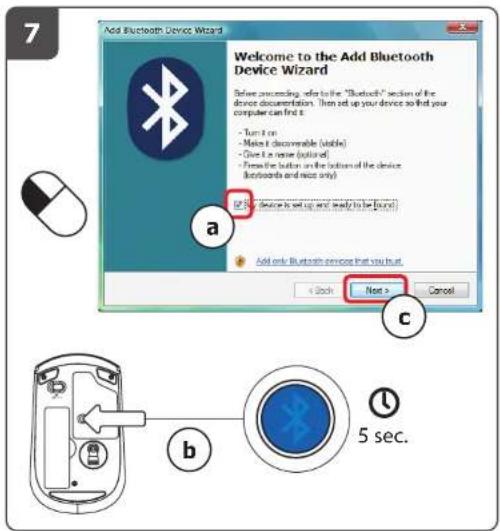
Add Bluetooth Device Wizard Welcome to the Add Bluetooth Device Wizard Before proceeding, refer to the "Bluetooth" section of the device documentation. Then set up your device so that your computer can first it. - Turn it on - Make it disposable (inline) - Give a name (inline) - Push the button on the bottom of the device (bootboards and nice only) a b c Add only Bluetooth service that you trust < Back Next > Cancel 5 sec.

Add Bluetooth Device Wizard Select the Bluetooth device that you want to add. HTC_S740 New device a Trust BT Mouse New device If you don't see the device that you want to add, make sure that it is tuned on. Follow the setup instructions that came with the device. and then click Search Again. Search Again < Back Next > Cancel b

Add Bluetooth Device Wizard Do you need a passkey to add your device? To answer this question, refer to the "Bluetooth" section of the documentation that came with your device. If the documentation specifies a passkey, use that one. Choose a passkey for me Use the passkey found in the documentation: Let me choose my own passkey: Don't use a passkey! You should always use a passkey, unless your device does not support one. We recommend using a passkey that is 8 to 16 digits long. The longer the passkey, the more secure it will be. < Back Next > Cancel

10 Add Bluetooth Device Wizard Completing the Add Bluetooth Device Wizard The Bluetooth device was successfully connected to your computer. Your computer and the device can communicate whenever they are near each other. To close this wizard, click: Finish. < Back Finish Cancel

FAQtrust.com/16980/faq 20100216R1 © Trust International B.V.

Handbuch-Assistent
Angetrieben von Anthropic
Warten auf Ihre Nachricht
Produktinformationen

Marke : TRUST

Modell : Zanoo Bluetooth Mouse

Kategorie : Computermaus