
APOS-400 - Ukategoriseret AIWA - Gratis brugsanvisning og manual
Find enhedens vejledning gratis APOS-400 AIWA i PDF-format.


Brugerspørgsmål om APOS-400 AIWA
0 spørgsmål om dette apparat. Besvar dem du kender, eller stil dit eget.
Stil et nyt spørgsmål om dette apparat
Download vejledningen til din Ukategoriseret i PDF-format gratis! Find din vejledning APOS-400 - AIWA og tag din elektroniske enhed tilbage i hånden. På denne side er alle dokumenter nødvendige for brugen af din enhed offentliggjort. APOS-400 af mærket AIWA.
BRUGSANVISNING APOS-400 AIWA
aiwa
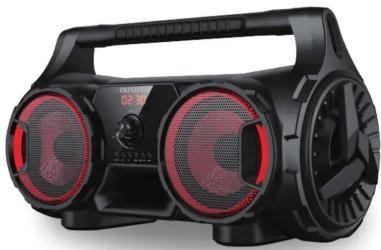
PORTABLE BLUETOOTH SPEAKER
APOS-400
saved to preset memory positions.
- Press the Play/Pause/Scan Button again to pause autoscan.
- Once the channels have been stored, press the Previous or Next Button to select the previous or next channel.
- If you know the channel position, you can also enter it directly using the remote control number buttons.
USB/microSD Operation
- Insert a USB or microSD memory device into the corresponding slot to play mp3 files automatically.
- Press Play/Pause Button to pause or play the music.
- During music playing, press Previous or Next Button to play the previous or next song.
TECHNICAL SPECIFICATIONS
Power Output: 10W
Input: DC 5V, 2A
Battery Capacity: 7.4V, 1500mAh
Bluetooth Transmission Distance: 10m
Dimensions (W x H x D): 390*215*160mm
Note: As a result of continual improvements, the design and specifications of the product within may differ slightly from the unit illustrated on the packaging.
TROUBLESHOOTING:
| Problem | Solution |
| 1. Unable to turn on the speaker | Make sure the battery is charged.Turn the On/Off/Volume Dial clockwise until it clicks to turn on the unit. The Power Button on the remote control will not work if the unit is not turned on using the On/Off/Volume Dial. |
| 2. Unable to connect to Bluetooth-enabled device | Make sure that the device is in Bluetooth Mode, and is within 10 meters from the speaker.Ensure that neither the speaker nor the device is connected via Bluetooth to any other device. |
| 3. No sound heard | Ensure that the correct mode has been selected.The volume is at its lowest, try increasing the volume. |
| 4. The speaker has no response | Please power off and try again. |
| 5. Remote control is not working | Turn the On/Off/Volume Dial clockwise until it clicks to turn on the unit. The Power Button on the remote control will not work if the unit is not turned on using the On/Off/Volume Dial.Ensure that the remote control sensor is not blocked by anything.Try changing the batteries. |
aiwa
natural_image
Black portable electronic device with red and black buttons, no visible text or symbolsInstruction Manual
3
IMPORTANT SAFETY INSTRUCTIONS

Warning: To prevent fire or shock hazard, do not expose the unit to rain or moisture.
To avoid electrical shock, do not dismantle. Refer all servicing to qualified service personnel.
-
Please read all of the instructions carefully and retain for future reference.
-
When using electrical appliances, basic safety precautions should always be followed.
-
This appliance is not intended for use by persons (including children) with reduced physical, sensory or mental capabilities, or lack of experience and knowledge, unless they have been given supervision or instruction concerning use of the appliance by a person responsible for their safety.
-
This product is not a toy! Children should be supervised to ensure that they do not play with the appliance
-
Any repairs must be done by qualified service personnel. There are no user-serviceable parts inside. Do not attempt to repair by yourself.
-
Keep the unit away from sharp edges that could cause damage.
-
Keep the unit free from dust and away from heat sources, direct sunlight, humidity, water or other liquids.
-
Do not immerse the unit in water or other liquids.
-
Do not operate the unit if it has been exposed to water, moisture or any other liquid in order to prevent electric
shock, explosion and/or injury to yourself and damage to the
-
Do not use the unit for anything other than its intended use.
-
Do not store the unit in direct sunlight or in high humidity conditions.
-
Do not insert foreign objects into any opening on the unit.
-
Do not play music at excessive volume levels as this can cause hearing loss or damage the unit, 14. Keep the unit away from flammable materials.
-
Keep the unit away from flammable materials.
Battery Instructions
-
Rechargeable batteries should only be charged under adult supervision.
-
Do not throw in fire, crush, puncture, dismantle or otherwise damage the batteries.
-
Do not expose batteries to heat or fire as they may explode.
-
Do not dispose of batteries in your household waste. Contact your local council for information on disposal or
recycling.
IN THE BOX
Upon opening the package, please check for the following items:
1 x Bluetooth Speaker
1 x Remote Control
1 x USB Charging Cable
1 x Instruction Manual
CHARGING THE SPEAKER
- Connect the small end of the USB charging cable (included) to the microUSB Charging Port (DC 5V, 2A) on the speaker.
- Connect the larger end of the cable to a suitable AC adaptor (not included). You can also connect it to the USB input port of a computer or similar.
PRODUCT OVERVIEW
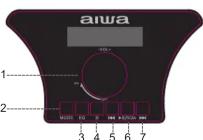
Control Panel
1. On/Off/ Volume Dial
- Rotate the dial to the right (past the initial click) to turn on the unit.
- Rotate the dial left or right to adjust volume.
- Rotate fully to the left to turn off the unit
2. Mode Button
- Press repeatedly to switch between USB, microSD, AUX, BT and FM
modes.
3. EO
- Press repeatedly to switch between the different equaliser modes.
4. LED On/Off
- Press to turn the lights on or off.
1
5. Previous Button
- Press to play the previous music track or previous radio station.
6. Play/Pause/Scan
- Press to pause playback of a music track. Press again to resume playback.
- In FM mode, press to start autoscan. The available FM channels will be saved to preset memory positions.
7. Next Button
- Press to play the next music track or next radio station.
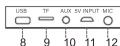
8. USB Input
- Connect your USB devices to this slot to play music with
MP3-format on USB mode.
9. microSD input
- Add a microSD card to this socket to play back music on the card.
10.Aux Input
- 3.5mm jack connector for input from mobile phone, tablet,
PC etc
11.Charging Input
• DC 5V microUSB input for charging the speaker.
12.Microphone Input
- 6.3mm(1/4") jack for connecting microphone.
Remote Control
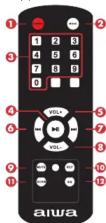
The remote control requires 2 x AAA batteries (included). Please ensure correct polarities when replacing batteries. IMPORTANT: The remote control buttons will be active only if the unit is turned on using the On/Off/Volume Dial.
-
Power Button: Press to turn on the unit or switch to standby.
-
Mode Button: Press repeatedly to switch between USB, microSD, AUX, BT and FM modes.
-
Number Buttons: Use to input track number in USB mode/Use to input preset channel
positions in FM mode.
-
Play/Pause Button: Press to pause playback of a music track. Press again to resume playback.
-
Volume + Button: Press to increase volume.
-
Previous Button: Press to play the previous music track or previous radio station.
-
Next Button: Press to play the next music track or next radio station.
-
Volume – Button: Press to decrease volume.
-
Mute Button: Press to mute/unmute sound.
-
Repeat Button: In USB/microSD mode, press to repeat the current song.
-
Scan Button: In FM mode, press to start autoscan. The available FM channels will be saved to
preset memory positions.
- Equaliser Button: Press repeatedly to switch between the different equaliser modes
OPERATION INSTRUCTIONS
Bluetooth Operation
- Place the speaker within 10 metres of the Bluetooth enabled device.
- Turn the On/Off/Volume Dial clockwise until it clicks on
- Enable Bluetooth function on your Bluetooth enabled smartphone, tablet or media player; navigate to the
Bluetooth setting menu, and search for new devices. The Bluetooth name for this speaker is 'Aiwa APOS-400'. - Now you can play music from the Bluetooth device on the speaker.
Auxiliary Line-in (AUX) Operation
- Use a 3.5mm auxiliary audio cable to connect your external device's (e.g. mp3 player) 'Line Out' port to the Aux
input port on t
- Press Mode Button to switch to AUX mode.
- Turn on your external device and start playback.
FM Radio Operation
- Press Mode Button to switch to FM mode
- Press the Play/Pause/Scan Button to start start auto scan of available channels. The available FM channels will be
2
- aiwa
- PORTABLE BLUETOOTH SPEAKER
- USB/microSD Operation
- TECHNICAL SPECIFICATIONS
- IMPORTANT SAFETY INSTRUCTIONS
- Battery Instructions
- IN THE BOX
- CHARGING THE SPEAKER
- PRODUCT OVERVIEW
- Control Panel
- On/Off/ Volume Dial
- Mode Button
- EO
- LED On/Off
- Previous Button
- Play/Pause/Scan
- Next Button
- USB Input
- microSD input
- 10.Aux Input
- 11.Charging Input
- Remote Control
- OPERATION INSTRUCTIONS
- Bluetooth Operation
- Auxiliary Line-in (AUX) Operation
- FM Radio Operation
Mærke : AIWA
Model : APOS-400
Kategori : Ukategoriseret