DVC 5030 HD - Videokamera EASYPIX - Gratis brugsanvisning og manual
Find enhedens vejledning gratis DVC 5030 HD EASYPIX i PDF-format.


Brugerspørgsmål om DVC 5030 HD EASYPIX
0 spørgsmål om dette apparat. Besvar dem du kender, eller stil dit eget.
Stil et nyt spørgsmål om dette apparat
Download vejledningen til din Videokamera i PDF-format gratis! Find din vejledning DVC 5030 HD - EASYPIX og tag din elektroniske enhed tilbage i hånden. På denne side er alle dokumenter nødvendige for brugen af din enhed offentliggjort. DVC 5030 HD af mærket EASYPIX.
BRUGSANVISNING DVC 5030 HD EASYPIX

DVC 5030
HD
Manual
1. Key features of your camcorder
HD digital video camcorder - 1280x720 up to 30fps HDT/HDMI output
HDTV HDMI output
3.0" fine grade LTPS color LCD display
Slot for SD Memory card, up to 32GB SD card capacity
Driver free for Windows XP / Vista and MAC 10.4.9 or above
Built-in IMAGE STABILIZATION function
Macro / Normal lens setting
2. Functional parts
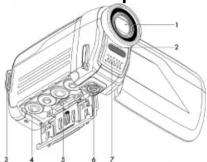
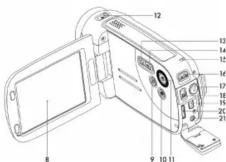
| Part Function | ||
| 1 | Lens Optical lens for V | deo & picture taking |
| 2 | Flash | Flash strobe activates when indoor or dark environment pictures taken. The best flash distance is within 5 feet (1.5m). |
| 3 | Strap hook For attaching | the wrist strap to the camera. |
| 4 | Battery | Press up door latch, release and swing open battery door. Insert 4x AA alkaline batteries into the camera |
| 5 | SD card slot Slide and | carefully insert SD Card. |
| 6 | Tripod socket Use this | socket to attach to tripod. |
| 7 | Speaker Built in Speaker. | |
| 8 | LCD screen LCD shows | images, video clips, camera Settings and Menu. |
| 9 | Playback button | Press button to enter the Playback PICTURE mode, press again switching to Playback VIDEO mode. |
| 10 | Menu Press to Set PICTURE /VIDEO recording options. | |
| 11 | Power Button Press | Power button to turn camera ON, press again to turn OFF |
| 12 | Macro / Normal Lens switch | Macro mode: Select this mode only when taking close-up pictures or video recording at 4 to 6inches (11 to 18cm)Normal mode: Select this mode when taking typical pictures or video at further than 2 feet (0.6M) from camera |
| 13 | LEFT/ Flash button | Press for flash options selection in photo mode and for LEFT selection in menu mode. |
| 14 | RIGHT / EV ± button | Press for RIGHT selection in menu mode and exposure value setting in photo/video mode. |
| 15 | Busy LED When the indicator is lit. The camera is busy. | |
| 16 | Mode Button | Press button to select mode: PICTURE taking or VIDEO recording. |
| 17 | Shutter / OK Button | Press this button to take Still PICTURE; to Start or Stop recording VIDEO clip, or to confirm changes (OK) in menu mode. |
| 18 | UP / DOWN Button | Zoom IN /OUT during recording mode. & browse UP/ DOWN for Menu options. |
| 19 | USB interface For transfer of images, video to computer via USB cable. | |
| 20 | HDMI socket | Slide open connectors' cover. Socket for cable connection: Use supplied HDMI cable for HDTV connection. |
| 21 | TV OUT socket | Slide open connectors' coverSocket for cable connection: Use supplied TV cable for video and audio connection to standard TV. |
3. Explanation of the status icons
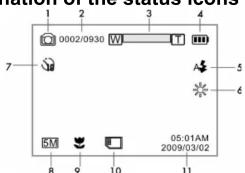
| Item | Function | Description |
| 1 | Recording mode | |
| 2 | Counter indicator | Shows available time for recording VIDEOShows active recording VIDEO timeShows picture stored / left in PHOTO mode |
| 3 | Digital zoom | Shows digital zoom range |
| 4 | Battery indicator | |
| 5 | Flash indicator (PHOTO mode only) | Fill in flash: Flash will be always active regardless of scene brightnessAuto Flash: The camera determines when the flash should be activated or not.No Flash : The flash is turned off. |
| 6 | White balance | The balance selection. |
| 7 | Self timer | On / Off |
| 8 | Selected resolution | Photo-3 Mpix, 5Mpix, 8MpixVideo-QVGA,WVGA,720P30, |
| 9 | Normal / Macro mode indicator | Normal mode (0.5m – infinity).Macro mode (11cm –18cm). |
| 10 | SD card indication | The SD card is inserted and will be used as storage for PHOTO and VIDEO |
| 11 | Date and Time Setting | This data will not be printed on taken pictures or video, but it may be read as the reference data |
4. Details for camera setting
| PHOTO settingIn photo mode, press the MENU button to enter photo set up mode. | ||
| Quality | Super Fine(default) / Fine /Normal | Picture quality setting |
| Size | 3.0M pixel resolution | 2048 x 1536 pixels |
| 5.0M pixel resolution | 2592 x 1944 pixels | |
| 8.0M pixel resolution | 3200 x 2400 pixels | |
| Self-timer | On | Self-timer selected, 10 sec delay |
| Off | Turn off the self-timer, disable | |
| VIDEO settingIn video mode, press the MENU button to enter video set up mode. | ||
| Resolution | 720P30 | HD (1280x720), up to 30fps |
| WVGA | WVGA (848x480), up to 60fps | |
| QVGA | QVGA (320x240), up to 30fps | |
| Quality | Super Fine(default) / Fine / Normal | VIDEO quality setting |
| Available scene adjustmentIn photo/video setup mode: press LEFT or RIGHT button to enter effect / scene adjustment options. | ||
| Flicker | 60Hz (default) | Set for American electricity frequency |
| 50Hz | Set for European electricity frequency | |
| White Balance | Auto (Default) | Automatic white balance |
| Sunny | White balance selected for Sunny sky | |
| Cloudy | White balance selected for cloudy sky | |
| Fluorescent | White balance selected for fluorescent indoor light | |
| Incandescent | White balance selected for tungsten indoor lighting | |
| Contrast | Standard / Hard / Soft | Scene contrast setting options |
| Sharpness | Standard / Hard / Soft | Sharpness setting |
| AE meter | Center / Average / Spot | AE meter setting |
| AE ISO Auto/100/20400 | ISO setting, Auto as default | |
| SetupIn photo/video setup mode: press RIGHT or LEFT button to enter camera basic setup options | ||
| Language | English / Deutsch / French / Italian/ Spanish / Nederlands / Portuguese/ CHS / CHT/Thai | Select display language |
| TV type | NTSC | American and Japanese TV format |
| PAL | European TV format | |
| Date / Time | Year / Month / Day / Hour / Minute | This data will not be printed on taken pictures or video, but it may be read as the reference data |
| Display | Off / Date/ Time / Date & Time | Show the Date, Time or the date and time on the LCD screen |
| Format | Yes / No | Format the SD card |
| Default | Yes / No | Refresh the default setting |
| Auto Power-Off | Off | Auto Power-Off off |
| 3 min (default) | Auto power off in 3 min if no operation | |
| 5 min | Auto power off in 5 min if no operation | |
| Version | ||
Note: The camera will remain in the last setting when it is turned OFF and ON again
5. Using the camera
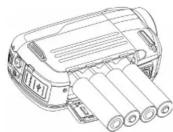
5.1 Installing the battery
- Open the battery door.
- Insert 4x AA alkaline batteries into the camera.
- Turn on the DV (camera).
Press the POWER button or open the LCD panel to turn on it.
5.2 Inserting a memory card (not included)
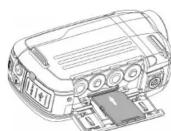
You must insert SD Card (not supplied) to record and store your VIDEO and PICTURES.
Inserting the SD Memory card:
-
Turn OFF the camera.
-
Insert the SD card into the SD card slot, gently press it down until card is latched. Make
sure that the SD card is not in LOCK position (see tiny slider on card's side).
Note: Do not force the card into the slot; forcing may damage camera and the SD memory card.
Align SD card position (as marked) and try again.
Note: The SD memory card must be formatted before taking photographs.
See the following instruction.
5.3 Formatting the SD memory card
If your SD card is new, or it was used with other cameras or devices, you need to FORMAT the card, see simple steps below. If card was previously used, save all needed images & video first.
- In photo/video setup mode, Press LEFT or RIGHT button to enter basic set up mode.
-
Select FORMAT icon by pressing the DOWN button ▼ and press Shutter / OK button to confirm, select YES by pressing the LEFT button .
-
Press Shutter / OK button to confirm formatting the SD card. Note: During formatting of the SD card ALL data, pictures & video (if present) will be erased;
make sure you save your valuable records before formatting the memory Remember, all your records will be erased during formatting!
5.4 Setting the resolution
VIDEO recording mode
-
Press the MENU button in video mode to enter options.
-
Select the RESOLUTION by pressing the UP ▲ or DOWN ▼ buttons, then press Shutter A OK button to enter resolution selection.
-
Select desired resolution using the UP ▲ or DOWN ▼ buttons; 720P30 (1280 x 720), WVGA (848 x 480) or QVGA (320 x 240), then press Shutter / OK button ● to confirm setting.
PICTURE taking mode
-
Press the MENU button in photo mode entering options
-
Select the SIZE icon using the DOWN ▼ button, press Shutter / OK button ● to confirm.
-
Select desired resolution using UP ▲ or DOWN ▼ buttons:
3.0M (2048 x 1536), 5.0M (2502 x 1944), 8.0M (3200 x 2400)
3.0M (2048 x 1936), 5.0M (2592 x 1944), 8.0M (3200 x 2400),
then press shutter / OK button ⚙ to confirm the setting
5.5 Taking video or pictures
-
Open screen / turn on your camera
-
Press the MODE button to select PICTURES or VIDEO recording mode
-
Depending on the distance to the object being photographed, use the Macro / Normal Lens switch to adjust the focus.
Use NORMAL when taking a typical video or photograph of surroundings, people (1.6ft / 0.5m to infinity), or set Lens to Macro (flower symbol) if you wish to take a close-up photograph (4 to 7 inches / 11cm - 18cm).
-
Use the LCD screen as a viewfinder composing the scene.
-
Press the Shutter / OK button ● for taking a PICTURE, or press this button to start / stop VIDEO recording.
Note: 1. Keep camera and the object steady when making records to avoid blurry images.
- Max video file size is 4GB. The unit will stop recording automatically
5.6 Zoom IN and OUT
Your camera has 1:3 zooming range.
Push UP ▲, DOWN ▼ button to select desired scene / view.
Note the Zoom bar (on top of the LCD screen to control zooming range).
5.7 Playback PICTURES and VIDEO clips
-
Press the PLAYBACK button ▶ once to enter PICTURES Playback mode, press it again to enter VIDEO Playback mode (note Playback camera / video icons on top of LCD screen).
-
Use UP / DOWN / LEFT / RIGHT buttons to select desired PICTURE or VIDEO.
-
Press OK to playback selected VIDEO or see full size PICTURE.
-
When viewing a photo, you may push the ▲ or ▼ buttons to zoom in or out
-
When viewing video clips, Press the Shutter / OK button ● to start playing the video and press again to pause.
-
When playing the video, press RIGHT / LEFT button to fast forward or rewind the VIDEO,
5.8 Delete photographs and video clips
- Press the PLAYBACK button once to enter the PHOTO playback mode, or press again to enter VIDEO clip playback mode. Select the photo or video to delete
- Press the MENU button to enter the delete mode
- Press the ▲ or ▼ button to select delete one or delete all and press the Shutter / OK button ● to confirm.
- If you select File protection, your current file or images can not be deleted.
- Press the MODE button to exit.
6. Connecting the HD DV camera
6.1 Connect to TV
When you wish to view on High Definition (HD) TV, please use supplied HDMI cable and connect as shown below:
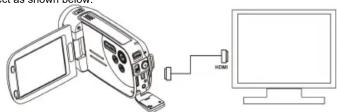
Set your HDTV to corresponding HDMI INPUT (review TV Manual if needed) and use camera buttons in the same way as you use camera during PLAYBACK mode. Enjoy watching pictures and HD VIDEO on large HDTV screen!
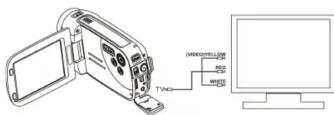
Enjoy watching pictures and HD VIDEO on large HDTV screen! You may also view PICTURES and recorded VIDEO clips on typical standard TV set. Make connection as shown below:
6.2 Connect to Personal computer
You may also connect your HD camcorder to PC and view PICTURES and VIDEOS on the computer monitor as well as expanding your system to enjoy a wide range of functions. You may edit your videos and images and send them to friends over the Internet or even post your own VIDEOS on YouTube! Millions of people may view them!
Upload to YouTube
Please install MEDIAIMPRESSION. This software enables upload to YouTube. This will take you directly to YouTube website for easy upload of videos.
Installing DirectX and ArcSoft MedialImpression
- Please insert provided CD into computer's CD ROM and follow screen prompts to install DirectX and MedialImpression in your computer
- Use USB cable to connect HD camcorder to computer
- Open My Computer> Removable Disk and select image or video file
-
Click to open and watch High definition video played back.
You may also install QuickTime (not bundled on supplied CD) or other suitable programs for best video playback.
HD Video data is very complex; use Win XP, Vista, Mac9.x and newest computers – older and slower computers may not play your HD Video clips so well. -
Specification
| Image Sensor 5.0 Mega pixel CMOS sensor | ||
| Image resolution | VIDEO | HD 1280x720pixels, up to 30fps |
| WVGA 848x480pixels, up to 60fps | ||
| QVGA 320x240pixels, up to 30fps | ||
| PICTURE | 8.0 Mega pixel (3200x2400) | |
| 5.0 Mega pixel (2592x1944) | ||
| 3.0 Mega pixel (2048x1536) | ||
| Lens | F/2.8 f=8.5mm | |
| Focus range | 2 feet (0.6m) to Infinity | |
| Macro mode | 4 to 7 inches (11cm - 18cm) | |
| Digital zoom 3x range | ||
| LCD display | 3.0" fine grade LTPS color LCD display | |
| White balance | Auto / Sunny / Cloudy / Fluorescent / Incandescent | |
| VIDEO format | MOV | |
| Built-in memory For | camera function only | |
| External memory card | SD card up to 32GB memory card ( card is required to store video & pictures) | |
| File format | VIDEO: MOV ; PICTURE: JPEG | |
| Self timer | 10 second options | |
| PC interface USB 20 port | |
| Power source 4x AA alkaline batteries | |
| TV-out | High Definition VIDEO: HDMIStandard TV (NTSC or PAL) output: AV standard port |
- PC system min requirement
| Operating System | Windows XP(SP2), Vista or aboveMac 10.4.9 or above |
| CPU | Pentium III/ 1GHz (minimum)Pentium 4 / 3.0GHz or above processor (recommended) |
| RAM | At least 256MB (minimum) 1GB (recommended) |
| Interface | USB available port |
| Display Card | nVidia Geforce 7600 or ATI X 1600 or above |
- Troubleshooting
| Problem Cause Solution | ||
| Cannot turn ON the camcorder | Low battery power, Battery not inserted properly. | Replace with new 4x AA alkaline batteries. Check that battery correctly aligned when installed |
| VIDEO or PICTURES cannot be saved when you are taking them. | 1. SD card has not been installed2. The SD card has not been formatted properly.3. Memory is full. Display shows 'MEMORY FULL'. | 1. Install SD card2. Format the SD card at SETUP mode of the camera. Please refer to section 5.3.3. Download the pictures and videos from the camera to the computer to create storage space. |
| Computer does not recognize your camcorder when connected. (You cannot find removable disk) | Connection failure. | Make sure all cable connections are secured. Restart the computer if necessary. |
| The battery life is very short. | Incorrect or old, used up, battery | Replace with new 4x AA alkaline batteries |
| Blurry images | 1. The HD camera is not held steady during recording2. The lens of HD DV camera is dirty.3. Incorrect Lens focus setting | 1. Hold the HD DV camera steady when taking pictures, wait to hear the beep sound2. Clean the lens with soft dry cloth.3. Set the Macro / Normal lens focus according to the proper camera to subject distance. Use "Normal" setting as appropriate for typical situations. |

For EU only
AM-HDV5E5H-GB-CLV-1
- Manual
- Key features of your camcorder
- Functional parts
- Explanation of the status icons
- Details for camera setting
- Using the camera
- Installing the battery
- Inserting a memory card (not included)
- Formatting the SD memory card
- Setting the resolution
- Taking video or pictures
- Zoom IN and OUT
- Playback PICTURES and VIDEO clips
- Delete photographs and video clips
- Connecting the HD DV camera
- Connect to TV
- Connect to Personal computer
Mærke : EASYPIX
Model : DVC 5030 HD
Kategori : Videokamera