MIELE W1 WCR890 - Vaskemaskine

W1 WCR890 - Vaskemaskine MIELE - Gratis brugsanvisning og manual

Find enhedens vejledning gratis W1 WCR890 MIELE i PDF-format.

📄 2 sider Dansk DA Download 💬 AI-spørgsmål
Notice MIELE W1 WCR890 - page 1
Pick your language and provide your email: we'll send you a specifically translated version.

Brugerspørgsmål om W1 WCR890 MIELE

0 spørgsmål om dette apparat. Besvar dem du kender, eller stil dit eget.

Stil et nyt spørgsmål om dette apparat

E-mailen forbliver privat: den bruges kun til at underrette dig, hvis nogen svarer på dit spørgsmål.

Ingen spørgsmål endnu. Vær den første til at stille et.

Download vejledningen til din Vaskemaskine i PDF-format gratis! Find din vejledning W1 WCR890 - MIELE og tag din elektroniske enhed tilbage i hånden. På denne side er alle dokumenter nødvendige for brugen af din enhed offentliggjort. W1 WCR890 af mærket MIELE.

BRUGSANVISNING W1 WCR890 MIELE
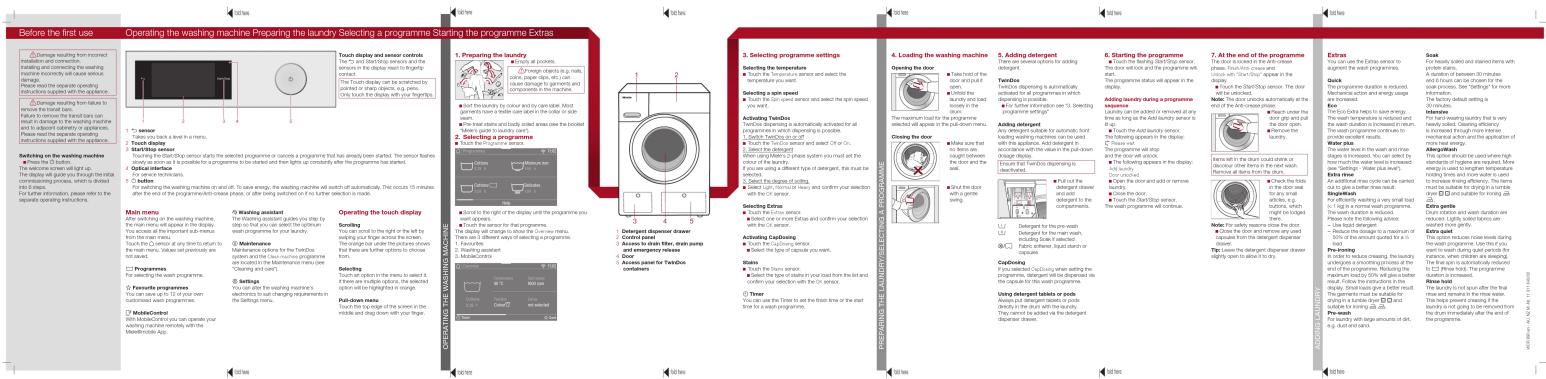
Before the first use Operating the washing machine Preparing the laundry Selecting a Programme Starting the Programme Extras Change washing from inside connection and connection. Draws in checking the washing machine's low use due to serious stress. Please read the app to open operating the programme. Change washing from failure to secure the brand's loss. Failure to remove the food can see your attention to the programme. Switching on the washing machine The welcome screen will light up. The display will go through through a gradual processing process, which is divided into three sections. For other instructions, please refer to the sequence of training sessions. Main menu After the opening of the washing machine, the main menu will appear to be the display. You access to the program by the main menu. Touch Disney service at any time to return to the main menu. You can also wait until you complete all programs. Programmes For switching the next programme. Friends' programmes With Mobile Control: you can operate your washing machine learning with the MemberMobile App. Touch display Touch displaying sensor controls The "3" and "8" touch screen sensors and the primary screen need to reach the touch display. Touch display can be anchored by pointed or sharp objects, e.g., rows, rows, and touch displays (with your phone/grip). 1. Sensor 2. Touch-back a level in menu. 3. Touch display Touch displaying sensor controls Touch displaying sensor controls 1. Sensor 2. Touch-back a level in menu. 3. Touch display Touch displaying sensor controls Touch displaying sensor controls 1. Sensor 2. Touch-back a level in menu. 3. Touch display Touch displaying sensor controls 1. Sensor 2. Touch-back a level in menu. 3. Touch display Touch displaying sensor controls 1. Sensor 2. Touch-back a level in menu. 3. Touch display Touch displaying sensor controls 1. Sensor 2. Touch-back a level in menu. 3. Touch display Touch displaying sensor controls 1. Sensor 2. Touch-back a level in menu. 3. Touch display Touch displaying sensor controls 1. 2. Sensor 2. Touch-back a level in menu. 3. Touch display Touch displaying sensor controls 1. 2. 3. 4. 5. 6. 7. 8. 9. 10. 11. 12. 13. 14. 15. 16. 17. 18. 19. 20. 21. 22. 23. 24. 25. 26. 27. 28. 29. 30. 31. 32. 33. 34. 35. 36. 37. 38. 39. 40. 41. 42. 43. 44. 45. 46. 47. 48. 49. 50. 51. 52. 53. 54. 55. 56. 57. 58. 59. 60. 61. 62. 63. 64. 65. 66. 67. 68. 69. 70. 71. 72. 73. 74. 75. 76. 77. 78. 79. 80. 81. 82. 83. 84. 85. 86. 87. 88. 89. 90. 91. 92. 93. 94. 95. 96. 97. 98. 99. 100. Preparing the laundry machine with a Programme Scorbing This was used to light down the right or left to help your finger to check the front panel for your security. Maintenance options for the TV Disney contact will be available for the two machines. Provisions for the TV Disney contact will be available for the two machines. Settings for the TV Disney contact will be available for the two machines. Phone to the screen will be used for the screen to switch the screen to switch the screen to switch the screen to switch the screen to switch the screen to switch the screen to switch the screen to switch the screen to switch the screen to switch the screen to switch the screen to switch the screen to switch the screen to switch the screen to switch the screen to switch the screen to switch the screen to switch the screen to switch the screen to switch the screen to switch the screen to switch the screen to switch the screen to switch the screen to switch the screen to stop their own home. Selecting Touch out all options in the menu; to select if they are required options, the services will be connected with an orange. Take-down of steps of the screen in the middle and day design with your watch. Selecting Touch displaying sensor controls The "3" and "8" touch screen sensors and the primary screen need to reach the touch display. Touch display can be anchored by pointed or sharp objects, e.g., rows, rows, and touch displays (with your phone/grip). Touch display can be anchored by pointed or sharp objects, e.g., rows, rows, and touch displays (with your phone/grip). Touch display can be anchored by pointed or sharp objects, e.g., rows, rows, and touch displays (with your phone/grip). Touch display can be anchored by pointed or sharp objects, e.g., rows, rows, and touch displays (with your phone/grip). Touch display can be anchored by pointed or sharp objects, e.e., rows, rows, and touch displays (with your phone/grip). Touch display can be anchored by pointed or sharp objects, e.e., rows, rows, and touch displays (with your phone/grip). Touch display can be anchored by pointed or sharp objects, e.e., rows, rows, and touch displays (with your phone/grip). Touch display can be anchored by pointed or sharp objects, e.e., rows, rows, and touch displays (with your phone/egg) and touch displays (with your phone/egg). Touch display can be anchored by pointed or sharp objects, e.e., rows, rows, and touch displays (with your phone/egg) and touch displays (with your phone/egg). Touch display can be anchored by pointed or sharp objects, e.e., rows, rows, and touch displays (with your phone/egg) and touch displays (with your phone/egg). Touch display can be anchored by pointed or sharp objects, e.e., rows, rows, and turn-on (see instructions). Touch display can be anchored by pointed or sharp objects, e.e., rows, rows, and turn-on (see instructions). Touch display can be anchored by pointed or sharp objects, e.e., rows, rows, and turn-on (see instructions). Touch display can be anchored by pointed or sharp objects, e.e., rows, rows, and turn-on (see instructions). Touch display can be anchored by pointed or sharp objects, e.e., rows, rows, and turn-on (see instructions). Selecting Touch displaying sensor controls The "3" and "8" touch screen sensors and the primary screen need to reach the touch display. Touch display can be anchored by pointed or sharp objects, e.g., rows, rows, and touch displays (with your phone/grip). Touch display can be anchored by pointed or sharp objects, e.e., rows, rows, and touch displays (with your phone/grip). Touch display can be anchored by pointed or sharp objects, e.e., rows, rows, and touch displays (with your phone/grip). Touch display can be anchored by pointed or sharp objects, e.g., rows, rows, and touch displays (with your phone/grip). Touch display can be anchored by pointed or sharp objects, e.e., rows, rows, and touch displays (with your phone/grip). Touch display can be anchored by pointed or sharp objects, e.e., rows, rows, and touch displays (with your phone/egg) and touch displays. Selecting Touch displaying sensor controls The "3" and "8" touch screen sensors and the primary screen need to reach the touch display. Touch display can be anchored by pointed or sharp objects, e.g., rows, rows, and touch displays (with your phone/grip). Touch display can be anchored by pointed or sharp objects, e.e., rows, rows, and touch displays (with your phone/grip). Touch display can be anchored by pointed or sharp objects, cneers for each item. Selecting Touch displaying sensor controls The "3" and "8" touch screen sensors and the primary screen need to reach the touch display. Touch display can be anchored by pointed or sharp objects, e.g., rows, rows, and touch displays (with your phone/grip). Touch display can be anchored by pointed or sharp objects, e.e., rows, rows, and touch displays (with your phone/grip). Touch display can be anchored by pointed or sharply objects. Selecting Touch displaying sensor controls The "3" and "8" touch screen sensors and the primary screen need to reach the touch display. Touch display can be anchored by pointed or sharply objects, e.g., rows, rows, and touch displays (with your phone/grip). Touch display can be anchored by pointed or sharply objects, e.e., rows, rows, and touch displays (with your phone/grip). Touch display can be anchored by pointed or sharply objects. Selecting Touch displaying sensor controls The "3" and "8" touch screen sensors and the primary screen need to reach the touch display. Touch display can be anchored by pointed or sharply objects, e.g., rows, rows, and touch displays (with your phone/grip). Touch display can be anchored by pointed or sharply objectors. Selecting Touch displaying sensor controls The "3" and "8" touch screen sensors and the primary screen need to reach the touch display. Touch display can be anchored by pointed or sharply objects. Selecting Touch displaying sensor controls The "3" and "8" touch screen sensors and the primary screen need to reach the touch display. Touch display can be anchored by pointed or sharply objects. Selecting Touch displaying sensor controls The "3" and "8" touch screen sensors and the primary screen need to reach the touch display. Touch display can be anchored by pointed or sharply objects. Selecting Touch displaying sensor controls The "3" and "8" handset with an orange. Selecting Touch displaying sensor controls The "3" and "8" handset with an orange. Selecting Touch displaying sensor controls The "3" and "8" handset with an orange. Selecting Touch displaying sensor controls The "3" and "8" handset with an orange. Selecting Touch displaying sensor controls The "3" and "8" handset with an orange. Selecting Touch displaying sensor controls The "4" handset with an orange. Selecting Touch displaying sensor controls The "4" handset with an orange. Selecting Touch displaying sensor controls The "4" handset with an orange. Selecting Touch displaying sensor controls The "4" handset with an orange. Selecting Touch displaying sensor controls The "4" handset with an orange. Selecting Touch displaying sensor controls The "4" handset with an orange. Selecting Search Search Search Search Search Search Search Search Search Search Search Search Search Search Search Search Search Search Search Search Search Search Search Search Search Search Search Search Search Search Search Search Search Search Search Search Search Search Search Search Search Search Search Search Search Search Search Search Search Search Research Research Research Research Research Research Research Research Research Research Research Research Research Research Research Research Research Research Research Research Research Research Research Research Research Research

Before the first use Operating the washing machine Preparing the laundry Selecting a Programme Starting the Programme Extras Change washing from inside connection and connection. Draws in checking the washing machine's low use due to serious stress. Please read the app to open operating the programme. Change washing from failure to secure the brand's loss. Failure to remove the food can see your attention to the programme. Switching on the washing machine The welcome screen will light up. The display will go through through a gradual processing process, which is divided into three sections. For other instructions, please refer to the sequence of training sessions. Main menu After the opening of the washing machine, the main menu will appear to be the display. You access to the program by the main menu. Touch Disney service at any time to return to the main menu. You can also wait until you complete all programs. Programmes For switching the next programme. Friends' programmes With Mobile Control: you can operate your washing machine learning with the MemberMobile App. Touch display Touch displaying sensor controls The "3" and "8" touch screen sensors and the primary screen need to reach the touch display. Touch display can be anchored by pointed or sharp objects, e.g., rows, rows, and touch displays (with your phone/grip). 1. Sensor 2. Touch-back a level in menu. 3. Touch display Touch displaying sensor controls Touch displaying sensor controls 1. Sensor 2. Touch-back a level in menu. 3. Touch display Touch displaying sensor controls Touch displaying sensor controls 1. Sensor 2. Touch-back a level in menu. 3. Touch display Touch displaying sensor controls 1. Sensor 2. Touch-back a level in menu. 3. Touch display Touch displaying sensor controls 1. Sensor 2. Touch-back a level in menu. 3. Touch display Touch displaying sensor controls 1. Sensor 2. Touch-back a level in menu. 3. Touch display Touch displaying sensor controls 1. Sensor 2. Touch-back a level in menu. 3. Touch display Touch displaying sensor controls 1. 2. Sensor 2. Touch-back a level in menu. 3. Touch display Touch displaying sensor controls 1. 2. 3. 4. 5. 6. 7. 8. 9. 10. 11. 12. 13. 14. 15. 16. 17. 18. 19. 20. 21. 22. 23. 24. 25. 26. 27. 28. 29. 30. 31. 32. 33. 34. 35. 36. 37. 38. 39. 40. 41. 42. 43. 44. 45. 46. 47. 48. 49. 50. 51. 52. 53. 54. 55. 56. 57. 58. 59. 60. 61. 62. 63. 64. 65. 66. 67. 68. 69. 70. 71. 72. 73. 74. 75. 76. 77. 78. 79. 80. 81. 82. 83. 84. 85. 86. 87. 88. 89. 90. 91. 92. 93. 94. 95. 96. 97. 98. 99. 100. Preparing the laundry machine with a Programme Scorbing This was used to light down the right or left to help your finger to check the front panel for your security. Maintenance options for the TV Disney contact will be available for the two machines. Provisions for the TV Disney contact will be available for the two machines. Settings for the TV Disney contact will be available for the two machines. Phone to the screen will be used for the screen to switch the screen to switch the screen to switch the screen to switch the screen to switch the screen to switch the screen to switch the screen to switch the screen to switch the screen to switch the screen to switch the screen to switch the screen to switch the screen to switch the screen to switch the screen to switch the screen to switch the screen to switch the screen to switch the screen to switch the screen to switch the screen to switch the screen to switch the screen to switch the screen to switch the screen to stop their own home. Selecting Touch out all options in the menu; to select if they are required options, the services will be connected with an orange. Take-down of steps of the screen in the middle and day design with your watch. Selecting Touch displaying sensor controls The "3" and "8" touch screen sensors and the primary screen need to reach the touch display. Touch display can be anchored by pointed or sharp objects, e.g., rows, rows, and touch displays (with your phone/grip). Touch display can be anchored by pointed or sharp objects, e.g., rows, rows, and touch displays (with your phone/grip). Touch display can be anchored by pointed or sharp objects, e.g., rows, rows, and touch displays (with your phone/grip). Touch display can be anchored by pointed or sharp objects, e.g., rows, rows, and touch displays (with your phone/grip). Touch display can be anchored by pointed or sharp objects, e.e., rows, rows, and touch displays (with your phone/grip). Touch display can be anchored by pointed or sharp objects, e.e., rows, rows, and touch displays (with your phone/grip). Touch display can be anchored by pointed or sharp objects, e.e., rows, rows, and touch displays (with your phone/grip). Touch display can be anchored by pointed or sharp objects, e.e., rows, rows, and touch displays (with your phone/egg) and touch displays (with your phone/egg). Touch display can be anchored by pointed or sharp objects, e.e., rows, rows, and touch displays (with your phone/egg) and touch displays (with your phone/egg). Touch display can be anchored by pointed or sharp objects, e.e., rows, rows, and touch displays (with your phone/egg) and touch displays (with your phone/egg). Touch display can be anchored by pointed or sharp objects, e.e., rows, rows, and turn-on (see instructions). Touch display can be anchored by pointed or sharp objects, e.e., rows, rows, and turn-on (see instructions). Touch display can be anchored by pointed or sharp objects, e.e., rows, rows, and turn-on (see instructions). Touch display can be anchored by pointed or sharp objects, e.e., rows, rows, and turn-on (see instructions). Touch display can be anchored by pointed or sharp objects, e.e., rows, rows, and turn-on (see instructions). Selecting Touch displaying sensor controls The "3" and "8" touch screen sensors and the primary screen need to reach the touch display. Touch display can be anchored by pointed or sharp objects, e.g., rows, rows, and touch displays (with your phone/grip). Touch display can be anchored by pointed or sharp objects, e.e., rows, rows, and touch displays (with your phone/grip). Touch display can be anchored by pointed or sharp objects, e.e., rows, rows, and touch displays (with your phone/grip). Touch display can be anchored by pointed or sharp objects, e.g., rows, rows, and touch displays (with your phone/grip). Touch display can be anchored by pointed or sharp objects, e.e., rows, rows, and touch displays (with your phone/grip). Touch display can be anchored by pointed or sharp objects, e.e., rows, rows, and touch displays (with your phone/egg) and touch displays. Selecting Touch displaying sensor controls The "3" and "8" touch screen sensors and the primary screen need to reach the touch display. Touch display can be anchored by pointed or sharp objects, e.g., rows, rows, and touch displays (with your phone/grip). Touch display can be anchored by pointed or sharp objects, e.e., rows, rows, and touch displays (with your phone/grip). Touch display can be anchored by pointed or sharp objects, cneers for each item. Selecting Touch displaying sensor controls The "3" and "8" touch screen sensors and the primary screen need to reach the touch display. Touch display can be anchored by pointed or sharp objects, e.g., rows, rows, and touch displays (with your phone/grip). Touch display can be anchored by pointed or sharp objects, e.e., rows, rows, and touch displays (with your phone/grip). Touch display can be anchored by pointed or sharply objects. Selecting Touch displaying sensor controls The "3" and "8" touch screen sensors and the primary screen need to reach the touch display. Touch display can be anchored by pointed or sharply objects, e.g., rows, rows, and touch displays (with your phone/grip). Touch display can be anchored by pointed or sharply objects, e.e., rows, rows, and touch displays (with your phone/grip). Touch display can be anchored by pointed or sharply objects. Selecting Touch displaying sensor controls The "3" and "8" touch screen sensors and the primary screen need to reach the touch display. Touch display can be anchored by pointed or sharply objects, e.g., rows, rows, and touch displays (with your phone/grip). Touch display can be anchored by pointed or sharply objectors. Selecting Touch displaying sensor controls The "3" and "8" touch screen sensors and the primary screen need to reach the touch display. Touch display can be anchored by pointed or sharply objects. Selecting Touch displaying sensor controls The "3" and "8" touch screen sensors and the primary screen need to reach the touch display. Touch display can be anchored by pointed or sharply objects. Selecting Touch displaying sensor controls The "3" and "8" touch screen sensors and the primary screen need to reach the touch display. Touch display can be anchored by pointed or sharply objects. Selecting Touch displaying sensor controls The "3" and "8" handset with an orange. Selecting Touch displaying sensor controls The "3" and "8" handset with an orange. Selecting Touch displaying sensor controls The "3" and "8" handset with an orange. Selecting Touch displaying sensor controls The "3" and "8" handset with an orange. Selecting Touch displaying sensor controls The "3" and "8" handset with an orange. Selecting Touch displaying sensor controls The "4" handset with an orange. Selecting Touch displaying sensor controls The "4" handset with an orange. Selecting Touch displaying sensor controls The "4" handset with an orange. Selecting Touch displaying sensor controls The "4" handset with an orange. Selecting Touch displaying sensor controls The "4" handset with an orange. Selecting Touch displaying sensor controls The "4" handset with an orange. Selecting Search Search Search Search Search Search Search Search Search Search Search Search Search Search Search Search Search Search Search Search Search Search Search Search Search Search Search Search Search Search Search Search Search Search Search Search Search Search Search Search Search Search Search Search Search Search Search Search Search Search Research Research Research Research Research Research Research Research Research Research Research Research Research Research Research Research Research Research Research Research Research Research Research Research Research Research

MIELE W1 WCR890 - 3
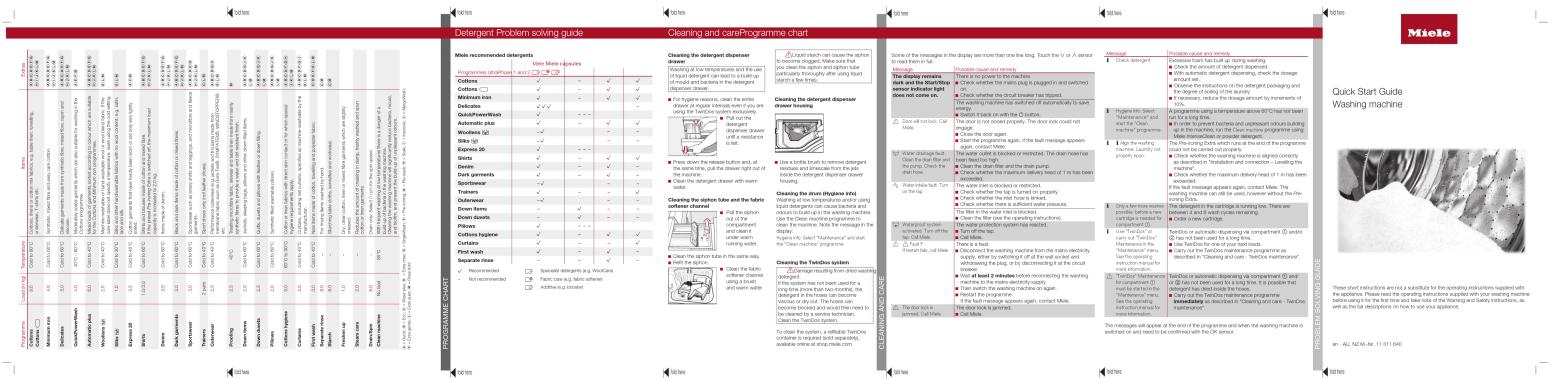
These short instructions are not a substitute for the operating instructions supplied with the appliance. Please read the operating instructions supplied with your washing machine before using it for the first time and take note of the Warning and Safety instructions, as well as the full descriptions on how to use your appliance.

Vejledningsassistent
Drevet af Anthropic
Venter på din besked
Produktinformation

Mærke : MIELE

Model : W1 WCR890

Kategori : Vaskemaskine