
24LB454A-TG - Fjernsyn LG - Gratis brugsanvisning og manual
Find enhedens vejledning gratis 24LB454A-TG LG i PDF-format.


Brugerspørgsmål om 24LB454A-TG LG
0 spørgsmål om dette apparat. Besvar dem du kender, eller stil dit eget.
Stil et nyt spørgsmål om dette apparat
Download vejledningen til din Fjernsyn i PDF-format gratis! Find din vejledning 24LB454A-TG - LG og tag din elektroniske enhed tilbage i hånden. På denne side er alle dokumenter nødvendige for brugen af din enhed offentliggjort. 24LB454A-TG af mærket LG.
BRUGSANVISNING 24LB454A-TG LG

LG
Life's Good
OWNER'S MANUAL
LED TV\*
* Disclaimer
LG LED TV applies LCD screen with LED backlights.
Please read this manual carefully before operating your set and retain it for future reference.
LB45**
LB47**
LB51**
P/NO : MFL68062710 (1402-REV 01)
www.lg.com

Quick Reference Guide
1. Factory Reset
1. 1 When to do Factory Reset?
When you feel any abnormality in Picture and Sound settings, you can use this function to reset all the settings to initial condition.
1.2 How to do Factory Reset?
Follow below on-screen instructions for Factory Reset.
- Press SETTINGS and the Navigation buttons to scroll to OPTION.
- Press the Navigation buttons to scroll to the Factory Reset (depending on model) and then press OK.
- Select the Menu language.
- Select Home Use mode and press OK.
- Set the Date as per requirement.
- Auto Tuning message window will appear press next and follow instructions.
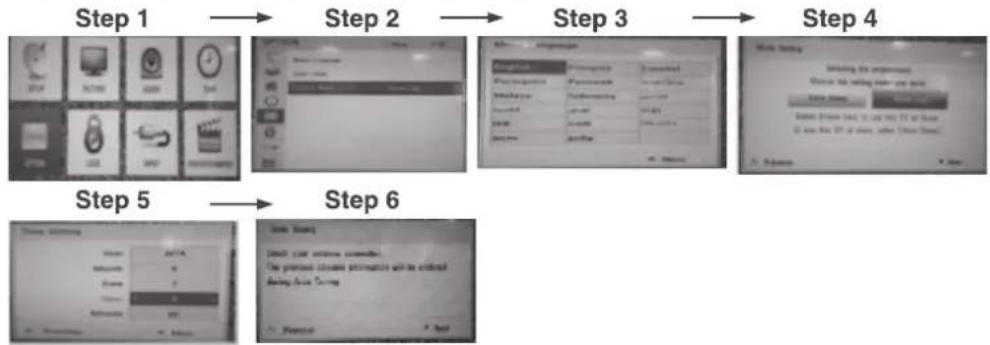
flowchart
graph LR
    A["Step 1"] --> B["Step 2"]
    B --> C["Step 3"]
    C --> D["Step 4"]
    D --> E["Step 5"]
    E --> F["Step 6"]
Note: Changing Mode Setting (Home Use → Store Demo) will reset all Channel Information and need to store all Channel data.
2. Signal Strength Indicator
- Use this function to know the quality of RF cable signal.
• Signal strength is displayed in channel information window.
• A high signal level indicates a good signal quality.
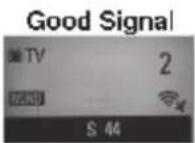
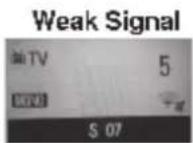
If picture quality is not good or distorted, use this function to check the signal strength.
Note: If signal strength is low then contact your cable operator.
Note: Actual images may vary depending on Model

TABLE OF CONTENTS
6 SAFETY INSTRUCTIONS
12 INSTALLATION PROCEDURE
12 ASSEMBLING AND PREPARING
12 Unpacking
15 Parts and buttons
16 - Using the Joystick button
17 Lifting and moving the TV
18 Setting up the TV
18 - Attaching the stand
20 - Detaching the Stand
20 Mounting on a table
21 Mounting on a wall
23 - Attaching the shelf stand
24 - How to attach to masonry walls
24 - Please follow the below direction
25 Tidying cables
25 MAKING CONNECTIONS
26 Antenna Connection
26 Adapter Connection
27 Other Connections
29 REMOTE CONTROL
31 WATCHING TV
31 Turning the TV on for the first time
31 Watching TV
31 Managing programmes
31 - Automatically setting up programme
32 - Manually setting up programme
33 - Editing your programme list
33 - Selecting a programme on the programme list
33 Using additional options
33 - Adjusting aspect ratio
35 - Using the input list
35 ENTERTAINMENT
35 Connecting USB storage devices
37 Browsing files
38 Viewing photos
39 Listening to music
41 Viewing movies
44 DivX® VOD Guide
45 CUSTOMIZING TV SETTING
45 Accessing main menus
45 Customizing Settings
45 - SETUP Settings
46 - PICTURE Settings
49 - AUDIO Settings
51 - TIME Settings
51 - OPTION Settings
52 - LOCK Settings
52 - ENTERTAINMENT Settings
53 TELETEXT
53 Switch On/Off
53 Simple Text
53 - Page selection
53 - Programming a colour button in LIST
mode
53 Fastext
53 - Page selection
54 Special Teletext Function
55 MAINTENANCE
55 Cleaning your TV
55 - Screen, frame, cabinet and stand
55 - Power cord
55 TROUBLESHOOTING
57 SPECIFICATIONS
62 LICENSES
62 OPEN SOURCE SOFTWARE NOTICE

WARNING
- If you ignore the warning message, you may be seriously injured or there is a possibility of accident or death.

CAUTION
- If you ignore the caution message, you may be slightly injured or the product may be damaged.

NOTE
- The note helps you understand and use the product safely. Please read the note carefully before using the product.
SAFETY INSTRUCTIONS
Please read these safety precautions carefully before using the product.

WARNING
- Do not place the TV and/or remote control in the following environments:
- A location exposed to direct sunlight
- An area with high humidity such as a bathroom
- Near any heat source such as stoves and other devices that produce heat
- Near kitchen counters or humidifiers where they can easily be exposed to steam or oil
- An area exposed to rain or wind
- Near containers of water such as vases Otherwise, this may result in fire, electric shock, malfunction or product deformation.
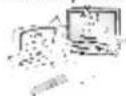
- Do not place the product where it might be exposed to dust. This may cause a fire hazard.
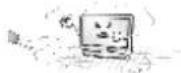
- Mains Plug is the TV connecting/disconnecting device to AC mains electric supply. This plug must remain readily attached and operable when TV is in use.
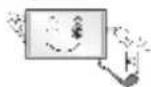
- Do not touch the power plug with wet hands. Additionally, if the cord pin is wet or covered with dust, dry the power plug completely or wipe dust off. You may be electrocuted due to excess moisture.
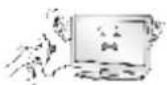
- Make sure to connect Mains cable to compliant AC mains socket with Grounded earth pin. (Except for devices which are not grounded on earth.) Otherwise possibility you may be electrocuted or injured.
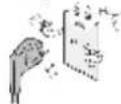
- Insert power cable plug completely into wall socket otherwise if not secured completely into socket, fire ignition may break out.
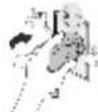
- Ensure the power cord does not come into contact with hot objects such as a heater. This may cause a fire or an electric shock hazard.

- Do not place a heavy object, or the product itself, on power cables. Otherwise, this may result in fire or electric shock.
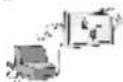
- Bend antenna cable between inside and outside building to prevent rain from flowing in. This may cause water damaged inside the Product and could give an electric shock.
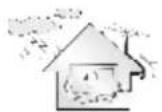
- When mounting TV onto wall make sure to neatly install and isolate cabling from rear of TV as to not create possibility of electric shock /fire hazard.
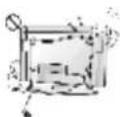
- Do not plug too many electrical devices into a single multiple electrical outlet. Otherwise, this may result in fire due to over-heating.
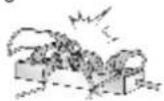
- Do not drop the product or let it fall over when connecting external devices. Otherwise, this may result in injury or damage to the product.
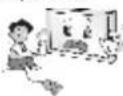
- Keep the anti-moisture packing material or vinyl packing out of the reach of children. Anti-moisture material is harmful if swallowed. If swallowed by mistake, for the patient to vomit and visit the nearest hospital. Additionally, vinyl packing can cause suffocation. Keep it out of the reach of children.
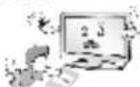
- Do not let your children climb or cling onto the TV. Otherwise, the TV may fall over, which may cause serious injury.
- Dispose of used batteries carefully to ensure that a small child does not consume them. Please seek Doctor-Medical Attention immediately if child consumes batteries.

- Do not insert any metal objects/conductors (like a metal chopstick/cutlery/screwdriver) between power cable plug and input Wall Socket while it is connected to the input terminal on the wall. Additionally, do not touch the power cable right after plugging into the wall input terminal. You may be electrocuted. (Depending on model)
- Do not put or store inflammable substances near the product. There is a danger of combustion/explosion or fire due to careless handling of the inflammable substances.

- Do not drop metallic objects such as coins, hair pins, chopsticks or wire into the product, or inflammable objects such as paper and matches. Children must pay particular attention. Electrical shock, fire or injury can occur. If a foreign object is dropped into the product, unplug the power cord and contact the service centre.
- Do not spray water on the product or scrub with an inflammable substance (thinner or benzene). Fire or electric shock accident can occur.

- Do not allow any impact, shock or any objects to fall into the unit, and do not drop anything onto the screen. You may be injured or the product can be damaged.
- Never touch this product or antenna during a thunder or lighting storm. You may be electrocuted.
- Never touch the wall outlet when there is leakage of gas, open the windows and ventilate. It may cause a fire or a burn by a spark.
- Do not disassemble, repair or modify the product at your own discretion. Fire or electric shock accident can occur. Contact the service centre for check, calibration or repair.
- If any of the following occur, unplug the product immediately and contact your local service centre.
- The product has been impacted by shock
- The product has been damaged
- Foreign objects have entered the product
- The product produced smoke or a strange smell
This may result in fire or electric shock.

- Unplug the TV from AC mains wall socket if you do not intend to use the TV for a long period of time. Accumulated dust can cause fire hazard and insulation deterioration can cause electric leakage/shock/fire.

- Apparatus shall not be exposed to dripping or splashing and no objects filled with liquids, such as vases, shall be placed on the apparatus.
- Do not install this product on a wall if it could be exposed to oil or oil mist. This may damage the product and cause it to fall.

CAUTION
• Install the product where no radio wave occurs.
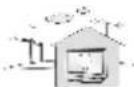
- There should be enough distance between an outside antenna and power lines to keep the former from touching the latter even when the antenna falls. This may cause an electric shock.
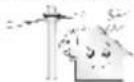
- Do not install the product on places such as unstable shelves or inclined surfaces. Also avoid places where there is vibration or where the product cannot be fully supported. Otherwise, the product may fall or flip over, which may cause injury or damage to the product.
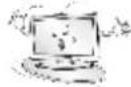
- If you install the TV on a stand, you need to take actions to prevent the product from overturning. Otherwise, the product may fall over, which may cause injury.
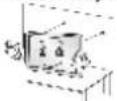
- If you intend to mount the product to a wall, attach VESA standard mounting interface (optional parts) to the back of the product. When you install the set to use the wall mounting bracket (optional parts), fix it carefully so as not to drop.
- Only use the attachments / accessories specified by the manufacturer.
- When installing the antenna, consult with a qualified service technician. If not installed by a qualified technician, this may create a fire hazard or an electric shock hazard.
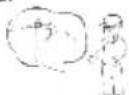
• We recommend that you maintain a distance of at least 2 to 7 times the diagonal screen size when watching TV. If you watch TV for a long period of time, this may cause blurred vision.
- Only use the specified type of battery. This could cause damage to the remote control.
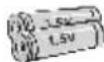
- Do not mix new batteries with old batteries. This may cause the batteries to overheat and leak.
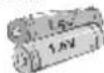
- Batteries should not be exposed to excessive heat. For example, keep away from direct Sunlight, open fireplace and electric heaters.
- Do not place non-rechargeable batteries in charging device.
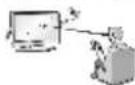
• Make sure there are no objects between the remote control and its sensor.
- Signal from Remote Control can be interrupted due to external/internal lighting eg Sunlight, fluorescent lighting. If this occurs turn off lighting or darken viewing area.

- When connecting external devices such as video game consoles, make sure the connecting cables are long enough. Otherwise, the product may fall over, which may cause injury or damage the product.
- Do not turn the product On/Off by plugging-in or unplugging the power plug to the wall outlet. (Do not use the power plug for switch.) It may cause mechanical failure or could give an electric shock.
- Please follow the installation instructions below to prevent the product from overheating.
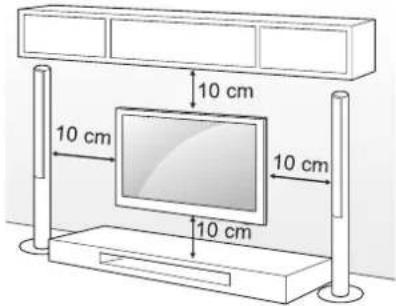
- The distance between the product and the wall should be more than 10 cm.
- Do not install the product in a place with no ventilation (e.g., on a bookshelf or in a cupboard).
- Do not install the product on a carpet or cushion.
- Make sure the air vent is not blocked by a tablecloth or curtain.
Otherwise, this may result in fire.
• Take care not to touch the ventilation openings when watching the TV for long periods as the ventilation openings may become hot. This does not affect the operation or performance of the product.
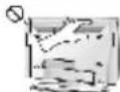
- Periodically examine the cord of your appliance, and if its appearance indicates damage or deterioration, unplug it, discontinue use of the appliance, and have the cord replaced with an exact replacement part by an authorized servicer.
- Prevent dust collecting on the power plug pins or outlet. This may cause a fire hazard.
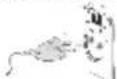
- Protect the power cord from physical or mechanical abuse, such as being twisted, kinked, pinched, closed in a door, or walked upon. Pay particular attention to plugs, wall outlets, and the point where the cord exits the appliance.
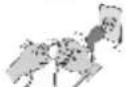
- Do not press strongly upon the panel with a hand or sharp object such as nail, pencil or pen, or make a scratch on it, as it may cause damage to screen.
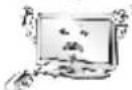
- Avoid touching the screen or holding your finger(s) against it for long periods of time. Doing so may produce some temporary or permanent distortion/ damage to screen.
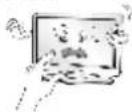
- When cleaning the product and its components, unplug the power first and wipe it with a soft cloth. Applying excessive force may cause scratches or discolouration. Do not spray with water or wipe with a wet cloth. Never use glass cleaner, car or industrial shiner, abrasives or wax, benzene, alcohol etc., which can damage the product and its panel. Otherwise, this may result in fire, electric shock or product damage (deformation, corrosion or breakage).
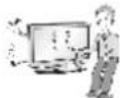
- As long as this unit is connected to the AC wall outlet, it is not disconnected from the AC power source even if you turn off this unit by SWITCH.
- When unplugging the cable, grab the plug and unplug it, by pulling at the plug. Don't pull at the cord to unplug the power cord from the power board, as this could be hazardous.
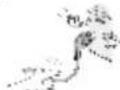
- When moving the product, make sure you turn the power off first. Then, unplug the power cables, antenna cables and all connecting cables. The TV set or power cord may be damaged, which may create a fire hazard or cause electric shock.

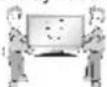
- When moving or unpacking the product, work in pairs because the product is heavy. Otherwise, this may result in injury.
- Contact the service centre once a year to clean the internal parts of the product. Accumulated dust can cause mechanical failure.
- Refer all servicing to qualified service personnel. Servicing is required when the apparatus has been damaged in any way, such as power supply cord or plug is damaged, liquid has been spilled or objects have fallen into the apparatus, the apparatus has been exposed to rain or moisture, does not operate normally, or has been dropped.

- If the product feels cold to the touch, there may be a small "flicker" when it is turned on. This is normal, there is nothing wrong with product.
- The panel is a high technology display product with resolution of two million to six million pixels. You may see tiny black dots and/or brightly coloured dots (red, blue or green) at a size of 1 ppm on the panel. This does not indicate a malfunction and does not affect the performance and reliability of the product. This phenomenon also occurs in third-party products and is not subject to exchange or refund.
- You may find different brightness and colour of the panel depending on your viewing position(left/right/top/down). This phenomenon occurs due to the characteristic of the panel. It is not related with the product performance, and it is not malfunction.
- Displaying a still image (e.g., broadcasting channel logo, on-screen menu, scene from a video game) for a prolonged time may cause damage to the screen, resulting in retention of the image, which is known as image sticking. The warranty does not cover the product for image sticking.
Avoid displaying a fixed image on your television's screen for a prolonged period (2 or more hours for LCD, 1 or more hours for Plasma).
Also, if you watch the TV at a ratio of 4:3 for a long time, image sticking may occur on the borders of the panel.
This phenomenon also occurs in third-party products and is not subject to exchange or refund.
- Generated Sound
"Cracking" noise: A cracking noise that occurs when watching or turning off the TV is generated by plastic thermal contraction due to temperature and humidity. This noise is common for products where thermal deformation is required. Electrical circuit humming/panel buzzing: A low level noise is generated from a high-speed switching circuit, which supplies a large amount of current to operate a product. It varies depending on the product.
This generated sound does not affect the performance and reliability of the product.

NOTE
• Image shown may differ from your TV.
- Your TV's OSD (On Screen Display) may differ slightly from that shown in this manual.
- The available menus and options may differ from the input source or product model that you are using.
- New features may be added to this TV in the future.
- The TV can be placed in standby mode in order to reduce the power consumption. And the TV should be turned off if it will not be watched for some time, as this will reduce energy consumption.
- The energy consumed during use can be significantly reduced if the level of brightness of the picture is reduced, and this will reduce the overall running cost.
INSTALLATION PROCEDURE
1 Open the package and make sure all the accessories are included.
2 Attach the stand to the IV set
3 Connect an external device to the TV set
ASSEMBLING AND PREPARING
Unpacking
Check your product box for the following items. If there are any missing accessories, contact the local dealer where you purchased your product. The illustrations in this manual may differ from the actual product and item.

CAUTION
- Do not use any unapproved items to ensure the safety and product life span.
- Any damages or injuries by using unapproved items are not covered by the manufacturer's warranty.
- Some models have a thin film attached on to the screen and this must not be removed.

NOTE
- The items supplied with your product may vary depending on the model.
- Product specifications or contents of this manual may be changed without prior notice due to upgrade of product functions.
- For an optimal connection, HDMI cables and USB devices should have bezels less than 10 mm thick and 18 mm width. Use an extension cable that supports USB 2.0 if the USB cable or USB memory stick does not fit into your TV's USB port.
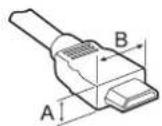
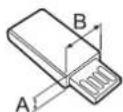
^* A ≤ 10 mm
*B ≤ 18 mm
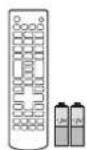
Remote control, batteries (AAA)
Owner's manual

Cable Holder
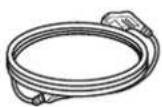
Power Cord
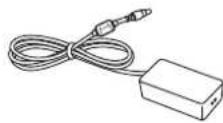
AC-DC Adapter
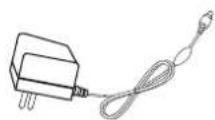
AC-DC Adapter
(Depending on model)
(Depending on model)
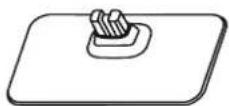
Stand Base
(Only LB45**-TA/TC/TJ, LB47**-TD)
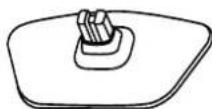
Stand Base
(Only LB45 ^ -TB/TG/TK, LB47 ^ -TE)
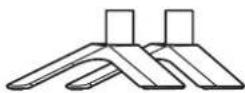
Stand Bases
(Only LB45 ^ -TE/TI, LB47 ^ -TF)
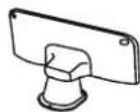
Stand Body
(Only LB51**)

Stand Body
(Only LB51**)
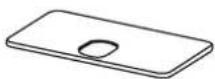
Stand Base
(Only LB51**)
ASSEMBLING AND PREPARING

Stand Screws
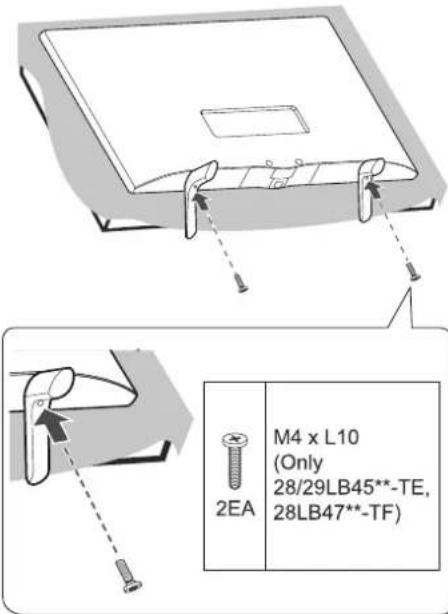
2EA, M4 x L10
(Only 28/29LB45**-TE, 28LB47**-TF)
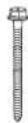
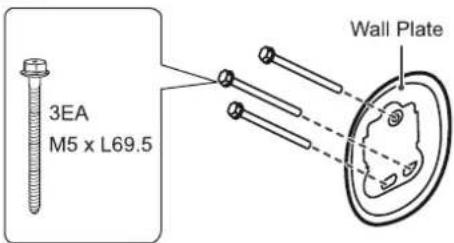
Wall mount screws
3EA, M5 x L69.5
(Only LB51**)
Wall mount anchors
3EA
(Only LB51**)

Stand Rack Screws
3EA, M4 x L8
(Only LB51**)

Wall Plate
(Only LB51**)

Stand Screws
4EA, M4 x L14
(Only LB51**)
Parts and buttons
A type : LB45**-TA/TC/TJ, LB47**-TD
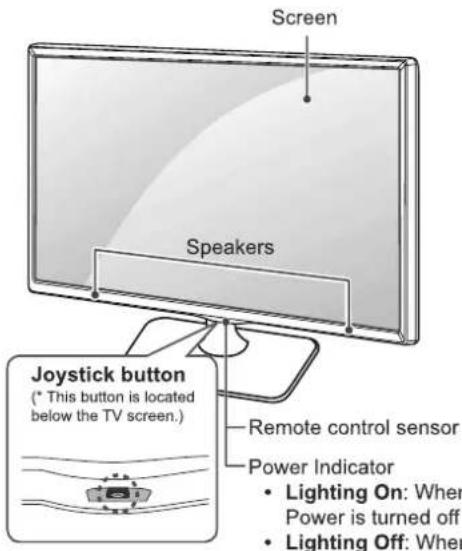
B type : LB45**-TB/TG/TK, LB47**-TE
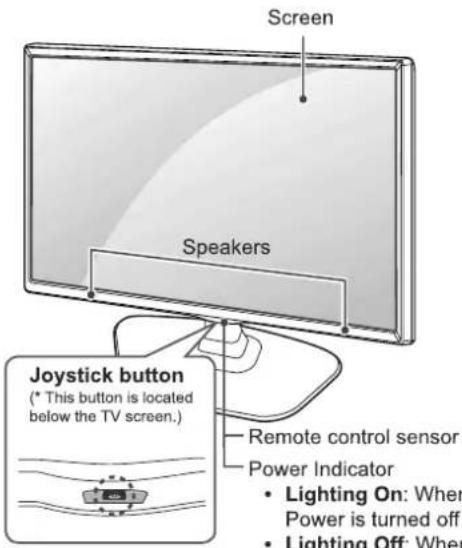
C type : LB45**-TE/TI, LB47**-TF
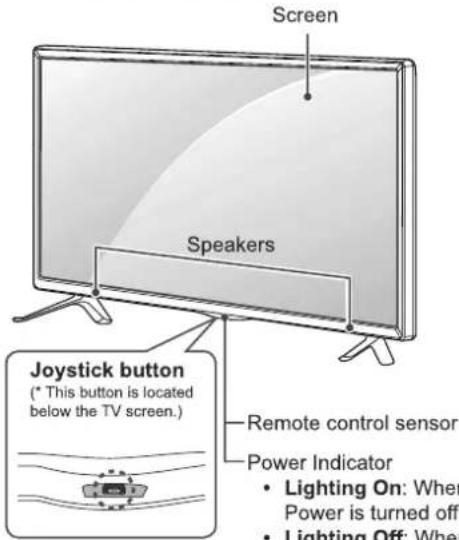
D type : LB51**
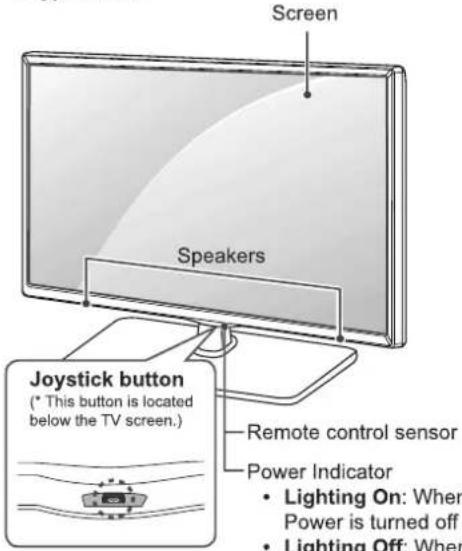
Using the Joystick button
You can simply operate the TV functions, by pressing to turn ON/OFF or sliding your finger over joystick button moving up, down, left or right.
Basic Functions
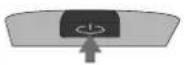 | Power On | When the TV is turned off, place your finger on the joystick button and press it once and release it. |
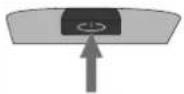 | Power Off | When the TV is turned on, place your finger on the joystick button and press it once for a few seconds and release it.(However, if the Menu button is on the screen, pressing and holding the joystick button will let you exit the Menu.) |
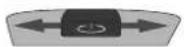 | Volume Control | If you place your finger over the joystick button and move it left or right, you can adjust the volume level you want. |
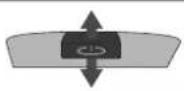 | Programmes Control | If you place your finger over the joystick button and move it forward or backward, you can scroll through the saved programmes you want. |

NOTE
- When your finger is over the joystick button and you are sliding finger forward/back, left or right, be careful not to press down to hard on joystick. If you press down hard on joystick button first then the adjustment of Volume level and program scroll action will not operate.
Adjusting the Menu
When the TV is turned on, press the joystick button one time.
You can adjust the Menu items ( ⏻, ⚙, ×, 📋) moving the joystick button up, down, left or right.
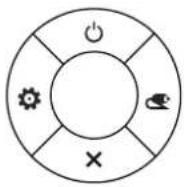 | TV Off | Turns the power off. | |
| Settings | Accesses the main menu. | ||
| × | Close | Clears on-screen displays and returns to TV viewing. | |
| Input List | Changes the input source. |
Lifting and moving the TV
Please note the following advice to prevent the TV from being scratched or damaged and for safe transportation regardless of its type and size.

CAUTION
- Avoid touching the screen at all times, as this may result in damage to the screen.
- It is recommended to move the TV in the box or packing material that the TV originally came in.
- Before moving or lifting the TV, disconnect the power cord and all cables.
- When holding the TV, the screen should face away from you to avoid damage.
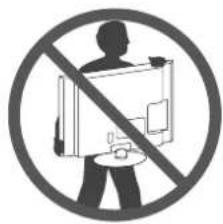
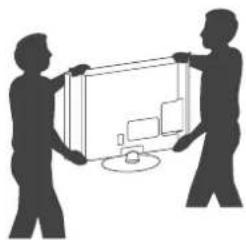
- Hold the top and bottom of the TV frame firmly. Make sure not to hold the transparent part, speaker, or speaker grill area.
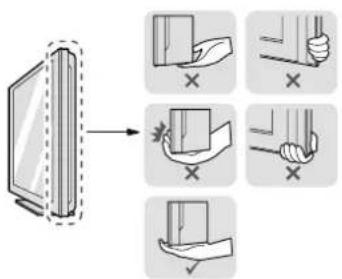
- When transporting a large TV, there should be at least 2 people.
- When transporting the TV by hand, hold the TV as shown in the following illustration.
natural_image
Silhouette of two people holding a large rectangular device with a computer monitor (no text or symbols visible)- When handling the TV, be careful not to damage the protruding joystick button.
- When transporting the TV, do not expose the TV to jolts or excessive vibration.
- When transporting the TV, keep the TV upright, never turn the TV on its side or tilt towards the left or right.
- Do not apply excessive pressure to cause flexing /bending of frame chassis as it may damage screen.
Setting up the TV
Image shown may differ from your TV.
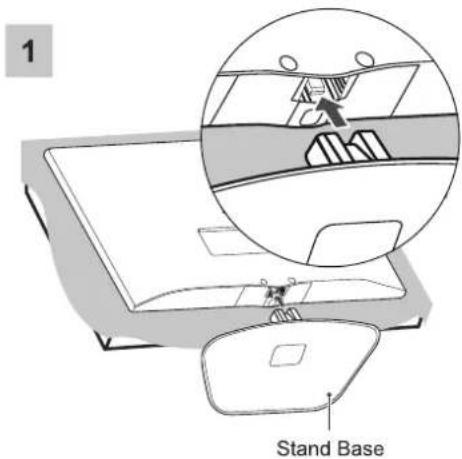
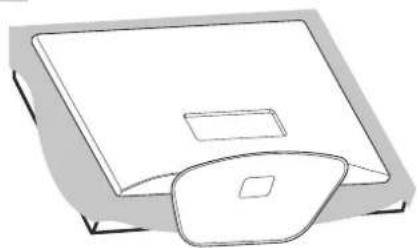
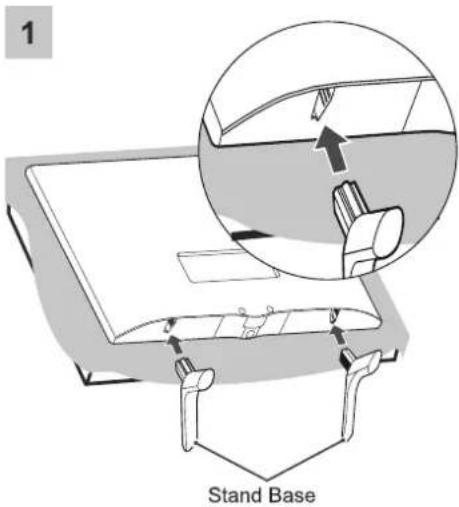
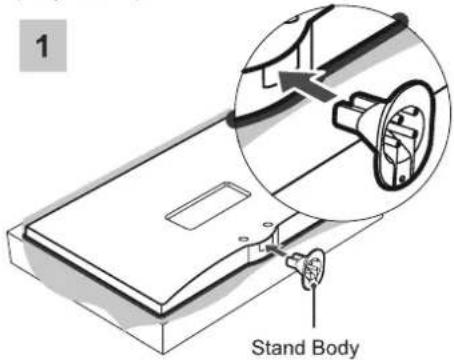
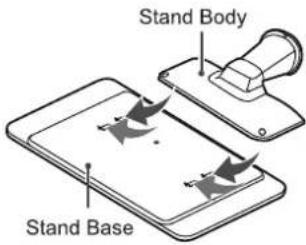
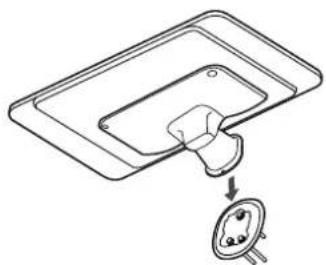
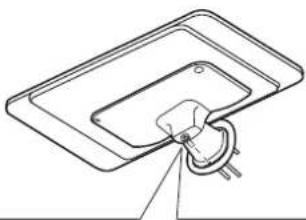
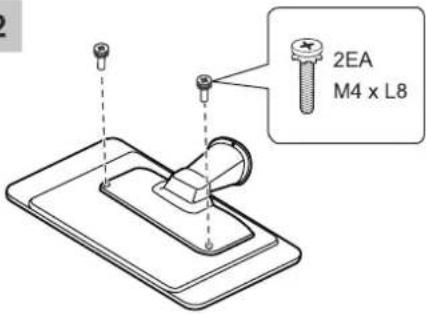
Attaching the stand
(Only LB45**-TA/TC/TJ, LB47**-TD)
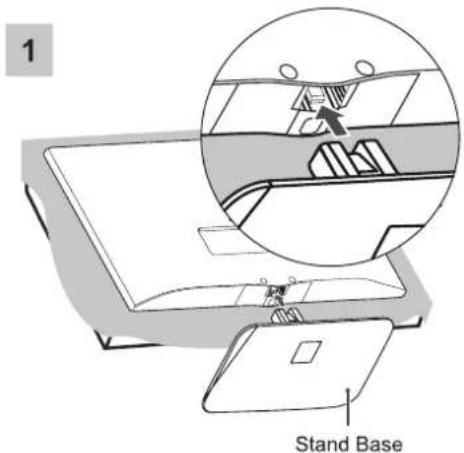
(Only LB45**-TB/TG/TK, LB47**-TE)
2
natural_image
Simple line drawing of a computer monitor with a square display and a circular button (no text or symbols)2
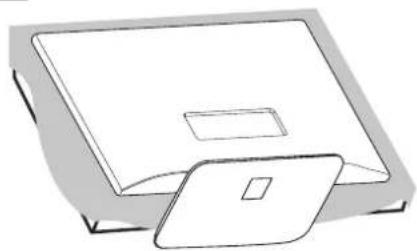
natural_image
Simple line drawing of a rectangular device with a lid and square slot (no text or symbols)(Only LB45**-TE/TI, LB47**-TF)
(Only LB51**)
2
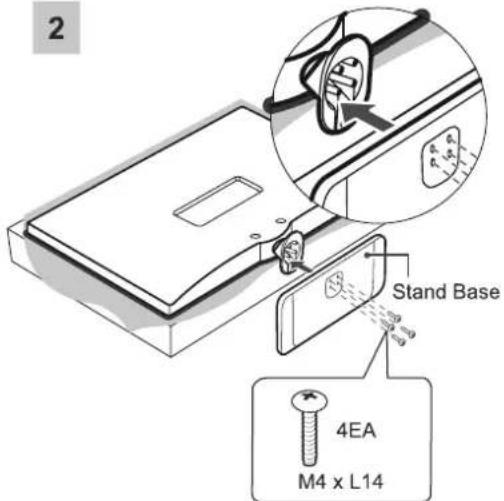

CAUTION
- Lay a foam mat or soft protective cloth on the surface to protect the screen from damage.
- When attaching the stand to the TV set, place the screen facing down on a cushioned table or flat surface to protect the screen from scratches.
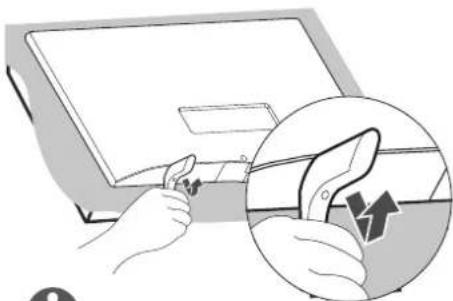
Detaching the Stand
(Only 20/22/24LB45**-TE/TI, 22LB47**-TF)
natural_image
Illustration of a hand holding a device next to a laptop, with an inset showing a magnified view of the device's handle (no text or symbols present)
NOTE
- Lift up the bottom of the stand base and detach the stand base from the TV.

CAUTION
- Lay a foam mat or soft protective cloth on the surface to protect the screen from damage.
- When Detaching the stand to the TV set, place the screen facing down on a cushioned table or flat surface to protect the screen from scratches.
Mounting on a table
1 Lift and tilt the TV into its upright position on a table.
- Leave a 10 cm (minimum) space from the wall for proper ventilation.
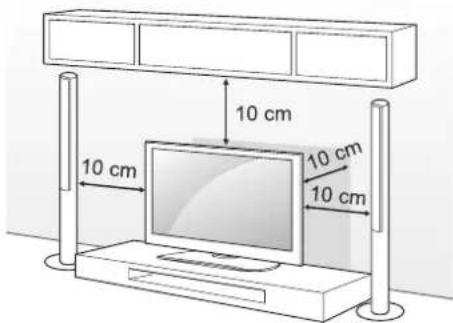
2 Connect the power cord to a wall outlet.

CAUTION
- Do not place the TV near or on sources of heat, as this may result in fire or other damage.

WARNING
- If a television is not positioned in a sufficiently stable location, it can be potentially hazardous due to falling. Many injuries, particularly to children, can be avoided by taking simple precautions such as:
» Using cabinets or stands recommended by the manufacturer of the television.
» Only using furniture that can safely support the television.
» Ensuring the television is not overhanging the edge of the supporting furniture.
» Not placing the television on tall furniture (for example, cupboards or bookcases) without anchoring both the furniture and the television to a suitable support.
» Not standing the televisions on cloth or other materials placed between the television and supporting furniture.
» Educating children about the dangers of climbing on furniture to reach the television or its controls.
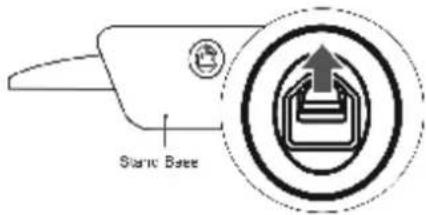

NOTE
- When Detaching the island from TV, Detach the island with lifting up the level in the direction of the S102A.
"NOTE"
Before set installation in wall mount ensure base stand to be removed.
Securing the TV to a wall
(This feature is not available for all models.)
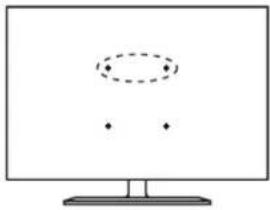
natural_image
Simple diagram of a computer monitor with three dots and an oval shape on top (no text or symbols)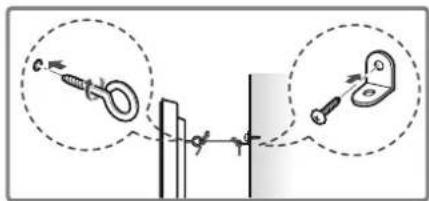
1 Insert and tighten the eye-bolts, or TV brackets and bolts on the back of the TV.
- If there are bolts inserted at the eye-bolts position, remove the bolts first.
2 Mount the wall brackets with the bolts to the wall.
Match the location of the wall bracket and the eye-bolts on the rear of the TV.
3 Connect the eye-bolts and wall brackets tightly with a sturdy rope. Make sure to keep the rope horizontal with the flat surface.

CAUTION
• Make sure that children do not climb on or hang on the TV.

NOTE
- Use a platform or cabinet that is strong and large enough to support the TV securely.
- Brackets, bolts and ropes are not provided. You can obtain additional accessories from your local dealer.
Mounting on a wall
Attach an optional wall mount bracket at the rear of the TV carefully and install the wall mount bracket on a solid wall perpendicular to the floor. When you attach the TV to other building materials, please contact qualified personnel. LG recommends that wall mounting be performed by a qualified professional installer.
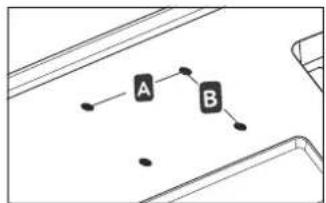
Make sure to use screws and wall mount bracket that meet the VESA standard. Standard dimensions for the wall mount kits are described in the following table.
Wall Mounting Bracket
| Model | 20/22/24LB45** | 28/29LB45** |
| 22LB47** | 28LB47** | |
| 24LB51** | 28LB51** | |
| VESA (A x B) | 75 x 75 | 100 x 100 |
| Standard screw | M4 x L10 | |
flowchart
graph TD
    A["A"] --> B["B"]
    A --> C["..."]
    B --> D["..."]

CAUTION
- Disconnect the power first, and then move or install the TV. Otherwise electric shock may occur.
- If you install the TV on a ceiling or slanted wall, it may fall and result in severe injury. Use an authorized LG wall mount and contact the local dealer or qualified personnel.
- Do not over tighten the screws as this may cause damage to the TV and void your warranty.
- Use the screws and wall mounts that meet the VESA standard. Any damages or injuries by misuse or using an improper accessory are not covered by the manufacturer's warranty.

NOTE
- Use the screws that are listed on the VESA standard screw specifications.
- The wall mount kit includes an installation manual and necessary parts.
- The wall mount bracket is not provided. You can obtain additional accessories from your local dealer.
- The length of screws may differ depending on the wall mount. Make sure to use the proper length.
- For more information, refer to the manual supplied with the wall mount.
Attaching the shelf stand
Image shown may differ from your TV.
- You can use the shelf stand by putting STB (Set top box).
(Only LB51**)
1
4
natural_image
Diagram of a device with an open socket and a plug inserted into a tray (no text or symbols)5
natural_image
Pure technical line drawing of a mechanical component with no text or symbols2

1EA M4 x L8
natural_image
Simple line drawing of a hand holding a circular object with a handle, connected to wires (no text or symbols)3

CAUTION
- Make sure that the screws are inserted correctly and fastened securely. (If they are not fastened securely enough, the Stand may tilt after being installed.) Do not use too much force and over tighten the screws; otherwise screw may be damaged and not tighten correctly.

NOTE
• To install wall mount anchor, you can refer to p.22.
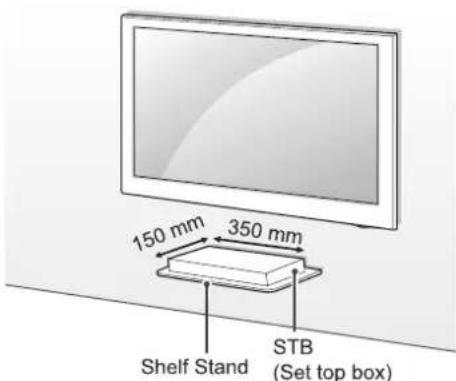
Shelf Stand conditions of use
| STB Dimensions (W x D) | 350 mm x 150 mm |
| STB Weight | 2.5 kg |
| Maximum supported weight | 3.5 kg |
How to attach to masonry walls
(This feature is not available for all models.)
Use the anchors for wall material of concrete, light concrete, strong natural stone, soft natural stone masonry brick and hallow block that do not crack.
Please follow the below direction
- Check the material of the wall and the thickness of the finishing.
- When installing the product on wall material not designated, install the product so that each fixated location can withstand the pull out load of 70 kgf (686 N) and shear load of 100 kgf (980 N) or above.
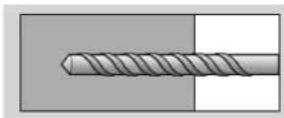
- Use the ∅8 mm drill bit for concrete and hammer (Impact) drill.

CAUTION
- Disconnect the power first, and then move or install the TV. Otherwise electric shock may occur.
- If you install the TV on a ceiling or slanted wall, it may fail and result in severe injury. Use an authorized LG wall mount and contact the local dealer or qualified personnel.
- Do not over tighten the screws as this may cause damage to the TV and void your warranty.
- Use the screws and wall mounts that meet the VESA standard. Any damages or injuries by misuse or using an improper accessory are not covered by the manufacturer's warranty.
1
2
3
4
5
6
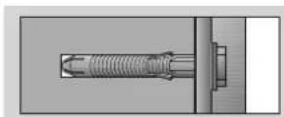
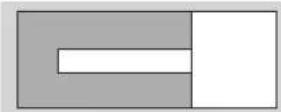
1 Use a drill bit ∅8 mm to drill a hole for the anchor location within a depth of 80 mm - 100 mm.
2 Clean the drilled hole.
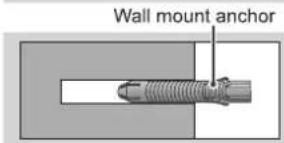
3 Insert the sealed anchor to the hole. (When inserting the anchor, use a hammer.)
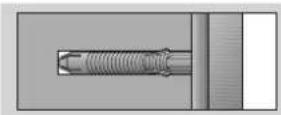
4 Set the wall mount on the wall by aligning to the location of the hole. and, set the angle adjusting part to face upward.
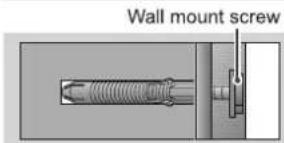
5 Align the wall mount bolt to the hole and tighten it. Then, fasten the bolts at torque of 45 kgf/cm - 60 kgf/cm.

NOTE
- Use the screws that are listed on the VESA standard screw specifications.
- The wall mount kit includes an installation manual and necessary parts.
- The wall mount bracket is not provided. You can obtain additional accessories from your local dealer.
- The length of screws may differ depending on the wall mount. Make sure to use the proper length.
- For more information, refer to the manual supplied with the wall mount.
Tidying cables
Image shown may differ from your TV.
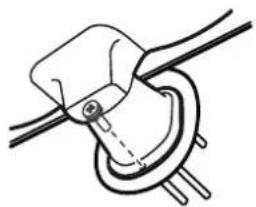
Gather and bind the cables with the Cable Holder.
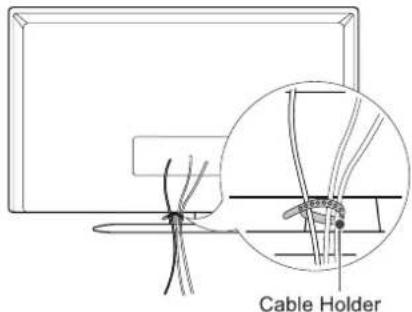

CAUTION
- Do not move the TV by holding the cable holders, as the cable holders may break, and injuries and damage to the TV may occur.
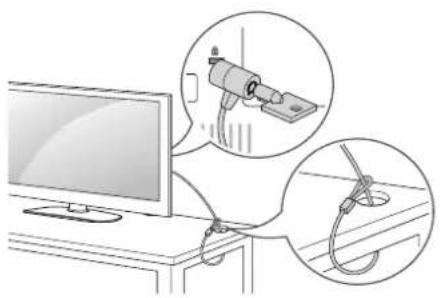
Using the Kensington security system
(This feature is not available for all models.)
The Kensington security system connector is located at the rear of the TV. For more information of installation and using, refer to the manual provided with the Kensington security system or visit http://www.kensington.com. Connect the Kensington security system cable between the TV and a table.
natural_image
Illustration of a computer monitor connected to a cable with magnified insets showing a mounted device and cable (no text or symbols present)MAKING CONNECTIONS
This section on MAKING CONNECTIONS mainly uses diagrams for the LB45** models. Connect various external devices to the TV and switch input modes to select an external device. For more information of external device's connection, refer to the manual provided with each device.
Available external devices are: HD receivers, DVD players, VCRs, audio systems, USB storage devices, PC(Depending on model), gaming devices, and other external devices.

NOTE
- The external device connection may differ from the model.
- Connect external devices to the TV regardless of the order of the TV port.
- If you record a TV programme on a DVD recorder or VCR, make sure to connect the TV signal input cable to the TV through a DVD recorder or VCR. For more information of recording, refer to the manual provided with the connected device.
- Refer to the external equipment's manual for operating instructions.
- If you connect a gaming device to the TV, use the cable supplied with the gaming device.
- In PC mode, there may be noise associated with the resolution, vertical pattern, contrast or brightness. If noise is present, change the PC output to another resolution, change the refresh rate to another rate or adjust the brightness and contrast on the PICTURE menu until the picture is clear (Depending on model).
- In PC mode, some resolution settings may not work properly depending on the graphics card (Depending on model).
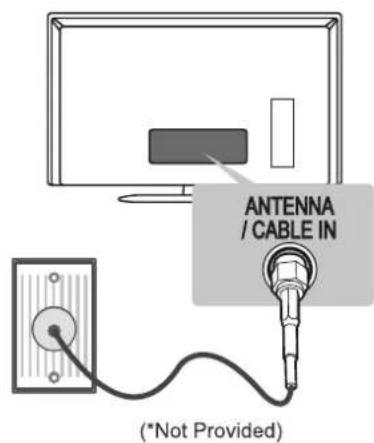
Antenna Connection
Connect the TV to a wall antenna socket with an RF cable (75 Ω).
Adapter Connection
(Depending on model)
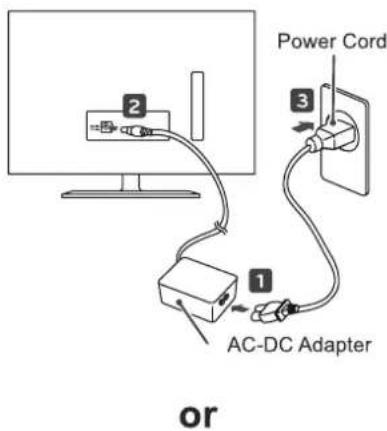

NOTE
- Use a signal splitter to use more than 2 TVs.
- If the image quality is poor, install a signal amplifier properly to improve the image quality.
- If the image quality is poor with an antenna connected, try to realign the antenna in the correct direction.
- An antenna cable and converter are not supplied.
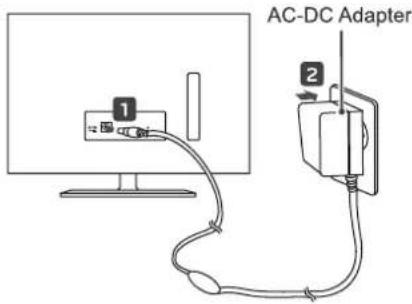

CAUTION
- Do not place the TV near or on sources of heat, as this may result in fire or other damage.
- Please be sure to connect the TV to the AC-DC power adapter before connecting the TV's power plug to a wall power outlet.
Other Connections
Connect your TV to external devices. For the best picture and audio quality, connect the external device and the TV with the HDMI cable as shown. Some separate cable is not provided.
(Only LB450*, LB452*, LB47**-TD/TE)

flowchart
graph TD
    A["450*, LB452*, LB47**-TD/TE"] --> B["USB / HDD¹"]
    B --> C["DC-IN (1/V/80)"]
    B --> D["HDMI IN"]
    B --> E["SERVICE ONLY"]
    E --> F["ANTenna / CABLE IN"]
    F --> G["VIDEO AV IN AUDIO"]
    G --> H["COMPONENT IN"]
    H --> I["VIDEO AV IN AUDIO"]
    H --> J["COMPONENT IN"]
    J --> K["VIDEO AV IN AUDIO"]
    J --> L["COMPONENT IN"]
    L --> M["VIDEO AV IN AUDIO"]
    L --> N["COMPONENT IN"]
    N --> O["VIDEO AV IN AUDIO"]
    N --> P["COMPONENT IN"]
    P --> Q["VIDEO AV IN AUDIO"]
    P --> R["COMPONENT IN"]
    R --> S["VIDEO AV IN AUDIO"]
    R --> T["COMPONENT IN"]
    T --> U["VIDEO AV IN AUDIO"]
    T --> V["COMPONENT IN"]
    V --> W["VIDEO AV IN AUDIO"]
    V --> X["COMPONENT IN"]
    X --> Y["VIDEO AV IN AUDIO"]
    X --> Z["COMPONENT IN"]
    Z --> AA["VIDEO AV IN AUDIO"]
    Z --> AB["COMPONENT IN"]
    AB --> AC["VIDEO AV IN AUDIO"]
    AB --> AD["COMPONENT IN"]
    AD --> AE["VIDEO AV IN AUDIO"]
    AD --> AF["COMPONENT IN"]
    AF --> AG["VIDEO AV IN AUDIO"]
    AF --> AH["COMPONENT IN"]
    AH --> AI["VIDEO AV IN AUDIO"]
    AH --> AJ["COMPONENT IN"]
    AJ --> AK["VIDEO AV IN AUDIO"]
    AJ --> AL["COMPONENT IN"]
    AL --> AM["VIDEO AV IN AUDIO"]
    AL --> AN["COMPONENT IN"]
    AN --> AO["VIDEO AV IN AUDIO"]
    AN --> AP["COMPONENT IN"]
    AP --> AQ["VIDEO AV IN AUDIO"]
    AP --> AR["COMPONENT IN"]
    AR --> AS["VIDEO AV IN AUDIO"]
    AR --> AT["COMPONENT IN"]
    AT --> AU["VIDEO AV IN AUDIO"]
    AT --> AV["COMPONENT IN"]
    AV --> AW["VIDEO AV IN AUDIO"]
    AV --> AX["COMPONENT IN"]
    AX --> AY["VIDEO AV IN AUDIO"]
DVD/ Blu-Ray / HD Cable Box
DVD/ Blu-Ray / HD Cable Box / HD STB / VCR / Gaming device
1 USB port supports 0.5A electric current. If you need more electric current in case of HDD, use the separate power adaptor.

NOTE
- It is recommended to use the TV with the HDMI connection for the best image quality
• Use the latest High Speed HDMI™ Cable. - High Speed HDMI™ Cables are tested to carry an HD signal up to 1060p and higher.
- Supported HDMI Audio format Dolby Digital, PCM (Up to 192 KHz, 32KHz/44.1KHz/49KHz/88KHz/96KHz/176KHz/192KHz) *DTS Not Supported.

NOTE
- If cables are not installed correctly, it could cause this image to display in black and white or with distorted colours.

NOTE
- If you use an optional external audio device instead of the built-in speaker, set the TV speaker feature to off.
(Only LB451*, LB453*, LB454*, LB455*, LB456*, LB457*, LB458*, LB47**-TF, LB51**)
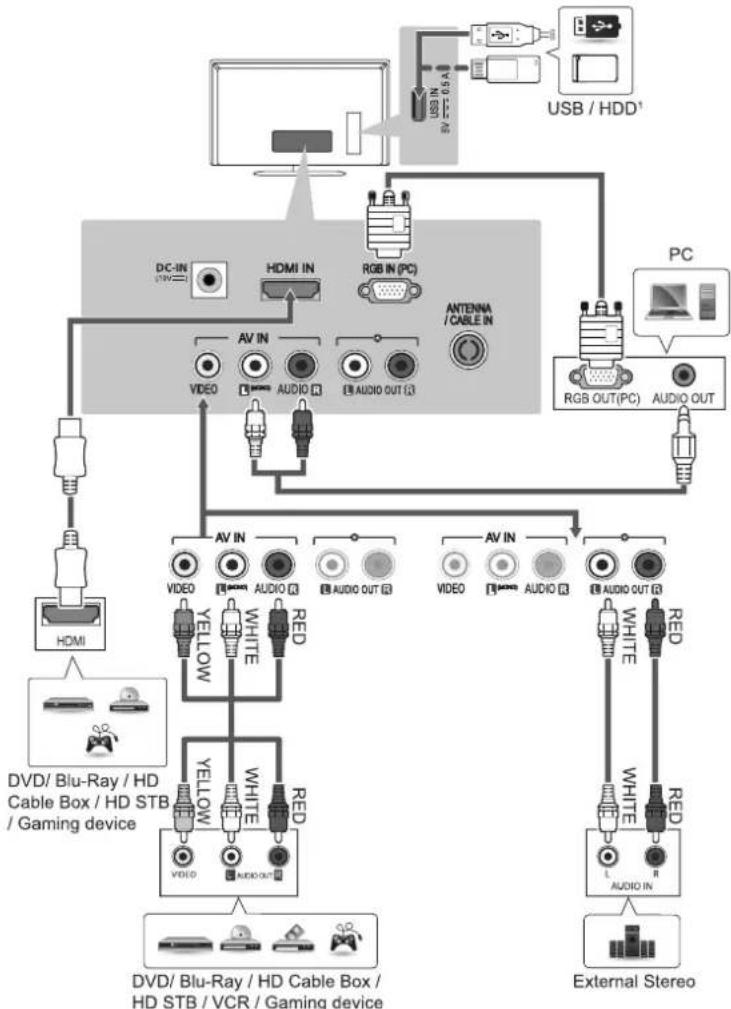
flowchart
graph TD
    A["TV"] --> B["PC"]
    B --> C["USB / HDD¹"]
    B --> D["RGB OUT(PC)"]
    B --> E["AUDIO OUT"]
    B --> F["AV IN"]
    B --> G["VIDEO"]
    B --> H["AUDIO OUT"]
    B --> I["AMD IN (PC)"]
    B --> J["ANTENNA/CABLE IN"]
    B --> K["HD/Blu-Ray HD Cable Box / HD STB / Gaming device"]
    B --> L["AMD OUT"]
    B --> M["VIDEO"]
    B --> N["AUDIO OUT"]
    B --> O["AMD OUT"]
    P["External Stereo"] --> Q["LED/HD Cable Box / HD STB / VCR / Gaming device"]
    P --> R["AMD OUT"]
    P --> S["LED/HD Cable Box / HD STB / VCR / Gaming device"]
    T["PC"] --> U["USB / HDD¹"]
    T --> V["RGB OUT(PC)"]
    T --> W["AUDIO OUT"]
1 USB port supports 0.5A electric current. If you need more electric current in case of HDD, use the separate power adaptor.

NOTE
- It is recommended to use the TV with the HDMI connection for the best image quality
• Use the latest High Speed HDMI™ Cable. - High Speed HDMI™ Cables are tested to carry an HD signal up to 1060p and higher.
- Supported HDMI Audio format Dolby Digital, PCM (Up to 192 KHz, 32KHz/44.1KHz/48KHz/88KHz/96KHz/176KHz/192KHz) *DTS Not Supported.

NOTE
- If cables are not installed correctly, it could cause this image to display in black and white or with distorted colours.

NOTE
- If you use an optional external audio device instead of the built-in speaker, set the TV speaker feature to off.
REMOTE CONTROL
The descriptions in this manual are based on the buttons on the remote control. Please read this manual carefully and use the TV correctly. To replace batteries, open the battery cover, replace batteries (1.5 V AAA) matching the ⊕ and ⊖ ends to the label inside the compartment, and close the battery cover. To remove the batteries, perform the installation actions in reverse.
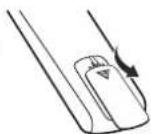

CAUTION
- Do not mix old and new batteries, as this may damage the remote control.
• In Analogue TV and some countries, some remote control buttons may not work.
Make sure to point the remote control toward the remote control sensor on the TV.
(Except for India)
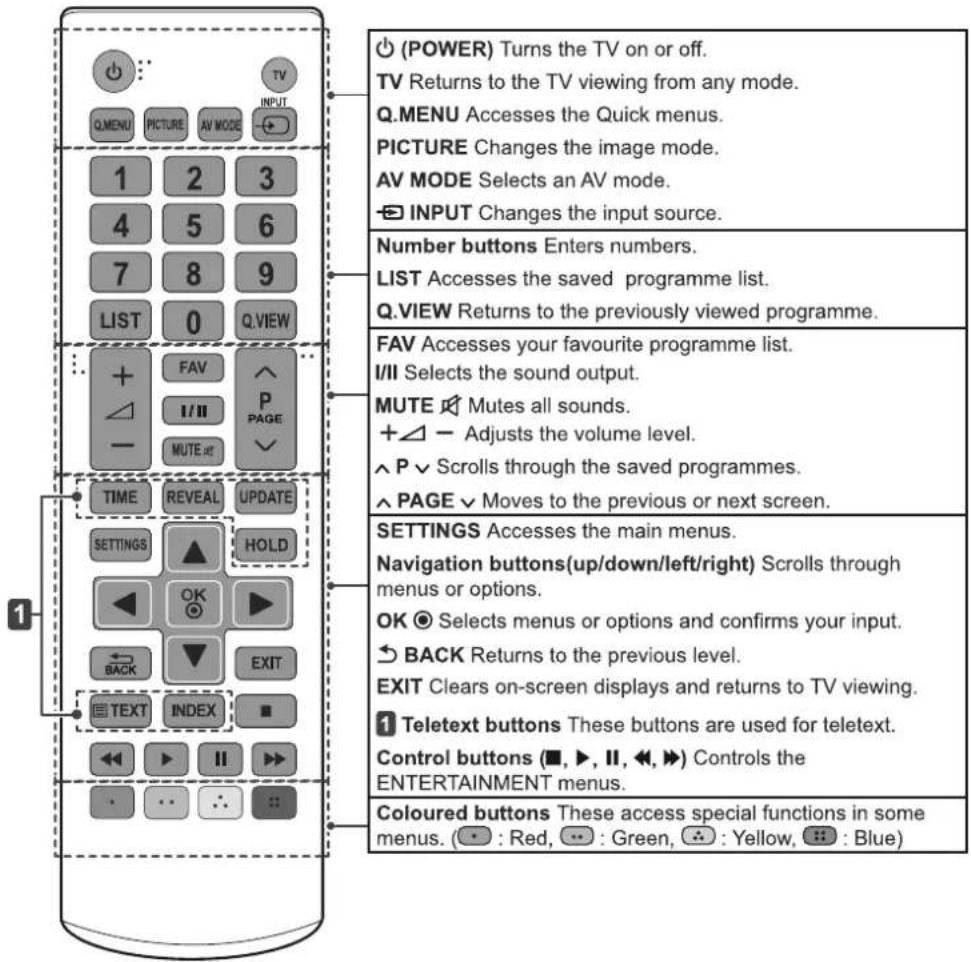
(Only India)
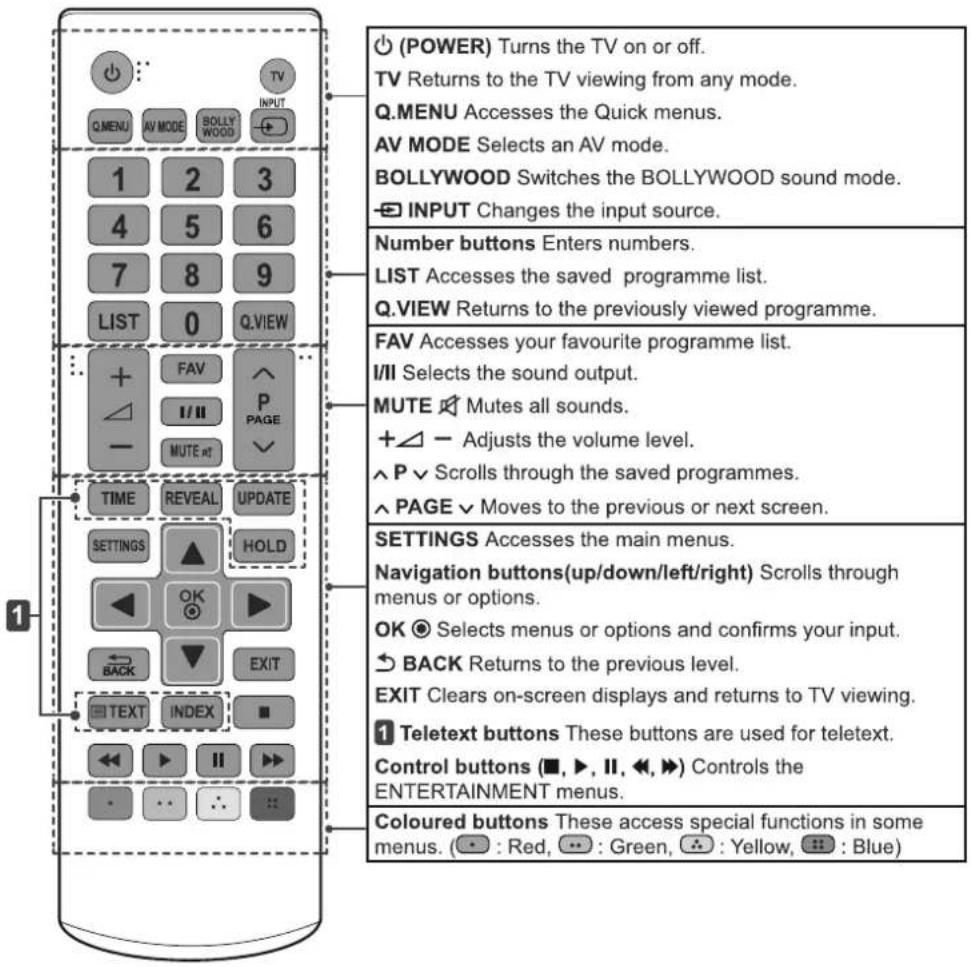
WATCHING TV
Turning the TV on for the first time
When you turn the TV on for the first time, the Initial setting screen appears. Select a language and customize the basic settings.
1 Connect the power cord to a power outlet. The Power indicator turns red and the TV switches to Standby mode.
2 In Standby mode, press the power button on the remote control or local key to turn the TV on. The Initial setting screen appears if you turn the TV on for the first time.

NOTE
- You can also access Factory Reset by accessing OPTION in the main menu.
3 Follow the on-screen instructions to customize your TV settings according to your preferences.
Menu Language ↓
Selects a language to display.
Mode Setting ↓
Selects Home Use for the home environment.
Time Setting ↓
Sets the time.
Auto Tuning
Scans and saves available programmes automatically.

NOTE
• To display images in the best quality for your home environment, select Home Use.
- Store Demo is suitable for the retail environment.
- If you select Store Demo, any customized settings will switch back to the default settings of Store Demo in 5 minutes.
4 When the basic settings are complete, press the OK ☑.

NOTE
- If you do not complete the Initial setting, it will appear whenever the TV turns on.
- Disconnect the power cord from the power outlet when you do not use the TV for a long period of time.
5 To turn the TV off, press the power button on the remote control.
Watching TV
1 In Standby mode, press ⏻(POWER) to turn the TV on.
2 Press INPUT and select TV.
3 To turn the TV off, press ⏻(POWER). The TV switches to Standby mode.
Managing programmes
Automatically setting up pro- gramme
Use this to automatically find and store all available programmes.
1 Press SETTINGS and the Navigation buttons to scroll to SETUP and press OK ☑.
2 Press the Navigation buttons to scroll to Auto Tuning and press OK Ⓞ.
3 Press the Navigation buttons to scroll to To Start and select To Start to begin auto tuning. The TV scans and saves available programmes automatically.
4 When you return to the previous menu, press ↩ BACK.
Manually setting up programme
Manual Tuning lets you manually tune and arrange the stations in whatever order you desire.
1 Press SETTINGS and the Navigation buttons to scroll to SETUP.
2 Press the Navigation buttons to scroll to Manual Tuning.
3 Press the Navigation buttons to scroll to Storage.
4 Press the Navigation buttons or Number buttons to select the desired programme number.
5 Press the Navigation buttons to scroll to System.
6 Press the Navigation buttons to scroll to TV System.
7 Press the Navigation buttons to scroll to Band.
8 Press the Navigation buttons to scroll to V/UHF or Cable.
9 Press the Navigation buttons to scroll to Channel.
10 Press the Navigation buttons and then select the desired Channel number with the Navigation buttons or Number buttons.
11 Press the Navigation buttons to scroll to Search.
12 Press the Navigation buttons to scroll and start Searching.
13 Press the OK ☑ to store it.
14 When you return to the previous menu, press ↩ BACK.

NOTE
- To store another programme, repeat steps 3 to 13.
Assigning a station name
You can assign a station name with five characters to each programme number.
1 Press SETTINGS and the Navigation buttons to scroll to SETUP.
2 Press the Navigation buttons to scroll to Manual Tuning.
3 Press the Navigation buttons to scroll to Name.
4 Press the Navigation buttons to scroll to select the position and make your choice of the second character, and so on. You can use an the alphabet A to Z, the number 0 to 9, +/-, and blank and press OK Ⓞ.
5 Press the OK ☑ to store it.
6 When you return to the previous menu, press ↩ BACK.
Fine Tuning
Normally fine tuning is only necessary if reception is poor.
1 Press SETTINGS and the Navigation buttons to scroll to SETUP.
2 Press the Navigation buttons to scroll to Manual Tuning.
3 Press the Navigation buttons to scroll to Fine.
4 Press the Navigation buttons to fine tune for the best picture and sound.
5 Press the OK Ⓞ to store it.
6 When you return to the previous menu, press ↩ BACK.
Editing your programme list
When a programme number is skipped, it means that you will be unable to select it using ∧ P ∨ button during TV viewing.
If you wish to select the skipped programme, directly enter the programme number with the NUMBER buttons or select it in the Programme edit menu.
This function enables you to skip the stored programmes.
1 Press SETTINGS and the Navigation buttons to scroll to SETUP.
2 Press the Navigation buttons to scroll to Programme Edit.
3 Edit programmes using the following buttons.
| Button | Description |
| Red button | Deletes a programme. Press the Red button twice. The selected programme is deleted, all the following programmes are shifted up one position. |
| Yellow button | Moves a programme. Press the Yellow button again to release this function. |
| Blue button | Selects a programme number to be skipped. Press the Blue button again to release the skipped programme. |
4 When you return to the previous menu, press ➕ BACK.
Selecting a programme on the programme list
1 Press LIST to access the programme list.
2 Press the Navigation buttons to select to desired programme and press OK Ⓞ.
3 When you return to the previous menu, press LIST.

NOTE
- You may find some blue programmes. They have been set up to be skipped by auto programming or in the programme edit mode.
- Some programmes with the programme number shown in the programme list indicate there is no station name assigned.
Using additional options
Adjusting aspect ratio
Resize an image to view at its optimal size by pressing Q.MENU or accessing Aspect Ratio in the PICTURE menu.

NOTE
- The available ratio varies depending on the input source.
- 16:9 : Resizes images to fit the screen width.
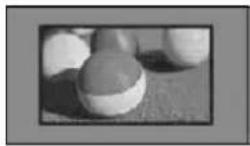
- Just Scan : Displays video images in the original size without removing parts of the edge of the image. (This function works in Component/HDMI (720P/1080i/1080p) Mode.)
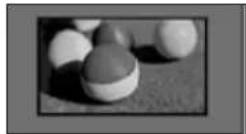

NOTE
- If you select Just Scan, you may see image noises at the edge of the original signal.
- Original: When your TV receives a wide screen signal it will automatically change to the picture format broadcasted.
(4:3 → 4:3)
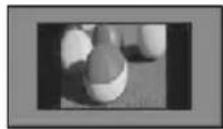
(16:9 → 16:9)
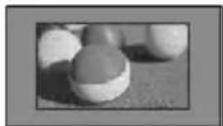
- 4:3 : Resizes images to the previous standard 4:3.
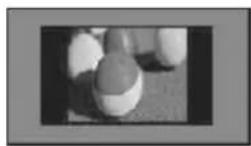
- 14:9 : You can view a picture format of 14:9 or a general TV programme in the 14:9 mode. The 14:9 screen is viewed in the same way as in 4:3, but is moved to the up and down.
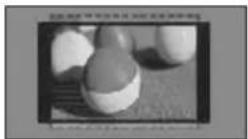
- Zoom : Formats an image to fit the screen width. The top and bottom of the image may not appear.
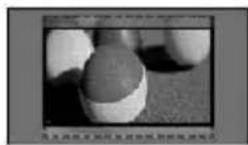
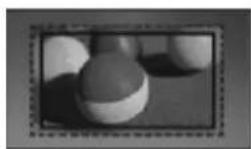
- Cinema Zoom 1 : Formats an image to the cinemascope ratio, 2.35:1. To change the ratio of the cinema zoom, press < or > and its range is from 1 to 16.

NOTE
- If you enlarge or reduce an image, the image may be distorted.
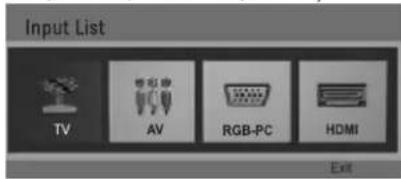
Using the input list
Selecting an input source
1 Press INPUT to access the input sources.
- The connected device displays on each input source.
2 Press the Navigation buttons or input button to scroll to one of the input sources and press OK ☑
• Image shown may differ from your TV.
(Only LB451*, LB453*, LB454*, LB457*, LB455*, LB456*, LB458*, LB47**-TF, LB51**)
(Only LB450*, LB452*, LB47**-TD/TE)
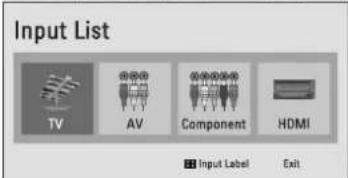
| Input source | Description |
| TV | Watch TV over the air and cable broadcast. |
| AV | Watch video from a VCR or other external devices. |
| RGB-PC(Only LB451*, LB453*,LB454*, LB457*,LB455*, LB456*,LB458*, LB47**-TF,LB51**) | View a PC display on the screen. |
| Component(Only LB450*, LB452*,LB47**-TD/TE) | Select it when using the DVD or the Digital set-top box depends on connector. |
| HDMI | Watch video from a HTS or other high definition devices. |
ENTERTAINMENT
(Depending on model)
• Image shown may differ from your TV.
Connecting USB storage devices
Connect USB storage devices (external HDD, USB memory) to the TV and use multimedia features (See "Browsing files" on page 35). Connect a USB flash memory or USB memory card reader to the TV as shown on the following illustration.
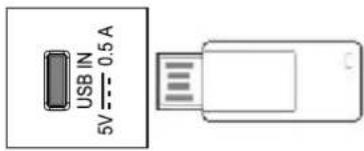
To disconnect a USB storage device, make sure to end the connection properly to prevent damages to the TV or files.
1 Press Q.MENU to access the quick menus.
2 Press the Navigation buttons to scroll to Eject and press OK ☑.
3 Disconnect the USB storage device only when the message says that it is safe to remove.

CAUTION
- Do not turn the TV off or remove a USB storage device while the USB storage device is connected to the TV, as this could result in loss of files or damage to the USB storage device.
- Back up your files saved on a USB storage device frequently, as you may lose or damage the files and this may be not covered by the manufacturer's warranty.
Tips for using USB storage devices
- Only a USB storage device is recognizable.
- If the USB storage device is connected through a USB hub, the device is not recognizable.
- A USB storage device using an automatic recognition programme may not be recognized.
- A USB storage device which uses its own driver may not be recognized.
- The recognition speed of a USB storage device may depend on each device.
- Please do not turn off the TV or unplug the USB device when the connected USB storage device is working. When such device is suddenly separated or unplugged, the stored files or the USB storage device may be damaged.
- Please do not connect the USB storage device which was artificially manoeuvred on the PC. The device may cause the product to malfunction or fail to be played. Never forget to use only a USB storage device which has normal music files, image files or movie files.
- Please use only a USB storage device which was formatted as a FAT16, FAT32, NTFS file system.
- Please connect a USB storage device with the cable offered by the device maker.
- Some USB storage devices may not be supported or operated smoothly.
- Be sure to back up important files since data stored in a USB memory device may be damaged. We will not be responsible for any data loss.
-
If a USB memory device is connected to a USB multi-card reader, its volume data may not be detected.
-
If the USB memory device does not work properly, disconnect and reconnect it.
- How fast a USB memory device is detected differs from device to device.
- The recommended capacity is 1 TB or less for a USB external hard disk and 32 GB or less for USB memory.
- Any device with more than the recommended capacity may not work properly.
- USB storage devices below USB 2.0 are supported as well. But they may not work properly in the movie list.
• Maximum of 999 folders or files can be recognized under one folder. - If there are a lot of folders or files all within one folder, the device may not be able to access these properly.
- For external USB HDDs, it is recommended that you use devices with a rated voltage of less than 5 V and a rated current of less than 0.5A.
Browsing files
Access the photo, music, or movie lists and browse files.
1 Connect a USB storage device.
2 Press SETTINGS to access the main menus.
3 Press the Navigation buttons to scroll to ENTERTAINMENT and press OK Ⓞ.
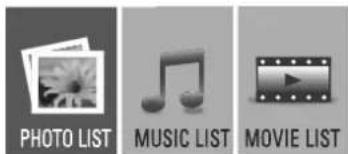
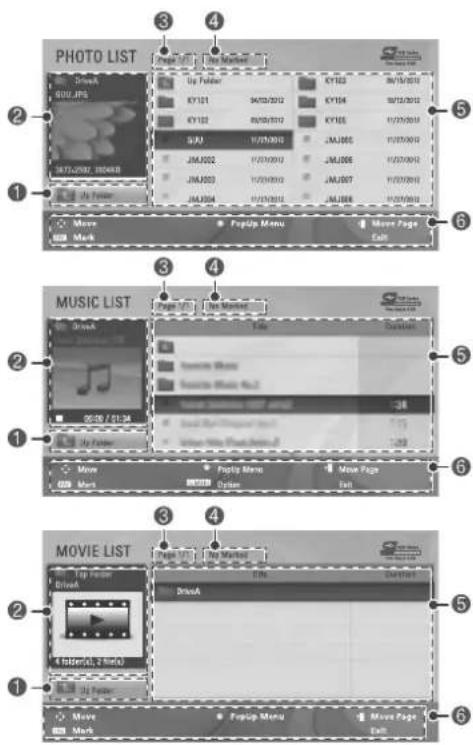
4 Press Navigation buttons to scroll to PHOTO LIST, MUSIC LIST or MOVIE LIST and press OK Ⓞ.
| No. | Description |
| 1 | Moves to the upper level folder. |
| 2 | Preview: Displays the thumbnail/folder name of the file in the selected folder. |
| 3 | Current page/Total pages |
| 4 | Total number of marked files |
| 5 | Contents under the folder focused on 1 |
| 6 | Available buttons on the remote control |
Supported file format
| Type | Supported file format |
| Photo | JPEGAvailable sizeBaseline : 64pixel(W) x 64pixel(H) - 15360pixel(W) x 8640pixel(H)Progressive : 64 x 64 to 1024 x 768You can play JPEG files only.Non-supported files are displayed in the form of predefined icon. |
| Music | MP3Bit rate 32kbps to 320kbpsSampling rate MPEG1Layer3 : 32 kHz, 44.1 kHz, 48 kHzSampling rate MPEG2Layer3 : 16 kHz, 22.05 kHz, 24 kHzSampling rate MPEG2.5Layer3 : 8 kHz, 11.025 kHz, 12 kHz |
Movie
DAT,MPG,MPEG,VOB,AVI,DIVX,MP4,MKV,TS,TRP,TP,ASF,WMV,FLV,RM,RMVB
| Movie(*.mpg/*.mpeg*/dat/*.ts/*.trp/*.tp/*.vob/*.mp4/*.movi*.mkv/*.divx/*.avi/*.asf/*.wmv/*.flv/*.avi(motion-jpeg)/*.mp4(motion-jpeg)/*.mkv(motion-jpeg)/*.rmi*.rmvb)supporting file |
Video format : DivX3.11, DivX4.x, DivX5.x, DivX6, Xvid1.00, Xvid1.01, Xvid1.02, Xvid1.03, Xvid1.10 beta-1/beta-2, Mpeg-1, Mpeg-2, Mpeg-4, H.264/AVC, VC1, JPEG, Sorenson H.263
Audio format : Dolby Digital, AAC, Mpeg, MP3, LPCM, ADPCM, WMA
Bit rate : within 32 kbps to 320 kbps(MP3)
External Subtitle format :
*.smi/*.srt/*.sub(MicroDVD, Subviewer1.0/2.0)/*.ass/*.ssa/*.txt(TMPlayer)/*.psb(PowerDivX)
Internal Subtitle format : only, XSUB (It is the subtitle format used in DivX6 files)
Viewing photos
View image files saved in a USB storage device. The displays on the screen may differ from the model.
1 Press SETTINGS to access the main menus.
2 Press the Navigation buttons to scroll to ENTERTAINMENT and press OK Ⓞ
3 Press the Navigation buttons to scroll to PHOTO LIST and press OK Ⓞ.
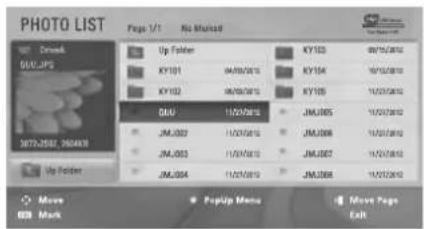
4 Press the Navigation buttons to scroll to a folder/file you want and press OK Ⓞ.
5 View photos by using the following menus buttons.
| Button | Description |
| Navigation button | Scrolls through the files. |
| OK Ⓞ | Views the highlighted file or enters the mark mode. |
| ^P ∨ | Moves to the previous or next page. |
| FAV | Enters the mark mode. |
| Menu | Description |
| View | Views the selected photo. |
| Mark All | Selects all files |
| Close | Exits the Mark Mode. |

NOTE
- Non-supported files are displayed the preview image by icon only
- Abnormal files are displayed in the form of bitmap ✗.
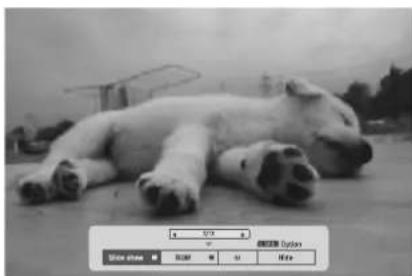
6 The following options are available while viewing photos.
natural_image
Black-and-white photo of a polar dog resting on the ground, with no visible text or symbols in the main image area.| Option | Description |
| Slideshow | Starts or stops a slideshow with selected photos.If there are no selected photos, all photos saved in the current folder display during a slideshow.To set a slideshow speed, select Option. |
| BGM | Turns the background music on or off. To set the background music folder, select Option. |
| ⬇ (Rotate) | Rotates photos clockwise ( 90^ , 180^ , 270^ , 360^ ). NOTEThe supported photo size is limited. You cannot rotate a photo if the resolution of the rotated width is larger than the supported resolution size. NOTEThe supported photo size is limited. You cannot rotate a photo if the resolution of the rotated width is larger than the supported resolution size. |
| Hide | Hides the option window.To display the options, press OK ⭕. |
Q.MENU options for photo list
1 Press Q.MENU.
A pop-up window will appears.
2 Press the Navigation buttons to scroll to Set photo view. and press OK Ⓞ.
3 Press the Navigation buttons to scroll to one of the following options and press OK Ⓞ.
Set photo view.
| Option | Description |
| Slide Speed | Selects a slideshow speed (Fast, Normal, Slow). |
| Music Folder | Selects a music folder for the background music. |
Set video.
Allows you to change Video presets. (See p.44)
Set audio.
Allows you to change Audio presets. (See p.47)
Listening to music
1 Press SETTINGS to access the main menus.
2 Press the Navigation buttons to scroll to ENTERTAINMENT and press OK Ⓞ.
3 Press the Navigation buttons to scroll to MUSIC LIST and press OK Ⓞ.
4 Press the Navigation buttons to scroll to a folder/file you want and press OK Ⓞ.
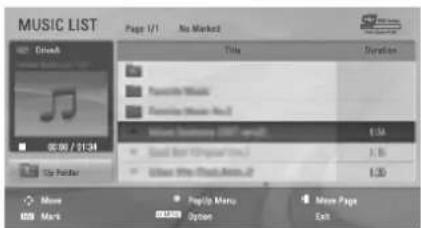
5 Play music by using the following menus/ buttons.
| Button | Description |
| Navigation button | Scrolls through the files. |
| OK Ⓞ | Views the highlighted file or enters the mark mode. |
| ^P ∨ | Moves to the previous or next page. |
| FAV | Enters the mark mode. |
| Menu | Description |
| Play | Plays the selected music file. |
| Play with Photo | Displays photos during playback. |
| Mark All | Selects all files. |
| Close | Exits the Mark Mode. |
6 Control playback by using the following buttons.
| Button | Description |
| Stops playback | |
| Plays a music file | |
| Pauses or resumes playback | |
| Skips to the next file | |
| Skips to the previous file | |
| When playing, When you press the button, the previous music file will be played. When you press the button, the next music file will be played. | |
| EXIT | When you press the EXIT button, only the music will be stopped and the player will go to TV viewing. |
| ^ or √ | When using the ^or√ button during playback a cursor indicating the position can be played. |
Q.MENU options for music list
1 Press Q.MENU.
A pop-up window will appears.
Set audio.
Allows you to change Audio presets. (See p.47)

NOTE
• The TV will not play copy protected files.
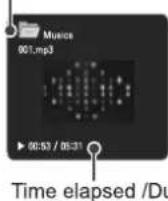
- If the TV is not in use for some time during playback, the information box as a screensaver will appear to prevent image burn. To return to the Music list screen, press OK or BACK.
File name

NOTE
- Option value changed in PHOTO LIST and MUSIC LIST are changed likewise in PHOTO LIST and MUSIC LIST excluding MOVIE LIST.
Viewing movies
1 Press SETTINGS to access the main menus.
2 Press the Navigation buttons to scroll to ENTERTAINMENT and press OK Ⓞ.
3 Press the Navigation buttons to scroll to MOVIE LIST and press OK Ⓞ.
4 Press the Navigation buttons to scroll to a folder/file you want and press OK Ⓞ.
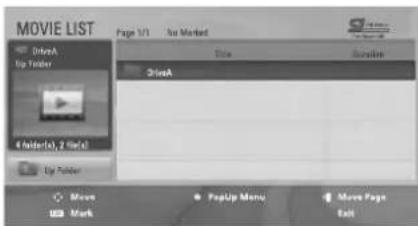
5 Play movie by using the following menus/ buttons.
| Button | Description |
| Navigation button | Scrolls through the files. |
| OK Ⓞ | Views the highlighted file or enters the mark mode. |
| ^ P ∨ | Moves to the previous or next page. |
| FAV | Enters the mark mode. |
| Menu | Description |
| Play | Play the selected movie file.Once a movie file finishes playing, the next selected one will be played automatically. |
| Mark All | Mark all movie files on the screen. |
| Close | Exit the Mark Mode. |
6 Control playback by using the following buttons.
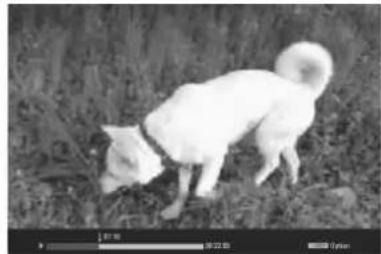
natural_image
Black-and-white photo of a dog in a grassy field, no visible text or symbols| Button | Description |
| Stops the playback | |
| Plays a video | |
| Pauses or resumes the playback | |
| Scans backward in a file | |
| Scans forward in a file | |
| Q.MENU | Show the Option menu. |
| →BACK | Hide the menu on the full-sized screen. |
| EXIT | Return to normal TV viewing. |
| <> | Skips to specific points in a file during playback. The time of a specific point will appear on the status bar. In some files, this function may not work properly. |
Tips for using playing video files
- Some user-created subtitles may not work properly.
- Some special characters are not supported in subtitles.
• HTML tags are not supported in subtitles. - Subtitles in languages other than the supported languages are not available.
- Changing font and colour in subtitles is not supported.
- Subtitles in languages other than one specified are not supported.
• Video files with subtitle files of 1 MB or larger may not be played properly. - The screen may suffer temporary interruptions (image stoppage, faster playback, etc.) when the audio language is changed.
- A damaged movie file may not be played correctly, or some player functions may not be usable.
- Movie files produced with some encoders may not be played correctly.
- If the video and audio structure of recorded file is not interleaved, either video or audio is outputted.
- HD videos with a maximum of 1920 x 1080@25/30P or 1280 x 720@50/60P are supported, depending on the frame.
- Videos with resolutions higher than 1920 X 1080@25/30P or 1280 x 720@50/60P may not work properly depending on the frame.
- Movie files other than the specified types and formats may not work properly.
-
Max bitrate of playable movie file is 20 Mbps. (only, Motion JPEG : 10 Mbps)
• We do not guarantee smooth playback of profiles encoded level 4.1 or higher in H.264/AVC.
• DTS Audio codec is not supported. -
A movie file more than 30 GB in file size is not supported for playback. The file size limit is dependent on the encoding environment.
- A DivX movie file and its subtitle file must be located in the same folder.
- A video file name and its subtitle file name must be identical for it to be displayed.
- Playing a video via a USB connection that doesn't support high speed may not work properly.
- Files encoded with GMC(Global Motion Compensation) and Qpel (Quarterpel Motion Estimation) may not be played.
- Trick Mode does not support other functions than if video files do not have index information.
• Video file names that contain special characters may not be playable.

NOTE
- Option value changed in PHOTO LIST and MUSIC LIST are changed likewise in PHOTO LIST and MUSIC LIST excluding MOVIE LIST.
Video options
1 Press Q. MENU to access the Pop-Up menus.
2 Press the Navigation buttons to scroll to Set Video Play, Set Video or Set Audio and press OK Ⓞ.
1 Press the Navigation buttons to scroll to show the Picture Size, Audio Language, Subtitle.
2 Press the Navigation buttons to scroll to make appropriate adjustments.
When you select the Set video play.
| Menu | Description |
| Picture Size | Selects your desired picture format during movie play. |
| Audio Language | Changes the Language Group of the audio during movie play. Files with a single audio track cannot be selected. |
| Subtitle | Turn on/off the subtitle. |
| Language | Activated for SMI subtitle and can select the language within the subtitle. |
| Code Page | Can select the font for subtitle.When set to default, same font as general menu will be used. |
| Sync | Adjusts the time synchronisation of the subtitle from -10 secs to +10 secs by steps of 0.5 secs during movie play. |
| Code Page | Support Language |
| Latin1 | English, French, Spanish, Portuguese, Malaysia, Indonesia |
| Cyrillic | Russian |
| Thai | Thai |
| Hebrew | Hebrew |
| Arabic | Arab, Parsi, Krudish |
| Vietnam | Vietnamese language |
When you select the Set video.
1 Press the Navigation buttons to scroll to make appropriate adjustments. (See p.46)
When you select the Set audio.
1 Press the Navigation buttons to scroll to show the Sound Mode, Auto Volume, Balance.
2 Press the Navigation buttons to scroll to make appropriate adjustments. (See p.49)

NOTE
- Only 10,000 of sync blocks can be supported within the subtitle file.
- When playing a video, you can adjust the Picture Size by pressing Q.MENU or accessing Aspect Ratio in the PICTURE menu.
DivX® VOD Guide
DivX® VOD Registration
In order to play purchased or rented DivX® VOD contents, you should register your device with 10 digit DivX registration code from your device at www.divx.com/vod.
1 Press SETTINGS to access the main menus.
2 Press the Navigation buttons to scroll to ENTERTAINMENT and press OK Ⓞ.
3 Press the Navigation buttons to scroll to DivX(R) VOD and press OK ☑.
4 Press the Navigation buttons to scroll to Registration and press OK ☑.
5 View the registration code of your TV.
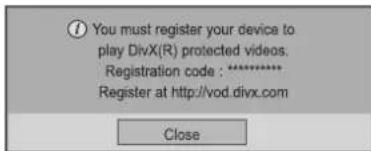
6 When you are finished, press EXIT. When you return to the previous menu, press BACK.

NOTE
• Movie files are supported as follows
• Resolution : under 1920 x 1080 (WxH) pixels
• Frame rate : Under 30 frames/sec
- Video Codec : MPEG 1, MPEG 2, MPEG 4, H.264/AVC, DivX 3.11, DivX 4.x, DivX 5.x, DivX 6, Xvid 1.00, Xvid 1.01, Xvid 1.02, Xvid 1.03, Xvid 1.10-beta1, Xvid 1.10-beta2, JPEG, VC1, Sorenson H.263/H.264.
DivX® VOD Deregistration
You should deregister your device with 8 digit DivX deregistration code from your device at www.divx.com/vod.

NOTE
- Once the deregistration is executed, you must register your device again to see DivX® VOD contents.
1 Press SETTINGS to access the main menus.
2 Press the Navigation buttons to scroll to ENTERTAINMENT and press OK Ⓞ.
3 Press the Navigation buttons to scroll to DivX(R) VOD and press OK Ⓞ.
4 Press the Navigation buttons to scroll to Deregistration and press OK Ⓞ.
5 Press the Navigation buttons to select Yes to confirm.
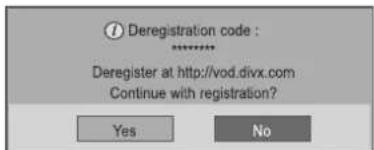
6 When you are finished, press EXIT. When you return to the previous menu, press BACK.
CUSTOMIZING TV SETTING
• Image shown may differ from your TV.
Accessing main menus
1 Press SETTINGS to access the main menus.
2 Press the Navigation buttons to scroll to one of the following menus and press OK Ⓞ.
3 Press Navigation buttons to scroll to the setting or option you want and press OK Ⓞ
4 When you are finished, press EXIT.
| Menu | Description | |
| SETUP | Sets up and edit programmes. | |
| PICTURE | Adjusts the image size, quality, or effect. | |
| AUDIO | Adjusts the sound quality, effect, or volume level. | |
| TIME | Sets the time, date, or timer feature. | |
| OPTION | Customizes the general settings. | |
| LOCK | Locks or unlocks programmes. | |
| INPUT | Views the input sources with their labels. | |
| ENTERTAINMENT | Displays photo and play music, movie, game contents. | |
Customizing Settings
SETUP Settings
1 Press SETTINGS and the Navigation buttons to scroll to SETUP.
2 Press the Navigation buttons to scroll to the setting or option you want and press OK Ⓞ.
3 When you return to the previous menu, press ↩ BACK.
• Image shown may differ from your. TV.
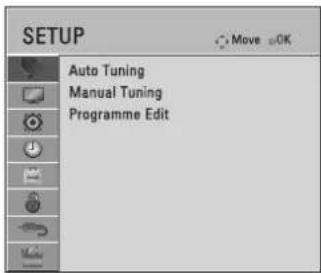
The available programme settings are described in the following:
| Setting | Description |
| Auto Tuning | Tunes and stores all available programmes through antennas inputs. (See p.31) |
| Manual Tuning | Tunes and stores the programmes you want manually. (See p.32) |
| Programme Edit | Edits programmes. (See p.33) |
PICTURE Settings
1 Press SETTINGS and the Navigation buttons to scroll to PICTURE.
2 Press the Navigation buttons to scroll to the setting or option you want and press OK Ⓞ.
3 When you return to the previous menu, press ↩BACK.
• Image shown may differ from your TV.
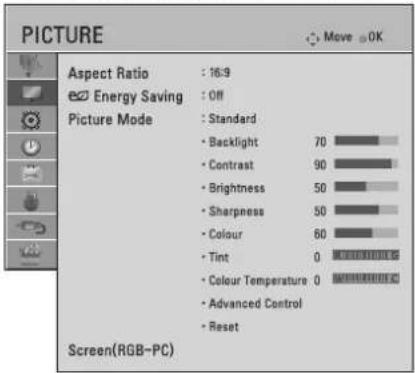
The available picture settings are described in the following.
| Setting | Description | |
| Aspect Ratio | Changes the image size to view images at its optimal size.(See p.31) | |
| Energy Saving | Reduces the power consumption by adjusting the screen brightness. | |
| Option | ||
| Off | The Energy Saving is off | |
| Minimum/ Medium/ Maximum | Selects the brightness level. | |
| Screen off | The screen turns off in 3 seconds. | |
| NOTEWhen you select Screen Off, the screen will be turned off in 3 seconds and Screen Off will start.If you adjust “Energy Saving- Maximum”,Backlight feature will not work. | ||
| Setting | Description | |
| Picture Mode | Selects one of the preset image or customizes options in each mode for the best TV screen performance. You are also able to customize advanced options of each mode. | |
| Mode | ||
| Vivid | Adjusts the video image for the retail environment by enhancing the contrast, brightness, colour, and sharpness. | |
| Standard | Adjusts the image for the normal environment. | |
| Cinema | Optimizes the video images for a cinematic look to enjoy movies as if you are in a movie theatre. | |
| Soccer | Optimizes the video image for high and dynamic actions by emphasizing primary colours such as white, grass, or sky blue. | |
| Game | Optimizes the video image for a fast gaming screen such as PCs or games. | |
(Depending on model)
| Setting | Description | |
| Screen (RGB-PC) | Customizes the PC display options in RGB mode. | |
| Option | ||
| Resolution | Sets the desired resolution. Options may only be selected when the PC resolution is set to 1024 x 768@60/1280 x 768@60/1360 x 768 @60/1366 x 768 @60 (default). | |
| Auto config. | Sets to adjust the screen position, clock, and phase automatically. The displayed image may be unstable for a few seconds while the configuration is in progress. | |
| Position/ Size/Phase | Adjusts the options when the picture is not clear, especially when characters are shaky, after the auto configuration. | |
| Reset | Restores the options to the default setting. | |
Basic image options
| Setting | Description |
| Backlight | Adjusts the brightness of the screen by controlling the LCD backlight. If you decrease the brightness level, the screen becomes darker and the power consumption will be reduced without any video signal loss. |
| Contrast | Increases or decreases the gradient of the video signal. You may use Contrast when the bright part of the picture is saturated. |
| Brightness | Adjusts the base level of the signal in the picture. |
| Sharpness | Adjusts the level of crispness in the edges between the light and dark areas of the picture. The lower the level, the softer the image. |
| Colour | Adjusts intensity of all colours. |
| Tint | Adjusts the balance between red and green levels. |
| Colour Temperature | Adjusts the overall tone of the screen as desired. Set to warm to enhance hotter colours such as red, or set to cool to see less intense colours with more blue. |
| Advanced Control | Customizes the advanced options. |
| Reset | Restores the options of each mode to the factory default. |
Advanced image options (Depending on model)
| Setting | Description |
| Dynamic Contrast | Adjusts the contrast to keep it at the best level according to the brightness of the screen. The picture is improved by making bright parts brighter and dark parts darker. |
| Dynamic Colour | Adjusts screen colours so that they look livelier, richer and clearer. This feature enhances hue, saturation and luminance so that red, blue and green white look more vivid. |
| Noise Reduction | Reduces screen noise without compromising video quality. |
| Gamma | You can adjust brightness of dark area and middle gray level area of the picture.» Low: Make the dark and middle gray level areas brighter.» Medium: Express the original picture level.» High: Make the dark and middle gray level area darker. |
| Black Level | Sets black level of the screen to proper level. This function is available in the following modes: RF, AV or HDMI.» Low: The reflection of the screen gets darker.» High: The reflection of the screen gets brighter. |
| Motion Eye Care | Adjusts screen brightness to prevent eye glare. |
| Film Mode | Makes video clips recorded in film look more natural. This feature operates only in 480i / 576i / 1080i Resolution. |
| Setting | Description |
| Colour Gamut | Advanced ControlMaximizes the utilization of colour to increase colour quality.Standard: Displays standard set of colours.Wide: Increase number of colours used. |
| Edge Enhancer | Shows clearer and distinctive yet natural edges of the video. |

NOTE
- Depending on input signal or other picture settings, the range of detailed items for adjustment may differ.
AUDIO Settings
1 Press SETTINGS and the Navigation buttons to scroll to AUDIO.
2 Press the Navigation buttons to scroll to the setting or option you want and press OK Ⓞ.
3 When you return to the previous menu, press ↩ BACK.
• Image shown may differ from your TV.
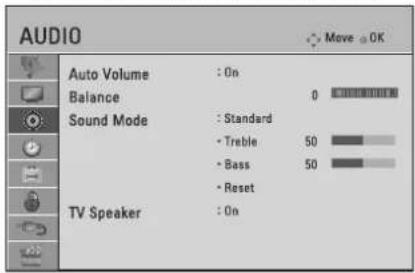
The available audio settings are described in the following.
| Setting | Description |
| Auto Volume | Activates the Auto Volume feature to keep the volume level consistent whenever you change programmes. The volume level may not be consistent due to different signal conditions of broadcasting stations. |
| Balance | Adjust balance between the left and right speakers according to your room environment. |
| Setting | Description | |
| Sound Mode | Selects one of the preset sound modes or customizes options in each mode. | |
| Mode | ||
| Standard | Select when you want standard-quality sound. | |
| Music/ Bollywood (depending on model) | Select when you listen to music. | |
| Cinema | Select when you watch movies. | |
| Soccer | Select when you watch sports events. | |
| Game | Select when you play games. | |
| Option | ||
| Treble | Controls the dominant sounds in the output.When you turn up the treble, it will increase the output to the higher frequency range. | |
| Bass | Controls the softer sounds in the output. When you turn up the bass, it will increase the output to the lower frequency range. | |
| Reset | Resets the sound mode to the default setting. | |
| TV Speaker | Turns off the internal speaker of the TV when using an external Hi-Fi system. | |
This feature may not be applied based on country broadcasting circumstance.
Stereo/Dual Reception
When a programme is selected, the sound information for the station appears with the programme number and station name.
Press I/II button to select the Multi Audio menu.
| Broadcast | On Screen Display |
| Mono | MONO |
| Stereo | STEREO |
| Dual | DUAL I , DUAL II , DUAL I + II |
| NICAM | NICAM |
• Mono sound selection
If the stereo signal is weak in stereo reception, you can switch to mono. In mono reception, the clarity of sound is improved.
• Language selection for dual language broadcast
If a programme can be received in two languages (dual language), you can switch to DUAL I, DUAL II or DUAL I+II.
DUAL I Sends the primary broadcast language to the loudspeakers.
DUAL II Sends the secondary broadcast language to the loudspeakers.
DUAL I+I I Sends a separate language to each loudspeaker.
Nicam Reception
If the TV is equipped with a receiver for NICAM reception, high quality NICAM (Near Instantaneous Companding Audio Multiplex) digital sound can be received.
Sound output can be selected according to the type of broadcast received.
1 When NICAM mono is received, you can select NICAM MONO or FM MONO.
2 When NICAM stereo is received, you can select NICAM STEREO or FM MONO. If the stereo signal is weak, switch to FM MONO.
3 When NICAM dual is received, you can select NICAM DUAL I, NICAM DUAL II or NICAM DUAL I+II or FM MONO.
Speaker Sound Output Selection
In AV, Component, HDMI mode, you can select output sound for the left and right loudspeakers. Select the sound output.
L+R: Audio signal from audio L input is sent to the left loudspeaker and audio signal from audio R input is sent to the right loudspeaker.
L+L: Audio signal from audio L input is sent to left and right loudspeakers.
R+R: Audio signal from audio R input is sent to left and right loudspeakers.
TIME Settings
1 Press SETTINGS and the Navigation buttons to scroll to TIME.
2 Press the Navigation buttons to scroll to the setting or option you want and press OK Ⓞ.
3 When you return to the previous menu, press ↩ BACK.
• Image shown may differ from your TV.
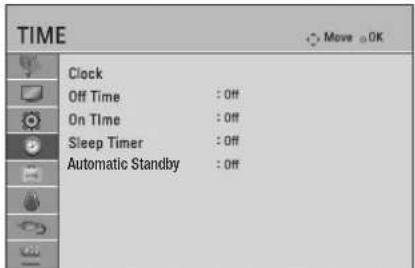
Above TIME settings are different depending on Model. The available time settings are described in the following.
| Setting | Description |
| Clock | Sets the time. |
| Off Time/On Time | Sets the time to turn on or off the TV automatically. To use this function, you should set the current time and date in advance. ⚠ NOTEIf you do not press any button within 2 hours after the TV turns on by the On Time feature, the TV enters the Standby mode automatically.If you set both Off time and On time features to the same time, the Off time feature overrides the On time feature. |
| Sleep Timer | Sets the length of time until the TV to turns off. When you turn the TV off and turn it on again, the Sleep timer feature will be set to off. |
| Automatic Standby | Sets the Automatic Standby to pre-defined time (4 hours, 6 hours, 8 hours, etc.) |
OPTION Settings
1 Press SETTINGS and the Navigation buttons to scroll to OPTION.
2 Press the Navigation buttons to scroll to the setting or option you want and press OK ☑.
3 When you return to the previous menu, press ↩ BACK.
• Image shown may differ from your TV.
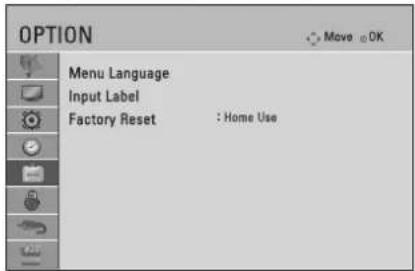
The available option settings are described in the following.
| Setting | Description | |
| Menu Language | Selects a desired language. | |
| Input Label | Indicates which device is connected to which input port. | |
| Factory Reset | Customizes the TV settings to suit your preference. The initial setup screen will appear when you turn on the TV for the first time. | |
| Home Use | Selects it for the Home environment. | |
| Store Demo | Selects it for the retail environment. | |
LOCK Settings
1 Press SETTINGS and the Navigation buttons to scroll to LOCK.
2 Press the Navigation buttons to scroll to the setting or option you want and press OK Ⓞ.
3 When you return to the previous menu, press ↩ BACK.
• Image shown may differ from your TV.
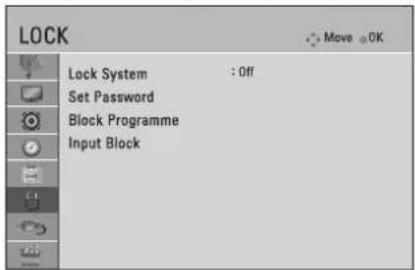
The available lock settings are described in the following.
| Setting | Description |
| Lock System | Activates or deactivates the lock system. |
| Set Password | Changes the 4-digit password. The default PIN is “0 0 0 0”. |
| Block Programme | Blocks the programmes that contain inappropriate contents for children by pressing the Blue button. The Lock icon appears in front of the blocked programmes. The programmes can be selected but the screen blank and the audio is muted. |
| Input Block | Blocks the input sources. |
ENTERTAINMENT Settings
1 Press SETTINGS and the Navigation buttons to scroll to ENTERTAINMENT.
2 Press the Navigation buttons to scroll to the setting or option you want and press OK Ⓞ.
3 When you return to the previous menu, press ↩ BACK.
• Image shown may differ from your TV.
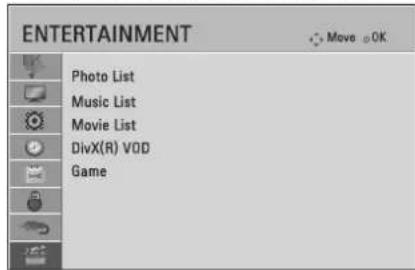
The available entertainment settings are described in the following.
| Setting | Description |
| Photo List | View image files(photos) on TV which are stored on USB device.(See p.36) |
| Music List | Play back music files on TV which are stored on USB device.(See p.37) |
| Movie List | Play movie files on TV which are stored on usb device.(See p.39) |
| DivX(R) VOD | View the registration code of your TV. (See p.42) |
| Game | Play game contents on your TV. |
TELETEXT
• This feature is not available in all countries.
Teletext is a free service broadcast by most TV stations which gives up-to-the minute information on news, weather, television programmes, share prices and many other topics.
The teletext decoder of this TV can support the SIMPLE and FASTEXT systems. SIMPLE (standard teletext) consists of a number of pages which are selected by directly entering the corresponding page number. FASTEXT are more modern methods allowing quick and easy selection of teletext information.
Switch On/Off
Press the TEXT button to switch to teletext. The initial page or last page viewed appears on the screen.
Two page numbers, TV station name, date and time are displayed on the screen headline. The first page number indicates your selection, while the second shows the current page displayed. Press the TEXT button to switch off teletext. The previous mode reappears.
Simple Text
Page selection
1 Enter the desired page number as a three digit number with the NUMBER buttons. If during selection you press a wrong number, you must complete the three digit number and then re-enter the correct page number.
2 The P button can be used to select the preceding or following page.
Programming a colour button in LIST mode
If the TV is in SIMPLE text or FASTEXT mode, press the LIST button to switch to LIST mode. Four teletext page numbers of your choice can be colour coded and easily selected by pressing the corresponding coloured button on the remote control handset.
1 Press the LIST key.
2 Press a coloured button.
3 Using the Number buttons, select the page you wish to programme.
4 The selected page is stored as the selected page number, blinking once to confirm this. From now on, you can select this page with the same coloured button.
5 The three other coloured buttons are programmed in this way.
Fastext
The teletext pages are colour coded along the bottom of the screen and are selected by pressing the corresponding coloured button.
Page selection
1 Press the INDEX button to select the index page.
2 You can select the pages which are colour coded along the bottom line with corresponding coloured buttons.
3 AS with SIMPLE teletext mode, you can select a page by entering its three digit page number with the Number buttons in FASTEXT mode.
4 The P button can be used to select the preceding or following page.
Special Teletext Function
Index
Select the each index page.
Time
When viewing a TV programme, select this menu to display the time at the top right hand corner of the screen. In the teletext mode, press this button to select a sub page number. The sub page number is displayed at the bottom of the screen. To hold or change the sub page, press the Red/Green, <> or NUMBER buttons.
Hold
Stops the automatic page change which will occur if a teletext page consists of 2 or more sub pages. The number of sub pages and the sub page displayed is, usually, shown on the screen below the time. When this menu is selected the stop symbol is displayed at the top left-hand corner of the screen and the automatic page change is inactive.
Reveal
Select this menu to display concealed information, such as solutions to riddles or puzzles.
Update
Displays the TV picture on the screen while waiting for a new teletext page. The display will appear at the top left hand corner of the screen. When the updated page is available then display will change to the page number. Select this menu again to view the updated teletext page.
MAINTENANCE
Cleaning your TV
Clean your TV regularly to keep the best performance and to extend the product lifespan.

CAUTION
• Make sure to turn the power off and disconnect the power cord and all other cables first.
- When the TV is left unattended and unused for a long time, disconnect the power cord from the wall outlet to prevent possible damage from lightning or power surges.
Screen, frame, cabinet and stand
• To remove dust or light dirt, wipe the surface with a dry, clean, and soft cloth.
- To remove major dirt, wipe the surface with a soft cloth dampened in clean water or a diluted mild detergent. Then wipe immediately with a dry cloth.

CAUTION
- Avoid touching the screen at all times, as this may result in damage to the screen.
- Do not push, rub, or hit the screen surface with your fingemail or a sharp object, as this may result in scratches and image distortions.
- Do not use any chemicals as this may damage the product.
- Do not spray liquid onto the surface. If water enters the TV, it may result in fire, electric shock, or malfunction.
Power cord
Remove the accumulated dust or dirt on the power cord regularly.
TROUBLESHOOTING
| Problem | Solution |
| Cannot control the TV with the remote control. | Check the remote control sensor on the product and try again.Check if there is any obstacle between the product and the remote control.Check if the batteries are still working and properly installed (⊕ to ⊕, ⊖ to ⊖). |
| No image display and no sound is produced. | Check if the product is turned on.Check if the power cord is connected to a wall outlet.Check if there is a problem in the wall outlet by connecting other products. |
| The TV turns off suddenly. | Check the power control settings. The power supply may be interrupted.Check if the Sleep Timer or Off Time feature is activated in the TIME settings.If there is no signal while the TV is on, the TV will turn off automatically after 15 minutes of inactivity. |
| When connecting to the PC (HDMI/RGB(Depending on model)), 'No signal' is displayed. | Turn the TV off/on using the remote control.Reconnect the HDMI/RGB cable.Restart the PC with the TV on. |
Audio
| Problem | Solution |
| No sound is produced while images are displaying. | Press 4 + or button.Check if the sound is muted by pressing MUTE.Scroll to other channels. There may a problem with the broadcast.Check if the audio cables are connected properly. |
| One of the speakers produce noises or does not produce sound. | A change in ambient humidity or temperature may result in an unusual noise when the product turns on or off.There is no problem with your product. |
Video
| Problem | Solution |
| An image displays n black and write or the colour quality is poor | Adjust the colour setting in the PICTURE menu.Keep a sufficient distance between this product and other electronic products.Scroll to other channels. There may a problem with the broadcast. |
| Horizontal or vertical bars appears or images blur | Check if there are local interferences such as an electrical appliance or power tool. |
| Lines or streaks appear on images | Check the antenna or aim the antenna to the proper direction. |
| Afterimages (ghosts) appear when the product turns off | Pixels may have been damaged from a fixed image displayed for a long time (image burn). Use a screen saver to prevent the pixel damage on the screen. |
| The power is on but the screen appears extremely dark. | Adjust the brightness and contrast in the PICTURE menu. |
| “No Signal” appears on the screen. | Check if the signal cable is connected between the TV and products properlyCheck the selected input source by pressing INPUT. |
| Thin lines appear in the background of the screen. | Check the video cable connections. |
| The reception on some channels is poor | Scroll to other channels. There may a problem with the broadcast.The station signal may be weak. Aim the antenna to the proper direction.Check if there is local interference such as an electrical appliance or power tool. |
SPECIFICATIONS
Product specifications may be changed without prior notice due to upgrade of product functions. For the power supply and power consumption, refer to the label attached to the product.
| MODELS | 20LB45** | |||
| 20LB450A-TA20LB451A-TA20LB457A-TC20LB456A-TJ | 20LB452A-TB20LB454A-TG20LB458A-TK | 20LB453A-TE20LB455A-TI | ||
| Dimensions(W x H x D) | With stand (mm) | 467 x 329.4 x 135.4 | 467 x 329.4 x 140.5 | 467 x 317 x 130 |
| Without stand(mm) | 467 x 278 x 52.7 | 467 x 278 x 52.7 | 467 x 278 x 52.7 | |
| Weight | With stand (kg) | 2.5 | 2.5 | 2.4 |
| Without stand (kg) | 2.3 | 2.3 | 2.3 | |
| Power requirement | 19 V --- | |||
| AC/DC Adapter | Manufacturer : Lien ChangModel : LCAP21A, LCAP16A(Only Indonesia)Manufacturer : APDModel : WA-32C19FI(Only India) | |||
| MODELS | 22LB45** | |||
| 22LB450A-TA22LB451A-TA22LB457A-TC22LB456A-TJ | 22LB452A-TB22LB454A-TG22LB458A-TK | 22LB453A-TE22LB455A-TI | ||
| Dimensions(W x H x D) | With stand (mm) | 507.6 x 355.9 x 135.8 | 507.6 x 355.9 x 140.6 | 507.6 x 344.5 x 130.5 |
| Without stand(mm) | 507.6 x 315.7 x 53.1 | 507.6 x 315.7 x 53.1 | 507.6 x 315.7 x 53.1 | |
| Weight | With stand (kg) | 3.1 | 3.1 | 3.0 |
| Without stand (kg) | 2.9 | 2.9 | 2.9 | |
| Power requirement | 19 V --- | |||
| AC/DC Adapter | Manufacturer : Lien ChangModel : LCAP16A-E, LCAP16A-A, LCAP25A, LCAP25BManufacturer : HonorModel : ADS-40FSG-19 19032GPG, ADS-40FSG-1919032GPCU, ADS-40SG-19-2 19032GManufacturer : APDModel : WA-32C19FI, DA-32F19, DA-32B19 | |||
| MODELS | 24LB45** | |||
| 24LB450A-TA24LB451A-TA24LB457A-TC24LB456A-TJ | 24LB452A-TB24LB454A-TG24LB458A-TK | 24LB453A-TE24LB455A-TI | ||
| Dimensions(W x H x D) | With stand (mm) | 556 x 384.3 x 135.8 | 556 x 384.3 x 140.6 | 556 x 375 x 130.5 |
| Without stand(mm) | 556 x 343.1 x 53.1 | 556 x 343.1 x 53.1 | 556 x 343.1 x 53.1 | |
| Weight | With stand (kg) | 3.5 | 3.5 | 3.4 |
| Without stand (kg) | 3.3 | 3.3 | 3.3 | |
| Power requirement | 19 V --- | |||
| AC/DC Adapter | Manufacturer : Lien ChangModel : LCAP16A-E, LCAP16A-A, LCAP25A, LCAP25BManufacturer : HonorModel : ADS-40FSG-19 19032GPG, ADS-40FSG-1919032GPCU, ADS-40SG-19-2 19032GManufacturer : APDModel : WA-32C19FI, DA-32F19, DA-32B19 | |||
| MODELS | 28LB45** | |||
| 28LB450A-TA28LB451A-TA28LB457A-TC28LB456A-TJ | 28LB452A-TB28LB454A-TG28LB458A-TK | 28LB453A-TE28LB455A-TI | ||
| Dimensions(W x H x D) | With stand (mm) | 641.5 x 432.0 x 170 | 641.5 x 432.0 x 175 | 641.5 x 424.5 x 158.8 |
| Without stand(mm) | 641.5 x 395.8 x 57.6 | 641.5 x 395.8 x 57.6 | 641.5 x 395.8 x 57.6 | |
| Weight | With stand (kg) | 4.5 | 4.5 | 4.3 |
| Without stand (kg) | 4.2 | 4.2 | 4.2 | |
| Power requirement | 19 V --- | |||
| AC/DC AdapterMODELS | Manufacturer : Lien ChangModel : LCAP16B-E, LCAP16B-A, LCAP25BManufacturer : LG InnotekModel : PSAB-L205B, PSAB-L205C, PSAB-L204BManufacturer : APDModel : WA-40D19FI, DA-40I19, DA-40E1929LB45** | |||
| 29LB450A-TA29LB451A-TA29LB457A-TC29LB456A-TJ | 29LB453A-TE29LB455A-TI | |||
| Dimensions(W x H x D) | With stand (mm) | 666 x 441 x 170 | 666 x 434 x 160 | |
| Without stand(mm) | 666 x 396 x 60.9 | 666 x 396 x 60.9 | ||
| Weight | With stand (kg) | 5.3 | 5.1 | |
| Without stand (kg) | 5.0 | 5.0 | ||
| Power requirement | 19 V --- | |||
| AC/DC Adapter | Manufacturer : Lien ChangModel : LCAP35Manufacturer : APDModel : DA-48F19 | |||
| MODELS | 22LB47** | |||
| 22LB472A-TD | 22LB470A-TE | 22LB474A-TF | ||
| Dimensions(W x H x D) | With stand (mm) | 506 x 354 x 141 | 506 x 354 x 141 | 506 x 345 x 129 |
| Without stand(mm) | 506 x 310 x 55.8 | 506 x 310 x 55.8 | 506 x 310 x 55.8 | |
| Weight | With stand (kg) | 3.0 | 3.0 | 2.9 |
| Without stand (kg) | 2.8 | 2.8 | 2.8 | |
| Power requirement | 19 V --- | |||
| AC/DC Adapter | Manufacturer : Lien ChangModel : LCAP21C | |||
| MODELS | 28LB47** | |||
| 28LB472A-TD | 28LB470A-TE | 28LB474A-TF | ||
| Dimensions(W x H x D) | With stand (mm) | 638 x 430 x 175 | 638 x 430 x 175 | 638 x 422 x 160 |
| Without stand(mm) | 638 x 389 x 56.8 | 638 x 389 x 56.8 | 638 x 389 x 56.8 | |
| Weight | With stand (kg) | 4.6 | 4.6 | 4.4 |
| Without stand (kg) | 4.3 | 4.3 | 4.3 | |
| Power requirement | 19 V --- | |||
| AC/DC Adapter | Manufacturer : Lien ChangModel : LCAP35Manufacturer : APDModel : DA-48F19 | |||
| MODELS | 24LB51** | 28LB51** | |
| 24LB515A-TH | 28LB515A-TH | ||
| Dimensions(W x H x D) | With stand (mm) | 556 x 385.3 x 212.1 | 641.5 x 431.4 x 212.1 |
| Without stand(mm) | 556 x 343.1 x 53.1 | 641.5 x 395.8 x 57.6 | |
| Weight | With stand (kg) | 4.1 | 5.1 |
| Without stand (kg) | 3.3 | 4.2 | |
| Power requirement | 19 V --- | ||
| AC/DC Adapter | Manufacturer :Lien ChangModel : LCAP16A-E,LCAP16A-A, LCAP25A,LCAP25BManufacturer : HonorModel : ADS-40FSG-1919032GPG, ADS-40FSG-1919032GPCU, ADS-40SG-19-2 19032GManufacturer : APD Model: WA-32C19FI, DA-32F19,DA-32B19 | Manufacturer : Lien ChangModel : LCAP16B-E,LCAP16B-A, LCAP25BManufacturer : LG InnotekModel : PSAB-L205B,PSAB-L205C, PSAB-L204BManufacturer : APDModel : WA-40D19FI, DA-40I19, DA-40E19 | |
| Environment condition | Operating Temperature | 0 °C to 40 °C |
| Operating Humidity | Less than 80 % | |
| Storage Temperature | -20 °C to 60 °C | |
| Storage Humidity | Less than 85 % |
| Analogue TV | ||
| New Zealand, Singapore | Television System | PAL/SECAM-B/G/D/K, PAL-I |
| Programme Coverage | BC: VHF/UHF 1 to 69, CATV 01 to 47I: VHF/UHF 1 to 69, CATV 01 to 47DK: VHF/UHF 1 to 69, CATV 01 to 47 | |
| Australia | Television System | PAL B/B |
| Programme Coverage | B/B: VHFAUHF 0 to 75, CATV: 2 to 44 | |
| Indonesia, Israel, Myanmar, Sri Lanka | Television System | PAL/SECAM-B/G/D/K, PAL-I, NTSC-M |
| Programme Coverage | BC: VHF/UHF 1 to 69, CATV 01 to 47I: VHF/UHF 1 to 69, CATV 01 to 47DK: VHF/UHF 1 to 69, CATV 01 to 47M: VHF/UHF 2 to 78, CATV 01 to 71 | |
| Vietnam, Malaysia | Television System | PAL/SFCAM-B/G/D/K, PAL-I, NTSC-M |
| Programme Coverage | BG: VHFAUHF 1 to 69, CATV 01 to 47I: VHFAUHF 1 to 69, CATV 01 to 47DK: VHFAUHF 1 to 69, CATV 01 to 47M: VHFAUHF 2 to 78, CATV 01 to 71 | |
| Iran, Algeria, Tunisia, Digital model | Television System | PAL/SECAM-B/G/D/K, PAL-I, NTSC-M |
| Programme Coverage | BG: VHF/UHF 1 to 69, CATV 01 to 47I: VHF/UHF 1 to 69, CATV 01 to 47DK: VHFAUHF 1 to 69, CATV 01 to 47M: VHFAUHF 2 to 78, CATV 01 to 71 | |
| Analogue model, India, Thailand, South Africa, - | Television System | PAL/SECAM-B/G/D/K, PAL-I, NTSC-M |
| Programme Coverage | BG: VHF/UHF 1 to 69, CATV 01 to 47I: VHFAUHF 1 to 69, CATV 01 to 47DK: VHFAUHF 1 to 69, CATV 01 to 47M: VHFAUHF 2 to 78, CATV 01 to 71 | |
| External Antenna Impedance | 75 Ω |
HDMI (DTV) supported mode
| Resolution | Horizontal Frequency (kHz) | Vertical Frequency (Hz) |
| 720 x 480 | 31.469 | 59.94 |
| 31.5 | 60 | |
| 720 x 576 | 31.25 | 50 |
| 1280 x 720 | 37.5 | 50 |
| 44.96 | 59.94 | |
| 45 | 60 | |
| 1920 x 1080 | 33.72 | 59.94 |
| 33.75 | 60 | |
| 28.125 | 50 | |
| 26.97 | 23.97 | |
| 27 | 24 | |
| 33.716 | 29.976 | |
| 33.75 | 30.00 | |
| 56.25 | 50 | |
| 67.432 | 59.94 | |
| 67.5 | 60 |
Component port connecting information
(Only LB450*, LB452*, LB47**-TD/TE)
| Component ports on the TV | Y | P_B | P_R |
| Video output ports on DVD player | Y | P_B | P_R |
| Y | B-Y | R-Y | |
| Y | Cb | Cr | |
| Y | Pb | Pr |
| Signal | Component |
| 480i/576i | O |
| 480p/576p | O |
| 720p/1080i | O |
| 1080p | O(50 Hz / 60 Hz only) |
RGB (PC) supported mode
| Resolution | Horizontal Frequency (kHz) | Vertical Frequency (Hz) |
| 720 x 400 | 31.468 | 70.080 |
| 640 x 480 | 31.469 | 59.940 |
| 37.500 | 75.000 | |
| 800 x 600 | 37.879 | 60.317 |
| 46.875 | 75.000 | |
| 1024 x 768 | 48.363 | 60.004 |
| 60.023 | 75.029 | |
| 1152 x 864 | 67.500 | 75.000 |
| 1600 x 900 | 60.000 | 60.000 |
(Only 22/24/28/29LB451*, 22/24/28/29LB453*, 22/24/28LB454*, 22/24/28/29LB455*, 22/24/28/29LB456*, 22/24/28/29LB457*, 22/24/28LB458*, 22/28LB47**-TF, 24/28LB51**)
| Resolution | Horizontal Frequency (kHz) | Vertical Frequency (Hz) |
| 640 x 480 | 31.469 | 59.940 |
| 800 x 600 | 37.879 | 60.317 |
| 1024 x 768 | 48.363 | 60 |
| 1280 x 720 | 47.770 | 59.850 |
| 1152 x 864 | 53.340 | 60.050 |
| 1366 x 768 | 47.710 | 59.790 |

NOTE
• The optimal display resolution
- Only 20LB45** : 1600 X 900 @ 60 Hz.
- Only 22/24/28/29LB451 ^ , 22/24/28/29LB453 ^ , 22/24/28LB454 ^ , 22/24/28/29LB455 ^ , 22/24/28/29LB456 ^ , 22/24/28/29LB457 ^ , 22/24/28LB458 ^ , 22/28LB47 ^ -TF, 24/28LB51 ^* : 1366 X 768 @ 60 Hz.
- The optimal timing in each mode is vertical frequency 60 Hz.
LICENSES
Supported licenses may differ by model. For more information about licenses, visit www.lg.com.

DOLBY. DIGITAL
Manufactured under license from Dolby Laboratories. "Dolby" and the double-D symbol are trademarks of Dolby Laboratories.

The terms HDMI and HDMI High-Definition Multimedia Interface, and the HDMI logo are trademarks or registered trademarks of HDMI Licensing LLC in the United States and other countries.

ABOUT DIVX VIDEO: DivX ^® is a digital video format created by DivX, LLC, a subsidiary of Rovi Corporation. This is an official DivX Certified ^® device that has passed rigorous testing to verify that it plays DivX video. Visit divx com for more information and software tools to convert your files into DivX videos.
ABOUT DIVX VIDEO-ON-DEMAND: This DivX Certified® device must be registered in order to play purchased DivX Video-on-Demand (VOD) movies. To obtain your registration code, locate the DivX VOD section in your device setup menu. Go to vod.divx.com for more information on how to complete your registration.
"DivX Certified® to play DivX® video up to HD 1080p, including premium content."
"DivX®, DivX Certified® and associated logos are trademarks of Rovi Corporation or its subsidiaries and are used under license."
"Covered by one or more of the following U.S. patents : 7,295,673; 7,460,668; 7,515,710; 7,519,274"
OPEN SOURCE SOFTWARE NOTICE
To obtain the source code under GPL, LGPL, MPL and other open source licenses, that is contained in this product, please visit http://opensource.lge.com.
In addition to the source code, all referred license terms, warranty disclaimers and copyright notices are available for download.
LG Electronics will also provide open source code to you on CD-ROM for a charge covering the cost of performing such distribution (such as the cost of media, shipping and handling) upon email request to opensource@lge.com. This offer is valid for three (3) years from the date on which you purchased the product.


LG
Life's Good
Record the model number and serial number of the TV.
Refer to the label on the back cover and quote this information to your dealer when requiring any service.
MODEL ____
SERIAL
- OWNER'S MANUAL
- LED TV\*
- Quick Reference Guide
- Factory Reset
- 1 When to do Factory Reset?
- How to do Factory Reset?
- Signal Strength Indicator
- TABLE OF CONTENTS
- SAFETY INSTRUCTIONS
- INSTALLATION PROCEDURE
- ASSEMBLING AND PREPARING
- MAKING CONNECTIONS
- REMOTE CONTROL
- WATCHING TV
- ENTERTAINMENT
- CUSTOMIZING TV SETTING
- TELETEXT
- MAINTENANCE
- TROUBLESHOOTING
- SPECIFICATIONS
- LICENSES
- OPEN SOURCE SOFTWARE NOTICE
- WARNING
- CAUTION
- NOTE
- SAFETY INSTRUCTIONS
- INSTALLATION PROCEDURE
- ASSEMBLING AND PREPARING
- Unpacking
- Stand Screws
- Wall mount screws
- Wall mount anchors
- Stand Rack Screws
- Wall Plate
- Parts and buttons
- Using the Joystick button
- Adjusting the Menu
- Lifting and moving the TV
- Setting up the TV
- Attaching the stand
- Detaching the Stand
- Mounting on a table
- "NOTE"
- Securing the TV to a wall
- Mounting on a wall
- Attaching the shelf stand
- How to attach to masonry walls
- Please follow the below direction
- Tidying cables
- Using the Kensington security system
- MAKING CONNECTIONS
- Antenna Connection
- Adapter Connection
- Other Connections
- REMOTE CONTROL
- WATCHING TV
- Turning the TV on for the first time
- Managing programmes
- Automatically setting up pro- gramme
- Manually setting up programme
- Assigning a station name
- Fine Tuning
- Editing your programme list
- Selecting a programme on the programme list
- Using additional options
- Adjusting aspect ratio
- Using the input list
- Selecting an input source
- ENTERTAINMENT
- Connecting USB storage devices
- Tips for using USB storage devices
- Browsing files
- Viewing photos
- Q.MENU options for photo list
- Set video.
- Set audio.
- Listening to music
- Q.MENU options for music list
- Press Q.MENU.
- Viewing movies
- Tips for using playing video files
- Video options
- When you select the Set video play.
- DivX® VOD Guide
- DivX® VOD Registration
- DivX® VOD Deregistration
- CUSTOMIZING TV SETTING
- Accessing main menus
- Customizing Settings
- SETUP Settings
- PICTURE Settings
- AUDIO Settings
- Stereo/Dual Reception
- Nicam Reception
- Speaker Sound Output Selection
- TIME Settings
- OPTION Settings
- LOCK Settings
- ENTERTAINMENT Settings
- TELETEXT
- Switch On/Off
- Simple Text
- Page selection
- Programming a colour button in LIST mode
- Fastext
- Special Teletext Function
- Index
- Time
- Hold
- Reveal
- Update
- MAINTENANCE
- Cleaning your TV
- Screen, frame, cabinet and stand
- Power cord
- SPECIFICATIONS
- LICENSES
- OPEN SOURCE SOFTWARE NOTICE
Mærke : LG
Model : 24LB454A-TG
Kategori : Fjernsyn