
DP50843 - Fjernsyn SANYO - Gratis brugsanvisning og manual
Find enhedens vejledning gratis DP50843 SANYO i PDF-format.


Brugerspørgsmål om DP50843 SANYO
0 spørgsmål om dette apparat. Besvar dem du kender, eller stil dit eget.
Stil et nyt spørgsmål om dette apparat
Download vejledningen til din Fjernsyn i PDF-format gratis! Find din vejledning DP50843 - SANYO og tag din elektroniske enhed tilbage i hånden. På denne side er alle dokumenter nødvendige for brugen af din enhed offentliggjort. DP50843 af mærket SANYO.
BRUGSANVISNING DP50843 SANYO


50" class (49.5° diagonal)
[NO TEXT]
natural_image
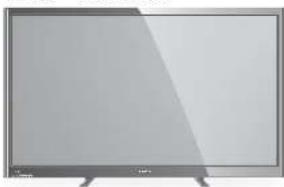
Front view of a flat-screen television displaying blank screen (no text or symbols visible)Model No.:
DP50843
Owner's Manual (English)
1080p HDTV LCD
Part No.: 1JC0P1P0045
© 2013 Sanyo Manufacturing Corporation
TRADEMARKS
Manufactured under license from Dolby Laboratories. "Dolby" is a trademark of Dolby Laboratories.
HPMI
HDMI, the HDMI Logo and High-Definition Multimedia Interface are trademarks or registered trademarks of HDMI Licensing LLC in the United States and other countries.

SANYO television customers should contact MRM Recycling at 888-769-0149 or visit their website at www.mrmrecycling.com regarding SANYO's waste management plan.

Please read before operating your HDTV!
PROTECTING THE LCD SCREEN
CAUTION: The screen can be damaged if it is not maintained properly.
- Do not use hard objects such as hard cloth or paper to clean the screen.
- Do not use excessive pressure when cleaning the screen; excessive pressure can cause permanent discoloration or dark spots.
• NEVER spray liquids on the screen.
HANDLING PRECAUTIONS
- Handle by the cabinet only.
- Handling by two or more people is recommended.
- Never touch the screen when handling.
- Handling damage is not covered under warranty.
- Do not remove the protective film covering the front cabinet while handling the HDTV.
POSITIONING THE HDTV
• Always use a firm and flat surface when positioning your HDTV.
- Do not position the unit in a confined area.
- Allow adequate space for proper ventilation.
- Do not position the HDTV where it is easily reachable by small children and may present risk of injury.
- Once HDTV is positioned, remove the protective film covering front cabinet.
The American Academy of Pediatrics discourages media use by children younger than two years. For more information, visit www.aap.org.
SPECIFICATIONS
NOTE: Design and specifications are subject to change without notice.
Power Requirement:
Source: AC 120V, 60Hz
AC Power Consumption: 180 watts
Weight: 43 lbs (w/stand)
Dimensions
WIDTH HEIGHT DEPTH
wstands 46.4 29.1 10.4
w/out stands 46.4 28.1 4.0
NOTE: Dimensions are in inches

CONTAINS MERCURY LAMPS, DISPOSE OF PROPERLY
GETTING STARTED
STAND ASSEMBLY
NOTE: Skip these steps if using a wall mounting kit (not included).
1 Place HDTV face down on a padded or cushioned flat surface to protect the screen and finish.
2 Carefully insert both foot stands to the bottom of the HDTV and secure them by inserting two (2) long screws (M6 6x30) in each one as indicated in the diagram below.
NOTE: Foot stand screws are located in the literature package.
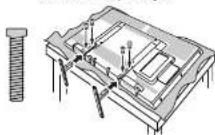
3 Position the HDTV on a firm and flat surface with adequate space for proper ventilation.
WALL MOUNTING (OPTIONAL) Wall mounting of the HDTV must be performed by a skilled person.
If foot stand disassembly is required:
- Place HDTV face down on a padded or cushioned flat surface to protect the screen and finish.
- Remove the two (2) screws securing the each foot stand. CAUTION: Hold the stands firmly as you remove the last screw.
Use the four (4) short screws (M6 6x12) included in the literature package to secure the HDTV to a wall mounting kit.
IMPORTANT: Wall mount kit must comply with VESA standard 400 x 400. All four (4) screws must be threaded to the wall mount and HDTV's back cabinet
Mounting screws measurements:
M6 (6mm) Diameter, Length-12mm (maximum)
BATTERY INSTALLATION
Install two (2) "AAA" batteries in the remote control. (Not included)
PRECAUTIONS
- Replace both batteries at the same time. Do not use a new battery with a used battery.
- There's a risk of explosion if a battery is replaced by an incorrect type.
- Keep away from moisture.
- Be sure to match the “+” and “-” signs on the batteries with marks inside the remote control.
- Please properly dispose of used up batteries.
WARNING: The batteries (or battery pack) shall not be exposed to excessive heat such as sunshine, fire or the like.
ANTENNA CONNECTION FOR OFF-AIR SIGNALS OR CABLE
Hook up your antenna or your cable service to the HDTV's ANT terminal with the use of a 75 OHM coaxial cable.
NOTE: Keep your indoor antenna at least 3 ft. away from the television set and any other electronic equipment.
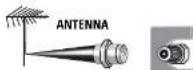
ANALOG / DIGITAL
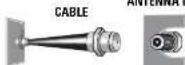
The tuner in this HDTV can receive: • Digital and Analog off air signals from an antenna
• Analog or ClearQAM cable channels from a direct Cable TV connection.
INITIAL CHANNEL SEARCH
Before proceeding, please make sure to correctly hook up your antenna or cable connection and all AV equipment to your HDTV.
- PLUG IN AC POWER CORD
120V AC, 60Hz
-
TURN ON TV
-
TV SET LOCATION SELECTION:
Select "Home Mode" to set the HDTV's backlight to a lower energy consumption level, or select "Store Mode" to set the backlight to a retail high brightness display level.
- CHANNEL AND SIGNAL SEARCH:
Select "Signal Search" and press ENTER to perform a channel search from an Antenna or a direct Cable connection, and a signal search from devices hooked up to the HDTV's AV input jacks.
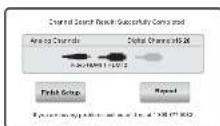
- SIGNAL SEARCH RESULT SCREEN
The final setup screen displays analog and digital channels found, as well as AV inputs detected.
Select Finish Setup and press ENTER.
NOTE: If you wish to repeat the process, select Repeat.
AV INPUT SELECTION
Press the INPUT key to select the correct AV input for the video source you wish to watch.
NOTE: Unused AV inputs may be disabled with the Input Setting feature.
HDTV INPUT/OUTPUT REFERENCE
1 ANT Analog / Digital Antenna Input
Hook up your indoor or outdoor digital antenna, or a direct Cable service (Analog or ClearQAMI).
2 VIDEO INPUT (COMPONENT/COMPOSITE combo)
COMPOSITE Connection
A Composite connection is used to hookup your analog equipment such as a VCR or an older DVD player.
Match the YELLOW connector from your external device to the GREEN Y-VIDEO jack on the HDTV.
NOTE: Use the WHITE and RED(L and R) jacks for AUDIO signal.
COMPONENT Connection
A Component connection will accept SDTV, EDTV and HDTV video signals. Use it for great image quality from digital devices such as a DVD player or Video Game system.
Match your digital device's Component output jacks to the Component input jack set on your HDTV.
NOTE: Use the GREEN(Y), BLUE(Pb) and RED(Pr) jacks for the VIDEO signal and the WHITE and RED(L and R) jacks for the AUDIO signal.
3 HDMI (INPUT1 or INPUT2)
Use HDMI INPUT1 & 2 to hookup HD digital devices such as a Blu-ray player, HD Cable Box, HD Satellite Receiver or Video-game System.
Connect your digital device's HDMI output to any of the two (2) HDMI inputs on your HDTV's side panel with the use of an HDMI cable.
NOTE: A DVI connection is possible via the HDMI (DVI) INPUT1 using an appropriate cable or adapter and connecting the audio to the L and R (VIDEO INPUT) jacks.
4 USB
USB input jack is used to connect a USB mass storage device to watch digital images stored in JPEG format.
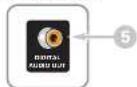
5 DIGITAL AUDIO OUTPUT (Coaxial)
Hookup a multichannel receiver with the use of a phonotype digital audio cable.
T IS SYMBOL INDICATES THAT DANGEROUS VOLTAGE CONSTITUTING A RISK
- 2017年1月1日,公司召开2017年第一次临时股东大会,并于2017年3月15日召开的2017年第二次临时股东大会。
THIS SYMBOLS, PROCES FROM THERE AVE INFORMATION TO ENTERING INFORMATION E AVANCE INSTRUCTIONS IN THE UTERATURE ACCOMPANYING THIS UNIT
X. DO NOT EXPOSE THIS APPLIANCE TO BAIN OR MOISTUBE
IMPORTANT SAFETY INSTRUCTIONS
- Read these instructions.
- Keep these instruc
- Heed all warnings
- Follow all instructions.
- Do not use this apparatus near water.
- Clean only with dry cloth.
- Do not block any ventilation openings. Install in accordance with the manufacturer's instructions.
- Do not install near any heat sources such as radiators, heat registers, stoves, or other apparatus (including amplifiers) that produce heat.
- Do not defeat the safety purpose of the polarized or grounding-type plug. A polarized plug has two blades with one wider than the other. A grounding-type plug has two blades and a third grounding prong. The wide blade or the third prong are provided for your safety. If the provided plug does not fit fully into your outlet, consult an electrician for replacement of the obsolete outlet.
- Protect the power cord from being walked on or pinched particularly at plugs, convenience receptacles, and the point where they exit from the apparatus.
- Only use attachments/accessories specified by the manufacturer.
- Use only with the cart, stand, tripod, bracket, or table specified by the manufacturer, or sold with the apparatus. When a cart is used, use caution when moving the cart/apparatus combination to avoid injury from tip-over.
- Unplug this apparatus during lightning storms or when unused for long periods of time.
- Refer all servicing to qualified service personnel. Servicing is required when the apparatus has been damaged in any way, such as power-supply cord or plug is damaged, liquid has been spilled or objects have fallen into the apparatus, the apparatus has been exposed to rain or moisture, does not operate normally, or has been dropped.

-
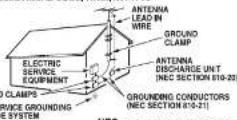
If an outside antenna is connected to the television equipment, be sure the antenna system is grounded so as to provide some protection against voltage surges and built up static charges. In the U.S. Selection 810-21 of the National Electrical Code provides information with respect to proper grounding of the mast and supporting structure, grounding of the lead-in wire to an antenna discharge unit, size of grounding conductors, location of antenna discharge unit, connection to grounding electrodes, and requirements for the grounding electrodes.
-
An outside antenna system should not be located in the vicinity of overhead power lines or other electrical light or power circuits, or where it can fall into such power lines or circuits. When installing an outside antenna system, extreme care should be taken to keep from touching such power lines or circuits as contact with them might be fatal.
EXAMPLE OF ANTENNA GROUNDING ACCORDING TO NATIONAL ELECTRICAL CODE, ANSI/NEPA 70
*Note to CATV system installer:
This reminder is provided to call the CATV system installer's attention to Article 820-40 of the NEC that provides guidelines for proper grounding and, in particular, specifies that the cable ground shall be connected to the grounding system of the building, as close to the point of cable entry as practical."
17. Wall or Ceiling Mounting—The product should be mounted to a wall or ceiling only as recommended by the manufacturer.
18. Apparatus shall not be exposed to dripping or splashing, and no objects filled with liquids, such as vases, shall be placed on it.
19. When the MAINS plug is used as the disconnect device, the disconnect device shall remain readily operable.
FCC INFORMATION
This equipment has been tested and found to comply with the limits for a Class B digital device, pursuant to Part 15 of the FCC Rules. These limits are designed to provide reasonable protection against harmful interference in a residential installation. This equipment generates, uses and can radiate radio frequency energy and, if not installed and used in accordance with the instructions, may cause harmful interference to radio communications. However, there is no guarantee that interference will not occur in a particular installation. If this equipment does cause harmful interference to radio or television reception, which can be determined by turning the equipment off and on, the user is encouraged to try to correct the interference by one or more of the following measures:
- Reorient or relocate the receiving antenna.
- Increase the separation between the equipment and receiver.
- Connect the equipment into an outlet on a circuit different from that to which the receiver is connected.
- Consult the dealer or an experienced radio/TV technician for help.
CAUTION: FCC Regulations state that improper modifications or unauthorized changes to this unit may void the user's authority to operate the unit.

This equipment is a Class II or double insulated electrical appliance. It has been designed in such a way that it does not require a safety connection to electrical earth.

HDTV SIDE PANEL

text_image
ANT VIDEO INPUT 1 2 3 4 HDMI 2 HDMI 1.1mm USBHDTV BACK PANEL

Sanyo Manufacturing Corp. 3333 Sanyo Road, Forrest City, AR 72335
Printed in Mexico, February 2013 US3C / 50-Z6WJ / GXHA
REMOTE CONTROL OPERATION
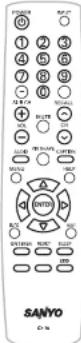
POWER. Turns your HDTV On or Off.
INPUT. Selects the video source to view. Holding down the key displays the Input List.
NUMERIC KEYS. Choose a channel directly.
SUB CH. Use for the direct selection of digital subchannels. For example: for channel 39-1 press the 3 and 9 keys, followed by the dash -, and 1 keys.
RECALL. Switch between current channel and last selected channel or input.
MUTE. Mute or restore the sound.
VOL + = . Increases or decreases the audio level.
CH ▲▼. Scan through the channels in the memory database.
AUDIO. Selects the desired Audio mode. Stereo, Mono, or SAP (when available.)
PIX SHAPE. Cycles through the various aspect ratios. The different settings either stretch, zoom, or fill the image on your screen. Bars may appear on top and bottom of your screen (or on left and right sides) depending on the broadcasted signal or program.
CAPTION. Cycles through the available Caption modes (when available.)
MENU. Display or hide the on-screen menu.
HELP. Displays the on-screen Help menu. CURSOR▲▼◀▶ . Move the on-screen cursor in the desired direction.
ENTER. Set or select the highlighted option on the screen.
INFO. Displays theChannel Information banner.
EXIT. Exits the on-screen menu.
ON TIMER. Displays the current switch on time (if activated.)
RESET. Pressing it twice restores your HDTV to its factory settings. All user customized settings will be cleared.
SLEEP. Displays the "Off" Timer. While Off Timer is on-screen, press the "0" key to Set the amount of time (in 30 minute increments) at which the HDTV will turn off.
ECO. Modifies the Energy Saver level.
ON-SCREEN MENU OPERATION
CHANNEL
Display the On Screen menu and use the CURSOR ◀▶ keys to select Channel. Press ENTER.
Channel Search
Auto - Searches the detected mode, Cable or Air.
Cable - Searches for analog and unscrambled (ClearQAM) digital cable channels.
Air (Antenna) - Searches for analog and digital off-air channels.
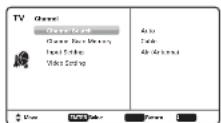
IMPORTANT FACT: This HDTV maintains only one database of digital channels. Therefore, when you search for cable channels, the database of antenna digital channels will be deleted. You will only be able to receive those ClearQAM channels your cable company provides.
Channel Scan Memory
Channel Scan Memory lists all Analog and Digital channels found. It also lists Analog channels that were not found, which can be added.
Use the CURSOR ▲▼ keys to move the channel select bar through all enabled and disabled channels.
NOTE: You can use the CH ▲▼ keys to change page.
Press ENTER to enable or disable the selected channel.
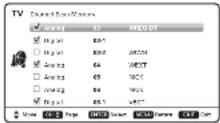
NOTE: For information on local digital channels, visit www.antennaweb.org
Input Setting
Input Setting feature allows the removal of unused inputs from the AV input loop.
Use the CURSOR ▲▼ keys to select an AV input. Press ENTER to disable (uncheck) or enable (check) the highlighted input.
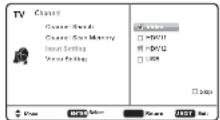
NOTE: At least one input must and will remain checked. Unchecked box □means the input will be skipped
Video Setting
Use this feature to establish either a Component or Composite connection to the VIDEO INPUT jacks on your TV.
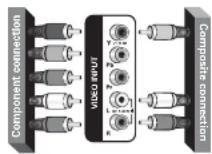
Once in the Video Setting menu, use the CURSOR ▲▼ keys to select Component (Y/Pb/Pr) if your hookup uses five (5) jacks like on the left; or select Composite (V) if your hookup uses three (3) jacks like on the right.
NOTE: Selecting Auto Detection will establish the correct Video Setting depending on the type of connection used in VIDEO INPUT.
SETUP
Display the On Screen menu and use the CURSOR ◀▶ keys to select Setup. Press ENTER.
Menu Language
Choose between English, Spanish and French for your On Screen menu's display language.
Press ENTER on the desired language.
V-Chip (parental control)
Use this feature to automatically block programs with content you deem as inappropriate for viewing by your children.
NOTE: This feature is designed to comply with the United States of America's FCC V-Chip regulations. Therefore, it may not function with broadcasts that originate in other countries.
ADJUSTING THE V-CHIP RATINGS
Select ON and press ENTER. Select Adjust (Standard) and press ENTER.
NOTE: Blocking a rating will automatically block all higher ratings. Unblocking a rating will automatically unblock all lower ratings.
For V-Chip (Movie) ratings select Movie and press ENTER, and then select the desired MPAA rating limit. Press the EXIT key to close the V-Chip menu.
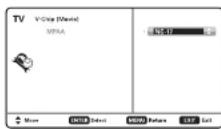
For V-Chip (TV) ratings select TV and press ENTER. Use the CURSOR ▲▼ keys to select a rating and press ENTER. Use the CURSOR ▲▼ keys to set the rating's status as Blocked or Viewable. Once ratings are set, press the EXIT key to close the V-Chip menu.
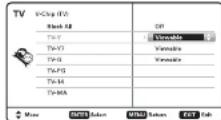
ADVANCED V-CHIP SYSTEM (RRT5)
RRT5 (V-Chip Regional Ratings 5) is an advanced V-Chip ratings system for over the air digital channels. When compatible RRT5 data is detected, it's downloaded & stored in memory, and the Setup V-Chip screen is then modified to show the Adjust (Advanced) option.
Use the CURSOR ▲▼ and ◀▶ keys to highlight the different options, and use the ENTER key to block or unblock the selected rating.
NOTE: When vertical scroll bars appear, press CURSOR ▲▼ to gain access to the additional ratings.
MORE INFORMATION
Additional information about MPAA (Motion Picture Association of America) and V-Chip rating can be found at: www.mpaa.org and www.v-chip.org, respectively.
Energy Solution
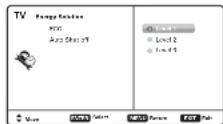
• ECO (ENERGY SAVER)
ECO controls the LCD backlight brightness to reduce power consumption.
– Level 1: Energy Saver feature is off.
- Level 2: Low power consumption.
- Level 3: Lowest power consumption.
Press ENTER on the desired level.
• AUTO SHUT-OFF
When Auto Shut-off feature is set to ON, it will allow the HDTV to automatically turn off when no video and/or audio signals are being received.
NOTES: By factory default, this feature is set to ON. The HDTV will automatically turn off if no AV signals are received in a time span of 15 minutes.
Use the CURSOR ▲▼ keys to select On or OFF and press ENTER.
Clock Timer
This feature allows you to set a Current Time for your HDTV and enable a Switch On Time for the HDTV to turn on at a specific time of day.
When On Timer Function is set to ON, the TV will automatically turn on at the previously set Switch on Time.
Use the CURSOR ▲▼ and ◀▶ keys to modify the Current Time and/or Switch On Time.
Digital Caption
Captioning is textual information transmitted along with the picture and sound. Turning Captioning ON (by pressing the CAPTION key during normal TV viewing) causes the HDTV to open these captions (digital or analog) and superimpose them on the screen.
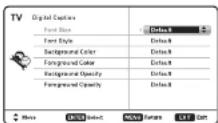
NOTE: Local broadcasters decide which caption signals to transmit.
Use the CURSOR ▲▼ and ◀▶ keys to modify Font, Background, and Foreground of digital caption text.
Mode (Home/Store/Demo)
Choose to modify the initial Energy Saving Mode chosen at HDTV's first power on.
Home Mode - For saving energy and power consumption reduction.
Store Mode - High brightness and contrast for display at retailer store.
Demo Mode - High brightness and contrast plus TV feature demonstration.
PICTURE
Display the On Screen menu and use the CURSOR ◀▶ keys to select Picture. Press ENTER.
You may choose between Vivid, Mild, and Standard, which have predetermined fixed picture parameter values, or choose the Manual option for customized personal settings.
NOTE: Each AV input can have its own picture mode (pre-determined or manual.) Current input's selected option is indicated by a blue marker.
MANUAL PICTURE SETTINGS
Manual parameters to adjust include: • Color • Tint
- Contrast - Brightness
- Sharpness - Color Temperature
The Detailed Setting option allows for the adjustment of several additional parameters such as:
- Signal Balancer - Noise Reduction
- White Balance - Edge Enhancer
- H-Size / V-Size - Dynamic Contrast
SOUND
Display the On Screen menu and use the CURSOR ◀▶ keys to select Sound. Press ENTER.
Choose sound setting option:
Auto - Sound settings are linked to the current Picture option and parameters are adjusted accordingly.
Dynamic, Mild, Standard
Predetermined sound parameters not linked with any Picture option.
MANUAL SOUND SETTINGS
The Manual option provides different parameters that can be personally adjusted:
- Bass & Treble
- Bass Boost
• Detailed Setting
- Equalizer: Personalize audio highs and lows.
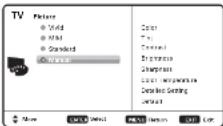
ADJUSTING A PICTURE SETTING
Use the CURSOR ▲▼ keys to highlight the picture parameter you wish to adjust. Press the ENTER key to enter the value adjustment screen. Modify the selected parameter's value by pressing the CURSOR ◀▶ keys.
NOTE: CURSOR ▲▼ keys select the next/previous parameter without returning to the previous menu screen.

Once adjustments are complete, press the EXIT key to return to normal TV viewing.
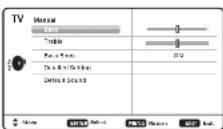
ADJUSTING A SOUND SETTING
Use the CURSOR ▲▼ keys to highlight the sound parameter you wish to adjust. Press the ENTER key to enter the value adjustment screen. Modify the selected parameter's value by pressing the CURSOR ◀▶ keys.
NOTE: CURSOR ▲▼ keys select the next/previous parameter without returning to the previous menu screen.

Once adjustments are complete, press the EXIT key to return to normal TV viewing.
USB INPUT
PHOTO VIEWER
View pictures on your HDTV with the use of a USB mass storage device (not included.)
HDTV SIDE PANEL
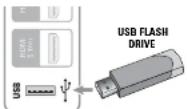
Insert the flash drive into the USB port, the TV will display the Photo Viewer screen, select Shuffle Play or Browse Photos and press ENTER to begin.
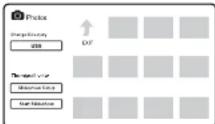
NOTE: A thumbnail hide icon will appear if a picture cannot be decoded or if no thumbnail data is available.
USING THE PHOTO VIEWER
Press ENTER on a thumbnail photo to enable the Rotate, Full View and Start Slideshow functions.
Once in Full View mode:
Use the CURSOR ◀▶ keys to change picture.
Press ENTER to show the full view options menu.
- Rotate - Zoom In / Out
- Pan - Slideshow setup
- Start Slueshow - Browse Photo
SLIDE SHOW
In the Slideshow Setup menu you may turn the Shuffle and Quick Change options ON or OFF.
Press ENTER on Start Slideshow either from the Thumbnail View Screen or from the full view options menu to start the slideshow from the current picture.
ONE-YEAR LIMITED PARTS AND LABOR WARRANTY
THIS LIMITED PARTS AND LABOR WARRANTY IS VALID ONLY ON SANYO TELEVISIONS PURCHASED AND USED IN THE UNITED STATES OF AMERICA, CANADA, AND PUERTO RICO, EXCLUDING ALL OTHER U.S. TERRITORIES AND PROTECTORATES. THIS LIMITED WARRANTY APPLIES ONLY TO THE ORIGINAL RETAIL PURCHASER, AND DOES NOT APPLY TO PRODUCTS USED FOR INDUSTRIAL OR COMMERCIAL PURPOSES.
WARRANTY APPLICATION
FOR ONE YEAR from the date of original retail purchase Sanyo Manufacturing Corporation (SMC) warrants this TV to be free from manufacturing defects in materials and workmanship under normal use and conditions for parts and labor.
For the FIRST 90 DAYS from the date of original retail purchase, Sanyo Manufacturing Corporation will replace any defective TV via exchange at the retailer. To ensure proper warranty application, keep the original-dated-sales receipt for evidence of purchase. Return the defective TV to the retailer along with the receipt and the included accessories, such as the remote control. The defective TV will be exchanged for the same model, or a replacement model of equal value, if necessary. Replacement model will be contingent on availability and at the sole discretion of Sanyo Manufacturing Corporation. THE FOREGOING WARRANTY IS EXCLUSIVE AND IN LIEU OF ALL OTHER WARRANTIES OF MERCHANTABILITY OR FITNESS FOR A PARTICULAR PURPOSE.
OBLIGATIONS
For one year from the date of purchase, Sanyo Manufacturing Corporation warrants this product to be free from defects in material and workmanship under normal use and conditions. During the first 90 days under this warranty for any manufacturing defect or malfunction, Sanyo Manufacturing Corporation will provide a new TV via exchange at the retailer.
HOW TO MAKE A CLAIM UNDER THIS WARRANTY
Please call 1-800-877-5032. Please be prepared to give us the television's model number and serial number when you call. The model number and serial number are printed on a label attached to the back of the unit.
For customer assistance, call toll free 1-800-877-5032.
This warranty expresses specific contractual rights; retail purchasers may have additional statutory rights which vary from state to state.
(EFFECTIVE: March 1, 2007)
Your Sanyo HDTV is registered at the time of purchase,
please keep sales receipt for future reference.
For your protection in the event of theft or loss of this product, please fill in the information requested below and KEEP IN A SAFE PLACE FOR YOUR OWN PERSONAL RECORDS.
Model No.
(Located on back of unit)
Purchase date
Serial No.
(Located on back of unit)
Purchase Price
Where Purchased