
Vaio VPCEG15EA - Bærbar computer SONY - Gratis brugsanvisning og manual
Find enhedens vejledning gratis Vaio VPCEG15EA SONY i PDF-format.


Brugerspørgsmål om Vaio VPCEG15EA SONY
0 spørgsmål om dette apparat. Besvar dem du kender, eller stil dit eget.
Stil et nyt spørgsmål om dette apparat
Download vejledningen til din Bærbar computer i PDF-format gratis! Find din vejledning Vaio VPCEG15EA - SONY og tag din elektroniske enhed tilbage i hånden. På denne side er alle dokumenter nødvendige for brugen af din enhed offentliggjort. Vaio VPCEG15EA af mærket SONY.
BRUGSANVISNING Vaio VPCEG15EA SONY
SONY®
Recovery, Backup and Troubleshooting Guide
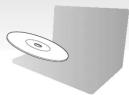
Please create your Recovery Media immediately after setup.
VAIO
4 - 2 8 6 - 2 3 9 - 1 1
4-286-239-11 (1) © 2011 Sony Corporation Printed in Japan

Introduction
About recovery
What is recovery?
Recovery is the process of restoring your computer back to its original factory condition. There are two ways to recover your computer: From Recovery Media

When do I have to perform recovery?
- If your computer has been unstable - If your computer has been infected with a computer virus - If your computer is experiencing problems which cannot be solved through troubleshooting
If you have formulated the C drive by in Which software should I use to maintain and recover my computer?
Use the following software.
VAIO Care
□ Creating Recovery Media
□ Checking your computer hardware
VAIO Care Rescue
□ Recovering your computer
☐ Erasing all the data on your built-in storage device
6
See the help file included with VAIO Care and VAIO Care Rescue for more information.
What is a recovery area?
The recovery area on the built-in storage device contains data for system and application recovery. Typically, you cannot modify or delete data in this area, however, there is commercially available software designed for this purpose.
Why do I have to create Recovery Media?
Recovery Media are used to restore your computer back to its original factory condition. If Windows does not start and you have deleted the recovery area, you will need the Recovery Media to perform recovery. Create the Recovery Media immediately after the computer is ready for use.
About backup
What is a backup process?
The backup process creates a backup copy of your data stored on the built-in storage device and saves it to another location.

Why do I have to back up my data? Due to unexpected events or computer viruses, you might lose various data stored on your built in storage device. To restore the lost data, its backup copy is needed. It is strongly recommended that you back up your data regularly.

Creating Recovery Media Recovering your computer
! You cannot use Blu-ray Disc™ media, DVD-RAM, CD-R, and CD-RW discs as
6
You can use optical discs and a USB flash drive as Recovery Media. However, it is recommended that you use optical discs, such as DVD-R, since you may accidentally delete the data on the USB flash drive.
The number of necessary discs, the types of media you can use, and the capacity of the USB flash drive you need will be displayed during the Recovery Media creation process.
1 Connect your computer to the Internet, download and install the latest updates using VAIO Update.
2 If you create Recovery Media (optical discs) on the model without a built-in optical disc drive, connect an external optical disc drive (not supplied) to the computer and to an AC power source.
3 Click Start 📋, All Programs, and VAIO Care. If the User Account Control window appears, click Yes.
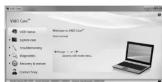
If you are currently logged onto your computer as a standard user, you may be prompted to enter an administrator name and a password.
4 Click Recovery & restore, select Recovery, and then click Create Recovery Media. 5 Read the on-screen instructions carefully, and then click Next.
6 Follow the on-screen instructions.
It may take some time to display the current status of the procedure.
Do not eject or disconnect the media while creating Recovery Media, as doing so may result in a failure of the process.
Keep the Recovery Media in a secure place.
You may not be able to create Recovery Media with a USB flash drive depending on the drive you use. See the help file included with VAIO Care for more information.

computer
To restore your computer back to its original factory condition, follow one of the recovery methods below.
!
Recovering your computer will delete all the data on the built-in storage device.
To recover from the recovery area
☐ On models with the ASSIST button 1 Press the ASSIST button while your computer is off to launch
VAIO Care Rescue
#
If the display language selection window
appears, slick OK
Click Start recovery wizard.
_n
To perform the custom recovery, select
Tools and click
2.1.1.3.4.5.6.7.8.9.10.11.12.13.14.15.16.17.18.19.20.21.22.23.24.25.26.27.28.29.30.31.32.33.34.35.36.37.38.39.40.41.42.43.44.45.46.47.48.49.50.51.52.53.54.55.56.57.58.59.60.61.62.63.64.65.66.67.68.69.70.71.72.73.74.75.76.77.78.79.80.81.82.83.84.85.86.87.88.89.90.91.92.93.94.95.96.97.98.99.100
Follow the on screen interactions:
☐ On models without the ASSIST button
Turn on your computer and press the F10
key several times before the VAXO log
If the Edit Root On
displayed, press the Enter key.
^* 注:
If the display language selection window
appears, select your desired language and
click OR.
Select Start recovery wizard.
20
To perform the custom recovery, select
Tools an
(1) 2017年1月1日,公司与上海浦东发展银行股份有限公司签订了《关于使用部分闲置募集资金进行现金管理的协议》。
3 Follow the off-screen instructions.
To recover from Recovery Media
1 If you recover your computer from Recovery Media (optical discs) on the model without a built-in optical disc drive, connect an external optical disc drive (not supplied) to the computer and to an AC privacy source.
2.
2 Insert the disc into the optical disc drive or connect the USB flash drive to the USB port on the computer while the computer is in Normal mode.
3 Turn off the computer and turn it on once again.
4 If you are using the external optical disc drive or USB flash drive, press the F11 key several times before the VAIO logo screen disappears. The Windows Boot Manager screen is displayed.
5 Press the ↑ or ↓ key to select Start VAIO Care Rescue and press the Enter key. If the display language selection window appears, select your desired language and click OK.
6 Select Start recovery wizard.
To perform the custom recovery, select Tools and click Start advanced recovery wizard. 7 Follow the on-screen instructions.
See the back side.

Backing up and restoring your data
your data when you can
start Windows
If you can start Windows, back up and restore your data with the Windows feature. To use the
your data with the Windows feature. To use the features, click Start, Control Panel,
System and Security, and Backup and Restore.
To back up and restore
your data when you
cannot start windows
When you cannot start Windows, back up your data with VAIO Care Rescue.
To restore files which have been backed up by
VAIO Care Rescue, use VAIO Data Restore Tool
Restoring your data
using a restore point
A restore point enables you to restore your computer system files to the previous state when the restore point was created. Typically, a restore point is created automatically, for example when you install a software driver. However, we recommend that you create the restore point manually on the Control Panel window before installing any software or software drivers on your computer.
To restore system files using the
restore point v start Windows
- Follow steps 1 to 4 in *To recover from
Follow steps 1 to 41 Recovery Media" of
Recovering your computer on the front side.
Press the ↑ or ↓ key to select
Repair Windows 7 and press the Enter key.
Select a keyboard layout and click Next.
|
If the appropriate keyboard layout is not
selected, you may not be able to enter the password correctly.
password correctly
Select your operating system and click Next.
!
Back up your files with Rescue Data if you have changed the files after you walked up
have changed the files after you backed up them using the Windows backup feature.
Click System Restore.
The System Restore wi
6 In the Recovery window, click
Open System Restore.
7 If the Choose a different restore point
option is displayed in the System Restore
window, select it If not click Next
If there, click Next.
8 Select a restore point and click Next.
9 Click Finish to confirm the restore point.
Restart your computer if the window prompts you to restart the computer.

Troubleshooting
If you have any problem operating your computer
Try these suggestions before contacting an authorized Sony service/support center or your local Sony dealer directly.
- Read the troubleshooting information in this section or the on-screen User Guide.
- Launch VAIO Care and perform necessary operations.
- Visit the VAIO online support web site.
Recovery problems
I cannot recover from the recovery
area
Recover your computer from Recovery Media if
you have used software to modify the recovery area, installed a different operating system from
the preinstalled one, or formatted the built-in
storage device without using VAIO Care Rescue
I cannot create Recovery Media
Try the suggestions below:
1 Restart your computer. And then, try to
create Recovery Media again.
2 Download and install the latest updates
using VAIO Update.
□ Try
I cannot complete the recovery
process
□ Disconnect all unnecessary external devices
from your computer.
Try the suggestions below: □ Check the condition of 0
☐ Check the condition of recovery media. If you are using optical discs, check the discs
for dirt or damage. If the discs are not
clean, clean them and try recovering your
□ If you cannot recover your computer from
the recovery area, restart the computer
and recover the computer from the
recovery area again, or use Recovery Media.
□ If you e
the USB flash drive, connect the drive to
another USB port on the computer and try
recovering the computer again.
If the problem persists, visit the VAIO online support web site for further assistance.
Common problemsTo back up and restore
My computer does not start
□ When using your computer for the first time.
make sure the computer is plugged into an
AC power source. At the time of delivery, the
power button or the power switch is disabled until the computer is plugged into an AC
Enerall the computer is plugged into EPHS power source.
□ Make sure your computer is securely plugged into a new server and turned on and the
into a power source and turned on and the power indicator light is lit.
□ Make sure the battery pack is installed
properly and charged.
☐ Disconnect all connected USB devices (if any), and then restart your computer.
□ Remove all extra memory modules you may
have installed since purchase, and then restart
□ If your computer is plugged into a power strip
or an uninterruptible power supply (UPS),
make sure the power strip or UPS is plugged into a power source and turned on.
□ Unplug the power cord or the AC adapter, and
remove the battery pack. Wait three to five
minutes. Reinstall the battery pack, plug the power cord or the AC adapter, and then turn
power cord of the AC adapter, and then turn on your computer.
□ Condensation may cause your computer to
malfunction. If this occurs, do not use the computer for at least one hour.
□ Check that you are using the supplied Sony
power cord or AC adapter.
□ If you are using an external display, make sure it is plugged into a power source and turned
on.
The green power indicator light
turns on but my screen remains
blank
☐ Press the Alt+F4 keys several times to close
the application window. An application error may have occurred.
□ Press the Ctrl+Alt+Delete keys and click the
arrow next to the Shut down button
and Restart.
☐ Press and hold the power button or slide and hold the power switch for more than four
seconds to shut down your computer.
Unplug the power cord or the AC adapter, and leave the computer for about five minutes.
Leave the computer for about five minutes. Then plug the power cord or the AC adapter,
and turn on the computer again.
Turning off your computer with the
Ctrl+Alt+Delete keys, the power switch, or the power button may cause loss of unsaved
da
The charge indicator light is
blinking fast and my computer does not start
does not start
☐ This problem could be due to the battery pack not being installed properly. To solve this
not being installed property. To solve this problem, turn off your computer and remove
the battery pack. Then reinstall the battery
pack to the computer. For details, see the on screen User Guide
□ If the problem persists, it means the installed
battery pack is not compatible.
Remove the battery pack and contact an authorized Sony service/support center. To
find the nearest center or agent, see the on-
screen User Guide.
A message appears notifying of
either incompatibility or improper installation of the battery pack and
installation of the battery pack and my computer then enters
Hibernate mode
See the answers for "The charge indicator light is
blinking fast and my computer does not start."
Windows does not accept my
password and returns the message:
Enter Onetime Password
If you enter a wrong power-on password three times consecutively, the
Enter Onetime Password message appears and
Windows will not start. Press and hold the power
button or slide and hold the power switch for more than four seconds to check that the power.
more than four seconds to check that the power indicator light turns off. Wait for 10 to 15 seconds,
then restart your computer and enter the correct
password. The pascu
The password is case sensitive, so be sure to check letters for the current case before you
enter the password.
I cannot remember the power-on
password
If you have forgotten the power-on password,
contact an authorized Sony service/support
center. A reset fee will be charged.
- Recovery, Backup and Troubleshooting Guide
- About recovery
- What is recovery?
- When do I have to perform recovery?
- If you have formulated the C drive by in Which software should I use to maintain and recover my computer?
- What is a recovery area?
- Why do I have to create Recovery Media?
- About backup
- What is a backup process?
- Creating Recovery Media Recovering your computer
- To recover from the recovery area
- To recover from Recovery Media
- your data when you can
- To back up and restore
- your data when you
- cannot start windows
- Restoring your data
- using a restore point
- To restore system files using the
- restore point v start Windows
- Troubleshooting
- If you have any problem operating your computer
- Recovery problems
- I cannot recover from the recovery
- I cannot create Recovery Media
- I cannot complete the recovery
- Common problemsTo back up and restore
- My computer does not start
- The green power indicator light
- The charge indicator light is
- blinking fast and my computer does not start
- A message appears notifying of
- Windows does not accept my
- I cannot remember the power-on
Mærke : SONY
Model : Vaio VPCEG15EA
Kategori : Bærbar computer