G4K Pro - Processor SEADA - Gratis brugsanvisning og manual
Find enhedens vejledning gratis G4K Pro SEADA i PDF-format.


Brugerspørgsmål om G4K Pro SEADA
0 spørgsmål om dette apparat. Besvar dem du kender, eller stil dit eget.
Stil et nyt spørgsmål om dette apparat
Download vejledningen til din Processor i PDF-format gratis! Find din vejledning G4K Pro - SEADA og tag din elektroniske enhed tilbage i hånden. På denne side er alle dokumenter nødvendige for brugen af din enhed offentliggjort. G4K Pro af mærket SEADA.
BRUGSANVISNING G4K Pro SEADA
G4K Pro Quick Start Manual
Note
- Do not fix the device to any surface which is a heat source to avoid over heating
- Do not cover the surface or ventilation grills of the device to avoid over heating
1. Verify the package contents
Please verify the package contents against the List Below
- G4K Pro Controller 1
- Power Adapter 1
-
Ethernet Cable 1
-
Quick Start Guide (SD-MA-016) 1
-
Audio Cable 1
-
Software & Documentation User CD 1
If any of the items in the packing list is missing, please contact your reseller.
2. Set up the G4K Pro
Power up the G4K controller and connect the input and outputs to correct devices.
| Model: G4KPro-HDMI | |
| 12V DC RESET LAN1 LAN2 HDMI IN INPUT RUN POWER 9 G4K PRO | 1. Lockable Power Supply 2. Reset Button • Back to Factory Settings • Press+hold for 3 seconds 3. RJ45 Ethernet Ports 4. HDMI Input Port 5. Status Lights |
| 6 AUDIO 7 8 | 6. Audio Output Port 7. HDMI Output Ports 8. Daisy Chain HDMI Ports • To Other G4K Pro Units 9. Screw holes for Lockable HDMI cables • Please take the cover screws out before use |
Figure 1
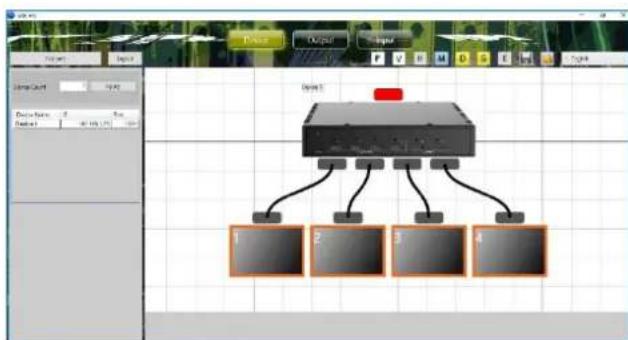
flowchart
graph TD
    A["Central Device"] --> B["Panel 1"]
    A --> C["Panel 2"]
    A --> D["Panel 3"]
    A --> E["Panel 4"]
Figure 2
3. Install the software on control PC
Install the G4K Pro management software from the disk Users will have the software UI as left.
4. Connect through IP in 'Device'
The default IP address for G4K Pro controller is 192.168.1.25. Users need to change the IP address of control PC to the same IP group of G4K Pro.
- Change the 'Obtain an IP address automatically' to a static IP address of TCP/IPv4 in Ethernet Properties
IP address: any address between 192.168.1.2 and 192.168.1.254 except the address which has been taken by the G4K Pro
Subnet mask: 255.255.255.0, Default Gateway: 192.168.1.1
- Once the control PC IP address having been set up, connect PC to either one of RJ45 ports of G4K Pro controllers via a network cable and then press the Connect button to connect the device.
SD-MA-016
V04
G4K Pro Quick Start Manual
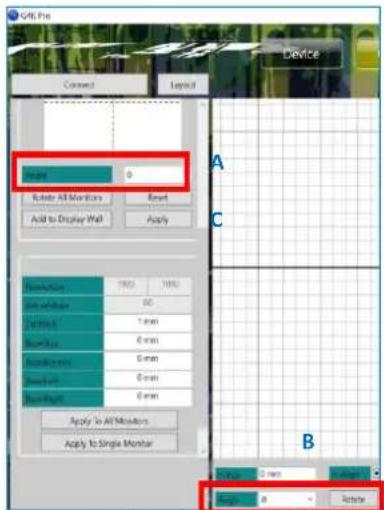
5. Set up video wall layout in 'Output'
- Once the unit is connected, press 'Output' to set up the layout.
text_image
OK Pre Connect Layout Start 0 Rotate All Monitors Reset Add to Display Wall Apply Simulation TRES TRES Remove Box 80 Width 1 mm New Box 6 mm Backspace 6 mm New Point 6 mm New Right 6 mm Apply to All Monitors Apply to Single Monitor Device A C B OK 2 mm Align Start 0 UpdateFigure 3
- Type in the Dotpitch and bezel sizes (check display datasheet) in 'output'.
Dot Pitch: Display area Length (L) ÷ Quantity of Horizontal pixel (e.g. 1920)
For example
46" screen has 0.531mm Dot Pitch
49" screen has 0.561mm Dot Pitch
55" screen has 0.631mm Dot Pitch
- And then press 'Apply To All Monitors' to apply the changes to all screens
-
Press 'Apply To Single Monitor' to apply the changes only to the current highlighted screen
-
Move/rotate the screens in software to create the desired layout
- Enter any degree in 'Angle' and then press 'Rotate All Monitors' (A)
- Enter any degree in 'Angle' and then press 'Rotate' for single screen (B)
- Press 'Apply' to enable any layout change
Note: no change will be applied to the video wall until 'Apply' button has been pressed (C)
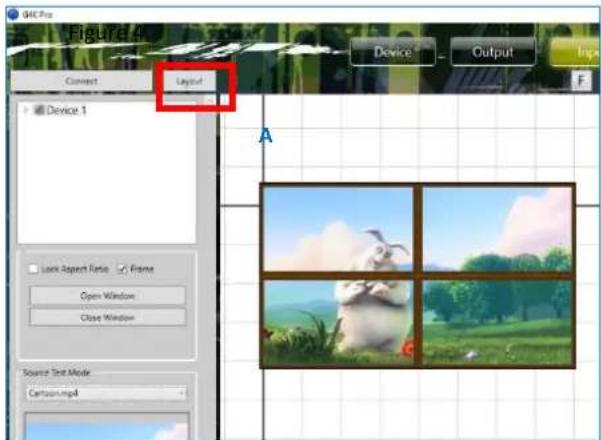
6. Set up input video window in 'Input'
text_image
GIC Pro FIGURE 1 Device 1 Layout Device Output Input Lock Agent Ratio Frame Open Window Close Window Source Text Mode Cartoon.mp4 AFigure 4
- Once the video wall layout having been set up, press 'Input' to set up the input video window
- Users are able to move/resize the input video window onto the video wall
- Users are able to open/close the input video window via pressing the button of 'Open Window' and 'Close Window' respectively.
- Users are able to open multi video input windows when multi G4Ks are connected
➢ Highlight the G4K device whose input window needed to be opened
And then press the 'Open Window' button to open the window
Each input window will have a unique window ID
- There are 3 modes for opening input source window
Lock Aspect Ratio
Window covers the screen with the same aspect ratio as input source
Frame
Window covers the video wall to the edge of frames of the screens
None
Window covers the video wall to the display edge of the screens
7. Create Pre-set layout for G4K Pro
There are two ways to create and save pre-set layouts for future recall.
- One way is to save up to 4 layouts onto the device so that the layouts can be loaded by G4KPro management software, iGPro from Apple App Store or 3rd party controller via telnet (Figure 4-A).
- Another method is to use Save & Load buttons on toolbar to save unlimited layouts onto control PC and load them using G4KPro management software. There are a few sample layouts already in the folder for users to use.
This quick start guide provides basic instructions for setting up SEADA G4K Pro video wall controllers. For additional information (e.g. daisy chain) about how to use the controllers, please refer to the G4K Pro User Guide (SD-MA-017), which is available on the CD included in this package.