
Link Zone MW70 - Router ALCATEL - Gratis brugsanvisning og manual
Find enhedens vejledning gratis Link Zone MW70 ALCATEL i PDF-format.


Brugerspørgsmål om Link Zone MW70 ALCATEL
0 spørgsmål om dette apparat. Besvar dem du kender, eller stil dit eget.
Stil et nyt spørgsmål om dette apparat
Download vejledningen til din Router i PDF-format gratis! Find din vejledning Link Zone MW70 - ALCATEL og tag din elektroniske enhed tilbage i hånden. På denne side er alle dokumenter nødvendige for brugen af din enhed offentliggjort. Link Zone MW70 af mærket ALCATEL.
BRUGSANVISNING Link Zone MW70 ALCATEL
Thank you for choosing LINKZONE
Here's a quick guide to get you up and running and making the most of your new device straight away.
If you're a devil for the detail, then visit www.alcatelmobile.com where you will find more information about your LINKZONE.
If you intend to use your LINKZONE whilst connected to your charger for more than 7 days, then, it is advisable that you remove the battery to avoid any potential damage.
What's in the box
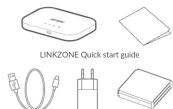
USB cable Power adapter Battery
(No text)
Power indicator
Solid blue: The power is enough (21%-100%). Flash blue: The device is in charging. Solid red: The battery is lower than 20%.
Inserting the SIM card
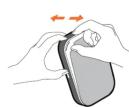
. Open the back cover.
We suggest that you put the tips of both thumbs into the hole slot at the same time and pull the cover outwards to open it.
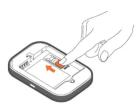
- Press and push the SIM card to install SIM card in the cards slot.
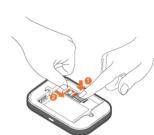
Remove the SIM card
Do not pull the SIM card out forcefully. Press and hold the flat spring at first, and then pull the SIM card out.
Inserting the battery
Ensure that the pins in the battery are aligned with the pins in your device.

Close the back cover with the loopholes aligned.

Charging your device
Connect the reversible USB cable to charge your LINKZONE. Use of a Alcatel 5V/1A or 5V/2A charger is recommended.
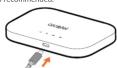
Once charged, you're ready to go. Press down on the power button for a few seconds and your LINKZONE will turn on.
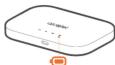
Getting to know your LINKZONE
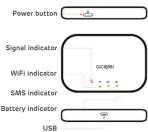
Note: The battery LED will light up when the device is powered on.
Getting online
-
Ensure your LINKZONE is switched on and connected to the network.
-
On the device you want to connect to the internet, go to the network settings and search for your Mobile Wi-Fi network name. You can find your default password on the label located on the underside of the battery cover.
-
Click connect.
-
Enter the password found on the label located on the underside of the battery cover.
You've got mail - reading your text messages
When you see the little envelope icon illuminate, it means you've got a text.
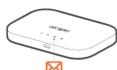
-
Make sure you've got a device connected to your LINKZONE - see 'Getting Online' for more information.
-
Enter 192.168.1.1 into your internet browser – tip, it's good to bookmark this for easier access next time.
-
Enter your username and password, the default ones are really simple, you can change these later if you like. Username: admin Password: admin
-
You are now on your LINKZONE home page Here you can click on the text message icon to read your texts. You can also change your settings such as password or device name.
Forgotten your password?
If you forget your password, just reset your device and you will be back up and running in no time. Use a paperclip or blunt pin to gently press the reset button.
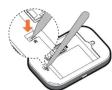
Not responding?
If the device becomes unresponsive, long press and hold the power button for 10 seconds until the device reboots.
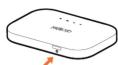
LINK APP
-
Make sure your device is connected to the internet.
-
Scan the QR code.
-
Download the LINK APP from App store or Google Play store.
-
Click on LINK APP icon to log on to the management page.

Note: The LINK app and website share the same password. Default password is: admin
alcatel
LINK ZONE
Quick Start Guide
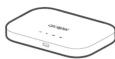

CJB1M20ALAAB
Mærke : ALCATEL
Model : Link Zone MW70
Kategori : Router