
GT-M2520 - Smartphone SAMSUNG - Gratis brugsanvisning og manual
Find enhedens vejledning gratis GT-M2520 SAMSUNG i PDF-format.


Brugerspørgsmål om GT-M2520 SAMSUNG
0 spørgsmål om dette apparat. Besvar dem du kender, eller stil dit eget.
Stil et nyt spørgsmål om dette apparat
Download vejledningen til din Smartphone i PDF-format gratis! Find din vejledning GT-M2520 - SAMSUNG og tag din elektroniske enhed tilbage i hånden. På denne side er alle dokumenter nødvendige for brugen af din enhed offentliggjort. GT-M2520 af mærket SAMSUNG.
BRUGSANVISNING GT-M2520 SAMSUNG
Mobile Phone user manual
- Some of the contents in this manual may differ from your phone depending on the software of the phone or your service provider.
• Bluetooth QD ID : B015725
www.samsungmobile.com
Printed in Korea Code No.: GH68-25275A English (LTN). 08/2009. Rev. 1.0

Safety warnings
Keep your phone away from small children and pets
Keep your phone and all accessories out of the reach of small children or animals. Small parts may cause choking or serious injury if swallowed.
Protect your hearing

Listening to a headset at high volumes can damage your hearing. Use only the minimum volume setting necessary to hear your conversation or music.
Install mobile phones and equipment with caution
Ensure that any mobile phones or related equipment installed in your vehicle are securely mounted. Avoid placing your phone and accessories near or in an air bag deployment area. Improperly installed wireless equipment can cause serious injury when air bags inflate rapidly.
Handle and dispose of batteries and chargers with care
- Use only Samsung-approved batteries and chargers specifi cally designed for your phone. Incompatible batteries and chargers can cause serious injuries or damage to your phone.
- Never dispose of batteries or phones in a fire. Follow all local regulations when disposing used batteries or phones.
- Never place batteries or phones on or in heating devices, such as microwave ovens, stoves, or radiators. Batteries may explode when overheate
- Never crush or puncture the battery. Avoid exposing the battery to high external pressure, which can lead to an internal short circuit and overheating.
Avoid interference with pacemakers
Maintain a minimum of 15cm (6 inches) between mobile phones and pacemakers to avoid potential interference, as recommended by manufacturers and the independent research group, Wireless Technology Research. If you have any reason to suspect that your phone is interfering with a pacemaker or other medical device, turn off the phone immediately and contact the manufacturer of the pacemaker or medical device for guidance.
Turn off the phone in potentially explosive environments
Do not use your phone at refueling points (service stations) or near fuels or chemicals. Turn off your phone whenever directed by warning signs or instructions. Your phone could cause explosions or fire in and around fuel or chemical storage and transfer areas or blasting areas. Do not store or carry flammable liquids, gases, or explosive materials in the same compartment as the phone, its parts, or accessories.
Reduce the risk of repetitive motion injuries
While using your phone, hold the phone with a relaxed grip, press the keys lightly, use special features that reduce the number of keys you have to press (such as templates and predictive text), and take frequent breaks
Do not use the phone if the screen is cracked or broken
Broken glass or acrylic could cause injury to your hand and face. Bring the phone to a Samsung service centre to replace the screen. Damage caused by careless handling will void your manufacturer's warranty.

Safety precautions
Drive safely at all times
Avoid using your phone while driving and obey all regulations that restrict the use of mobile phones while driving. Use hands-free accessories to increase your safety when possible.
Follow all safety warnings and regulations
Comply with any regulations that restrict the use of a mobile phone in a certain area.
Use only Samsung-approved accessories
Using incompatible accessories may damage your phone or cause injury.
Turn off the phone near medical equipment
Your phone can interfere with medical equipment in hospitals or health care facilities. Follow all regulations, posted warnings, and directions from medical personnel.
Turn off the phone or disable the wireless functions when in an aircraft
Your phone can cause interference with aircraft equipment. Follow all airline regulations and turn off your phone or switch to a mode that disables the wireless functions when directed by airline personnel.
Protect batteries and chargers from damage
- Avoid exposing batteries to very cold or very hot temperatures (below 0^ C/32° F or above 45° C/113° F). Extreme temperatures can reduce the charging capacity and life of your batteries. - Prevent batteries from contacting metal objects, as this can create a connection between the + and - terminals of your batteries and lead to temporary or permanent battery damage. - Never use a damaged charger or battery.
Handle your phone carefully and sensibly
- Do not disassemble your phone due to a risk of electric shock.
- Do not allow your phone to get wet—liquids can cause serious damage and will change the colour of the label that indicates water damage inside the phone. Do not handle your phone with wet hands. Water damage to your phone can void your manufacturer's warranty.
- Avoid using or storing your phone in dusty, dirty areas to prevent damage to moving parts.
- Your phone is a complex electronic device—protect it from impacts and rough handling to avoid serious damage.
- Do not paint your phone, as paint can clog moving parts and prevent proper operation.
- If your phone has a camera flash or light, avoid using it close to the eyes of children or animals.
- Your phone may be damaged by exposure to magnetic fi elds. Do not use carrying cases or accessories with magnetic closures or allow your phone to come in contact with magnetic fi elds for extended periods of time.
Avoid interference with other electronic devices
Your phone emits radio frequency (RF) signals that may interfere with unshielded or improperly shielded electronic equipment, such as pacemakers, hearing aids, medical devices, and other electronic devices in homes or vehicles. Consult the manufacturers of your electronic devices to solve any interference problems you experience.

Important usage information
Use your phone in the normal position
Avoid contact with your phone's internal antenna.
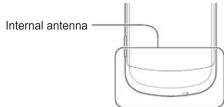
Allow only qualified personnel to service your phone
Allowing unqualifi ed personnel to service your phone may result in damage to your phone and will void your warranty.
Ensure maximum battery and charger life
- Avoid charging batteries for more than a week, as overcharging may shorten battery life.
• Over time, unused batteries will discharge and must be recharged before use. - Disconnect chargers from power sources when not in use.
- Use batteries only for their intended purpose.
Handle SIM cards and memory cards with care
- Do not remove a card while the phone is transferring or accessing information, as this could result in loss of data and/or damage to the card or phone.
- Protect cards from strong shocks, static electricity, and electrical noise from other devices.
- Frequent writing and erasing will shorten the life span of memory cards.
- Do not touch gold-colored contacts or terminals with your fingers or metal objects. If dirty, wipe the card with a soft cloth.
Ensure access to emergency services
Emergency calls from your phone may not be possible in some areas or circumstances. Before traveling in remote or undeveloped areas, plan an alternate method of contacting emergency services personnel.
SAR information
Your phone conforms to U.S. Federal Communications Commission (FCC) standards that limit human exposure to radio frequency (RF) energy emitted by radio and telecommunications equipment. These standards prevent the sale of mobile phone that exceed a maximum exposure level (known as the Specific Absorption Rate, or SAR) of 1.6 watts per kilogram. During testing, the maximum SAR values recorded for this model were:
| Network Frequency | Specifi c Absorption Rate | |
| Held to ear Worn on | body ^1 | |
| GSM850 (1g) 0.5 | 61 0.623 | |
| GSM1900 (1g) 0 | 989 1.2 | |
| GSM 900 (10g) 0 | 0.612 - | |
| GSM 1800 (10g) 0 | 0.284 - | |
- When used with accessories that contain no metal and provide at least 1.5 cm separation between the phone (including the antenna, whether extended or retracted) and the wearer's body.
In normal use, the actual SAR is likely to be much lower, as the phone has been designed to emit only the RF energy necessary to transmit a signal to the nearest base station. By automatically emitting lower levels when possible, your phone reduces your overall exposure to RF energy.
The FCC has granted an Equipment Authorization for this model phone based on the compliance of all reported SAR levels with the FCC RF exposure guidelines. The authorization can be found on the FCC Offi ce of Engineering and Technology website at http://www.fcc.gov/oet/ea (search for grantee code A3L and product code M2520).
Phone layout
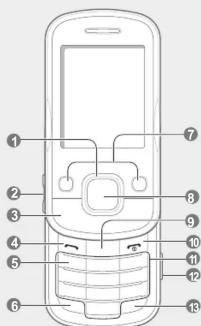
1
4-way navigation key In Idle mode, access predefined menus; In Menu mode, scroll through menu options
2
Volume key In Idle mode, adjust the key tone volume; Send an SOS message ▶ Activate and send an SOS message
3
Music control keys Control music playback
4
Dial key
Make or answer a call; In Idle mode, retrieve recently dialed, missed, or received numbers
Voice mail service key In Idle mode, access voice mails (press and hold)
6
Pause key Enter a dial pause (press and hold)
7
Softkeys Perform actions indicated at the bottom of the display
8
Confi rm key In Idle mode, access Menu mode; In Menu mode, select the highlighted menu option or confi rm an input
9 Delete key Delete characters or items in an application
Power/Menu exit key Turn the phone on and off (press and hold); End a call; In Menu mode, cancel input and return to Idle mode
11
Alphanumeric keys 12 Camera key In Idle mode, turn on the camera (press and hold): In Camera
mode, take a photo or record a video Silent profi le key In Idle mode, activate or deactivate the silent profi le (press and hold)
Your phone displays the following status indicators on the top of the screen:
Icon Description
| Signal strength | |
| GPRS network connected | |
| EDGE network connected | |
| Call in progress | |
| SOS message feature activated | |
| Bluetooth activated | |
| Memory card inserted | |
| New message |
| Icon Description | |
| New voice mail message | |
| Music playback in progress | |
| Music playback paused | |
| FM radio on | |
| Normal profi le activated | |
| Silent profi le activated | |
| Battery power level | |
| Current time | |
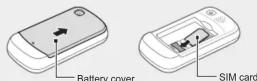
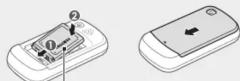
Install the SIM card and battery
- Remove the battery cover and insert the SIM card.
- Insert the battery and replace the battery cover.
Insert a memory card (optional)
Your phone accepts microSD ^™ or microSDHC ^™ memory cards up to 8 GB (depending on memory card manufacturer and type).

Formatting the memory card on a PC may cause incompatibility with your phone. Format the memory card only on the phone.
-
Remove the battery cover and battery.
-
Unlock the memory card cover.
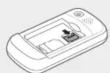
- Lift the memory card cover and insert a memory card with the label side facing up.
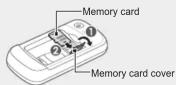
-
Close and lock the memory card cover.
-
Replace the batter and battery cover
Charge the battery
-
Plug the supplied travel adapter.
-
When charging is finished, unplug the travel adapter.
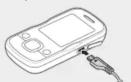
To AC power outlet

Do not remove the battery from the phone before unplugging the travel adapter first. Otherwise, the phone may be damaged.
Instructional icons

-
Note: notes, usage tips, or additional information
Followed by: the order of options or menus you must select to perform a step; for example: In Menu mode, selectMessages → Create message (representsMessages, followed by Create message)
[ ] Square brackets: phone keys; for example: 14 (represents the Power/Menu exit key)
Angled brackets: softkeys that control different functions at each screen; for example: OK> (represents the OK softkey)
Turn your phone on or off
To turn your phone on,
1. Press and hold [∅]
2. Enter your PIN and press
3. When the setup wizard opens, customize your phone as desired by following the screen.
To turn your phone off, repeat steps 1 and
Access menus
To access your phone's menus,
1. In Idle mode, press the Confirm key to access Menu mode.
2. Use the Navigation key to scroll to a menu or option.
3. Press
- When you access a menu requiring the PIN2, you must enter the PIN2 supplied by the SIM card. For details, contact your service provider.
- Samsung is not responsible for any loss of passwords or private information or other damages caused by illegal software.
Make a call
- In Idle mode, enter an area code and a phone number.
- Press [→] to dial the number.
- To end the call, press [∅].
Answer a call
- When a call comes in, press [].
- To end the call, press [Φ].
Adjust the volume
To adjust the volume of the ringtone
- In Menu mode, select Settings → Phone profiles
- Scroll to the phone profile you are using
If you are using the silent or offline profile, you are not allowed to adjust the volume of the ringtone.
-
Press
→ Edit → Call alert volume. -
Scroll left or right to adjust the volume level.
-
Press
To adjust the volume of voice during a call
While a call is in progress, press 🏠/¶ to adjust the volume.

In noisy environments, you may have difficulty hearing the calls while using the speakerphone feature. For better audio performance, use the normal phone mode.
Change your ringtone
-
In Menu mode, select Settings → Phone profiles.
-
Scroll to the profile you are using.
If you are using the silent or offline profile, you are not allowed to change the ringtone.
-
Press
→ Edit → Voice call ringtone -
Select a ringtone category a ringtone
-
Press
.
Call a recently dialed number
- In Idle mode, press [ ]
- Scroll left or right to a call type.
- Scroll up or down to select a number or name.
- Press the Confirm key to view details of the call or [+] to dial the number.
Enter text
To change the text input mode
- Press and hold [#] to switch between T9 and ABC modes.
- Press [#] to change case or switch to Number mode.
- Press [★] to switch to Symbol mode.
- Press and hold [*] to select an input mode or change the input language.
T9 mode
- Press the appropriate alphanumeric keys to enter an entire word.
- When the word displays correctly, press[] to insert a space. If the correct word does not display, select an alternate word from the list that appears.
ABC mode
Press an appropriate alphanumeric key until the character you want appears on the display.
Number mode
Press an appropriate alphanumeric key to enter a number.
Symbol mode
Press an appropriate alphanumeric key to enter a symbol
- To move the cursor, press the Navigation key. - To delete characters one by one, press#. To delete all of the characters, press and hold [].
- To insert a space between characters, pressQ].
• To enter punctuation marks in English modes, press [1]
[Non-Text]
Add a new contact
- In Idle mode, enter a phone number and press
. - Select Save contact → a memory location (phone or SIM) → New.
- Select a number type (if necessary).
- Enter contact information
- Press
or press → Save to add the contact to memory.
Send and view messages
To send a text or multimedia message
. In Menu mode, select Messages Create message.
-
Enter a recipient number and scroll down.
-
Enter your message text. ▶ Enter text
For sending as a text message, skip to step 5.
For attaching multimedia, continue with step 4 - Press
→ Add multimedia and add an item. - Press the Confirm key to send the message.
To view text or multimedia messages
- In Menu mode, select Messages → Inbox.
- Select a text or multimedia message
Activate the mobile tracker
When someone inserts a new SIM card in your phone, the mobile tracker feature will automatically send the contact number to two recipients to help you locate and recover your phone. To activate the mobile tracker,
-
In Menu mode, selectSettings → Security → Mobile tracker.
-
Enter your password and press
The first time you access Mobile tracker, you will be prompted to create and confirm a password.
- Scroll left or right to On.
- Scroll down and press the Confirm key to open the recipient list.
-
Press
→ Phonebook to open your contact list. -
Scroll to a contact and press the Confirm key.
- Select a number (if necessary).
- When you are finished selecting contacts, press
- Press the Confirm key to save the recipients.
- Scroll down and enter the sender's name.
- Press Save> →
.
Activate and send an SOS message
In an emergency, you can send SOS messages to your family or friends for help.
To activate the SOS message
- In Menu mode, select Messages → Settings → SOS messages → Sending options.
- Scroll left or right to On.
- Scroll down and press the Confirm key to open the recipient list.
- Press
→ Phonebook to open your contact list. - Scroll to a contact and press the Confirm key.
- Select a number (if necessary).
- When you are finished selecting contacts, press
-
Press the Confirm key to save the recipients.
-
Scroll down and set the number of times to repeat
the SOS mess
- Press Save>
To send an SOS message
-
With the keys locked, press the Volume key four times to send an SOS message to preset numbers. The phone switches to SOS mode and sends the preset SOS message.
-
To exit SOS mode, press [∅].
Use the camera
To capture photos
- In Idle mode, press and hold [a]
- Rotate the phone counter-clockwise to landscape view.
- Aim the lens at the subject and make any adjustments.
- Press [O] or the Confirm key to take a photo.
- Press <∅> to take another photo (step 3).
To view photos
In Menu mode, select My files → Images → My photos → a photo file.
To capture videos
- In Idle mode, press and hold [3]
- Press [1] to switch to Recording mode.
- Rotate the phone counter-clockwise to landscape view.
- Aim the lens at the subject and make any adjustments.
- Press [☐] or the Confirm key to start recording.
- Press <■> or the Confirm key to stop recording.
- Press ◯ to record another video (step 4).
To view videos
In Menu mode, select My files → Videos → My video clips → a video file.
Use the music player and services
To listen to music files
- In Menu mode, select Music → Music player.
-
Select a music category → a music file.
-
Control playback using the following keys:
Key Function
Confirm Open a playlist
Adjust the volume
Restart playback; Skip backward (press within 3
seconds), scan backward in a file (press and hold)
▶II Pause or resume playback
Skip forward; scan forward in a file (press and hold)
To find music from the online music service
You can access an online music recommendation service and find songs. In Menu mode, select Music → Find recommendation.
The service will search the database and suggest new songs based on the songs you have played most often
To find information of music
You can access an online music service and get
Information about the songs you hear while on the move In Menu mode, selectMusic → Find music.
To update information of music
You can update the information of your music, such as title or artist, to correctly identify and label your music files. In Menu mode, select Music → Find tag.
Listen to the FM radio
- Plug the supplied headset into the phone.
- In Menu mode, selectFM radio
- Press the Confirm key to start the FM radio.
- Press
to start automatic tuning.
The radio scans and saves available stations automatically.
The first time you turn on the FM radio, you will be prompted to start automatic tuning. - Control the FM radio using the following keys:
Key Function
| Confirm Turn the FM radio on or off | |
| ▲/▼ | Adjust the volume |
| Navigation | • Left/Right: Tune a radio station; Select a saved radio station (press and hold) • Up/Down: Select a radio station saved in the favorite list |
- To turn off the FM radio, press the Confirm key.
Use the Bluetooth wireless feature
To turn on the Bluetooth wireless feature
- In Menu mode, select Applications → Bluetooth
- Press
→ Settings -
Scroll down to Activation.
-
Scroll left or right to On.
- To allow other devices to locate your phone, scroll down to My phone's visibility and scroll left or right to On.
- Press
To find and pair with other Bluetooth-enabled
devices
- In Menu mode, select Applications → Bluetooth → Search for new devices.
- Scroll to a device and press Select>
- Enter a PIN for the Bluetooth wireless feature or the other device's Bluetooth PIN, if it has one, and press
.
When the owner of the other device enters the same
code or accepts the connection, pairing is complete.
To send data using the Bluetooth wireless feature
- Select the file or item from one of your phone's applications that you want to send.
- Press
→ Send via or Send namecard via → Bluetooth (when sending contact data, specify which data to send).
To receive data using the Bluetooth wireless feature
- Enter the PIN for the Bluetooth wireless feature and press
(if necessary). - Press
to confirm that you are willing to receive data from the device (if necessary).
Set and use alarms
To set a new alarm
- In Menu mode, select Alarms.
- Select an empty alarm location.
- Set alarm details
- Press
.
To stop an alarm
When the alarm sounds
- Press the Confirm key to stop the alarm without snooze.
- Press
to stop the alarm with snooze, or press to silence the alarm for the snooze period.
To deactivate an alarm
-
In Menu mode, select Alarms
-
Select the alarm you want to deactivate.
- Scroll down to Alarm activation (if necessary).
- Scroll left or right to Off.
- Press
.
-
- Mobile Phone user manual
- Safety warnings
- Keep your phone away from small children and pets
- Protect your hearing
- Install mobile phones and equipment with caution
- Handle and dispose of batteries and chargers with care
- Avoid interference with pacemakers
- Turn off the phone in potentially explosive environments
- Reduce the risk of repetitive motion injuries
- Do not use the phone if the screen is cracked or broken
- Safety precautions
- Drive safely at all times
- Follow all safety warnings and regulations
- Use only Samsung-approved accessories
- Turn off the phone near medical equipment
- Turn off the phone or disable the wireless functions when in an aircraft
- Protect batteries and chargers from damage
- Handle your phone carefully and sensibly
- Avoid interference with other electronic devices
- Important usage information
- Use your phone in the normal position
- Allow only qualified personnel to service your phone
- Ensure maximum battery and charger life
- Handle SIM cards and memory cards with care
- Ensure access to emergency services
- SAR information
- Phone layout
- 1
- 2
- 3
- Dial key
- 6
- 7
- 8
- 11
- Install the SIM card and battery
- Insert a memory card (optional)
- Charge the battery
- Instructional icons
- Turn your phone on or off
- Access menus
- Make a call
- Answer a call
- Adjust the volume
- To adjust the volume of the ringtone
- To adjust the volume of voice during a call
- Change your ringtone
- Call a recently dialed number
- Enter text
- To change the text input mode
- T9 mode
- ABC mode
- Number mode
- Symbol mode
- Add a new contact
- Send and view messages
- To send a text or multimedia message
- To view text or multimedia messages
- Activate the mobile tracker
- Activate and send an SOS message
- To activate the SOS message
- To send an SOS message
- Use the camera
- To capture photos
- To view photos
- To capture videos
- To view videos
- Use the music player and services
- To listen to music files
- Key Function
- To find music from the online music service
- To find information of music
- To update information of music
- Listen to the FM radio
- Use the Bluetooth wireless feature
- To turn on the Bluetooth wireless feature
- To find and pair with other Bluetooth-enabled
- devices
- To send data using the Bluetooth wireless feature
- Set and use alarms
- To set a new alarm
- To stop an alarm
- To deactivate an alarm
Mærke : SAMSUNG
Model : GT-M2520
Kategori : Smartphone