
TV-IP1319PI - Overvågningskamera TRENDNET - Gratis brugsanvisning og manual
Find enhedens vejledning gratis TV-IP1319PI TRENDNET i PDF-format.


Brugerspørgsmål om TV-IP1319PI TRENDNET
0 spørgsmål om dette apparat. Besvar dem du kender, eller stil dit eget.
Stil et nyt spørgsmål om dette apparat
Download vejledningen til din Overvågningskamera i PDF-format gratis! Find din vejledning TV-IP1319PI - TRENDNET og tag din elektroniske enhed tilbage i hånden. På denne side er alle dokumenter nødvendige for brugen af din enhed offentliggjort. TV-IP1319PI af mærket TRENDNET.
BRUGSANVISNING TV-IP1319PI TRENDNET
User's Guide
TRENDNET®
natural_image
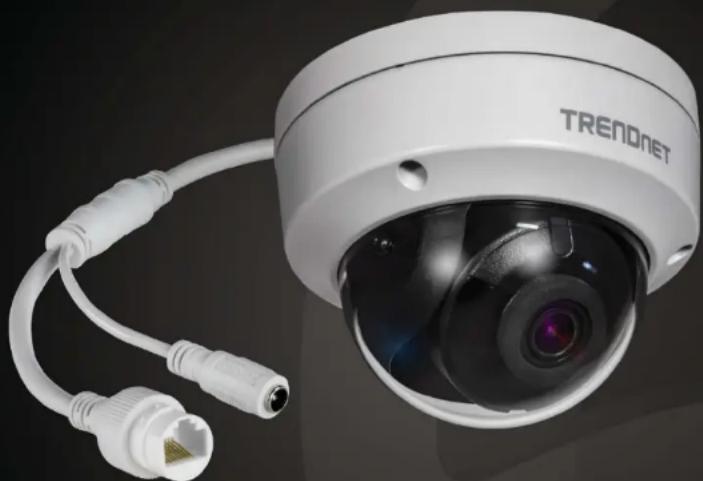
Exterior view of a white TREADNET security camera with attached cables and port connector (no text or symbols on body)Indoor/Outdoor 8MP 4K H.265 WDR PoE IR Dome Network Camera
TV-IP1319PI
TRENDnet User's Guide TV-IP1319PI
Contents
Product Overview 4
Package Contents 4
Front View 5
Angle Adjustment ....5
Reset Button....5
Warnings....6
Cautions....6
Plan for installation location....7
Viewing angle 7
Weather Conditions 7
Hardware Installation 8
Cabling....8
Waterproof cap 8
Setup Your Camera with Camera Utility.... 8
Logging-in to the Camera for the First Time (Windows) 10
Logging-in to the Camera for the First Time (OS X) 12
Live View....16
Playback....17
Search for video recordings.... 17
Time Line 17
Playback....18
Slice images from video playback.... 18
Download sections of video 19
Download snapshots 19
Log 20
Search for logs 20
System Information 21
System Configuration.... 22
Device Settings 22
User Accounts 23
Time Settings 23
Daylight Savings 24
Live View Settings 24
Maintenance 25
Network Settings 26
TCP/IP 26
Port 27
DDNS....28
PPPoE 28
SNMP 29
802.1X....31
IP Address Filter 31
Quality of Service (QoS) 32
UPnP 32
Video Settings.... 33
Video Format....33
Display Settings.... 34
On Screen Display Settings 38
Text Overlay.... 38
Privacy Mask....39
Video Recording 39
Events 40
Motion Detection 40
TRENDnet User's Guide TV-IP1319PI
Video Tampering 42
Notification....44
Snapshot 44
Email 45
Network Storage....46
Network Storage 46
Storage Management 48
FTP Server 49
Appendix 50
Direct video access - RTSP 50
Regulations....50
Federal Communication Commission Interference Statement 50
RoHS 50
Europe – EU Declaration of Conformity 51
Limited Warranty....52
TRENDnet User's Guide
TV-IP1319PI
Product Overview
natural_image
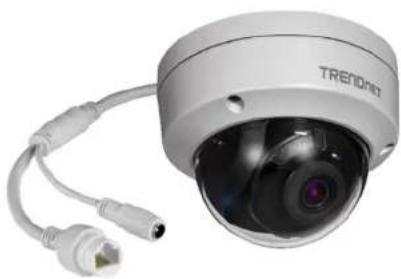
Exterior view of a TRENQnet security camera with attached port and cable (no text or symbols on body)Package Contents
TV-IP1319PI package includes:
• T V - I P 1 3 1
- Weather seal
• Torx Security Allen Key
- Quick installation guide
- Camera mounting hardware

Drilling Template
Mounting Screws
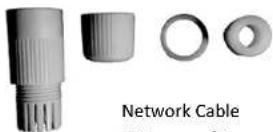
Waterproof Accessories
If any package content is missing or damaged, please contact the retail store, online retailer, or reseller/distributor from which the product was purchased.
TRENDnet User's Guide
TV-IP1319PI
Front View
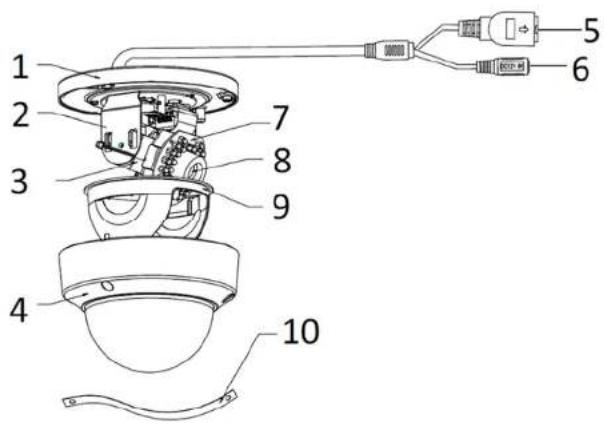
- Mounting base
- Horizontal stand
- Vertical stand
- Lower dome
- 10/100Mbps PoE network port
- Power port (optional)
- Infra-red lamps
- Lens
- Black Liner
- Safety rope
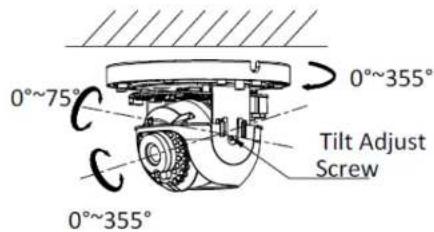
Angle Adjustment
Loosen the tilt lock screws, adjust the tilting position in a range, and tighten the tilt lock screws.
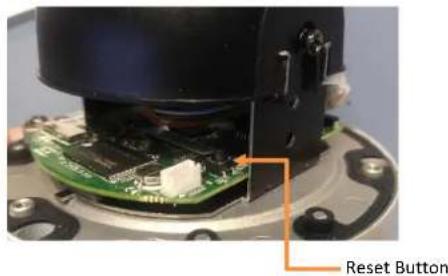
Reset Button
Push and hold the reset button then power on the camera. Keep holding the reset button for more than 10 seconds to reset configuration to factory default.
TRENDnet User's Guide
TV-IP1319PI
Warnings
Serious injury or death may be caused if any of these warnings are neglected. Follow these safety guards to prevent serious injury or death.
- If using the power adapter, please choose the power adapter that meets the safety extra low voltage (SELV) standard or IEC60950-1 and Limited Power Source standard.
- If the product does not work properly, please contact your dealer or the nearest service center. Never attempt to disassemble the camera yourself. Disassembling the product will void the warranty cause harm or injury.
- To reduce the risk of fire or electrical shock, do not expose this product to rain or water.
- The installation should be done by a qualified service person and should conform to all construction and electric regulations and other local codes.
Cautions
Injury or equipment damage may be caused if any of these can be neglected. Follow these precautions to prevent potential injury or material damage.
- Make sure the power supply voltage is correct before using the Camera.
- Do not drop the camera or subject to physical shock.
- Do not touch sensor modules with fingers. If cleaning is necessary, use a clean cloth with a bit of ethanol and wipe it gently. If the camera will not be used for an extended period of time, put on the lens cap to protect the sensor from dirt.
- Do not aim the camera lens at the strong light such as the Sun or an incandescent lamp. Strong light can damage the camera sensor.
- The sensor may be burned out by a laser beam, so when any laser equipment is being used, make sure that the surface of the sensor will not be exposed to the laser beam.
- Do not place the camera in extremely hot, cold temperatures (the operating temperature should be between -10^ to 60^ ), and damp environment, and do not expose it to high electron radiation.
- To avoid heat accumulation, good ventilation is required for a proper operating environment.
- Keep out of water and any liquid.
- While shipping, the camera should be packed in its original packing.
TRENDnet User's Guide
TV-IP1319PI
Plan for installation location
Viewing angle
The TV-IP1319PI is a dome camera with a focused viewing angle (81°) that provides non-distorted and detailed images. Choose the location where has good angle to shoot the image you expect to see. The motion detection area should also be considered when installing the camera.
Weather Conditions
The TV-IP1319PI is a small dome camera, which fits most installations indoor and outdoor. The camera can work under a wide range of weather conditions.
For severe weather conditions, a camera housing with moisture control is recommended. Using the camera in milder conditions will help extend the camera's product life and preserve the quality of the video image.
- Moisture: Avoid damp or moist environments whenever you can. The
TV-IP1319PI is an IP66 grade water proof camera, and it will work in
moist environments. However, rain may affect the picture quality,
especially at night, water may reflect the light from the infra-red illumination and degrade picture quality.
• Temperature: TV-IP1319PI works within a specified temperature range.
Areas with severe temperatures should be avoided when installing the camera. It's recommended that you use an enclosure with a heater and
blower if you plan on using this camera outside of the specified temperature range.
- Sunlight: Avoid direct sun light exposure. Direct sun light will damage the image sensor. If sunlight is necessary for your viewing purposes, provide protection for the image sensor.
- Lighting: Consider installing your camera faces the same direction of the light sources. Shooting images with top-down position outdoor or next to the existing light source are good choices. Avoid the light source if it creates a shade that darkens the viewing area.
temperature and weather
TRENDnet User's Guide
TV-IP1319PI
Hardware Installation
Cabling
It's recommended that the wiring the cable in your home professional. If you already have the cable deployed, make sure the cable and the connectors meet the category 5 Ethernet cable standards. At least 2 pairs of twisted lines are required for power and data. Poor cable quality may cause unexpected problems. Testing your cable or running a new cable is suggested for new camera installation.
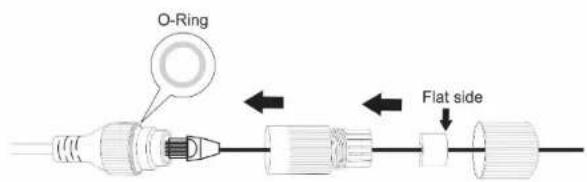
Waterproof cap
The TV-IP1319PI itself is IP66 grade water and dust proof. There is a set of network cable water proof caps that comes with the package as well. Run your cable going through the accessories, and then crimp the cable with an RJ45 module. Plug in the network cable and then tighten the waterproof cap to prevent water running into camera through the cable.
Setup Your Camera with Camera Utility
- Please download the utility at http://www.trendnet.com/camerautility
or office by a
- Extract the downloaded file and double click on the camera utility file to install
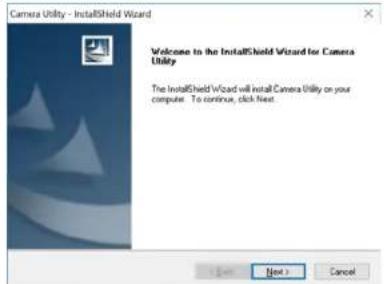
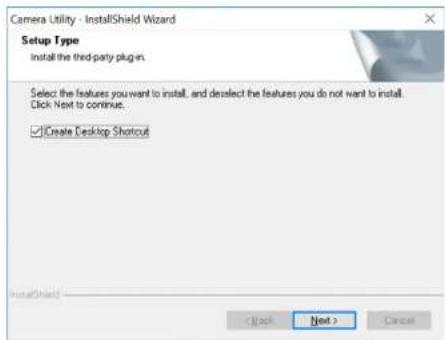
- Last, click Next to finish the installation.
TRENDnet User's Guide
TV-IP1319PI
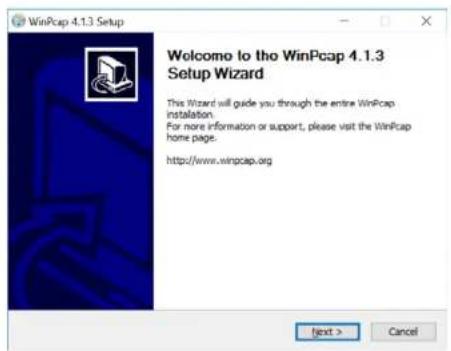
- This will also require you to Install WinPcap program if you don't have
this installed before, please follow the on screen Instructionsto launch the program.
Install It.
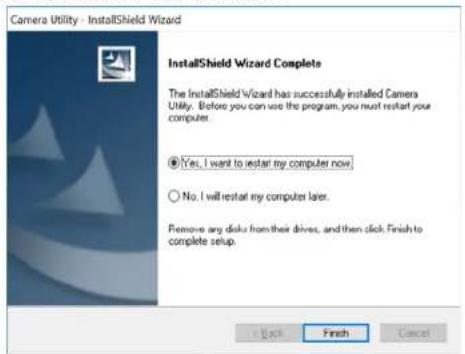
- Restart the computer after the Installation.
-
After the computer has restarted, double click on the Camera Utility icon
-
Find the camera you would like to access and configure then double click on the IP address.
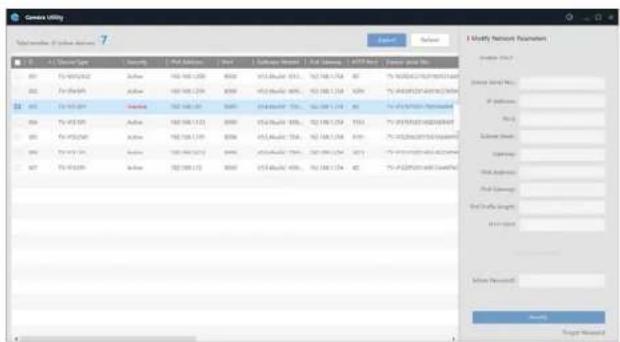
- Continue to the next section Access your Camera with the Web Browser for detail configurations of the camera.
TRENDnet User's Guide
TV-IP1319PI
Logging-in to the Camera for the First Time (Windows)
- Find the camera from the Utility and double click on the IP address to open the browser.
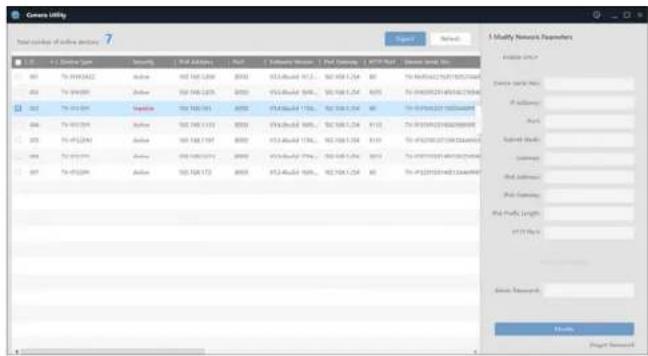
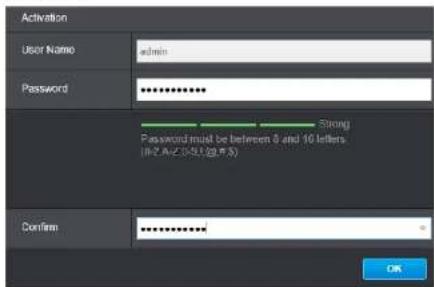
- Activate the admin User Account by entering your desired password, and then click OK.
- The camera management page will detect if you installed the camera video streaming plug-in or not. Click the link to download the plug-in from the camera. (For Internet Explorer and Safari only)
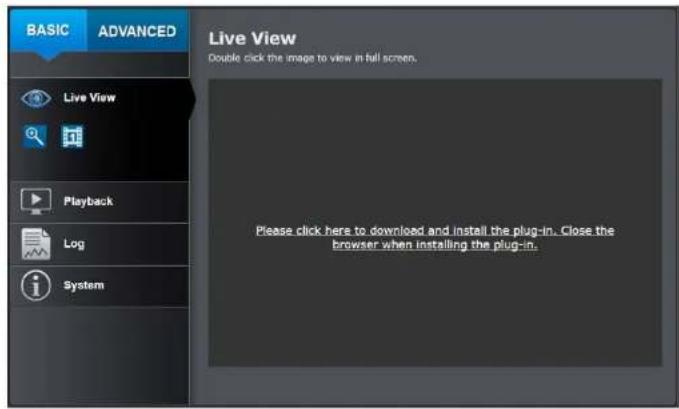
- Download the plug-in to your computer and then and close your browser. Launch the plug-in installation to install the plug-in.

TRENDnet User's Guide
TV-IP1319PI
- Permission request may show up depends on the Internet security settings on your computer. Click Yes to install the plug-in.
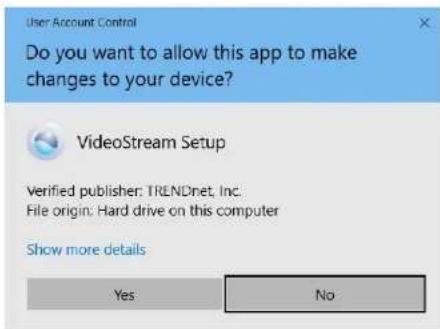
- Click Next to install the plug-in.
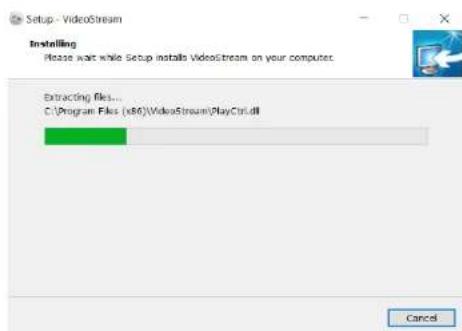
- Click Finish to finish the installation.
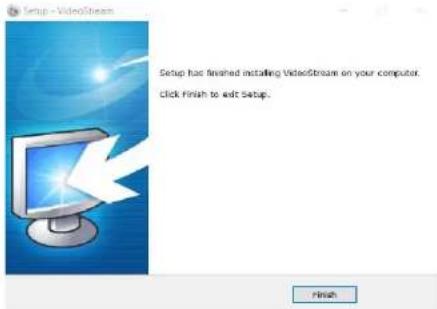
- Open the browser and login again, enter the user name admin and new password again to start secured session.
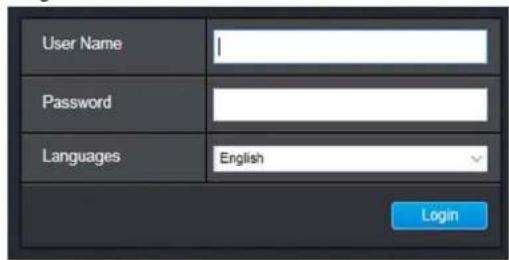
TRENDnet User's Guide
TV-IP1319PI
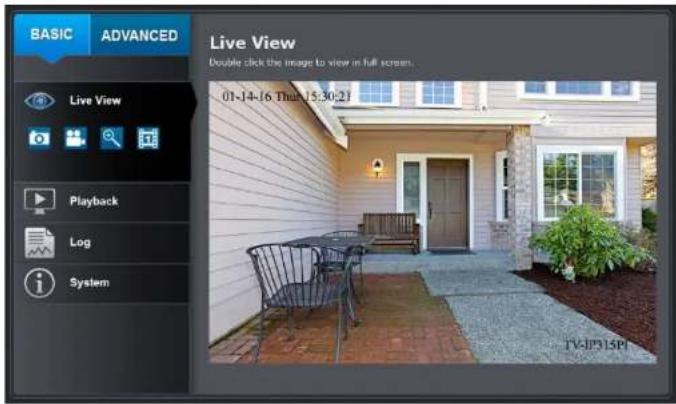
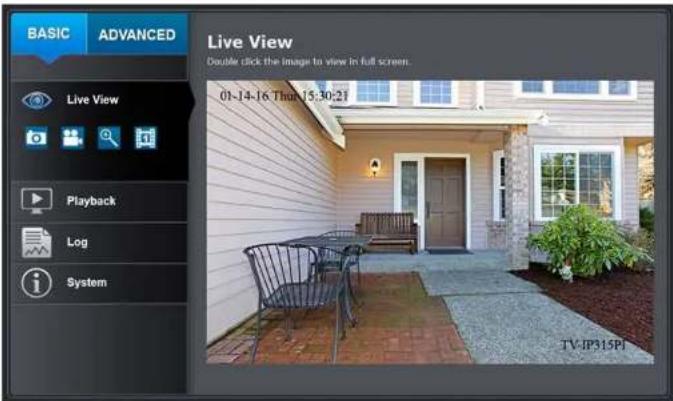
- Refresh the browser and the Live View page will show up and begin streaming video
![BASIC ADVANCED Live View Double click the image to view at full screen. 01-14-16 Then [5:30:2] Playback Log System TV:IP15PI](/content/2026/05/878037/images/d695fdf342501087222de7bb48e53d2febea5d7ce7bad513b1dc2783e3ca137b.jpg)
Logging-in to the Camera for the First Time (OS X)
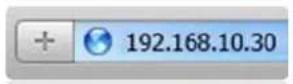
- Open the web browser on your computer. In the address bar, enter the default IP address of the camera 192.168.10.30. If the connected to a router/network, please use the Windows Camera Utility to find the exact IP address.
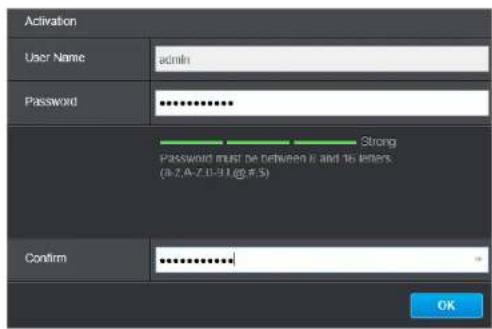
- Enter the user name, admin, and the default password, admin, and then click OK.
TRENDnet User's Guide
TV-IP1319PI
- The camera management page will detect if you installed the camera webcomponent plug-in or not. Click the link to download the plug-in from the camera.
Note: Internet connection is required to download the plug-in. If you do not have Internet access, you can find the plug-in on the CD comes with the package under /Mac folder.
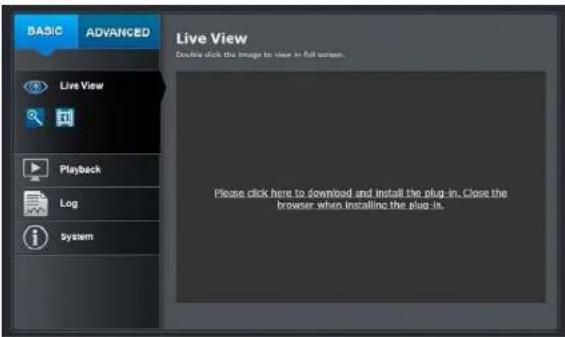
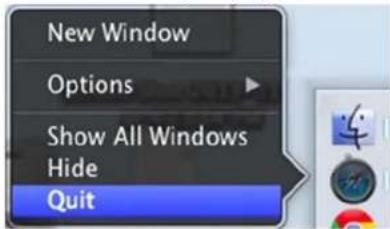
- Quit your browser completely by command-Click on the browser icon and then click Quit before installing the plug-in.
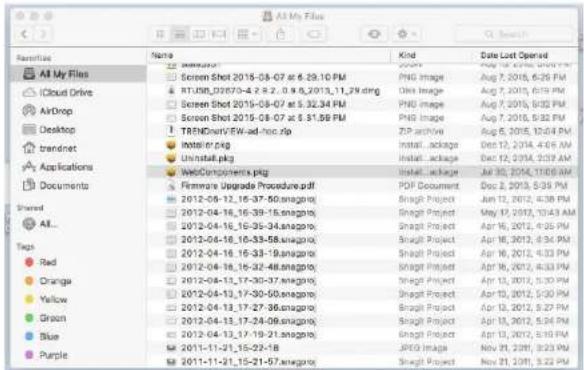
- Go to the Finder and navigate to the Download folder. Command-Click the WebComponents.pkg and then click Open. (If you are install the plugin from the CD when you don't have internet connection, just browse to /Mac folder and double click the WebComponents.pkg file.)
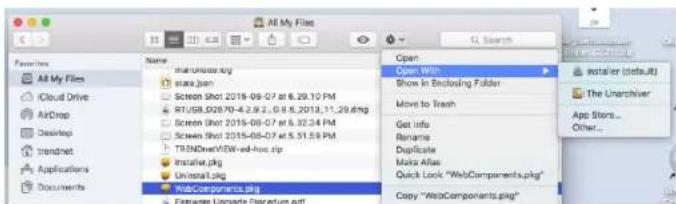
- Click Open with → Installer to start installation.
TRENDnet User's Guide
TV-IP1319PI
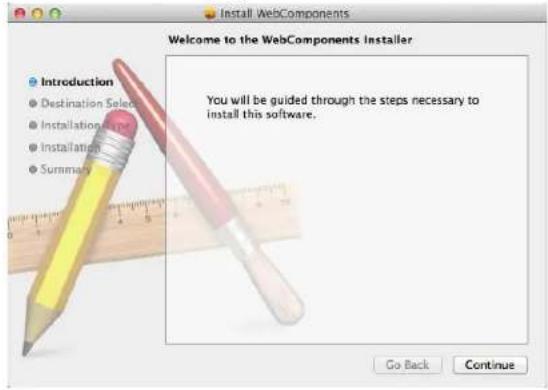
7. Click Continue to install the plug-in.
8. Select a destination to install the plug-in. Then click Continue.
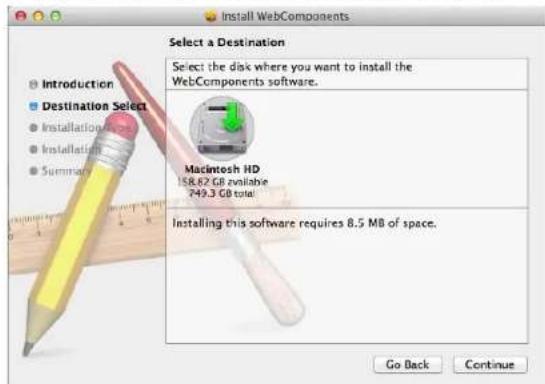
9. Use the default location and click Install.
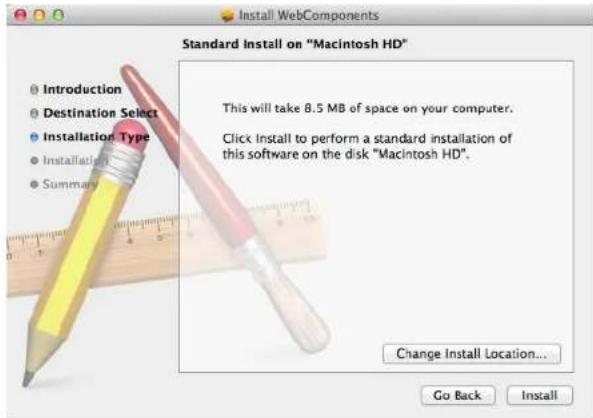
10. Enter your password and click Install Software
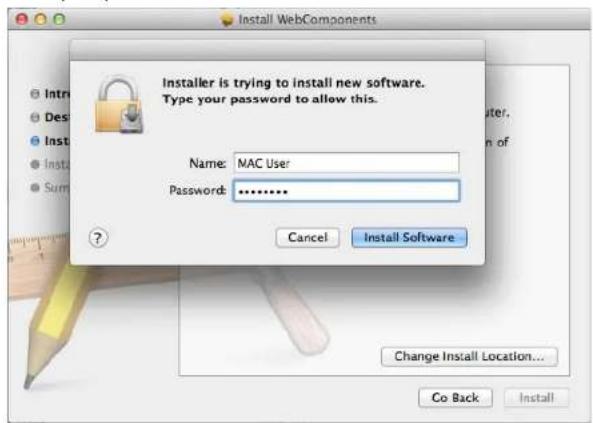
TRENDnet User's Guide
TV-IP1319PI
11. Installation will process automatically.
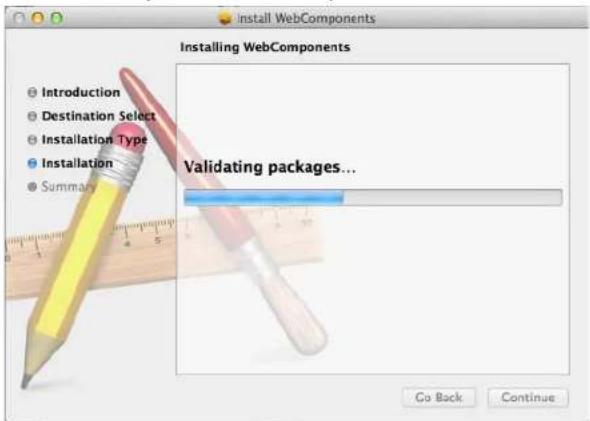
12. Click Close to exit the installation.
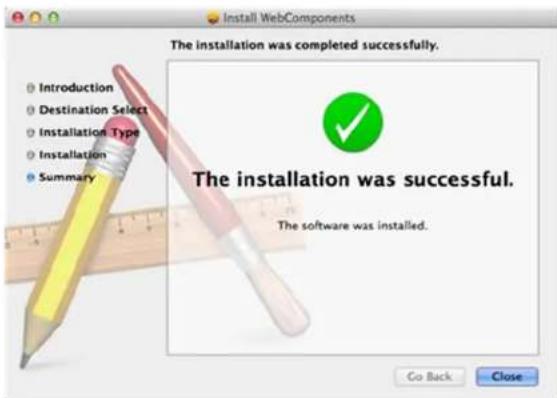
- Open the browser and login again with the default IP 192.168.10.30 or the IP that was dynamically assigned by your router. Enter the user name, admin, and the default password, admin, and then click OK.
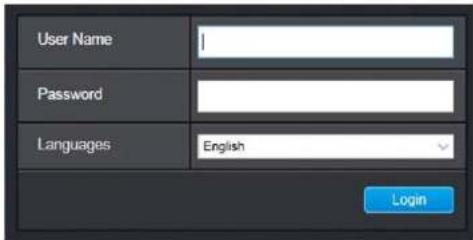
- The Live View page shows up and the video starts to stream.
TRENDnet User's Guide
TV-IP1319PI
Live View
After you log-in into the camera management page, you'll see the Live View page.

Snapshot
Click this icon to take a video snapshot.

Zoom
Click once to enable enabled, click and drag the area on the picture to zoom in. Right click resume 100% zoom. Click the again to disable zoom. The zo function works in full screen mode as well.

Recording
Click once to start recording. again to stop recording. The status bar will indicate if it is in recording state or not.

MJPEG
Video Stream
TV-IP1319PI has two video st H.264 and MJPEG. Switch to view the different video streams by clicking this icon.
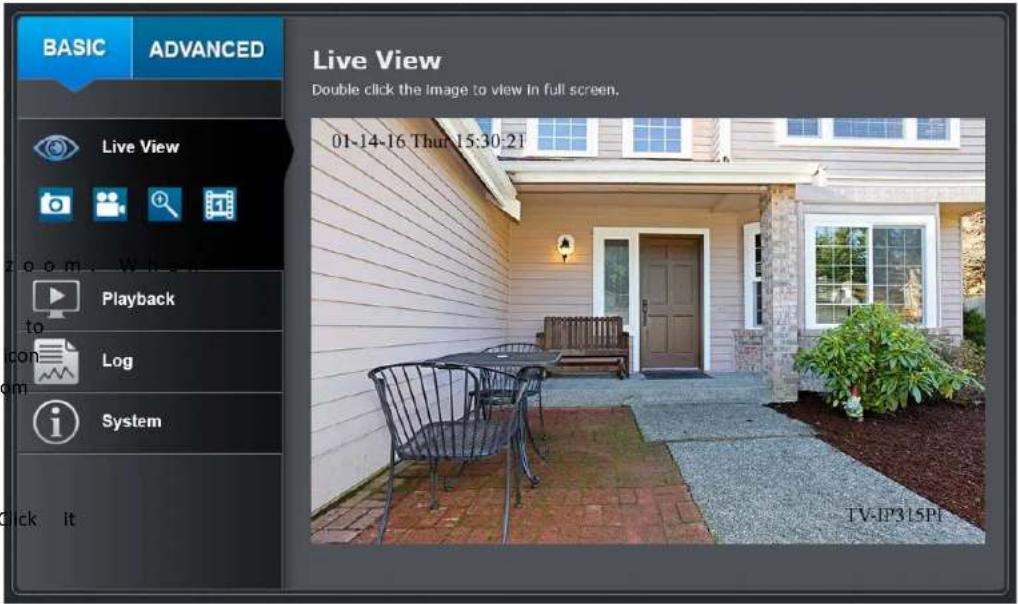
Full Screen Mode
Click the picture to view in full screen mode. Double click again or escape key on your keyboard to exit full screen mode.
Status Bar
The status bar shows the status you assess at, including enabled the zoom, recording video, and successfully taking a snapshot.
TRENDnet User's Guide
TV-IP1319PI
Playback
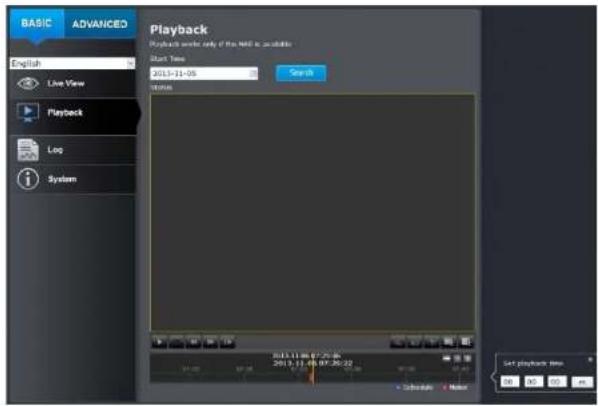
You can playback the video recording on the network storage and download the video clip and snapshots to your local computer.
Search for video recordings
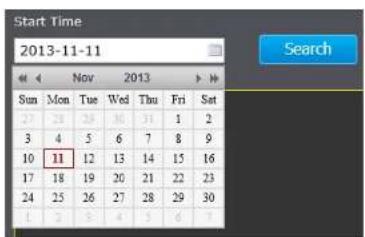
Click the date selection, and then choose a date as the date range of searching. Click Search to start searching.
Time Line
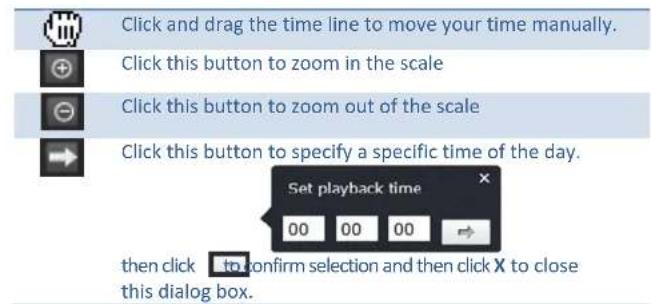
There is a play back head in the center of the time line represented in a yellow vertical line. To look for a specific video recording, move the time line by clicking and dragging it. If the recording is short, zoom in by click button. Click 🔒 to zoom out the time scale. If you know the exact time of the day you are looking for, click ➤ then enter the time you want to playback.
Different types of recordings are identified differently. The sched recordings are marked in blue, and the recordings tri detection are marked in red.

TRENDnet User's Guide
TV-IP1319PI
Playback
Use playback controls to play back the video recording.
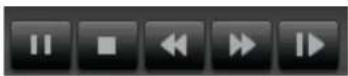

Click this button to play the video.

Click this button to pause video playback.

Click this button to stop playback.

Click this button increase playback speed*.

Click this button decrease playback speed*.

Click to playback video frame by frame. Click again for the next frame
* Note: There are 5 steps of playback speed you can choose from: 1/4, 1/2, 1, 2, and 4 times of original speed.
Slice images from video playback
You can take snapshots from playback video or make new video clips from the video you are playing back.
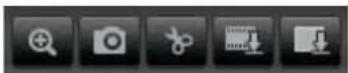

Click this button to enable zoom. Then click and drag on the video to define the area you want to zoom in. Click again to get back to 100% zoom.
Double click to show video in full screen and press ESC on keyboard to exit full screen mode.

Click this button to disable zoom.

Click this button to take a snapshot of current playback.

Click this button to start clipping a video from playback.

Click this button to stop clipping a video from playback.
TRENDnet User's Guide
TV-IP1319PI
Download sections of video
To save complete video sections or snapshots, you can download the files directly.
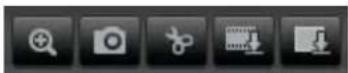
Click 📄 button to download video sections.
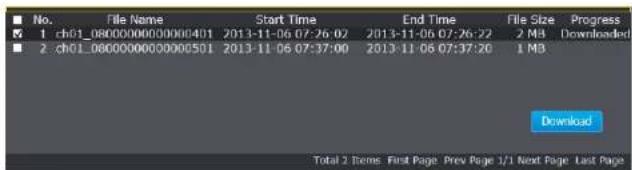
Check the time of the recording, select the videos you want to download, and then click Download.
Download snapshots
Click a button to list snapshots to download
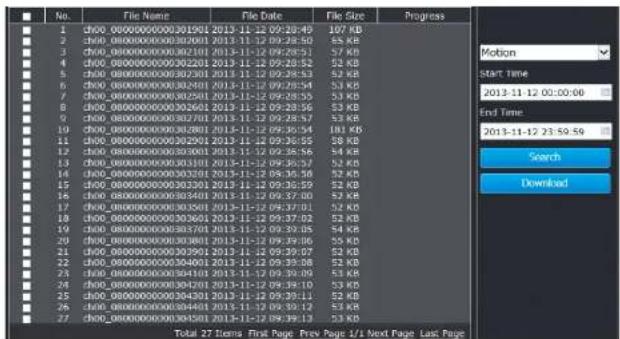
Schedule
Motion
Select the type of event that triggered the snap Choose the Start Time and End Time. Then, click Search to find the snapshot list. Check the time of the snapshot, and then select the snapshots you want to dow then click Download.
TRENDnet User's Guide
TV-IP1319PI
Log
The log of the TV-IP1319PI will be saved on the network storage. You can search the relevant records and save to your local computer. (See Network Storage on page 46 to setup the storage.)
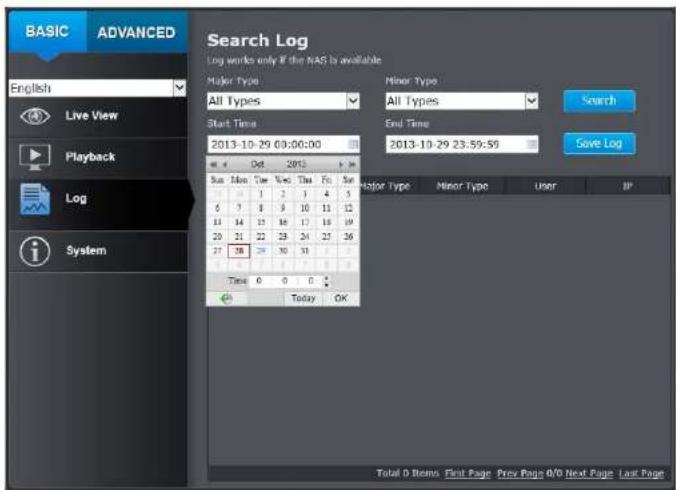
Search for logs
Click the type of log and then the Start Time and End Time. Click Search to start searching.
Total 129 Items First Page Prev Page 1/2 Next Page Last Page
Click First Page, Prev Page, Next Page, and Last Page to show the logs. Click Save Log to save the logs to your computer.
TRENDnet User's Guide
TV-IP1319PI
System Information
System Information page shows the camera's basic information.
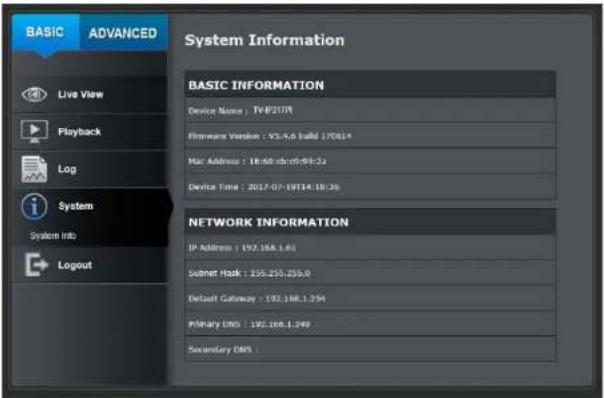
Basic Information
| Device Name: | Human readable device name for easy identification. |
| Firmware Version: | Firmware version |
| MAC Address: | The MAC address of Ethernet Interface |
| System Time: | The system time setup in the camera. Keeping this time correct is important for recording, scheduled control and logging accurately. |
| Device Name: | Human readable device name for easy identification. |
Network Information
| IP Address: | IP address of the TV-IP1319PI |
| Subnet Mask: | Network range of IP address |
| Default Gateway: | The default route going from the TV-IP1319PI subnet. |
| Primary DNS: | Primary DNS server address |
| Secondary DNS: | Secondary DNS server address |
TRENDnet User's Guide
TV-IP1319PI
System Configuration
Device Settings
Setup your camera name and location for easy identification. This name will also be recognized by other network camera software as the name of this camera. OSD, On Screen Display, camera name is refern setting as well.
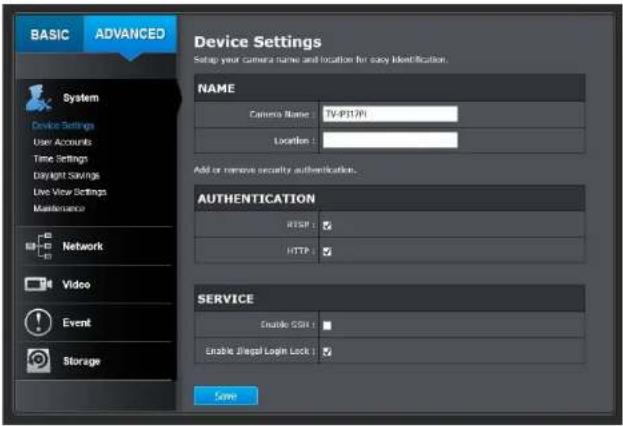
Names
Camera Name:
Name of the camera. The camera name setup here can be discovered by other network camera software and OSD, On Screen Display. The default camera name is the model number: TV-IP1319PI
Location: Label where you installed this camera for reference
Authentication
RTSP: TV-IP1319PI's video stream can be accessed with RTSP, Real Time Streaming Protocol. Only the administrator and users can view this video stream Un-checking this box will allow everyone access to this video stream without authentication. Default: Checked.
Service
Enable TV-IP1319PI embedded Telnet service for multiple camera Telnet: control for system developer. Default: disabled.
TRENDnet User's Guide
TV-IP1319PI
User Accounts
You can setup up to 16 user accounts to access the camera's video stream with a web browser or real time video stream (RTSP). Only one administrator account can be setup to configure the TV-IP1319PI and cannot be deleted.
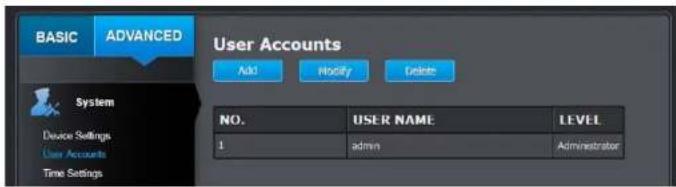
User Accounts
Add: Click Add button to add one user account
Modify: To change a user's name and password, highlight the user by clicking on it. Then, click Modify button. You can change the user's name and password. You can also change the administrator's password here. But, the administrator's name is fixed, you cannot change that.
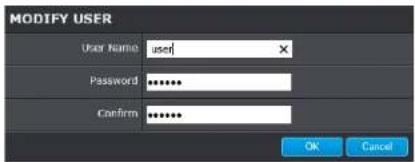
Click OK to save the changes.
Time Settings
The accuracy of the system clock is important for scheduling and accurate logging. You can synchronize the system time with your computer automatically check the time accuracy with a network to server).
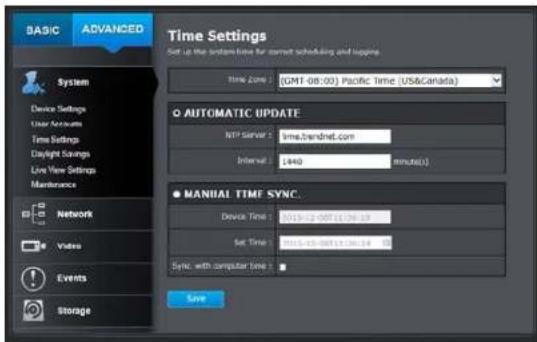
Automatic Update
NTP Specify a time server (NTP server) to synchronize with.
Server: (e.g. pool.ntp.org)
Interval: The time interval that the TV-IP1319PI will synchronize the time with NTP server. Default: 1440 minutes (24 hours)
Manual Time Sync
Device Time: The system time of this camera.
Set Time: Click the calendar icon and manually select the Check the Sync. with computer time to copy the time from your computer.
Click Save to save the changes
TRENDnet User's Guide
TV-IP1319PI
Daylight Savings
Setup daylight savings.
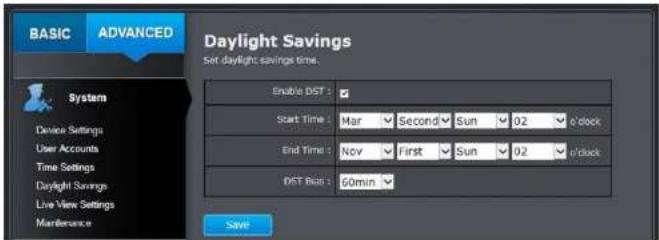
Automatic Update
| Enable DST: | Check this box if your time zone has daylight savings. |
| Start Time: | Enter the date that daylight savings starts |
| End Time: | Enter the date that daylight savings ends |
| DST Bias | Enter how much time the daylight saving daylight savings. |
Click Save to save the changes
Live View Settings
Setup the live view video quality, file size and file saving directories.
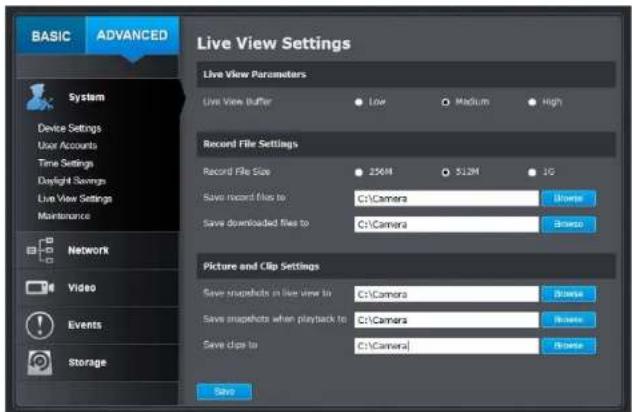
adjusted by
Live View Parameters
Live View Configure the buffer size for live view video stream. With Buffer: low buffer size setting, you can get real-time stream, but the video may be stop and go if the network is congested. With high buffer setting, smooth video streaming, but the video is delayed from the time happening. Medium size can have mod video stream smoothness and time delay.
TRENDnet User's Guide
TV-IP1319PI
Record File Settings
| Record file size: | This size of live view video recording. You can choose 256MB, 512MB, or 1GB a file. Smaller file size is good for many short recordings. |
| Save record files to: | Click Browse and then choose a new destination if you want to save the file somewhere else. |
| Save downloaded files to: | Click Browse and then choose a new destination if you want to save the file somewhere else. |
Picture and Clip Settings
| Save snapshots in live view to: | Click Browse and then choose a new destination if you want to save the file somewhere else. |
| Save snapshots when playback to: | Click Browse and then choose a new destination if you want to save the file somewhere else. |
| Save clips to: | Click Browse and then choose a new destination if you want to save the file somewhere else. |
Click Save to save the changes
Maintenance
You can restart, load camera settings and upgrade the camera firmware on this page.
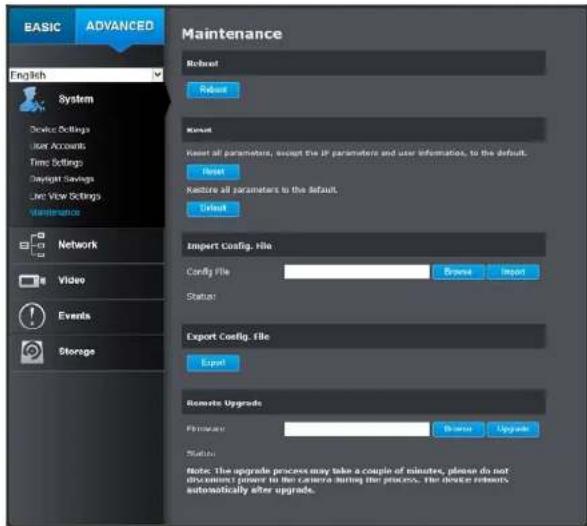
Reboot
Reboot: Click this button to reboot this camera.
Reset
Reset: Reset all camera parameters, except the IP parameters and user information.
Default: Load complete factory default to the camera.
TRENDnet User's Guide
TV-IP1319PI
Inport Config, File
Config File: To load previously saved settings, click Browse to find the configuration file and then click Import.
Status: Shows the status in loading configuration file.
Export Config. File
Export: Click Export to download configuration file. The file will be downloaded to the Download folder by default.
Remote Upgrade
Firmware: Click Browse to find the latest firmware and Upgrade.
Status: Shows the status in firmware upgrade.
TRENDnet may periodically release firmware upgrades that might features or fix problems associated with your camera. To find out if there is a firmware upgrade available for your device, please check your model and version using the link.
http://www.trendnet.com/downloads/
- If a firmware upgrade is available, download the firmware to your computer.
- Unzip the file to a folder on your computer.
- Read the firmware upgrade instruction for specific version update information.
- Log into the TV-IP1319PI.
- Getting to this Maintenance page to upgrade firmware.
Network Settings
TCP/IP
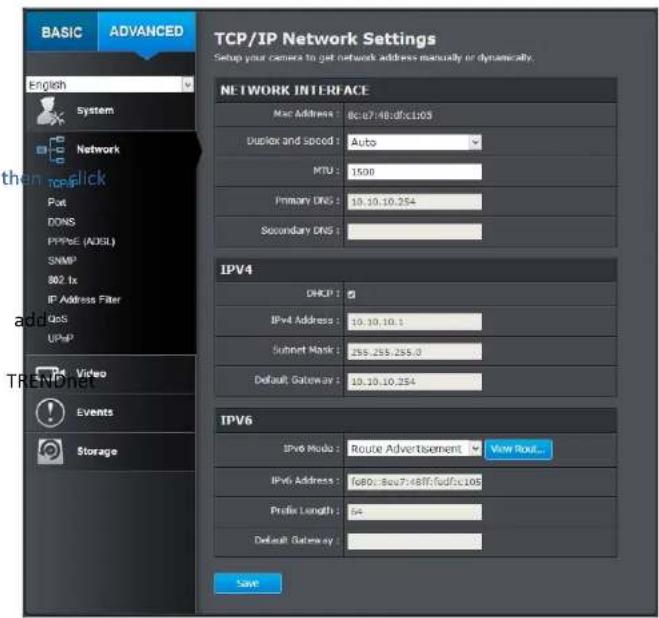
Setup your basic IPv4 and IPv6 network settings on this page.
TRENDnet User's Guide
TV-IP1319PI
Network Interface
| MAC Address: | Click this button to reboot this camera. |
| Duplex and Speed: | Choose one of the Ethernet duplex and match your network. Default: auto. |
| MTU: | Maximum transmission unit. The maximum field size in the Ethernet packet. |
| Primary DNS: | Enter your first IPv4 or IPv6 DNS server address |
| Secondary DNS: | Enter your second IPv4 or IPv6 DNS server address |
IPv4
| DHCP: | Check this box if the IP address is assigned by DHCP server. |
| IPv4 Address: | The IPv4 dynamic or static address |
| Subnet Mask: | Network range of the subnet |
| Default Gateway: | The default route going further from TV-IP: IPv4 subnet |
IPv6
| IPv6 Mode: | Choose Manual, DHCP, or Route Advertisement. Click View Route Advertisement to find a route advertisement. |
| IPv6 Address: | IPv6 address of TV-IP1319PI |
| Prefix Length: | Length of network prefix |
| Default Gateway: | The default route going further from TV-IP1319PI IPv6 subnet |
Port
You can change the service port numbers of TV-IP1319PI and enable/disable speRTSP or HTTPS services.
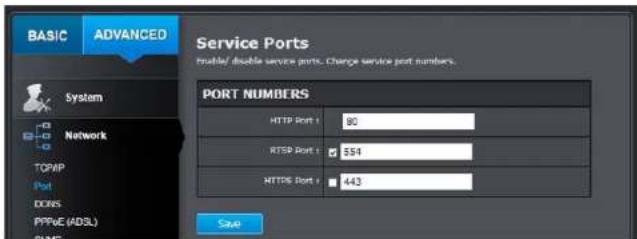
Port Numbers
| PI | HTTP Port: | The default web access port. You can change the port number. However, you cannot disable the wel service. The default port number is 80. |
| RTSP Port: | The Real-Time Streaming Protocol port for vid streaming. You can change the port number disable the service by uncheck the box. The default port number is 554. | |
| HTTPS Port: | The secured web service port. You can change the port number, or you can disable the service uncheck the box. The default port number is 443. |
Click Save to save the changes
TRENDnet User's Guide
TV-IP1319PI
DDNS
Dynamic Domain Name Service, DDNS, allows you to find your camera from the Internet with an easy to remember domain name.
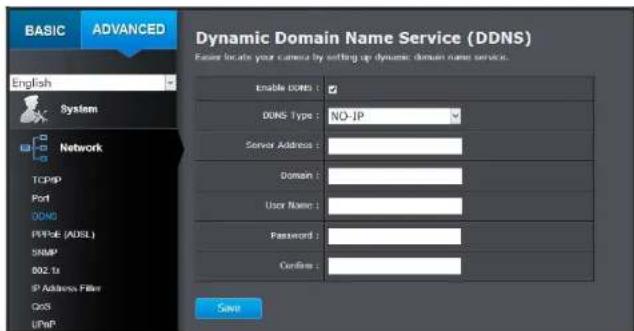
DDNS
| Enable DDNS: | Check this box to enable DDNS Service. |
| DDNS Type: | Select a DDNS service provider. |
| NO-IP | |
| IPServer | |
| DynDNS | |
| NO-IP | |
| HIDDNS | |
| Server Address: | Enter the DDNS server address. |
| Domain: | Enter your registered domain/host name on selected DDNS service. |
| User Name: | Enter the account name. |
| Password: | Enter the password. |
| Confirm: | Enter the password again. |
Click Save to save the changes
PPPoE
Setup PPPoE (ADSL) connection to connect your camera with your ISP, Internet Service Provider.
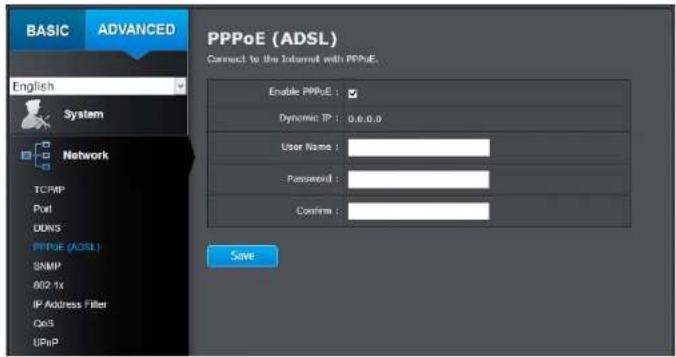
PPPoE (ADSL)
| Enable PPPoE: | Check this box to enable PPPoE connection. |
| Dynamic IP: | The IP address assigned by ISP |
| User Name: | Enter the account name. |
| Password: | Enter the password. |
| Confirm: | Enter the password again. |
Click Save to save the changes
*Note: To view the camera remotely, please make sure the HTTP and RTSP ports are opened (port forwarded) on your network/router.
TRENDnet User's Guide
TV-IP1319PI
SNMP
SNMP Settings allows you to assign the contact details, location, community name and trap settings of SNMP. This is a networking management protocol used to monitor network-attached devices. SNMP allows messages (called protocol data units) to be sent to various parts of a network. Upon receiving these messages, SNMP compatible devices (called agents) return data stored in their Management Information Bases.
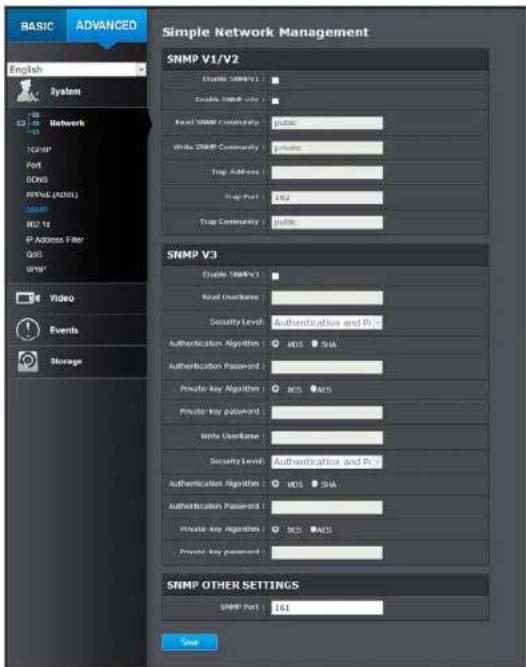
SNMP V1/V2
| Enable SNMPv1: | Check this box to enable SNMP v1 management. |
| Enable SNMPv2c: | Check this box to enable SNMP v2c management. |
| Read SNMP Community: | Specify the password to access the SNMP community for read only access. |
| Write SNMP Community: | Specify the password for access to the SNMP community with read/write access. |
TRENDnet User's Guide
TV-IP1319PI
| Trap Address: | Specify the IP address for the SNMP trap community. |
| Trap Port: | Specify the port number for the SNMP trap community. |
| Trap Community: | Specify the name of SNMP trap community. |
| SNMP V3 | |
| Enable SNMPv3: | Check this box to enable SNMP v3 management. |
| Read User Name: | SNMP v3 member user name. |
| Security Level: | Choose one of the security levels. |
| Authentication and Privacy | |
| Authentication only | |
| Privacy only | |
| Authentication Algorithm: | Choose the authentication method to verify the source of information: MD5 or SHA. |
| Authentication Password: | Specify the authentication password between 8 to 32 letters. |
| Private-key Algorithm: | Choose the privacy key to encrypt SNMP messages: DES or AES. |
| Private-key Password: | Specify the privacy key between 8 to 32 letters. |
| Write User Name: | SNMP v3 manager user name. |
| Authentication and Privacy | |
| Authentication only | |
| Privacy only |
| Authentication Algorithm: | Choose the authentication method to verify the source of information: MD5 or SHA. |
| Authentication Password: | Specify the authentication password between 8 to 32 letters. |
| Private-key Algorithm: | Choose the privacy key to encrypt SNMP messages: DES or AES. |
| Private-key Password: | Specify the privacy key between 8 to 32 letters. |
| SNMP Other Settings | |
| SNMP Port: | SNMP service port number. |
Click Save to save the changes
TRENDnet User's Guide
TV-IP1319PI
802.1X
Setup 802.1X for remote authentication service.
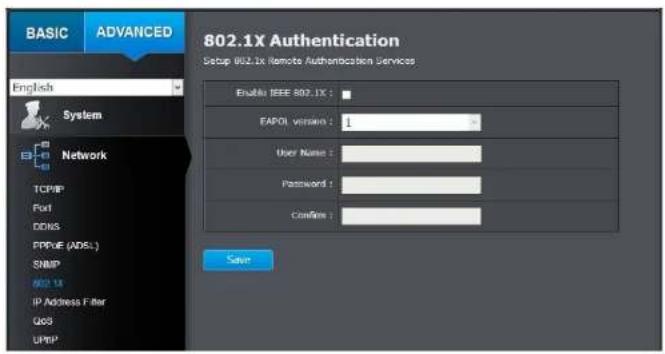
802.1X Authentication
| Enable IEEE 802.1X: | Check this box to enable 802.1X authentication service. |
| EAPOL version: | Extensible Authentication Protocol (EAP) over LAP (EAPoL). Choose version 1 or 2. This version number has to match to your 802.1X service EAPOL version. |
| User Name: | Enter the account name. |
| Password: | Enter the password. |
| Confirm: | Enter the password again. |
Click Save to save the changes
IP Address Filter
Set up a list of clients allow only the clients on the list to access this camera or to reject clients on the list from access this camera.
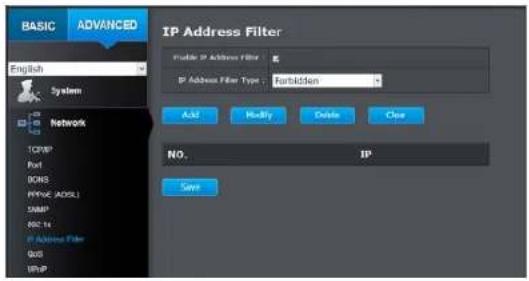
IP Address Filter
| Enable IP Address Filter: | Check this box to enable IP address filtering service. |
| IP Address Filter Type: | Choose Forbidden to ban the listed IP addresses or Allowed to allow listed host to access this camera. |
| Add: | Click Add to add a user account |
| Modify: | To modify an entry on the list, highlight the entry by clicking on it. Then, click the Modify button. |
Delete: To delete an entry on the list, highlight the entry by clicking on it. Then, click Delete
Clear: To clear all entries, click Clear
Click Save to save the changes
TRENDnet User's Guide
TV-IP1319PI
Quality of Service (QoS)
UPnP
Setup traffic prioritization tags the video packets to go through Unimetsbark Plug-and-Play is a device discovery protocol set. It all switches and routers with assigned priority. You can set the Differentiadora to easily be found, for example, on a Windows operation system.
Services Code Point (DSCP) bits on outgoing data streams. The QoS capable network device will forward different data in different priorities. The meaning of the value is different in different DiffServ domains. Consult your network manager for the setup details.
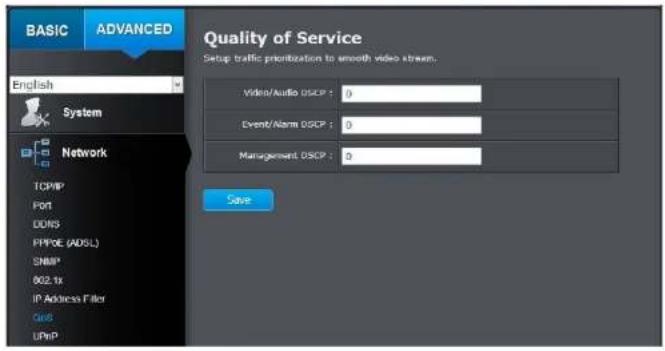
IP Address Filter
Video/Audio Enter Video/Audio DSCP. Default: 0. DSCP:
Event/Alarm Enter Event/Alarm DSCP. Default: 0. DSCP:
Management Enter Management DSCP. Default: 0. DSCP:
Click Save to save the changes
UPnP
Enable UPnP: Check this box to enable UPnP connection.
Friendly Name: The name that will be appeared when searched.
Port Mapping
Enable Port Check this box to enable UPnP connection. Mapping:
Port Mapping Choose Manual or Auto port mapping. Mode:
External Port: Choose the port number for mapping.
Click Save to save the changes
TRENDnet User's Guide
TV-IP1319PI
Video Settings
Video Format
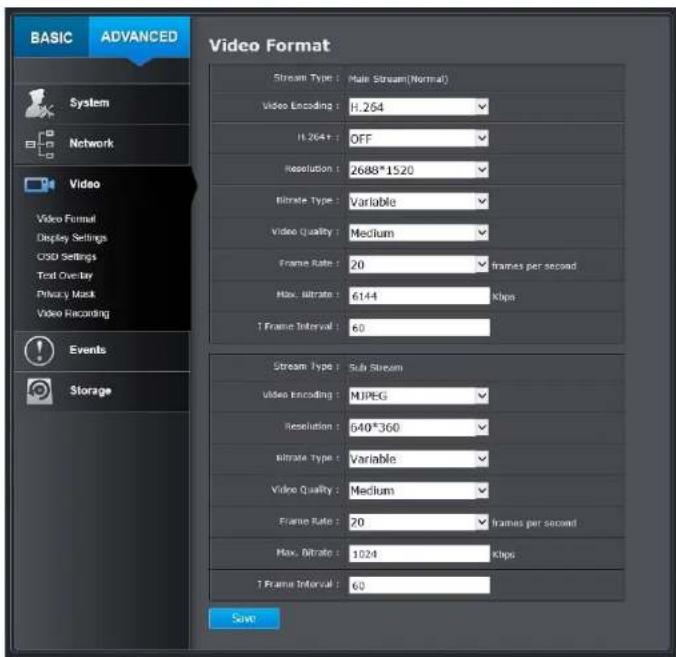
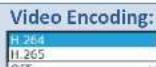
Choose the video stream you want to modify. H.264 and H.265 videos are always streaming and can be configured separately.
Higher compression option
| Resolution: | H.264/H.265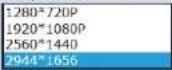 | MJPEG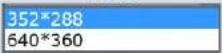 |
| Bitrate Type: | Choose between variable bit rate or constant bit rate for video compression. The default is variable rate. | |
| Video Quality: | Choose the video quality. The default is medium quality. | |
| Frame Rate: | Choose the capturing frame rate. The default value is 30 frames per second. Reduce the frame rate to reduce the capture file size. | |
| Max. Bitrate: | Choose the maximum video sampling bit rate.Default: 2048 | |
| I Frame Interval | An I Frame is a frame that records a complete picture. Frames between I frames, (P frame or B frame) only records the image differences between two frames. Choose the I Frame Interval here. The default is 60. | |
Click Save to save the changes
Sub stream can be used for lower resolution needed application, for example mobile app streaming or NVR streaming.
Third stream is used for Live view only, it has resolution limitation on Chrome, Firefox and Safari. Max resolution can be supported under Internet Explorer.
Note: When H.264+/H.265+ is enabled, Live view on Chrome or Firefox will be disabled due to browser limitation, you can continue to Explorer or Safari to view the camera otherwise disable the H.265+ option.
TRENDnet User's Guide
TV-IP1319PI
Display Settings
Adjust video image quality, lightness, and color settings here.
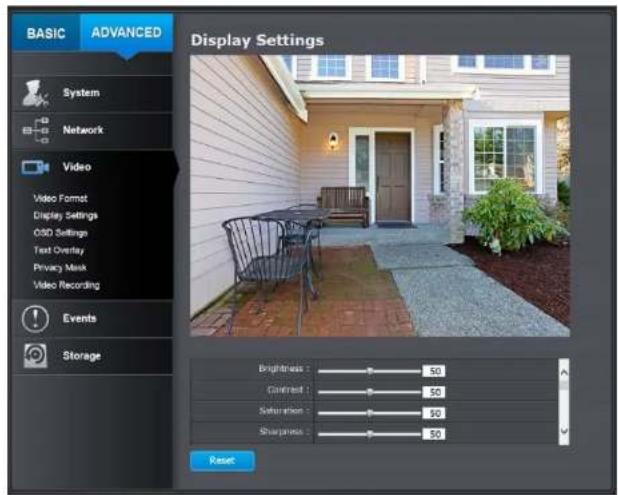
| Brightness: | Use the slider or enter a number (0-100) to adjust the image brightness. Default: 50 |
| Contrast: | Use the slider or enter a number (0-100) to adjust the image contrast. Default: 50 |
| Saturation: | Use the slider or enter a number (0-100) to adjust the color saturation. The greater number means the color will be more saturated. Default: 50 |
| Sharpness: | Use the slider or enter a number (0-100) to adjust the image sharpness. Default: 50 |
| Iris Mode : | Manual |
| Exposure Time : | 1/25 |
| Gain : | 100 |
| Day/Night Switch : | Scheduled- Switch |
| Start Time : | 06:00:00 |
| End Time : | 18:00:00 |
| Smart Supplement Light : | ON |
| Mode : | Auto |
| BLC Area : | OFF |
| WDR : | OFF |
| White Balance : | AWB1 |
| Digital Noise Reduction : | Normal |
| Noise Reduction Level : | 50 |
| Mirror : | OFF |
| Rotate : | ON |
| Scene Mode : | Indoor |
| Video Standard : | PAL(50HZ) |
TRENDnet User's Guide
TV-IP1319PI
Light sensitivities
| Iris Mode: | This camera uses fixed lens, therefore the Iris function is not configurable. | |
| Exposure Time: | Adjust this value for exposure time for each picture. You can choose a value between 1/3 second to 1/100,000 second. The default value is 1/30 second exposure time for each picture. | |
| Gain | This value be manually configured from 0 to 100. The bigger the value is, the brighter would the image be, and the noise would also be amplified to a larger extent. | |
| Day/Night Switch: | 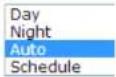 | Choose whether you want the camera to be set to the day mode (color video) or night mode (IR enhanced black/white video). You can manually set it to day mode or night mode, adjust by lighting (Auto), or pre-define schedule. |
Auto:
Sensitivity: The light sensor sensitivity.
Switch Time: The time delayed to switch between modes. Longer switch time can prevent unnecessary mode flipping if an object is blocking the light source temporarily. Range: 5-120 seconds, default: 5 seconds.
Schedule:
Use quick selection or enter the time down below. Click OK to confirm the time you want to set.
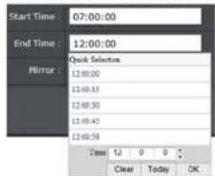
Start Time: The start time for day mode. Stop Time: The start time for day mode.
| Smart Supplement Light | Set the supplement light as ON, and Auto and Manual are selectable for light mode. |
| Select Auto, and the supplement light changes according to the actual luminance. | |
| Mode | Adjust the image settings manually or automatically. If set to manual, the distance can be adjusted |
| BLC Area | If you focus on an object against strong backlight, the object will be too dark to be seen clearly. compensates light to the object in the front to make it clear. OFF, Up, Down, Left, Right, Center, A Custom are selectable. |
| WDR | Wide Dynamic Range can be used when the object is in front of a direct light. |
TRENDnet User's Guide
TV-IP1319PI
White Balance:
AWB2
MWB
AWB1
AWB2
Locked WB
Fluorescent Lamp
Incandescent Lamp
Warm Light Lamp
Natural Light
Choose a color temperature as the white color and compensate the color on the whole image.
Digital Noise
Reduction:
Choose the mode of noise reduction.
Normal Mode
Noise Reduction Level: Adjust the effect of noise reduction. Range: 0-100%, default : 100%
Expert Mode
Space DNR Level: Adjust the special digital reduction with adjacent pixels. Change the range (0-100%) to change the adjacency effect, default : 50%
Time DNR Level: Adjust the 3D digital noise reduction.
Compare and reduce noise between video Range: 0-100%, default : 100%
Noise
Reduction Level
Adjust the value of the noise reduction
Mirror
Adjust the image to change from left to right or up and down.
Rotate
To make a complete use of the 16:9 aspect ratio, you
can enable the rotate function when you use camera in a narrow view scene.
When installing, turn the camera to the 90 degrees or
rotate the 3-axis lens to 90 degrees, and set the rotate
mode as on, you will get a normal view of the scene
with 9:16 aspect ratio to ig
information such as the wall, and get more meaningful information of the scene.
digital
Scene Mode
Choose the scene as indoor or outdoor according to the real environment.
noise
Video
Standard
50 Hz and 60 Hz are selectable. Choose according to the different video standards; normally 50 Hz for PAL standard and 60 Hz for NTSC standard.
frames.
TRENDnet User's Guide
TV-IP1319PI
(Scheduled-Switch mode)
| Scheduled Image Settings : | Scheduled- Switch |
| Start Time : | 06:00:00 |
| End Time : | 18:00:00 |
| Working Mode : | Common |
| Iris Mode : | Manual |
| Day/Night Switch : | Scheduled- Switch |
| Start Time : | 06:00:00 |
| End Time : | 18:00:00 |
| Smart Supplement Light : | ON |
| Mode : | Auto |
| Mirror : | OFF |
| Rotate : | ON |
| Scene Mode : | Indoor |
| Video Standard : | PAL(50HZ) |
To configure this section
- Click the calendar icon to select the start time and the end time.
• The start time and end time refer to the valid time for day mode.
- The time period can start and end on two days in a row. For example, if you set start time as 10:00 and end time as 1:00, the day mode will be activated at 10 o'clock in the morning and stopped at 1 o'clock early in the next morning.
- Click Working mode to configure common parameters applicable to the day mode and night mode.
- Click Day tab to configure the parameters applicable for day mode.
- Click Night tab to configure the parameters applicable for night mode.
Note: The settings are saved automatically when parameters are changed.
TRENDnet User's Guide
TV-IP1319PI
On Screen Display Settings
Display the camera name and the time the video is shooting on the screen
| Display Name: | Check this box to display the product name that was setup in the device settings |
| Display Date: | Check this box to display system time. |
| Display Week: | Check this box to display time of the week. |
| Time Format: | Select 12 or 24-hour time format. |
| Date Format: | Select the date format |
| Display Mode: | Choose how the text will show on the screen. |
| OSD Size: | Select the text size from 16 to 64 screen size automatically. |
Move the red box to position the text. Click Save to save the changes.
Text Overlay
Display extra information on the screen over the image.
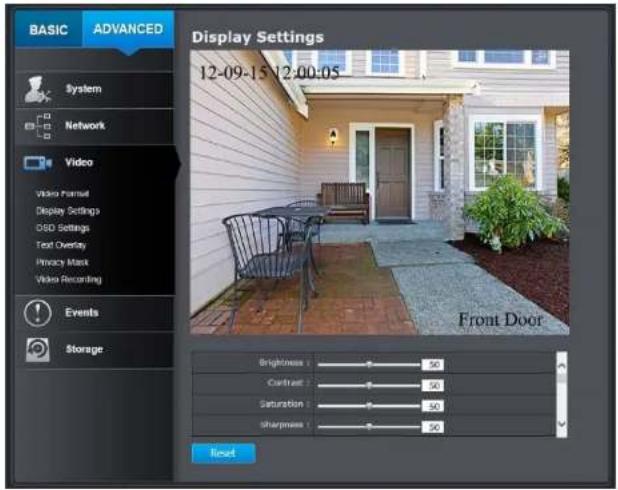
| Check Box: | Check this box to enable text overlay. |
| Text Field: | Enter the text you want to display. You can enter your local language if you want. The text field allow maximum 44 English letters or 20 non-English characters. |
Move the red box to position the text. Click Save to save the changes
TRENDnet User's Guide
TV-IP1319PI
Privacy Mask
Create a masking area to keep your privacy. You can create up to four independent masking areas by clicking and dragging on the screen.
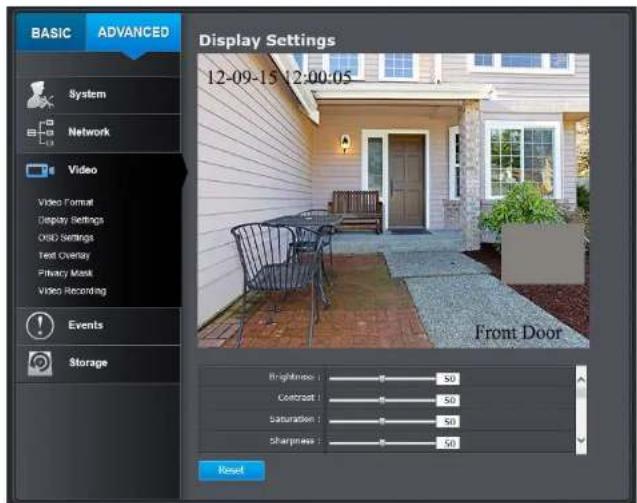
| Enable Privacy Mask: | Check this box to enable privacy masking. |
| Stop Drawing: | Click this button to stop drawing. |
| Clear All: | Click this button to clear all the masking areas. |
Click Save to save the changes
Video Recording
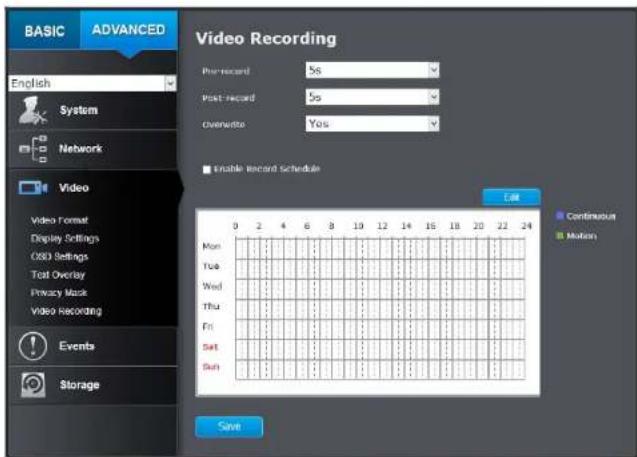
| Pre-record: | Recording time before trigger event. |
| Post-record: | Recording time after trigger event. |
| Overwrite: | Select Yes to allow older recordings to be overwritten. |
| Enable Record Schedule: | Check this box and then click Save to enable video recording. |
Click Save to save the changes
TRENDnet User's Guide
TV-IP1319PI
Edit: Click Edit to edit the recording schedule. The Edit Schedule window will pop up.
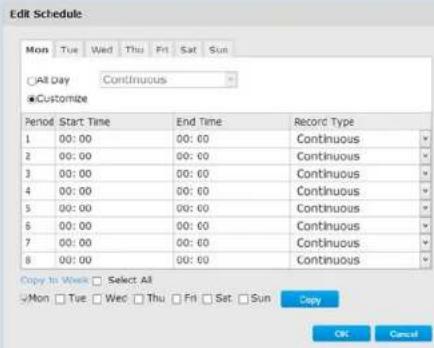
- Select day of the week you want to edit.
- Select All Day or Customized schedule of the day.
- Set the time period and the event you want to trigger the video recording continuous (always recording) or motion detection.
- Click Select All or the weekday you want to have the same schedule on different day.
- Click another day of the week by clicking on its tab to set the next schedule. Click OK when you have finished your settings.
Events
Motion Detection
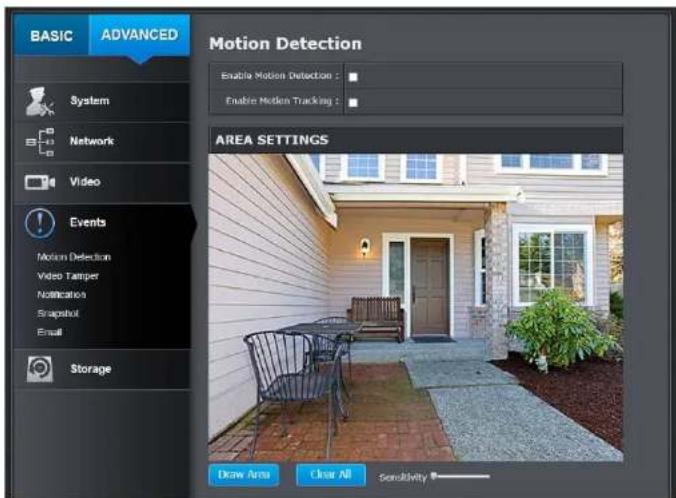
Set up how the motion detection event will be triggered and what actions will be triggered.
TRENDnet User's Guide
TV-IP1319PI
Enable Check this box to enable motion detection. Click Save Motion to save the choice. Detection: Enable Check this box to enable motion tracking. Motion tracking is a dynamic display that shows the current Tracking: status of motion detection. The motion tracking is displayed with grids in green. The grid area represents the camera motion is happening. Click Save to save the choices.
Draw Area: Click Draw Area button to start drawing. Click and drag on the area you want to set up the motion detection. You can draw up to 8 different areas. Click Stop Drawing to stop drawing motion detection areas. The red grids represent the motion detection area.
Sensitivity: Move the slider to adjust detection sensitivity.
Clear All: Click this button to clear all the set up areas.
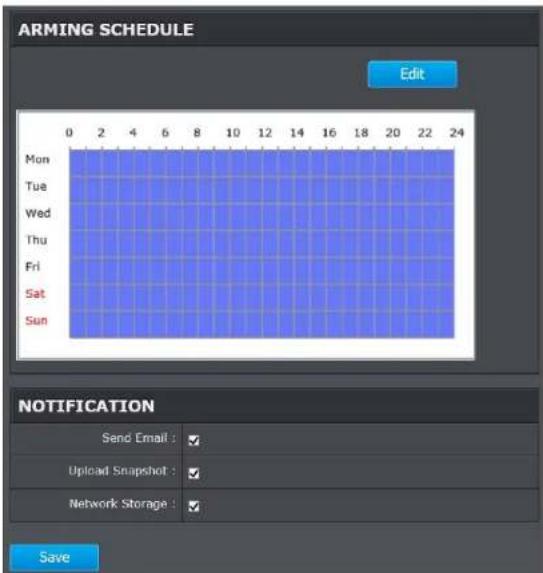
Arming Schedule
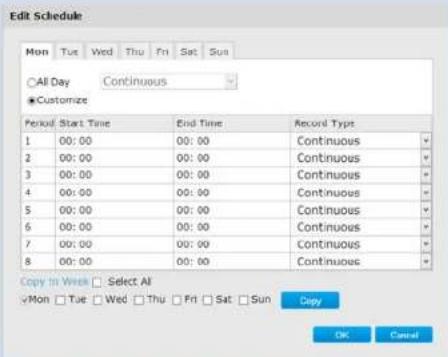
Edit: Click Edit to edit the recording schedule. The Edit Schedule window will pop up.
Motion
- Select day of the week you want to edit.
- Select All Day or Customized schedule of the day.
TRENDnet User's Guide
TV-IP1319PI
- Set the time period and the event you want to trigger the video recording continuous (always recording) or motion detection.
- Click Select All or the weekday you want to have the same schedule on different day.
- Click another day of the week by clicking on its tab to set the next schedule. Click OK when you have finished your settings.
Notification
| Send Email: | Check this box to send an e-mail notification when motion is detected. |
| Network Storage: | Check this box to record video to network storage when motion is detected. |
| Upload to FTP: | Check this box to send snapshots to an FTP server when motion is detected. |
Click Save to save the changes
Video Tampering
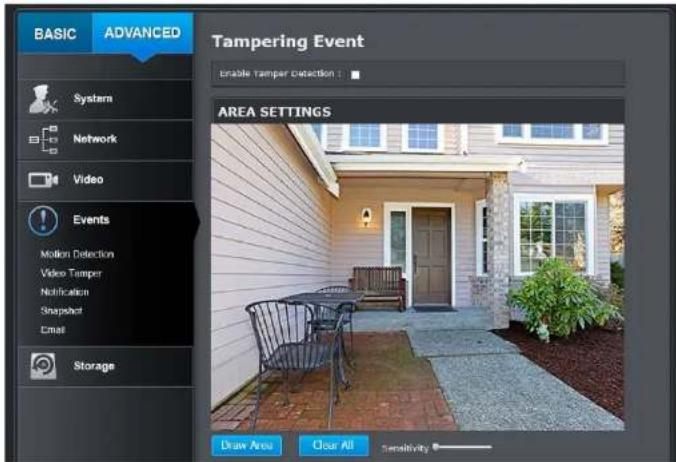
This is to detect if the camera has been tampered with and surveillance is compromised. You can set up tamper proof notifications to alert the system manager to check the camera.
TRENDnet User's Guide
TV-IP1319PI
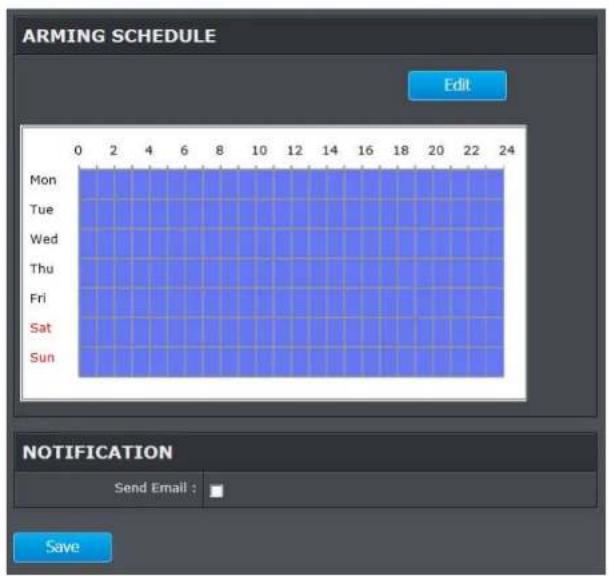
| Enable Tamper Detection: | Check this box to enable tamper detection. Click Save to save the settings. |
| Draw Area: | Click Draw Area button to start drawing. Click and drag on the area you want to set up the tamper detection.You can setup only one area for tamper Click Stop Drawing to stop drawing motion detection areas. The gray block represents the detection area. |
| Sensitivity: | Move the slider to adjust detection sensitivity. |
| Clear All: | Click this button to clear all the set up areas. |
Arming Schedule
Edit: Click Edit to edit the recording schedule. The Edit Schedule window will pop up.
Edit Schedule
| Period | Start Time | End Time | Record Type |
| 1 | 00:00 | 00:00 | Continuous |
| 2 | 00:00 | 00:00 | Continuous |
| 3 | 00:00 | 00:00 | Continuous |
| 4 | 00:00 | 00:00 | Continuous |
| 5 | 00:00 | 00:00 | Continuous |
| 6 | 00:00 | 00:00 | Continuous |
| 7 | 00:00 | 00:00 | Continuous |
| 8 | 00:00 | 00:00 | Continuous |
- Select day of the week you want to edit.
- Select All Day or Customized schedule of the day.
- Set the time period and the event you want to trigger the video recording continuous (always recording) or motion detection.
- Click Select All or the weekday you want to have the same schedule on different day.
- Click another day of the week by clicking on its tab to set the next schedule. Click OK when you have finished your settings.
detection.
Notification
Send Email: Check this box to send an e-mail notification when motion is detected.
Click Save to save the changes
TRENDnet User's Guide
TV-IP1319PI
Notification
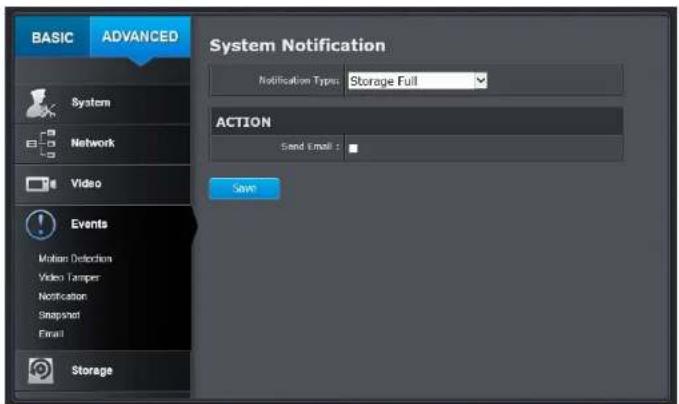
Provide notifications for other system events, set up your notifications here.
Notification
| Notification Type: | First, choose the exception type, and then choose the corresponding action. |
| Send Email: | Check this box to send an e-mail notification when motion is detected. |
Click Save to save the changes
Snapshot
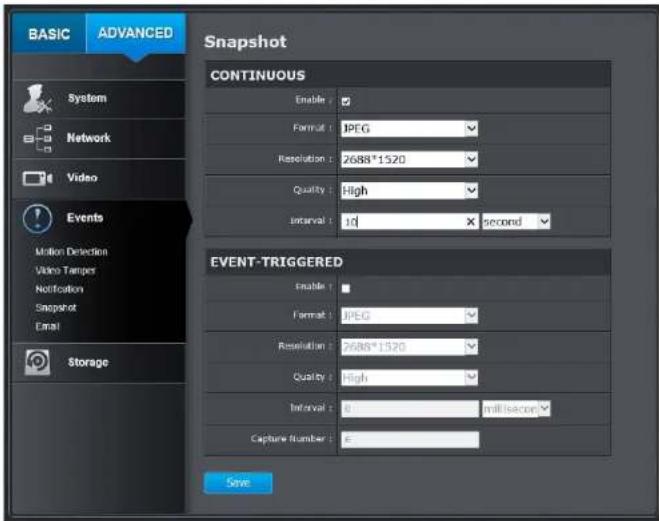
You can set up your camera to continuously taking snapshots snapshots only when events happening.
Continuous
| Enable: | Check this box to take snapshots continuously. |
| Format: | Save snapshots in JPEG format |
| Resolution: | Uses the same resolution set in Video Format for the snapshot resolution. |
| Quality: | Choose a compression quality for snapshots. |
| Interval: | State the time interval between snapshots. The default interval is 10 seconds. |
TRENDnet User's Guide
TV-IP1319PI
Event triggered
| Enable: | Check this box to take snapshots when an e occurred. |
| Format: | Save snapshots in JPEG format |
| Resolution: | Uses the same resolution set in Video Format for the snapshot resolution. |
| Quality: | Choose a compression quality for snapshot. |
| Interval: | State the time interval between this series of snapshots. The default interval is 1 second. |
| Capture Number: | State how many snapshots you want to take in a single triggered event. Default: 3 pictures. |
Click Save to save the changes
nt is
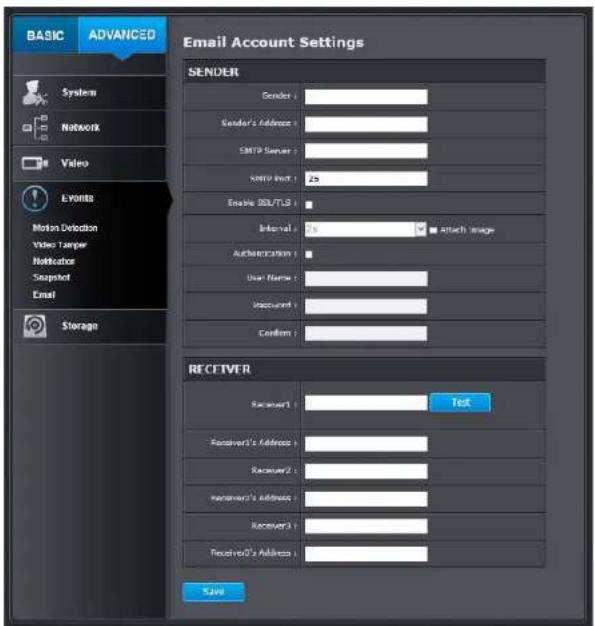
Set up email accounts for notifications.
Sender
| Sender: | Enter the name to be appeared as the email sender. |
| Sender's Address: | Enter sender's email address. |
| SMTP Server: | Simple Mail Transportation Protocol Server address, the outgoing email server address. It may be |
TRENDnet User's Guide
TV-IP1319PI
| address as your incoming email server, maybe noPlease ask your email service provider for detail. | |
| SMTP Port: | Service port number for outgoing email.* |
| Enable SSL: | Check this box if your service provider requires a SSL secured connection. |
| Attach Image/Interval: | Check Attach Image if you want to send a snapshot image with the email notification and select interval of snapshots in seconds. |
| Authentication: | Check this box if your server requires a password in order to send email. Most email servers re authentication when sending an email. |
| User name: | Enter the user name of outgoing email account |
| Password: | Enter the password |
| Confirm: | Enter the password again to confirm that password was entered correctly. |
Click Save to save the changes
| Receiver | |
| Receiver 1: | The first receiver's name. |
| Receiver 1's Address: | The first receiver's email address. |
| Receiver 2: | The second receiver's name. |
| Receiver 2's Address: | The second receiver's email address. |
| Receiver 3: | The third receiver's name. |
| Receiver 3's Address: | The third receiver's email address. |
Click Save to save the changes
*Note: Many ISPs does not allow service port 25 going through their network. Other popular ports are 587 and 465. Please consult your email service provider and ISP for detail.
Network Storage
Network Storage
Network Storage must be setup before it can be managed. For storage the management, please refer to the next section.
The TV-IP1319PI supports two formats of network storage file systems: NFS and CIFS. NFS, Network File System, is natively supported by Linux computers and most NAS, Network Attached Storage. CIFS, Common Internet File System, is natively supported by Windows® systems and now is generally supported by Linux. (OS X® file sharing is not standard SMB and not compatible as a network storage disk here.)
You can add up to 8 network storages for your camera. The recordings will subsequently be stored in these spaces. Save video from the first storage and then the next when the first one is full. Click on the entry to change the settings and click Save to save the settings.
TRENDnet User's Guide
TV-IP1319PI
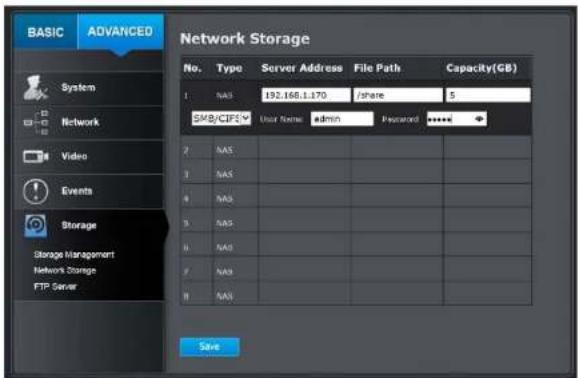
| No: | The sequential number of the network storage. |
| Type: | The type of storage. |
| Server Address: | Enter the IP address of your network storage. |
| File Path: | Enter the shared folder as file path for network storage. You can create a folder under the shared folder and make it a network volume here. Just create the folder and enter the correct path name here. |
| Capacity: | Enter the size of the disk space you want to assign i storage. The minimum disk space requirement is 8GB. If you do not want to limit the size and use the full physical disk space, put number 0 in this field. |
| File System: | Choose between NFS or CIFS for file system. If you assign the network storage on a Windows® computer, set it to CIFS. |
| User Name: | Enter the user name if the network storage name and password. Enter any non-blank letter authentication is required. |
Password: Enter the password to access the network storage. Enter any non-blank letters if no authentication is required.

Network

Computer


Click Save to save the changes. The camera may reboot to make the network storage available. Go to the next section to format and manage your network storage.
Tip: To create a network storage on your Windows® based system, create a shared folder and then test your set up with another computer. Enter the IP address of the computer here and enter the shared folder in leading forward slash. For example, if you have a shared folder named "SMB", enter "/SMB" in the File Path.
TRENDnet User's Guide
TV-IP1319PI
Storage Management
Network Storage must be setup before it can be managed. To setup storage, please refer to the previous section.
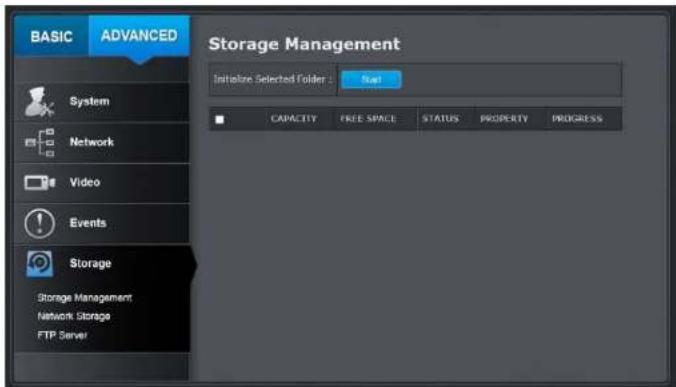
Format: Select a network storage volume and then click Format to format your network storage. This action will form network volume (shared folde Placeholder files (formatting files) will be created to make sure disk allocation is appropriate and the file searching is optimized.
The volume format is a proprietary user space's format. Meaning that you visit the shared folder and see some structured files. Please do not modify these files manually. Modifying these files may cause recording playback problems. Access your recording and system log via the web management user interface to download the recording and snapshots.
Capacity: The total capacity this network storage can use.
Free Space: The free space left for video recording, snapshot and log.
Status: The connection status to the network storage.
Property: This network storage is read only or can be read and write.
Progress: The progress of ongoing task.
Note: The formatting progress depends on the size of the storage and the network bandwidth. It takes a while if you are formatting a big volume or the network connection is not stable.
TRENDnet User's Guide
TV-IP1319PI
FTP Server
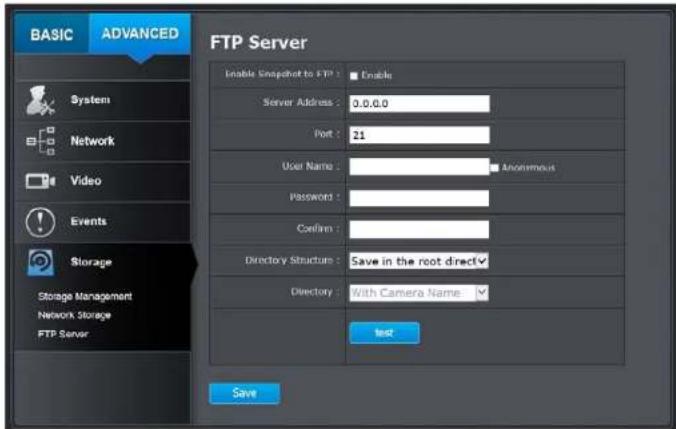
| Enable Snapshot to FTP: | Check this box if you want to store snapshots on the FTP. |
| Server Address: | Enter the FTP server IP address. |
| Port: | Enter the service port number of the FTP server. |
| User Name/Anonymous : | Check Anonymous if the FTP server does not require authentication. Enter the User Name if the FTP server requires authentication. |
| Password: | Enter the password of the FTP account. |
| Confirm: | Enter the password again to make sure the password was entered correctly. |
| Directory Structure: | When saving snapshots on an FTP server, they can be saved in a single place or organized with meaningful directory names.Save in root directory: You can choose to store all files in the same folder of FTP login.Save in directory: Structure your folders with camera name or IP address. |
| Directory: | Use Camera Name: Use the camera name to organize the saved files.Use Camera IP: Use the camera IP address to organize the saved files. |
Click Save to save the changes
TRENDnet User's Guide
TV-IP1319PI
Appendix
Direct video access - RTSP
To access the video directly through RTSP, just visit the camera IP address on port 554 by default. For example: 192.168.10.30:554 use the admin or user password the login.
Regulations
Federal Communication Commission Interference Statement
This equipment has been tested and found to comply with the limits for a Class B digital device, pursuant to Part 15 of the FCC Rules. These limits are designed to provide reasonable protection against harmful interference in a residential installation. This equipment generates uses and can radiate radio frequency energy and, if not installed and used in accordance instructions, may cause harmful interference to radio communications. However, there is no guarantee that interference will not occur in a particular installation. If this equipment does cause harmful interference to radio or television reception, which can be determined by turning the equipment off and on, the user is encouraged to try to correct the interference by one of the following measures:
• Reorient or relocate the receiving antenna.
- Increase the separation between the equipment and receiver.
- Connect the equipment into an outlet on a circuit different from that to which the receiver is connected.
• Consult the dealer or an experienced radio/TV technician for help.
FCC Caution: Any changes or modifications not expressly approved by the party responsible for compliance could void the user's authority to operate this equipment.
This device complies with Part 15 of the FCC Rules. Operation is subject to the following two conditions: (1) This device may not cause harmful interference, and (2) this device must accept any interference received, including interference that may cause undesired operation.
IMPORTANT NOTE:
FCC Radiation Exposure Statement:
This equipment complies with FCC radiation exposure limits set forth for an unwithtrolled environment. This equipment should be installed and operated with minimum distance 20cm between the radiator & your body.
This transmitter must not be co-located or operating in conjunction with any other antenna or transmitter.
The availability of some specific channels and/or operational frec bands are country dependent and are firmware programmed at the factory to match the intended destination. The firmware setting is not accessible by the end user.
RoHS
This product is RoHS compliant.
TRENDnet User's Guide
TV-IP1319PI
Europe – EU Declaration of Conformity
This device complies with the essential requirements of the Directive 2004/108/EC and 2006/95/EC. The following test methods have been applied in order to prove presumption of conformity with the essential requirements of the Directive 2004/108/EC and 2006/95/EC:
Safety /EMC
EN 60950-1: 2006 + A11: 2010 + A12: 2011 + A2: 2013
EN 55024: 2010 + A1: 2015
EN 55032: 2015
EMC Directive 2014/30/EC / RoHS Directive 2011/65/EU
WEEE Directive 2012/19/EU / REACH Regulation (EC) No. 1907/2006
Low Voltage Directive 2014/35/EC
| Česky [Czech] | TRENDnet tímto prohlašuje, že tento TV-IP1319PI je ve shodě se základními požadavky a dalšími příslušnými ustanoveními směrnice 2004/108/ES a 2006/95/ES. |
| Dansk [Danish] | Undertegnede TRENDnet erklærer herved, at følgende udstyr TV-IP1319PI overholder de væsentlige krav og øvrige relevante krav i direktiv 2004/108/EF og 2006/95/EF. |
| Deutsch [German] | Hiermit erklärt TRENDnet, dass sich das Gerät TV-IP1319PI in Übereinstimmung mit den grundlegenden Anforderungen und den übrigen einschlägigen Bestimmungen der Richtlinie 2004/108/EG und 2006/95/EG befindet. |
| Eesti [Estonian] | Käesolevaga kinnitab TRENDnet seadme TV-IP1319PI vastavust direktlivý 2004/108/EÜ ja 2006/95/EÜ pôhinõuetele ja nimetatud direktiivist tulenevatele teistele asjakohastele sätetele. |
| English Hereby, TRENDnet, declares that this TV-IP1319PI is in compliance with the essential requirements and other relevant provisions of Directive 2004/108/EC and 2006/95/EC. | |
| Español [Spanish] | Por medio de la presente TRENDnet declara que el TV-IP1319PI cumple con los requisitos esenciales y cualesquiera otras disposiciones aplicables o exigibles de la Directiva 2004/108/CE y 2006/95/CE. |
| Ελληνική [Greek] | ME THN ΠΑΡΟΥΣΑΤRENDnet ΔΗΛΩΝΕΙ ΟΤΙ TV-IP1319PI ΣΥΜΜΟΡΦΩΝΕΤΑΙ ΠΡΟΣ ΤΙΣ ΟΥΣΙΩΔΕΙΣ ΑΠΑΙΤΗΣΕΙΣ ΚΑΙ ΤΙΣ ΛΟΙΠΕΣ ΣΧΕΤΙΚΕΣ ΔΙΑΤΑΞΕΙΣ ΤΗΣ ΟΔΗΠΑΣ 2004/108/ΕΚ, 2006/95/ΕΚ καλ. |
| Français [French] | Par la présente TRENDnet déclare que l'appareil TV-IP1319PI est conforme aux exigences essentielles et aux autres dispositions pertinentes de la directive 2004/108/CE, 2006/95/CE et. |
| Italiano[Italian] | Con la presente TRENDnet dichiara che questo TV-IP1319PI è conforme ai requisiti essenziali ed alle altre disposizioni pertinenti stabilite dalla direttiva 2004/108/CE e 2006/95/CE. |
| Latviski [Latvian] | AršoTRENDnetdeklare, ka TV-IP1319PI atbilstDirektivas 2004/108/EK un 2006/95/EK bütiskajämprasibärm un citiemar to saistitajiemnoteikumiem. |
| Lietuvių[Lithuanian] | Šiuo TRENDnet deklarujoja, kad šis TV-IP1319PI atitinka esminius reikalavimus ir kitas 2004/108/EB Ir 2006/95/EB Direktyvos nuostatas. |
| Nederlands[Dutch] | Hierbij verklaart TRENDnet dat het toestel TV-IP1319PI in overeenstemming is met de essentiële eisen en de andere relevante bepalingen van richtlijn 2004/108/EG en 2006/95/EG. |
| Malti [Maltese] | Hawnhekk, TRENDnet, jiddikjara li dan TV-IP1319PI jikkonforma mal-htiglijet essenzjali u ma provvedimenti ohrajn relevanti li hemm fid-Dirrettiva 2004/108/KE u 2006/95/KE. |
| Magyar[Hungarian] | Alulírott, TRENDnet nyilatkozom, hogy a TV-IP1319PI megfelel a vonatkozó alapvető követelményeknek és az 2004/108/EK és a 2006/95/EK irányely egyéb előírásainak. |
| Polski [Polish] | Niniejszym TRENDnet oświadcza, že TV-IP1319PI jest zgodny z zasadniczymi wymogami oraz pozostałymi stosownymi postanowleniami Dyrektywy 2004/108/WE I 2006/95/. |
| Português[Portuguese] | TRENDnet declara que este TV-IP1319PI está conforme com os requisitos essenciais e outras disposições da Directiva2004/108/CE e 2006/95/CE. |
| Slovensko[Slovenian] | TRENDnet izjavlja, da je ta TV-IP1319PI v skladu z bistvenimi zahtevami in ostalimi relevantnimi določili direktive2004/108/ES in 2006/95/ES. |
| Slovensky [Slovak] | TRENDnettýmtovyhlasuje, že TV-IP1319PI spíñazákladnépožiadavky a všetkypríslušnéustanoveniaSmernice 2004/108/ES a 2006/95/ES. |
| Suomi [Finnish] | TRENDnet vakuuttaa täten että TV-IP1319PI tyyppinen laite on direktilvin2004/108/EY ja 2006/95/EY oleellisten vaatimusten ja sitä koskevien direktilvin mulden ehtojen mukalnen. |
| Svenska [Swedish] | Härmed intygar TRENDnet att denna TV-IP1319PI står I överensstämmelse med de väsentliga egenskapskrav och övriga relevanta bestämmelser som framgår av direktiv 2004/108/EG och 2006/95/EG. |
TRENDnet User's Guide
TV-IP1319PI
Limited Warranty
TRENDnet warrants its products against defects in material and workmanship, under normal use and service, for the following lengths of time from the date of purchase.
TV-IP1319PI - 3 Years Warranty
If a product does not operate as warranted during the applicable warranty period, TRENDnet shall reserve the right, at its expense, to repair or replace the defective product or part and deliver an equivalent product or part to the repair/replacement unit's warranty continues from the original date of purchase. All products that are replaced become the property of TRENDnet. Replacement products may be new or reconditioned. TRENDnet does not issue refunds or credit. Please contact the point-of-purchase for their return policies.
TRENDnet shall not be responsible for any software, firmly memory data of customer contained in, stored on, or integrated with any products returned to TRENDnet pursuant to any warranty.
There are no user serviceable parts inside the product. Do not remove or attempt to service the product by any unauthorized service center. This warranty is voided if (i) the product has been modified or repaired by any unauthorized service center, (ii) the product was subject to accident, abuse, or improper use (iii) the product was subject to conditions more severe than those specified in the manual.
Warranty service may be obtained by contacting TRENDnet within the warranty period and providing a copy of the dated proof of the proper submission of required documentation a Return Material Authorization (RMA) number will be issued. An RMA number is required in order to service support for all TRENDnet products. Products that are sent to TRENDnet for RMA service must have the RMA number marked on the outside of return packages and sent to TRENDnet prepaid, insured and packaged appropriately for safe shipment. Customers shipping from outside of the USA and Canada are responsible for return shipping fees. Customers shipping from outside of the USA custom charges, including but not limited to, duty, tax, and other fees.
WARRANTIES EXCLUSIVE: IF THE TRENDNET PRODUCT DOES NOT OPERATE AS WARRANTED ABOVE, THE CUSTOMER'S SOLE REMEDY SHALL BE, AT TRENDNET'S OPTION, REPAIR OR REPLACE. THE FOREGOING WARRANTIES AND REMEDIES ARE EXCLUSIVE AND ARE IN LIEU OF ALL OTHER WARRANTIES, EXPRESSED OR IMPLIED, EITHER IN FACT OR BY OPERATION OF LAW, STATUTORY OR OTHERWISE, INCLUDING WARRANTIES OF MERCHANTABILITY AND FITNESS FOR A PARTICULAR PURPOSE.
TRENDNET NEITHER ASSUMES NOR AUTHORIZES ANY OTHER PERSON TO ASSUME FOR IT ANY OTHER LIABILITY IN CONNECTION WITH THE SALE, INSTALLATION MAINTENANCE OR USE OF TRENDNET'S PRODUCTS.
TRENDNET SHALL NOT BE LIABLE UNDER THIS WARRANTY IF ITS TESTING AND EXAMINATION DISCLOSE THAT THE ALLEGED DEFECT IN THE PRODUCT DOES NOT EXIST OR WAS CAUSED BY CUSTOMER'S OR ANY THIRD PERSON'S MISUSE, NEGLECT, IMPROPER INSTALLATION OR TESTING, UNAUTHORIZED ATTEMPTS TO REPAIR OR MODIFY, OR ANY OTHER CAUSE BEYOND THE RANGE OF THE INTENDED USE, OR BY ACCOUNTER, FIRELIGHTNING, OR OTHER HAZARD.
LIMITATION OF LIABILITY: TO THE FULL EXTENT ALLOWED BY LAW TRENDNET ALSO EXCLUDES FOR ITSELF AND ITS SUPPLIERS ANY LIABILITY, WHETHER BASED IN CONTRACT OR TORT (INCLUDING NEGLIGENCE), FOR INCIDENTAL, CONSEQUENTIAL, INDIRECT, SPECIAL, OR PUNITIVE DAMAGES OF ANY KIND, OR FOR LOSS OF REVENUE FOR PRODUCTION OF BUSINESS, LOSS OF INFORMATION OR DATE, OR OTHER FINANCIAL LOSS ARISING OUT OF OR IN CONNECTION WITH THE SALE, INSTALLATION, MAINTENANCE, USE, PERFORMANCE, FAILURE, OR INTERRUPTION OF THE POSSIBILITY OF SUCH DAMAGES, AND LIMITS ITS LIABILITY TO REPAIR, REPLACEMENT, OR REFUND OF THE PURCHASE PRICE PAID, AT TRENDNET'S OPTION. THIS DISCLAIMER OF LIABILITY FOR DAMAGES WILL NOT BE AFFECTED IF ANY REMEDY PROVIDED HEREIN SHALL FAIL OF ITS ESSENTIAL PURPOSE.
Governing Law: This Limited Warranty shall be governed by the laws of the state of California.
PuschstRENpret products include software code written by third party developers. These codes are subject to the GNU General Public License ("GPL") or GNU Less International Public license ("LGPL").
Go to http://www.trendnet.com/gpl or http://www.trendnet.com Download section and look for the desired TRENDnet product to access to the GPL Code or LGPL Code. These codes are distributed WITHOUT WARRANTY and are subject to the copyrights of the developers. TRENDnet does not provide technical support for these codes. Are responsible for Please go to http://www.gnu.org/licenses/gpl.txt or http://www.gnu.org/licenses/
lgpl.txt for specific terms of each license.
2/20/2020
TV-IP1319PI 1.0
TRENDNET®
Product Warranty Registration
Please take a moment to register your product online. Go to TRENDnet's website at http://www.trendnet.com/register
TRENDnet
20675 Manhattan Place
Torrance, CA 90501. USA
- Indoor/Outdoor 8MP 4K H.265 WDR PoE IR Dome Network Camera
- TRENDnet User's Guide TV-IP1319PI
- Contents
- Network Storage....46
- Appendix 50
- Regulations....50
- Limited Warranty....52
- Package Contents
- Angle Adjustment
- Reset Button
- Warnings
- Cautions
- Plan for installation location
- Viewing angle
- Weather Conditions
- Hardware Installation
- Cabling
- Waterproof cap
- Setup Your Camera with Camera Utility
- Logging-in to the Camera for the First Time (Windows)
- TRENDnet User's Guide
- TV-IP1319PI
- Logging-in to the Camera for the First Time (OS X)
- Click Continue to install the plug-in.
- Select a destination to install the plug-in. Then click Continue.
- Use the default location and click Install.
- Enter your password and click Install Software
- Installation will process automatically.
- Click Close to exit the installation.
- Live View
- Snapshot
- Zoom
- Recording
- MJPEG
- Video Stream
- Full Screen Mode
- Status Bar
- Playback
- Search for video recordings
- Time Line
- Slice images from video playback
- Download sections of video
- Download snapshots
- Schedule
- Log
- Search for logs
- System Information
- System Configuration
- Device Settings
- Names
- Authentication
- Service
- User Accounts
- Time Settings
- Automatic Update
- Manual Time Sync
- Daylight Savings
- Live View Settings
- Live View Parameters
- Maintenance
- Network Settings
- TCP/IP
- Port
- DDNS
- PPPoE
- SNMP
- 802.1X
- IP Address Filter
- Quality of Service (QoS)
- UPnP
- Port Mapping
- Video Settings
- Display Settings
- Auto:
- Schedule:
- To configure this section
- On Screen Display Settings
- Text Overlay
- Privacy Mask
- Events
- Motion Detection
- Arming Schedule
- Video Tampering
- Notification
- Network Storage
- Storage Management
- Appendix
- Direct video access - RTSP
- Regulations
- Federal Communication Commission Interference Statement
- IMPORTANT NOTE:
- RoHS
- Europe – EU Declaration of Conformity
- Safety /EMC
- Limited Warranty
- TRENDNET®
- Product Warranty Registration
Mærke : TRENDNET
Model : TV-IP1319PI
Kategori : Overvågningskamera