GDV285BK - Sportskamera GearPro - Gratis brugsanvisning og manual
Find enhedens vejledning gratis GDV285BK GearPro i PDF-format.


Brugerspørgsmål om GDV285BK GearPro
0 spørgsmål om dette apparat. Besvar dem du kender, eller stil dit eget.
Stil et nyt spørgsmål om dette apparat
Download vejledningen til din Sportskamera i PDF-format gratis! Find din vejledning GDV285BK - GearPro og tag din elektroniske enhed tilbage i hånden. På denne side er alle dokumenter nødvendige for brugen af din enhed offentliggjort. GDV285BK af mærket GearPro.
BRUGSANVISNING GDV285BK GearPro
Model:
GDV285
1080P Hi-Res Digital Camera/Camcorder
Full HD Video, 12.0 Mega Pixel Camera & 2.4" Touch Screen
Functions
Thank you for purchasing this camera! With high-performance chips, this product can produce high-definition videos with excellent continuity of dynamic images. It supports H.264 HD video format and can create sharp photos for you. The unique ultraportable design is adopted for this video camera and it is applicable in various fields to enable your daily life convenient, safe and colorful. Make sure to read this manual carefully and keep properly for reference in the future.
This user's manual has referred to the latest information during compiling. The screen display and illustrations are used in this user's manual for the purpose of introducing details of this digital camera in a more specific and direct way. Difference may arise between these displays and illustrations and the digital camera actually available for you due to difference in technological development and production batch, under which case, the actual functions of this video camera shall prevail.
Announcements
Please read the Announcements carefully before using this video camera for proper and safe operation, so as to bring its optimum performance into play and extend its service life.
Do not expose the video camera to sunshine directly, nor point its lens to sunlight. Otherwise, the image sensor of the video camera may be damaged.
Take good care of the video camera and prevent water or sand particles from entering the video camera
- when it is used on the beach or near water, because water, sand particles, dust or component containing salt may damage the video camera.
◆ Keep the video camera contaminated free of dust and chemical materials. Place it in a cool, dry and well ventilated place. Do not place the video camera in a high temperature, moist or dusty place to avoid failure of the video camera. - Be sure to use the video camera regularly during its long time storage. Please check if the video camera can operate normally before use.
If dirt or stain is accumulated on the video camera or on its lens, use soft, clean and dry rag to wipe it away gently. If the video camera or its lens is stained with sand particles, blow them away gently. Do not use cloth to wipe arbitrarily. Otherwise, it may scratch the surface of video camera or its lens.
If it is required to clean camera surface, firstly blow away the sand dust accumulated on this surface, and then wipe the camera gently with rag or tissue applicable to optical equipments. Please use the cleaning agent of video camera for wiping if necessary. Do not use organic solvent to clean the video camera.
◆ Do not touch the lens surface with fingers.
◆ Please back up the data if the memory card inside this digital camera is used for the first time. After that, format the memory card of this video camera at one time.
◆ The external SD memory card is made of precision electronic components. The following situations may cause loss or damage of your data:
- Improper use of the memory card
- The memory card is bent, dropped or collided.
- Place it under high temperature or moist environment or expose to sunshine directly.
- Electrostatic or electromagnetic field exists around the memory card.
- Take out this memory card or interrupt the power supply when this camera or computer is connected to the memory card (i.e. during reading, writing and formatting).
- Touch the metal contact surface of the memory card with fingers or metal materials.
- The service life of the memory card expires (please replace the memory card regularly).
Product Introduction
◆This product is small in size and easy for installation.
With high-performance chips, this product can produce high-definition videos with excellent continuity of dynamic images, even under low illumination conditions, and supports H.264 HD video format.
◆ The video mode supports four modes, i.e. VGA (120FPS), HD (60FPS), HD (30FPS) and FHD (1920x1080 30FPS).
◆The photo mode supports four sizes, i.e. 12M, 10M. 8M and 5M.
◆ Support high-speed USB2.0
◆It supports a Min SD card with a capacity expansion up to 32G.
This product supports video output and live playback functions. Videos can be output to high-definition TVs for playing clear and sharp pictures.
System Requirements
| System Requirements | |
| Operating System Microsoft Windows2000, XP, Vista, 7 | |
| CPU Intel Pentium III of more than 800MHz or other CPU with equivalent performance | |
| Internal Memory Larger than 512MB | |
| Sound Card and Display Card | The sound card and video card shall support DirectX8 or higher version. |
| CD Driver | Speed of 4 times or faster |
| Hard Disk | Free space of more than 500MB |
| Others | One standard USB1.1 or USB2.0 port |
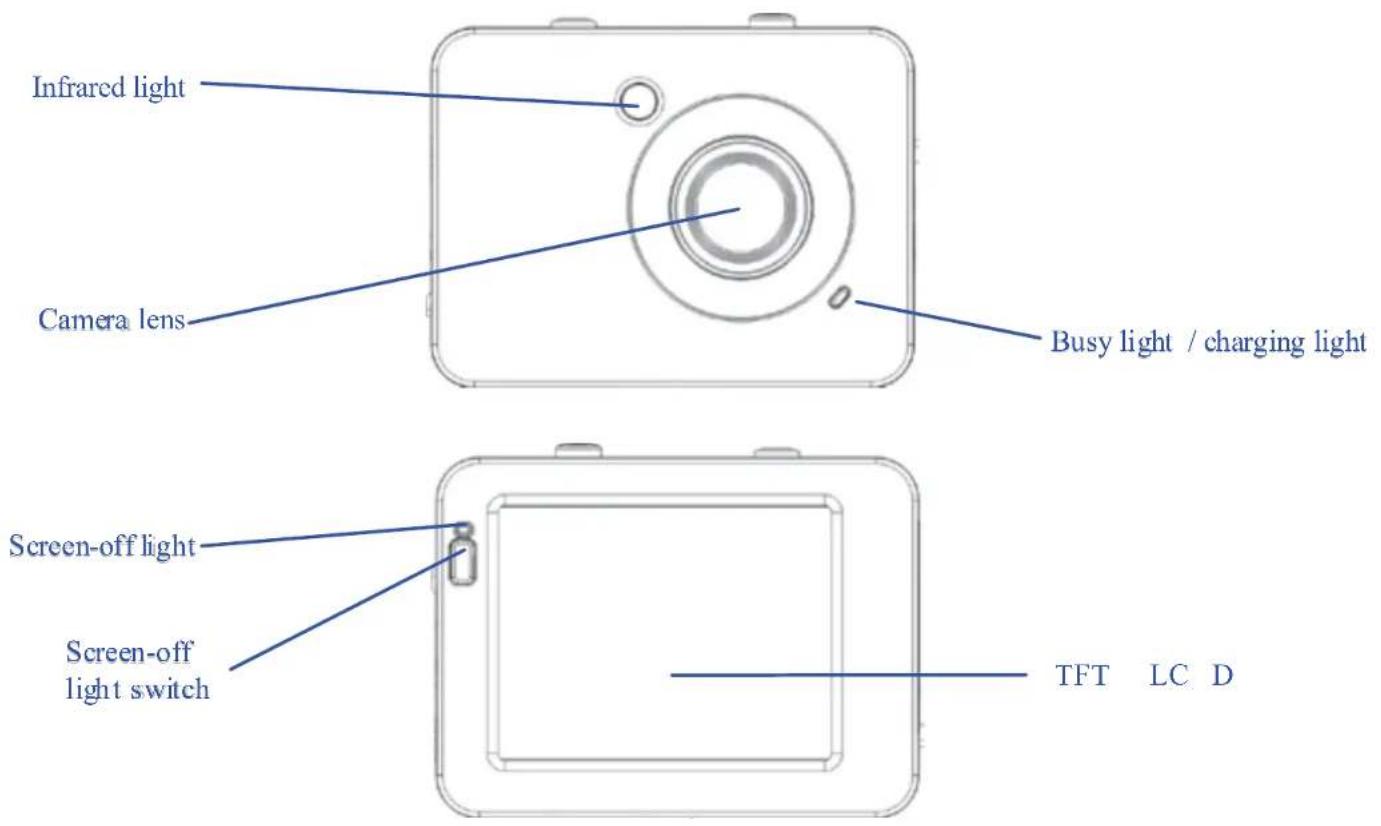
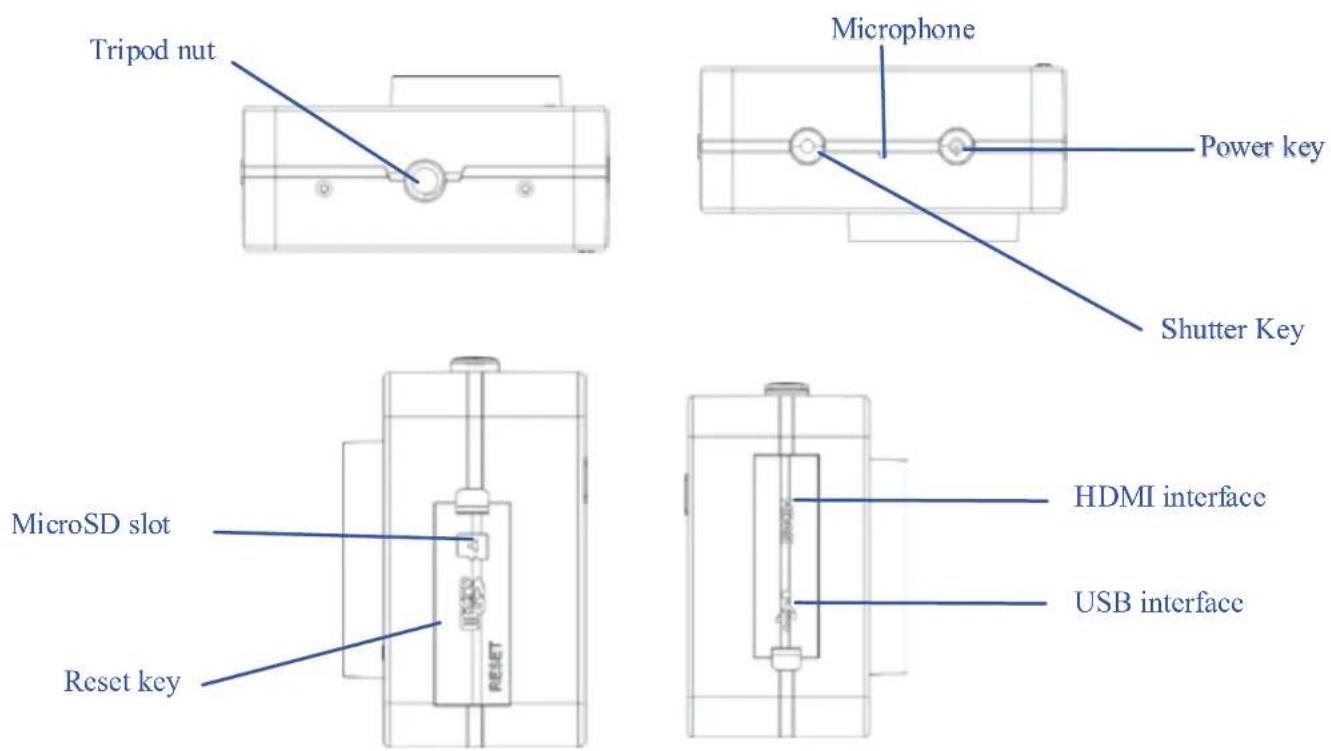
Introduction to Appearance and Keypad
Usage
1. Charge the built-in lithium battery
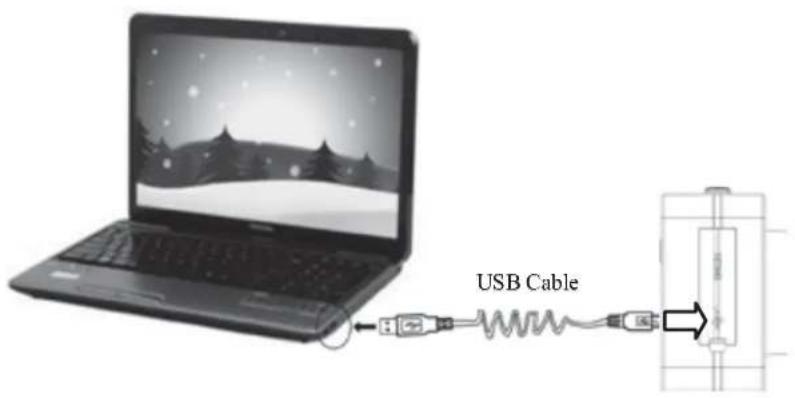
To charge the camera, connect it to the computer. Then, the charge indicator light (red) will be on. After the camera is fully charged, the charge indicator light will be off. In general, it can be fully charged after 2-4 hours.
2. Use of Memory Card
- Push the Micro SD card into the card slot according to the concave lettering beside the slot of memory card till it is completely inserted.
- To take out the Micro SD card, gently press the end of the memory card inward and it will pop up.
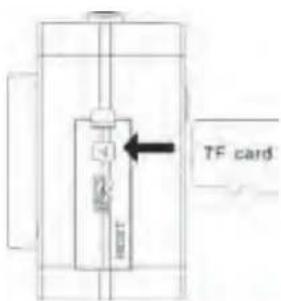
Note: No built-in memorizer is available in this video camera. Make sure to insert memory card before using. (Advise using Micro SD card higher speed than class 4)
3. Startup/Shutdown
3.1 Startup: Press and hold the POWER button for activated and the camera is turned on.

2 seconds. The screen of the display is

3.2 Shut down: Press the POWER Key once under idle condition, and the camera will be shut down.
3.3 Auto Screen-off: When the idle time of the camera reaches the automatic screen-off time automatically turn off the screen to save power. After turning off the screen, the screen-off light will be on.3.4. Shutdown at low battery level: When the battery capacity drops to a low level, the icon: will appear on the LCD display. Please charge the battery timely. When the icon turns red and flickering, the video camera will be shut down automatically.
4. Conversion Between Function Modes
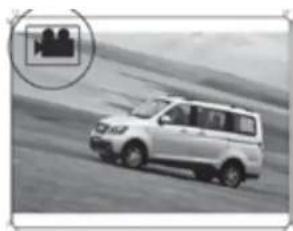
The camera has three modes: video recording mode, photo mode and playback mode. These modes can be switched over by clicking the icon in the upper left corner of the LCD display after startup.
natural_image
Black and white photo of a white SUV driving on a road, with a circular icon in the top-left corner (no visible text or symbols)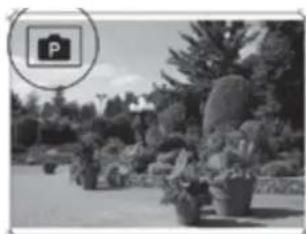
natural_image
Black-and-white photo of a garden with potted plants and trees, featuring a parking icon in the corner (no readable text or symbols)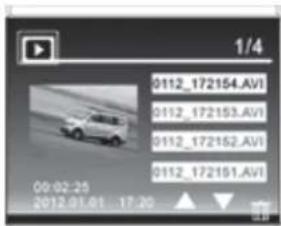
Video recording mode Photo mode Playback mode
natural_image
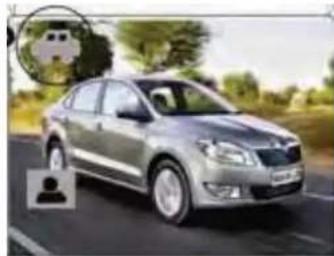
Silver sedan driving on a road with trees and greenery in the background (no visible text or symbols)Vehicle mode
5. Indicator light
Busy indicator light (blue): When the camera is working (e.g.: recording videos, shooting pictur automatic screen-off, etc.), the busy indicator light will blink.
Charging indicator light (red): It indicates the camera is being charged when it is on permanently. After the camera is fully charged, it will be off automatically.
6. Video recording mode
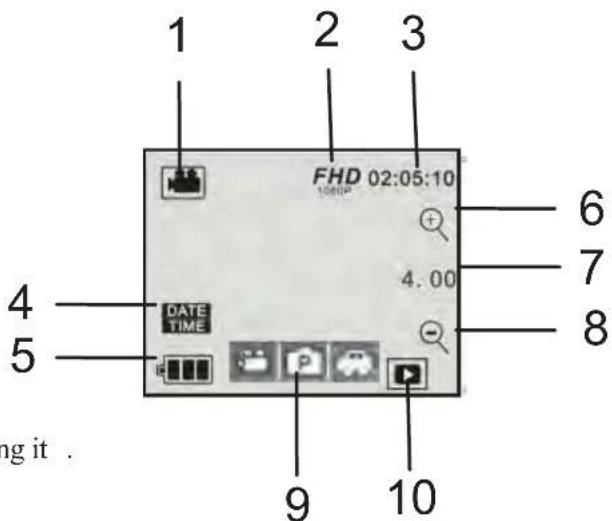
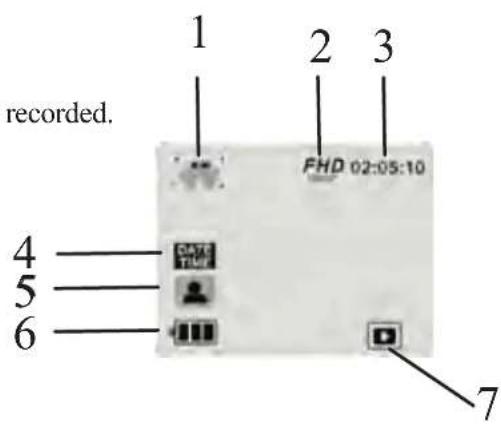
After turning on the DV camera, it will directly get to the video recording mode. You can start recording videos by pressing the shutter button in the preview state. To stop video recording, just press this shutter button again. When the memory card is full or the battery drops to a low level, the camera will also automatically stop video recording:
1 Mode icon: indicating currently in the AVI mode.
2 Video size: available in FHD/HD(60FPS)/HD(30FPS).
3 Recording time: indicating the length of remaining time to be recorded.
4 Icon of setting the time and date
5 Battery icon: indicating the current capacity of the battery.
6 Digital zoom-in icon: to zoom in by clicking it.
7 Digital zoom magnification (x).
8 Digital zoom-out icon: to recover by clicking it.
9 Menu icon: to be activated by clicking other icons.
10 Playback icon: to activate the corresponding menu by clicking it.
7. Photo mode:
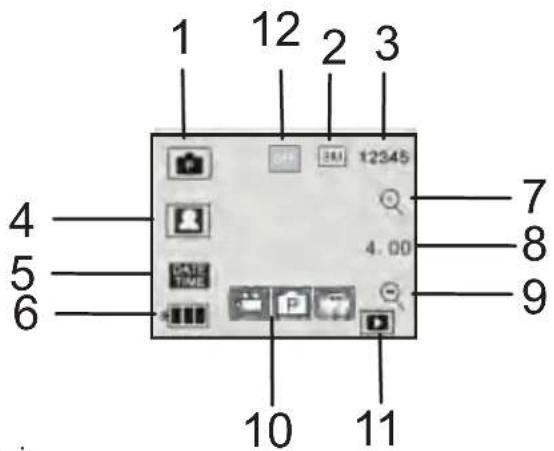
After turning on the DV camera, it will directly get to the video recording mode. To switch to the photo mode, click the mode icon in the upper left corner of the LCD display. You can shoot a photo by pressing the shutter button in the preview state.
1 Mode icon: indicating currently in the photo mode.
2 Photo size: available in 5M/8M/10M/12M.
3 Counter: Indicating the number of photos to be taken
4 Indicating the face detection function is activated .
5 Icon for setting the time and date.
6 Battery icon: indicating the current capacity of the battery.
7 Digital zoom-in icon: to zoom in by clicking it.
8 Digital zoom magnification (x).
9 Digital zoom-out icon: to recover by clicking it.
10 Menu icon: to be activated by clicking other icons.
11 Playback icon: to activate the corresponding menu by clicking it
12 Photo mode: (Normal/10s Self-Timer/Triple Sequence)
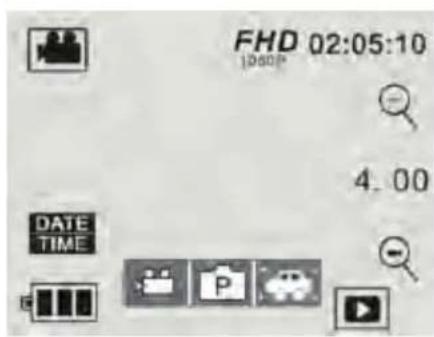
8. Vehicle mode:
1 Mode icon: indicating currently in the vehicle mode.
2 Video size: available in FHD/HD(60FPS)/HD(30FPS)
3 Recording time: indicating the length of remaining time to be recorded.
4 Icon of setting time and date.
5 click this icon, the camera can be flipped 180 degrees to take video normally.
6 Battery icon: indicating the current capacity of the battery.
7 Playback icon: to activate the corresponding menu by clicking it.
Note:

click this icon, the camera can be flipped 180 degrees to take video normally, click again to recover it. This feature is available only in vehicle mode.
9. Playback mode:
9.1 After turning on the camera and enabling the Preview state, press the Playback icon ( ) in the lower right corner of the LCD display to activate the menu ( ). Click the /to switch to the file list mode. Then you can playback video clips by clicking a file name in the list.
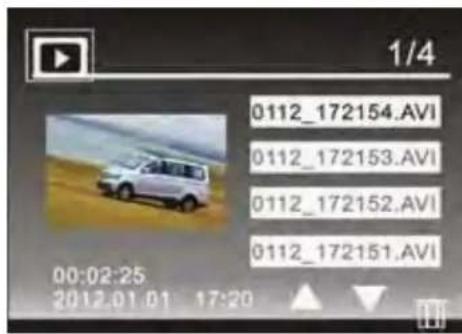

Indicate normal video files Indicate vehicle video files Indicate photo files
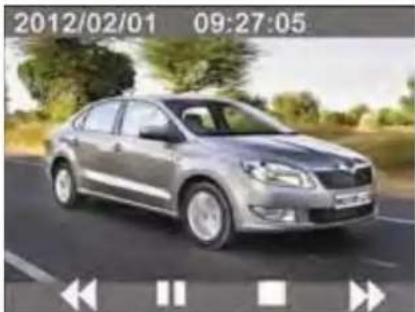
9.2 Playback movie clips:
natural_image
Silver sedan driving on a road with trees and greenery in the background (no visible text or symbols)In the playback mode, click it "to pause. After selecting the fast playback function", click it to fast rewind. Click STOP to exit the playback mode to return to the list mode.
9.3 Playback photos:
After turning on the camera and enabling the Preview state, press the Playback icon ( ) in the lower right corner of the LCD display to activate the menu ( ). Click the to switch to the photo playback mode. Then you can view photos by clicking the icon "◀" or "▶".
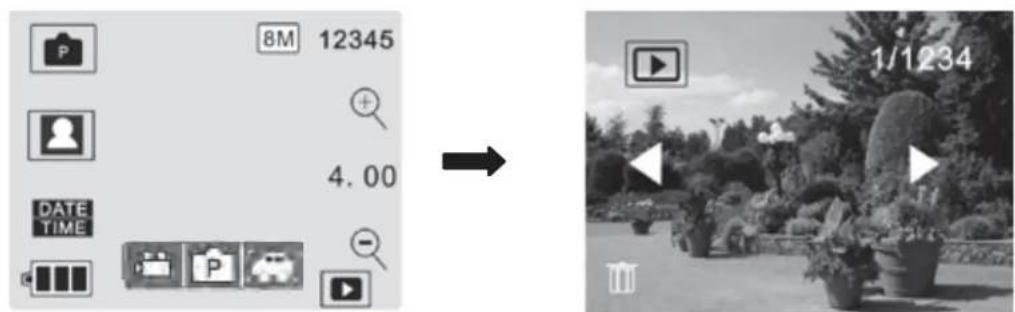
9.4 File deletion:
After clicking the Delete File icon , the screen will appear as shown in the right figure:
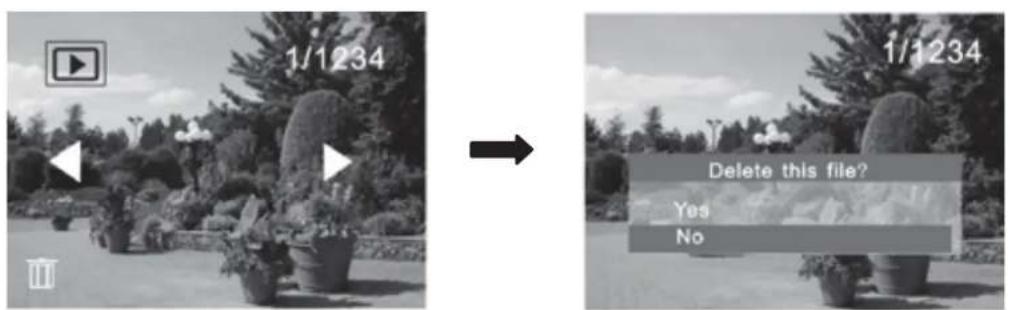
Click YES to delete the current file immediately, or click NO to cancel the deletion operation.
Connecting the camera to a high-definition TV:
Connect the camera to a high-definition TV with a HD cable (as shown below). Then video signals from the camera will be automatically output to the high-definition TV, and you can enjoy HD videos and photos that you have recorded on the high-definition TV.
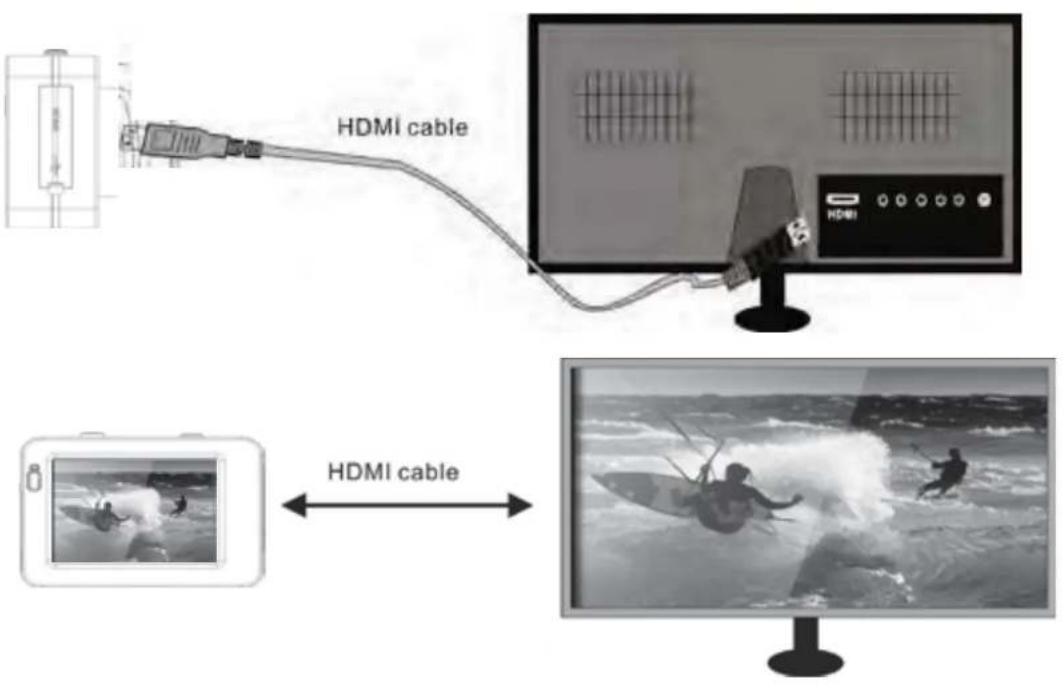
Application on the personal computer
Connect the camera to a PC
The camera is provided with the plug and play function. Connect the device to the computer with USB line under turning-on state, then it will be switched into the movable hard disk mode.
Icon of movable disk will appear on the window of "my computer". The photos you have taken can be saved in the removable disk under the file folder I:\jpg ("I" is the removable disk of the camera). Your video files will be saved under the folder of I:\video.Note: if movable disk function is used in windows 2000 or windows operating system with a higher edition, it is unnecessary to install drivers.
Application of remote control:
1 Keys of remote control
The keys on the remote control are shown in the right figure
Signal transmission port
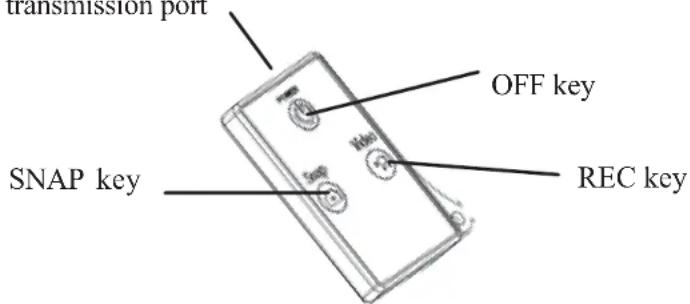
2 Use of remote control:
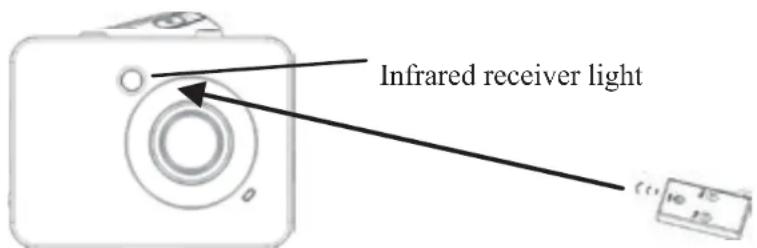
Using the remote control will help you realize video recording, photo snapping and shutting functions without operating the camera itself. While using the remote control, place its signal transmitter port toward the infrared signal receiver light of the camera. Then you can record videos, take photos or shut down the camera by pressing the corresponding buttons.
Waterproof Case Using Notice
Before sealing the waterproof case, keep the camera housing's rubber seal clean, a single hair or grain of sand can cause a leak. You can test by closing the case without inserting the camera. Submerse the case completely in water for about a minute. Remove the case from the water, dry off its exterior with a towel, then open the case. If the entire interior is dry, the case is safe for use under water.
Remember to put the Mode Switch in your desired recording position before inserting the camera in the waterproof case. There is no external button for the Mode Switch.
◆ After every use in salt water you will need to rinse the outside of the housing with non-salt water and dry. Not doing this can eventually cause corrosion of the hinge pin and salt buildup in the seal, which can cause failure.
◆ To clean the seal, rinse in fresh water and shake dry (drying with a cloth may cause lint to compromise the seal). Re-install the seal into the grooves in the backdoor of the housing. =
Technical parameters
| Image sensor | 5M pixels (CMOS) |
| Function mode | Video recording, photo, removable disk |
| Camera lens | F3.1 f=2.9mm |
| Digital zooming | 4X |
| Shutter | Electronic shutter |
| LCD display screen | 2.4-inch touch screen |
| Image resolution | 12M (4000 × 3000), 10M (3648x2736), 8 M (3264x2448), 5M (2560×1920) |
| Video resolution | VGA: 640x480 (120 frames / sec), HD: 1280x720 (60 frames/sec.) FHD: 1920x1080 (30 frames/sec.) |
| White balance | Automatic |
| Exposure | Automatic |
| File formats | Video AVI | |
| Photo JPEG | ||
| Storage medium MicroSD | card (Supporting up to 32GB),( without build-in flash memory) | |
| USB interface High-speed | USB 2.0 interface | |
| Power Supply Built-in 3.7V rechargeable lithium | ||
| Dimension (length × width × height) | 74*52*33mm | |
| Weight Approx. 72g | ||
- Functions
- Announcements
- Product Introduction
- System Requirements
- Usage
- Charge the built-in lithium battery
- Use of Memory Card
- Startup/Shutdown
- Conversion Between Function Modes
- Indicator light
- Video recording mode
- Photo mode:
- Vehicle mode:
- Note:
- Playback mode:
- File deletion:
- Connecting the camera to a high-definition TV:
- Application on the personal computer
- Application of remote control:
- Use of remote control:
- Waterproof Case Using Notice
Mærke : GearPro
Model : GDV285BK
Kategori : Sportskamera