LE22C456E2W - Fjernsyn SAMSUNG - Gratis brugsanvisning og manual
Find enhedens vejledning gratis LE22C456E2W SAMSUNG i PDF-format.


Brugerspørgsmål om LE22C456E2W SAMSUNG
0 spørgsmål om dette apparat. Besvar dem du kender, eller stil dit eget.
Stil et nyt spørgsmål om dette apparat
Download vejledningen til din Fjernsyn i PDF-format gratis! Find din vejledning LE22C456E2W - SAMSUNG og tag din elektroniske enhed tilbage i hånden. På denne side er alle dokumenter nødvendige for brugen af din enhed offentliggjort. LE22C456E2W af mærket SAMSUNG.
BRUGSANVISNING LE22C456E2W SAMSUNG
LCD TV
QUICK SETUP GUIDE
The Supplied Accessoris
• Remote Control & Batteries (AAA x 2)
- Owner's Instructions
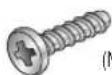
(M4 X L16: 3EA)
• Stand Screws (LE22C450)
- Cleaning Cloth
- Power Cord
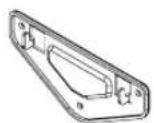
- Wall Mount kit
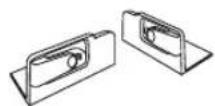
• Decoration Cover (LE19C450)
See separate guide for installing the stand.
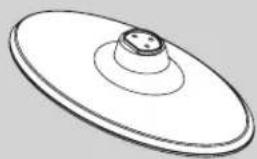
natural_image
Simple line drawing of a circular object with a central hole and concentric rings (no text or symbols)• Stand (1EA) (LE22C450)
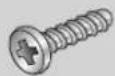
(M4 X L16)
- Screws (3EA) (LE22C450)
Installing Batteries in the Remote Control
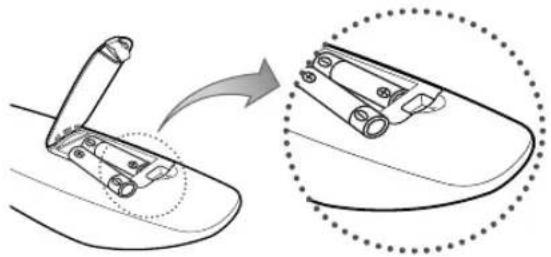
natural_image
Diagram showing a mechanical component being inserted into a curved surface, with no visible text or symbols.
NOTE
• Use the remote control within 23 feet from the TV.
- Bright light may affect the performance of the remote control. Avoid using nearby special fluorescent light or neon signs.
- The colour and shape may vary depending on the model.
BN68-02685A-00
Step 1 Step 2
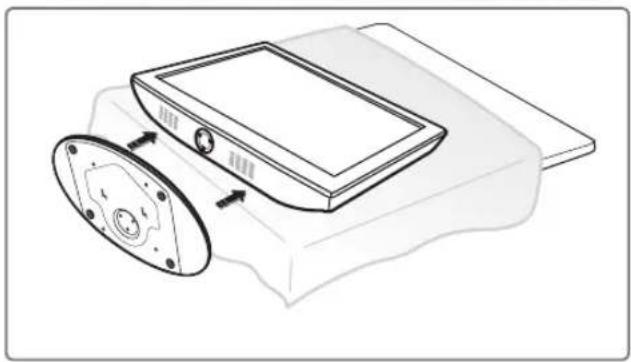
natural_image
Technical line drawing of a device with a circular component and internal components (no text or symbols)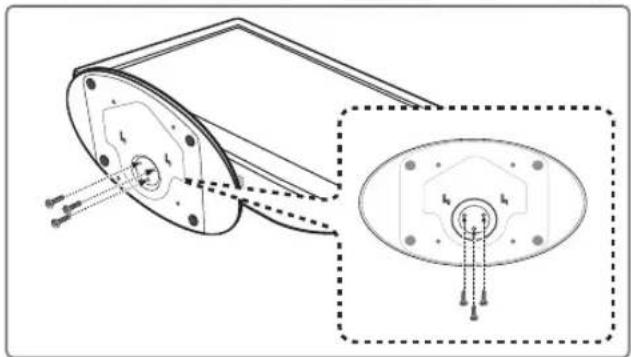
natural_image
Technical diagram of a mechanical component with an inset close-up showing internal components (no text or symbols)1
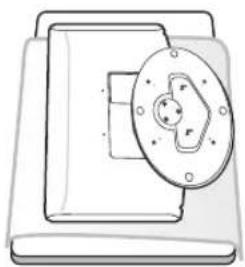
natural_image
Simple line drawing of a mechanical component with a circular housing and mounting holes (no text or symbols)●
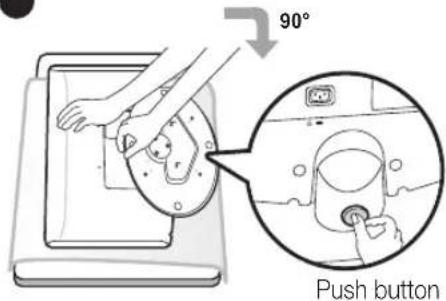
text_image
90° Push button●
natural_image
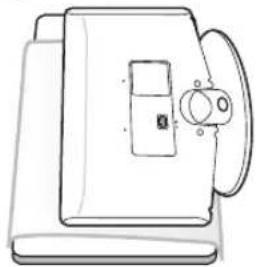
Line drawing of a sewing machine (no text or symbols)Make sure to distinguish between the front and rear of the Stand when attaching it to the TV.
Make sure that at least two persons lift and move the LCD TV.
Lay the product down, with the screen facing up and fasten the screws.
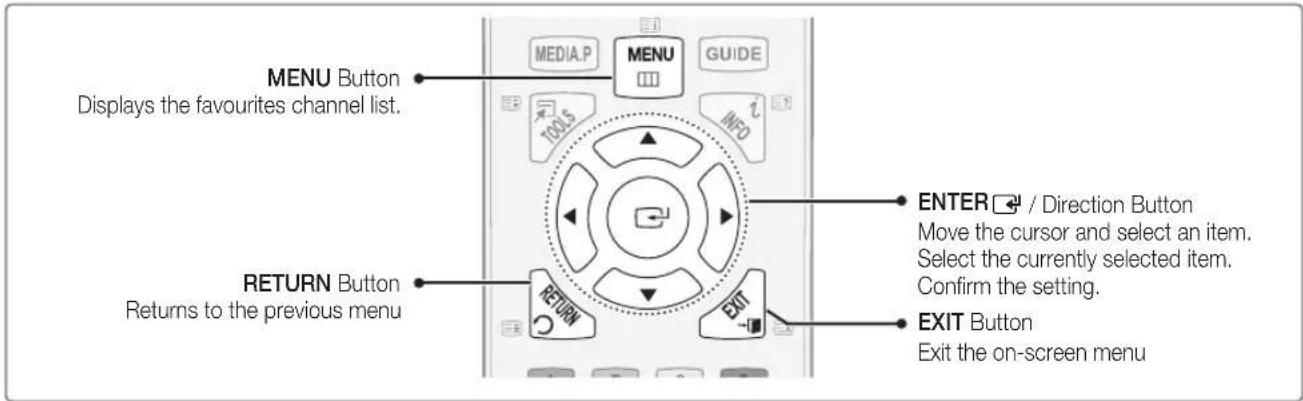
Using the remote control buttons
text_image
MENU Button Displays the favourites channel list. RETURN Button Returns to the previous menu MEDIA.P MENU GUIDE TOOLS INFO ENTER / Direction Button Move the cursor and select an item. Select the currently selected item. Confirm the setting. EXIT Button Exit the on-screen menuWhen the TV is initially powered on, basic settings proceed automatically and subsequently. If you want to reset this feature, press the MENU button to display menu. You can set the Plug & Play by selecting Setup → Plug & Play.
text_image
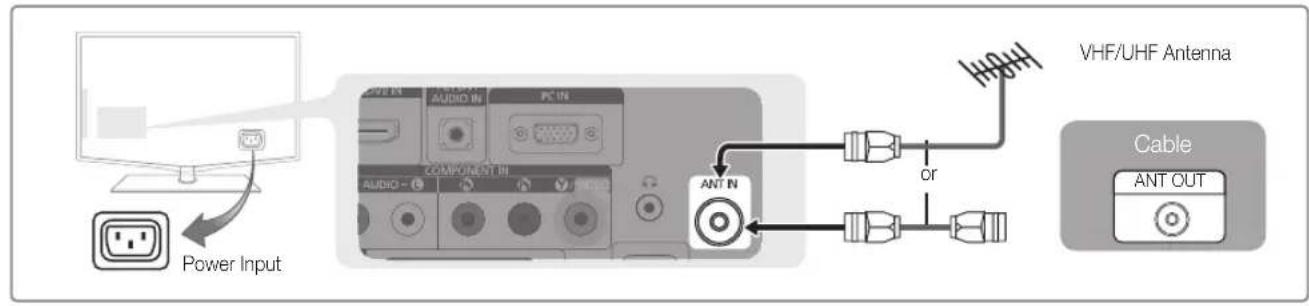
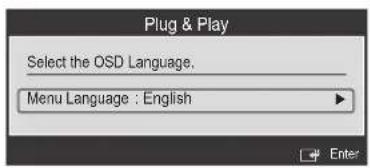
Power Input VHF/UHF Antenna Cable ANT OUTOn the screen, you can set as follows.
The each step may vary depending on the Antenna source.
Step 1
text_image
Plug & Play Select the OSD Language. Menu Language : EnglishStep 2

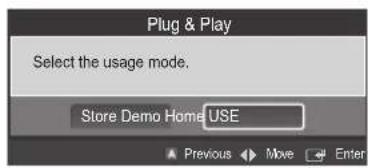
text_image
Plug & Play Select the usage mode. Store Demo Home USE
Step 3
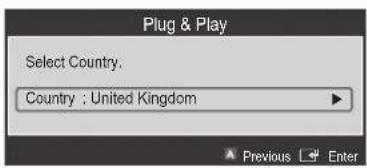
text_image
Plug & Play Select Country. Country : United KingdomStep 4
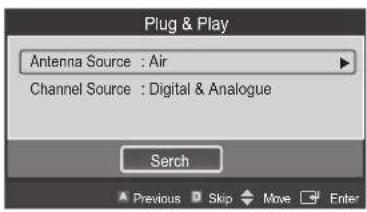
text_image
Plug & Play Antenna Source : Air Channel Source : Digital & Analogue Serch Previous Skip Move EnterStep 5

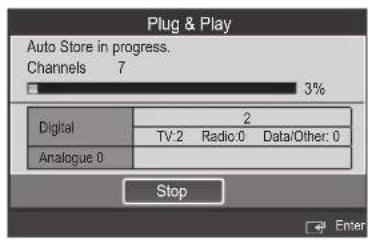
text_image
Plug & Play Auto Store in progress. Channels 7 3% Digital 2 TV:2 Radio:0 Data/Other: 0 Analogue 0 Stop Enter
Step 6
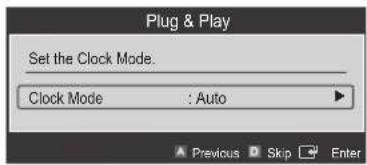
text_image
Plug & Play Set the Clock Mode. Clock Mode : Auto Previous Skip Enter
Step 7
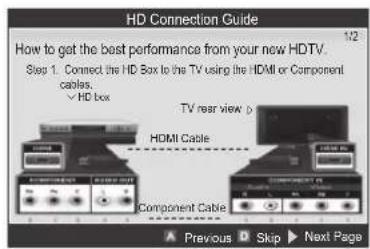
text_image
HD Connection Guide How to get the best performance from your new HDTV. Step 1. Connect the HD Box to the TV using the HDMI or Component cables. ✓ HD box TV near view > HDMI Cable Component Cable Previous Skip Next PageStep 8

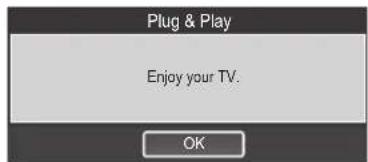
text_image
Plug & Play Enjoy your TV.
HD connection
Using an HDMI Cable
DVD / Blu-Ray player / HD Cable Box / HD Satellite receiver (STB)

HD connection
Using a DVI Cable
DVD / Blu-Ray player / Cable Box / Satellite receiver (STB)
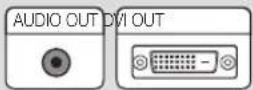
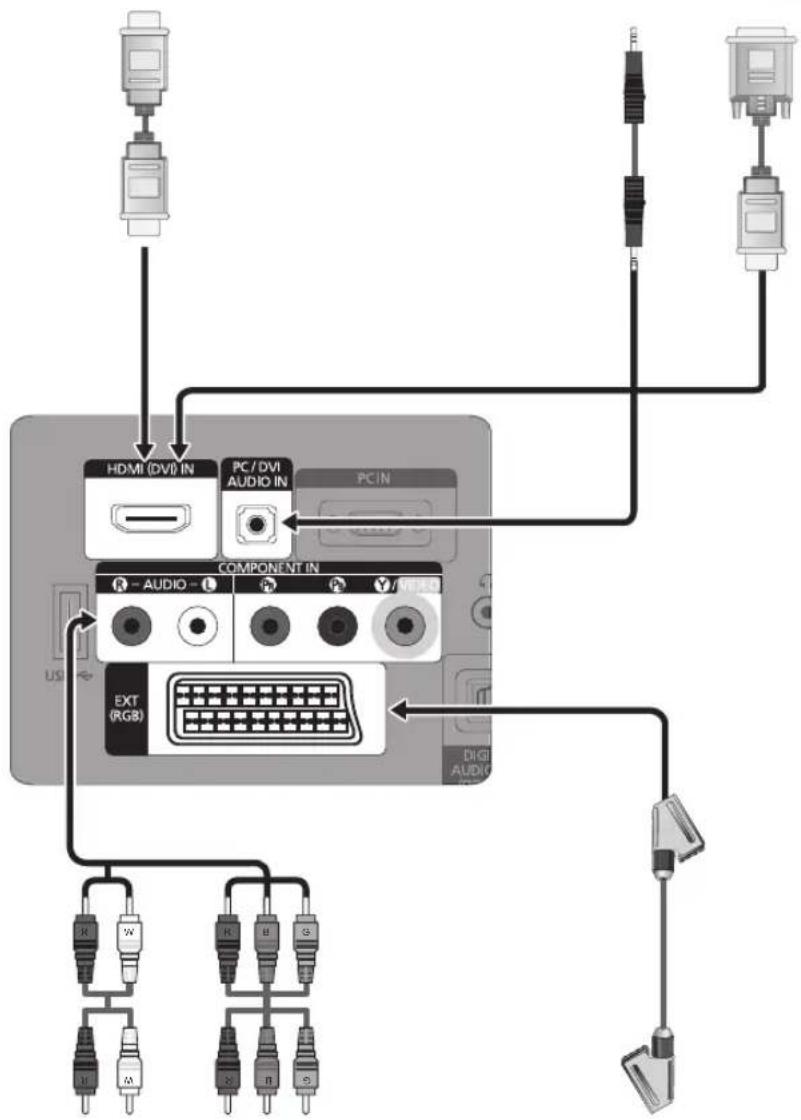
flowchart
graph TD
    A["USB"] --> B["HDMI (DVI) IN"]
    B --> C["PC/DVI AUDIO IN"]
    C --> D["COMPONENT IN"]
    D --> E["EXT (RGB)"]
    E --> F["LED"]
    F --> G["LED"]
    G --> H["LED"]
    H --> I["LED"]
    I --> J["LED"]
    J --> K["LED"]
    K --> L["LED"]
    L --> M["LED"]
    M --> N["LED"]
    N --> O["LED"]
    O --> P["LED"]
    P --> Q["LED"]
    Q --> R["LED"]
    R --> S["LED"]
    S --> T["LED"]
    T --> U["LED"]
    U --> V["LED"]
    V --> W["LED"]
    W --> X["LED"]
    X --> Y["LED"]
Component connection
Using a Component Cable
DVD / Blu-Ray player / Cable Box / Satellite receiver
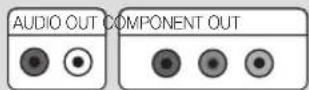
Using a Scart Cable
VCR / DVD