HWCAM1080 - Webkamera Hamlet - Gratis brugsanvisning og manual
Find enhedens vejledning gratis HWCAM1080 Hamlet i PDF-format.


Brugerspørgsmål om HWCAM1080 Hamlet
0 spørgsmål om dette apparat. Besvar dem du kender, eller stil dit eget.
Stil et nyt spørgsmål om dette apparat
Download vejledningen til din Webkamera i PDF-format gratis! Find din vejledning HWCAM1080 - Hamlet og tag din elektroniske enhed tilbage i hånden. På denne side er alle dokumenter nødvendige for brugen af din enhed offentliggjort. HWCAM1080 af mærket Hamlet.
BRUGSANVISNING HWCAM1080 Hamlet
Hamlet
FULL HD WEBCAM USB Webcam 1080p Full HD
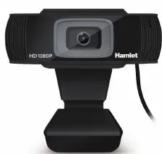
Manuale Utente
HWCAM1080
www.hamletcom.com
Gentile Cliente
La ringraziamo per la fiducia riposta nei nostri prodotti. La preghiamo di seguire le norme d'uso e manutenzione che seguono. Al termine del funzionamento di questo prodotto. La preghiamo di non
smaltirlo tra i rifiuti urbani misti, ma di effettuare una raccolta separata negli appositi raccoglitori di materiale elettrico/elettronico o di riportare il prodotto dal rivenditore che lo ritirerà gratuitamente.
Informiamo che il prodotto è stato realizzato con materiali e componenti in conformità a quanto previsto dalle Direttive RoHS 2011/65/EU & 2015/863/EU, RAEE 2002/96/CE, 2003/108/CE D.lgs. 151/2005 e dalla Direttiva EMC 2014/30/EU per i seguenti standard:
EN 55032: 2015
EN 55035: 2017
EN 61000-3-2: 2014
EN 61000-3-3: 2013

A
-
La dichiarazione di conformità CE completa relativa al prodotto può essere richiesta contattando Hamlet all'indirizzo e-mail info@hamletcom.com.
Visita www.hamletcom.com per informazioni complete su tutti i prodotti Hamlet e per accedere a download e supporto tecnico.
Tutti i marchi e i nomi di società citati in questa guida sono utilizzati al solo scopo descrittivo e appartengono ai rispettivi proprietari. Le informazioni contenute in questo manuale, le caratteristiche e l'aspetto del prodotto sono soggetti a modifiche senza preavviso.
Importato da: CARECA ITALIA SPA - Scandiano (RE) . Italia.
INTRODUZIONE
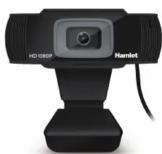
Hamlet HWCAM1080 è una Webcam USB con risoluzione Full HD 16:9 1080P e microfono integrato per utilizzo in videoconferenza con i principali software di comunicazione come Skype, Skype for Business, Microsoft Teams, Zoom, MS Lync2010/2013.
Specifiche
• Risoluzione video 1920 x 1080 @ 30 frame per sec.
• Sensore ottico 1/27 da 2 Megapixel
- Obbiettivo da 36 mm con autofocus
- Funzionamento anche con scarsa illuminazione
• Bilanciamento automatico del bianco • Connorzione Plug & Play USB, DRIVERLESS
- Commissione Plug & Play USB DRIVERLESS (Non richiede installazione di driver in Windows 8/10 e
(Non risolide installazione di driver in Windows Office Mac OS)
- Microfono integrato con soppressione dei rumori di fondo
• Supporto regolabile per scrivania o ancoraggio a monitor
Contenuto della scatola
• USB Webcam 1080p
- Manuale utente
ASPETTO DEL PRODOTTO
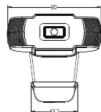
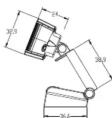
INSTALLAZIONE E USO
- Posizionare la webcam
Hamlet HWCAM1080 può essere posizionata su un monitor
LCD, sullo schermo di un laptop o sulla scrivania
Per il posizionamento su un monitor
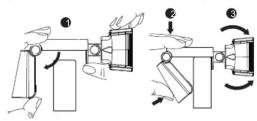
Afferrare la webcam come mostrato e aprire la base della clip con l'altra mano. Montare la webcam, accertandosi che la base della clip sia chiusa contro la parte posteriore del monitor.
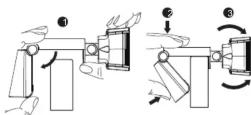
Per il posizionamento su una scrivania
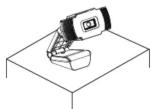
Regola la base di supporto della webcam per il miglior angolo di visione.
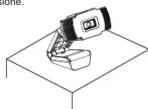
- Collegare la webcam al computer
Collegare il cavo USB della webcam ad una porta USB del computer. Attendere circa 1 minuto, la webcam verrà riconosciuta e installata automaticamente dal sistema operativo. Nessun driver è richiesto per l'installazione.
- Iniziare a utilizzare la webcam
La webcam è ora pronta per l'uso. Aprire il software di comunicazione preferito come Skype, Zoom, Microsoft Teams ecc. e iniziare una videochiamata.
FAQ
Come faccio a sapere se la mia webcam è riconosciuta dal sistema operativo?
Una volta che la webcam è collegata al computer, per assicurarsi che sia stata installata correttamente, verificare che la voce "USB Camera" sia visualizzata nella finestra "Gestione dispositivi" in Pannello di controllo > Sistema e sicurezza > Sistema > Gestione dispositivi.
Come faccio a sapere se la mia applicazione di videochiamata sta usando la mia webcam?
Tutte le applicazioni di videochiamata hanno un'impostazione per selezionare il dispositivo audio e video sorgente. Controllare le impostazioni del software di videochiamata per assicurarsi che "USB 2.0 Camera" sia selezionata come sorgente per il microfono e il video.
Perché la webcam non funziona su Skype, Zoom ecc.? Normalmente software come Skype, Zoom ecc. utilizzano la fotocamera integrata per impostazione predefinita. Se si desidera utilizzare la webcam USB, è necessario modificare le impostazioni video del software e selezionare "USB Camera" come sorgente video.
Hamlet
FULL HD WEBCAM USB Webcam 1080p Full HD
User Manual
HWCAM1080
www.hamletcom.com
Dear Customer
thanks for choosing an Hamlet product. Please carefully follow the instructions for its use and maintenance and, once this item has run its life span, we kindly ask You to diagnose of it in an environment.

We kindly ask you to dispose of it in an environmen tally friendly way, by putting it in the separate bins for electrical/electronic waste, or to bring it back to your retailer who will collect it for free.
We inform You this product is manufactured with materials and components in compliance with RoHS Directives 2011/65/EU & 2015/863/EU, WEEE Directive 2002/96/CE, 2003/108/CE Italian Legislative Decree 2005/151 and EMC Directive 2014/30/EU for the following standards:
EN 55032: 2015
EN 55035: 2017
EN 61000-3-2: 2014 EN 61000-3-3: 2013
EN 61000-3-5. 2013

The complete CE declaration of conformity of the product can be obtained by contacting Hamlet at info@hamletcom.com.
Visit www.hamletcom.com for complete information on all Hamlet products and to access downloads and technical support.
All trademarks and company names mentioned in this manual are used for description purpose only and remain property of their respective owners.
The material in this document is for information only. Contents, specifications and appearance of the product are indicative and may change without notice.
Imported by: CARECA ITALIA SPA - Scandiano (RE) . Italy.
INTRODUCTION
Hamlet HWCAM1080 is a USB Webcam with Full HD 16:9 1080P resolution and integrated microphone for use in videoconferencing with the main communication software such as Skype, Skype for Business, Microsoft Teams, Zoom, MS Lync2010/2013.
Specifications
• Video resolution 1920 x 1080 @ 30 frames per sec.
• Optical sensor 1/27 2 Megapixel
• 36mm lens with autofocus
• Operation even in low ligh
• Automatic white balance • Plug & Play USB DRIVERLESS connection
- Plug & Play USB DRIVERLESS connection (No driver installation required in Windows 8/10 and Mac
(No d OS)
- Integrated microphone with background noise reduction
- Adjustable stand for desktop use or LCD monitor anchor
Package contents
• USB Webcam 1080p
- User manual
PRODUCT OVERVIEW
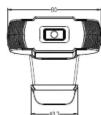
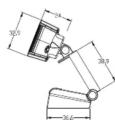
INSTALLATION AND USE
- Place your Webcam
Hamlet HWCAM1080 can be positioned on a LCD monitor, laptop screen or on the desktop.
For placement on a monitor
For placement on a monitor, Grasp the webcam as shown and open clip base with your other hand. Mount the webcam, making sure the foot on the clip base is folded in contact with the back of your monitor.
For placement on a desk
Adjust the mounting clip of the webcam for best viewing angle.
- Connect your Webcam to the computer
Plug your webcam's USB cable into USB port of your computer. Wait for about 1 minute, the webcam will be recognized and installed automatically by the operating system. No driver is required for installation.
- Start using your Webcam
Your webcam is now ready for use. Just open your favourite communication software like Skype, Zoom, Microsoft Teams etc. and start your video call.
FAQ
How do I know if my camera is recognized by the operating system?
Once the camera is connected to the computer, to ensure the camera has been installed correctly, check that "USB Camera" item appears in the "Device Manager" under Control Panel > System and Security > System > Device Manager.
How do I know if my video calling application is using my webcam?
All video application have an option setting for the audio and video device. Check the settings of your communication software to ensure the "USB2.0 Camera" microphone and video are selected as source.
Why it does not work on Skype, Zoom etc?
Normally software like Skype, Zoom etc. use the integrated camera by default. If you want to use USB webcam, you need to change video settings of the software and select the "USB Camera" as video source.
Mærke : Hamlet
Model : HWCAM1080
Kategori : Webkamera