
R8 (2018) - Bil AUDI - Gratis brugsanvisning og manual
Find enhedens vejledning gratis R8 (2018) AUDI i PDF-format.


Brugerspørgsmål om R8 (2018) AUDI
0 spørgsmål om dette apparat. Besvar dem du kender, eller stil dit eget.
Stil et nyt spørgsmål om dette apparat
Download vejledningen til din Bil i PDF-format gratis! Find din vejledning R8 (2018) - AUDI og tag din elektroniske enhed tilbage i hånden. På denne side er alle dokumenter nødvendige for brugen af din enhed offentliggjort. R8 (2018) af mærket AUDI.
BRUGSANVISNING R8 (2018) AUDI
2018
R8
Quick Questions & Answers

natural_image
Exterior view of a white Audi R5 sports car (no visible text or symbols on body)
Introduction to your R8
Audi connect®
Navigation
Climate Control & Cruise Control
MMI® Controls
Audi smartphone interface
Bluetooth® & Voice Recognition
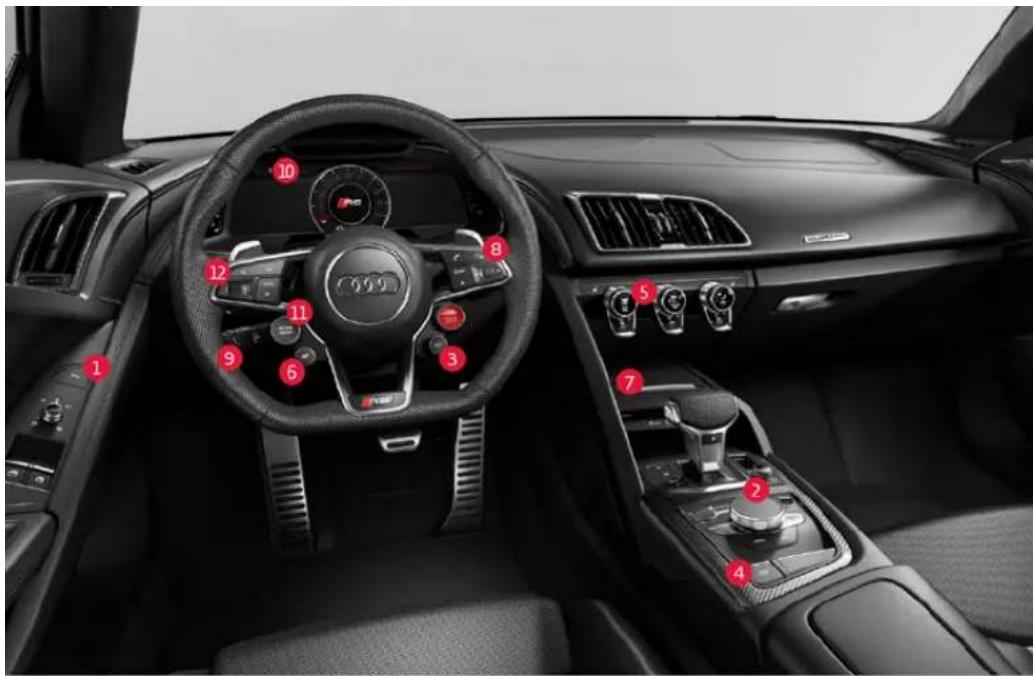
- Luggage Compartment Lid
Pressing the button unlatches the front luggage compartment lid. Wipers must be turned off before opening lid.
- MMI® Controls and Touchpad
The rotary pushbutton/touchpad with integrated joystick allows you to browse menus, zoom in and out of map views and select items by pressing the knob. Control and function buttons allow you to select system menus and personalize settings in the MMI.
- Engine Sound Controls*
Alters the exhaust note from exhaust Sport to exhaust Normal.
- Electromechanical Parking Brake
Pulling up on the switch engages the parking brake. To release, depress the brake pedal and push the switch down.
- Climate Control
Set preferences for temperature, airflow distribution and recirculation. Use in AUTD or Manual mode.
- Performance Controls*
Alters the suspension setting, engine and transmission characteristics for wet, dry and snowy driving conditions. ESC and ASR intervention are extremely limited while driving in Performance mode.
*Available on V10 plus models.
**Available on V10 models only.
- USB Ports
Allows connection of auxiliary devices and players. Two USB ports allow two devices to be connected to the MMI system at the same time.
- Voice Recognition
Press the TALK button on the steering wheel to activate Voice Recognition in the MMI.
- Cruise Control
Activating the Cruise Control system makes it possible to drive at a constant speed starting at 15mph (20km/h).
- Audi Virtual Cockpit
Displays vehicle system and function information. Menu selections can be accessed using either the MMI control knob or the multifunction steering wheel controls.
- Audi Drive Select
Allows you to choose a drive mode (Comfort, Auto, Dynamic or Individual), which alters the steering, damper control**, engine sound and quattro settings to the mode selected.
- Steering Wheel Controls
Assist with navigating through a variety of vehicle functions. To select a menu item, press the thumbwheel.
Introduction to your R8
Audi connect®
Navigation
Climate Control & Cruise Control
MMI® Controls
Audi smartphone interface
Bluetooth® & Voice Recognition
Audi connect®
Wi-Fi Configuration
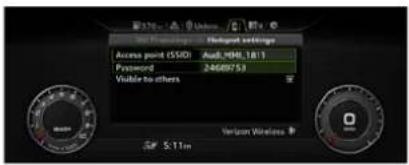
Audi connect can provide you with Google Earth™, Google Voice™ Local Search, Wi-Fi Hotspot, Online Services (fuel prices, weather information, travel information, personalized feeds and more) and my Audi Destinations*. Once your dealer has activated your Audi connect subscription within the vehicle, you may begin to configure your Wi-Fi connection:
- Select the TEL function.
- Select the right control button.
- Select Wi-Fi settings; ensure that Wi-Fi mode is set to On.
- Select Network key and enter an eight-character password, or use the default password. Use the touchpad to enter characters or shift the control knob forward to open the speller.
- Scroll using the control knob to select OK.
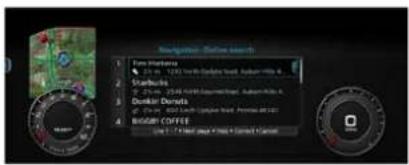
Points of Interest: Online Destination Search
- Press the TALK button on the steering wheel.
-
After tone, say "Google Search" or "Online Destinations" followed by a keyword (e.g., coffee shop, bookstore, museum, pizza, etc.).
-
Make your selection from the displayed list:
▶ By speaking the line number.
- Or saying "Next page" to view additional results.
- Say "Start route guidance" to begin navigation to your destination, or say "Call," which will call the location.
*Always pay careful attention to the road, and do not drive while distracted. Audi connect features and technologies are optional, may require an additional subscription with separate terms and conditions, and should be used only when it is safe and appropriate. The Wi-Fi feature is intended for passenger use only. Audi connect services are only available where there is mobile network coverage. You can obtain more information from your current service provider. Vehicle must be stationary with the parking brake engaged while performing this operation. Cellular connectivity is dependent on available cellular signal. Enter destinations while vehicle is stationary and away from traffic. This feature is available on select trim lines.
Note:
Refer to your Owner's Manual for additional commands. Cellular connectivity is dependent on available cellular signal.

Warnings: Audi connect*
To reduce the risk of an accident, only use Audi connect services when road and traffic conditions permit.
- Adjust the volume of the audio system so that signals from outside the vehicle, such as police and fire sirens, can be heard easily at all times.
- Only use the Infotainment system when traffic conditions permit and always in a way that allows you to maintain complete control over your vehicle.
- It is only safe to use tablets, laptops, mobile devices and other similar devices when the vehicle is stationary because, like all loose objects, they could be thrown around the inside of the vehicle in a crash and cause serious injuries. Store these types of devices securely while driving
To reduce the risk of an accident, only use Audi connect services using ≥ Wi-Fi hotspot when the vehicle is stationary.
- Do not use any Wi-Fi devices within range of the airbags while driving.
- As the driver, do not allow usage of the Wi-Fi hotspot to distract you from driving, as this could increase the risk of an accident.
- Do not use any wireless devices on the front seats within range of the airbags while driving.
Audi connect®
Navigation
Climate Control & Cruise Control
MMI® Controls
Audi smartphone interface
Bluetooth® & Voice Recognition
Audi Navigation
Setting a Destination
Your MMI Navigation system has extraordinary capabilities to enhance your drive with user-definable views, routing selections and more. Get started with setting destinations and discover more as you become familiar with the interface.
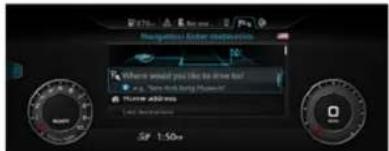
- Toggle the NAV/MAP switch up to open the Destination entry input screen.
- Use the touchpad to write the address or Point of Interest name, or shift the control knob forward to open the speller and enter information by manually selecting letters and numbers. Shift the knob down to close the speller.
- Available addresses will appear as information is entered, filtering to show only addresses meeting the currently entered information.
- Select appropriate address, then select Start route guidance.
Additional destination features can be seen by pressing the left control button.
Cancel Route Guidance
▶ Toggle the NAV/MAP switch to display the Destination entry screen and select Delete destination.
Or press the TALK button and say "Cancel route guidance" after the beep.
Alternative Routes
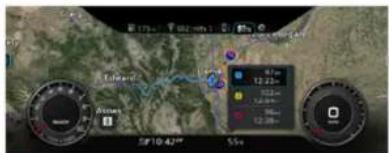
The Navigation system can display additional alternative routes based on speed, economy and traffic congestion. When this feature is enabled, alternative routes will always be displayed when route guidance is active.
To enable Alternative routes:
▶ Select the NAV/MAP function.
▶ Press the right control button and choose Navigation settings.
Select Show alternative routes to place a check mark in the box to enable this feature.
To select Alternative routes while route guidance is active:
▶ Select the right control button » choose Show alternative routes.
If available, up to three route suggestions will be displayed and can be selected via the control knob (Route type: fast 1, fast alternative 2, economic route 3).
Additional Settings
Additional settings can be configured within the Options menu using the right control button.
▶ Map Settings include display settings to change between Standard and Google Earth view as well as 2D and 3D modes.
Route criteria allows you to set the mode of travel to include or avoid roads such as HOV lanes, Toll roads and more.
▶ Voice guidance allows you to configure responses from Complete to Shortened, along with voice guidance volume.
You can have Audi feature information on demand with the myAudi IQ app, which delivers video demos for your Audi. Download the iOS app* now and put Audi knowledge in your pocket.
*Requires iOS 7.0 or later and available on iPad® only.
Note:
Always pay careful attention to the road and do not drive while distracted. Enter destinations while vehicle is stationary away from traffic. When pressing the NAV button, the last navigation announcement will be repeated.
Warnings: Navigation
The demands of traffic require your full attention.
- Obey all traffic laws when driving.
The route calculated by the Navigation system is a recommendation for reaching your destination. Obey traffic lights, stopping restrictions, one-way streets, lane change restrictions, etc.
- Adjust the volume of the audio system so that signals from outside the vehicle, such as police and fire sirens, can be heard easily at all times.
- Only use the Infotainment system when traffic conditions permit and always in a way that allows you to maintain complete control over your vehicle.
Navigation
Climate Control & Cruise Control
MMI® Controls
Audi smartphone interface
Bluetooth® & Voice Recognition
Automatic Climate Control
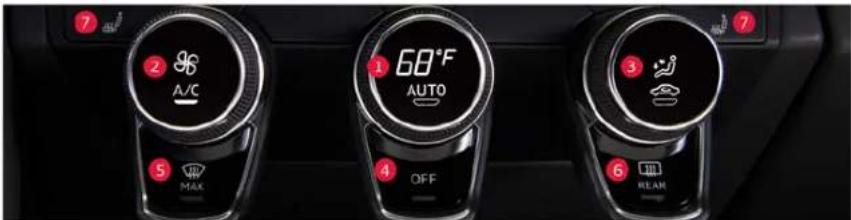
The Climate Control system warms, cools and adjusts the humidity of the air in the vehicle interior. It functions most effectively when the windows are closed. Pressing any button will activate the Climate Control system.
1. Temperature and AUTO
Turn the knob to adjust the temperature and press to select AUTO. The temperature, fan speed and air distribution will be automatically adjusted. AUTO is turned off if any other climate control button is pressed.
2. Fan and A/C
Adjust the fan speed by rotating the knob. Press to turn A/C on or off.
3. Air Distribution and Recirculation
Turn the knob for windshield, footwell or panel air distribution. Arrows in the display indicate airflow distribution. Press to select manual air recirculation. Auto recirculation may be set in the Infotainment system.
4. OFF
Press to turn the Climate Control system off. It also stops outside air from entering the cabin. Pressing any button will reactivate the Climate Control system.
Defrost
5. MAX Defrost
Press to clear the windshield and side windows of fog or frost. Fan speed and temperature will be regulated automatically. A/C may activate. Once clear, select AUTO or manually adjust the settings.
6. Rear Window Defogger
Activates an electric heater embedded in the rear glass. Will automatically turn off within 10-20 minutes.
Seat Heating
- When switched on, heating is at the highest level. To reduce the temperature, press again for medium or low.
Cruise Control
Activate
To activate, pull the control stalk toward you (ON position).
Set Cruising Speed
At your desired speed, press the SET button at the end of the stalk. The set speed, along with CRUISE, is shown in the Virtual Cockpit.
Changing Speed
There are several ways to change your speed:
▶ Accelerate or decelerate, then press the SET button again.
- Push the stalk up or down one level to increase/decrease speed in 1 mph increments.
- Push the stalk up or down two levels to increase/decrease speed in 5 mph increments.

- Hold the stalk up or down to increase/decrease speed; release when desired speed is reached.
Cancel/Resume
- Depress the brake pedal or push the stalk briefly away from you to the CANCEL position. The CRUISE light will go off.
- To resume, pull the stalk toward you; you will return to your set speed.
Your most recently set speed remains in memory until you turn Cruise Control or your Audi off.
Warnings: Climate Control
▶ Poor visibility can lead to accidents.
• For safer diving, keep all windows free of ice, snow and fog.
- Become familiar as quickly as possible with the correct use and function of the Climate Control system, especially with the defrosting and defogging function.
- When the temperature is below freezing, only use the windshield washer system after the windshield has been warmed by the Climate Control system. The washer fluid could freeze on the windshield and impair visibility.
- You should not use the recirculation mode for an extended period of time since no fresh air is drawn in. With the air-conditioning switched off, the windows can fog up, which increases the risk of an accident.
- Individuals with reduced sensitivity to pain or temperature could develop burns when using the seat heating function. To reduce the risk of injury, these individuals should not use seat heating.
Warnings: Cruise Control
• Always pay attention to the traffic around you when the Cruise Control is in operation. You are always responsible for your speed and the distance between your vehicle and other vehicles.
- For reasons of safety, Cruise Control should not be used in the city, in stop-and-go traffic, on winding roads and when road conditions are poor (such as ice, fog, gravel, heavy rain and hydroplaning); you could have an accident.
- Switch the Cruise Control off temporarily when driving in turning lanes, highway exits or in construction zones.
- Please note that unconsciously "resting" your foot on the accelerator pedal prevents the Cruise Control from braking. This is due to the control system being overridden by the driver's acceleration.
- If a brake system malfunction such as overheating occurs when the Cruise Control system is switched on, the braking function in the system may be switched off. The rest of the Cruise Control system functions remain active as long as indicator light is on.
- You should only resume the saved speed if it is not too high for existing traffic conditions. Otherwise you risk an accident.
Climate Control & Cruise Control
MMI® Controls
Audi smartphone interface
Bluetooth® & Voice Recognition
MMI® Controls
Center Console
The Audi Multi Media Interface (MMI) can be controlled from the center console as well as the steering wheel controls. There are input redundancies to allow you to access MMI functions in the way that best suits you.
1. MMI Control Knob and Touchpad
The rotary pushbutton/touchpad allows you to browse menus and zoom in and out of map views by rotating the knob and select items by pressing the knob. Enter alphanumeric information by writing with your finger on the touchpad. The MMI will display your entry.
To enter a space, swipe left-to-right. To delete a character, swipe right-to-left.
The knob can also be shifted in four directions:
Up: Opens the speller to enter alphanumeric information (e.g., Navigation address).
Down: Closes the speller.
Left/Right: Opens Selection and Options menus, same as control buttons.
2. Control Buttons
Left: Left control button opens the Selection menu to call up further functions for individual menu items (e.g., Radio).
Right: Right control button opens the Options menu to select and confirm specific functions for individual menu items.
3. NAV/MAP and TEL Function Switch
NAV/MAP: Toggle up repeatedly on the NAV/MAP to switch the display between Navigation input mode and Map mode.
TEL: Toggle down to enter the Telephone menu to access the Contact directory.
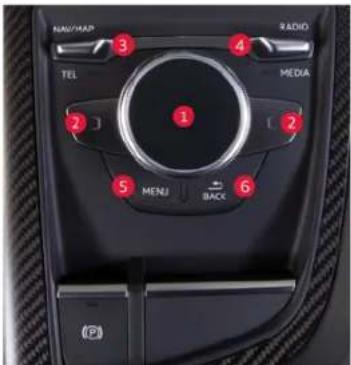
4. RADIO and MEDIA Function Switch
RADIO: Toggle up repeatedly to move through radio bands (AM, FM, SAT) along with Preset stations.
MEDIA: Allows you to select auxiliary devices and manage music and video content in folders, playlists and tracks. Toggle down repeatedly to move through the available Media sources (Bluetooth, SD, DVD, etc.).
5. MENU
Opens the main menu in a given function (e.g., Vehicle, Radio, Media, Telephone, Navigation, Audi connect, etc.).
6. BACK
Moves back through the menu hierarchy in reverse order of your recent selections. When entering text, pressing BACK will delete a character. Pressing and holding will remove all characters on a line.
Steering Wheel MMI Controls
1. Tab Arrows
Switch between available functions in the Audi Virtual Cockpit.
2. Control Buttons
Left/right control buttons operate the same as the control buttons in the MMI console.
3. Thumbwheel
Use to move through menus in the Audi Virtual Cockpit. Press thumbwheel to choose selections. Also zooms map in NAV view.
4. VIEW
Switches between Sport/Classic and Expanded view in Audi Virtual Cockpit.
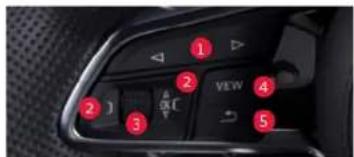
5. BACK Arrow Button
Operates the same as the BACK button in the MMI console.
Steering Wheel Audio Controls
1. Voice Recognition
Press to activate Voice Recognition. Speak available command after confirmation tone. Press and hold to cancel Voice Recognition.
2. Telephone
Press to answer or end a phone call. Press to display call list when there is no active call.
3. Programmable Button
Allows selection of a custom command defined by the user. To change function, select MENU button » Vehicle » left control button » Vehicle settings » Steering wheel button.
4. Advance and Replay
Pressing the forward arrow advances to the next track or radio station. Back arrow returns to the previous track or station. Pressing and holding will fast forward or rewind an audio track.
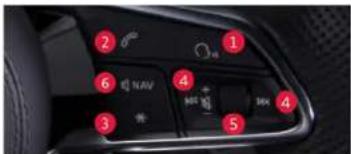
5. Thumbwheel
Turn volume up or down. Press to mute or pause. Press again to unmute or play.
6. NAV
While route guidance is active, pressing will repeat the last navigation cue.
⚠️ Warnings: Multi Media Interface (MMI®)
Adjust the volume of the audio system so that signals from outside the vehicle, such as police and fire sirens, can be heard easily at all times.
▶ Only use the Infotainment system when traffic conditions permit and always in a way that allows you to maintain complete control over your vehicle.
MMI® Controls
Audi smartphone interface
Bluetooth® & Voice Recognition
Audi smartphone interface
Connecting
You can connect your Apple® or Android™ phone to the MMI. Certain content on your phone will be adapted to the Infotainment system display while driving and can be operated through the MMI controls*. This gives you the benefit of the familiarity with your phone's system combined with the MMI display.
To connect:
- The vehicle must be stationary with the ignition on.
- Connect your smartphone with a manufacturer approved cable to either USB port. Before using Android Auto™, you must download the Android Auto app from the Google Play™ Store. You must have an active Google account and internet connection.
- You will see a connection prompt in the MMI.
- Using the control knob, select to activate the device.
- Respond to prompts as necessary from both the MMI, as well as the smartphone.
Once connected, you have access to the apps displayed on the screen. Select the apps using the MMI control knob.
With Apple CarPlay™ and Android Auto™ you can:
- Activate Siri® Voice Control or Talk to Google with a long press of the TALK button on the steering wheel.
▶ Make and receive calls.
▶ Send and receive text messages.
▶ Set reminders.
▶ Get turn-by-turn navigation.
▶ See recent places.
Listen to music.
*Not all apps will work with the Audi smartphone interface, and some functions may be limited. The functions that can be used depend on the operating system version and the software of the app being used. Some MMI functions may not be available when Apple CarPlay" or Android Auto" is active. Refer to apple.com/ies/carplay/ or android.com/auto/ for additional information.
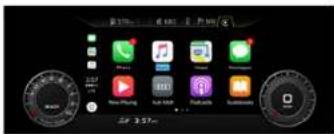
Apple CarPlay™ Operation
If a Bluetooth connection is active when CarPlay® is activated, it will disconnect Bluetooth and use CarPlay exclusively for telephone connectivity.
▶ MMI control knob:
- Turn the knob and press to open selected apps and control functions within that app.
- Shift the knob down or up to change levels to access apps more quickly. Shift the control knob to the right to advance to the next screen.
- Press and hold the BACK button to return to the active app menu.
Android Auto™ Operation
If you had not previously paired your phone with Bluetooth, it will be paired automatically with your MMI system**.
▶ MMI control knob:
- Shifting the knob down will change usage from within an open app to allowing you to select another app.
▶ Turning the knob and pressing will open the selected app. - Shifting left or right within an active app will open additional features or settings. For example, shifting to the right will activate Talk to Google.
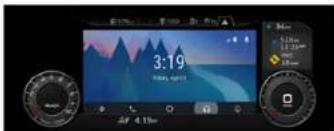
▶ Use your fingers to "pinch" or "spread" the view using the MMI touchpad. Press to select a location to begin route guidance.
**The Android phone may prompt to acknowledge additional requests.
Access to Apple CarPlay™ and Android Auto™
If you have an active Apple CarPlay or Android Auto session and have accessed another MMI function and wish to return:
- Select the MENU function button.
- Scroll using the MMI control knob to select Apple CarPlay or Android Auto from the Menu.
Connection Manager
If your device is presently using MMI Media as the source and you wish to activate Apple CarPlay or Android Auto instead:
- Select the MENU function button.
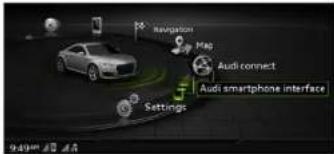
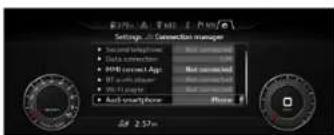
- Scroll using the MMI control knob to select Audi smartphone interface. This will open the Connection Manager.
- To activate, scroll to Audi smartphone and press the control knob, and place a check in the box for your device. Remove the check to deactivate from the Audi smartphone interface.
The Connection Manager can also be accessed by selecting Menu » Settings » Connection Manager.
Note:
Always pay careful attention to the road, and do not drive while distracted. Audi smartphone interface features require compatible device, operating systems, and mobile app. CarPlay® requires iPhone 5 or newer. For Android Auto®, visit g.co/autocheck on your phones browser to see if it is compatible. Siri™ must be enabled on device to activate Siri features. Standard text and data usage rates apply. See mobile app provider for terms and privacy. Android Auto™ is a trademark of Google Inc. Apple CarPlay® is a trademark of Apple Inc.
⚠️ Warnings: Audi smartphone interface
- Only use the Infotainment system when traffic conditions permit and always in a way that allows you to maintain complete control over your vehicle.
• Always make sure that you follow the instructions and heed the WARNINGS in this Manual. It is in your interest and in the interest of your passengers.
* Always keep the complete Owner's literature in your Audi when you lend or sell your vehicle so that this important information will always be available to the driver and passengers.
• Always keep the Owner's literature handy so that you can find it easily if you have questions. Driving requires your complete and undivided attention. As the driver, you have complete responsibility for safety in traffic. Never operate mobile devices while driving, because this increases the risk of an accident.
Audi smartphone interface
Bluetooth® & Voice Recognition
Bluetooth® Pairing
Pairing a Compatible Device
Bluetooth pairing is a one-time procedure. Once paired, your phone will automatically connect when you start your vehicle*. Your contact list will automatically synchronize, allowing you to access contacts and make and receive calls through the Infotainment system. For information regarding phone compatibility, visit audiusa.com/bluetooth.
- Switch ignition to Accessories mode.
- Activate your phone's Bluetooth and set to pairing or discovery mode.
- In the list of available devices, select the Audi MMI listing for the vehicle.
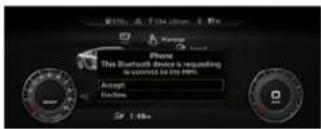
- When the prompt appears in the MMI, select Accept using the control knob.
- Confirm the PIN matches and select Yes in response to the prompt.
- Select Pair on your device.
Two active phones can be connected simultaneously to receive calls through the MMI, giving you primary and secondary devices. To change the order of devices:
- Select the TEL function.
- Press the right control button.
- Select Switch main and additional phone.
- This will also make the contact list from the new primary phone active.
If the primary phone is in use, the secondary phone will only receive calls from the phone, not the MMI system.
*Some phones may require an additional response to prompts to allow full connectivity. Once paired, the mobile phone symbol and network strength bars will appear at the bottom of the MMI screen.
Wireless Audio Streaming
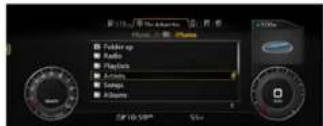
Streams music wirelessly via Bluetooth connection. To connect a device (or additional devices) follow the pairing instructions above. Once paired, Bluetooth Audio player is established. To stream audio: select the Media function button > select Bluetooth as the source using the left control button.
Choose from Artists, Albums, Songs and more.

natural_image
Side profile of a white Audi sports car with black and silver alloy wheel (no visible text or symbols)Note:
Bluetooth® Pairing
Apple products connected via the USB cable will disable Bluetooth Audio. To reestablish Bluetooth audio, disconnect the USB cable and select the device from the Media/Source menu: Bluetooth® Pairing requires compatible device. See your phone's Owner's Manual for specific Bluetooth activation instructions. Vehicle must be stationary with the parking brake engaged while performing this operation. Once paired, the Bluetooth symbol appears in the MMI® screen along with network strength bars, and it will be displayed whenever a paired phone is connected to the infotainment system.
Note:
Voice Recognition
External Voice Recognition requires compatible mobile device with an active data plan.
Warnings: Bluetooth® Pairing
- Adjust the volume of the audio system so that signals from outside the vehicle, such as police and fire spirits, can be heard easily at all times. - Only use the Infotainment system when traffic conditions permit and always in a way that allows you to maintain complete control over your vehicle.
- Medical experts warn that cell phones can interfere with the function of pacemakers.
• Always maintain a minimum distance of 20 centimeters between the cell phone antenna and the pacemaker.
- Do not carry the cell phone in a pocket directly over the pacemaker when the phone is switched on.
- Switch the cell phone off immediately if you suspect it may be interfering with the pacemaker. - Do not use the Voice Recognition system in emergencies because your voice may change in stressful situations. It may take longer to dial the number or the system may not be able to dial it at all. Dial the emergency number manually.
- Switch your cellphone off in areas where there is a risk of an explosion. These locations are not always clearly marked. This may include gas stations, fuel and chemical storage facilities or transport vehicles, or locations where fuel vapors (such as propane or gasoline vapor in vehicles or buildings), chemicals or large quantities of dust particles (such as flour, sawdust or metal) may be present in the air. This also applies to all other locations where you would normally turn your vehicle engine off.
• The demands of traffic require your full attention.
- Direct your full attention to driving. As the driver, you have complete responsibility for safety in traffic. Only use the functions in such a way that you always maintain complete control over your vehicle in all traffic situations.
Because your phone works with radio signals, a connection cannot be guaranteed under all circumstances. Do not rely on only your phone when it comes to essential communication (such as a medical emergency).
- Always follow the instructions given by emergency personnel during an emergency call and only end the call when they instruct you to do so.
Warnings: Voice Recognition
- Direct your full attention to driving. As the driver, you have complete responsibility for safety in traffic. Only use the functions in such a way that you always maintain complete control over your vehicle in all traffic situations.
- Do not use the Voice Recognition system in emergencies because your voice may change in stressful situations. It may take longer to dial the number of the system may not be able to dial it at all. Dial the emergency number manually.
Bluetooth® Pairing
Pairing a Compatible Device
Bluetooth pairing is a one-time procedure. Once paired, your phone will automatically connect when you start your vehicle*. Your contact list will automatically synchronize, allowing you to access contacts and make and receive calls through the Infotainment system. For information regarding phone compatibility, visit audluna.com/bluetooth. 1. Switch ignition to Accessories mode.
- Activate your phone's Bluetooth and set to pairing or discovery mode.
- In the list of available devices, select the Audi MMI listing for the vehicle.
- When the prompt appears in the MMT, select Accept using the control knob.
- Confirm the PIN matches and select Yes in response to the prompt.
- Select Pair on your device
Two active phones can be connected simultaneously to receive calls through the MMI, giving you primary and secondary devices. To change the order of devices:
- Select the TEL function.
- Press the right control button
- Select Switch main and additional phone.
- This will also make the contact list from the new primary phone active.
If the primary phone is in use, the secondary phone will only receive calls from the phone, not the MMI system.
*Some phones may require an additional response to prompts to allow full connectivity. Once paved, the mobile phone symbol and network strengths will appear at the bottom of the MHI screen.

Wireless Audio Streaming
Streams music wirelessly via Bluetooth connection. To connect a device (or additional devices) follow the pairing instructions above. Once pared, Bluetooth Audio player is established. To stream audio: select the Media function button select Bluetooth as the source using the left control button.
Choose from Artists, Albums, Songs and more.
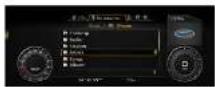
Your Bluetooth wireless audio is also capable of streaming audio from other apps:
- To begin playing from another app or restart audio stored on your device, start the app from the device.
- If your device is currently connected with Bluetooth and plugged into the USB port, the Bluetooth audio connection will be turned off.
- To reestablish the Bluetooth connection, remove the connection to the USB, select the Bluetooth source and follow the prompts to turn Bluetooth Audio back on.
Voice Recognition
The handsfree microphone is located near the front interior lights in the roof headliner and on the driver's safety belt. The safety belt microphones activate when the seat belt is buckled.
Call by Name
When using Voice Recognition, speak in a normal voice, facing forward. Keep cabin noise to a minimum.
- Press the TALK button. A beep will sound.
- Say "Call"
(e.g., "Call John Smith."). - After system response, confirm request by saying, "Yes." You may also say "Cancel."
- If multiple numbers are stored for a given contact, the system will ask which you wish to dial. To avoid this, indicate it in your initial request (e.g., "Call John Smith, mobile.")
Refer to your Owner's Manual for additional commands.
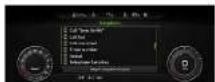
External Voice Recognition
Depending on your device, you can activate Siri. Google Now, Curtana or Blackberry Assistant Voice Recognition commands when paired via Bluetooth.
1. Press and hold the TALK button until you hear a tone.
2. Say the Voice Recognition command recognized by your device (e.g., "What is the weather forecast for tomorrow?").
3. While active, additional commands can be given by simply pressing the TALK button.
4. Active External Voice Recognition will time out within a few seconds of no interaction.
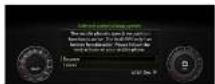
Setting a Destination
- Press the TALK button on the steering wheel. A beep will sound.
- Say, "Drive me to" and speak entire address; e.g., "eight eight five nine Wilshire Boulevard, Los Angeles". (Speak single digits.)
- The system will locate the address and confirm. Say "Yes" after the command to begin route guidance.
See Owner's Manual for complete list of commands.
There are three ways to cancel Voice Recognition:
- Say "Cancel" at voice prompt.
- Press any button on the MMI controls.
- Press and hold the TALK button on the steering wheel until you hear "Cancel".


natural_image
Front view of a white Audi Sport car with hexagonal grille and headlights (no visible text or symbols)BRAKE
Brake System
PARK
Electromechanical parking brake

Cooling system

Engine oil pressure

Alternator

Engine stop while driving

Engine control

Safety belt

Electromechanical steering

Steering lock

Central indicator light

Engine start system

Transmission malfunction

Rear spoiler

Electronic Stabilization Control (ESC)

Electronic Stabilization Control (ESC)

Anti-lock braking system (ABS)

Safety systems
BRAKE WEAR
Brake pads

Electromechanical parking brake

Tire pressure monitoring system

Tire pressure monitoring system

Engine control

Emissions control system

Engine speed limitation

Engine oil level

Engine oil sensor

Battery charge

Tank system

Washer fluid level

Windshield wipers

Remote control key

Battery in remote control key

Bulb failure indicator

Headlight range control system

Adaptive light

Light/rain sensor

Transmission

Steering lock

Engine start system

Central indicator light

Electromechanical steering

Damper control

Rear spoiler

All wheel drive

Turn signals

Cruise control system

Convenience key

Electromechanical parking brake

Transmission

Electromechanical parking brake

Speed warning system

Headlight assistant

High beams

Learn more about how to operate the features within your Audi.
TEXT 2018R8 to 38981
Do not text and drive.
Message and data rates may apply.
To learn more about your features, call your Audi Technologist. 1-855-750-TECH (8324).
- Introduction to your R8
- Audi connect®
- Navigation
- Climate Control & Cruise Control
- MMI® Controls
- Audi smartphone interface
- Bluetooth® & Voice Recognition
- Wi-Fi Configuration
- Points of Interest: Online Destination Search
- Audi Navigation
- Setting a Destination
- Cancel Route Guidance
- Alternative Routes
- Additional Settings
- Note:
- Warnings: Navigation
- Automatic Climate Control
- Temperature and AUTO
- Fan and A/C
- Air Distribution and Recirculation
- OFF
- Defrost
- MAX Defrost
- Rear Window Defogger
- Seat Heating
- Cruise Control
- Activate
- Set Cruising Speed
- Changing Speed
- Cancel/Resume
- Warnings: Climate Control
- Warnings: Cruise Control
- Center Console
- MMI Control Knob and Touchpad
- Control Buttons
- NAV/MAP and TEL Function Switch
- RADIO and MEDIA Function Switch
- MENU
- BACK
- Steering Wheel MMI Controls
- Tab Arrows
- Thumbwheel
- VIEW
- BACK Arrow Button
- Steering Wheel Audio Controls
- Voice Recognition
- Telephone
- Programmable Button
- Advance and Replay
- Thumbwheel
- NAV
- Connecting
- To connect:
- With Apple CarPlay™ and Android Auto™ you can:
- Apple CarPlay™ Operation
- Android Auto™ Operation
- Access to Apple CarPlay™ and Android Auto™
- Connection Manager
- Bluetooth® Pairing
- Pairing a Compatible Device
- Wireless Audio Streaming
- Warnings: Bluetooth® Pairing
- Warnings: Voice Recognition
- Voice Recognition
- Call by Name
- External Voice Recognition
- BRAKE
- Brake System
- PARK
- BRAKE WEAR
Mærke : AUDI
Model : R8 (2018)
Kategori : Bil