
CCD-TRV66 - Videokamera SONY - Gratis brugsanvisning og manual
Find enhedens vejledning gratis CCD-TRV66 SONY i PDF-format.


Brugerspørgsmål om CCD-TRV66 SONY
0 spørgsmål om dette apparat. Besvar dem du kender, eller stil dit eget.
Stil et nyt spørgsmål om dette apparat
Download vejledningen til din Videokamera i PDF-format gratis! Find din vejledning CCD-TRV66 - SONY og tag din elektroniske enhed tilbage i hånden. På denne side er alle dokumenter nødvendige for brugen af din enhed offentliggjort. CCD-TRV66 af mærket SONY.
BRUGSANVISNING CCD-TRV66 SONY
Video Camera Recorder
Operating Instructions
Before operating the unit, please read this manual thoroughly, and retain it for future reference.
natural_image
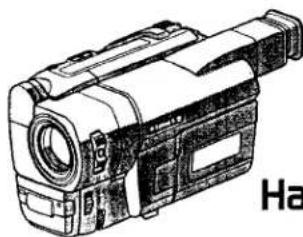
Line drawing of a video camera with no visible text or symbols on the device itselfHandycam Vision™
video Hi8 XR
InfoLITHIUM
CCD-TRV66 Hi8
©1998 by Sony Corporation
Welcome!
Congratulations on your purchase of this Sony Handycam Vision™ camcorder. With your Handycam Vision, you can capture life's precious moments with superior picture and sound quality.
Your Handycam Vision is loaded with advanced features, but at the same time it is very easy to use. You will soon be producing home video that you can enjoy for years to come.
WARNING
To prevent fire or shock hazard, do not expose the unit to rain or moisture.
To avoid electrical shock, do not open the cabinet. Refer servicing to qualified personnel only.
Table of contents
Quick Start Guide 4
Getting started
Using this manual 6
Checking supplied accessories....7
Step 1 Preparing the power supply ..... 8
Installing the battery pack .... 8
Charging the battery pack 9
Connecting to a wall outlet ..... 12
Step 2 Inserting a cassette .... 13
Recording - Basics
Recording a picture 14
Shooting backlit subjects (BACK LIGHT) 19
Shooting in the dark (NightShot) 19
Superimposing the date and time on pictures 21
Checking the recording - END SEARCH/EDITSEARCH / Rec Review ...... 22
Playback - Basics
Playing back a tape 23
Viewing the recording on TV 26
Advanced Recording Operations
Photo recording 28
Using the wide mode 30
Using the fader function 32
Using special effects – Picture effect 35
Using special effects - Digital effect 36
Using the PROGRAM AE function .... 39
Adjusting the exposure manually ..... 41
Focusing manually 42
Superimposing a title 43
Making your own titles 45
Using the built-in light 47
Advanced Playback Operations
Playing back a tape with digital effects 49
Editing on Other Equipment
Dubbing a tape 50
Recording video or TV programs ..... 51
Customizing Your Camcorder
Changing the MENU settings ..... 52
Resetting the date and time 58
Additional Information
Usable cassettes and playback modes 60
Changing the lithium battery in your camcorder 62
Troubleshooting 64
Self-diagnosis display 67
Warning indicators and messages..... 68
Using your camcorder abroad ..... 69
Maintenance information and precautions 70
Specifications 74
Quick Reference
Identifying the parts and controls ..... 75
Quick Function Guide 82
Index 83
Quick Start Guide
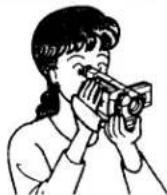
This chapter introduces you to the basic features of your camcorder. See the page in parentheses “( )” for more information.

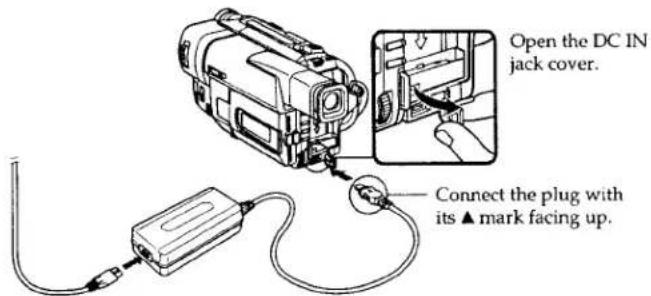
Connecting the power cord (p. 12)
Use the battery pack when using your camcorder outdoors (p. 8).
Quick Start Guide
text_image
Open the DC IN jack cover. Connect the plug with its ▲ mark facing up.
Inserting a cassette (p. 13)

Slide EJECT in the direction of the arrow while pressing the small blue button.


Insert a cassette into the cassette compartment with its window facing out.

Close the cassette compartment by pressing the "PUSH" mark on the cassette compartment. The cassette compartment automatically goes down.
natural_image
Line drawing of a video camera with visible lens and external components (no text or symbols)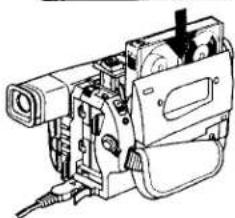
natural_image
Technical line drawing of a mechanical device with no visible text or symbols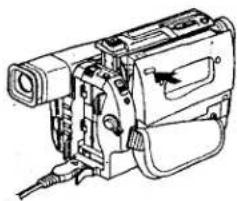
natural_image
Line drawing of a vintage video camera with external components and no visible text or symbols
Recording a picture (p. 14)
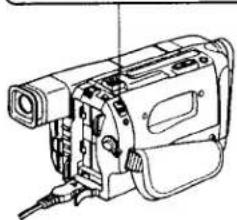
1 Set the POWER switch to CAMERA
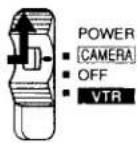
while pressing the small green button.
natural_image
Technical line drawing of a mechanical device with no visible text or symbols3 Turn STANDBY to STANDBY. The picture appears on the LCD screen.
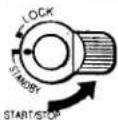
4 Press the red button. Your camcorder starts recording. To stop recording, press the red button again.

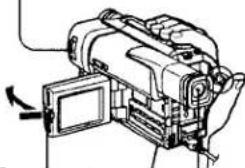
② Open the LCD panel while pressing OPEN.
Viewfinder
When the LCD panel is closed, use the viewfinder placing your eye against its eyecup.

Monitoring the playback picture on the LCD screen (p. 23)
① Set the POWER switch to VTR while pressing the small green button.

② Press ◀◀ to rewind the tape.

3 Press ▶ to start playback.

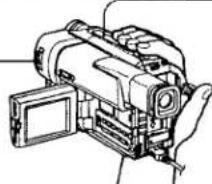
NOTE
Do not pick up your camcorder by holding the viewfinder or by holding the LCD panel.
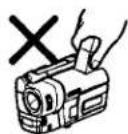
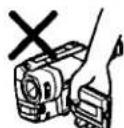
— Getting started — Using this manual
As you read through this manual, buttons and settings on your camcorder are shown in capital letters.
e.g. Set the POWER switch to CAMERA
When you carry out an operation, you can hear a beep sound to indicate that the operation is being carried out.
Note on TV color systems
TV color systems differ from country to country. To view your recordings on a TV, you need an NTSC system-based TV.
Copyright precautions
Television programs, films, video tapes, and other materials may be copyrighted. Unauthorized recording of such materials may be contrary to the provision of the copyright laws.
Precautions on camcorder care
- The LCD screen is manufactured using high-precision technology. However, there may be some tiny black spots and/or bright spots (red, blue or green in color) that constantly appear on the LCD screen. These spots occur normally in the manufacturing process and do not affect the recorded picture in any way. Effective number of pixels is 99.99% or more.
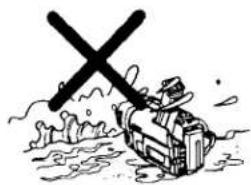
- Do not let your camcorder get wet. Keep your camcorder away from rain and sea water. Letting your camcorder get wet may cause your camcorder to malfunction. Sometimes this malfunction cannot be repaired [a].
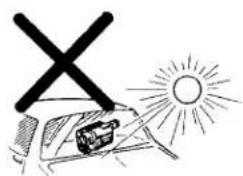
- Never leave your camcorder exposed to temperatures above 60°C (140°F), such as in a car parked in the sun or under direct sunlight [b].
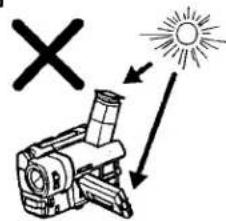
- Do not place your camcorder so as to point the viewfinder or the LCD screen toward the sun. The inside of the viewfinder or the LCD screen may be damaged [c].
[a]
natural_image
Cartoon illustration of a person using a large tool to catch water, with a cross symbol above (no text or symbols present)[b]
natural_image
Simple line drawing of a sun and a vehicle with an 'X' symbol above, no text or labels present.[c]
text_image
Diagram illustrating a microscope with a sun symbol and an 'X' symbol, indicating light direction or illumination.Checking supplied accessories
Make sure that the following accessories are supplied with your camcorder.
1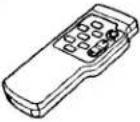 | 2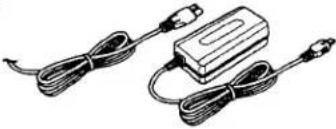 | 3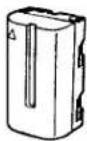 | |
4 | 5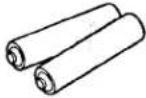 | 6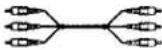 | 7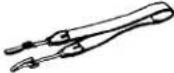 |
① Wireless Remote Commander (1) (p. 80)
② AC-L10A/L10B/L10C AC power adaptor (1), Power cord (1) (p. 9)
③ NP-F330 battery pack (1) (p. 8, 9)
4 CR2025 lithium battery (1) (p. 62)
The lithium battery is already installed in your camcorder.
5 R6 (size AA) battery for Remote Commander (2) (p. 80)
6 A/V connecting cable (1) (p. 26)
7 Shoulder strap (1) (p. 77)
Contents of the recording cannot be compensated if recording or playback is not made due to a malfunction of the camcorder, video tape, etc.
Step 1 Preparing the power supply
Installing the battery pack
Install the battery pack to use your camcorder outdoors.
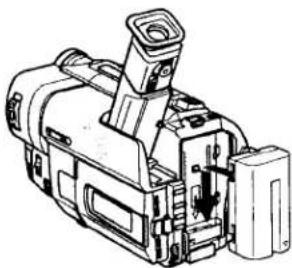
Slide the battery pack down.
natural_image
Technical line drawing of a mechanical device with no visible text or symbolsTo remove the battery pack
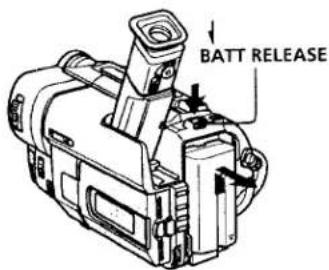
Slide the battery pack out in the direction of the arrow while pressing ▼ BATT RELEASE down.
text_image
BATT RELEASEAfter installing the battery pack
Do not carry your camcorder by holding the battery pack. If you do so, the battery pack may slide off your camcorder unintentionally, damaging your camcorder.
Step 1 Preparing the power supply
Charging the battery pack
Use the battery pack after charging it for your camcorder.
Your camcorder operates only with the "InfoLITHIUM" battery pack (L series).
"InfoLITHIUM" is a trademark of Sony Corporation.
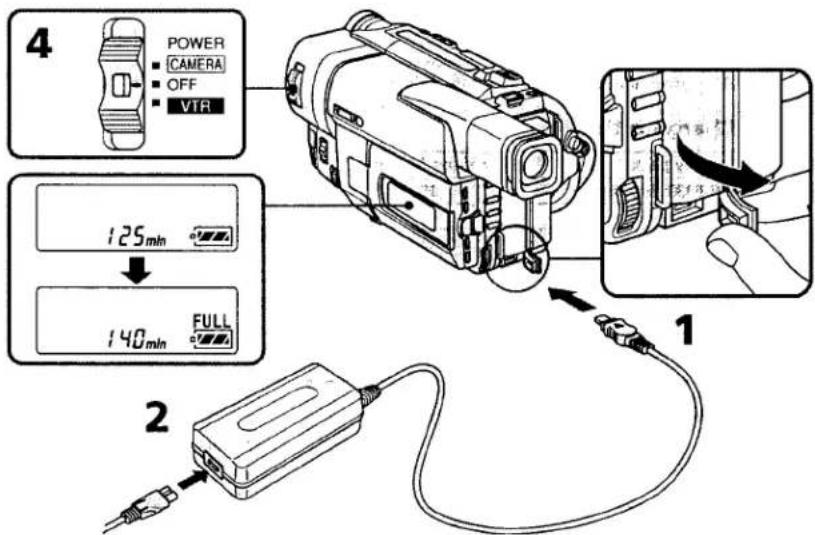
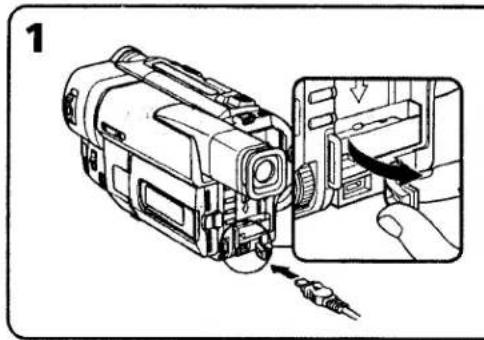
(1) Open the DC IN jack cover and connect the AC power adaptor supplied with your camcorder to the DC IN jack with the plug's ▲ mark facing up.
(2) Connect the power cord to the AC power adaptor.
(3) Connect the power cord to a wall outlet.
(4) Set the POWER switch to OFF. Charging begins. The remaining battery time is indicated in minutes on the display window.
When the remaining battery indicator changes to 📄, normal charge is completed. To fully charge the battery (full charge), leave the battery pack attached for about 1 hour after normal charge is completed until FULL appears in the display window. Fully charging the battery allows you to use the battery longer than usual.
text_image
4 POWER CAMERA OFF VTR 125min 140min FULL 1 2Step 1 Preparing the power supply
Note
Prevent metallic objects from coming into contact with the metal parts of the DC plug of the AC power adaptor. This may cause a short-circuit, damaging the AC power adaptor.
Remaining battery time indicator
The remaining battery time indicator in the display window roughly indicates the recording time with the viewfinder.
Battery pack
The battery pack is charged a little before it leaves the factory.
Until your camcorder calculates the actual remaining battery time
"----min" appears in the display window.
If there is a slight difference in shape between the plug of power cord and the terminal of AC power adaptor
It is ignorable for their mutual connection and power supply.
Plug the power cord deeply
Be sure to plug the power cord deeply into the terminal of AC power adaptor so that it is firmly locked. If there is a gap between the ping of power cord and the terminal of AC power adaptor, it does not affect the efficiency of AC power adaptor.
Charging time
| Battery pack | Full charge (Normal charge) |
| NP-F330 (supplied) | 150 (90) |
| NP-F530/F550 | 210 (150) |
| NP-F730/F750 | 300 (240) |
| NP-F930/F950 | 390 (330) |
Approximate number of minutes to charge an empty battery pack
Recording time
| Battery pack | Recording with the viewfinder | Recording with the LCD screen | ||
| Continuous* | Typical** | Continuous* | Typical** | |
| NP-F330 (supplied) | 140 (125) | 75 (65) | 115 (100) | 65 (55) |
| NP-F530 | 245 (220) | 130 (120) | 195 (170) | 110 (95) |
| NP-F550 | 280 (250) | 150 (135) | 230 (200) | 125 (110) |
| NP-F730 | 500 (450) | 270 (245) | 395 (355) | 220 (195) |
| NP-F750 | 580 (525) | 315 (285) | 470 (425) | 260 (235) |
| NP-F930 | 780 (705) | 420 (380) | 625 (560) | 345 (310) |
| NP-F950 | 900 (790) | 485 (425) | 725 (650) | 400 (360) |
Approximate number of minutes when you use a fully charged battery
Numbers in parentheses “( )” indicate the time using a normally charged battery.
* Approximate continuous recording time at 25°C (77°F). The battery life will be shorter if you use your camcorder in a cold environment.
** Approximate number of minutes when recording while you repeat recording start/stop, zooming and turning the power on/off. The actual battery life may be shorter.
Step 1 Preparing the power supply
Playing time
| Battery pack | Playing time on LCD screen | Playing time with LCD closed |
| NP-F330 (supplied) | 110 (95) | 135 (120) |
| NP-F530 | 185 (165) | 235 (210) |
| NP-F550 | 220 (195) | 270 (240) |
| NP-F730 | 380 (340) | 475 (425) |
| NP-F750 | 455 (410) | 550 (500) |
| NP-F930 | 600 (540) | 745 (670) |
| NP-F950 | 700 (630) | 850 (760) |
Approximate number of minutes when you use a fully charged battery
Numbers in parentheses “( )” indicate the time using a normally charged battery. The battery life will be shorter if you use your camcorder in a cold environment.
After charging the battery pack
Disconnect the AC power adaptor from the DC IN jack on your camcorder.
Note on the remaining battery time indicator during recording
The indicator may not be correct, depending on the conditions in which you are recording. When you close the LCD panel and open it again, it takes about 1 minute for the correct remaining battery time to be displayed.
What is "InfoLITHIUM"?
The "InfoLITHIUM" is a lithium ion battery pack which can exchange data such as battery consumption with compatible video equipment. This unit is compatible with the "InfoLITHIUM" battery pack (L series). Your camcorder operates only with the "InfoLITHIUM" battery. "InfoLITHIUM" battery packs have the InfoLITHIUM mark. "InfoLITHIUM" is a trademark of Sony Corporation.
Connecting to a wall outlet
When you use your camcorder for a long time, we recommend that you power it from a wall outlet using the AC power adaptor.
(1) Open the DC IN jack cover, and connect the AC power adaptor to the DC IN jack on your camcorder with the plug's ▲ mark facing up.
(2) Connect the power cord to the AC power adaptor.
(3) Connect the power cord to a wall outlet.
natural_image
Line drawing of a video camera with an inset showing the internal component (no text or symbols)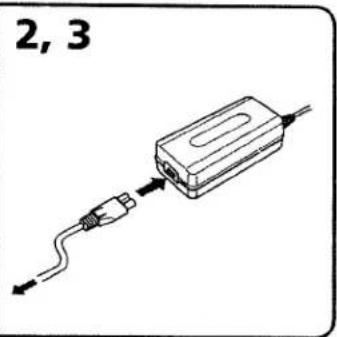
text_image
2, 3WARNING
The power cord must only be changed at a qualified service shop.
PRECAUTION
The set is not disconnected from the AC power source (house current) as long as it is connected to the wall outlet, even if the set itself has been turned off.
Notes
- The AC power adaptor can supply power even if the battery pack is attached to your camcorder.
- The DC IN jack has "source priority". This means that the battery pack cannot supply any power if the power cord is connected to the DC IN jack, even when the power cord is not plugged into a wall outlet.
- Keep the AC power adaptor away from the camcorder if the picture is disturbed.
Using a car battery
Use Sony DC Adaptor/Charger (not supplied).
Step 2 Inserting a cassette
When you want to record in the Hi8 system, use Hi8 video cassette Hi8.
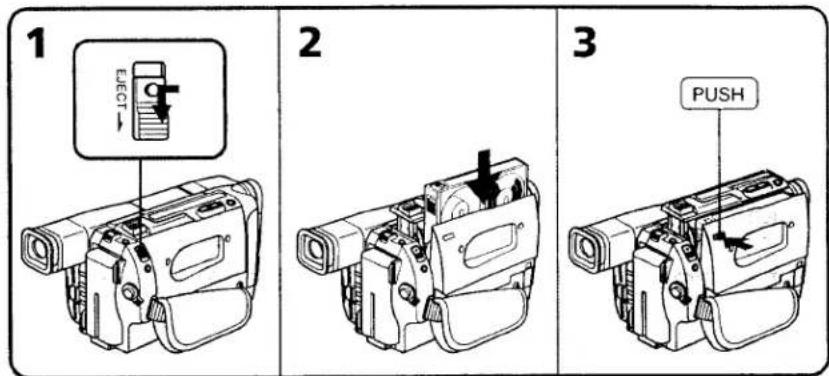
(1) Slide EJECT in the direction of the arrow while pressing the small blue button. The cassette compartment automatically lifts up and opens.
(2) Insert a cassette with its window facing out and the tab on the cassette up.
(3) Close the cassette compartment by pressing the "PUSH" mark on the cassette compartment. The cassette compartment automatically goes down.
text_image
1 EJECT 2 3 PUSHTo eject a cassette
Slide EJECT in the direction of the arrow while pressing the small blue button.
Note
Do not press the cassette compartment down. Doing so may cause malfunction.
To prevent accidental erasure
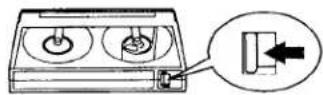
Slide the write-protect tab on the cassette to expose the red mark.
Recording a picture
Your camcorder automatically focuses for you.
You can select English, Spanish, Chinese or Portuguese for the information indicators in the menu settings. The factory setting is English.
(1) Install the power source and insert a cassette. See "Step 1" and "Step 2" for more information (p. 8 to 13).
(2) Set the POWER switch to CAMERA while pressing the small green button. The lens cover opens.
(3) Open the LCD panel while pressing OPEN. The viewfinder automatically turns off.
(4) Turn STANDBY to STANDBY.
(5) Press START/STOP. Your camcorder starts recording. The "REC" indicator appears. The camera recording lamp located on the front of your camcorder lights up. To stop recording, press START/STOP again.
The recording lamp lights up in the viewfinder when you record with the viewfinder.
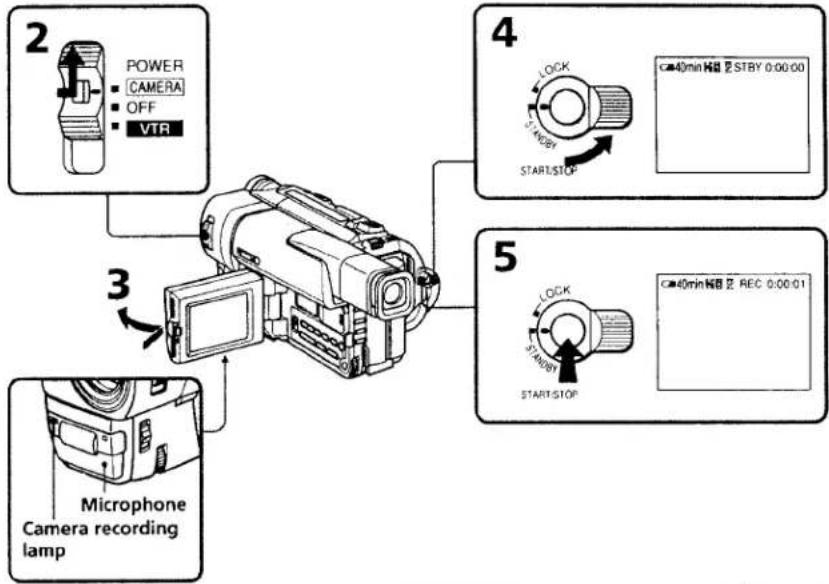
text_image
2 POWER CAMERA OFF VTR 3 Microphone Camera recording lamp 4 LOCK START/STOP 5 LOCK START/STOP 40min HBI 2 STBY 0:00:00 40min HBI 2 REC 0:00:01Note
Fasten the grip strap firmly. Do not touch the built-in microphone during recording.
To enable smooth transition
You can make the transition between the last scene you recorded and the next scene smooth as long as you do not eject the cassette. When you exchange the battery pack in the recording mode, set STANDBY to LOCK.
If you leave your camcorder in the standby mode for 5 minutes while the cassette is inserted
Your camcorder automatically turns off. This is to save battery power and to prevent battery and tape wear. To resume the standby mode, turn STANDBY down and up again. To start recording, press START/STOP.
To set the counter to 0:00:00
Press COUNTER RESET (p. 78).
Adjusting the LCD screen
To adjust the brightness of the LCD screen, press either of the two buttons on LCD BRIGHT.
The LCD panel moves about 90 degrees to the viewfinder side and about 210 degrees to the lens side.
If you turn the LCD panel over so that it faces the other way, the ⭕ indicator appears in the viewfinder (Mirror mode).
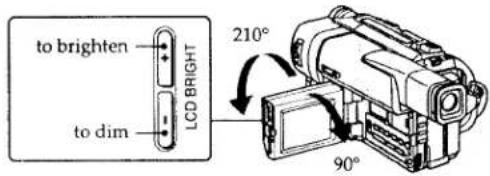
text_image
to brighten LCD BRIGHT to dim 210° 90°When closing the LCD panel, set it vertically until it clicks, and swing it into the camcorder body.
Note
When using the LCD screen except in the mirror mode, the viewfinder automatically turns off.
When you use the LCD screen outdoors in direct sunlight
The LCD screen may be difficult to see. If this happens, we recommend that you use the viewfinder.
Picture in the mirror mode
The picture on the LCD is a mirror-image. However, the picture will be normal when recorded.
During recording in the mirror mode
While recording in the mirror mode, you cannot operate the following buttons: MENU, TITLE, DATE, and TIME on your camcorder.
Indicators in the mirror mode
- The STBY indicator appears as II and REC as ●. Some of the other indicators appear mirror-reversed and others are not displayed.
- The date appears mirror-reversed when the auto date function is working. However, the date will be normal when recorded.
After recording
(1) Turn STANDBY down to LOCK.
(2) Close the LCD panel.
(3) Eject the cassette.
(4) Set the POWER switch to OFF.
After use your camcorder
Remove the battery pack from your camcorder to avoid turning on the built-in light.
To record pictures with the viewfinder – adjusting the viewfinder
If you record pictures with the LCD panel closed, check the picture with the viewfinder. Adjust the viewfinder lens to your eyesight so that the indicators in the viewfinder come into sharp focus.
Lift up the viewfinder and move the viewfinder lens adjustment lever.
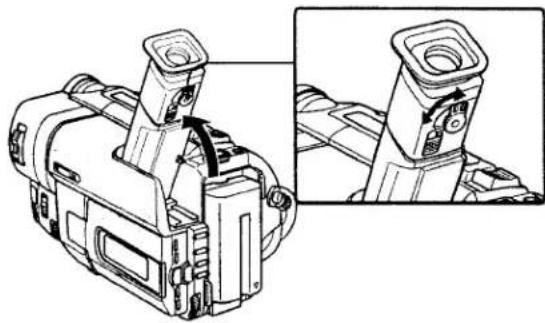
natural_image
Technical line drawing of a mechanical device with two views (top and side), no visible text or symbolsUsing the zoom feature
Move the power zoom lever a little for a slower zoom. Move it further for a faster zoom. Using the Zoom function sparingly results in better-looking recordings.
"T" side: for telephoto (subject appears closer)
"W" side: for wide-angle (subject appears farther away)
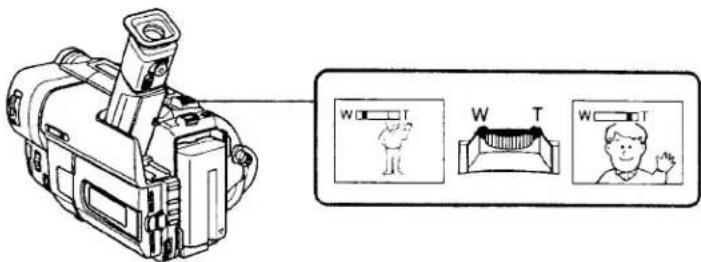
text_image
Diagram of a camera with labeled components and a magnified view showing three views: front view, top view, and side view.Zoom greater than 20× is performed digitally.
The right side of the bar shows the digital zooming zone.
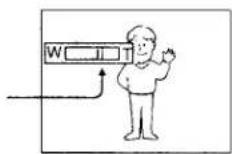
When you shoot close to a subject
If you cannot get a sharp focus, move the power zoom lever to the "W" side until the focus is sharp. You can shoot a subject that is at least about 80 cm away from the lens surface in the telephoto position, or about 1 cm away in the wide-angle position.
Notes on digital zoom
- Digital zoom starts to function when zoom exceeds 20×.
- The picture quality deteriorates as you go toward the "T" side. Set D ZOOM to OFF in the MENU settings. Otherwise the digital zoom activates without notice (p. 52).
START/STOP MODE setting
: Recording starts when you press START/STOP, and stops when you press it again (factory setting).
ANTI GROUND SHOOTING ↓: The camcorder records only while you press START/STOP. Use this mode to avoid recording unnecessary scenes.
5SEC: When you press use this mode to START/STOP, your camcorder records for 5 seconds and then stops automatically.

text_image
START/STOP MODE ANTI GROUND SHOOTINGNotes
- You cannot use the fader function in the 5SEC or ↓ mode.
• The tape counter does not appear in the 5SEC mode.
To extend the recording time in the 5SEC mode
Five dots (●●●●●) appear, and then disappear at a rate of one per second. To extend the recording time, press START/STOP again before all the dots disappear. Recording continues for about 5 seconds from the moment you press START/STOP.
Indicators displayed in the recording mode
The indicators are not recorded on tape.
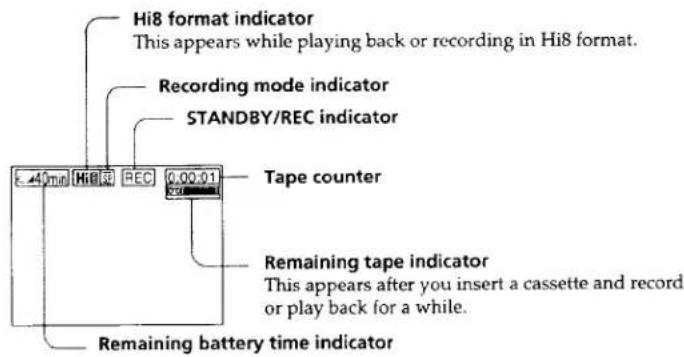
text_image
Hi8 format indicator This appears while playing back or recording in Hi8 format. Recording mode indicator STANDBY/REC indicator Tape counter Remaining tape indicator This appears after you insert a cassette and record or play back for a while. Remaining battery time indicatorShooting backlit subjects (BACK LIGHT)
When you shoot a subject with the light source behind the subject or a subject with a light background, use the backlight function.
Press BACK LIGHT in the recording or standby mode.
The indicator appears in the viewfinder or on the LCD screen.
To cancel, press BACK LIGHT again.
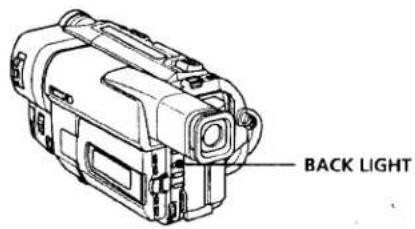
text_image
BACK LIGHTIf you press EXPOSURE when shooting backlit subjects
The backlight function will be canceled.
Shooting in the dark (NightShot)
The NightShot function enables you to shoot a subject in a dark place. For example, you can satisfactorily record the environment of nocturnal animals for observation when you use this function.
(1) While your camcorder is in the standby mode, slide NIGHTSHOT to ON.
(2) Press START/STOP to start recording.
☑ and "NIGHTSHOT" indicators flash on the LCD screen or in the viewfinder. To cancel the NightShot function, slide NIGHTSHOT to OFF.
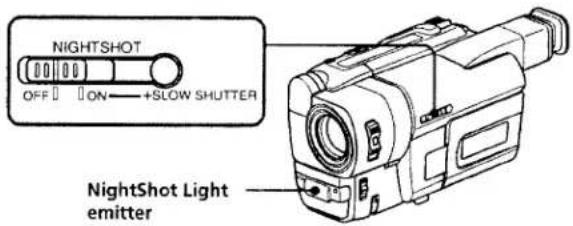
text_image
NIGHTSHOT OFF ON +SLOW SHUTTER NightShot Light emitterRecording a picture
Using +SLOW SHUTTER
The NightShot +Slow shutter mode makes subjects more than four times brighter than those recorded in the NightShot mode.
(1) Slide NIGHTSHOT to ON in the standby mode. ① indicator appears.
(2) Press +SLOW SHUTTER until the desired NIGHTSHOT indicator flashes. The indicator changes as follows:
(NightShot) → 1 (NightShot + Slow shutter1) →
2 (NightShot + Slow shutter2) → (NightShot)
To cancel the NightShot +Slow shutter mode, slide NIGHTSHOT to OFF.
Using the NightShot Light
The picture will be clearer with the NightShot Light on. To enable NightShot Light, set N.S.LIGHT to ON in the MENU settings (p. 52).
Notes
- Do not use the NightShot function in bright places (ex. outdoors in the daytime). This may cause your camcorder to malfunction.
- When you keep setting NIGHTSHOT to ON in normal recording, the picture may be recorded in incorrect or unnatural colors.
- If focusing is difficult with the autofocus mode when using the NightShot function, focus manually.
While using the NightShot function, you can not use the following functions:
- Exposure
-PROGRAM AE
-Fader*
- Digital effect*
* You cannot use these functions only in the NightShot +Slow shutter mode.
Shutter speed in the NightShot + Slow shutter mode
| Shutter speed number | Shutter speed |
| +SLOW SHUTTER1 | 1/15 |
| +SLOW SHUTTER2 | 1/4 |
The +SLOW SHUTTER button does not work:
- while the fader function is set or in use
- while the digital effect function is in use
- when NIGHTSHOT is set to OFF
NightShot Light
NightShot Light rays are infrared and so are invisible. The maximum shooting distance using the NightShot Light is about 3 m. The shooting distance will be twice or more in the NightShot + Slow shutter mode.
Superimposing the date and time on pictures
You can record the date or time displayed in the viewfinder or on the LCD screen superimposed on the picture.
Carry out the following operations in the standby or recording mode.
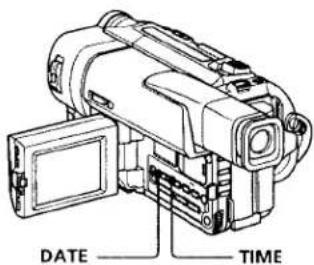
Press DATE to record the date.
Press TIME to record the time.
Press DATE (or TIME), then press TIME (or DATE) to record the date and time.
Press DATE and/or TIME again. The date and/or time indicator disappears.
text_image
DATE TIMEThe clock is set at the factory to Tokyo time for the models sold in Japan, and to Hong Kong, New York or Panama time for other models. You can reset the clock in the MENU settings (p. 52).
Note
The date and time indicators recorded manually cannot be deleted.
If you do not record the date and time in the picture
Record the date and time in the black screen as the background for about 10 seconds, then erase the date and time indicators before starting actual recording.
Checking the recording
END SEARCH / EDITSEARCH / Rec Review
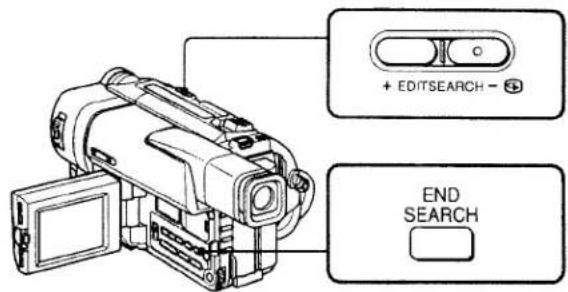
You can use these buttons to check the recorded picture or shoot so that the transition between the last recorded scene and the next scene you record is smooth.
text_image
+ EDITSEARCH - + END SEARCHEND SEARCH
You can go to the end of the recorded section after you record.
Press END SEARCH in the standby mode.
The last 5 seconds of the recorded section are played back and playback stops. You can monitor the sound from the speaker or headphones.
Note
If you start recording after using the end search function, occasionally, the transition between the last scene you recorded and the next scene may not be smooth.
Once you eject the cassette after you have recorded on the tape
The end search function does not work.
EDITSEARCH
You can search for the next recording start point.
Hold down the +/- (⊕) side of EDITSEARCH in the standby mode. The recorded section is played back.
+: to go forward
-: to go back
Release EDITSEARCH to stop playback. If you press START/STOP, re-recording begins from the point you released EDITSEARCH. You cannot monitor the sound.
Rec Review
You can check the last recorded section.
Press the - (⊕) side of EDITSEARCH momentarily in the standby mode.
The last few seconds of the recorded section are played back. You can monitor the sound from the speaker or headphones.
Playing back a tape
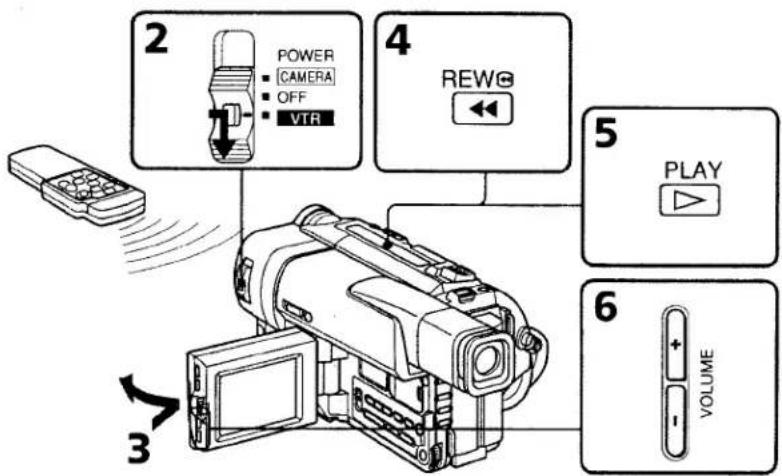
You can monitor the playback picture on the LCD screen or in the viewfinder. You can control playback using the Remote Commander supplied with your camcorder.
(1) Install the power source and insert the recorded tape.
(2) Set the POWER switch to VTR while pressing the small green button. The video control buttons light up.
(3) Open the LCD panel while pressing OPEN.
(4) Press ◀◀ to rewind the tape.
(5) Press ▶ to start playback.
(6) To adjust the volume, press either of the two buttons on VOLUME. The speaker on your camcorder is silent when the LCD panel is closed.
text_image
2 POWER CAMERA OFF VTR 4 REWG 5 PLAY 6 VOLUMETo stop playback
Press ■
When monitoring on the LCD screen
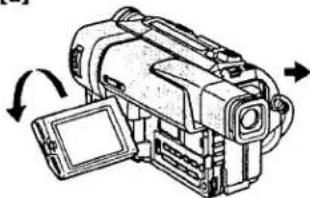
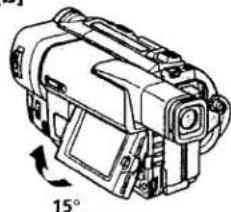
You can turn the LCD panel over and move it back to the camcorder body with the LCD screen facing out [a]. You can adjust the angle of the LCD panel by lifting the LCD panel up by 15 degrees [b].
[a]
natural_image
Line drawing of a digital camera with scroll wheel and display panel (no text or symbols)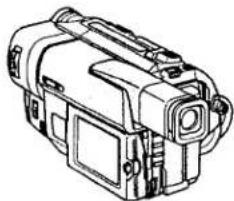
natural_image
Line drawing of a mechanical device with no visible text or symbols[b]
natural_image
Line drawing of a handheld electronic device with a 15° rotation indicator (no text or symbols on the device itself)To display the screen indicators - Display function
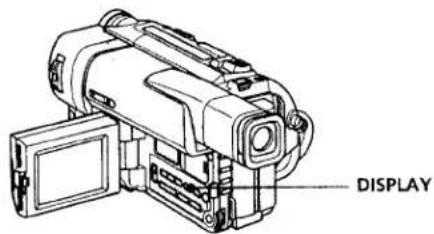
Press DISPLAY on your camcorder or the Remote Commander supplied with your camcorder.
The indicators appear on the LCD screen.
To make the indicators disappear, press DISPLAY again.
text_image
DISPLAYVarious playback modes
To operate control buttons, set the POWER switch to VTR.
To view a still picture (playback pause)
Press II during playback. To resume playback, press II or ▶.
To advance the tape
Press ▶▶ in the stop mode. To resume normal playback, press ▶.
To rewind the tape
Press ◀◀ in the stop mode. To resume normal playback, press ▶.
To locate a scene monitoring the picture (picture search)
Keep pressing ◀◀ or ▶▶ during playback. To resume normal playback, release the button.
To monitor the high-speed picture while advancing or rewinding the tape (skip scan)
Keep pressing ◀ while rewinding or ▶ while advancing the tape. To resume rewinding or advancing, release the button.
To view the picture at 1/5 speed (slow playback)
Press ▶ on the Remote Commander during playback. To resume normal playback, press ▶.
To search the last scene recorded (END SEARCH)
Press END SEARCH in the stop mode. The last 5 seconds of the recorded section plays back and stops.
In the various playback modes
Sound is muted.
When the playback pause mode lasts for 5 minutes
Your camcorder automatically enters the stop mode. To resume playback, press ▶.
If slow playback lasts for about 1 minute
Your camcorder automatically returns to normal speed.
When you play back a tape recorded in the LP mode
Noise may appear during playback pause mode, slow playback or picture search.
Viewing the recording on TV
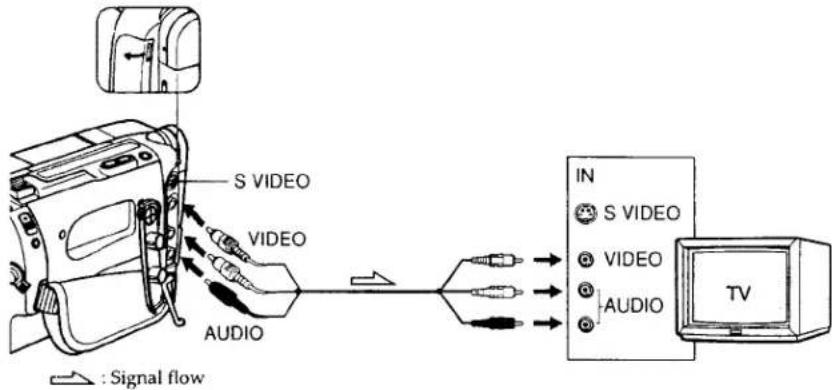
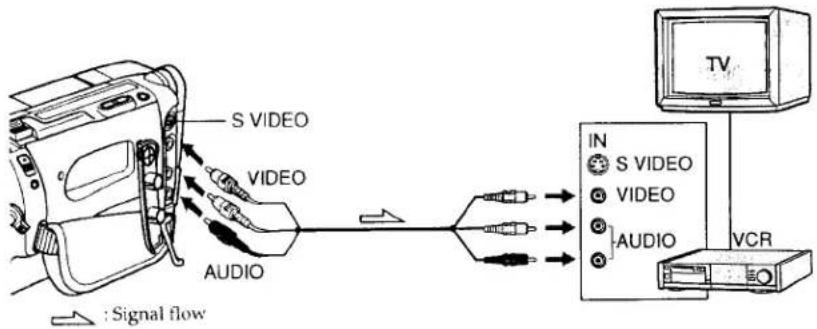
Connect your camcorder to your TV or VCR with the A/V connecting cable supplied with your camcorder to watch the playback picture on the TV screen. You can operate the playback control buttons in the same way as when you monitor playback pictures on the LCD screen. When monitoring the playback picture on the TV screen, we recommend that you power your camcorder from a wall outlet using the AC power adaptor (p. 12). Refer to the operating instructions of your TV or VCR.
Open the jack cover. Connect your camcorder to the TV using the A/V connecting cable. Then, set the TV/VCR selector on the TV to VCR.
flowchart
graph LR
    A["Signal flow"] --> B["AUDIO"]
    B --> C["S VIDEO"]
    B --> D["VIDEO"]
    C --> E["IN"]
    D --> E
    E --> F["S VIDEO"]
    E --> G["VIDEO"]
    E --> H["AUDIO"]
    F --> I["TV"]
If your TV is already connected to a VCR
Connect your camcorder to the LINE IN input on the VCR by using the A/V connecting cable supplied with your camcorder. Set the input selector on the VCR to LINE.
If your TV or VCR is a monaural type
Connect the yellow plug for video and the white plug for audio on both your camcorder and the TV or the VCR (you do not need to connect the red plug). With this connection, the sound is monaural even on stereo models.
To connect to a TV or VCR without Video/Audio input jacks
Use an NTSC system RFU adaptor (not supplied). Refer to the operating instructions of your TV or VCR and the RFU adaptor. With an RFU adaptor, the sound is monaural.
If your TV or VCR has an S video jack
Connect using an S video cable (not supplied) to obtain high-quality pictures. With this connection, you do not need to connect the yellow (video) plug of the A/V connecting cable.
Connect the S video cable (not supplied) to the S video jacks on both your camcorder and the TV or the VCR.
Using the AV cordless IR receiver
Once you connect the AV cordless IR receiver (not supplied) to your TV or VCR, you can easily view the picture on your TV. For details, refer to the operating instructions of the AV cordless IR receiver.
text_image
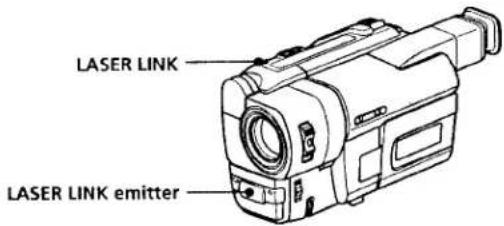
LASER LINK LASER LINK emitter(1) After connecting your TV and AV cordless IR receiver, set the POWER switch on the AV cordless IR receiver to ON.
(2) Turn the TV on and set the TV/VCR selector on the TV to VCR.
(3) Press LASER LINK. The lamp of LASER LINK lights up.
(4) Press ▶ on your camcorder to start playback
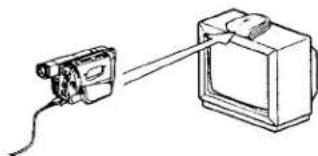
(5) Point the LASER LINK emitter at the AV cordless IR receiver. Adjust the position of your camcorder and the AV cordless IR receiver to obtain clear playback pictures.
natural_image
Simple line drawing of a camera connected to a TV (no text or symbols)To cancel the laser link function
Press LASER LINK. The lamp on the LASER LINK button goes out.
If you turn the power off
Laser link turns off automatically.
If you use a Sony TV
- You can turn on the TV automatically when you press LASER LINK or ▶. To do so, set AUTO TV ON to ON in the MENU settings and turn the TV's main switch on, then do either of the following:
- Point the LASER LINK emitter at the TV's remote sensor and press LASER LINK. - Turn on laser link and press ▶.
- You can switch the video input of the TV automatically to the one which the AV cordless IR receiver is connected. To do so, set AUTO TV ON to ON and TV INPUT to the same video input (1, 2, 3) in the MENU settings. With some models, however, the picture and sound may be disconnected momentarily when the video input is switched.
• The above feature may not work on some TV models.
Note
When laser link is activated (the LASER LINK button is lit), your camcorder consumes power. Press LASER LINK to turn off the laser link function when it is not needed.
Photo recording
You can record a still picture like a photograph. This mode is useful when you want to record a picture such as a photograph or when you print a picture using a video printer (not supplied).
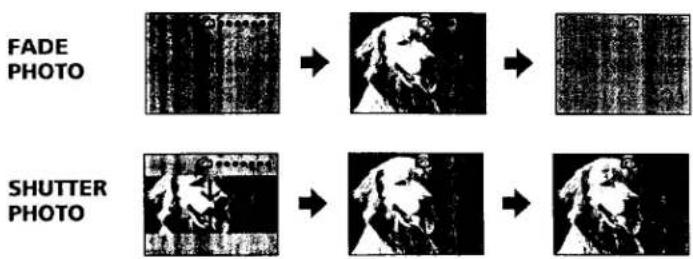
NORMAL PHOTO This mode records a still picture for about seven seconds.
text_image
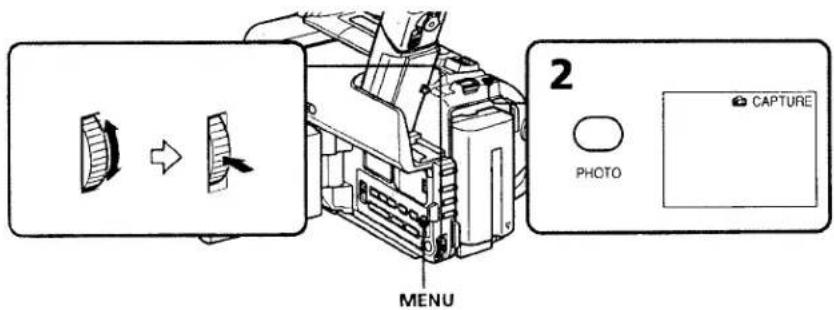
FADE PHOTO SHUTTER PHOTO(1) While your camcorder is in the standby mode, select the photo mode in the MENU settings (p. 52).
(2) Keep pressing PHOTO lightly until a still picture appears. CAPTURE appears. Recording does not start yet.
To change the still picture, release PHOTO, select a still picture again, and then press and hold PHOTO lightly.
(3) Press PHOTO deeper.
The still picture in the viewfinder or on the LCD screen is recorded for about seven seconds. The sound during those seven seconds is also recorded.
During recording, the image you are shooting appears in the viewfinder or on the LCD screen.
text_image
MENU 2 PHOTO CAPTUREPhoto recording
Notes
- During photo recording, you cannot change the mode or setting of the following functions:
- Digital effect
- Fader
-PROGRAM AE
- Picture effect
- Exposure
-Wide mode
- Backlight
-NightShot+Slow shutter
• The PHOTO button does not work:
- while the digital effect function is set or in use.
- while the fader function is in use.
- When recording a still picture, do not shake your camcorder. The picture may fluctuate.
To record a still picture during normal recording
Press PHOTO deeper. The still picture is then recorded for about seven seconds and your camcorder returns to the standby mode. You cannot select another still picture.
Using the wide mode
You can record a cinema-like picture (CINEMA) or a 16:9 wide picture to watch on the 16:9 wide-screen TV (16:9 FULL). Refer to the operating instructions of your TV.
CINEMA
Black bands appear on the screen during recording in the CINEMA mode [a], playing back on a normal TV [b] or a wide-screen TV [c]. If you set the screen mode of the wide-screen TV to the zoom mode, a picture without black bands appears [d].
16:9 FULL
The picture during recording in the 16:9 FULL mode [e], or playing back on a normal TV [f] or a wide-screen TV [g] is horizontally compressed. If you set the screen mode of the wide-screen TV to the full mode, you can watch pictures of normal images [h].
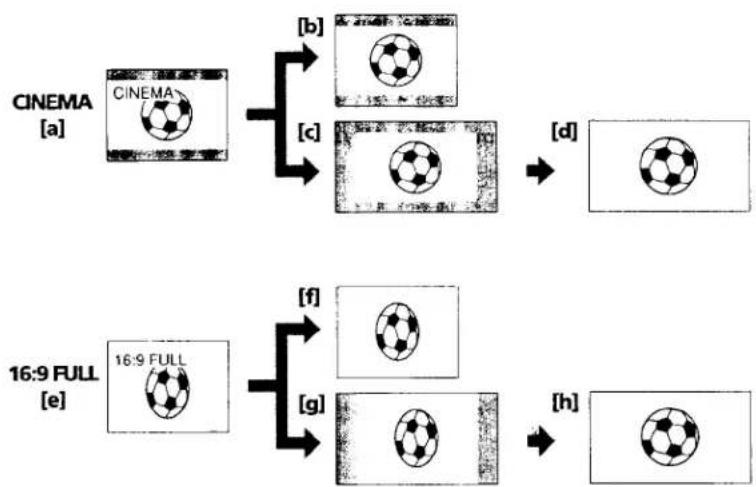
flowchart
graph TD
    A["CINEMA [a"] CINEMA] --> B["[b"] Cineema]
    A --> C["[c"] Soccer]
    A --> D["[d"] Soccer]
    E["16:9 FULL [e"] 16:9 FULL] --> F["[f"] Soccer]
    E --> G["[g"] Soccer]
    E --> H["[h"] Soccer]
Using the wide mode
In the standby mode, set 16:9WIDE to CINEMA or 16:9FULL in the MENU settings (p. 52).

text_image
MENUTo cancel the wide mode
Set 16:9WIDE to OFF in the MENU settings.
If the wide mode is set to 16:9FULL
The SteadyShot function does not work. If you select 16:9FULL in the MENU settings when the SteadyShot function is working, flashes and the SteadyShot function does not function.
In the wide mode
You cannot select the old movie function with DIGITAL EFFECT and the bounce function with FADER.
Date or time indicator
When you record in the 16:9FULL mode, the date or time indicator will be widened on wide-screen TVs.
During recording
You cannot change or cancel the wide mode.
Using the fader function
You can fade in or out to give your recording a professional appearance.
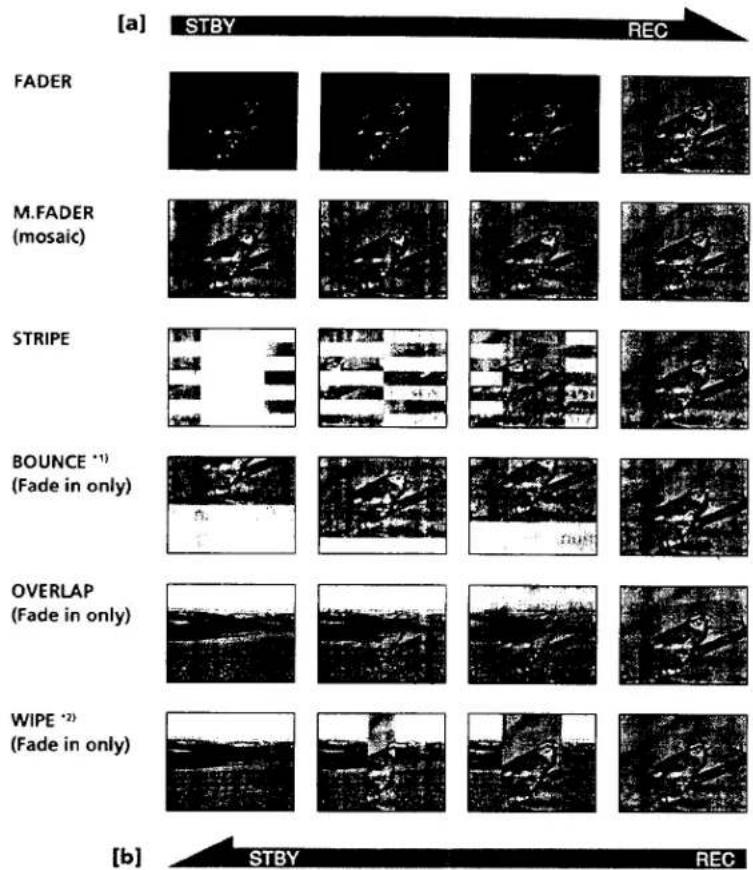
text_image
[a] STBY REC FADER M.FADER (mosaic) STRIPE BOUNCE *1) (Fade in only) OVERLAP (Fade in only) WIPE *2) (Fade in only) [b] STBY RECMONOTONE
When fading in, the picture gradually changes from black-and-white to color. When fading out the picture gradually changes from color to black-and-white
^1 You cannot use this function when D ZOOM is set to ON in the MENU settings. ^2 The sound does not wipe away.
Using the fader function
(1) When fading in [a]
In the standby mode, press FADER until the desired fader indicator flashes.
When fading out [b]
In the recording mode, press FADER until the desired fader indicator flashes.
The indicator changes as follows:
FADER → M.FADER → STRIPE → BOUNCE → MONOTONE →
OVERLAP → WIPE → no indicator
The last selected fader mode is indicated first of all
(2) Press START/STOP. The fader indicator stops flashing.
![SONY CCD-TRV66 - When fading out [b] - 1](/content/2026/05/871924/images/752b45d856f97732580e94f4671157d8554e7fbe56a59866d2518b2ce45e9314.jpg)
text_image
1 FADER FADERTo cancel the fader function
After the fade in/out is carried out: Your camcorder automatically returns to the normal mode.
Before the fade in/out is carried out: Before pressing START/STOP, press FADER until the indicator disappears.
Using the Fader function
Note
You cannot use the following functions while using the fader function. Also, you cannot use the fader function while using the following functions.
- Digital effect
- Low lux mode of PROGRAM AE (Overlap/Wipe function only)
-NightShot+Slow shutter
The date, time indicator and title do not fade in or fade out
Erase them before operating the fader function if they are not needed.
If you do not record anything before operating the wipe or overlap function
Your camcorder stores the image on the tape. As the image is being stored, the WIPE or OVERLAP indicator flashes quickly, and the picture you are shooting disappears from the viewfinder. Depending on the tape condition, the picture may not be recorded clearly.
When START/STOP MODE is set to ↓ or 5SEC
You cannot use the fader function.
While using the bounce function, you cannot use the following functions:
- Exposure
- Focus
-Zoom
Note on the bounce function
The BOUNCE indicator does not appear in the following mode or functions:
- D ZOOM is set to ON in the MENU settings
- Wide mode
- Picture effect
-PROGRAM AE
Using special effects – Picture effect
You can digitally process images to obtain special effects like those in films or on the TV.
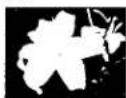
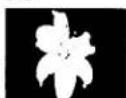
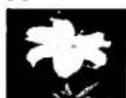
PASTEL [a]: The contrast of the picture is emphasized, and the picture looks like an animated cartoon.
NEG. ART [b]: The color and brightness of the picture is reversed.
SEPIA: The picture is sepia.
B&W : The picture is monochrome (black-and-white).
SOLARIZE [c]: The light intensity is clearer, and the picture looks like an illustration.
MOSAIC [d]: The picture is mosaic.
SLIM [e]: The picture expands vertically.
STRETCH [f]: The picture expands horizontally.
[a]
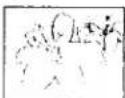
[b]
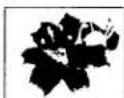
[c]
[d]

[e]
[f]
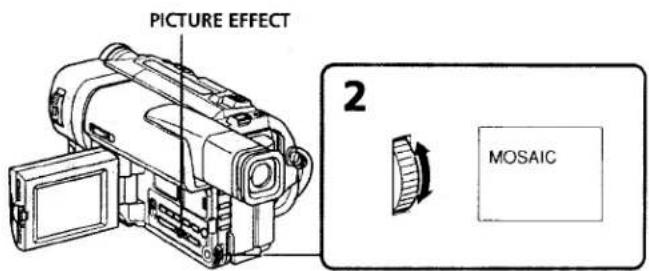
(1) Press PICTURE EFFECT in the standby or recording mode. The picture effect indicator appears.
(2) Turn the SEL/PUSH EXEC dial to select the desired picture effect mode.
The indicator changes as follows:
PASTEL ↔ NEG.ART ↔ SEPIA ↔ B&W ↔ SOLARIZE ↔ MOSAIC ↔ SLIM ↔ STRETCH
(1) Press PICTURE EFFECT in the standby or recording mode. The picture effect indicator appears.
(2) Turn the SEL/PUSH EXEC dial to select the desired picture effect mode.
The indicator changes as follows:
PASTEL ↔ NEG.ART ↔ SEPIA ↔ B&W ↔ SOLARIZE ↔ MOSAIC ↔ SLIM ↔ STRETCH
text_image
PICTURE EFFECT 2 MOSAICTo turn the picture effect function off
Press PICTURE EFFECT
While using the picture effect function
You cannot select the old movie mode with DIGITAL EFFECT.
When you turn the power off
Your camcorder automatically returns to the normal mode.
Using special effects - Digital effect
You can add special effects to recorded pictures using the various digital functions. The sound is recorded normally.
STILL
You can record a still picture so that it is superimposed on a moving picture.
FLASH (FLASH MOTION)
You can record still pictures successively at constant intervals.
LUMI. (LUMINANCEKEY)
You can swap a brighter area in a still picture with a moving picture.
TRAIL
You can record the picture so that an incidental image like a trail is left.
SLOW SHTR (SLOW SHUTTER)
You can slow down the shutter speed. The slow shutter mode is good for recording dark pictures more brightly. However, the picture may be less clear.
OLD MOVIE
You can add an old movie type atmosphere to pictures. Your camcorder automatically sets the wide mode to CINEMA, picture effect to SEPIA, and the appropriate shutter speed.
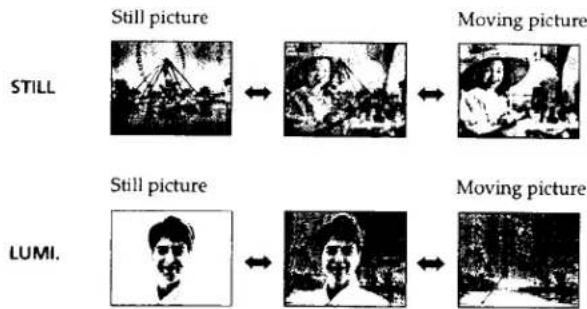
flowchart
graph LR
    A["Still picture"] <--> B["Moving picture"]
    C["LUMI."] <--> D["Moving picture"]
Using special effects - Digital effect
(1) While your camcorder is in the standby or recording mode, press DIGITAL EFFECT. The digital effect indicator appears.
(2) Turn the SEL/PUSH EXEC dial to select the desired digital effect mode. The indicator changes as follows:
STILL ↔ FLASH ↔ LUMI ↔ TRAIL ↔ SLOW SHTR ↔ OLD MOVIE
(3) Press the SEL/PUSH EXEC dial. The indicator lights up and the bars appear In the STILL and LUMI. modes, the still picture is stored in memory.
(4) Turn the SEL/PUSH EXEC dial to adjust the effect.
Items to adjust
| STILL | The rate of the still picture you want to superimpose on the moving picture |
| FLASH | The interval of flash motion |
| LUMI. | The color scheme of the area in the still picture which is to be swapped with a moving picture |
| TRAIL | The vanishing time of the incidental image |
| SLOW SHTR | Shutter speed. The larger the shutter speed number, the slower the shutter speed. |
| OLD MOVIE | No adjustment necessary |
The more bars there are on screen, the stronger the digital effect. The bars appear in the following modes: STILL, FLASH, LUMI, and TRAIL.
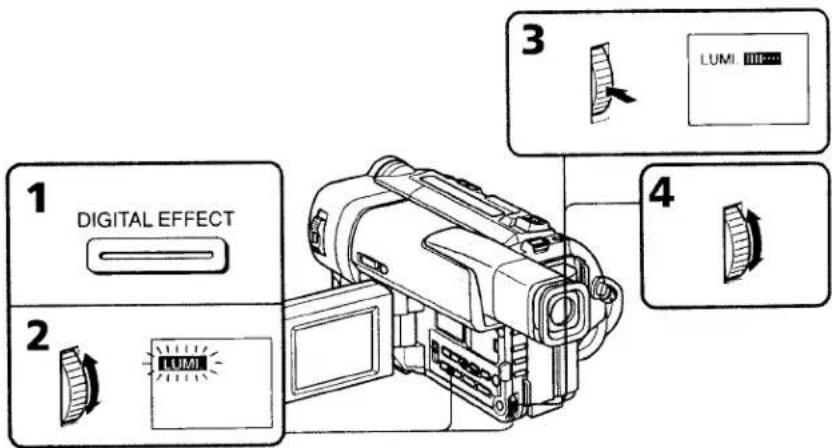
text_image
1 DIGITAL EFFECT 2 LUMI 3 LUMI 4To cancel the digital effect
Press DIGITAL EFFECT. The digital effect indicator disappears.
Notes
• The following functions do not work during digital effect:
- Fader
- Low lux mode of PROGRAM AE
- Photo recording
- NightShot + Slow shutter
• The following function does not work in the slow shutter mode:
- Exposure
• The following functions do not work in the old movie mode.
- Exposure
- Wide mode
- Picture effect
When you turn the power off
The digital effect will be automatically canceled.
When recording in the slow shutter mode
Auto focus may not be effective. Focus manually using a tripod.
Shutter speed
| Shutter speed number | Shutter speed |
| SLOW SHTR 1 | 1/30 |
| SLOW SHTR 2 | 1/15 |
| SLOW SHTR 3 | 1/8 |
| SLOW SHTR 4 | 1/4 |
Using the PROGRAM AE function
You can select PROGRAM AE (Auto Exposure) mode to suit your specific shooting requirements.
Spotlight mode
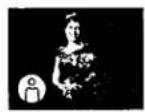
This mode prevents people's faces, for example, from appearing excessively white when shooting subjects lit by strong light at weddings or in the theater.
Soft portrait mode
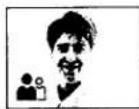
This mode brings out the subject while creating a soft background for subjects such as people or flowers, and faithfully reproduces skin color.
Sports lesson mode
This mode minimizes shake on fast-moving subjects such as in tennis or golf.
7 Beach & ski mode
This mode prevents peoples' faces from appearing dark in strong light or reflected light, such as at a beach in midsummer or on a ski slope.
Sunset & moon mode
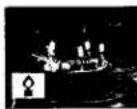
This mode allows you to maintain atmosphere when you are recording sunsets, general night views, fireworks displays and neon signs.
Landscape mode
This mode is for when you are recording distant subjects such as mountains and prevents your camcorder from focusing on glass or metal mesh in windows when you are recording a subject behind glass or a screen.
Low lux mode
This mode makes subjects brighter in insufficient light.
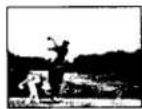
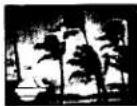
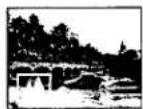
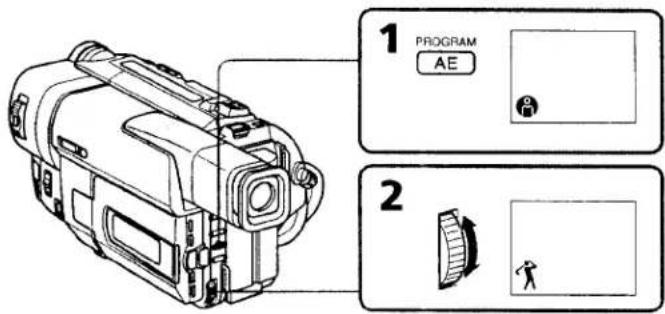
(1) Press PROGRAM AE in the standby mode. The PROGRAM AE indicator appears.
(2) Turn the SEL/PUSH EXEC dial to select the desired PROGRAM AE mode. The indicator changes as follows:

text_image
1 PROGRAM AE 2To turn the PROGRAM AE function off
Press PROGRAM AE.
Notes
- In the spotlight, sports lesson and beach & ski modes, you cannot take close-ups. This is because your camcorder is set to focus only on subjects in the middle to far distance.
- In the sunset & moon and landscape modes, your camcorder is set to focus only on distant subjects.
• The following functions do not work in the PROGRAM AE mode:
-Slow shutter
- Old movie
- NightShot
- Bounce
• The following functions do not work in the low lux mode:
- Digital effect
- Overlap
- Wipe
- Exposure
- If you press PROGRAM AE when using the NightShot function, the PROGRAM AE indicator flashes and the PROGRAM AE function does not work.
If you are recording under a discharge tube such as a fluorescent lamp, sodium lamp or mercury lamp
Flickering or changes in color may occur in the following modes. If this happens, turn the PROGRAM AE function off.
- Soft portrait mode
- Sports lesson mode
Adjusting the exposure manually
You can manually adjust and set the exposure. When you turn your camcorder on, it will automatically be in the automatic exposure mode. This mode works to record subjects so that they are recorded slightly brighter than they actually are.
Adjust the exposure manually in the following cases:
• The subject is backlit
• Bright subject and dark background
• To record dark pictures (e.g. night scenes) faithfully
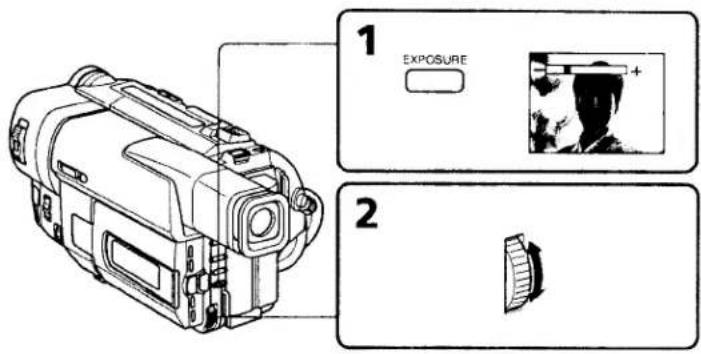
(1) Press EXPOSURE in the standby or recording mode. The exposure indicator appears.
(2) Turn the SEL/PUSH EXEC dial to adjust the brightness.
text_image
1 EXPOSURE + 2To return to the automatic exposure mode
Press EXPOSURE again.
Note
When you adjust the exposure manually, the following function and modes do not work:
-Backlight
-Slow shutter
-Old movie
If you change the PROGRAM AE mode or slide NIGHTSHOT to ON
Your camcorder automatically returns to the automatic exposure mode.
Focusing manually
You can gain better results by manually adjusting the focus in the following cases:
• The autofocus mode is not effective when shooting
- subjects through glass coated with water droplets
- horizontal stripes
- subjects with little contrast with backgrounds such as walls and sky
- When you want to change the focus from a subject in the foreground to a subject in the background
- Shooting a stationary subject when using a tripod
natural_image
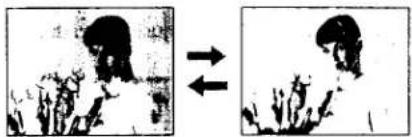
Two side-by-side black-and-white images showing a person in profile, with arrows pointing to the sides (no text or symbols)(1) Set FOCUS to MANUAL in the standby or recording mode. The ℰ indicator appears.
(2) Turn NEAR/FAR to sharpen focus.
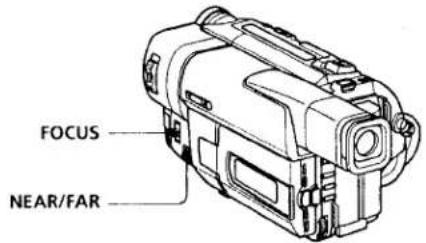
text_image
FOCUS NEAR/FARTo return to the autofocus mode
Set FOCUS to AUTO.
To record distant subjects
When you press FOCUS down to INFINITY, the lens focuses on infinity. When you release FOCUS, your camcorder returns to the manual focus mode. Use this mode when your camcorder focuses on near objects even though you are trying to shoot a distant object.
Shooting in relatively dark places or shooting fast-moving subjects in relatively bright places
Shoot at the "W" (wide-angle) position after focusing at the "T" (telephoto) position.
When you shoot close to the subject
Focus at the end of the "W" (wide-angle) position.
The following indicators may appear
▲ when recording a distant subject.
when the subject is too close to focus on.
Superimposing a title
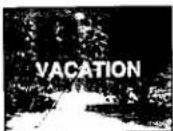
You can select one of eight preset titles and two custom titles (p. 45). You can also select the language, color, size and position of titles.
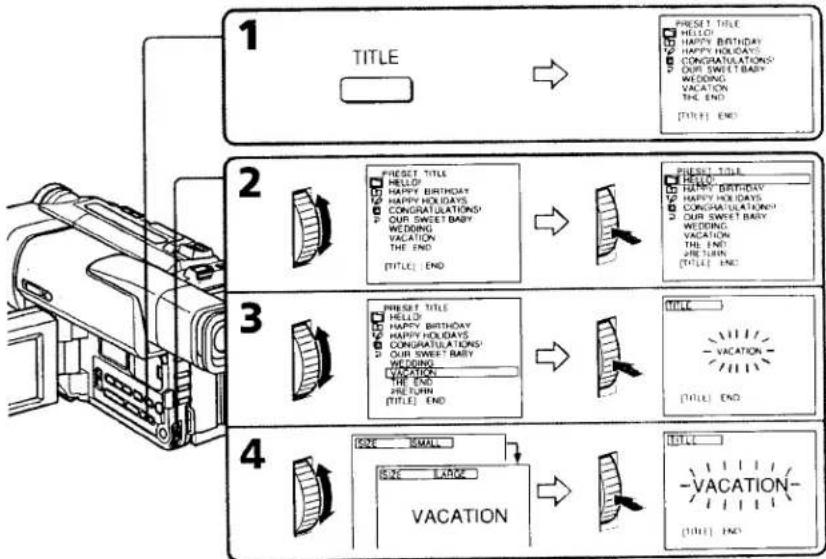
(1) Press TITLE in the standby mode.
(2) Turn the SEL/PUSH EXEC dial to select □, then press the dial.
(3) Turn the SEL/PUSH EXEC dial to select the desired title, then press the dial. The titles are displayed in the language you selected.
(4) Change the color, size, or position, if necessary.
① Turn the SEL/PUSH EXEC dial to select the color, size, or position, then press the dial. The item appears.
② Turn the SEL/PUSH EXEÇ dial to select the desired item, then press the dial.
③ Repeat steps ① and ② until the title is laid out as desired.
(5) Press the SEL/PUSH EXEC dial again to complete the setting.
(6) Press START/STOP to start recording.
(7) When you want to stop recording the title, press TITLE.
flowchart
graph TD
    A["1 TITLE"] --> B["2 PREDGET TITLE"]
    B --> C["3 PREDGET TITLE"]
    C --> D["4 VACATION"]
    style A fill:#f9f,stroke:#333
    style B fill:#ccf,stroke:#333
    style C fill:#cfc,stroke:#333
    style D fill:#fcc,stroke:#333
To superimpose the title while you are recording
Press TITLE while you are recording, and carry out steps 2 to 5. When you press the SEL/PUSH EXEC dial at step 5, the title is superimposed.
To select the language of a preset title
If you want to change the language, select □ before step 2. Then select the desired language and return to step 2.
Superimposing a title
Note
Both the date and time or either of them may not be displayed depending on the size or position of the title.
If you display the menu or title menu while superimposing a title
The title is not recorded while the menu or title menu is displayed.
To use the custom title
If you want to use the custom title, select ☐ in step 2.
If you have not made any custom title, “----...” appears on the display.
When the title is displayed
The LCD BRIGHT and VOLUME indicators do not appear. However, you can adjust
the LCD BRIGHT and VOLUME.
Title setting
• The title color changes as follows :
WHITE ↔ YELLOW ↔ VIOLET ↔ RED ↔ CYAN ↔ GREEN ↔ BLUE
• The title size changes as follows :
SMALL ↔ LARGE
If you input 13 characters or more for a LARGE title, the title is automatically reduced in size after its position is set.
• The title position changes as follows :
1←→2←→3←→4←→5←→6←→7←→8←→9
The larger the position number, the lower the title is positioned.
When you select the title size "LARGE", you cannot choose position 9.
When you are selecting and setting the title
You cannot superimpose the title displayed on the screen.
When you superimpose a title while you are recording
The beep does not sound.
Making your own titles
You can make up to two titles and store them in your camcorder. Each title can have up to 20 characters.
(1) Press TITLE in the standby or VTR mode.
(2) Turn the SEL/PUSH EXEC dial to select 10, then press the dial.
(3) Turn the SEL/PUSH EXEC dial to select the first line (CUSTOM1) or second line (CUSTOM2), then press the dial.
(4) Turn the SEL/PUSH EXEC dial to select the column of the desired character, then press the dial.
(5) Turn the SEL/PUSH EXEC dial to select the desired character, then press the dial.
(6) Repeat steps 4 and 5 until you have selected all characters and completed the title.
(7) To finish making your own titles, turn the SEL/PUSH EXEC dial to select [SET], then press the dial. The title is stored in memory.
(8) Press TITLE to make the title menu disappear.
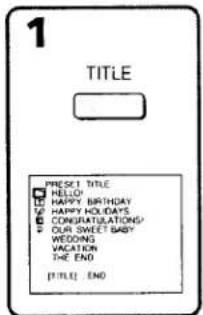
text_image
1 TITLE PRESCT TITLE HELLO! HAPPY BIRTHDAY HAPPY HOLIDAYS CONGRATULATIONS/ OUR SWEET BABY WEDDING VACATION THE END TITLE: END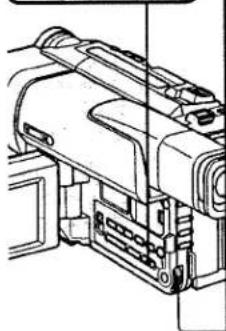
natural_image
Technical line drawing of a mechanical device with no visible text or symbols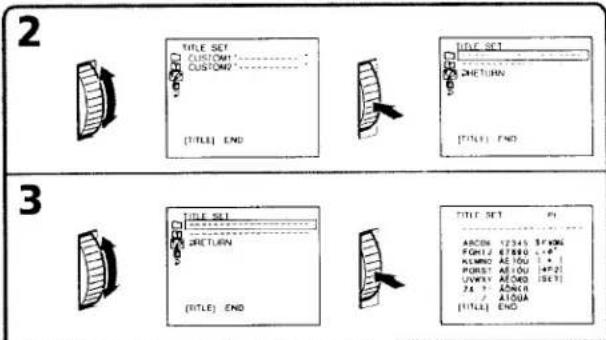
text_image
2 TITLE SET CUSTOM1 CUSTOM? [TITLE] END TITLE SET RETURN [TITLE] END 3 TITLE SET RETURN [TITLE] END TITLE SET RETURN [TITLE] END ASCEN 17345.8 PKMG FORM12 67090 L+6 KLMN0 AE 10G 1 + 1 POR12 AE 10G (+2) UNWY AE 040 (SET) 26 + 1 ADORA A JIDWA [TITLE] END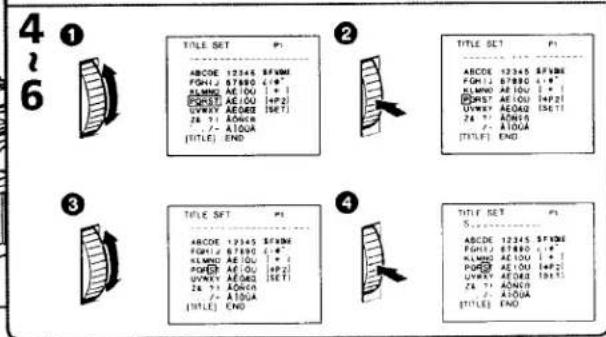
text_image
4 ① TITLE SET P: ABCDE 12345 BFVMF FGM12 67890 41# ELMMD AE10U + 1 UVMWY AE10U (+2) UVMWY AE002 (SET) 2# 1/2 ADON 7 - A10UA [TITLE] END 2 TITLE SET P: ABCDE 12345 BFVMF FGM12 B7890 41# ELMMD AE10U + 1 UVMWY AE10U (+2) UVMWY AE002 (SET) 2# 1/2 ADON 7 - A10UA [TITLE] END 3 TITLE SET P: ABCDE 12345 BFVMF FGM12 B7890 41# ELMMD AE10U + 1 UVMWY AE10U (+2) UVMWY AE002 (SET) 2# 1/2 ADON 7 - A10UA [TITLE] END 4 TITLE SET P: ABCDE 12345 BFVMF FGM12 B7890 41# ELMMD AE10U + 1 UVMWY AE10U (+2) UVMWY AE002 (SET) 2# 1/2 ADON 7 - A10UA [TITLE] END
Making your own titles
To change a title you have stored
In step 3, select CUSTOM1 or CUSTOM2, depending on which title you want to change, then press the SEL/PUSH EXEC dial. Turn the SEL/PUSH EXEC dial to select [←], then press the dial to delete the title. The last character is erased. Enter the new title as desired.
If you take 5 minutes or longer to enter characters in the standby mode while a cassette is in your camcorder
The power automatically goes off. The characters you have entered remain stored in memory. Turn STANDBY down once and then up again, then proceed from step 1. We recommend setting the POWER switch to VTR or removing the cassette so that your camcorder does not automatically turn off while you are entering title characters.
If you select [→P2]
The menu for selecting alphabet and Russian characters appear. Select [→P1] to return to the previous screen.
To delete the title
Select [←]. The last character is erased.
Using the built-in light
You can use the built-in light to suit your shooting situation. The recommended distance between the subject and camcorder is about 1.5 m.
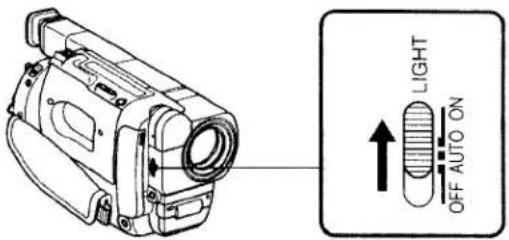
Slide LIGHT to ON while your camcorder is in the standby mode. The built-in light turns on.
The built-in light turns on/off by turning on/off STANDBY.
text_image
LIGHT OFF AUTO ONTo turn off the built-in light
Slide LIGHT to OFF.
To turn on the built-in light automatically
Slide LIGHT to AUTO.
The built-in light automatically turns on and off according to the ambient brightness. However, the built-in light automatically turns off if the built-in light turns on for more than about 5 minutes. In this case, turn STANDBY down once and up again.
CAUTION
Be careful not to touch the lighting section, because the plastic window and surrounding surfaces are hot while the light is on. It remains hot for a while after the light is turned off.
DANGER
Not to be handled by children.
Emits intense heat and light.
Use with caution to reduce the risk of fire or injury to persons.
Do not direct light at persons or materials from less than 1.22 m during use and until cool.
Slide LIGHT to OFF when not in use.
Notes
- The battery pack is quickly discharging while the built-in light is turned on. Slide LIGHT to OFF when not in use.
- When you do not use your camcorder, slide LIGHT to OFF and remove the battery pack to avoid turning on the built-in light.
- When flickering occurs while shooting in the auto mode, slide LIGHT to ON.
- The built-in light may turn on/off when you use the PROGRAM AE or backlight function.
- The built-in light may be turned off when inserting or ejecting a cassette.
- While the end search function is working, the built-in light is turned off.

Using the built-in light
Replacing the bulb
Use the Sony XB-3D halogen lamp (not supplied). The supplied halogen lamp is not on the market. Purchase the Sony XB-3D halogen lamp. Remove the power source before replacing the bulb.
(1) Remove the built-in light unit while pushing the hole under the built-in light unit using a wire.
(2) Turn the bulb housing counterclockwise and detach from the built-in light unit.
(3) Replace the bulb using a dry cloth.
(4) Attach the bulb housing turning it clockwise, then replace the built-in light unit.
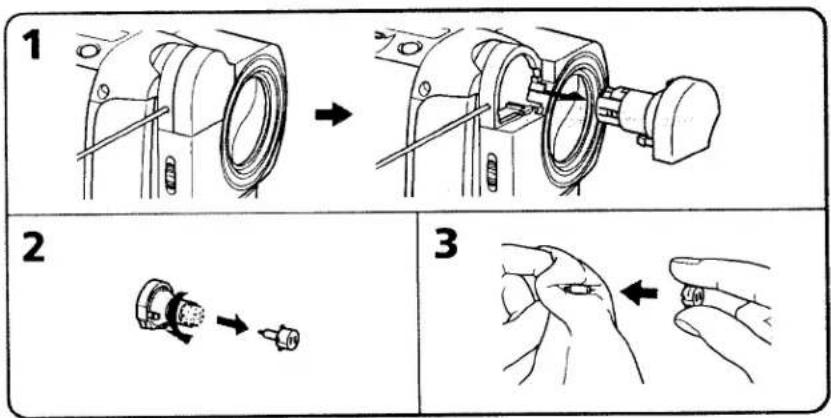
text_image
1 2 3CAUTION
- When replacing the bulb, use only the Sony XB-3D halogen lamp (not supplied) to reduce the risk of fire.
• To prevent possible burn hazard, disconnect the power source before replacing and do not touch the bulb until the bulb becomes cool enough to handle (for about 30 minutes or more).
Note
To prevent the bulb from being smudged with finger prints, handle it with a dry cloth, etc. If the bulb is smudged, wipe it completely.
Playing back a tape with digital effects
During playback, you can process a scene using the digital effect functions: STILL, FLASH, LUMI, and TRAIL.
(1) During playback, press DIGITAL EFFECT and turn the SEL/PUSH EXEC dial until the desired digital effect indicator (STILL, FLASH, LUMI. or TRAIL) flashes.
(2) Press the SEL/PUSH EXEC dial.
The digital effect indicator lights up and the bars appear. In the STILL or LUMI mode, the picture where you press the SEL/PUSH EXEC dial is stored in memory as a still picture.
(3) Turn the SEL/PUSH EXEC dial to adjust the effect. For details of each digital effect function, see page 36.
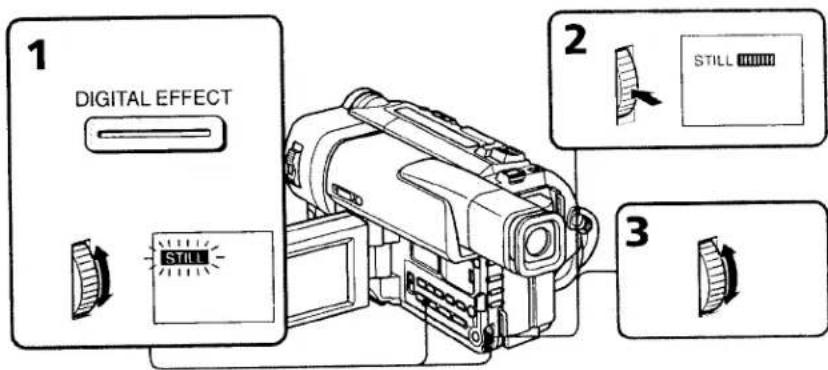
text_image
1 DIGITAL EFFECT 2 STILL 3[Unreadable]
Advanced Playback Operations
To cancel the digital effect function
Press DIGITAL EFFECT.
Notes
- You cannot record image-processed pictures on your camcorder. Record them on the VCR using your camcorder as a player.
- In various speed playback, noise appears on the picture. This is not a malfunction.
STILL and LUMI. modes
- You can search a picture to image-process by pressing ▶ or ◀ in the playback mode. However, noise appears on the picture.
- You cannot delete a picture stored in memory even if you stop playing back a tape
When you set the POWER switch to OFF
The digital effect function is automatically canceled.
— Editing on Other Equipment —
Dubbing a tape
You can dub and edit tapes using your camcorder for playback and another VCR for recording. Turn down the volume of your camcorder while editing. Otherwise, the picture may be distorted.
Connect your camcorder to the VCR using the A/V connecting cable supplied with your camcorder.
Set the input selector on the VCR to LINE, if available.
(1) Insert a blank tape (or a tape you want to record over) into the VCR, and insert the recorded tape into your camcorder.
(2) Set the POWER switch to VTR.
(3) Play back the recorded tape on your camcorder.
(4) Start recording on the VCR.
flowchart
graph LR
    A["Signal flow"] --> B["S VIDEO"]
    A --> C["VIDEO"]
    A --> D["AUDIO"]
    B --> E["TV"]
    C --> E
    D --> E
    E --> F["VCR"]
When you have finished dubbing a tape
Press ■ on both your camcorder and the VCR.
To prevent deterioration of pictures from dubbing
Set EDIT to ON in the MENU settings before dubbing.
If you have displayed the screen indicators on the TV
Make the indicators disappear by pressing DISPLAY so that they will not be superimposed on the edited tape.
You can edit on VCRs that support the following systems
8 mm, HI8 Hi8, MS VHS, SMKS S-VHS, MISC VHSC, SMISC S-VHSC, 10 Betamax, "DX" mini DV or DV'DV
If your VCR is a monaural type
Connect the yellow plug for video and the white plug for audio on both your camcorder and the VCR. You do not need to connect the red plug. With this connection, the sound will be monaural.
Connect using an S video cable (not supplied) to obtain high-quality pictures
With this connection, you do not need to connect the yellow (video) plug of the A/V connecting cable.
Connect an S video cable (not supplied) to the S video jacks of both your camcorder and the VCR.
Recording video or TV programs
You can record a tape from another VCR or a TV program from a TV that has video/audio outputs. Use your camcorder as a recorder. Turn down the volume of your camcorder while editing. Otherwise, the picture may be distorted.
(1) Insert a blank tape (or a tape you want to record over) into your camcorder. If you are recording a tape from the VCR, insert a recorded tape into the VCR.
(2) Set the POWER switch to VTR.
(3) Set DISPLAY to LCD in the MENU settings (p. 52). The picture from a TV or VCR appears in the viewfinder or on the LCD screen.
(4) Press ● REC and the button on its right simultaneously on your camcorder, then immediately press ■ on your camcorder.
(5) Press ▶ on the VCR to start playback if you are recording a tape from VCR. Select a TV program if you are recording from TV.
(6) Press II on your camcorder at the scene where you want to start recording from.
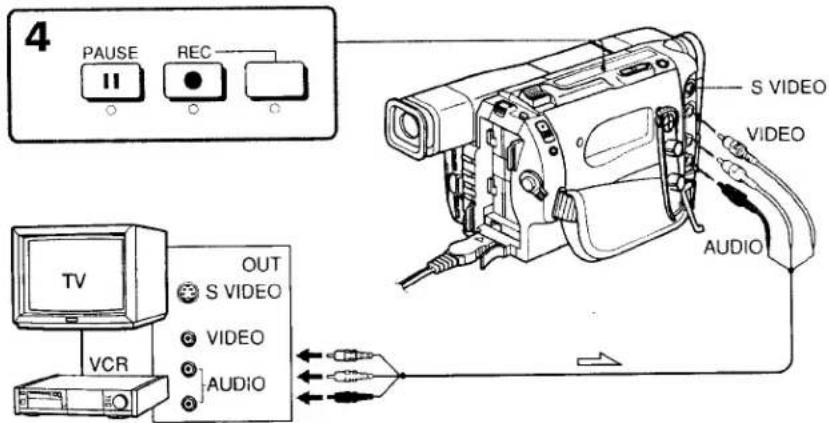
text_image
4 PAUSE REC S VIDEO VIDEO AUDIO TV OUT S VIDEO VIDEO AUDIO:Signal flow
Note
You cannot record dual sound broadcasts.
If your VCR is a monaural type
Connect the yellow plug for video and the white plug for audio on both your camcorder and the VCR (you do not need to connect the red plug). With this connection, the sound will be monaural.
Connect using an S video cable (not supplied) to obtain high-quality pictures
With this connection, you do not need to connect the yellow (video) plug of the A/V connecting cable.
Connect an S video cable (not supplied) to the S video jacks of both your camcorder and VCR.
If your VCR or TV does not have an S VIDEO OUT jack
Do not connect an S video cable (not supplied) to your camcorder. If you connect an S video cable, the picture may not appear on screen.
Changing the MENU settings
To change the mode settings in the MENU settings, select the menu items with the SEL/PUSH EXEC dial. The factory settings can be partially changed. First, select the icon, then the menu item and then the mode.
(1) In the standby or VTR mode, press MENU.
(2) Turn the SEL/PUSH EXEC dial to select the desired icon, then press the dial to set.
(3) Turn the SEL/PUSH EXEC dial to select the desired item, then press the dial to set.
(4) Turn the SEL/PUSH EXEC dial to select the desired mode, and press the dial to set.
(5) If you want to change other items, select ➕ RETURN and press the dial, then repeat steps from 2 to 4. For details, see "Selecting the mode setting of each item" (p. 53).
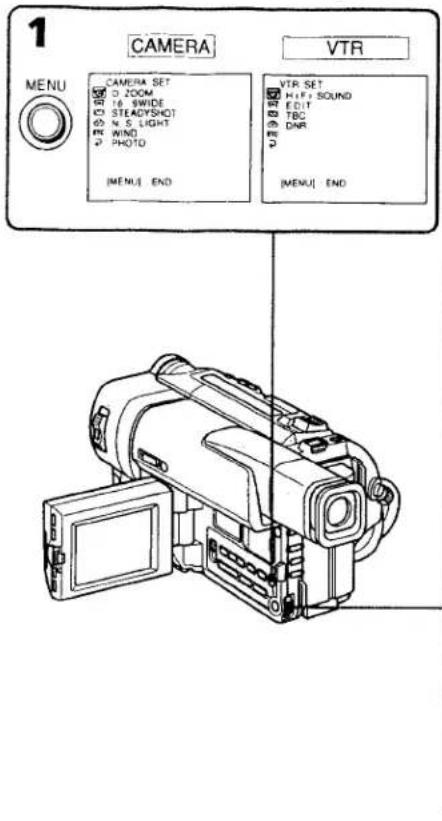
text_image
1 CAMERA VTR MENU CAMERA SET D ZOOM 16 SWIDE STEADYSHOT 4.5 LIGHT WIND PHOTO [MENU] END VTR SET HIF: SOUND EDIT TBC DNR [MENU] END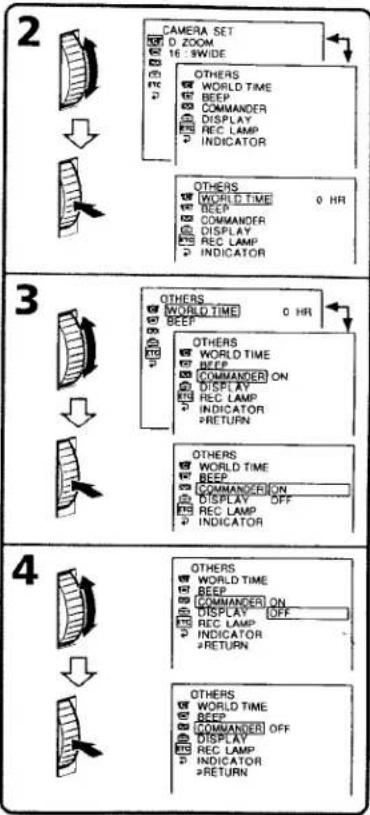
flowchart
graph TD
    A["2"] --> B["CAMERA SET"]
    B --> C["0 ZOOM"]
    C --> D["16 : 5WIDE"]
    D --> E["OTHERS"]
    E --> F["World Time"]
    E --> G["BEEP"]
    E --> H["COMMANDER"]
    E --> I["DISPLAY"]
    E --> J["REC LAMP"]
    E --> K["INDICATOR"]
    A --> L["3"]
    L --> M["OTHERS"]
    M --> N["World Time"]
    M --> O["BEEP"]
    M --> P["OTHERS"]
    P --> Q["World Time"]
    P --> R["BEEP"]
    P --> S["COMMANDER ON"]
    P --> T["DISPLAY"]
    P --> U["REC LAMP"]
    P --> V["INDICATOR"]
    P --> W["RETURN"]
    L --> X["4"]
    X --> Y["OTHERS"]
    Y --> Z["World Time"]
    Y --> AA["BEEP"]
    Y --> AB["COMMANDER ON"]
    Y --> AC["DISPLAY OFF"]
    Y --> AD["REC LAMP"]
    Y --> AE["INDICATOR"]
    Y --> AF["RETURN"]
To make the MENU display disappear
Press MENU.
Changing the MENU settings
Note
When you let the subject monitor the shot (Mirror mode), the menu display does not appear.
Menu items are displayed as the following six icons:
G1 CAMERA SET
VTR SET
LCD SET
CO TAPE SET
SETUP MENU
ETC OTHERS
Selecting the mode setting of each item
● is the factory setting.
Menu items differ according to whether the POWER switch is set to VTR or CAMERA.
| kon/item | Mode | Meaning | POWER switch |
| D ZOOM | ●ON | To activate digital zoom. More than 20× to 360× zoom is performed digitally (p. 17) | CAMERA |
| OFF | To prevent the deterioration of the picture quality | ||
| 16:9WIDE | ●OFF | — | CAMERA |
| CINEMA | To record in the CINEMA mode (p. 30) | ||
| 16:9FULL | To record in the 16:9FULL mode | ||
| STEADYSHOT | ●ON | To compensate for camera-shake | CAMERA |
| OFF | To cancel the SteadyShot function. Natural pictures are produced when shooting a stationary object with a tripod. | ||
| N.S. LIGHT | ●ON | To use the NightShot Light function (p. 20) | CAMERA |
| OFF | To cancel the NightShot Light function | ||
| WIND | ●OFF | — | CAMERA |
| ON | To reduce wind noise when recording in strong wind | ||
| PHOTO | ●NORMAL | To activate the normal photo function | CAMERA |
| FADE | To activate the fade photo function | ||
| SHUTTER | To activate the shutter photo function |
Notes on the SteadyShot function
• The SteadyShot function will not correct excessive camera-shake.
- Attachment of a conversion lens (not supplied) may influence the SteadyShot function.
- SteadyShot does not operate in the 16:9FULL mode. If you set STEADYSHOT to ON in the MENU settings, the 📋 indicator flashes.
Changing the MENU settings
| Icon/item | Mode | Meaning | POWER switch |
| HiFi SOUND | ● STEREO | To play back a stereo tape or dual sound track tape | VTR |
| 1 | To play back a monaural tape or dual sound track tape with main sound | ||
| 2 | To play back a dual sound track tape with sub sound | ||
| EDIT | ● OFF | — | VTR |
| ON | To minimize picture deterioration when editing | ||
| TBC | ● ON | To correct jitter | VTR |
| OFF | To not correct jitter. Set TBC to OFF when playing back a tape on which you have dubbed over and recorded the signal of a TV game or similar machine. | ||
| TBC stands for “Time Base Corrector”. | |||
| DNR | ● ON | To reduce picture noise | VTR |
| OFF | To reduce a conspicuous afterimage when the picture has a lot of movement | ||
| DNR stands for “Digital Noise Reduction”. | |||
| LCD B. L. | ● BRT NORMAL | To set the brightness on the LCD screen normal | VTR CAMERA |
| BRIGHT | To brighten the LCD screen | ||
| LCD COLOR | To adjust the color on the LCD screen, turn and press the SEL/PUSH EXEC dial | VTR CAMERA | |
| To lighten ←→ To darken | |||
In more than 5 minutes after removing the power source
The "WIND" "COMMANDER" "EDIT" and "HiFi SOUND" items are returned to their factory settings.
The other menu items are held in memory even when the battery is removed, as long as the lithium battery is installed.
Notes on LCD B.L.
- When you select "BRIGHT", battery life is reduced by about 10 percent during recording.
- When you use power sources other than the battery pack, "BRIGHT" is automatically selected.
Changing the MENU settings
| Icon/item | Mode | Meaning | POWER switch |
| REC MODE | ●SP | To record in SP (Standard Play) mode | VTR CAMERA |
| LP | To increase the recording time to twice the SP mode | ||
| ORC TO SET | To automatically adjust the recording condition to get the best possible recording. Press START/STOP to start adjustment. Your camcorder takes about 10 seconds to check the tape condition and then returns to the Standby mode. | CAMERA | |
| ORC stands for "Optimizing the Recording Condition". | |||
| REMAIN | ●AUTO | To display the remaining tape bar:• for about 8 seconds after your camcorder is turned on and calculates the remaining amount of tape• for about 8 seconds after a cassette is inserted and your camcorder calculates the remaining amount of tape• for about 8 seconds after ▶ is pressed in VTR mode• for about 8 seconds after DISPLAY is pressed to display the screen indicators• for the period of tape rewinding, forwarding or picture search in the VTR mode | VTR CAMERA |
| ON | To always display the remaining tape indicator | ||
[Unreadable]
Customizing Your Camorader
Notes on the LP mode
- When you record a tape in the LP mode on your camcorder, we recommend playing the tape on your camcorder. When you play back the tape on other camcorders or VCRs, noise may occur in pictures or sound.
- Noise may occur also when you play on your camcorder tapes recorded in the LP mode on other camcorders or VCRs.
- When you record a tape in the LP mode on your camcorder, recording is carried out in the standard 8 mm system.
Notes on ORC setting
• Each time you eject the cassette, the ORC setting will be canceled. If necessary, reset the setting.
- You cannot use this setting on a tape with the red mark on the cassette exposed. (i.e. the tape is write-protected)
- When you set ORC TO SET, a non-recorded section of about 0.1 seconds appears on the tape. However, note that this non-recorded section disappears from the tape when you continue recording from this section.
- To check if you have already set the ORC setting, select ORC TO SET in the MENU settings. "ORC ON" is displayed if ORC TO SET is already set.
Changing the MENU settings
| Icon/item | Mode | Meaning | POWER switch |
| CLOCK SET | To reset the date or time (p. 58) | CAMERA | |
| AUTO DATE | ● ON | To record the date for 10 seconds after recording has started | CAMERA |
| OFF | To cancel the auto date function | ||
| AUTO TV ON | ● OFF | — | VTR CAMERA |
| ON | To automatically turn on the Sony TV when using the laser link function (p. 27) | ||
| TV INPUT | ● VIDEO1VIDEO2VIDEO3 | To switch the video input on a Sony TV when using the laser link function (p. 27) | VTR CAMERA |
| OFF | — | ||
| LTR SIZE | ● NORMAL | To display selected menu items in normal size | VTR CAMERA |
| 2× | To display selected menu items at twice the normal size | ||
| LANGUAGE | ● ENGLISH | To display the following information indicators in English: REC, STBY, min, OVER, END SEARCH, VOL and BRT | VTR CAMERA |
| ESPAÑOL | To display the information indicators in Spanish | ||
| PORTUGUÊS | To display the information indicators in Portuguese | ||
| 中文 | To display the information indicators in Chinese | ||
| DEMO MODE | ● ON | To make the demonstration appear | CAMERA |
| OFF | To cancel the demonstration mode |
Notes on DEMO MODE
- You cannot select DEMO MODE when a cassette is inserted in your camcorder.
- DEMO MODE is set to STBY (Standby) at the factory and the demonstration starts about 10 minutes after you have set the POWER switch to CAMERA without a cassette inserted.
Note that you cannot select STBY of DEMO MODE in the MENU settings.
- When NIGHTSHOT is set to ON, "NIGHTSHOT" appears in the viewfinder or on the LCD screen and you cannot select DEMO MODE in the MENU settings.
Changing the MENU settings
| Icon/item | Mode | Meaning | POWER switch |
| ETG WORLD TIME | To set the clock to the local time. Turn the SEL./ PUSH EXEC dial to set a time difference. The clock changes by the time difference you set here. If you set the time difference to 0, the clock returns to the originally set time. | CAMERA | |
| BEEP | ● MELODY | To output the melody when you start/stop recording or when an unusual condition occurs on your camcorder | VTR CAMERA |
| NORMAL | To output the beep sound instead of the melody | ||
| OFF | To cancel the melody and beep sound | ||
| COMMANDER | ● ON | To activate the Remote Commander supplied with your camcorder | VTR CAMERA |
| OFF | To deactivate the Remote Commander to avoid remote control misoperation caused by other VCR's remote control | ||
| DISPLAY | ● LCD | To show the display on the LCD screen and viewfinder | VTR CAMERA |
| V-OUT/LCD | To show the display on the TV screen, LCD screen and viewfinder | ||
| REC LAMP | ● ON | To light up the camera recording lamp at the front of your camcorder | CAMERA |
| OFF | To turn the camera recording lamp off so that the subject is not aware of the recording | ||
| INDICATOR | ● BL OFF | To turn off the backlight on display window | VTR CAMERA |
| BL ON | To turn on the backlight |

Note
If you press DISPLAY with "DISPLAY" set to "V-OUT/LCD" in the MENU settings, the picture from a TV or VCR will not appear on the LCD screen even when your camcorder is connected to outputs on the TV or VCR.
Notes on INDICATOR
- When you select "BL ON", battery life is reduced by about 10 percent during recording.
- When you use power sources other than the battery pack, "BL ON" is automatically selected.
Resetting the date and time
The clock is set at the factory to Tokyo time for the models sold in Japan, and to Hong Kong, New York or Panama time for other models.
The date and time are held in memory by the lithium battery. If you replace the lithium battery with the battery pack or other power source connected, you need not reset the date and time.
You must reset the date and time when the lithium battery becomes dead with no power source installed.
First, set the year, then the month, the day, the hour and then the minute.
(1) While the camcorder is in the standby mode, press MENU to display the MENU settings.
(2) Turn the SEL/PUSH EXEC dial to select ☐, then press the dial.
(3) Turn the SEL/PUSH EXEC dial to select CLOCK SET, then press the dial.
(4) Turn the SEL/PUSH EXEC dial to adjust the desired year, then press the dial.
(5) Set the month, day and hour by turning the SEL/PUSH EXEC dial and pressing the dial.
(6) Set the minute by turning the SEL/PUSH EXEC dial and pressing the dial by the time signal. The clock starts to move.
(7) Press MENU to make the MENU settings disappear. The time indicator appears. Press TIME to make the time indicator disappear.
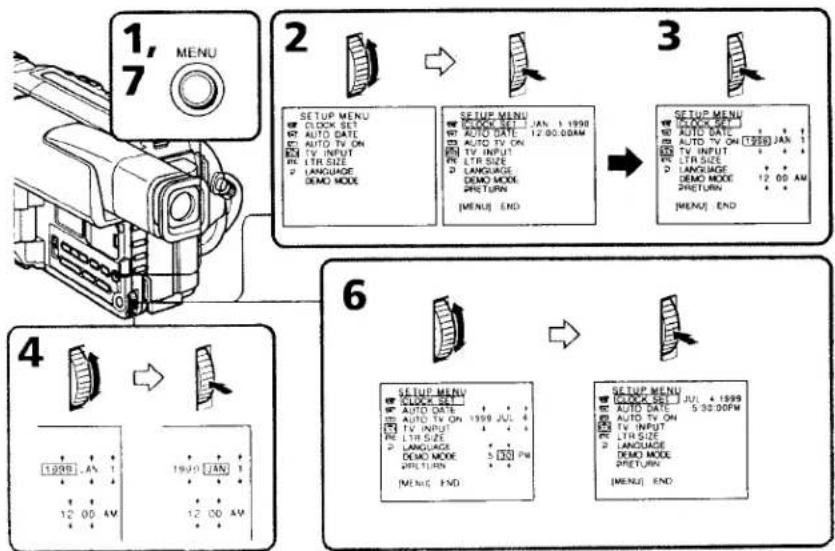
flowchart
graph TD
    A["1, 7 MENU"] --> B["2"]
    B --> C["3"]
    C --> D["4"]
    D --> E["6"]
    E --> F["SETUP MENU"]
    F --> G["SETUP MENU"]
    G --> H["SETUP MENU"]
    H --> I["SETUP MENU"]
    I --> J["SETUP MENU"]
    J --> K["SETUP MENU"]
    style A fill:#f9f,stroke:#333
    style B fill:#ccf,stroke:#333
    style C fill:#cfc,stroke:#333
    style D fill:#fcc,stroke:#333
    style E fill:#cff,stroke:#333
    style F fill:#ffc,stroke:#333
    style G fill:#cfc,stroke:#333
    style H fill:#cfc,stroke:#333
    style I fill:#cfc,stroke:#333
    style J fill:#cfc,stroke:#333
    style K fill:#cfc,stroke:#333
Resetting the date and time
To check the preset date and time
Press DATE to display the date indicator.
Press TIME to display the time indicator.
Press DATE (or TIME) and then press TIME (or DATE) to simultaneously display the date and time indicator.
Press DATE and/or TIME again. The date and/or time indicator disappears.
The year changes as follows:

Auto date function
When you use your camcorder for the first time, turn it on and reset the date and time to your time before you start recording (p. 58). The date is automatically recorded for 10 seconds after you start recording (Auto date function). This function works only once a day.
Note on the time indicator
The internal clock of your camcorder operates on a 12-hour cycle
• 12:00 AM stands for midnight.
• 12:00 PM stands for noon
Note on the auto date function
You can change the AUTO DATE setting by selecting ON or OFF in the MENU settings. The auto date function automatically displays the date once a day.
However, the date may automatically appear more than once a day if:
- you reset the date and time.
- you eject and insert the tape again.
- you stop recording within 10 seconds.
- you set AUTO DATE to OFF once and set it back ON in the MENU settings.
— Additional Information —
Usable cassettes and playback modes
Selecting the cassette type
You can use either Hi8 or standard 8 mm video cassettes on your camcorder. When you use a Hi8 video cassette, recording and playback are carried out in the Hi8 system.
When you use a standard 8 mm video cassette, recording and playback are carried out in the standard 8 mm system.
However, if you record on a Hi8 video cassette in the LP mode, recording is carried out in the standard 8 mm system.
If you play back a tape recorded on a different video recorder on your camcorder, the Playback mode is automatically selected according to the format in which the tape has been recorded.
This Hi8 system is an extension of the standard 8 mm system, and was developed to produce higher quality pictures.
You cannot playback a tape recorded in the Hi8 system correctly on video recorder/players other than a Hi8 video recorder/player.
What is video Hi8 XR ?
"video Hi8 XR" is a function that further enhances the image quality of video Hi8. This function allows you to record and playback pictures with clearer details.
Video tapes recorded on a camcorder having the "XR" function show excellent picture quality when they are played back on an "XR" camcorder.
The playback quality will be the normal quality of the Hi8 camcorder when video tapes recorded on an "XR" camcorder are played back by a conventional Hi8 camcorder or when video tapes recorded on a conventional Hi8 camcorder are played back on the "XR" camcorder.
* "XR" stands for "Extended Resolution."
When you play back
The Playback mode (SP/LP) and system (Hi8/standard 8 mm) are automatically selected according to the format in which the tape has been recorded. The quality of the recorded picture in the LP mode, however, will not be as good as the SP mode.
Note on AFM HiFi stereo
When you play back a tape, the sound will be monaural if:
- You record the tape on your camcorder, then play it back on an AFM HiFi monaural video recorder/player.
- You record the tape on an AFM HiFi monaural video recorder, then play it back on your camcorder.
Foreign 8 mm video
Because TV color systems differ from country to country, you may not be able to play back foreign pre-recorded tapes. Refer to "Using your camcorder abroad" to check the TV color systems used in foreign countries.
Copyright signal
When you record
You cannot record software on your camcorder that contains copyright control signals for copyright protection of software.
"COPY INHIBIT" appears on the LCD screen, in the viewfinder or on the TV screen if you try to record such software.
Your camcorder does not record copyright control signals on the tape when it records.
When you playback a dual sound track tape
When you play back a dual sound track tape on an AFM HiFi stereo system, set "HiFi SOUND" to the desired mode in the MENU settings (p. 52).
Sound from speaker
| HiFi Sound Mode | Playing back a stereo tape | Playing back a dual sound track tape |
| STEREO | Stereo | Main sound and sub sound |
| 1 | Monaural | Main sound |
| 2 | Unnatural sound | Sub sound |
You cannot record dual sound programs on your camcorder.
Changing the lithium battery in your camcorder
When replacing the lithium battery, keep the battery pack or other power source attached. Otherwise, you will need to reset the date, time and other items in the MENU settings hold in memory by the lithium battery.
Insert the battery with the positive (+) side facing out. When the battery becomes weak or dead, the indicator flashes in the viewfinder for about 5 seconds when you set the POWER switch to CAMERA. In this case, replace the battery with a Sony CR2025 or Duracell DL-2025 lithium battery. Use of any other battery may present a risk of fire or explosion.
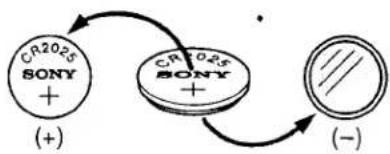
chemical
Chemical reaction diagram showing conversion of two SONY compounds (+) to a positively charged SOY and then to a negative chargeLithium battery
- Keep the lithium battery out of the reach of children.
- Should the battery be swallowed, immediately consult a doctor.
- Wipe the battery with a dry cloth to ensure good contact.
- The battery may explode if mistreated. Do not recharge, disassemble, nor dispose of it in fire. Discard used batteries according to the manufacturer's instructions.
Lithium battery installed at the factory
This battery may not last 1 year.
Changing the lithium battery
(1) Open the LCD panel and open the lid of the lithium battery compartment.
(2) Push the lithium battery down once and pull it out from the holder.
(3) Install a Sony CR2025 or Duracell DL-2025 lithium battery with the positive (+) side facing out.
(4) Close the lid.
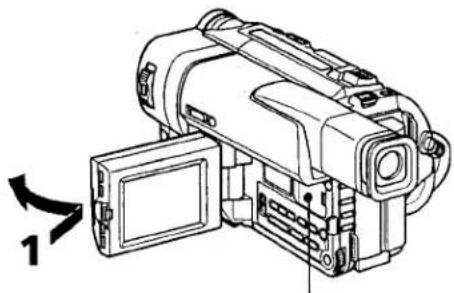
natural_image
Technical line drawing of a mechanical device with a labeled component (no text or symbols present)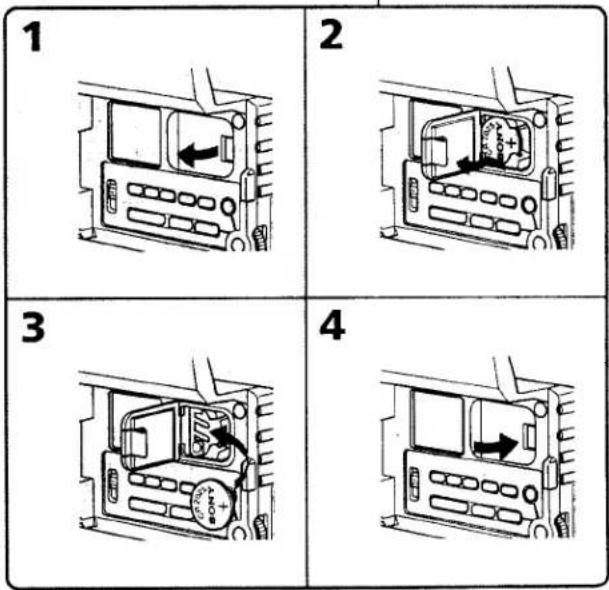
text_image
1 2 3 4Troubleshooting
If you run into any problem using your camcorder, use the following table to troubleshoot the problem. If the problem persists, disconnect the power source and contact your Sony dealer or local authorized Sony service facility. If "C:□□:□□" appears on the LCD screen or in the viewfinder, the self-diagnosis display function has worked. See page 67.
In the recording mode
| Symptom | Cause and/or Corrective Actions |
| START/STOP does not operate. | The POWER switch is set to VTR.→ Set it to CAMERA. (p. 14)The tape has run out.→ Rewind the tape or insert a new one. (p. 13, 23)The write-protect tab is set to expose the red mark.→ Use a new tape or slide the tab. (p. 13)The tape is stuck to the drum (moisture condensation).→ Remove the cassette and leave your camcorder for at least 1 hour to acclimatize. (p. 70) |
| Recording stops in a few seconds. | START/STOP MODE is set to 5SEC or ↓.→ Set it to ↓. (p. 18) |
| The power goes off. | While being operated in the CAMERA mode, your camcorder has been in the standby mode for more than 5 minutes.→ Turn STANDBY down once and then up again. (p. 14) |
| The image on the viewfinder screen is not clear. | The viewfinder lens is not adjusted.→ Adjust the viewfinder lens. (p. 16) |
| The SteadyShot function does not work. | STEADYSHOT is set to OFF in the MENU settings.→ Set it to ON. (p. 52)The SteadyShot function does not work when the wide mode is set to 16:9FULL. |
| The autofocusing function does not work. | FOCUS is set to MANUAL.→ Set it to AUTO. (p. 42)Shooting conditions are not suitable for autofocus.→ Set FOCUS to MANUAL to focus manually. (p. 42) |
| The fader function does not work. | START/STOP MODE is set to 5SEC or ↓.→ Set it to ↓. (p. 18)The digital effect function is working.→ Cancel it. (p. 36) |
| The indicator flashes in the viewfinder. | The video heads may be dirty.→ Clean the heads using the Sony V8-25CLH/V8-25CLD cleaning cassette (not supplied). (p. 71) |
| The picture does not appear in the viewfinder. | The LCD panel is open.→ Close the LCD panel. (p. 15) |
Troubleshooting
| Symptom | Cause and/or Corrective Actions |
| A vertical band appears when you shoot a subject such as lights or a candle flame against a dark background. | The contrast between the subject and background is too high. Your camcorder is not a malfunction. |
| A vertical band appears when you shoot a very bright subject. | Your camcorder is not a malfunction. |
| Some tiny white spots appear in the viewfinder or on the LCD screen. | Slow shutter, low lux or NightShot + Slow shutter mode is activated. This is not a malfunction. |
| An unknown picture is displayed in the viewfinder or on the LCD screen. | If 10 minutes elapse after you set the POWER switch to CAMERA or DEMO MODE is set to ON in the MENU settings without a cassette inserted, your camcorder automatically starts the demonstration.→ Insert a cassette and the demonstration stops. You can also cancel DEMO MODE (p. 56) |
| The picture is recorded in incorrect or unnatural colors. | NIGHTSHOT is set to ON.→ Set it to OFF. (p. 19) |
| Picture appears too bright, and the subject does not appear in the viewfinder or on the LCD screen. | NIGHTSHOT is set to ON in a bright place.→ Set it to OFF, or use the NightShot function in a dark place. (p. 19) |
In the playback mode
| Symptom | Cause and/or Corrective Actions |
| The tape does not move when a video control button is pressed. | The POWER switch is set to CAMERA or OFF.Set it to VTR. (p. 23)The tape has run out.Rewind the tape. (p. 25) |
| The playback picture is not clear or does not appear. | The television's video channel is not adjusted correctly.Adjust it. (p. 26)EDIT is set to ON in the MENU settings.Set it to OFF. (p. 52)The video head may be dirty.Clean the heads using the Sony V8-25CLH/V8-25CLD cleaning cassette (not supplied). (p. 71) |
| No sound or only a low sound is heard when playing back a tape. | The stereo tape is played back with HiFi SOUND set to 2 in the MENU settings.Set it to STEREO. (p. 52)The volume is turned to minimum.Open the LCD panel and press VOLUME +. (p. 23) |
In the recording and playback modes
| Symptom | Cause and/or Corrective Actions |
| The power does not turn on. | The battery pack is not installed, or is dead or nearly dead.Install a charged battery pack. (p. 8, 9)The AC power adaptor is not connected to a wall outlet.Connect the AC power adaptor to a wall outlet. (p. 12) |
| The end search function does not work. | The tape was ejected after recording.You have not recorded on the new cassette yet. |
(Continued on the following page)
Troubleshooting
| Symptom | Cause and/or Corrective Actions |
| The battery pack is quickly discharged. | Your camcorder does not operate when you use a battery pack that is not an "InfoLITHIUM" battery pack.→ Use an "InfoLITHIUM" battery pack. (p. 11)The operating temperature is too low.The battery pack is not fully charged.Charge the battery pack again. (p. 9)The battery pack is completely dead, and cannot be recharged.Replace with a new battery pack. (p. 8) |
| The battery remaining indicator does not indicate the correct time. | You have used the battery pack in an extremely hot or cold environment for a long time.The battery pack is completely dead, and cannot be recharged.Replace Replace with a new battery pack. (p. 8)The battery is dead.Use a charged battery pack. (p. 8, 9) |
| The cassette cannot be removed from the holder. | The power source is disconnected.Connect it firmly. (p. 8, 12)The battery is dead.Use a charged battery pack or the AC power adaptor. (p. 8, 9) |
| The □ and ▲ indicators flash and no functions except for cassette ejection work. | Moisture condensation has occurred.Remove the cassette and leave your camcorder for at least 1 hour to acclimatize. (p. 70) |
Others
| Symptom | Cause and/or Corrective Actions |
| The Remote Commander supplied with your camcorder does not work. | COMMANDER is set to OFF in the MENU settings.→ Set it to ON. (p. 52)Something is blocking the infrared rays.→ Remove the obstacle.The batteries inserted in the battery holder with the +- polarities incorrectly matching the +- marks.→ Insert the batteries with the correct polarity. (p. 80)The batteries are dead.→ Insert new ones. (p. 80) |
| The date or time indicator does not appear, and the bars “----”appear. | Reset the date and time. (p. 58) |
| The picture from a TV or VCR does not appear even when your camcorder is connected to outputs on the TV or VCR. | DISPLAY is set to V-OUT/LCD in the MENU settings.→ Set it to LCD. (p. 52) |
| The melody or beep sounds for 5 seconds. | Moisture condensation has occurred.Remove the cassette and leave your camcorder for at least 1 hour to acclimatize. (p. 70)Some troubles has occurred in your camcorder.Remove the cassette and insert it again, then operate your camcorder. |
| While charging the battery pack, no indicator appears or the indicator flashes in the display window. | The AC power adaptor is disconnected.→ Connect it firmly. (p. 9)Something is wrong with the battery pack.Contact your Sony dealer or local authorized Sony service facility. |
Self-diagnosis display
Your camcorder has a self-diagnosis display function.
This function displays the current condition of your camcorder as a 5-digit code (a combination of a letter and figures) in the viewfinder, on the LCD screen or in the display window. If a 5-digit code is displayed, check the following code chart. The last two digits (indicated by □□) will differ depending on the state of your camcorder.
Viewfinder (or LCD screen)
Self-diagnosis display
•C:□□:□□
You can service your camcorder yourself.
•E:□□:□□
Contact your Sony dealer or local authorized Sony facility.
| Five-digit display | Cause and/or Corrective Actions |
| C:04:□□ | You are using a battery pack that is not an "InfoLITHIUM" battery pack.Use an "InfoLITHIUM" battery pack. (p. 11) |
| C:21:□□ | Moisture condensation has occurred.Remove the cassette and leave your camcorder for at least 1 hour to acclimatize. (p. 70) |
| C:22:□□ | The video heads are dirty.Clean the heads using the Sony V8-25CLH/V8-25CLD cleaning cassette (not supplied). (p. 71) |
| C:31:□□C:32:□□ | A malfunction other than the above that you can service has occurred.Remove the cassette and insert it again, then operate your camcorder.Disconnect the power cord of the AC power adaptor or remove the battery pack. After reconnecting the power source, operate your camcorder. |
| E:61:□□E:62:□□ | A malfunction that you cannot service has occurred.Contact your Sony dealer or local authorized Sony service facility and inform them of the 5-digit code.(example: E:61:10) |
If you are unable to rectify the problem even if you try corrective actions a few times, contact your Sony dealer or local authorized Sony service facility.
Warning indicators and messages
If indicators and messages appear in the viewfinder, on the LCD screen or in the display window, check the following:
See the page in parentheses “( )” for more information.
• The warning messages do not appear in the mirror mode.
• The indicators and messages are displayed in white.
Warning indicators
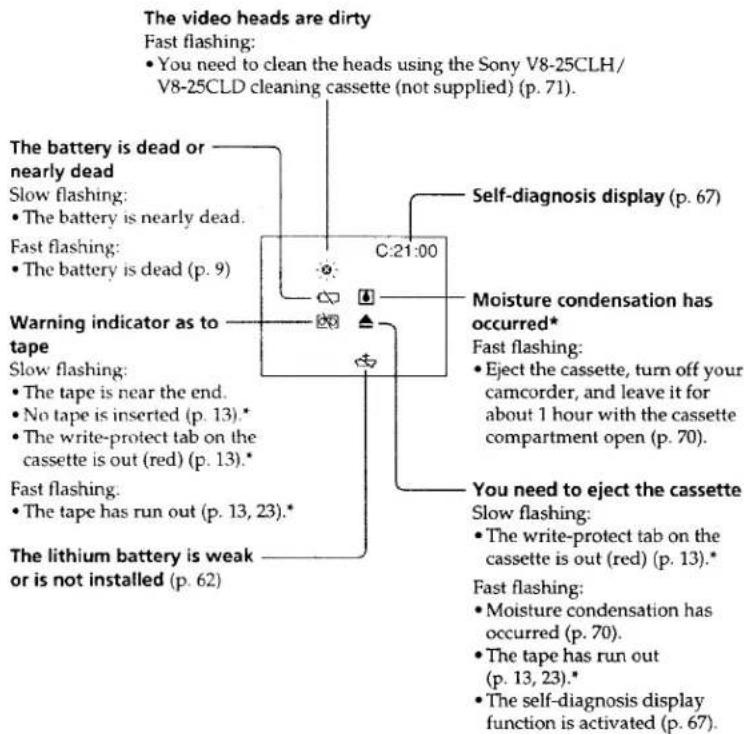
text_image
The video heads are dirty Fast flashing: • You need to clean the heads using the Sony V8-25CLH/ V8-25CLD cleaning cassette (not supplied) (p. 71). The battery is dead or nearly dead Slow flashing: • The battery is nearly dead. Fast flashing: • The battery is dead (p. 9) Warning indicator as to tape Slow flashing: • The tape is near the end. • No tape is inserted (p. 13).* • The write-protect tab on the cassette is out (red) (p. 13).* Fast flashing: • The tape has run out (p. 13, 23).* The lithium battery is weak or is not installed (p. 62) C:21:00 Self-diagnosis display (p. 67) Moisture condensation has occurred* Fast flashing: • Eject the cassette, turn off your camcorder, and leave it for about 1 hour with the cassette compartment open (p. 70). You need to eject the cassette Slow flashing: • The write-protect tab on the cassette is out (red) (p. 13).* Fast flashing: • Moisture condensation has occurred (p. 70). • The tape has run out (p. 13, 23).* • The self-diagnosis display function is activated (p. 67)Warning messages
[NO TEXT]
CLEANING The video heads are dirty.
CASSETTE
COPY
INHIBIT
You tried to record a picture that has a copyright control signal (p. 60).
* You hear the melody or beep sound.
Using your camcorder abroad
Using your camcorder abroad
You can use your camcorder in any country or area with the AC power adaptor supplied with your camcorder within 100 V to 240 V AC, 50/60 Hz.
Your camcorder is an NTSC system based camcorder. If you want to view the playback picture on a TV, it must be an NTSC system based TV with VIDEO/AUDIO input jack. The following shows TV color systems used overseas.
NTSC system
Bahama Islands, Bolivia, Canada, Central America, Chile, Colombia, Ecuador, Jamaica, Japan, Korea, Mexico, Peru, Surinam, Taiwan, the Philippines, the U.S.A., Venezuela, etc.
PAL system
Australia, Austria, Belgium, China, Czech Republic, Denmark, Finland, Germany, Great Britain, Holland, Hong Kong, Italy, Kuwait, Malaysia, New Zealand, Norway, Portugal, Singapore, Slovak Republic, Spain, Sweden, Switzerland, Thailand, etc.
PAL-M system
Brazil
PAL-N system
Argentina, Paraguay, Uruguay
SECAM system
Bulgaria, France, Guyana, Hungary, Iran, Iraq, Monaco, Poland, Russia, Ukraine, etc.
Simple setting of clock by time difference
You can easily set the clock to the local time by setting a time difference. Select WORLD TIME in the MENU settings. See page 52 for more information.
Maintenance information and precautions
Moisture condensation
If your camcorder is brought directly from a cold place to a warm place, moisture may condense inside your camcorder, on the surface of the tape, or on the lens. In this condition, the tape may stick to the head drum and be damaged or your camcorder may not operate correctly. If there is moisture inside your camcorder, the beep sounds and the indicator flashes. When the indicator flashes at the same time, the cassette is inserted in your camcorder. If moisture condenses on the lens, the indicator will not appear.
If moisture condensation occurred
None of the functions except cassette ejection will work. Eject the cassette, turn off your camcorder, and leave it for about 1 hour with the cassette compartment open. Your camcorder can be used again if the indicator does not appear when the power is turned on again.
Note on moisture condensation
Moisture may condense when you bring your camcorder from a cold place into a warm place (or vice versa) or when you use your camcorder in a hot place as follows:
- You bring your camcorder from a ski slope into a place warmed up by a heating device
- You bring your camcorder from an air-conditioned car or room into a hot place outside
- You use your camcorder after a squall or a shower
- You use your camcorder in a high temperature and humidity place
How to prevent moisture condensation
When you bring your camcorder from a cold place into a warm place, put your camcorder in a plastic bag and tightly seal it. Remove the bag when the air temperature inside the plastic bag has reached the surrounding temperature (after about 1 hour).
Maintenance information
Cleaning the video head
To ensure normal recording and clear pictures, clean the video heads. The video head may be dirty when:
- The ✗ indicator and “☑ CLEANING CASSETTE” message appear one after another or the ✗ indicator flashes on the LCD screen or in the viewfinder.
- Playback pictures contain noise.
- Playback pictures are hardly visible.
- Playback pictures do not appear.
If this happens, clean the video heads with the Sony V8-25CLH/V8-25CLD cleaning cassette (not supplied).
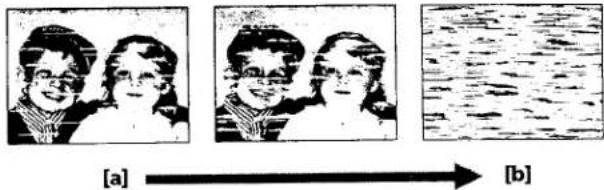
text_image
[a] → [b][a] Slightly dirty
[b] Very dirty
Note on video heads
When the playback pictures are still contain noise even if you have cleaned the video heads with a cleaning cassette, the video heads may have worn down due to long use. If this is the case, they must be replaced with new heads. Contact your Sony dealer or local authorized Sony service facility.
Cleaning the LCD screen
If fingerprints or dust make the LCD screen dirty, we recommend using a LCD Cleaning Kit (not supplied) to clean the LCD screen.
Removing dust from inside the viewfinder
(1) ①Remove the screw with a screwdriver (not supplied). ②Then, while sliding the RELEASE knob, ③turn the eyecup in the direction of the arrow and pull it out.
(2) Clean the surface with a commercially available blower for a still camera.
(3) Reattach the eyecup and replace the screw.
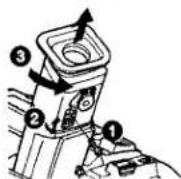
Caution
Do not remove any other screws. You may remove only the screw to remove the eyecup.
Precautions
Camcorder operation
- Operate your camcorder on 7.2 V (battery pack) or 8.4 V (AC power adaptor).
- For DC or AC operation, use the accessories recommended in this operating instructions.
- If any solid object or liquid get inside the casing, unplug your camcorder and have it checked by a Sony dealer before operating it any further.
- Avoid rough handling or mechanical shock. Be particularly careful of the lens.
- Keep the POWER switch set to OFF when you are not using your camcorder.
- Do not wrap your camcorder with a towel, for example, and operate it. Doing so might cause heat to build up inside.
- Keep your camcorder away from strong magnetic fields or mechanical vibration.
- Do not touch the LCD screen with your fingers or a sharp-pointed object.
- If your camcorder is used in a cold place, a residual image may appear on the LCD screen. This is not a malfunction.
- While using your camcorder, the back of the LCD screen may heat up. This is not a malfunction.
Built-in light
- Do not knock or jolt the built-in light while it is turned on as it may damage the bulb or shorten the life of the bulb.
- Do not leave the built-in light on while it is resting on or against something; it may cause a fire or damage the built-in light.
On handling tapes
Do not insert anything into the small holes on the rear of the cassette. These holes are used to sense the type and thickness of the tape and if the recording tab is in or out.
Camcorder care
- When your camcorder is not to be used for a long time, remove the tape and battery. Periodically turn on the power, operate the CAMERA and VTR sections and play back a tape for about 3 minutes.
- Clean the lens with a soft brush to remove dust. If there are fingerprints on the lens, remove them with a soft cloth.
- Clean the camcorder body with a dry soft cloth, or a soft cloth lightly moistened with a mild detergent solution. Do not use any type of solvent which may damage the finish.
- Do not let sand get into your camcorder. When you use your camcorder on a sandy beach or in a dusty place, protect it from the sand or dust. Sand or dust may cause your camcorder to malfunction, and sometimes this malfunction cannot be repaired.
Maintenance information and precautions
AC power adaptor
- Unplug the unit from the wall outlet when you are not using the unit for a long time. To disconnect the power cord, pull it out by the plug. Never pull the power cord itself.
- Do not operate the unit with a damaged cord or if the unit has been dropped or damaged.
- Do not bend the power cord forcibly, or place a heavy object on it. This will damage the cord and may cause fire or electrical shock.
- Prevent metallic objects from coming into contact with the metal parts of the connecting section. If this happens, a short may occur and the unit may be damaged.
• Always keep metal contacts clean.
- Do not disassemble the unit.
- Do not apply mechanical shock or drop the unit.
- While the unit is in use, particularly during charging, keep it away from AM receivers and video equipment. AM receivers and video equipment disturb AM reception and video operation.
• The unit becomes warm during use. This is not a malfunction.
- Do not place the unit in locations that are:
-Extremely hot or cold
- Dusty or dirty
- Very humid
- Vibrating
Notes on dry batteries
To avoid possible damage from battery leakage or corrosion, observe the following:
- Be sure to insert the batteries with the + - polarities matched to the + - marks.
• Dry batteries are not rechargeable. - Do not use a combination of new and old batteries.
- Do not use different types of batteries.
- Current flows from batteries when you are not using them for a long time.
- Do not use leaking batteries.
If batteries are leaking
- Wipe off the liquid in the battery compartment carefully before replacing the batteries.
• If you touch the liquid, wash it off with water. - If the liquid get into your eyes, wash your eyes with a lot of water and then consult a doctor.
If any problem occurs, unplug your camcorder and contact your nearest Sony dealer.
Specifications
Video camera recorder
System
Video recording system
2 rotary heads
Helical scanning FM system
Audio recording system
Rotary heads, FM system
Video signal
NTSC color, EIA standards
Usable cassette
8mm video format cassette
Hi8 or standard 8
Recording/playback time (using
cassette E6/P6-120)
SP mode: 2 hours
LP mode: 4 hours
Fastforward/rewind time (using
cassette E6/P6-120)
Approx. 8 min
Image device
1/4 inch CCD (Charge Coupled
Device)
Approx. 470,000 pixels
(Effective: Approx. 300,000 pixels)
Lens
Combined power zoom lens
Filter diameter 37 mm
20x (Optical), 360x (Digital)
Focal distance
3.6-72mm
When converted to a 35 mm still
camera
41-820mm
Color temperature
Auto
Minimum illumination
0.7 lux (F 1.4)
0 lux (in the NightShot mode)*
* Objects unable to be seen due to
the dark can be shot with
infrared lighting.
input and output
connectors
S video input/output
4-pin mini DIN
Luminance signal: 1 Vp-p.
75 ohms, unbalanced
Chrominance signal: 0.286 Vp-p,
75 ohms, unbalanced
Video input/output
Phono jack, 1 Vp-p, 75 ohms.
unbalanced
Audio input/output
Phono jacks (2: stereo L and R)
327 mV, (at output impedance
47 kilohms) impedance less than
2.2 kilohms
RFU DC OUT
Special minijack, DC 5V
Headphone jack
Stereo minijack (ø 3.5 mm)
LANC control jack
Stereo mini-minijack (ø 2.5 mm)
MIC jack
Minijack, 0.388 mV low impedance
with 25 to 3.0 V DC, output
impedance 6.8 kilohms (ø 3.5 mm)
Stereo type
LCD screen
Picture
2.5 inches measured diagonally
50.3×37.4mm
Total dot number
61,380 (279 × 220)
General
Power requirements
7.2 V (battery pack)
8.4 V (AC power adaptor)
Average power consumption
(when using the battery pack)
During camera recording using
LCD
2.8 W
Viewfinder
2.3 W
Operating temperature
0 °C to 40 °C (32 °F to 104 °F)
Storage temperature
-20 °C to +60 °C (-4 °F to +140 °F)
Dimensions (Approx.)
102×106×212 mm (w/h/d)
Mass (approx.)
870 g
excluding the battery pack, lithium
battery, cassette and shoulder
strap
1.0 kg
including the battery pack
NP-F330, lithium battery CR2025,
cassette E6/P6-120 and shoulder
strap
Supplied accessories
See page 7.
'AC power adaptor
Power requirements
100 - 240 V AC, 50/60 Hz
Power consumption
23 W
Output voltage
DC OUT: 8.4 V, 1.5 A in operating
mode
Operating temperature
0 °C to 40 °C (32 °F to 104 °F)
Storage temperature
-20°C to +60°C (-4°F to +140°F)
Dimensions (approx.)
125×39×62 mm (w/h/d)
excluding projecting parts
Mass (approx.)
280 g
excluding power cord
Cord length (approx.)
AC power cord: 2 m
Connecting cord: 1.6 m
Design and specifications are
subject to change without notice.
Identifying the parts and controls
Camcorder
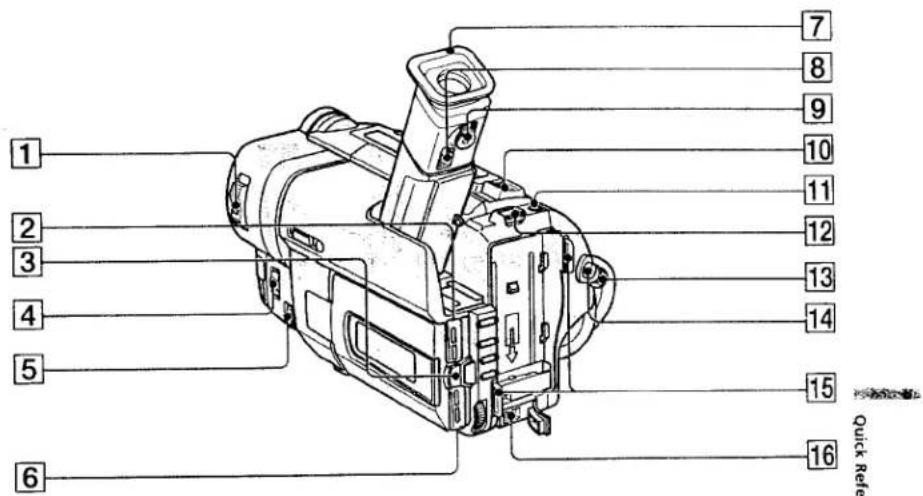
text_image
1 2 3 4 5 6 7 8 9 10 11 12 13 14 15 16 Quick Refe① POWER switch (p. 14)
② LCD BRIGHT buttons (p. 15)
③ OPEN button (p. 14)
④ FOCUS switch (p. 42)
⑤ NEAR/FAR dial (p. 42)
6 VOLUME buttons (p. 23)
7 Eyecup
⑧ Eyecup RELEASE knob (p. 71)
9 Viewfinder lens adjustment lever (p. 16)
10 Power zoom lever (p. 17)
11 PHOTO button (p. 28)
12 BATT RELEASE lever (p. 8)
13 STANDBY switch (p. 14)
14 START/STOP button (p. 14)
15 Hook for shoulder strap
16 DC IN jack (p. 9, 12)

This mark indicates that this product is a genuine accessory for Sony video products.
When purchasing Sony video products, Sony recommends that you purchase accessories with this "GENUINE VIDEO ACCESSORIES" mark.
Identifying the parts and controls
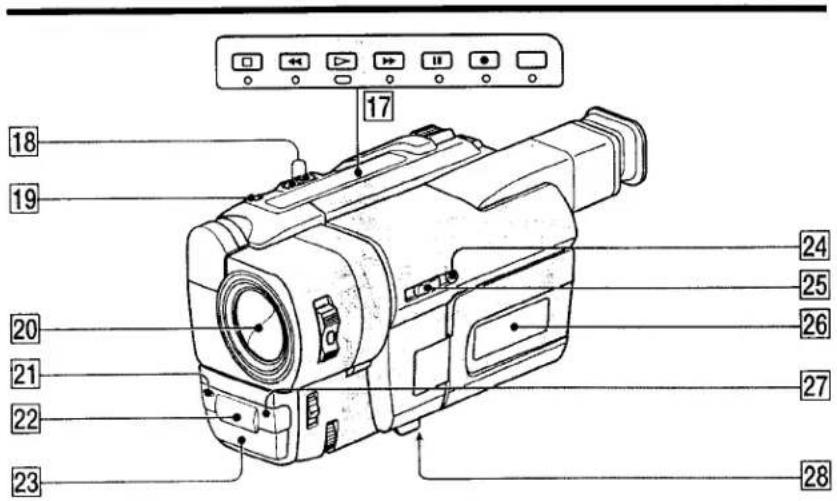
text_image
17 18 19 20 21 22 23 24 25 26 27 2817 Video control buttons (p. 23, 25, 51)
■ STOP (stop)
← REW (rewind)
▶ PLAY ( playback)
▶▶ FF (fastforward)
II PAUSE (pause)
● REC (recording)
The control buttons light up when you set the POWER switch to VTR.
18 EDITSEARCH button (p. 22)
19 LASER LINK button (p. 27)
20 Lens cover
21 Camera recording lamp (p. 14)
22 Infrared rays emitter (p. 19, 27)
23 Microphone
24 +SLOW SHUTTER button (p. 19)
25 NIGHTSHOT switch (p. 19)
26 Display window (p. 81)
27 Remote sensor (p. 80)
28 Tripod receptacle (base)
Make sure that the length of the tripod screw is less than 6.5 mm. Otherwise, you cannot attach the tripod securely and the screw may damage your camcorder.
What is LASER LINK?
The LASER LINK system sends and receives pictures and sound between video equipment having the mark by using infrared rays.
Identifying the parts and controls
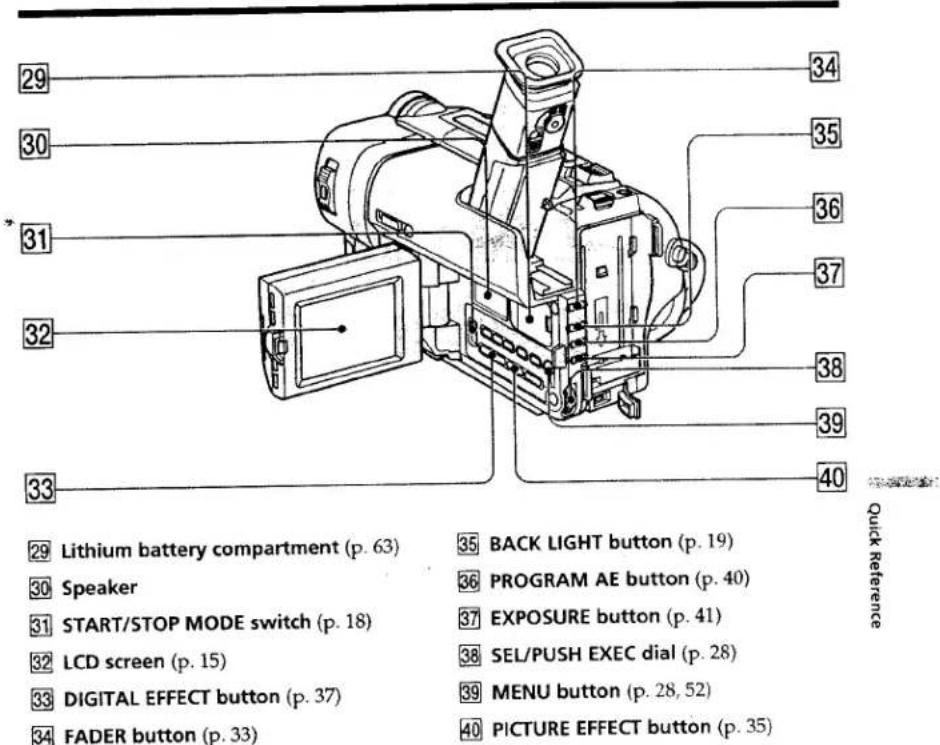
text_image
29 30 31 32 33 34 35 36 37 38 39 40 29 Lithium battery compartment (p. 63) 30 Speaker 31 START/STOP MODE switch (p. 18) 32 LCD screen (p. 15) 33 DIGITAL EFFECT button (p. 37) 34 FADER button (p. 33) 35 BACK LIGHT button (p. 19) 36 PROGRAM AE button (p. 40) 37 EXPOSURE button (p. 41) 38 SEL/PUSH EXEC dial (p. 28) 39 MENU button (p. 28, 52) 40 PICTURE EFFECT button (p. 35) Quick ReferenceAttaching the shoulder strap
Attach the shoulder strap supplied with your camcorder to the hooks for the shoulder strap.
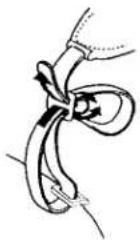
Identifying the parts and controls
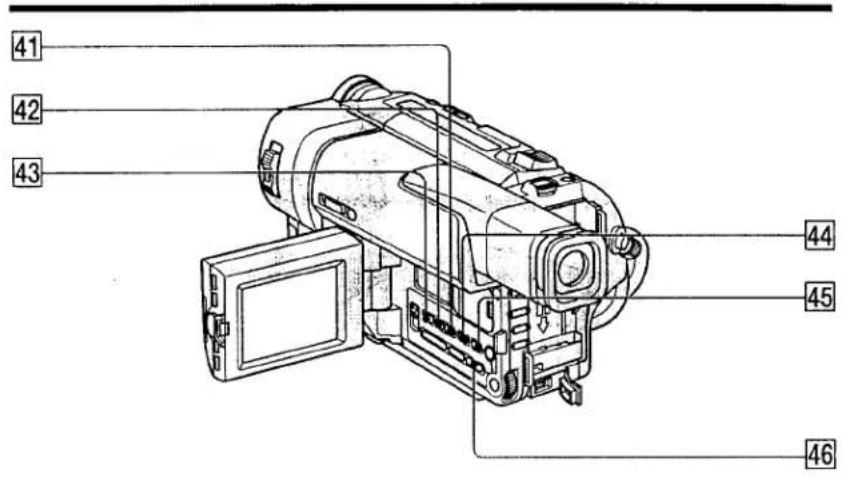
text_image
41 42 43 44 45 4641 COUNTER RESET button (p. 14)
42 TIME button (p. 21)
43 DATE button (p. 21)
44 DISPLAY button (p. 24)
45 END SEARCH button (p. 22)
46 TITLE button (p. 43)
Identifying the parts and controls
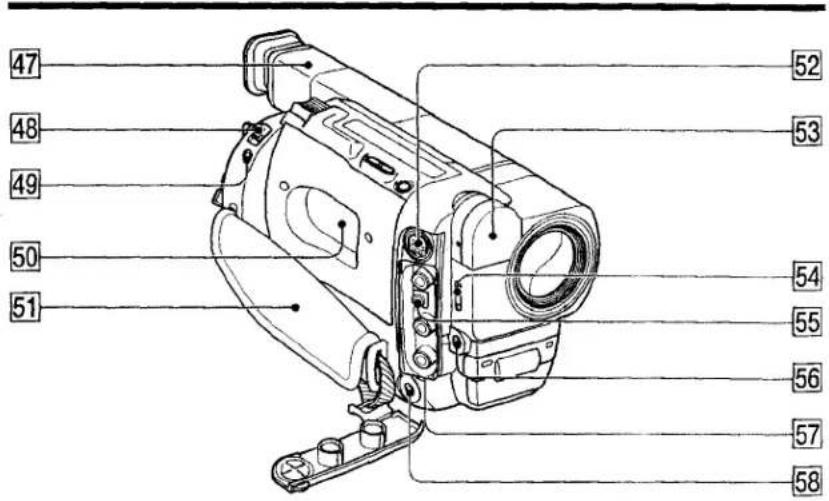
text_image
47 48 49 50 51 52 53 54 55 56 57 5847 Viewfinder (p. 16)
48 EJECT switch (p. 13)
49 LANC control jack
LANC stands for Local Application Control Bus System. The control jack is used for controlling the tape transport of video equipment and other peripherals connected to the video equipment. This jack has the same function as the jack indicated as CONTROL L or REMOTE.
50 Cassette compartment (p. 13)
51 Grip strap
52 S VIDEO jack (p. 26)
53 Built-in light (p. 47)
54 LIGHT switch (p. 47)
55 RFU DC OUT (RFU adaptor DC output) jack (p. 26)
56 MIC jack (PLUG IN POWER)
Connect an external microphone (not supplied). This jack also accepts a "plug-in-power" microphone. If you connect a 2-pin microphone, supply power from DC OUT jack. In this case, WIND in the MENU settings does not function.
57 VIDEO/AUDIO jacks (p. 26)
58 (headphones) jack
When you use headphones, the speaker on your camcorder is silent.
Fastening the grip strap
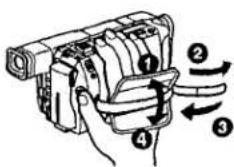
text_image
Diagram of a mechanical device with numbered parts and directional arrows indicating motion or forceFasten the grip strap firmly.
Remote Commander
The buttons that have the same name on the Remote Commander as on your camcorder function identically to the buttons on your camcorder.
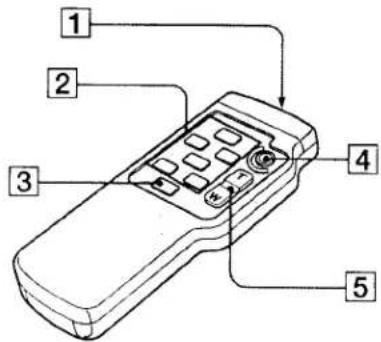
text_image
Diagram of a remote control device with numbered parts labeled 1 to 51 Transmitter
② Video control buttons (p. 25)
③ DISPLAY button (p. 24)
4 START/STOP button (p. 14)
You use it in the standby or recording mode.
5 Power zoom button (p. 17)
To prepare the Remote Commander
Insert 2 R6 (size AA) batteries by matching the + and - polarities on the batteries to the + - marks inside the battery compartment.
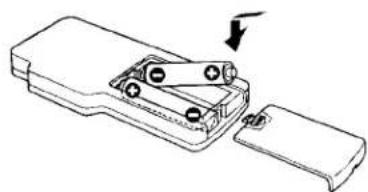
natural_image
Technical line drawing of a mechanical device with a handle and internal components (no text or symbols)Notes on the Remote Commander
- Point the remote sensor away from strong light sources such as direct sunlight or overhead lighting. Otherwise, the Remote Commander may not function properly.
- Your camcorder works in the commander mode VTR 2. Commander modes 1, 2 and 3 are used to distinguish your camcorder from other Sony VCRs to avoid remote control misoperation. If you use another Sony VCR in the commander mode VTR 2, we recommend changing the commander mode or covering the sensor of the VCR with black paper.
Operation indicators
Viewfinder
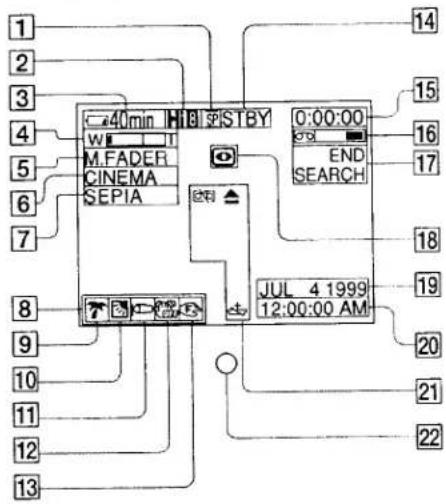
text_image
1 2 3 4 5 6 7 8 9 10 11 12 13 40 min H B S P T B Y W I T M.FADER CINEMA SEPIA 0:00:00 END SEARCH JUL 4 1999 12:00:00 AM 14 15 16 17 18 19 20 21 22Display window
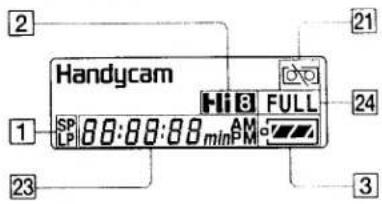
text_image
Handycam Hi 8 FULL SP 00:00:00 min 21 24 3 1 231 Recording mode indicator (p. 55)/Mirror mode indicator (p. 15)
② Hi8 format indicator (p. 18, 60)
③ Remaining battery time indicator (p. 18)
4 Exposure indicator (p. 41)/Zoom indicator (p. 17)
⑤ Fader indicator (p. 33)/Digital effect indicator (p. 37)
6 Wide mode indicator (p. 30)
7 Picture effect indicator (p. 35)
8 LCD bright indicator (p. 15)/Volume indicator (p. 23)
9 PROGRAM AE indicator (p. 39)
10 Backlight indicator (p. 19)
11 Wind indicator (p. 53)
12 SteadyShot off indicator (p. 53)
13 Manual focusing indicator (p. 42)
14 Video control mode (p. 25)
15 Tape counter (p. 18)/Self-diagnosis display function indicator (p. 67)/5SEC mode indicator (p. 18)/Photo mode indicator (p. 28)
16 Remaining tape indicator (p. 18)
17 END SEARCH indicator (p. 22)
18 NIGHTSHOT indicator (p. 19)
19 AUTO DATE indicator (p. 59)/Date indicator (p. 21, 58)
20 Time indicator (p. 21, 58)
21 Warning indicators (p. 68)
22 Recording lamp (p. 14)
23 Date or time indicator (p. 21, 59)/ Tape counter indicator (p. 18)/ Self-diagnosis display function indicator (p. 67)/Remaining battery time indicator (p. 9)
24 FULL charge indicator (p. 9)
Quick Function Guide
Functions to adjust exposure (in the recording mode)
• In a dark place
NIGHTSHOT (p. 19)
• In insufficient light
Low lux mode (p. 39)
• In dark environments such as sunset, fireworks, or general night views
Sunset & moon mode (p. 39)
• Shooting backlit subjects
• In spotlight, such as at the theater or a formal event
BACK LIGHT (p. 19)
• In strong light or reflected light, such as at a beach in midsummer or on a ski slope
Spotlight mode (p. 39)
Beach & ski mode (p. 39)
Functions to give images more impact (in the recording mode)
- Smooth transition between scenes
FADER (p. 32)
• Taking a still picture
PHOTO (p. 28)
• Digital processing of images
PICTURE EFFECT (p. 35)
- Processing a scene using digital effects
DIGITAL EFFECT(p. 36)
- Creating a soft background for subjects
Soft portrait mode (p. 39)
•Superimposing a title
TITLE (p. 43)
Functions to give a natural appearance to your recordings (in the recording mode)
• Preventing deterioration of picture quality in digital zoom
D ZOOM [MENU] (p. 52)
- Focusing manually
Manual focus (p. 42)
- Reducing wind noise
WIND [MENU] (p. 52)
• Shooting distant subjects
Landscape mode (p. 39)
•Recording fast-moving subjects
Sports lesson mode (p. 39)
Functions to use in editing (in the recording mode)
• Watching the picture on a wide-screen TV
Wide mode (p. 30)
- Playing back the picture on a TV without connecting a cord
LASER LINK (p. 27)
• Recording with the date/time
Date and time (p. 21)
• Enhancing old tapes
ORC [MENU] (p. 52)
Functions to use after recording (in the playback mode)
- Playing back on monaural sound or sub sound
HiFi SOUND [MENU] (p. 52)
- Correcting jitter
TBC [MENU] (p. 52)
- Correcting color noise
DNR [MENU] (p. 52)
Index
A, B
Adjusting viewfinder 16 AC power adaptor 9
AFM HiFi Sound 60
ANTI GROUND SHOOTING
18
A/V connecting cable
26,50,51
BACK LIGHT 19
Battery pack 8
Beep 57
BOUNCE 32
C, D
Charging battery 9
Clock set 58
Connection
(viewing on TV) 26
(dubbing a tape) 50
DEMO 56
Digital effect 36
DISPLAY 24
DNR 54
Dual sound track tape.... 61
Dubbing a tape 50
E
EDIT 54
EDITSEARCH 22
END SEARCH 22,25
Exposure 41
External microphone (not
supplied) 79
F, G, H
FADER 32
Fade in/out 32
FLASH MOTION 36
FOCUS....42
Full charge 10
Grip strap 79
Heads 71
Headphone jack 79
Hi8 system 60
HiFi SOUND 54
I, J, K, L
"InfoLITHIUM" battery ..... 11
Infrared rays emitter ..... 19, 27
LANC 79
LASER LINK 27
LCD screen 15
LP mode 55
LUMINANCEKEY 36
M, N
Main sound 54
Manual focus 42
Menu settings 52
Mirror mode 15
Moisture condensation ..... 70
Monaural....61
MONOTONE 32
Mosaic fader 32
NIGHTSHOT 19
Normal charge 9
NTSC system 69
O, P, Q
OLD MOVIE 36
Operation indicators 81
ORC 55
OVERLAP 32
Photo recording 28
Picture effect 35
Picture search 25
Playback pause 25
Power sources
(house current) 12
(car battery) 12
(battery pack) 8
Power zoom 17
PROGRAM AE 39
R
Rec review 22
Recording and playback
systems 60
Recording mode 55
Recording time 10
Remaining tape indicator ..... 18
Remaining battery time
indicator 18
Remote control jack (LANC)
79
Remote commander 80
Remote sensor 76
RFU adaptor 26
s
S video jack 26,50,51
Self-diagnosis display 67
SEL/PUSH EXEC dial ..... 77
Shoulder strap 77
Skip scan 25
Slow playback 25
Standard 8 mm system ..... 60
START/STOP MODE ..... 18
STEADYSHOT 53
Stereo tape 61
STILL 36
STRIPE 32
Sub sound 54
Superimposing the date and
time 2
SLOW SHUTTER 36
+SLOW SHUTTER ..... 19
T, U, V
Tape counter 14
TBC 54
Telephote 17
Title 43
TRAIL 36
Transition 14
TV color systems....69
W, X, Y, Z
Warning indicators 68
Wide-angle 17
Wide mode 30
WIPE 32
WORLD TIME 57
Write-protect tab....13
Zoom 17
[Unreadable]
Quick Reference
Sony on line
http://www.world.sony.com/
Sony Corporation Printed in Japan
Printed on recycled paper