Jelly Baby - Kamera EASYPIX - Gratis brugsanvisning og manual
Find enhedens vejledning gratis Jelly Baby EASYPIX i PDF-format.


Brugerspørgsmål om Jelly Baby EASYPIX
0 spørgsmål om dette apparat. Besvar dem du kender, eller stil dit eget.
Stil et nyt spørgsmål om dette apparat
Download vejledningen til din Kamera i PDF-format gratis! Find din vejledning Jelly Baby - EASYPIX og tag din elektroniske enhed tilbage i hånden. På denne side er alle dokumenter nødvendige for brugen af din enhed offentliggjort. Jelly Baby af mærket EASYPIX.
BRUGSANVISNING Jelly Baby EASYPIX
T514 Jelly Baby® Manual
1. Get to know your camera
Digital still camera
Digital video camcorder
5.0 Mega pixels resolution sensor
Built-in flash Light
4x digital zoom
2.7" TFT color display
32MB Nand Flash memory
Lithium Battery
Anti-shaking still capture
PictBridge
Smill capture
2. Functional parts
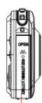
Battery Door
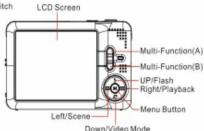
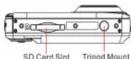
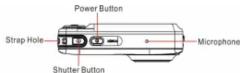
| 1 | Shutter Button | Press this button to take photographs. |
| 2 | Power on/off button | Press this button to turn on, press again to turn off. |
| 3 | Strap Hole | Hook for attaching the wrist strap to the camera. |
| 4 | Busy indicator | When the indicator is blinking,the camera is busy. |
| Microphone | Record the Sound. | |
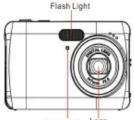
| 5 | Lens | Records the image to be taken.Note:Keep the lens clean. Dirt and fingerprints will affect the quality of the picture. |
| 6 | Flash light | Use the built-in flash to give the subject extra lighting if it is in dark surrounding (the best flash distance is recommended within 1.5m). |
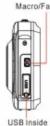
| 7 | Macro/Far switch | Macro mode:Select this mode to take close-up photographs (distance 30cm - 45cm).Normal mode:Select this mode to take photographs from 0.5m - infinity. |
| 8 | LCD screen | Display photographs, video clips, camera setting and menu. |
| 9 | Multi-fuction(A) | Press this button to digital zoom in. |
| 10 | Multi-fuction(B) | Press this button to digital zoom out. |
| 11 | Left / Scene | Press it to enter scene menu. |
| 12 | Right / Playback | Press it to enter playback mode. |
| 13 | Menu Button | Press it to enter camera setting mode. |
| 14 | Up/Flash | Press it to enter flash mode. |
| 15 | Down/Video Mode | Press it to start/stop recording video. |
| 16 | USB inside | Via this connection, you can download photographs and video clips to a computer. |
| 17 | SD card slot | SD card storage location. |
| 18 | Battery door | Door for battery. |
3. Explanation of the status icons
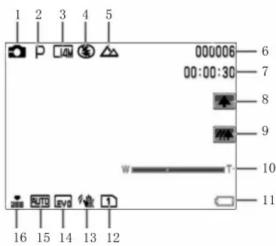
| Item | Function | Description |
| 1 | Mode selected | Photographs mode.Video capture mode.Photo playback mode.Video playback mode. |
| 2 | Scene mode | Auto/ Scenery/ Portrait/ Night Scenery/ Night Portrait/ High Sensitivity./ Beach, |
| 3 | Selected resolution | 12M = 4032x3024; 8M=3264x24485M = 2560x1920; 3M = 2048x1536;1.3M = 1280x960; VGA = 640x480 /10s Timer |
| 4 | Flash indicator | Force flash: The flash is on in any environment.Auto flash: The camera determines if the flash should be used or not.No flash : The flash is turned off.. |
| 5 | Normal/Macro mode indicator | Mode (0.5m – infinity).Macro mode (25cm – 40cm). |
| 6 | Photo/Video counter | Photo mode: No. of pictures had been taken.Video mode: Recording time in second.Playback mode: No. of pictures or video file. |
| 7 | Remaining time for shooting | |
| 8 | Zoom in | Zoom in icon |
| 9 | Zoom out | Zoom out icon |
| 10 | Zoom out | |
| 11 | Battery indicator | The battery is full.The battery is empty. |
| 12 | SD card inserted | |
| 13 | alert-anti-shaking | Alert user to hold the camera steadily.-on/off |
| 14 | Exposure value | Show EV±value. |
| 15 | ISO | Sensitivity select. |
| 16 | Picture quality | Super fine.Fine.Normal. |
- Details for camera setting
| SET | Si | Scene | Auto/Night Portrait/Night Scenery/Portrait/Scenery/ Beach/High sensitivity |
| Image size | 14M pixel resolution | ||
| 12M pixel resolution | |||
| 8 M pixel resolution | |||
| 7MHD pixel resolution | |||
| 5M pixel resolution | |||
| 3M pixel resolution | |||
| Image size | 2MHD pixel resolution | ||
| VGA resolution | |||
| Anti-shake | On / Off | ||
| Continue Shot | On / Off | ||
| Face Detect | On / Off | ||
| Smile Capture | On / Off | ||
| Self-Timer | Off/2 Seconds/5 Seconds/10 Seconds | ||
| Selaph | Exposure | From +3to -3 | |
| ISO | Auto/100/200/400 | ||
| White balance | Auto | ||
| Daylight | |||
| Cloudy | |||
| Incandescent | |||
| Fluorescent | |||
| Sharpness | Normal/Sharp/Soft | ||
| Quality | Supper fine/Fine/Normal | ||
| Video size | VGA(640x480)/QVGA(32 0x240) | ||
| Date | On/Off/Set Date | ||
| Auto power off | 1Minute / 3 Minutes/5Minutes/None | ||
| Language | |||
| Frequency | 50Hz / 60Hz | ||
| Format | Internal Memory/ SD card format | ||
| Default setting | Cancel / OK | ||
| Cancel |
Note: The camera will remain the last setting when it is t
5. Using the camera
5.1 Installing the battery
- Open the battery door.
- Insert Lithium battery into the camera.
- Close the battery door.
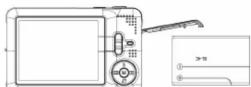
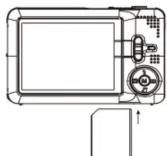
5.2 Inserting a memory card (not includ
This camera has built-in internal memory. This memory can (not included).
Note: There is only one right direction to insert the SD memory card into the slot. Do not force the card into the slot, or else it may damage both the camera and the SD memory card.
Note: The SD memory card must be formatted before taking photographs. See the following sections for more information.
5.3 Formatting the memory or SD card
Formatting SD card will delete all information in SD card.
- Turn on the camera, press the menu button in PHOTO mode.
- Select the setup mode by press the right or left button.
- Select the format icon by press the up or down button and press the Menu button to
confirm. - Select OK icon by press the up or down button and press the Menu button to confirm.
- Press up or down button to select yes icon and press the Menu button to confirm.
5.4 Setting the Image Size
The camera can be set to different resolutions.
- Press the menu button in PHOTO mode, select the Image Size icon by right or left key and press the up or down butto to select the resolutions.
- 8 different resolutions will be displayed. Select the desired resolution by using the up or down buttons and press the Menu button to confirm the selection.
5.5 Taking photographs
- Turn on the camera.
- Depending on the distance to the object being photographed, use macro switch to adjust the distance. Select the flower symbol (💡) if you wish to take a close-up photograph (30cm -45cm). If you wish to take video or photograph of surroundings or people (0.5m - infinity), set the macro switch to normal mode ( Hills).
- If you are not sure if there is enough lighting, turn the automatic flash(5A) on by pressing the un(flash) button. (If the battery power is too low, the flash won't be activated)
- Use the LCD screen to aim the object you wish to take photograph.
- Use the EGB screen to aim the object you wish to take photograph. Use the face detection to aim the people you wish to take photograph.
- Press SHUTTER button and wait until the LCD display turn on again
- If 'SMILE' detection is ON, shutter will be activate automatically once a smile face is detected
Caution: 1) Taking picture for fast-moving object is not recommended.
2) Image may be distorted when taking picture in a moving vehicle.
5.6 Zoom in and out
Zoom in or out by pressing the Button A or Button B, a Zoom out icon will appear on the display, 4x is the maximum zoom ratio.
5.7 Self-timer setting
You can use the self-timer function when you wish to take a photograph for yourself or when you wish to take a photograph for an object which the camera must be as still as possible.
- Set the camera to photo mode.
- Press the MENU button. The menu will appear.
- Press the Right or Left button to select Self Timer menu
- Press the up or down button to set the delay time: Off/2seconds/5seconds/10seconds.
- Press the MENU button to confirm. The self-timer function is now ready for use.
- Aim at the object you wish to take photo.
- Press the SHUTTER button to take a photograph.
-
The photo will be taken after the timer reaches the delay time that you pre-setted and the self timer LED indicator will flash 2, 5 or 10 seconds (per you selection) until the photo is taken.
-
Turn on the camera.
- For setting the resolution, Press MENU button and select setup menu, then press the up or down button to select the Video Size icon, the press MENU button to confirm. Two resolution will be displayed. VGA (640 x 480), OVCW (320 x 340).
- Press the DOWN button to start recording video, press the DOWN button again to stop recording. The video clip will now be saved as an AVI file in the camera memory.
5.9 Playback photographs
- Press the RIGHT button to get into playback mode.
- Press the left or right buttons to see photographs.
- Press the B button turn to camera mode.
- Press the A button to delete the image.
5.10 Playback video clips
- Press the RIGHT button to get into playback mode, press the RIGHT or LEFT button to
- When playing the video press right button to press the playback.
- When playing the video press right button
- Dress the R button turn to camera mode
- Press the B button turn to camera mode.
- Press the A button to delete the video
5.11 Delete photographs and video clips
You can choose to delete a single photograph / video clip, or delete all the photographs / video clips in the memory.
Follow the instructions given below to delete photograph.
1. Press the RIGHT button to enter the playback mode.
2. Press left or right button to select photograph/video clip to be delete.
3. Press the MENU button and press RIGHT OR LEFT button and select Delete Icon.and select Delete This Image(Video) / All.
4. Press the MENU button to confirm
NOTE: Select "All" and Press the SHUTTER button to confirm, all the pictures and videos will be deleted.
6. Connecting to a PC
The unit can be connected to the computer as mass storage device and transfer photo/video files for storage.
- Specifications
| Sensor | 5.0 Mega pixel CMOS sensor |
| Image resolution | 14 Mega pixels: (4416 x 3312) |
| 12 Mega pixels: (4000x3000) | |
| 8 Mega pixels: (3264 x 2448) | |
| 7Mega pixels: (3648 x 2048) | |
| 5Mga pixels: (2592 x 1944) | |
| 3Mega pixels: (2048 x 1536) | |
| 2Mega pixels: (1920 x1080) | |
| VGA: (640x480) | |
| Lens | F/3.0 f = 7mm |
| Focus range | 0.5m. ~ Infinity |
| Macro mode | 25cm - 40cm |
| Digital zoom | 4x |
| Flash strobe | Built-in ( Auto / force / off ) |
| LCD display | 2.7" TFT color display |
| White balance | Auto/Daylight/Cloudy/Incandescent/Fluorescent |
| Video mode | VGA&QVGA |
| External memory card | SD card supports up to32GB |
| File format | Picture: JPEG, Video: AVI |
| Self timer | Off/2Seconds/5Seconds/10 seconds |
| PC interface | USB 2.0 |
| Power source | Lithium battery |
o. System requirement
| Operating system | Windows XP / Vista or above Mac 10.5.x or later |
| CPU | Pentium III or above |
| RAM | At least 128MB |
| Interface | USB port |
| CD | 4x speed CD ROM or above |
- Troubleshooting
| Problem | Cause |
| Cannot turn on the camera | Low battery power.Battery placed at wrong polarities. |
| Photos can not be saved when taking pictures. | The memory card or built-in memory hasn't been formatted properly. |
| Cannot find removable disk after connecting the camera to the computer. | Connection failure. |
| Flash does not work. | Battery power is too low. |
| The photos are blurry | 1. The camera is not held steadily2. The lens of camera is dirty. |

- T514 Jelly Baby® Manual
- Get to know your camera
- Functional parts
- Explanation of the status icons
- Using the camera
- Installing the battery
- Inserting a memory card (not includ
- Formatting the memory or SD card
- Setting the Image Size
- Taking photographs
- Zoom in and out
- Self-timer setting
- Playback photographs
- Playback video clips
- Delete photographs and video clips
- Connecting to a PC
Mærke : EASYPIX
Model : Jelly Baby
Kategori : Kamera