ZP520 - Smartphone Zopo - Gratis brugsanvisning og manual
Find enhedens vejledning gratis ZP520 Zopo i PDF-format.


Brugerspørgsmål om ZP520 Zopo
0 spørgsmål om dette apparat. Besvar dem du kender, eller stil dit eget.
Stil et nyt spørgsmål om dette apparat
Download vejledningen til din Smartphone i PDF-format gratis! Find din vejledning ZP520 - Zopo og tag din elektroniske enhed tilbage i hånden. På denne side er alle dokumenter nødvendige for brugen af din enhed offentliggjort. ZP520 af mærket Zopo.
BRUGSANVISNING ZP520 Zopo
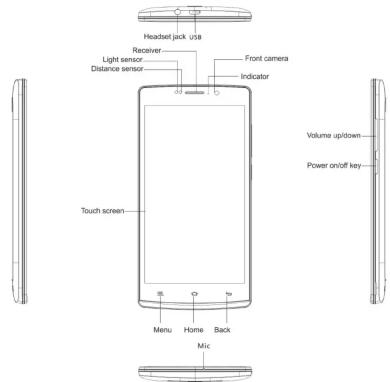
Parts description and preparation
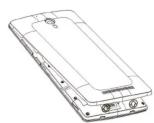
Open the notch on the lid,
Then pull lightly along the lid cracks.
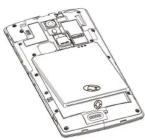
Notice: In accordance with the instructions, you should be prompted to insert remove the
you should be prompted to ensure, remove the batteries to avoid unnecessary damage to the body or battery.
Body of battery. Plug the battery:
Keep battery metal contacts and fuselage battery
contactor alignment, then gently press do push the battery into the phone smoothly.
Basic Function
Power On

1. Keep press the power button ⏻, until screen turn on.
2. Please wait for seconds for power on.
Unlock and Lock screen
Unlock

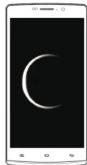
Press ⏻ button quickly, and drag the ring to unlock
Press the power key ⏻ in any interface, then the mobile phone will enter standby model.
Lock Screen
Keys
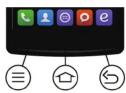
Menu Key : Enter for fast setting
Home Key : Enter to desktop
Back Key : turn back to last menu
广力云智慧零售收银系统
Shortcuts
Desktop
Unlock the desktop, you can click the icon to open the corresponding application Change wallpaper, open the file. Also can slide the desktop to get more applications.
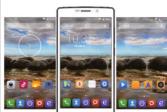
Enter Desktop
Desktop enter key
Slide the screen
Desktop gadgets is a shortcut to enter the APP. You can use it directly at desktop, eg: desktop weather gadgets can let you know the weather
You can enter the application menu from home key
At application menu, touch the APP you want.
At top of home /main menu, it displays the mobile
phone signal. Battery power, new message and other notice
Checking the Notice
One finger pull down from the top of notification bar.
Quick menu
Use 2 finger to pull down from the top of notification bar. You can turn on/off fast for WLAN, Bluetooth, GPS and etc function.
Browse Desktop
Desktop Gadgets
Applications Menu
Start Applications
Notification Bar
Checking the notice.
More Basic Function
Dial
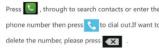
Call ends
Press key during the calling.
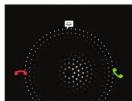
Incoming call
When have all coming side the rise to a positive
•
Message
Sent message
- Press enter the message menu
in press enter the message menu
-
Press to create new message
-
Press to add one or more contacts.
-
Press to sending text or inserting pictures.
face video etc
- Press to sending when finish edit.
Phones Setting
1.Find in application menu. Touch it enter the
setting man
3.4.1
- touch menu key under the home m
press 📄 to enter the system settings.
3.Enter quick menu,touch enter system setting
Gesture Operation
Gesture Sensing
You find a Gesture reming under Settings interface and open it, after learning gestures action, you can select the corresponding application, then you can use gestures to control your application to perform the corresponding functions.
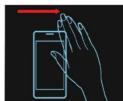
Smart Wake
You find Smart Wake under Settings interface and open it, after selecting and opening the corresponding function, you can use gestures to perform the corresponding function under screen-off status.
Mærke : Zopo
Model : ZP520
Kategori : Smartphone