
M-DVD6555R - Dvd-afspiller Macrom - Gratis brugsanvisning og manual
Find enhedens vejledning gratis M-DVD6555R Macrom i PDF-format.


Brugerspørgsmål om M-DVD6555R Macrom
0 spørgsmål om dette apparat. Besvar dem du kender, eller stil dit eget.
Stil et nyt spørgsmål om dette apparat
Download vejledningen til din Dvd-afspiller i PDF-format gratis! Find din vejledning M-DVD6555R - Macrom og tag din elektroniske enhed tilbage i hånden. På denne side er alle dokumenter nødvendige for brugen af din enhed offentliggjort. M-DVD6555R af mærket Macrom.
BRUGSANVISNING M-DVD6555R Macrom

Warnings
-
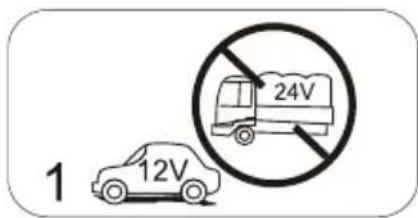
Only connect this unit to a 12V DC power supply with negative grounding.
-
Never install this unit where the operation for safety driving is restrained.
-
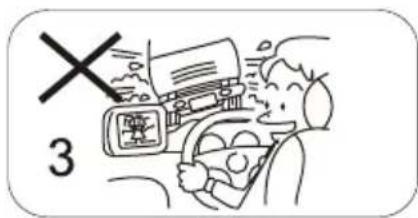
Never use the video display function in the front when driving to prevent the violation of laws & regulations and also to reduce the risk of traffic accident except using the rear view video camera.
-
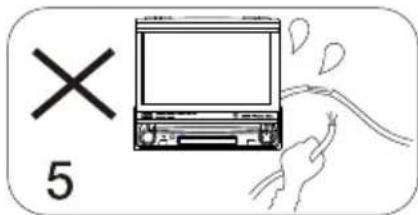
Never expose this unit, amplifier, speakers to moisture or water to prevent electronic sparks or fires.
-
Please don't change the fuse in the power cord without professional guidance, improper fuse may cause damage to this using unit or even cause fire.
-
Please power off this unit at once and send it back to the after-sales service center or the dealer / distributor you purchased from if one of the following symptoms is found:
(a) No audio output; (b) No image output;
(c) Water or other obstacle enters the unit;
(d) Smoking; (e) Peculiar smell.



- To ensure safe driving, please adjust the volume to a safe and comfort level in case of emergency situations.
Precautions
- Never disassemble or adjust the unit without any professional guide. For details, please consult any professional car shop / dealer for inquiry.
- If the front panel or TFT monitor is squalid, please use a clean silicone cloth and neutral detergent to wipe off the spot. Using a rough cloth and non-neutral detergent such as alcohol for cleaning may result in scratching or decoloration to the applicant.
- If any abnormal behavior of the unit is found, please refer to trouble shooting guide of this manual. If no relevant information is found, please press the [RESET] key on the front panel to resume factory default.
- If you have parked the car in hot or cold weather for a long time, please wait until the temperature in the car becomes normal before operating the unit.
- Using in-car heater in low temperature environment may result in beads coagulate inside the unit, DO NOT use the unit in this situation, eject the disc and wipe off the bead on the disc. If the unit still doesn't work after a few hours, please contact with after-sales service center.
- No fierce impact to the LCD monitor when it is in open position for preventing the damage to any mechanisms inside.
- To prevent the damage to the screen, avoid touching it with sharp objects.
- The monitor employs auto motorizing mechanism, please don't push, pull, or swivel the monitor manually to prevent damage to the core mechanism.
- To provide a clear demonstration and an alternative for easy understanding to the operation of this unit, graphic illustrations are used. However, these illustrations are some different from the actual images displayed on the screen.
- During operating the unit, “☑” will display if the current operation is illegal or invalid.
- Operate the unit correctly according to this manual to prevent unnecessary problem. The guarantee won't be valid if the problem is caused by inappropriate operation.
Declarations
Manufactured under license from Dolby Laboratories.
Dolby Digital:
"Dolby" and the double-D symbol are trademarks of Dolby Laboratories. Manufactured under license from Dolby Laboratories.
Dolby Digital and Dolby Pro Logic II(x):
"Dolby", "Pro Logic", and the double-D symbol are trademarks of Dolby Laboratories.
Manufactured under license from Dolby Laboratories.
Dolby Digital and MLP Lossless:
"Dolby", "MLP Lossless", and the double-D symbol are trademarks of Dolby Laboratories.
Contents
Before using
Front Panel....01
Auxiliary LCD....02
Remote Control....03
Basic operations
Power on/off....06
Mute....06
Volume adjustment...... 06
Open SOURCE MENU......06
Playing source selection.....06
Display system time...... 07
Using the TFT monitor.....07
Disassemble the front panel.08
Reset the unit....08
Radio mode
Select radio as playing
source....09
Select one radio band.....09
Auto tuning....09
Manual tuning....09
Auto save....09
Manual save....10
Preview scan ....10
Recall the stored stations.....10
Local seeking.....10
Disc mode
Insert a disc....11
Eject the disc....11
Touch screen controls.....11
Onscreen control buttons.....12
Suspend playback....13
Stop playback....13
Display file list....13
Fast playback....13
Previous / Next......13
Change folder....13
Repeat playback....14
Repeat A-B....14
Random playback....14
Direct search...... 15
GOTO search.....15
DVD MENU and TITLE......15
Select subtitle language......16
Select multi-angle views.....16
Select audio channel .....16
PBC function....16
Zoom in/out....17
Rotate picture....17
Playback information......17
USB mode
Select USB as playing
source....19
Touch screen controls.....19
Onscreen control buttons.....19
Suspend playback....19
Stop playback....19
Display file list....19
Fast playback....19
Previous / Next......19
Change folder......20
Repeat playback....20
Random playback....20
Direct search....20
GOTO search.....20
Zo
Contents
Bluetooth mode
Select Bluetooth as playing
source....21
Function icons....21
Work modes of Bluetooth
module....21
Phone mode....22
Music mode....24
TV mode
Select TV as playing source..25
Auto search....25
Auto save....25
Preview scan....25
Change TV channel......25
Other modes
AUX....26
Camera....26
Setup
Setup procedure....27
General....28
Language....28
Audio....29
Bluetooth....29
Rating....30
Hardware....31
P.VOL....31
TS CAL....32
EQ....33
Troubleshooting....34
Device connection
Notes of connection....36
Control Cables....37
Parking Brake Cable
Connections......38
Reverse Drive Cable
Connections......38
Installation and uninstall
Notes of installation....39
Unit installation....39
Trim Ring installation......41
Uninstall....41
Specifications......42
Appendix
Region Code......44
Caution of disc using....44
Wiring Connections......45
Before using
Front Panel
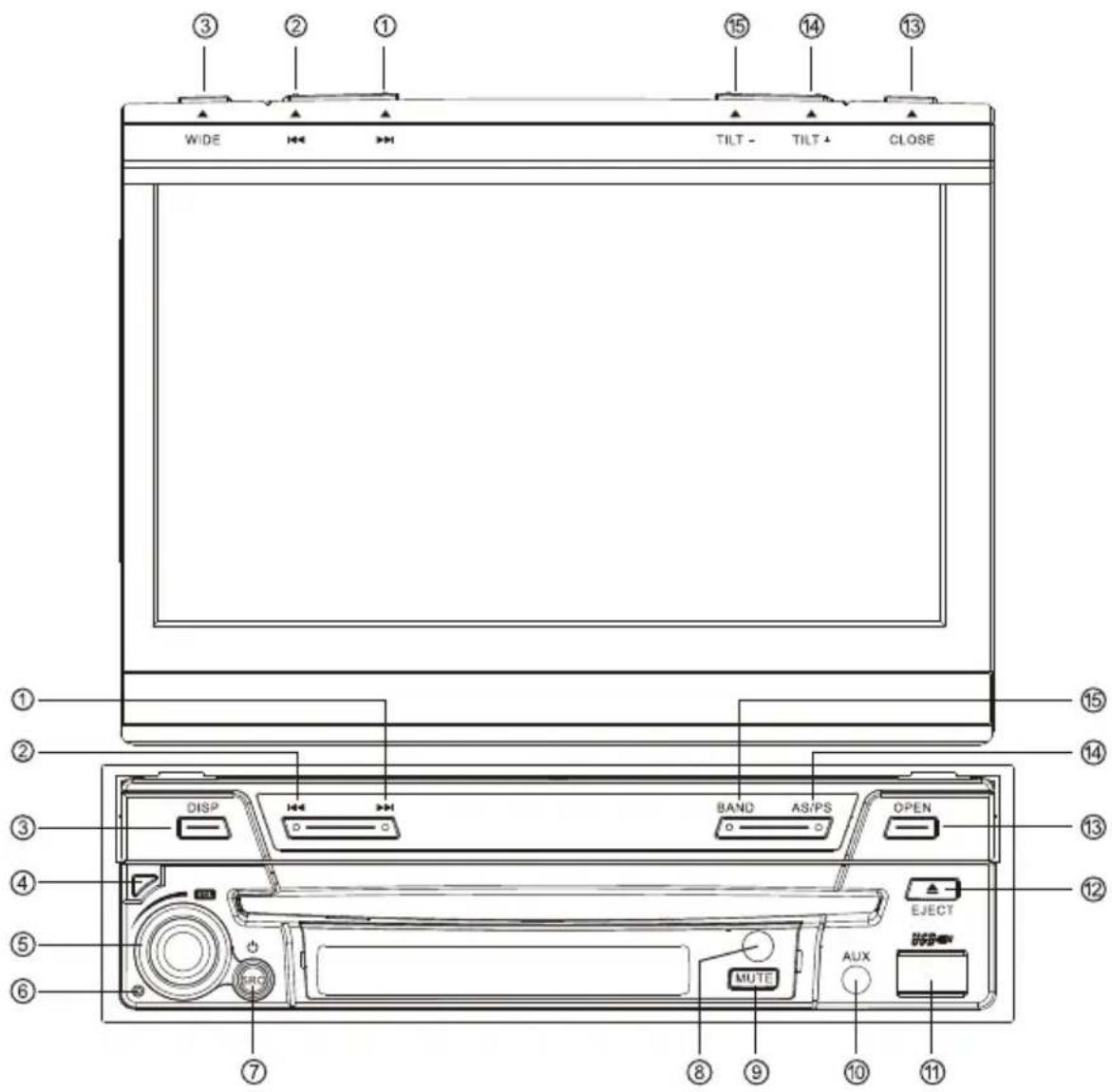
- [Right] Key: Next/Move cursor to the right
- [Left] Key: Previous/Move cursor to the left
- [DISP/WIDE] Key: Display information/Image setting
- Panel Release Key
- [VOL] Knob: Adjust volume/Play/Pause/Enter
- [Reset] button: Reset the unit
- [Power/SRC] Key: Unit power/Change work mode/Open SOURCE MENU
- Remote Sensor
- [MUTE] Key: Mute audio outputs
Before using
-
AUX IN Jack
-
USB Slot
-
[EJECT] Key: Eject disc inside
-
[OPEN/Close] Key: Open/Close the TFT monitor
-
[AS/PS/TILT+] Key: Auto Store/Preview Scan/Increase display angle
-
[BAND/TILT-] Key: Change radio band/Decrease display mode
Auxiliary LCD
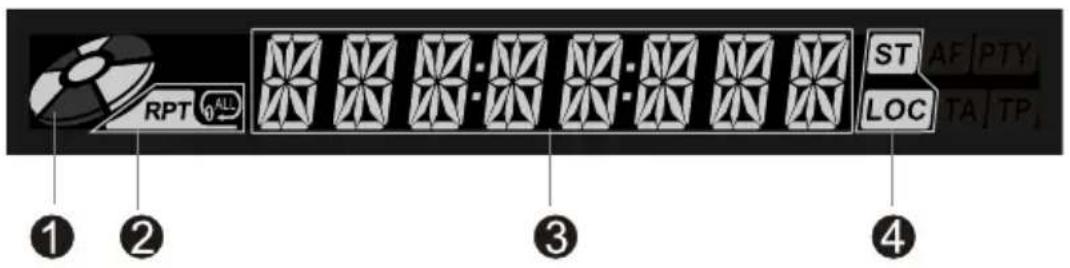
- Disc indicator
Light up when one disc is inside; Light off when no disc is inside.
- Repeat mode indicator
Light up when repeat mode is on; Light off when repeat mode is off.
- Main display area
Display characters, playback time, tuning frequency, clock and other text information.
- Radio status indicators
Stereo indicator lights up when the radio broadcast is a stereo one; Local indicator lights up when the local seeking function is activated.
Note:
① Most information can be displayed only when the TFT monitor is closed.
② Only English font can be supported on this LCD.
Remote Control
Note:
Your remote control may differ slightly from the one pictured here.
The above diagram is for illustrative purpose only.
Before using
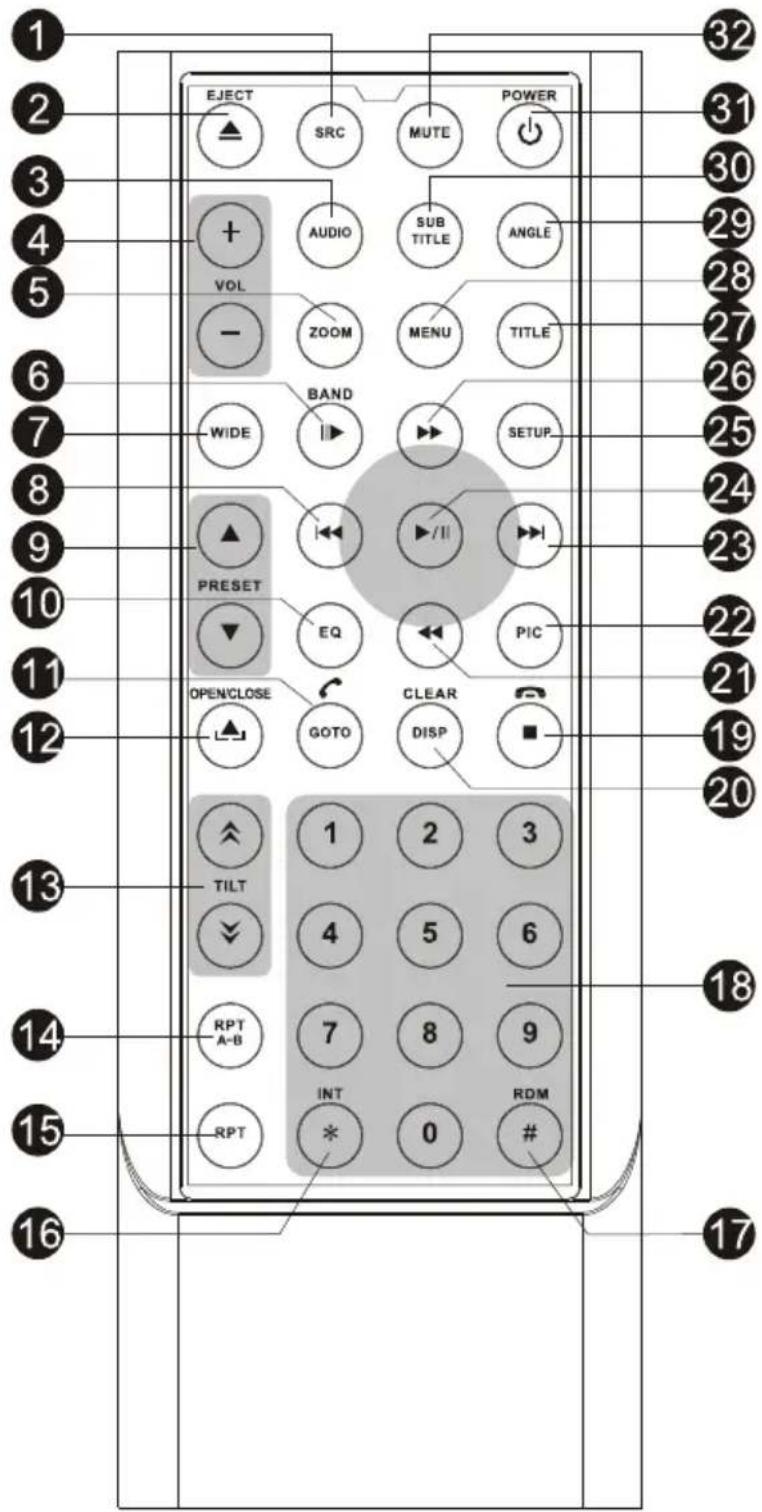
- [SRC] Key: Select playing source
- [EJECT] Key: Eject disc
- [AUDIO] Key: Select DVD dialogue language
- [VOL+/-] Key: Adjust volume
- [ZOOM] Key: Image zoom in/out
- [BAND/▶] Key: Select radio band / Slow Playback
- [WIDE] Key: Change display mode
- [◀◀] Key: Auto search / Previous / Move cursor to the left
- [PRESET] Key: Select preset radio station or TV channel
10.[EQ] Key: Open EQ setting menu
11.[GOTO/] Key: GOTO search /Call
12.[OPEN/CLOSE] Key: Open or close the TFT monitor
13.[TILT] Key: Adjusting the TFT monitor tilting angle
14.[RPT A-B] Key: A-B repeat
15.[RPT] Key: Repeat playback
16.[INT] Key: Intro playback
17.[RDM] Key: Random playback
18.[0\~9] Key: Numeric keys
19.[■/☐] Key: Stop playback/ Hangup
20.[DISP/CLEAR] Key: Display information/ Clear information
21.[◀] Key: Fast reverse/ Move cursor down
22.[PIC] Key: Image setting
23.[▶▶] Key: Auto search / Next / Move cursor to the right
24.[▶/■] Key: Play / Pause / Enter
25.[SETUP] Key: Setup menu
26.[▶] Key: Fast forward / Move cursor up
27.[TITLE] Key: DVD TITLE
28.[MENU] Key: DVD MENU / PBC
29.[ANGLE] Key: Select view angle
30.[SUBTITLE] Key: Select DVD subtitle language
31.[POWER] Key: Unit power
32.[MUTE] Key: Mute audio outputs
Before using
Notes of remote control using
1) Aim the remote control at the remote sensor on the unit.
2) Remove the battery from the remote control or insert a battery insulator if the battery has not been used for a month or longer.
3) DO NOT store the remote control under direct sunlight or in high temperature environment, or it may not function properly.
4) The battery can work for 6 months under normal condition. If the remote control can't work, please change the battery.
5) Use "button shaped" lithium battery "CR2025" (3V) only.
6) DO NOT recharge, disassemble, heat or expose the battery in fire.
7) Insert the battery in proper direction according to the (+) and (-) poles.
8) Store the battery in a place where children cannot reach to avoid the risk of accident.
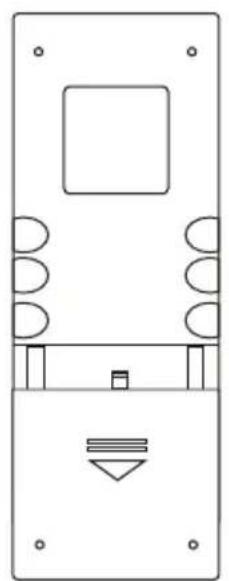
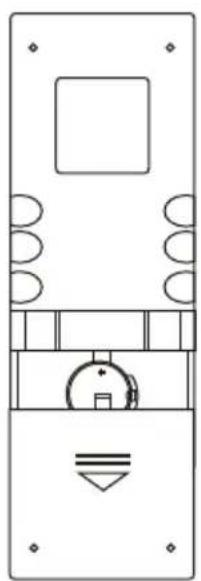
Uninstall Battery
Slide out the battery compartment tray at the bottom on the back of the remote control.
Install Battery
Use button-shaped lithium battery "CR2025 (3V)" only. Insert the battery to the battery tray with proper direction according to the (+) and (-) poles.
natural_image
Pure technical diagram of a mechanical or electrical component with no text, numbers, or symbolsPULL OUT
natural_image
Pure technical line drawing of a mechanical or electrical component without any text, numbers, or symbolsPUSH IN
Basic operations
Power on / off
Press any key on the front panel or the [POWER] key on the remote control to turn on the power under standby mode. The unit goes back to the last status after power on.
Press and hold the [SRC] key on the front panel or press the [POWER] key on the remote control to turn off the power under work mode.
Mute
Press the [MUTE] key on the front panel or remote control to mute the volume from the unit.
Notes:
① Doing the operation above again or adjusting volume will release muting.
② Mute icon winks on the TFT during muting.
Volume adjustment
Turn the volume knob on the front panel or press the [VOL] key on the remote control.
The adjustable range of volume is 0 to 40.
Open SOURCE MENU
Press the [SRC] key on the front panel or remote control or touch the top left corner of the screen to open the SOURCE MENU.
Do the above operation again to return to the previous source.
Playing source selection
Open the SOURCE MENU, and then touch the desired source or select the desired source by moving the cursor and then confirm.
Notes:
① Playing source selection means selecting work mode, such as DVD mode, Radio mode, Camera mode, etc.
② When some devices are not ready, they cannot be selected.
Basic operations
Display system time
Press the [DISP] key on the front panel to switch the display information between system time and playing source when the TFT monitor is closed.
Using the TFT Monitor
Open / Close monitor
Press the [OPEN/CLOSE] key on the front panel or remote control to push the display panel out or in.
Change the monitor tilt angle
Due to the inherent character of LCD, you will get different vision impressions when you watch it from different angles.
The display angle of this unit can be changed; hence you can select the best angle where you can get the best vision impression.
Press the [TILT] key on the display panel or the remote control to adjust the tilt angle one step at a time.
Press and hold the [TILT] key on the display panel or the remote control to adjust the tilt angle continuously.
Change aspect ratio
Press the [WIDE] key on the display panel or remote control to adjust the aspect ratio as follows.
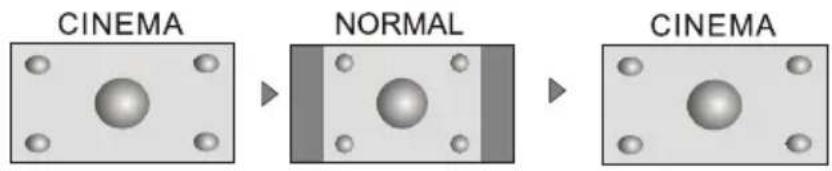
Image setting
(1) Enter image setting mode Press and hold the [DISP/WIDE] key on the display panel or press the [PIC] key on the remote control.
(2) Select one item to adjust Press the [UP]/[DOWN] keys on the remote control.
(3)Adjust the value Press the [Left]/[Right] keys on the display panel or remote control.
Basic operations
(4) Exit image setting mode
To exit image setting mode, repeat the operation of the first step or stop operation for some seconds.
Disassemble the front panel
The player is equipped with an anti-theft feature disassembling the front panel.
Press the panel release key on the front panel to disassemble the front panel. Remember to power off the player before doing this.
Reset the unit
If the player can not work correctly, you should reset the unit by pressing the [RESET] button on the front panel.
Radio mode
Select radio as playing source
Open the SOURCE MENU and then touch RADIO.
Select one radio band
Press the [BAND] key on the display panel (when the TFT monitor is closed) or remote control or touch the [BAND] button on the user interface to select one radio band among FM1, FM2, Fm3, AM1 and AM2.
Auto tuning
Press the [Right] / [Left] key on the display panel or remote control or touch the [▶▶] / [◀◀] button on the user interface to seek a higher / lower station.
To stop searching, repeat the operation above or press other keys having radio function.
Note:
When a station is received, searching stops and the station is played. If the unit receives a stereo broadcasting, the indicator light of stereo 'ST' on the TFT or LCD display will be lighted.
Manual tuning
During manual tuning, the frequency will be changed in steps.
Press the [Up] / [Down] key on the remote control or touch the [▼] / [▲] button on the user interface to tune in a higher / lower station.
Touch the numeric keypad icon(图标) and then touch the numeric buttons to input the radio station frequency numbers.
Auto save
Only stations with sufficient signal strength will be detected and stored in the memory.
Press the [AS/PS] key on the display panel (when the TFT monitor is closed) or the [Enter] key on the remote control, or touch the [AS] button on the user interface.
To stop auto save, press other keys having radio function.
Notes:
① After auto
② The unit h band can s
Manual sav
When one ex
(1) Press the will be op
(2) Press on
(3) If you wa
Preview sca
Preview scan the user can touch a process that the searching pauses when a static device is closed and then played for 5\~10 seconds. After being played, the user does the process until the whole band is detected. Press and hold an PS/PS] key on the display panel (when the TFT monitor is closed) or the user] key on the remote control, or touch the [AS] button on the user in space. To stop auto serve, press other keys having radio function.
Recall the restored stations
Press on a generic key among 1 to 6 on the remote control or touch an onset of a station button to recall the corresponding stored station.
Lo ng
seeking is on, only those radio stations with strong radi
al could be
① When the local radio station searching is on, the indicator light 'LOC' lights up; whereas the light goes off.
② The number of radio stations that can be received will decrease after the local seeking mode is on.
Disc mode
Insert a disc
Upon inserting a disc, the unit will switch to disc mode automatically.
Notes:
① Please confirm whether there is a disc in the unit before you insert another one.
② Some recorded discs, such as CD-R, CD-RW, DVD-R, DVD+R, DVD-RW, DVD+RW cannot be played back because of different recording status. Otherwise, the discs without being closed could not be played back.
③ About the cautions of disc using, please refer to the appendix.
Eject the disc
Press the [EJECT] key on the front panel or remote control to eject the disc.
You can eject a disc with the unit powered off. The unit remains off after the disc is ejected.
Touch screen controls
The touch key areas for DVD playback are outlined below:
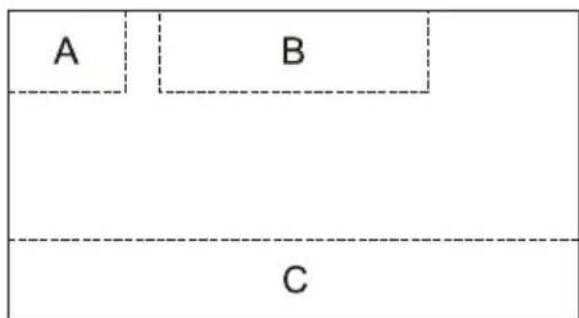
A - Open SOURCE MENU
B - Display playback information
C - Display onscreen control menu
Disc mode
Onscreen control buttons
| Disc Type Icon | MP3/WMA | CD | VCD | DVD | MPEG | Picture |
| (HZC) | Numeric keypad | Numeric keypad | Numeric keypad | Numeric keypad | Numeric keypad | Numeric keypad |
| (YCY) | Setup menu | Setup menu | Setup menu | Setup menu | Setup menu | Setup menu |
| (BYH) | / | Fast forward | Fast forward | Fast forward | Fast forward | / |
| (BT4) | / | Fast rewind | Fast rewind | Fast rewind | Fast rewind | / |
| (BGG) | Previous | Previous | Previous | Previous | Previous | Previous |
| (COW) | Next | Next | Next | Next | Next | Next |
| (TXAS) | Play/Pause | Play/Pause | Play/Pause | Play/Pause | Play/Pause | Play/Pause |
| (WTK) | Stop | Stop | Stop | Stop | Stop | Stop |
| 01/(7008) | / | / | A second menu | A second menu | A second menu | / |
| (ASK) | Repeat | Repeat | Repeat | Repeat | Repeat | Repeat |
| (TLT) | Random | Random | Random | / | Random | / |
| (SHD) | / | / | / | / | / | Rotate |
| (CTAC) | / | / | ZOOM | / | / | ZOOM |
| (SCK) | EQ | EQ | EQ | EQ | EQ | EQ |
| (F1896) | / | / | PBC | / | / | / |
| (TX6)3 | / | / | A-B repeat | A-B repeat | / | / |
| E(SCW)CK | / | / | Exit menu | Exit menu | Exit menu | Exit menu |
| A(DXH)DIO | / | / | Channel switching | Dialog Language | Dialog Language | / |
| SU(GXK)TITLE | / | / | / | Subtitle Language | Subtitle Language | / |
| C(SCWG)P | / | / | Display information | Display information | Display information | Display information |
| N(DWG)NU | / | / | / | DVD MENU | / | / |
| T(XXA)LE | / | / | / | DVD TITLE | / | / |
| (CXYH) | Previous page | / | / | / | / | Previous page |
| (GZTG) | Next page | / | / | / | / | Next page |
| C(GZK) | Next folder | / | / | / | / | Next folder |
| C(WGS) | Previous folder | / | / | / | / | Previous folder |
Disc mode
Suspend playback
Press the [VOL] knob on the front panel or the [Enter] key on the remote control or open the onscreen control buttons menu and then touch the [▶/1] button.
To resume normal play, repeat the above operation.
Stop playback
To stop playback, press the [■] key on the remote control or open the onscreen control buttons menu and then touch the[■] button.
When the above operation is executed for the first time, the current playback is paused and the break point is memorized and the playback will resume when you start playback again or switch back from other playing sources. The current playback will cancel if the above operation is executed twice and the playback will start over when you start playback again.
Display file list
To display the file list of one recorded disc, stop current playback.
Fast playback
Press the [Up]/[Down] key on the remote control repeatedly or open the onscreen control buttons menu and then touch the [▶]/[◀◀] button repeatedly to change the rate of fast forward/fast reverse.
Previous / next
Press the [Left]/[Right] key on the front panel or remote control or open the onscreen control buttons menu and then touch the [◀◀]/[▶▶] button to play the next or previous file.
Change folder
Press the [DIR+]/[DIR-] icon on the user interface (you should stop playback first if a video or picture file is played back) to change folder during the playback of one recorded disc containing more than one folder.
Disc mode
Repeat playback
Press the [RPT] key on the remote control repeatedly or open the onscreen control buttons menu and then touch the [⇨] button repeatedly to alter repeat mode according to the following table.
| Disc type | Repeat mode |
| DVD | Repeat Chapter → Repeat Title → Repeat Off |
| VCD(PBC off) | Repeat Single → Repeat Off |
| CD | Repeat Single → Repeat Off |
| MP3/WMA | Repeat Single → Repeat Folder → Repeat Off |
| MPEG | Repeat Single → Repeat Folder → Repeat Off |
| Picture | Repeat Single → Repeat Folder → Repeat Off |
Notes:
① When a VCD is played back, this function is prohibited if the PBC is on.
② Turning off the power or switching playing source to other modes and back will cancel this function.
Repeat A-B
When a DVD or VCD disc is played back, you can play back the contents between the time points from A to B repeatedly.
Press the [RPT A-B] key on the remote control or open the onscreen control buttons menu and then touch the [A-B] button to set the start point (A) of the repeated section.
Do the above operation again to set the end point of the repeated section.
The selected portion will repeat continuously.
Do the above operation for the third time to cancel this function.
Random playback
When this function is on, the contents in the disc will be played back randomly.
Press the [RDM] key on the remote control repeatedly or open the onscreen control buttons menu and then touch the [✗] button to activate random playback mode.
Do the above operation again to cancel this function.
Disc mode
Direct search
When a DVD, VCD or CD disc is played back, you can search for a particular chapter / track by pressing the numeric keys of the remote control. For example, if you want to select the 15 ^th track, you should press numerical key [1] and [5].
GOTO search
(1) Enter GOTO search mode
Press the [GOTO] key on the remote control to open search menu.
For DVD, you can search according to title, chapter and time.
For VCD, if PBC function is off, you can search according to time; if PBC function is on, you can search according to track, time and Disc time.
For CD, you can search according to track.
For MPEG files, you can search according to track and time.
For record discs containing MP3 and/or JPG files, you can search according to track(file number).
(2)Enter search information
Select items by pressing the direction keys on the remote control and enter search information by pressing the numeric keys, such as title, chapter and time.
(3)Confirm
Press the [Enter] key on the remote control to confirm.
(4)Exit GOTO search mode
Repeat the first operation until the search menu disappeared or touch the [Exit] button on the menu.
DVD MENU and TITLE
This function is only available for the DVD discs having "MENU/TITLE". Press the [MENU] key on the remote control or open the onscreen control buttons menu and then touch the [MENU] button to open DVD MENU. You can select audio language, subtitle language and so on for playback. Press the [TITLE] key on the remote control or open the onscreen control buttons menu and then touch the [TITLE] button to open DVD TITLE. You can select a different title for playback.
Disc mode
Select subtitle language
Press the [SUBTITLE] key on the remote control repeatedly or open the onscreen control buttons menu and then touch the [SUBTITLE] button repeatedly to choose a subtitle language.
Select multi-angle views
Press the [ANGLE] key on the remote control repeatedly to choose a shooting angle during the playback of a DVD disc or video file containing multi-angle views.
Select audio channel
For DVD containing multi-language audio files, press the [AUDIO] key on the remote control repeatedly or open the onscreen control buttons menu and then touch the [AUDIO] button repeatedly to change dialogue language.
For VCD and CD, press the [AUDIO] key on the remote control repeatedly or open the onscreen control buttons menu and then touch the [AUDIO] button repeatedly to alter audio channel modes among Mono left, Mono right and Stereo.
Note:
Left channel and right channel cannot work properly if the audio files are not recorded correctly.
PBC function
This function is available for the VCD discs with PBC function (Version2.0 or higher).
Press the [MENU] key on the remote control to activate this function.
Press again to cancel.
Notes:
① When PBC is on, playback goes back to the track list and starts from the first track.
② When PBC is on, fast motion playback, slow motion playback or skip search is available but repeat playback and searching for a particular chapter or track is prohibited.
③ If you do the operation of random playback, scan playback or searching playback when PBC is on, PBC will be off automatically.
Disc mode
Zoom in/out
When picture or video files are being played back, you can zoom in/out the image by pressing the [ZOOM] key on the remote control or touching the [Q] icon after opening onscreen control buttons.
Rotate picture
When one picture file is played back, you can rotate the picture to get proper view angle by pressing the [💡] icon on the onscreen control buttons.
Playback information
Touch the top center area of TFT LCD when playing back DVD and VCD discs and the playback information will be displayed on the top area of the TFT.
For DVD

(1) Disc type.
(2) DVD Title information. "5/8" indicates that this DVD has 8 titles and the title playing back now is the fifth title.
(3) DVD Chapter information. "2/16" indicates that current title has 16 chapters and the chapter playing back now is the second chapter.
(4) Elapsed time of the current title.
(5) ".... 2 / 6 Eng" indicates that the subtitle of this DVD has been recorded in 6 languages and the language displayed now is the second, that is English.
For VCD

Disc mode
(1) Disc type.
(2) PBC function indicator. "PBC On" indicates that PBC function has been activated.
(3) VCD Track information. "6/18" indicates that this VCD has 18 tracks and the track playing back now is the sixth title.
(4) Elapsed time of the current track.
USB mode
Select USB as playing source
Open the SOURCE MENU and then touch USB.
Notes:
① The unit will switch to USB mode after an USB device has been inserted.
② The unit supports hot swap.
③ USB storage devices formatted with FAT16/32 can be supported by this player, not NTFS format.
Touch screen controls
The operation is the same as disc mode.
Onscreen control buttons
Onscreen control buttons under USB mode are the same as disc mode.
Suspend playback
The operation is the same as disc mode.
Stop playback
The operation is the same as disc mode.
Display file list
The operation is the same as disc mode.
Fast playback
The operation is the same as disc mode.
Previous / next
The operation is the same as disc mode.
USB mode
Change folder
The operation is the same as disc mode.
Repeat playback
The operation is the same as disc mode.
Random playback
The operation is the same as disc mode.
Direct search
The operation is the same as disc mode.
GOTO search
The operation is the same as disc mode.
Zoom in/out
The operation is the same as disc mode.
Rotate picture
The operation is the same as disc mode.
Playback information
The operation is the same as disc mode.
Bluetooth mode
Bluetooth is a wireless transmission way for short distance operating at 2.4GHz. The bluetooth module can connect with the mobile phones having bluetooth function. After connecting, you can control your mobile phone through the unit.
As different mobile phones provide different bluetooth functions, so not all of the functions undermentioned are available to different phones. Please read through the operation manual of the mobile phone in use at first.
Select Bluetooth as playing source
Open the SOURCE MENU and then touch BT.
Notes:
① This player is 'Bluetooth ready'. Before accessing any Bluetooth features, you must install a Bluetooth box. Once the Bluetooth box is connected and operating properly, the BT source mode will become active. While the Bluetooth box is not installed, the BT source appears gray, indicating the function is not available. About how to connect the Bluetooth box with this player, please refer to the Wiring Diagram.
② To turn the Bluetooth box on or off, open the SETUP menu, select the 'Bluetooth' sub-menu, and then touch the 'Bluetooth' option to select 'On' or 'Off'.
Function icons
The function icons on the BT user interface are outlined as below.
| Icon | Function | Icon | Function | Icon | Function |
| Pairing | Disconnect | Dial panel | |||
| Phone book | Voice transfer | Mute | |||
| Ans./Dial | Hangup | C | Cancel | ||
| ▶/|| | Play/Pause | Stop | Next | ||
| Previous | Phone mode | Music mode |
Work modes of Bluetooth module
The bluetooth module has two work modes, which are phone mode and music mode. Touch the mode switch icon to switch to its corresponding mode. Under phone mode, hand-free, call and other phone functions are available. Under music mode, you can enjoy the music played back by your mobile phone through the speakers in your car and you can control the playback.
Bluetooth mode
Phone mode
Pairing
Use this function to establish a connection between the Bluetooth module and your mobile phone.
① Switch the work mode of the Bluetooth module to phone mode, open the SETUP menu and select the Bluetooth sub-menu and then set the 'Bluetooth' option to 'On'.
② Turn on the Bluetooth function of your mobile phone and start to search Bluetooth devices.
③ After the name of the Bluetooth module appears on the pairing list on your mobile phone, you should select it. At this time, a pairing code is required. The Bluetooth module will exit pairing mode if there is no pairing instruction from your mobile phone during the pairing time (90s) and 'Phone Pairing Fail' is displayed on the screen.
④ Enter the pairing code (1234 by default) to initiate the pairing process. The paired mobile phone name and will be displayed on the screen.
Browse call numbers
The Bluetooth module will download phone book and call records from your mobile phone after pairing.
Touch the [MENU] icon to display the Menu list. There are some options on the menu list, including missed calls, received calls, dialed calls and phone book. When you press one of them, the Bluetooth module will get its corresponding information from your mobile phone.
Make an outgoing call
① Browse through the Phone book or call records, touch the number you want to dial and then touch the dial icon to make an outgoing call.
② Touch the Dial Panel icon to open dial panel and then touch the numeric buttons to input phone numbers. Touch the [C] icon to clear the last
Bluetooth mode
digit. Touch the hangup icon to clear the entire numbers or end the conversation. Touch the Ans icon to make an outgoing call.
Answer an incoming call
The Bluetooth module will switch to phone mode automatically when there is an incoming call and the incoming call number will be displayed on the screen.
If the 'Auto Answer' option of the 'Bluetooth' sub-menu under the SETUP MENU is set to 'On', the unit will answer incoming calls automatically, otherwise you should answer them manually.
To answer an incoming call manually, press the Answer/Dail icon on the user interface or press the [Talk] button on the Bluetooth box.
The call duration will be displayed on the screen after the incoming call has been put through.
Hangup
While talking, press the hangup key on your mobile phone or touch the hangup icon on the screen to end the conversation.
Voice transfer
While talking, touch the 'Voice transfer' icon on the screen to transfer audio from the unit to your mobile phone, and touch again to transfer audio from your mobile phone to the unit.
Note: Some mobile phones will transfer audio from the unit to themselves once the incoming call is answered.
Microphone mute
While talking, press the microphone mute icon on the screen to mute the microphone built in the unit. Under this condition, the one talking over the telephone with you can not hear what you are saying. Touch the mute icon again to resume microphone functionality.
Bluetooth mode
Music mode
Pairing
Before pairing, switch the work mode of the Bluetooth module to music mode. The procedures of pairing under music mode is the same as the phone mode.
A2DP
A2DP is short for Advanced Audio Distribution Profile. The mobile phones supporting this function can transmit stereo audio, whereas the ones not supporting this function can transmit mono audio only.
After pairing, open the audio player of your mobile phone and set the transmit mode to Bluetooth. At this time, the speakers of your mobile phone will close automatically.
About how to set the transmit mode of mobile phones to Bluetooth, please refer to the user manual or help document of the mobile phone in use or the audio player software because the audio players of different mobile phones are different greatly.
AVRCP
AVRCP is short for Audio/Video Remote Control Profile. The mobile phones supporting this function can control the playback of a Bluetooth audio player.
After pairing, touch the corresponding icon to control current playback, such as Play, Pause, Stop, Previous, Next.
TV mode
Select TV as playing source
Open the SOURCE MENU and then select TV.
Auto search
To search for a higher / lower TV channel, press and hold the [Right] / [Left] key on the display panel or remote control.
Notes:
① To stop auto searching, press other keys having TV function.
② When a TV channel is received, searching stops and the TV channel is played. If no TV channel is detected, the tuning channel stops at the very beginning channel when the searching process is finished.
Manual search
Press the [Right] / [Left] key repeatedly on the display panel or remote control to change TV channel in steps.
Auto save
Search all TV channels in the whole range and storing the available TV channels automatically.
Press and hold the [ENTER] key on the front panel or remote control to start auto save. To stop, press any other keys having TV function.
Preview scan
Scan the stored TV channels and play each channel for 10 seconds. Press the [ENTER] key on the front panel or remote control to start preview scan. To stop, press any other keys having TV function.
Change TV channel
Play the previous / next stored channel
To play the previous / next stored TV channel, press the [Up] / [Down] key on the remote control.
Play a particular channel
To play a particular TV channel, press the numeric keys of remote control continuously.
Other modes
AUX
External peripheral devices with RCA audio and video outputs can be connected with the unit.
To enter AUX IN mode, open the SOURCE MENU and then touch AUX IN.
Camera
This player is "camera ready." Before accessing any camera features, you must purchase and install a rear video camera. Once the rear camera is connected and operating properly, the CAMERA source mode will become active. While the camera is not installed, the CAMERA option appears gray, indicating the function is not available.
The playing source will change to 'CAMERA' mode automatically when you reverse your car.
Setup
Setup procedures
(1) Enter setup mode
Press the [SETUP] key on the remote control or touch the setup icon [×] on the user interface.
The following menu appears after entering the setup mode.
The GENERAL sub-menu is highlighted by default.
| SETUP MENU | ||||
| Bluetooth | General | Language | Audio | Back |
| Rating | Clock Mode | 12Hr | ||
| Hardware | Clock | 11:18 AM | ||
| P.VOL | Tuner Region | USA | ||
| TS Cal | Beep | On | ||
(2)Select one sub-menu
Press the direction keys on the remote control.
(3)Select one item
Press the [Up] / [Down] key on the remote control to select one item and then press the [Enter] key to confirm.
(4)Select one value
Press the [Up] / [Down] key on the remote control to select one suitable value and then press the [Enter] key to confirm.
Note: All following settings can be done by touching the option directly.
Setup
General
- Clock mode 12Hr: the clock displays in the type of 12 hours such as 11:18 AM. 24Hr: the clock displays in the type of 24 hours such as 20:18.
- Clock Adjust the clock appearing on the TFT screen.
- Tuner Region The unit provides several radio systems and you can select a correct radio system according to your country.
- Beep On: Background sound of key-press is on. Off: Background sound of key-press is off.
Language
- OSD Select one language of system menu display. - DVD Audio Select one dialogue language of DVD disc.
Note:
If the DVD disc does not contain the selected language, the dialogues you listening to will be in default language.
• DVD Subtitle Select one subtitle language of DVD disc.
Note:
If the DVD disc does not contain the selected language, the subtitle will be displayed in default language.
- Disc Menu Select one language of DVD MENU display.
Note:
If the DVD disc does not contain the selected language, the DVD MENU will be displayed in default language.
Setup
Audio
• DRC
Set the dynamic range of Dolby digital DVD discs.
On: Playback more dynamic audio with Bass.
Off: Normal output.
-
Subwoofer On: Subwoofer speaker is opened.
Off: Subwoofer speaker is closed. -
Sub.W Phase
0°:Subwoofer output IN phase.
180°: Subwoofer output OUT OF phase. -
Sub.W Filter
You can get different bass effect when you set different cut off frequency of sub filter. According to the acoustics surroundings of your car, select a proper frequency.
80Hz, 120Hz and 160Hz are available.
Bluetooth
Touch the setup icon on the Bluetooth user interface to enter setup mode of bluetooth.
-
Bluetooth
On: bluetooth module module is on.
Off: bluetooth module module is off. -
Connect
Auto: bluetooth module connects with the bluetooth device automatically after disconnecting.
Manual: bluetooth module connects with the bluetooth device manually after disconnecting. -
Auto Answer
On: Answer automatically when one call is coming in.
Off: Answer manually when one call is coming in.
- Pairing code You should enter the pairing code when the bluetooth module is pairing with another bluetooth device. The original paring code is 1234 and you can change the paring code when the bluetooth module is on.
Setup
Rating
Some DVD discs have built-in parental lock which prevents children to watch some scenes as force or eroticism especially.
- Password
The initial password of the unit is 012345. You should change the password ASAP.
Method of changing password:
(1) Locate the cursor on the 'password' option, press the numeric keys on the remote control or touch the 'Password' option directly to open the onscreen keypad, touch the numeric buttons to enter your old password (initial password for the first time) and then confirm.
(2) Repeat the operation above to enter a new 6-digit password and then confirm. The new password becomes effective and the parental lock is closed.
- Rating
The unit has some watching level as followings:
(1) Kid safe: A movie rating that is condign to children.
(2) G: A movie rating that allows admission to persons of all ages.
(3) PG: A movie rating that allows admission of persons of all ages but suggests parental guidance in the case of children.
(4) PG-13: A movie rating that allows admission of persons of all ages but suggests parental guidance in the case of children under the age of 13.
(5) PG-R: PG-related.
(6) R: A movie rating that allows admission only to persons of a certain age, usually 17, unless accompanied by a parent or guardian.
(7) NC-17: A movie rating that allows admission to no one under the age of 17.
(8) Adult: A movie rating that is condign to the adult only.
Procedures of changing the rating:
(1) Enter password to unlock the parental lock Locate the cursor on the 'password' option, press the numeric keys on the remote control or touch the 'Password' option directly to open the onscreen keypad, touch the numeric buttons to enter your password and then confirm.
Setup
(2) Change the rating Select an appropriate rating from the 'rating' list.
(3) Close the parental lock Repeat the operation of the first step to enter a 6-digit password (old or new) and then confirm. The parental lock is closed.
- Load Factory To restore the default settings relating with DVD playback (e.g.: DVD Audio, DVD Subtitle), press the [RESET] option only.
Hardware
- Camera Normal: Actual scenes shot by the camera display on the TFT monitor while reverse driving (just like what you are looking). Mirror: The mirror images of actual scenes display on the TFT monitor while reverse driving (just like looking from the rearview mirror).
- TFT Auto Open Auto: The TFT panel automatically opens when the unit is turned on. Manual: When the ignition is turned off, the TFT panel remains open if it was opened previously. Off: The TFT panel opens only by pressing OPEN button when the unit is turned on.
- Video input NTSC: Set the color system of the TFT screen to NTSC. PAL: Set the color system of the TFT screen to PAL. AUTO: Set the color system of the TFT screen automatically by the unit according to the input video formats.
- Parking On: No image is displayed on the TFT during driving. Off: Image can be displayed on the TFT at all times.
P.VOL
P.VOL means Programmable Volume. You can balance the volume among different audio sources using this function.
Setup
- Source Select one playing source that you want to set relative volume.
- Level You can set relative volume level from 0 to 6.
TS CAL
When the touch operation is not sensitive or valid, you should calibrate the touch screen through this function.
Calibrate the touch screen just following the screen introductions after entering the calibration mode.
EQ
EQ setting allows you to easily adjust the audio system to get the best possible sound effect.
Procedures of EQ setup:
(1) Enter EQ setup mode
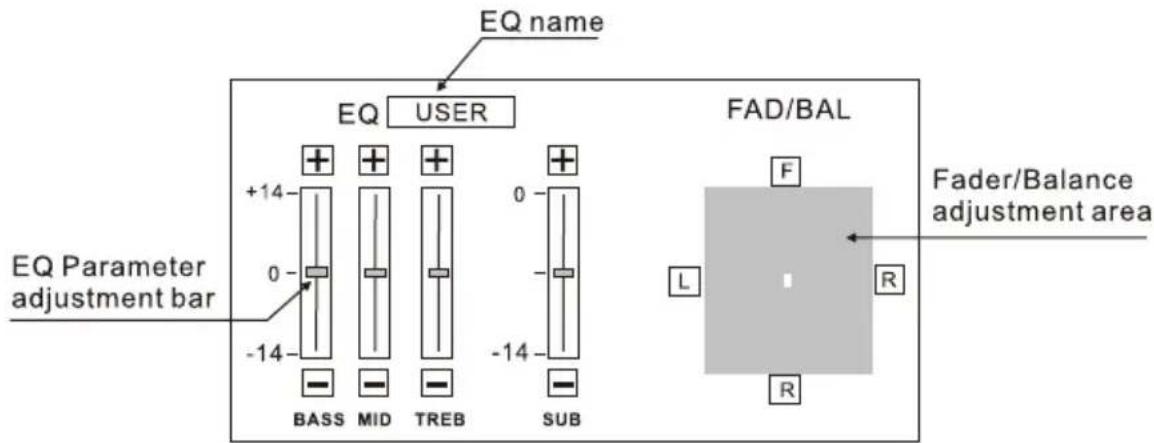
Press the [EQ] key on the remote control or touch the [EQ] icon on the user interface and the following EQ setting menu will be opened.
(2) Select EQ mode
Touch the EQ name repeatedly and the EQ mode will change.
(3) Adjust EQ parameters
To adjust EQ parameters, touch and drag the EQ parameters adjustment bar.
(4) Adjust FAD-BAL
You can adjust the balance of speakers to get better listening effect according to the surroundings and your interest.
To adjust Front/Rear/Left/Right fader and balance, touch and drag the small white point in the Fader/Balance adjustment area.
(5) Exit EQ mode
Press the [SEL] key on the remote control or touch the top left corner of the screen or stop operation for some seconds.
Notes:
① The unit has preset some EQ modes: User, Rock, Hip Hop, Dance, Latin, Rave, Urban and Acoustic.
② The EQ mode will change to 'User' automatically when you adjust EQ parameters under the modes besides 'User'.
Troubleshooting
What appears to be trouble is not always serious. Please check the following points before calling a service center.
| Problem | Cause | Corrective action |
| General | ||
| Unit can not power on | Unit fuse blown. | Install new fuse with correct rating. |
| Car battery fuse blown. | Install new fuse with correct rating. | |
| Illegal operation | Reset the unit. | |
| Remote control does not work | Battery depleted. | Change the battery. |
| Battery installed incorrectly. | Install the battery correctly. | |
| No/low audio output | Improper audio output connection. | Check wiring and correct. |
| Volume set too low. | Increase volume level. | |
| Speakers damaged. | Replace speakers. | |
| Heavily biased volume balance. | Adjust the channel balance to center position. | |
| Speaker wiring is in contact with metal part of car. | Insulate all speaker wiring connections. | |
| Poor sound quality or distortion | Piratic disc is in use. | Use original disc. |
| Speaker power rating does not match unit. | Replace speakers. | |
| Wrong connections. | Check wiring and correct. | |
| Speaker is shorted. | Check wiring and correct. | |
| Tel-Mute malfunction | MUTE wire is grounded. | Check the 'MUTE' wiring and correct. |
| Unit resets itself when engine is off | Incorrect connection between ACC and BATT. | Check wiring and correct. |
| TFT monitor | ||
| Monitor does not open automatically | TFT Auto Open is turned off. | Turn TFT Auto Open on. |
| Warning information is shown at all times | Parking break wiring is not correct. | Check wiring and correct. |
| Flashing image or interference appears on screen | The color system of DVD disc does not match the monitor. | Adjust the color system of the DVD disc playing back or the monitor in use. |
| Piratic disc is in use. | Use original disc. | |
| Video cable damaged. | Replace cables. | |
| Improper video signal connections. | Check wiring and correct. | |
Troubleshooting
Device connections
Notes
This unit is designed to be used in a vehicle with a 12-volt battery and negative grounding. Before installing this unit to a recreational vehicle, a bus, or a truck, make sure the battery voltage is appropriate for this unit to be used, otherwise, install a transformer by professional to
the output voltage to 12V.
To avoid short circuit in the electrical system, ensure that the negative battery cable is disconnected before installation.
To prevent short circuit in the wiring and damaging to this unit, secure all wirings with cable clamp or adhesive tape. Route the wirings in a secured, out of heating place without touching any moving parts such as gear shift, handbrake, and seat rails to prevent the wiring insulation being melted / wore off.
Never pass the yellow power cord through the installation hole into the engine compartment and connect to the car battery. Otherwise, a high possibility of serious short circuit to the electrical system m
Device connections
Control Cables
Auto Brightness Control
To avoid the display being too bright at night time, if the headlight cable is connected to ILLUMI, turning on the headlight will dim the backlight of the TFT LCD and vice versa.
Telephone Mute
If the MUTE cable is connected to a car phone, other audio outputs mute when one call is received by the car phone.
Reverse Driving
If a rear view camera is connected with the unit, the playing source switches to CAMERA automatically when you start reverse driving. As the reverse driving is done, the playing source switches to the previous.
Parking Brake
1) If "PRK SW" cable is connected to hand brake switch, video display on the TFT monitor will be controlled by this function.
Parking cable function ceases when the playing source is CAMERA.
2) The monitor displays the blue screen with warning information to prevent the driver watching video contents during driving, but the passengers at the rear seat can watch video contents normally.
Device connections
Parking Brake Cable Connections


Reverse Driving Cable Connections

flowchart
graph LR
    A["Car Frame"] --> B["Reverse Driving Signal Light"]
    B --> C["Pink Cable"]
    C --> D["Reverse Driving Cable"]
    D --> E["Car Battery"]
    E --> F["Car Frame"]
    G["Gearbox"] --> H["Motor"]
    style A fill:#f9f,stroke:#333
    style F fill:#f9f,stroke:#333
    style G fill:#ccf,stroke:#333
    style H fill:#ccf,stroke:#333
Installation and uninstall
Notes of installation
1) Before installation, please make sure proper connections are conducted and the unit operates normally. Improper connection may result in damage to the unit.
2) Use only accessorie

(4) Insert the unit into the bracket, fasten the M4×6 screw to the fireproofing board available at the back of the dashboard, and use 4 pieces of M2×2 screw to lock the assemble bars and the mounting bracket in position.
Note:
According to the depth of the opening, use different length of assemble bar accordingly. If the opening is too shallow, the monitor may be extended out 10mm from the dashboard.
Method B
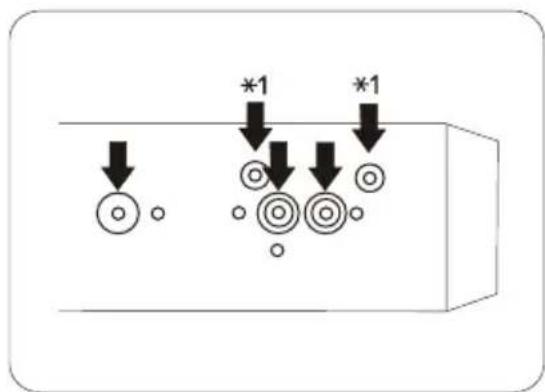

(1) Insert this unit directly to the opening of the dashboard.
(2) Place M4×3, M5×5 cylindrical screw or M5×5 cone shaped screw through the holes of the mounting frame located inside the opening to holes of the unit and fasten the screws to left & right.
Installation and uninstall
Trim Ring installation
Attach the trim ring around the front panel with two indentions on one side facing upwards
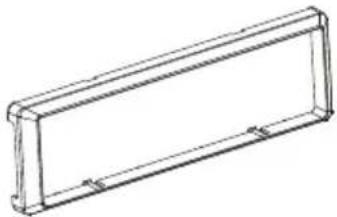
natural_image
Line drawing of a rectangular metal bracket with mounting holes (no text or symbols)Uninstall
Disassemble trim ring
(1) Push the trim ring upward and pull out the upper part.

natural_image
Simple line drawing of a rectangular frame with rounded corners and a small arrow pointing upward (no text or symbols)(2) Push the trim ring downward and pull out the lower part.

natural_image
Technical line drawing of a rectangular frame with a corner detail and an arrow indicating direction (no text or symbols)Disassemble the unit
(1) Unscrew the 4 pieces M2×2 screws.
(2) Use a screwdriver to bend straight the bended mounting tab and tip out the unit from the mounting bracket.
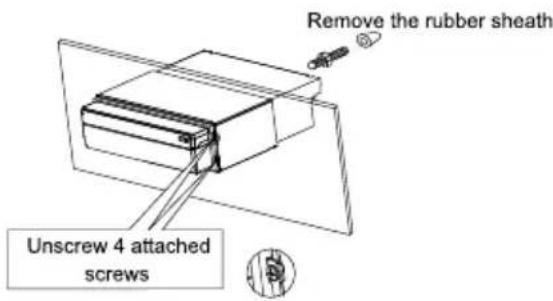
(3) Pull out the unit from the mounting bracket with both hands.
Specifications
General
Reference Supply Voltage....12V(DC)
Operating Voltage Range....10.5\~15.8V(DC)
Max Operating Current....10A
Grounding System....Car Battery Negative Pole
Installation Dimension(W×H×D)....178 mm×50mm×(165+25)mm
Installation Angle....0°\~30°
Net Weight....2.3kg
FM
Signal Noise Ratio....55dB
Residual Noise Sensitivity(S/N=30dB)....20dBμV
Frequency Response(±3dB)....40Hz\~12.5KHz
Station Seeking Level....20\~30dBμV
Distortion....1.5%
Stereo Separation(1KHz)....20dB
Antenna Impedance....75Ω
AM
Residual Noise Sensitivity (S/N=20dB)....40dBμV
Selectivity (±9KHz) 50dB
DVD Player
Signal / Noise Ratio....90dB
Dynamic Range....90dB
Distortion(line out)....0.1%
Frequency Response(±3dB).... 20Hz\~20KHz
Max Output Power....4×45W
Load Impedance....4Ω
AUX IN
Distortion....0.5
Specifications
Video
Normal Video Input Level(CVBS)....1.0±0.2V
Video Input Impedance....75Ω
Video Output Impedance....75Ω
Video Output Level....1.0±0.2V
(Under normal video input level)
TFT Monitor
Screen Diagonal....7 inches
Usable Display Area....154.1(W) × 87.0 (H)
Resolution....1440 (W) × 234 (H)
Brightness....400cd/m²
(Measure the center brightness after 30 minutes)
Contrast....300(TYP.)
Response Time
Rise....12ms
Fall....18ms
Viewing Angle
From Top....40°
From bottom....65°
Horizontally ....±65°
LCD Life Cycle....10000 hours(at 25°C)
Environment
Operating Temperature....-10°C\~+60°C
Storing Temperature....-20°C\~+70°C
Operating Humidity....45%\~80%RH
Storing Humidity....30%\~90%RH
※ Specifications are subject to possible modifications for improvement without further notice.
Region Code
According to DVD sale region, the whole world is divide into six regions. A DVD disc can be played back only when its region code is compatible with that of the player in use.
Region 1: USA, Canada, East Pacific Ocean Islands;
Region 2: Japan, West Europe, North Europe, Egypt, South Africa, Middle East;
Region 3: Taiwan of China, Hong Kong of China, South Korea, Thailand, Indonesia, South East Asia;
Region 4: Australia, New Zealand, Mid & south America, South Pacific Ocean Islands/Oceania;
Region 5: Russia, Mongolia, India, Middle Asia, East Europe, North Korea, North Africa, North West Asia;
Region 6: Chines
Appendix
Wiring Connections

VIDEO OUT 2
VIDEO OUT 1
- Warnings
- Precautions
- Declarations
- Dolby Digital:
- Dolby Digital and Dolby Pro Logic II(x):
- Dolby Digital and MLP Lossless:
- Contents
- Before using
- Basic operations
- Radio mode
- Disc mode
- USB mode
- Bluetooth mode
- TV mode
- Other modes
- Setup
- Device connection
- Installation and uninstall
- Specifications......42
- Appendix
- Auxiliary LCD
- Note:
- Remote Control
- Notes of remote control using
- Uninstall Battery
- Install Battery
- Power on / off
- Mute
- Notes:
- Volume adjustment
- Open SOURCE MENU
- Playing source selection
- Display system time
- Using the TFT Monitor
- Open / Close monitor
- Change the monitor tilt angle
- Change aspect ratio
- Image setting
- Disassemble the front panel
- Reset the unit
- Select radio as playing source
- Select one radio band
- Auto tuning
- Manual tuning
- Auto save
- Manual sav
- Preview sca
- Recall the restored stations
- Lo ng
- Insert a disc
- Eject the disc
- Touch screen controls
- Suspend playback
- Stop playback
- Display file list
- Fast playback
- Previous / next
- Change folder
- Repeat playback
- Repeat A-B
- Random playback
- Direct search
- GOTO search
- Enter GOTO search mode
- (2)Enter search information
- (3)Confirm
- (4)Exit GOTO search mode
- DVD MENU and TITLE
- Select subtitle language
- Select multi-angle views
- Select audio channel
- PBC function
- Zoom in/out
- Rotate picture
- Playback information
- For DVD
- For VCD
- Select USB as playing source
- Onscreen control buttons
- Select Bluetooth as playing source
- Function icons
- Work modes of Bluetooth module
- Phone mode
- Pairing
- Browse call numbers
- Make an outgoing call
- Answer an incoming call
- Hangup
- Voice transfer
- Microphone mute
- Music mode
- A2DP
- AVRCP
- Select TV as playing source
- Auto search
- Manual search
- Preview scan
- Change TV channel
- AUX
- Camera
- Setup procedures
- Enter setup mode
- (2)Select one sub-menu
- (3)Select one item
- (4)Select one value
- General
- Language
- Audio
- Bluetooth
- Rating
- Method of changing password:
- Procedures of changing the rating:
- Hardware
- P.VOL
- TS CAL
- EQ
- Procedures of EQ setup:
- Enter EQ setup mode
- Select EQ mode
- Adjust EQ parameters
- Adjust FAD-BAL
- Exit EQ mode
- Troubleshooting
- Device connections
- Notes
- Control Cables
- Auto Brightness Control
- Telephone Mute
- Reverse Driving
- Parking Brake
- Notes of installation
- Method B
- Trim Ring installation
- Uninstall
- Disassemble trim ring
- Disassemble the unit
- Specifications
- FM
- AM
- DVD Player
- AUX IN
- Video
- TFT Monitor
- Environment
- Region Code
Mærke : Macrom
Model : M-DVD6555R
Kategori : Dvd-afspiller