
ThinkPad USB 3.0 Dock - Computer tilbehør LENOVO - Gratis brugsanvisning og manual
Find enhedens vejledning gratis ThinkPad USB 3.0 Dock LENOVO i PDF-format.


Brugerspørgsmål om ThinkPad USB 3.0 Dock LENOVO
0 spørgsmål om dette apparat. Besvar dem du kender, eller stil dit eget.
Stil et nyt spørgsmål om dette apparat
Download vejledningen til din Computer tilbehør i PDF-format gratis! Find din vejledning ThinkPad USB 3.0 Dock - LENOVO og tag din elektroniske enhed tilbage i hånden. På denne side er alle dokumenter nødvendige for brugen af din enhed offentliggjort. ThinkPad USB 3.0 Dock af mærket LENOVO.
BRUGSANVISNING ThinkPad USB 3.0 Dock LENOVO
ThinkPadBasicUSB3.0DockUserGuide

http://www.lenovo.com/safety
Note: Before installing the product, besuretoreadthewarranty information in Appendix B "Lenovo Limited Warranty" on page 21.
FourthEdition(June2015)
©CopyrightLenovo2013,2015.
LIMITEDANDRESTRICTEDRIGHTSNOTICE: If dataorsoftware is delivered pursuant to General Services Administration "GSA" contract, use, reproduction, or disclosure is subject to restrictions set forth in Contract No. GS-35F-05925.
Contents
Chapter1.Aboutthedock......1
Productdescription......1
Locatingconnectorsandcontrolsonthedock...2
Systemrequirements......3
Chapter2.Installingthedock.....5
Connectingthedocktoyournotebookcomputer..5
Installing the device driver on Windows operating systems......6
UninstallingthedevicedriverfromWindows operatingsystems......7
Chapter3.Usingthedock......9
Usingtheheadsetandmicrophonecombo connector....9
UsingtheGigabitEthernetconnector......9
UsingtheUSBconnectors......9
UsingtheDVI-Ivideooutputconnector.....9
Chapter4.Workingwiththedock..11
Understandingthevideooutputmodes1.1..
Extendmode.....11..
Mirrormode......12..
Single-displaymode....12..
Workingwiththedockutility...13..
Manuallyenablingtheheadsetand microphonecomboconnector.13.
Optimizingthevideoplaybackquality3..
Rotatingtheexternalmonitordispla8..
Settingthecolorqualityoftheexternal monitor....14..
Settingtheresolutionoftheexternalmonit5r.
Switchingvideooutputmodes1.5..
Supportedresolutionsandrefreshrates1.5..
Chapter5.Troubleshooting.....17
AppendixA.ServiceandSupport..19
Onlinetechnicalsupport.....19..
Telephonetechnicalsupport...19..
Accessibilityinformation.....19...
AppendixB.LenovoLimited Warranty....21
Part1-GeneralTerms.21...
Part2-Country-specificTerms23..
Part3-WarrantyServiceInformation26..
SuplementodeGarantíaparaMéxico27...
AppendixC.Electroni@emission notices....29
FederalCommunicationsCommissionDeclaration of Conformity.....29..
AppendixD.Notices......33
Recyclinginformation.....33..
RecyclinginformationforChina..33..
RecyclinginformationforBrazil..34..
ImportantWEEEinformation.34..
ExportClassificationNotice34..
Trademarks......34..
AppendixE.RestrictionofHazardous SubstancesDirective(RoHS).....37
EuropeanUnionRoHS.....37...
ChinaRoHS......37...
TurkishRoHS.....37...
UkraineRoHS......37...
IndiaRoHS.....38..
Chapter1.Aboutthedock
Thischaptercontainsproductdescription,connectorandcontrollocations,andsystemrequirementsforthe ThinkPad® BasicUSB3.0Dock(hereaftercalledthedock).
Productdescription
Thedockisaportableexpansionmodulethatenablesyoutoeasilyconnectyournotebookcomputertothe Ethernetandmultipledevices,suchasaheadset,amicrophone,andUniversalSerialBus(USB)devices. ThedocksupportsaDigitalVisualInterface-Integrated(DVI-I)monitorwiththemaximumresolutionof1920 x1200pixelsoraVideoGraphicsArray(VGA)monitorwiththemaximumresolutionof2048x1152pixels. ThedockprovidestwoUSB2.0connectorsandtwoUSB3.0connectorsforhigherbandwidthandbetter performance. ThedockalsosupportsGigabitEthernetspeedwhenyouconnectittonetworks.
YoucansetupyourworkareabyconnectingyournotebookcomputertothedockwiththeprovidedUSB 3.0cable,connectingmultipledevicestothedock,andsettingthedockonyournotebookcomputer;then, youarereadytousethemultipledeviceseachtimeyouconnectyournotebookcomputertothedock.
Youroptionpackageincludesthefollowing:
•ThinkPadBasicUSB3.0Dock
- Poweradapter
•Powercord
- USB3.0cable
•DVI-ItoVGAadapter
- Warrantyposter
Contact your place of purchase if any item is missing or damaged. Besuretoretain your proof of purchase and packing material. They might berequired to receive warranty service.
Locatingconnectorsandcontrolsonthedock
The following illustration helps you locate the connectors and control on the dock.
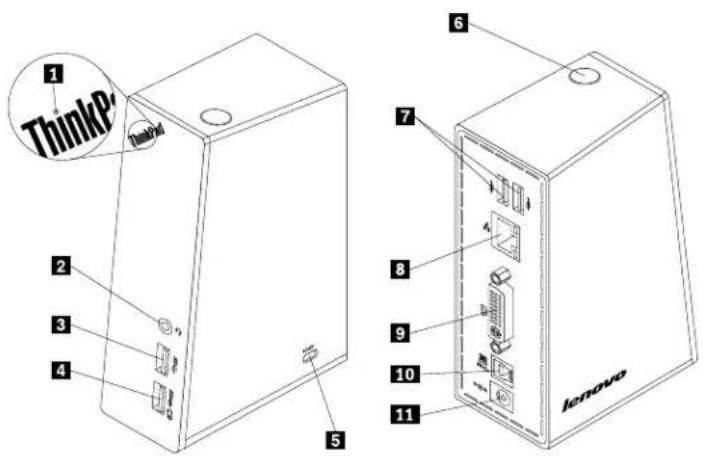
Figure1. Overviewofthedock
1 PowerandconnectionindicatorUsedtoindicatewhetherthedockisturnedonnormally.
2 Headsetandmicrophonecombo usedtoconnectamicrophone, aheadset, oraspeaker. connector
3 USB3.0connectorUsedtoconnectUSBdevices(USB1.0,USB1.1,USB2.0,andUSB3.0 compatible).
4 USB3.0connectorwithbattery chargingfunction UsedtoconnectUSBdevices(USB1.0,USB1.1,USB2.0,andUSB3.0 compatible).Youalsocanusethisconnectortochargedevicesevenwhenthe dockisdisconnectedfromyournotebookcomputer.
5 Security-lockslot Usedtosecurethedockthroughasecuritycablelock.
6 Powerbutton Usedtoturnonorturnoffthedock.
7 USB2.0connectorUsedtoconnectUSBdevices(USB1.0,USB1.1,andUSB2.0compatible).
8 GigabitEthernetconnectorUsedtoconnectalocalareanetwork(LAN)cable.
9 DVI-IvideooutputconnectorUsedtoconnectanexternalmonitorwithaDVIcable.Youalsocanconnect aDVI-ItoVGAadaptertotheDVI-Ivideooutputconnector,andconnectthe externalmonitorwithaVGAcabletotheDVI-ItoVGAadapter.
10 USB3.0upstreamconnector Usedtoconnectanotebookcomputer.
11 PowerconnectorUsedtoconnectthepoweradapter.
Systemrequirements
Beforeusingthedock,ensurethatyournotebookcomputerhasoneofthefollowingoperatingsystems installed:
- Microsoft ^ Windows ^ 7(32-bitor64-bit)
•MicrosoftWindows8(64-bit) - MicrosoftWindows8.1(64-bit)
•MicrosoftWindows10(64-bit)
Beforeusingthedock,ensurethatyournotebookcomputeratleastmeetsthefollowingrequirements:
•AnavailableUSB2.0orUSB3.0connector
•AnATI,Intel ^® ,orNVIDIAgraphicscardinstalled
- 1GBofmemory
•1.6GHzofdual-coremicroprocessor
- 30MBoffreespaceontheharddiskdriveonwhichyouwanttoinstallthedevicedriver
Chapter2.Installingthedock
Thischapterprovidesinformationonhowtoconnectthedocktoyournotebookcomputer,andhowtoinstallanduninstallthedevicedriver.
Connectingthedocktoyournotebookcomputer
Thissectionprovidesinstructionsonhowtoconnectthedocktoyournotebookcomputerwiththeprovided poweradapter,powercord,andUSB3.0cable.
Toconnectthedocktoyournotebookcomputer,dothefollowing:
- Connect the power adapter to the power cord.
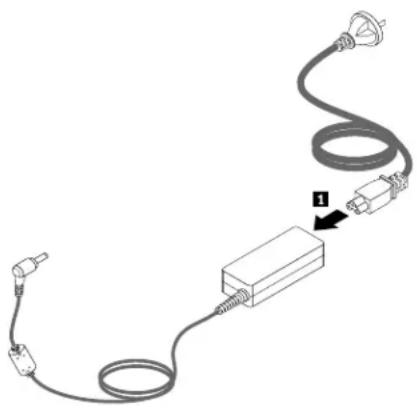
natural_image
Diagram of a cable and connector assembly with a labeled component (no text or symbols present)Figure2. Connecting the power adapter to the power cord
- Connectthedc-inconnectorofthepoweradaptertothedock.
- Connect the power plug of the power cord to an electrical outlet. Press the power button to turn on the dock.
Note: Besuretocorrectlyconnectthedocktothepowersupply. If the dock is not turned on, you will not be able to set the dock.
- ConnecttheUSBBplugoftheUSB3.0cabletotheUSB3.0connectoronthedock.
- ConnecttheUSBAplugoftheASB3.0cabletoanavailableUSBconnectoronthenotebook computer.
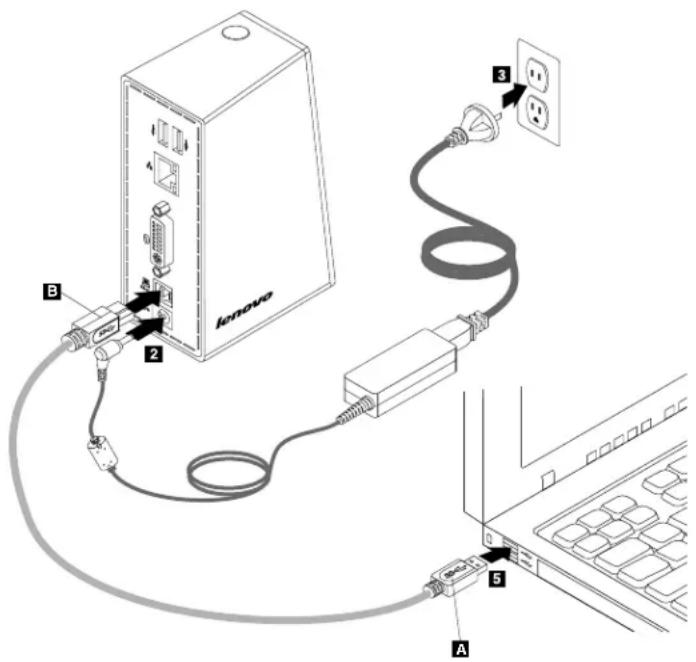
Figure3. Connecting the dock to the powers supply and notebook computer
Notes:
- Thedockwillnotsupplypowertothenotebookcomputerduringthetimewhenitisconnectedtothe notebookcomputer.
- ConnectingthedocktoanyconnectorotherthanaUSB3.0connectororusinganyUSBcableother thanaUSB3.0cablemightimpactonthedockperformance,especiallythevideoplaybackandEthernet performance.However,thesupportedmaximumresolutionwillnotbereduced.
Installing the device driver on Windows operating systems
Afteryouhaveconnectedthedocktoyournotebookcomputer,youcaninstallthedevicedriver.
ToinstallthedevicedriverontheWindows7,Windows8,Windows8.1,orWindows10operatingsystem,dothefollowing:
- Gotohttp://www.lenovo.com/support/docks.
- Locateanddownloadtheinstallationfileforthedevicedriver.
- Double-click the installation file, and then follow the instructions on the screent to complete the installation.
4.Restartyourcomputerafterthecompletionmessageisdisplayed. Thesystemwillautomaticallyidentify andconfigurethedock.Thevideooutputfunctionofthedockwillbeautomaticallyenabledafterthe configurationiscompleted.
UninstallingthedevicedriverfromWindowsoperatingsystems
ThissectionprovidesinstructionsonhowtouninstallthedevicedriverfromWindowsoperatingsystems.
TouninstallthedevicedriverfromtheWindows7,Windows8,Windows8.1,orWindows10operating system,dothefollowing:
FortheWindows7operatingsystem:
- Exitallapplicationsthatusethedock.
2ClickStart-ALPrograms-ThinkPadBasidUSB.0Dock-UninstallThinkPadBasidUSB 3.0Dock.
3.Followtheinstructionsonthescreentouninstallthedevicedriver. - If necessary, restart your computer.
FortheWindows8operatingsystem:
-
GotoControlPanelbydoingoneofthefollowing:
-
From the desktop, mov the point to the top-right bottom-right corner of the screen display the harms and her clicl Settings - Control Panel.
•FromtheStartscreen,dothefollowing:
a.Movethepointertothetop-rightorbottom-rightcornerofthescreentodisplaythecharms.
b.ClickSearch.
Orth Apps screens scroll the height side and click ControPanel the Windows System section.
- Depending on your Control Panel mode, do one of the following:
Click the Uninstallprogram option under the Program menu.
- ClickProgramsandFeatures.
3SelectThinkPadBasidUSB. Dockandhenright-clickyoumouseTheUninstalptions displayed.
4.ClickUninstall.
5.Followtheinstructionsonthescreentouninstallthedevicedriver.
FortheWindows8.1operatingsystem:
-
GotoControlPanelbydoingoneofthefollowing:
-
From the desktop, mov the point to the top-right bottom-right corner of the screen display the harms and her clicl Settings - Control Panel.
- FromtheStartscreen,dothefollowing:
a. Click the arrow icon in the bottom-left corner of the screen. Scroll the height side and click ControPanel the Windows System section.
- Depending your Control Panel mode, do one of the following:
GlicktheUninstallprogramoptionundetheProgramsmenu.
- ClickProgramsandFeatures.
3SelecttheThinkPadBasidUSB. Dockandherright-clickyourmouseTheUninstalptions displayed.
4.ClickUninstall.
- Follow the instructions on the screen until the device driver.
FortheWindows10operatingsystem:
- Exitallapplicationsthatusethedock.
- From the desktop, mov the point to bottom-left corner of the screen, and the search Control Panel in these search box.
- Depending on your Control Panel mode, do one of the following:
Click the Uninstallprogram option under the Program menu.
- ClickProgramsandFeatures.
4SelectThinkPadUSB. Docksoftwareandhenright-clickyoumouseTheUninstalptions displayed.
5.ClickUninstall.
- Follow the instructions on the screentoun install the device driver.
7.Restartyourcomputerifnecessary.
Chapter3.Usingthedock
Thischapterprovidesinformationonhowtousetheheadsetandmicrophonecombocconnector,Gigabit Ethernetconnector,DVI-lvideooutputconnector,andUSBconnectorsonthedock.
Youcanconnectdevicestotheappropriateconnectorsonthedockwhileyournotebookcomputeris started. Normallyitwilltakeseveralsecondsforthenotebookcomputertorecognizenewdevices.
Usingtheheadsetandmicrophonecomboconnector
Theheadsetandmicrophonecombocnomnctoronthedockisa3.5-mmmicrophonecombinedstereo line-outconnector.ltonlyworksforthestandard3.5-mmheadsetormicrophone.
Tousetheheadsetandmicrophonecomboconnectoronthedock, firmlyinsertyourheadset,microphone, orspeakerintotheheadsetandmicrophonecomboconnector.
Note: The headset and microphone combo connector on the dock is automatically enabled when you have successfully connected the dock to your notebook computer and installed the device driver. However, if you cannot hear anything from the headset connected to the headset and microphone combo connector on the dock, you can manually enable the headset and microphone combo connector on the dock. See "Manually enabling the headset and microphone combo connector" on page 13 form more information.
UsingtheGigabitEthernetconnector
TousetheGigabitEthernetconnectoronthedock,connectthedocktostandard10Mbps,100Mbps,or 1000Mbpsnetwork,andwaituntilthedockisfullyconfiguredbytheWindowsoperatingsystem.
TheGigabitEthernetconnectiononthedockfullysupportstheThinkVantage® AccessConnections™ program.
UsingtheUSBconnectors
TousetheUSBconnectors,connectaUSBdevicetoanyofthefourUSBconnectorsonthedockwitha USBcable.
WhentheUSBdeviceiscorrectlyconnectedtoaUSBconnectoronthedock,aninformationwindowwill bedisplayedintheWindowsnotificationarea,indicatingthattheUSBdevicehasbeenconnectedtothe computer.
UsingtheDVI-Ivideooutputconnector
YoucanconnectoneexternalmonitortothedockbyusingtheDVI-Ivideooutputconnector.Youdonot havetodisconnectthedockfromyournotebookcomputereachtimewhenyouconnecttheexternalmonitortotheDVI-Ivideooutputconnector.
TousetheDVI-Ivideooutputconnector,connecttheDVIcableoftheexternalmonitortotheDVI-Ivideo outputconnectoronthedock.
YoualsocanconnectanexternalmonitorwithaVGAconnectortothedockbyusingaDVI-ItoVGAadapter. TousetheDVI-ItoVGAadapter,dothefollowing:
- ConnecttheDVI-ItoVGAadaptertotheDVI-Ivideooutputconnectoronthedock.Tightenthettwo screwsontheDVI-ItoVGAadapter.
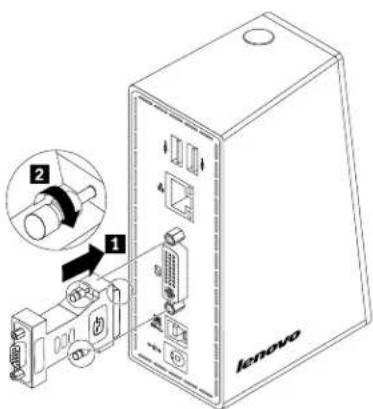
Figure4. UsingtheDVI-ItoVGAadapter
- ConnecttheVGAconnectoroftheexternalmonitortotheDVI-ItoVGAadapterbyusingaVGAcable.
Youcanadjustvideosettingstocustomizetheuseofthedock.Formoreinformation,see"Workingwiththedockutility"onpage13 .
Note: For better performance, occasionally adjust the external monitor to align its settings with the video output of the dock. Form more information about the adjustment procedure, referto the documentation that comes with your external monitor.
Chapter4.Workingwiththedock
Thischapterprovidesinformationaboutthevideooutputfunctionofthedockandinstructionsonhowtoworkwiththedockutility,whichenablesyoutoconfigurethedocktoyourneeds.
Understandingthevideooutputmodes
Thedockworksinthefollowingthreevideooutputmodes:
- "Extendmode" on page 11
- "Mirrormode"onpage12
- "Single-displaymode" on page 12
Bydefault,thedockworksinextendmode.
Extendmode
Whenthedockisinextendmode,itsplitsyourdisplayacrosstwomonitors.
Therearethreeoptionswhenyouareusingextendmode:
Extend Wheryouselect this option you notebook computer monitor becomes the primary display and the external monitor becomes these secondary display. By default, the external monitor display is on the right side of the notebook computer monitor display.
Extend To Wheryouselect this option you notebook computemonit becomes the primary display and the external monitor becomes these secondary display. You can give them on its own frame buffer through the submen options Right Left Above and Below through drag operations The display space is a continuous area; therefore, windows and object scan be moved between different displays.
SetsMairMonitorWhen you select this option the external monitor becomes the primary display and then notebook computer monitor becomes the secondary display.
Inextendmode,youcandraganddropwindowsfromonedisplaytotheother.Youalsocanincrease yourproductivitybydoingthefollowing:
- Readinge-mailsononedisplayandopeningattachmentsontheother
- Expandingaspreadsheetacrosstwodisplays
- Increasingyourworkareabyputtingallthepaletteandtoolbarsontheotherdisplaywhenyouare doinggraphicsediting
- Keepingthedesktopononedisplayandwatchingvideosontheother
Toenterextendmode, dothefollowing:
1ClicktheThinkPadBasidUSB.0DockicorintheWindowsnotificationarea:pop-upmenopens.
-
SelectThinkPadBasicUSB3.0Dock, and thenselectone from the following:
-
Extend
- ExtendTo
- SetasMainMonitor
Toexitextendmode,dothefollowing:
1ClicktheThinkPadBasidUSB3.0DockconirtheWindowsnotificationareaApop-upmenupens.
2SelectThinkPadBasidUSB.0DockOff.
ToenterextendmodeontheWindows10operatingsystem,dothefollowing:
-
ClicktheThinkPadUSB3.0DockiconintheWindowsnotificationarea.Apop-upmenuopens.
-
SelectVideoSetup.Awindowopens.
3rtheMultipledisplaysdrop-downlisboxselecExtendhesedisplays.
Mirrormode
Whenthedockisinmirrormode, itclonesyournotebookcomputerscreentotheexternalmonitor. Thedock automaticallyselectsthesettings(screenresolution,colorquality,andrefreshrate)fortheexternalmonitor, whichachievesoptimalresolutionbasedonyournotebookcomputer.
Toentermirrormode, dothefollowing:
1ClicktheThinkPadBasidUSB.0DockicoritheWindowsnotificationareaApop-upmenupens.
2SelectThinkPadBasicUSB.0DockMirror.
Toexitmirrormode, dothefollowing:
1ClicktheThinkPadBasidUSB.0DockIcontheWindowsnotificationareaApop-upmenopens.
2SelectThinkPadBasidUSB.0DockOff.
ToentermirrormodeontheWindows10operatingsystem,dothefollowing:
-
ClicktheThinkPadUSB3.0DockiconintheWindowsnotificationarea.Apop-upmenuopens.
-
SelectVideoSetup.Awindowopens.
3rtheMultipledisplaysdrop-downlisboxselecDuplicatethesedisplays.
Single-displaymode
Whenthedockisinsingle-displaymode,itenablesyoutoshowyourdesktoppononlyonescreen.
There are two options when you are using single-display mode:
NotebookMonitoOff: Wheryouselectthis option the display of younotebookcomputer monitor turnsoffandthedisplayoftheexternalmonitorturnson.
GffWhen you select this option the display of the external monitoturns of and the display of your notebook computer monitorturnson. However, other function such as audio, Ethernet, and USB connection can still work though the display is off.
Toentersingle-displaymode, dothefollowing:
1ClicktheThinkPadBasidUSB.0DockconirtheWindowsnotificationareaApop-upmenupens.
2SelectThinkPadBasidUSB.0Dock→NotebookMonitorOffOff.
Toexitsingle-displaymode,dothefollowing:
1ClicktheThinkPadBasidUSB.0DockconirtheWindowsnotificationareaApop-upmenopens.
- SelectThinkPadBasicUSB3.0Dock, and then select another mode easy you want.
Toentersingle-displaymodeontheWindows10operatingsystem,dothefollowing:
-
ClicktheThinkPadUSB3.0DockiconintheWindowsnotificationarea.Apop-upmenuopens.
-
SelectVideoSetup.Awindowopens.
-
In the Multiple displays drop-downlist box, select the desired display.
Workingwiththedockutility
Thedockutilityenablesyoutoconfigurethedisplaysettingsofthedock.
Note: Thesettingsyouhaveconfiguredforthedockwillberetainedeachtimewhenyouconnectthe notebookcomputertothedock. Thisfeatureenablesyoutouseyournotebookcomputerwithmultiple docks. Forexample, if youuseanotebookcomputerbothathomeandatwork, youcansetupbothwork areaswithdocks. Then, youjustconnectyournotebookcomputertothedockateitherlocation, and youarereadytowork.
Manuallyenablingtheheadsetandmicrophonecomboconnector
Tomanually enable the headset and microphone combo connector on the dock, do the following:
FortheWindows7, Windows8, Windows8.1, or Windows10 operating system:
1ClicktheThinkPadBasidUSB. DockicontheWindowsnotificationareaApop-upmenopens.
- SelectAudioSetup. TheSoundwindowopens.
3OnthePlaybackabselectUSBaudidine-outdeviceOntheRecordingabselectUSBaudio line-indevice.
4.ClickOK.
Optimizingthevideoplaybackquality
IntheWindows7, Windows8, Windows8.1, or Windows10operatingsystem, the dockenables you to optimizethevideoplaybackqualitywhentherearesomequalityissues, suchasatearorsplit. After optimizing, the display will besmootherand clearer.
Tooptimizethevideoplaybackquality,dothefollowing:
1ClicktheThinkPadBasidUSB.0DockconirtheWindowsnotificationareaApop-upmenupens.
2SelectThinkPadBasidUSB. Dock-OptimizeVideo.
Note: This setting is not supported in the Windows 10 operating system.
Rotatingtheexternalmonitordisplay
Thedockenablesyoutorotateonlyyoureternalmonitordisplayasyouwant.
TorotatetheexternalmonitordisplayontheWindows7,Windows8,orWindows8.1operatingsystem,dothefollowing:
1ClicktheThinkPadBasidUSB.0DockicortheWindowsnotificationareaApop-upmenupens.
2SelectThinkPadBasidUSB.0Dock-ScreerRotationandherselectbneofthefollowingoptions:
Normal The externa monitodisplayemains the same younotebookcomputemonitodisplay.
- RotatedLeft:Theexternalmonitordisplayrotates90degreeestotheleft.
- RotatedRight: The external monitor display rotates 90 degree to other right.
- Upside-Down: The external monitor display becomes upside-down.
Note: OnormadisplayyoucancontinuallyclicRotatedLeftRotatedRightuntildisplay becomesupside-down.
TorotatetheexternalmonitordisplayontheWindows10operatingsystem,dothefollowing:
- ClicktheThinkPadUSB3.0DockiconintheWindowsnotificationarea.Apop-upmenuopens.
- SelectVideoSetup.Awindowopens.
- In the Orientation drop-downlistbox, select one of the following options:
LandscapeThe externa monitodisplayemains the same asounotebookcomputemonitor display.
- Portrait: The external monitor display rotates 90 degree to the left.
- Landscape(flipped): The external monitor display becomes upside-down.
- Portrait(flipped): The external monitor display rotates 90 degreest other right.
Note: Onormadisplayyoucancontinuallyclick|Portraib|Portraifflipped)untilthedisplaybecomes upside-down.
Settingthecolorqualityoftheexternalmonitor
Thedockenablesyoutoselectatargetcolorqualityfortheexternalmonitordisplay. Theavailableoptions are16-bitor32-bit. Bitmeansthecolordepthofthedisplay. Thedefaultandrecommendedsettingis32-bit.
TosetthecolorqualityoftheexternalmonitorfortheWindows7operatingsystem,dothefollowing:
1ClicktheThinkPadBasidUSB. DockconirtheWindowsnotificationareaApop-upmenopens.
- SelectVideoSetup.Awindowopens.
3rtheColoQualityareaselecMedium(16bit)Highest(32bit).
Note: This feature is not supported in the Windows8, Windows8.1, and Windows10 operating systems.
Settingtheresolutionoftheexternalmonitor
Thedockenablesyoutosettheresolutionoftheexternalmonitor.
Inextendmodeandsingle-displaymode,youcansettheresolutionoftheexternalmonitorbydoingthe following:
1ClicktheThinkPadBasidUSB. DockIcontheWindowsnotificationarea:pop-upmenopens.
- Depending on the operating system you are using, do one of the following:
- FortheWindows7, Windows8, or Windows8.1 operating system:
SelectThinkPadUSB.0Dock-ScreerResolutionandtherelectthedesiredscreenresolution optionfortheexternalmonitor.Forexample,"2048x1152"meansthatthevideooutputresolution willbe2048by1152pixels.
- FortheWindows10operatingsystem:
a.SelectVideoSetup.Awindowopens.
Click Advanced display settings the Resolution drop-down is box select the desired screen resolution option.
Inmirrormode, you can set the resolution of the external monitor by doing the following:
1ClicktheThinkPacBasidUSB. DockconirtheWindowsnotificationareaApop-upmenupens.
-
SelectVideoSetup.Awindowopens.
-
Depending on the operating system you are using, do one of the following:
- FortheWindows7, Windows8, or Windows8.1 operating system:
In the Resolution drop-down is box move the slider up increase down to decrease the resolution of the external monitor.
- FortheWindows10operatingsystem:
Click Advanced display settings, the Resolution drop-down is box select the desired screen resolution option.
Switchingvideooutputmodes
Toswitchfromonevideooutputtoanother,dothefollowing:
1ClicktheThinkPadBasidUSB.0DockicontheWindowsnotificationareaApop-upmenupens.
2SelectThinkPadBasidUSB3.0Dockandherselectthevideoutputmodasyouwant.
Formoreinformationaboutthevideooutputmodes,referto"Understandingthevideooutputmodes" onpage11.
Supported resolutions and refreshrates
The following table lists therefresh ratessupported at various resolutions forthedock video output.
Table1. Supported resolutions and refreshrates
| SN | Resolution | Refreshrate(Unit:Hz) |
| 1640x48060,67 | 7,72,75,85 | |
| 2720x40070,85 | 88 | |
| 3720x48050,60 | ||
| 4768x57650,60 | ||
| 5 | 800x48060 | |
| 6800x60056,60 | ,72,75,85 | |
| 7 | 832x624 | 75 |
| 8848x48060 | ||
| 91024x60060 | ||
| 101024x76860 | ,70,75,85 | |
| 111152x864 | 75 | |
| 121152x870 | 75 | |
| 131280x72050 | ,60 | |
| 141280x76860 | ,75,85 | |
| 151280x80060 | ||
| 161280x96060 | ,85 | |
| 171280x102460 | ,75 | |
| 181360x76860 | ||
| 191366x76850 | ,60 | |
| 201368x76860 | ||
| 211400x105060 | ,75,85 | |
| 221440x90060 | ||
| 231600x120060 | ||
| 241680x105060 | ||
| 251920x108050 | ,60 | |
| 261920x120060 | ||
| 272048x108060 | ||
| 282048x115260 |
Notes:
- Resolutionreferstothenumberofpixelshorizontallyandverticallydisplayonthescreen.
- Refreshrate(alsocalledverticalfrequency)measuresthespeedthattheentirescreenisrescanned.
Chapter5.Troubleshooting
Thischapterprovidessometroubleshootinghintsandtipstoassistyouifyouexperienceanyproblemswiththedock.Checkthefollowingitemsfirsttotrytosolvetheproblem.
General
- The ThinkPadBasicUSB3.0Dockiconisnotdisplayedonmyscreen.
TheThinkPadBasidUSB. Dockconisdisplayedonlywheranexternalmonitorsconnectedothedock.Ifanexternalmonitorisconnected,ensurethatthevideocableisfullyinsertedintothedockandthemonitor.
- The power and connection indicator of the dock is not on.
Ensure that you have correctly connected the power adapter to the dock and working electrical outlet, and that you have pressed the power button. Don't use any power adapter other than the on provided with the dock.
- IconectthedocktoacomputerwiththeprovidedUSB3.0cable, butthedockdoesnotwork.
a. Ensure that the dock is well powered by its power adapter. The dock always need second external power adapter for operation, because it does not take power from the USB connector attached to your notebook computer.
b. Ensure that the device driver of the dock is well installed; if not, install the device driver and restart the computer.
c. Ensure that the USB connector on your computer workswell; if not, replace with other USB connectors.
- I cannot start your notebook computer when it is connected with the dock.
Ensure that you use the USB3.0 cable provided with the dock.
Videooutput
-
The external monitor display is blank.
-
Ensure that the notebook computer connected to the dock is running correctly and is not instand by or hibernation mode. When the notebook computer is instand by or hibernation mode, the external monitor display is always blank.
- Ensure that the device driver is installed following the installation instructions and the icon for the dock is visible in the Windows notification area.
- Ensure that the video output function is not disabled.
- Ensure that the following connections are correct:
-TheconnectionbetweentheUSB3.0cableandyournotebookcomputer
-TheconnectionbetweentheUSB3.0cableandthedock
-Theconnectionamongthepoweradapter,thedock,andtheelectricaloutlet
-TheconnectionbetweenthevideocableandtheDVI-Ivideooutputconnector
Note: For the connection of the VGA connector, ensure that the DVI-Ito VGA adapter also is secured by the crewson both sides of it.
- If the problem persists, disconnect all connection so the dock, and uninstall the dock device driver. Then, reinstall the device driver and the dock.
2. I cannot playback videos on my external monitor but can play them back on my notebook computer monitor.
SomenotebookcomputersdonotsupporttheCertifiedOutputProtectionProtocol(COPP),andyouwill notbeabletoplaybacktheprotectedvideosontheexternalmonitorconnectedtothedock.
Toplaybackvideosontheexternalmonitor,youcanconnecttheexternalmonitortotheVGAconnector onyournotebookcomputer,andextendthedisplaytotheexternalmonitor.Formoreinformationabout configuringthedisplaysettings,see"Workingwiththedockutility"onpage13
3. The images on the external monitor flutter.
Tosolvetheproblem, check the following:
- Ensure that the external monitor is well connected to the DVI-l video output connector of the dock.
- Checkthedisplayresolutionsettingofthenotebookcomputerandensurethattheresolutionis supportedbythedock.
Check that you do not select Optimization video the Windows 7 Windows 8 Windows 3.1 or Windows 10 operating system. If you select it, you might seed double image in full screen mode when your right-click the screento open the setting menus.
4. The images on the external monitor is not incorrect colors.
Tosolvetheproblem, dothefollowing:
a. Ensure that the external monitor is well connected to the DVI-I video output connector of the dock.
b. Checkthedisplayresolutionsettingofthecomputerandensurethattheresolutionissupportedbythedock.
5.Mycomputercan playback Webflashes. However, when I drag the window to the external monitor and maximizes the playback window, the playback stops.
Tosolvetheproblem,updateyourAdobeFlashPlayerothelatestversion.
Audio
I can not hear anything through your notebook computers speakers or cannot use the audio connectors on then notebook computer.
Bydefault, ThinkPadandotherLenovo ^ notebookcomputersusetheheadsetandmicrophonecombo connectoronthedockanddisablebuilt-inaudioconnectorswhenthedockisconnected.
Toenablethebuilt-inaudioconnectorsonyournotebookcomputer,dothefollowing:
FortheWindows7, Windows8, Windows8.1, or Windows10 operating system:
-
Right-click the Volume icon in the Windows notification area.
-
Select Sounds, and the Sound window is displayed.
3Click the Playback bit select built-in audio device and click the Recording bit select another built-in audio device.
4OnthePlaybackabselectbuilt-inaudiodeviceOntheRecordingabselectanothebuilt-inaudiodevice.
Notes:
-
To apply thenewsettings, restart the application that are using the audiodevices.
-
Thesettingsyouhaveadjustedwillbesaveduntilyouchangethesettingsnexttime.
AppendixA.ServiceandSupport
The following information describes the technical support that is available for your product, during the warranty period throughout the life of your product. Referto the Lenovo Limited Warranty for a full explanation of Lenovowarranty terms.
Onlinetechnicalsupport
Onlinetechnicalsupportisavailableduringthelifetimeofaproductat: http://www.lenovo.com/support
Productreplacementassistanceorexchangeofdefectivecomponentsalsoisavailableduringthewarranty period.Inaddition,ifyuroptionisinstalledinaLenovocomputer,youmightbeentitledtoserviceatyour location.ALenovotechnicalsupportrepresentativecanhelpyoudeterminethebestalternative.
Telephonetechnicalsupport
InstallationandconfigurationsupportthroughtheCustomerSupportCenterwillbeavailableuntil90days aftertheoptionhasbeenwithdrawnfrommarketing.Afterthattime,thesupportiscanceled,ormade availableforafee,atLenovo'sdiscretion.Additionalsupportisalsoavailableforanominalfee.
BeforecontactingaLenovotechnicalsupportrepresentative,pleasehavethefollowinginformationavailable:optionnameandnumber,proofofpurchase,computermanufacturer,model,serialnumberandmanual,theexactwordingofanyerrormessage,descriptionoftheproblem,andthehardwareandsoftwareconfigurationinformationforyoursystem.
Your technical support representativemightwanttowalkyouthroughtheproblemwhileyouareatyour computerduringthecall.
Telephonenumbersaresubjecttochangewithoutnotice. Themostup-to-datetelephonelistforLenovo Supportisalwaysavailableathttp://www.lenovo.com/support/phone.Ifthetelephonenumberforyour countryorregionisnotlisted,contactyourLenovoresellerorLenovomarketingrepresentative.
Accessibilityinformation
Documentationinaccessibleformats
Lenovoprovideselectronicdocumentationinaccessibleformats,suchasproperlytaggedPDFfilesor HyperTextMarkupLanguage(HTML)files.Lenovoelectronicdocumentationisdevelopedtoensure thatvisuallyimpaireduserscanreadthedocumentationthroughascreenreader.Eachimageinthe documentationalsoincludesadequatealternativetexttoexplaintheimagesothatvisuallyimpairedusers canunderstandtheimagewhentheyuseascreenreader.
ToopenandviewPDFfiles,yourcomputermusthavetheAdobeReaderprograminstalled.TheAdobe Readerprogramalsoisavailablefordownloadat: http://www.adobe.com
AppendixB.LenovoLimitedWarranty
L505-0010-0208/2011
ThisLenovoLimitedWarrantyconsistsofthefollowingparts:
Part1-GeneralTerms
Part2-Country-specificTerms
Part3-WarrantyServiceInformation
The terms: Part2 replace modify terms: Part1 as specified for particular country.
Part1-GeneralTerms
ThisLenovoLimitedWarrantyappliesonlytoLenovohardwareproductsyoupurchasedforyouwnuseand notforresale. ThisLenovoLimitedWarrantyisavailableinotherlanguagesatwww.lenovo.com/warranty.
WhatthisWarrantyCovers
LenovowarrantsthateachLenovohardwareproductthatyoupurchaseisfreefromdefectsinmaterialsand workmanshipundernormaluseduringthewarrantyperiod. Thewarrantyperiodfortheproductstartson theoriginaldateofpurchaseasshownonyoursalesreceptorinvoiceorasmaybeotherwisespecified by Lenovo. Thewarrantyperiodandtypeofwarrantyservicethatapplytoyourproductareasspecified in'Par&WarrantyServiceInformationbelowThiswarrantyonlyappliesproductsirthecountry orregionofpurchase.
THISWARRANTYISYOUREXCLUSIVEWARRANTYANDREPLACESALLOTHERWARRANTIES ORCONDITIONS, EXPRESSORIMPLIED, INCLUDING, BUTNOTLIMITEDTO, ANYIMPLIED WARRANTIESORCONDITIONSOFMERCHANTABILITYORFITNESSFORAPARTICULARPURPOSE. ASSOMESTATESORJURISDICTIONSDONOTALLOWTHEEXCLUSIONOFEXPRESSOR IMPLIED WARRANTIES, THEABOVEEXCLUSIONMAYNOTAPPL YTOYOU.INTHATEVENT ,SUCH WARRANTIESAPPL YONL YTOTHEEXTENTANDFORSUCHDURATIONASREQUIREDBYLAWAND ARELIMITEDINDURATIONTOTHEWARRANTYPERIOD.ASSOMESTATESORJURISDICTIONSDO NOTALLOWLIMITATIONSONTHEDURATIONOFANIMPLIEDWARRANTY, THEABOVELIMITATION ONDURATIONMAYNOTAPPL YTOYOU.
HowtoObtainWarrantyService
If the product does not function as warranted during the warranty period, you may obtain warranty service by contacting Lenovoora Lenovo-approved Service Provider. A list of approved Service Providers and their telephonenumber is available at: www.lenovo.com/support/phone.
Warrantyservicemaynotbeavailableinalllocationsandmaydifferfromlocationtolocation.Chargesmay applyoutsideaServiceProvider'snormalservicearea.ContactalocalServiceProviderforinformation specifictoyourlocation.
CustomerResponsibilitiesforWarrantyService
Beforewarrantyserviceisprovided,youmusttakethefollowingsteps:
- followtheservicerequestproceduresspecifiedbytheServiceProvider;
- backuporsecureallprogramsanddatacontainedintheproduct;
- providetheServiceProviderwithallsystemkeysorpasswords;
•providetheServiceProviderwithsufficient,free,andsafeaccesstoyourfacilitiestoperformservice; - removealldata,includingconfidentialinformation,proprietaryinformationandpersonalinformation,from theproductor,ifyouareunabletoremoveanysuchinformation,modifytheinformationtopreventits accessbyanotherpartyorsothatitisnotpersonaldataunderapplicablelaw.TheServiceProvidershall notberesponsibleforthelossordisclosureofanydata,includingconfidentialinformation,proprietary information,orpersonalinformation,onaproductreturnedoraccessedforwarrantyservice;
- removeallfeatures,parts,options,alterations,andattachmentsnotcoveredbythewarranty;
- ensure that the product or part is free of any legal restrictions that prevent its replacement;
- ifyouarenottheownerofaproductorpart,obtainauthorizationfromtheownerfortheServiceProvider toprovidewarrantyservice.
WhatYourServiceProviderWillDotoCorrectProblems
When you contact a Service Provider, you must follow the specified problem determination and resolution procedures.
TheServiceProviderwillattempttodiagnoseandresolveyourproblembytelephone,e-mailorremote assistance.TheServiceProvidermaydirectyoutodownloadandinstalldesignatedsoftwareupdates.
Someproblemsmayberesolvedwithareplacementpartthatyouinstallyourselfcalleda"Customer ReplaceableUnit"or"CRU."Ifso,theServiceProviderwillshiptheCRUtoyouforyoutoinstall.
If your problem cannot be resolved over the telephone; through the application of software updates or the installation of a CRU, the Service Provider will arrange for service under the type of warranty service designated for the product under "Part3-Warranty Service Information" below.
If the Service Provider determines that it is unable to repair your product, the Service Provider will replace it with one that is at least functionally equivalent.
If the Service Provider determines that it is unable to either repair or replace your product, your sole remedy under this Limited Warranty is to return the product to your place of purchase to Lenovo for refund of your purchase price.
ReplacementProductsandParts
When warranty service involves thereplacement of a product part, thereplaced product part becomes Lenovo's property and thereplacement product part becomes your property. Only unaltered Lenovo products and parts are eligible for replacement. Thereplacement product part provided by Lenovo may not be new, but it will being good working order and least functionally equivalent to the original product part. Thereplacement product part shall be warranted for the balance of the period remaining on the original product.
UseofPersonalContactInformation
If you obtain service under this warranty, you authorize Lenovotostore, use and process information about your warranty service and your contact information, including name, phonenumbers, address, and e-mail address. Lenovomayusethisinformation to perform service under this warranty. Wemaycontact youto inquire about your satisfaction with our warranty service on to notify you about any product recalls safety issues. In accomplishing these purposes, you authorize Lenovototransferyourinformation to any country wherewedobusiness and to provide it to entities acting on our behalf. Wemayalsodiscloseitwhere required by law. Lenovo's privacy policy is available at www.lenovo.com/.
WhatthisWarrantyDoesnotCover
Thiswarrantydoesnotcoverthefollowing:
- uninterruptederror-freeoperationofaproduct;
- lossof,ordamageto,yourdatabyaproduct;
- anysoftwareprograms,whetherprovidedwiththeproductorinstalledsubsequently;
- failureordamageresultingfrommisuse,abuse,accident,modification,unsuitablephysicaloroperating environment,naturaldisasters,powersurges,impropermaintenance,orusenotinaccordancewith productinformationmaterials;
- damagecausedbyanon-authorizedserviceprovider;
- failureof,ordamagecausedby,anythirdpartyproducts,includingthosethatLenovomayproviderintegrateintotheLenovoproductatyourrequest;
- anytechnicalorthersupport,suchasassistancewith“how-to”questionsandthoseregardingproduct set-upandinstallation;
- productsorpartswithanalteredidentificationlabelorfromwhichtheidentificationlabelhasbeen removed.
LimitationofLiability
LenovoisresponsibleforlossordamagetoyourproductonlywhileitisintheServiceProvider'spossession orintransit,iftheServiceProviderisresponsibleforthetransportation.
Neither LenovonortheServiceProvider is responsible for loss or disclosure of any data, including confidential information, proprietary information, or personal information, contained in a product.
UNDERNOCIRCUMSTANCES,ANDNOTWITHSTANDINGTHEFAILUREOFESSENTIALPURPOSE OFANYREMEDYSETFORTHHEREIN,SHALLLENOVO,ITSAFFILIATES,SUPPLIERS,RESELLERS, ORSERVICEPROVIDERSBELIABLEFORANYOFTHEFOLLOWINGEVENIFINFORMEDOFTHEIR POSSIBILITYANDREGARDLESSOFWHETHERTHECLAIMISBASEDINCONTRACT ,WARRANTY, NEGLIGENCE,STRICTLIABILITYOROTHERTHEORYOFLIABILITY:1)THIRDPARTYCLAIMS AGAINSTYOUFORDAMAGES;2)LOSS,DAMAGEORDISCLOSUREOFYOURDATA;3)SPECIAL, INCIDENTAL,PUNITIVE,INDIRECTORCONSEQUENTIALDAMAGES,INCLUDINGBUTNOTLIMITED TOLOSTPROFITS,BUSINESSREVENUE,GOODWILLORANTICIPATEDSAVINGS.INNOCASE SHALLTHETOTALLIABILITYOFLENOVO,ITSAFFILIATESS,SUPPLIERS,RESELLERSORSERVICE PROVIDERSFORDAMAGESFROMANYCAUSEEXCEEDTHEAMOUNTOFACTUALDIRECT DAMAGES,NOTTOEXCEEDTHEAMOUNTPAIDFORTHEPRODUCT.
THEFOREGOINGLIMITATIONSDONOTAPPL YTODAMAGESFORBODIL YINJURY(INCLUDING DEATH), DAMAGETOREALPROPERTYORDAMAGETOTANGIBLEPERSONALPROPERTYFOR WHICHLENOVOISLIABLEUNDERLAW.ASSOMESTATESORJURISDICTIONSDONOTALLOW THEEXCLUSIONORLIMITATIONOFINCIDENTALORCONSEQUENTIALDAMAGES, THEABOVE LIMITATIONOREXCLUSIONMAYNOTAPPL YTOYOU.
YourOtherRights
THISWARRANTYGIVESYOUSPECIFICLEGALRIGHTS.YOUMAYHAVEOTHERRIGHTS ACCORDINGTOTHEAPPLICABLELAWSOFYOURSTATEORJURISDICTION.YOUMAYALSO HAVEOTHERRIGHTSUNDERAWRITTENAGREEMENTWITHLENOVO.NOTHINGINTHIS WARRANTYAFFECTSSTATUTORYRIGHTS,INCLUDINGRIGHTSOFCONSUMERSUNDERLAWS ORREGULATIONSGOVERNINGTHESALEOFCONSUMERGOODSTHATCANNOTBEWAIVED ORLIMITEDBYCONTRACT.
Part2-Country-specificTerms
Australia
"Lenovo" means Lenovo (Australia & New Zealand) Pty Limited ABN70112394411. Address: Level 10, North Tower, 1-5 Railway Street, Chatswood, NSW, 2067. Telephone: +61280038200. Email: lensyd_au@lenovo.com
The followingreplacesthesamesectioninPart1:
WhatthisWarrantyCovers:
Lenovowarrantsthateachhardwareproductthatyoupurchaseisfreefromdefectsinmaterialsand workmanshipundernormaluseandconditionsduringthewarrantyperiod.Iftheproductfailsduetoa covereddefectduringthewarrantyperiod,LenovowillprovideyouaremedyunderthisLimitedWarranty. Thewarrantyperiodfortheproductstartsontheoriginaldateofpurchasesspecifiedonyoursalesreceptor invoiceunlessLenovoinformsyouotherwiseinwriting. Thewarrantyperiodandtypeofwarrantyservice thatapplyyouproductarseforthbelowPar&WarrantyServicdInformation.
THEBENEFITSGIVENBYTHISWARRANTYAREINADDITIONTOYOURRIGHTSANDREMEDIESAT LAW, INCLUDINGTHOSEUNDERTHEAUSTRALIANCONSUMERLAW.
The followingreplacesthesamesectioninPart1:
ReplacementProductsandParts:
Whenwarrantyserviceinvolvesthereplacementofaproductorpart,thereplacedproductpartbecomes Lenovo'spropertyandthereplacementproductorpartbecomesyourproperty.OnlyunalteredLenovo productsandpartsareeligibleforreplacement.ThereplacementproductorpartprovidedbyLenovomay notbenew,butwillbeingoodworkingorderandatleastfunctionallyequivalenttotheoriginalproduct part.Thereplacementproductorpartshallbewarrantedforthebalanceoftheperiodremainingonthe originalproduct.Productsandpartspresentedforrepairmaybereplacedbyrefurbishedproductsorparts ofthesametyperatherthanbeingrepaired.Refurbishedpartsmaybeusedtorepairtheproduct;andrepair oftheproductmayresultinlossofdata,iftheproductiscapableofretaininguser-generateddata.
The following is added to the same section in Part 1:
UseofPersonalContactInformation:
Lenovowillnotbeabletoperformourserviceunderthiswarrantyifyourefusetoprovideyourinformation ordonotwishustotransferyourinformationtoouragentorcontractor.Youhavetherighttoaccess yourpersonalcontactinformationandrequestcorrectionofanyerrorsinitpursuanttothePrivacyAct 1988bycontactingLenovo.
The followingreplacesthesamesectioninPart1:
LimitationofLiability:
LenovoisresponsibleforlossordamagetoyourproductonlywhileitisintheServiceProvider'spossession orintransit,iftheServiceProviderisresponsibleforthetransportation.
Neither Lenovon or the Service Provider is responsible for loss or disclosure of any data, including confidential information, proprietary information, or personal information, contained in a product.
TOTHEEXTENTPERMITTEDBYLAW,UNDERNOCIRCUMSTANCESANDNOTWITHSTANDING THEFAILUREOFESSENTIALPURPOSEOFANYREMEDYSETFORTHHEREIN,SHALLLENOVO, ITSAFFILIATES,SUPPLIERS,RESELLERS,ORSERVICEPROVIDERSBELIABLEFORANYOFTHE FOLLOWINGEVENIFINFORMEDOFTHEIRPOSSIBILITYANDREGARDLESSOFWHETHERTHE CLAIMISBASEDINCONTRACT ,WARRANTY,NEGLIGENCE,STRICTLIABILITYOROTHERTHEORY
OFLIABILITY:1)THIRDPARTYCLAIMSAGAINSTYOUFORDAMAGES;2)LOSS,DAMAGEOR DISCLOSUREOFYOURDATA;3)SPECIAL,INCIDENTAL,PUNITIVE,INDIRECTORCONSEQUENTIAL DAMAGES,INCLUDINGBUTNOTLIMITEDTOLOSTPROFITS,BUSINESSREVENUE,GOODWILLOR ANTICIPATEDSAVINGS.INNOCASESHALLTHETOTALLIABILITYOFLENOVO,ITSAFFILIATESS, SUPPLIERS,RESELLERSORSERVICEPROVIDERSFORDAMAGESFROMANYCAUSEEXCEEDTHE AMOUNTOFACTUALDIRECTDAMAGES,NOTTOEXCEEDTHEAMOUNTPAIDFORTHEPRODUCT.
THEFOREGOINGLIMITATIONSDONOTAPPL YTODAMAGESFORBODIL YINJURY(INCLUDING DEATH), DAMAGETOREALPROPERTYORDAMAGETOTANGIBLEPERSONALPROPERTYFOR WHICHLENOVOISLIABLEUNDERLAW.
The following replaces the same section in Part 1:
YourOtherRights:
THISWARRANTYGIVESYOUSPECIFICLEGALRIGHTS.YOUALSOHAVEOTHERRIGHTSATLAW, INCLUDING UNDERTHEAUSTRALIANCONSUMERLAW.NOTHINGINTHISWARRANTYAFFECTS STATUTORYRIGHTSORRIGHTSATLAW, INCLUDINGRIGHTSTHATCANNOTBEWAIVEDOR LIMITEDBYCONTRACT.
Forexample, our products comewith guarantee esthat cannot be excluded under the Australian Consumer Law. You are entitled to a replacement or refund for a major failure and compensation for any other reasonably foreseeable loss or damage. You are also entitled to have the products repaired or replaced if the products fail to be of acceptable quality and the failure does not amount to a major failure.
NewZealand
The following is added to the same section in Part 1:
UseofPersonalInformation:
Lenovowillnotbeabletoperformourserviceunderthiswarrantyifyourefusetoprovideyourinformationor donotwishustotransferyourinformationtoouragentorcontractor.Youhavetherighttoaccessyour personalinformationandrequestcorrectionofanyerrorsinitpursuanttothePrivacyAct1993bycontacting Lenovo(Australia&NewZealand)PtyLimitedABN70112394411.Address:Level10,NorthTower,1-5 RailwayStreet,Chatswood,NSW,2067.Telephone:61280038200.Email:lensyd_au@lenovo.com
Bangladesh, Cambodia, India, Indonesia, Nepal, Philippines, Vietnam and Sri Lanka
The following is added to Part 1:
DisputeResolution
Disputesarisingoutoforinconnectionwiththiswarrantyshallbefinallysettledbyarbitrationheldin Singapore.Thiswarrantyshallbegoverned,construedandenforcedinaccordancewiththelawsof SingaporewithoutegardconflicbfawslyouacquiredheproductIndiadisputesarisingpubfor inconnectionwiththiswarrantyshallbefinallysettledbyarbitrationheldinBangalore,India.Arbitration inSingaporeshallbeheldinaccordancewiththeArbitrationRulesofSingaporeInternationalArbitration Center("SIACRules")thenineffect.ArbitrationinIndiashallbeheldinaccordancewiththelawsofIndia thenineffect.Thearbitrationawardshallbefinalandbindingonthepartieswithoutappeal.Anyaward shallbeinwritingandsetforththefindingsoffactandtheconclusionsoflaw.Allarbitrationproceedings, includingalldocumentspresentedinsuchproceedingsshallbeconductedintheEnglishlanguage.The Englishlanguageversionofthiswarrantyprevailsoveranyotherlanguageversioninsuchproceedings.
EuropeanEconomicArea(EEA)
The following is added to Part 1:
CustomersintheEEAmaycontactLenovoatthefollowingaddress:EMEAServiceOrganisation, Lenovo (International)B.V.,Floor2,Einsteinova21,85101,Bratislava,Slovakia.Serviceunderthiswarrantyfor LenovohardwareproductspurchasedinEEAcountriesmaybeobtainedinanyEEAcountryinwhichthe producthasbeenannouncedandmadeavailablebyLenovo.
Russia
The following is added to Part 1:
ProductServiceLife
Theproductservicelifeisfour(4)yearsfromtheoriginaldateofpurchase.
Part3-WarrantyServiceInformation
| ProductTypeCountry | orRegionofPurchaseWarranty | PeriodTypeofWarrantyService | |
| ThinkPadBasicUSB3.0Dock | Worldwide1year1,4 |
If required, your Service Provider will provide repair exchanges services depending on the type of warranty services specified for your product and the available service. Scheduling of service will depend upon the time of your call, parts availability, and other factors.
TypesofWarrantyService
1. CustomerReplaceableUnit("CRU")Service
UnderCRUService,theServiceProviderwillshipCRUstoyouatitscostforinstallationbyyou.CRU informationandreplacementinstructionsareshippedwithyourproductandareavailablefromLenovoatany timeuponrequest.CRUsthatareaseasilyinstalledbyyouarecalled"Self-serviceCRUs"."Optional-service CRUs"areCRUsthatmayrequiresometechnicalskillandtools.InstallationofSelf-serviceCRUsisyour responsibility.YoumayrequestthataServiceProviderinstallOptional-serviceCRUsunderoneoftheother typesofwarrantyservicedesignatedforyourproduct.Anoptionalserviceofferingmaybeavailablefor purchasefromaServiceProviderorLenovounderwhichSelf-serviceCRUswouldbeinstalledforyou.YoumayfindalistofCRUsandtheirdesignationinthepublicationthatwasshippedwithyourproduct oratwww.lenovo.com/CRUs.ThererequirementtoreturnadefectiveCRU,ifany,willbespecifiedinthe instructionsshippedwithareplacementCRU.Whenreturnisrequired:1)returninstructions,aprepaid returnshippinglabel,andacontainerwillbeincludedwiththereplacementCRU;and2)youmaybecharged forthereplacementCRUiftheServiceProviderdoesnotreceivethedefectiveCRUfromyouwithinthirty (30)daysofyourreceiptofthereplacementCRU.
2.On-siteService
UnderOn-SiteService,aServiceProviderwilleitherrepairorexchangetheproductatyourlocation.You mustprovideasuitableworkingareatoallowdisassemblyandreassemblyoftheproduct.Somerepairs mayneedtobecompletedataservicecenterIfso,theServiceProviderwillsendtheproducttothe servicecenteratitsexpense.
3. CourierorDepotService
UnderCourierorDepotService,yourproductwillberepairedorexchangedatadesignatedservicecenter, withshippingattheexpenseoftheServiceProvider.Youareresponsiblefordisconnectingtheproductand packingitinashippingcontainerprovidedtoyoutoreturnyourproducttoadesignatedservicecenter. Acourierwillpickupyourproductanddeliverittothedesignatedservicecenter.Theservicecenterwill returntheproducttyouatitsexpense.
4.CustomerCarry-InService
UnderCustomerCarry-InService,yourproductwillberepairedorexchangedafteryoudeliverittoa designatedservicecenteratyourriskandexpense.Aftertheproducthasbeenrepairedorexchanged,itwill bemadeavailabletoyouforcollection.Ifyoufailtocollecttheproduct,theServiceProvidermaydisposeof theproductasitseesfit,withnoliabilitytoyou.
5.Mail-InService
UnderMail-InService,yourproductwillberepairedorexchangedatadesignatedservicecenterafteryou deliveritayourriskandexpense.Aftertheproducthasbeenrepairedorexchanged,itwillbereturnedto youatLenovo'sriskandexpense,unlesstheServiceProviderspecifiesotherwise.
6.CustomerTwo-WayMail-InService
UnderCustomerTwo-WayMail-InService,yourproductwillberepairedorexchangedafteryoudeliveritto adesignatedservicecenteratyourriskandexpense.Aftertheproducthasbeenrepairedorexchanged, itwillbemadeavailabletoyouforreturnshippingatyourriskandexpense.Ifyoufailtoarrangereturn shipment,theServiceProvidermaydisposeoftheproductasitseesfit,withnoliabilitytoyou.
7.ProductExchangeService
UnderProductExchangeService, Lenovowillshipareplacementproducttoyourlocation. You are responsibleforitsinstallationandverificationofitsoperation.Thereplacementproductbecomesyour propertyinexchangeforthefailedproduct, whichbecomesthepropertyofLenovo. You must pack the failedproductintheshippingcartoninwhichyoureceivedthereplacementproductandreturnittoLenovo. Transportationcharges, bothways, shallbeatLenovo'sexpense. If you failtousethecartoninwhichthe replacementproductwasreceived, you maybe responsible for any damage to the failed product occurring during shipment. You maybe charged for thereplacementproductif Lenovodoesnotreceivethe failed product within thirty(30) day sof your receipt of thereplacementproduct.
SuplementodeGarantíaparaMéxico
EsteSuplementodeGarantíaseconsideraparteintegrantedelaGarantíaLimitadadeLenovoyserá efectivoúnicayexclusivamenteparalosproductosdistribuidosycomercializadosdentrodelTerritoriode losEstadosUnidosMexicanos.Encasodeconflicto,seaplicaránlostérminosdeesteSuplemento.
ElcomercializadorresponsabledelproductoesLenovoMéxicoSdeRLdeCVyparaefectosdeesta garantíaenlaRepúblicaMexicanasudomicilioesPaseodeTamarindosNo.400-APiso27ArcosTorre Poniente,BosquesdeLasLomas,DelegaciónMiguelHidalgo,C.P.05120México,D.F.Enelcasode quesepreciseunareparacióncubiertaporlagarantíaoprecisedepartes,componentes,consumibles oaccesoriosdiríjaseaestedomicilio.
SinoexistieseningúnCentrodeservicioautorizadoensuciudad, poblaciónenunradiode70kilómetros desuciudadopoblación, lagarantíanincluirácualquiergastodeentregarazonablerelacionadoconel transportedelproductoasuCentrodeservicioautorizadomáscercano. Porfavor, llamealCentrode
servicioautorizadomáscercanoparaobtenerlasaprobacionesnecesariasolainformaciónrelacionada conelenvíodelproductoyladireccióndeenvío.
Estagarantíaamparatodaslaspiezasdehardwaredelproductoeincluyemanodeobra.
Elprocedimiento parahacerefestivalagarantía consisteen lapresentación del producto, acompañadodela pólizacorrespondiente, debidamenteselladaporelestablecimiento quelovendió, olafactura, oreciboo comprobante, enelque constenlos datos específicos del producto objetodelacompraventa.
Lenovosólopuedeneximirsedehacerefestivalagarantíaenlossiguientescasos:a)Cuandoelproducto sehubieseutilizadoencondicionesdistintasalasnormales.b)Cuandoelproductonohubiesesido operadodeacuerdoconelinstructivodeusoqueseleacompañá.c)Cuandoelproductohubiesesido alteradooreparadoporpersonasnoautorizadasporelfabricantenacional,importadorocomercializador responsablerespectivo.
Todoslosprogramasdesoftwareprecargadosenelequiposólotendránunagarantíadenoventa(90) díaspordefectosdeinstalacióndesdelafechadecompra. Lenovonoesresponsabledelainformación incluidaendichosprogramasdesoftwarey/ocualquierprogramadesoftwareadicionalinstaladoporUsted oinstaladodespuésdelacompradelproducto.
Lagarantíacubrelaatención, revisióny corrección de errores, defectosoin consistencias que impidan el des empeñon normal de une equipode cómputo en cuanto asu hardware software. Losservicios no cubiertos por lagarantíasecargaránal usuario final, previa obtención de una autorización.
Estagarantíatieneunaduracióndeunañoapartirdelmomentodelacompraeincluyelamanodeobra, por loqueencasodeaplicarselagarantía, estanocausaraningúngastoocostoparaelcliente.
CentrosdeServiciosautorizadosparahacerefectivalagarantía:
- LenovoMéxicocondomicilioenPaseodeTamarindosNo.400-APiso27Arcos,TorrePoniente,Bosques deLasLomas,DelegaciónMiguelHidalgo,C.P.05120México,D.F.Teléfono01800-083-4916, http://support.lenovo.com/es_MX/product-service/service-provider/default.page
- LenovoMonterreycondomicilioenBoulevardEscobedoNo.316, ApodacaTechnology Park, Apodaca, C.P. 66601, NuevoLeón, México. Teléfono01800-083-4916, http://support.lenovo.com/es_MX/product-service/service-provider/default.page
Importadopor:
LenovoMéxicoS.deR.L.deC.V.
Av.SantaFe505,Piso15
Col.CruzManca
Cuajimalpa,D.F.,México
C.P .05349
Tel.(55)50008500
AppendixC.Electronicemissionnotices
The following information refer to the ThinkPadBasicUSB3.0Dock.
FederalCommunicationsCommissionDeclarationofConformity
ThinkPadBasicUSB3.0Dock-0A34197
This equipment has been tested and found to comply with the limits for a Class B digital device, pursuant to Part 15 of the FCC Rules. These limits are designed to provide reasonable protection against harmful interference in a residential installation. This equipment generates, uses, and can radiate radio frequency energy and, if not installed and used in accordance with the instructions, may cause harmful interference or radiocommunication. However, there is no guarantee that interference will not occur in particular installation. If this equipment does cause harmful interference or radioortelevision reception, which can be determined by turning the equipment off and on, the user is encouraged to try to correct the interference by one or more of the following measures:
•Reorientorrelocatethereceivingantenna.
- Increase these separation between the equipment and receiver.
- Connecttheequipmentintoanoutletonacircuitdifferentfromthattowhichthereceiverisconnected.
- Consultanaauthorizeddealerorservicerepresentativeforhelp.
Lenovoisnotresponsibleforanyradioortelevisioninterferencecausedbyusingotherthanspecifiedor recommendedcablesandconnectorsorbyunauthorizedchangesormodificationstothisequipment. Unauthorizedchangesormodificationscouldvoidtheuser'sauthoritytooperatetheequipment.
This device complies with Part 15 of the FCC Rules. Operation is subject to the following two conditions: (1) this device may not cause harmful interference, and (2) this device must accept any interference received, including interference that may cause undesired operation.
ResponsibleParty:
Lenovo(UnitedStates)Incorporated
1009ThinkPlace-BuildingOne
Morrisville, NC27560
PhoneNumber:919-294-5900

IndustryCanadaComplianceStatement
CANICES-3(B)/NMB-3(B)
CetappareilnumériquedelaclasseBestconformeàlanormeNMB-003duCanada.
EuropeanUnion-CompliancetotheElectromagneticCompatibilityDirective
ThisproductisinconformitywiththeprotectionrequirementsofEUCouncilDirective2004/108/EConthe approximationofthelawsoftheMemberStatesrelatingtoelectromagneticcompatibility.Lenovocannot acceptresponsibilityforanyfailuretosatisfytheprotectionrequirementsresultingfromanon-recommended modificationoftheproduct,includingtheinstallationofoptioncardsfromothermanufacturers.
ThisproducthasbeentestedandfoundtocomplywiththelimitsforClassBInformationTechnology EquipmentaccordingtoEuropeanStandardEN55022.ThelimitsforClassBequipmentwerederived fortypicalresidentialenvironmentstoprovidereasonableprotectionagainstinterferencewithlicensed communicationdevices.
Lenovo, Einsteinova21, 85101 Bratislava, Slovakia
CE
GermanClassBcompliancestatement
DeutschsprachigerEUHinweis:
HinweisfürGerätederKlasseBEU-RichtliniezurElektromagnetischenVerträglichkeit
DiesesProduktentsprichtdenSchutzanforderungenderEU-Richtlinie2004/108/EG(früher89/336/EWG)zur AngleichungderRechtsvorschriftenüberdieelektromagnetischeVerträglichkeitindenEU-Mitgliedsstaaten undhältdieGrenzwertederEN55022KlasseBein.
Umdiesessicherzustellen, sind die Gerätewieinden Handbüchern beschriebenzu installieren und zu betreiben. Des Weiterendürfenauchnurvonder Lenovo empfohlene Kabelangeschlossen werden. Lenovo übernimmt keine Verantwortung für die Einhaltung der Schutzanforderungen, wenn das Produkt ohne Zustimmung der Lenovover ä ndert bzw. wenn Erweiterungskomponentenvon Fremdherstellernohne Empfehlung der Lenovogesteckt/eingebaut werden.
Deutschland:
Einhaltungdes Gesetzes über die elektromagnetische Verträglichkeit von Betriebsmitteln Dieses Produktentspricht dem „Gesetz über die elektromagnetische Verträglichkeit von Betriebsmitteln“ EMVG (früher „Gesetz über die elektromagnetische Verträglichkeit von Geräten“). Diesist die Umsetzung der EU-Richtlinie 2004/108/EG (früher 89/336/EWG) in der Bundesrepublik Deutschland.
ZulassungsbescheinigunglautdemDeutschenGesetzüberdieelektromagnetischeVerträglichkeit vonBetriebsmitteln,EMVGvom20.Juli2007(früherGesetzüberdieelektromagnetische VerträglichkeitvonGeräten),bzw.derEMVEGRichtlinie2004/108/EC(früher89/336/EWG),für GerätederKlasseB.
DiesesGerätistberechtigt, in Übereinstimmungmit dem Deutschen EMVGdas EG-Konformitätszeichen - CE-zuführen. Verantwortlich für die Konformitätserklärung nach Paragraf 5 des EMVGistdie Lenovo (Deutschland) GmbH, Gropiusplatz 10, D-70563 Stuttgart.
InformationeninHinsichtEMVGParagraf4Abs.(1)4:
DasGeräterfülltdieSchutzanforderungennachEN55024undEN55022KlasseB.
KoreaClassBcompliancestatement
B급 기기(가정용 방송통신기자재)
이 기기는 가정용(B급) 전자파적합기기로서 주로 가정에서 사용하는 것을 목적으로 하며, 모든 지역에서 사용할 수 있습니다
JapanVCCIClassBcompliancestatement
この装置は,クラスB情報技術装置です。この装置は,家庭環境で使用することを目的としていますが、この装置がラジオやテレビジョン受信機に近接して使用されると、受信障害を引き起こすことがあります。
取扱説明書に従って正しい取り扱いをして下さい。
VCCI-B
Japancompliancestatementforproductswhichconnecttothepowermainswithratedcurrent lessthanorequalto20Aperphase
日本の定格電流が 20A/相 以下の機器に対する高調波電流規制
高調波電流規格 JIS C 61000-3-2 適合品
LenovoproductserviceinformationforT aiwan
台灣 Lenovo 產品服務資訊如下:
荷蘭商聯想股份有限公司台灣分公司
台北市內湖區堤頂大道二段89號5樓
服務電話:0800-000-702
Eurasiancompliancemark

Ukrainecompliancemark

AppendixD.Notices
Lenovomaynotoffertheproducts,services,orfeaturesdiscussedinthisdocumentinallcountries.Consult yourlocalLenovorepresentativeforinformationontheproductsandservicescurrentlyavailableinyour area.AnyreferencetoaLenovoproduct,program,orserviceisnotintendedtostateorimplythatonlythat Lenovoproduct,program,orservicemaybeused.Anyfunctionallyequivalentproduct,program,orservice thatdoesnotinfringeanyLenovointellectualpropertyrightmaybeusedinstead.However,itistheuser's responsibilitytoevaluateandverifytheoperationofanyotherproduct,program,orservice.
Lenovomayhavepatentsorpendingpatentapplicationscoveringsubjectmatterdescribedinthis document. Thefurnishingofthisdocumentdoesnotgiveyouanylicensetothesepatents.Youcansend licenseinquiries,inwriting,to:
Lenovo(UnitedStates), Inc.
1009ThinkPlace-BuildingOne
Morrisville, NC27560
U.S.A.
Attention: LenovoDirectorofLicensing
LENOVOPROVIDESTHISPUBLICATION“ASIS”WITHOUTWARRANTYOFANYKIND,EITHEREXPRESS ORIMPLIED,INCLUDING,BUTNOTLIMITEDTO,THEIMPLIEDWARRANTIESOFNON-INFRINGEMENT, MERCHANTABILITYORFITNESSFORAPARTICULARPURPOSE.Somejurisdictionsdonotallow disclaimerofexpressorimpliedwarrantiesincertaintransactions,therefore,thisstatementmaynotapply toyou.
This information could include technical inaccuracies in typographical errors. Changes are periodically made to the information herein; these changes will be incorporated in new editions of the publication. Lenovomay make improvements and/or changes in the product(s) and/or the program(s) described in this publication at any time without notice.
Recyclinginformation
Lenovoencouragesownersofinformationtechnology(IT)equipmenttoresponsiblyrecycletheirequipment whenitisnolongerneeded.Lenovooffersavietyofprogramsandservicestoassistequipmentownersin recyclingtheirITproducts.ForinformationonrecyclingLenovoproducts,goto: http://www.lenovo.com/recycling
RecyclinganddisposalinformationforJapanisavailableat: http://www.lenovo.com/recycling/japan
RecyclinginformationforChina
《废弃电器电子产品回收处理管理条例》提示性说明
联想鼓励拥有联想品牌产品的用户当不再需要此类产品时,遵守国家废弃电器电子产品回收处理相关法律法规,将其交给当地具有国家认可的回收处理资质的厂商进行回收处理。更多回收服务信息,请点击进入http://support.lenovo.com.cn/activity/551.htm
RecyclinginformationforBrazil
DeclaraçõesdeReciclagemnoBrasil
DescartedeumProdutoLenovoForadeUso
Equipamentoselétricoseeletrônicosnãodevemserdescartadosemlixocomum, masenviadosàpontosde coleta, autorizadospelofabricantedoprodutoparaquesejamencaminhadoseprocessadosporempresas especializadasnomanuseioderesíduosindustriais, devidamentecertificadaspelosorgãosambientais, de acordocomalegislaçãolocal.
ALenovopossuiumcanalespecíficoparaauxiliá-lonodescartedessesprodutos.Casovocêpossua umprodutoLenovoemsituaçãodedescarte,ligueparaonossoSACouencaminheume-mailpara: reciclar@lenovo.com,informandoomodelo,númerodesériecidade,afimdeenviarmosasinstruções paraocorretodescartedoseuprodutoLenovo.
ImportantWEEEinformation

natural_image
Symbol of a trash bin crossed with a diagonal line, no text or labels presentTheWEEEmarkingonLenovoproductsappliestocountrieswithWEEEande-wasteregulations(for example,theEuropeanWEEEDirective,IndiaE-WasteManagement&HandlingRules,2011).Appliancesare labeledinaccordancewithlocalregulationsconcerningwasteelectricalandelectronicequipment(WEEE). Theseregulationsdeterminetheframeworkforthereturnandrecyclingofusedappliancesasapplicable withineachgeography.Thislabelisappliedtovariousproductstoindicatethattheproductisnottobe thrownaway,butratherputintheestablishedcollectionsystemsforreclaimingtheseendoflifeproducts.
Usersofelectricalandelectronicequipment(EEE)withtheWEEEmarkingmustnotdisposeofendoflifeEEEasunsortedmunicipalwaste,butusethecollectionframeworkavailabletothemforthereturn, recycle,andrecoveryofWEEEandtominimizeanypotentialeffectsofEEEontheenvironmentand humanhealthduetothepresenceofhazardoussubstances.ForadditionalWEEEinformationgoto: http://www.lenovo.com/recycling
ExportClassificationNotice
ThisproductissubjecttotheUnitedStatesExportAdministrationregulations(EAR)andhasanExport ClassificationControlNumber(ECCN)ofEAR99.Itcanbere-exportedexcepttoanyoftheembargoed countriesintheEARE1countrylist.
Trademarks
The following terms are trademark of Lenovoin the United States, other countries, or both:
AccessConnections
Lenovo
TheLenovologo
ThinkPad
ThinkVantage
MicrosoftandWindowsaretrademarksoftheMicrosoftgroupofcompanies.
IntelisattrademarkofIntelCorporationintheU.S.and/orothercountries.
Othercompany, product, or servicenames may be trademarks or servicemark so to others.
AppendixE.RestrictionofHazardousSubstancesDirective (RoHS)
EuropeanUnionRoHS
LenovoproductssoldintheEuropeanUnion,onorafter3January2013meettherequirementsofDirective 2011/65/EUontherestrictionoftheuseofcertainhazardoussubstancesinelectricalandelectronic equipment("RoHSrecast"or"RoHS2").
FormoreinformationaboutLenovoprogressonRoHS, goto: http://www.lenovo.com/social_responsibility/us/en/RoHS_Communication.pdf
ChinaRoHS
为满足中国电子电气产品有害物质限制相关的法律法规和其他要求,联想公司对本产品中有害物质,按部件分类,声明如下。
| 部件名称 | 有害物质 | |||||
| 铅(Pb) | 汞(Hg) | 镉(Cd) | 六价铬(Cr(VI)) | 多溴联苯(PBB) | 多溴二苯醚(PBDE) | |
| 印刷电路板组件* | X | O | O | O | O | O |
| 外壳及附件 | X | O | O | O | O | O |
TurkishRoHS
The Lenovoproductmeetstherequirements of the Republic of Turkey Directive on the Restriction of the Use of Certain Hazardous Substances in Waste Electrical and Electronic Equipment (WEEE).
Türkiye AEEE Yönetmeliğine Uygunluk Beyanı
Bu Lenovo ürünü, T.C. Çevre ve Orman Bakanlığı'nın "Atık Elektrik ve Elektronik Eşyalarda Bazı Zararlı Maddelerin Kullanımının Sınırlandırılmasına Dair Yönetmelik (AEEE)" direktiflerine uygundur.
AEEE Yönetmeliğine Uygundur.
UkraineRoHS
Цим підтверджуємо, що продукція Леново відповідає вимогам нормативних актів України, які обмежують вміст небезпечних речовин
IndiaRoHS
RoHScompliantasperE-Waste(Management&Handling)Rules,2011.
lenovo®
PartNumber:0C37254
PrintedinChina
(1P)P/N:0C37254
