HD525 - Videokamera GENIUS - Gratis brugsanvisning og manual
Find enhedens vejledning gratis HD525 GENIUS i PDF-format.


Brugerspørgsmål om HD525 GENIUS
0 spørgsmål om dette apparat. Besvar dem du kender, eller stil dit eget.
Stil et nyt spørgsmål om dette apparat
Download vejledningen til din Videokamera i PDF-format gratis! Find din vejledning HD525 - GENIUS og tag din elektroniske enhed tilbage i hånden. På denne side er alle dokumenter nødvendige for brugen af din enhed offentliggjort. HD525 af mærket GENIUS.
BRUGSANVISNING HD525 GENIUS
ArcSoft Total Media™ HDCam
Quick Start Guide
Introduction
ArcSoft Total Media™ HDCam is a desktop software that combines media management and playback capabilities.
Media management
You can import the media files from the device to edit, upload, and produce photo books and album pages.
Playback capability
You can view pictures and play video clips using ArcSoft Total Media™ HDCam.
System Requirements
Operating System: Windows XP SP2, Vista, and Windows 7
CPU: Intel / AMD Dual-Core or above
Memory: At least 1GB
Graphic Card: DirectX 9 or DirectX 10 (recommended) Interface: Standard USB 1.1 port or higher
Hard Disk: At least 2GB of available disk space
Installation
To install Total Media™ HDCam:
-
Insert the installation CD into the DVD-ROM/CD-ROM drive.
-
The CD runs automatically.
-
Select the installation language and accept the License Agreement.
-
Follow the instructions to complete the installation.
If the CD does not automatically run, follow the steps below to install the software:
- Double click My Computer.
- Use the mouse to point to the DVD-ROM/CD-ROM drive.
- Right click the mouse then click Open.
- Double click StartHDCam.exe.
- A wizard appears to guide you through the installation procedure.
- Follow the instructions to complete the installation.
To Uninstall
To uninstall Total Media™ HDCam:
- Click Start > Programs > ArcSoft TotalMedia HDCam > Uninstall.
- A wizard appears to guide you through the uninstall procedure.
- Follow the instructions to complete the uninstall.
Language
To change the interface language after installation:
- Click Options > Preferences on the main screen.
- Select a language then click OK.
Upgrade
To upgrad
- Click ☑ on the main screen to connect to Information Center
- Select Upgrade or Patches.
Media Browser
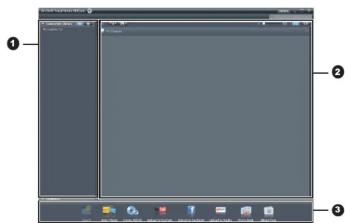
| # | Area | Function |
| 1 | View Mode Area | Provides three modes to view media files. |
| 2 | Preview Area | Selects and displays file thumbnails and detailed information. |
| 3 | Function Bar | Lists main function buttons. |
View media files
Follow the instructions below to view the media files in your device:
- Connect the device to the computer.
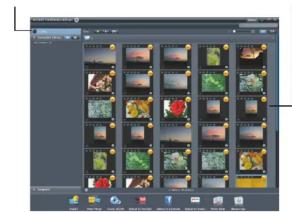
- The device code appears on the top of View Mode Area.
- Click the device code to display all media files in the device.
Device code
Media files in the device
• To play a video clip, double click the clip or click ▶.
- To pause / stop / continue a video clip, click 📄/ □/ ▶
• To play the previous or next clip, click 📄 / 🏠.
• To delete a file, select the file then click
• To trim a video clip, click
• To rate a file, click ★ on the file.
• To view a file's properties, click i on the file.
• To preview a picture in a new window, double click the picture
• To preview the previous or next picture, click the right/left button.
To preview the previous of next picture, click the highest button.
View modes
Three view modes are available to view media files: Library View, Calendar View, and Browser View.
Note: To view media files in your device using Library or Calendar View, you need to import media files first.
Library View
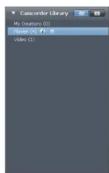
The Library View lists My Creation folder and other folders created while importing files.
• To switch to Library View
1. Click Camcorder Libraries to expand
Libraries window.
2. Select the desired folder.
3. Click to switch to Library View.
- To view or edit a folder's properties, select the folder then click ⓘ.
- To delete a folder, select the folder then click 🔒.
Calendar View
The Calendar View uses the file creation date to organize media files.
• To switch to Library View
1. Click Camcorder Libraries to expand
Libraries window.
2. Select the desired folder.
3. Click to switch to Calendar View.
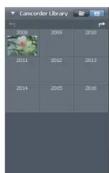
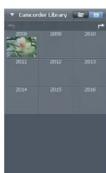
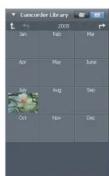
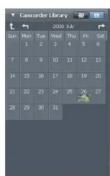
Three modes are available in Calendar View: Year, Month, and Day mode.
To switch between different modes:
- Click the picture under the desired year to enter Month mode.
- Click to change to the previous or next year if available.
- Click the picture under the desired month to enter Day mode.
- Click to change to the previous or next month if available.
- Click ↑ to return to the previous mode.
Browser View
The Browser View enables you to browse for media files in your computer using the tree view.
To switch to Browser View:
- Click Computer to expand Computer window.
- Select the desired folder in your computer to view media files.
- To refresh the list of media files, click
Preview Area
In Preview Area, several options are available to select and display file thumbnails and detailed information. See the table below for a description of each option:
| Option | Name | Function |
| Rating filter | Displays the media files according to the selected rating. | |
| New filter | Displays the media files which are new. | |
| Type filter | Displays the media files according to the selected type. | |
| Quick search | Displays the media files according to the typed characters. | |
| Thumbnail slider | Adjusts the thumbnail size by moving the slider. | |
| Thumbnail | Displays file thumbnails. | |
| Details | Displays file thumbnails with detailed information. |
Function Bar
The Function Bar lists main function buttons. Click the button to access the function. See the table below for a description of each button.
| Button | Name | Function |
| Import | Imports media files to the computer from a camera, camcorder, or storage device. | |
| Video Merge | Produces movies with your video files. | |
| Create AVCHD | Burns AVCHD discs with your video files. | |
| YouTube | Upload to YouTube | Uploads files to your YouTube account. |
| Upload to Facebook | Uploads files to your Facebook account. | |
| YouKu | Upload to YouKu | Uploads files to the YouKu website. |
| Photo Book | Produces photo books with your pictures. | |
| Album Page | Produces album pages with your pictures. |
Importing media files
To import media files to your computer:
-
Select the desired folder
-
Select the desired files.
-
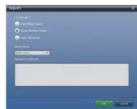
Click Import. The Import window
appears.
-
Select Import New Scenes, Import Selected Scenes, or Import All Scenes
-
Select or type a folder name.
-
Click OK to import files.
Merging video clips
To merge video clips:
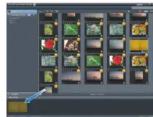
- Click Video Merge The work
area appears. - Click and drag the desired
video clips into the work area - Double click clips to preview
and edit, if necessary. - Click Next to merge the clips.
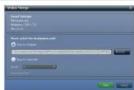
- Select the device and path to save the merged clip.
Burning AVCHD discs
To burn AVCHD discs:
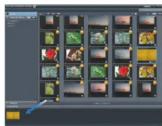
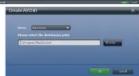
- Click Create AVCHD. The work area appears.
- Click and drag the desired
video clips into the work area - Double click clips to p
and edit, if necessary. - Click Next
- Select the drive to burn the AVCHD disc or select the path to save the files in your computer.
Editing video clips
To edit a video clip:
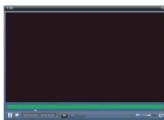
- Double click a video clip in the work area. The Editing
windows appears. - Click ✕ to select the
beginning of the trimmed clip - Click to select the end of
the time is due
the trimm - Click to save the
trimmed clip.
See the table below for a brief description of other tools in the Editing window:
| Button | Name | Function |
| Play / Pause | Click to play or pause the clip. | |
| Stop | Click to stop the clip. | |
| Previous | Click to go to the previous clip. | |
| Next | Click to go to the next clip. | |
| Time box | Click on the number and use arrows to view a certain point of the video clip. | |
| Volume level | Drag to change the volume. | |
| Full screen | Click to enter full screen mode. |
Uploading files to YouTube/Facebook
To upload files to YouTube/Facebook:
- Click Upload to YouTube or
Upload to Facebook. The wor
area appears.
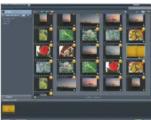
- Click and drag the desired file
into the work area.
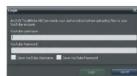
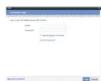
- Click Next. The Login window
appears.
- Type your user name and
passw
- Click Login to sign in to
YouTube/Facebook
- Follow the instructions to upload the file.
Uploading files to YouKu
To upload files to YouKu:
-
Click Upload to YouKu
-
Follow the YouKu website instructions to upload the file.
Producing photo books Producing album pages Lock/ unlock
To produce photo books:
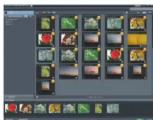
- Click Photo Book. The work
area appears. - Drag the desired pictures into
the work area -
Click Next to launch the ArcSoft Print Creations application.
-
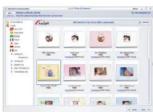
Select photo book categories
to view photo books. - Select a photo book.
- Select photo book categories
to view photo books. - Select a photo book.
To produce photo books:
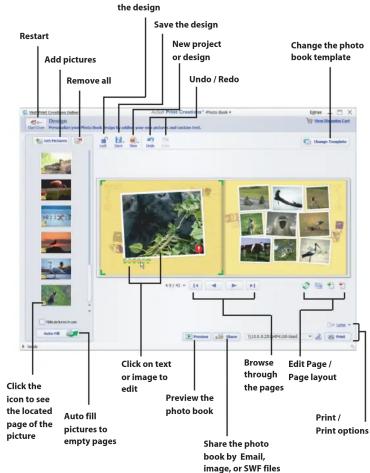
- Click Next to enter Photo Book Design screen.
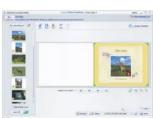
- See the illustration below for descriptions of photo book design:
vcing album pages Lock / unlock
To produce photo books:
- Click Album Page. The work
area appears. - Drag the desired picture into
-
Click Next to launch the ArcSoft Print Creations application.
-
Select album page categories
to view album pages. - Select an album page.
- Click Next to enter Album Page Design screen.
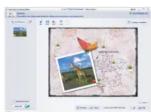
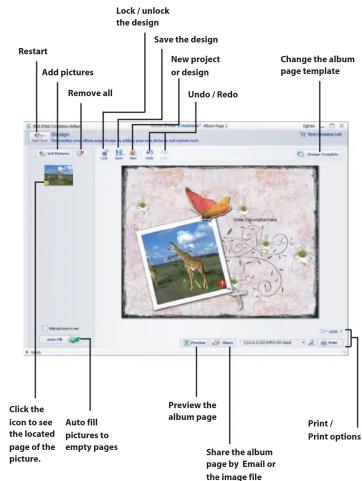
- See the illustration below for descriptions of album page design: