CAXH - Ekstern harddisk Cavalry - Gratis brugsanvisning og manual
Find enhedens vejledning gratis CAXH Cavalry i PDF-format.


Brugerspørgsmål om CAXH Cavalry
0 spørgsmål om dette apparat. Besvar dem du kender, eller stil dit eget.
Stil et nyt spørgsmål om dette apparat
Download vejledningen til din Ekstern harddisk i PDF-format gratis! Find din vejledning CAXH - Cavalry og tag din elektroniske enhed tilbage i hånden. På denne side er alle dokumenter nødvendige for brugen af din enhed offentliggjort. CAXH af mærket Cavalry.
BRUGSANVISNING CAXH Cavalry
cavalry
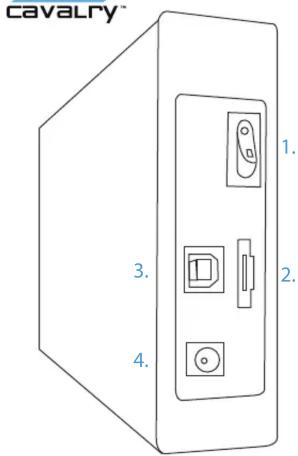
(actual product may vary)
Quick Start Guide
- Power Switch
- eSATA
- USB 2.0/3.0
- Power Input

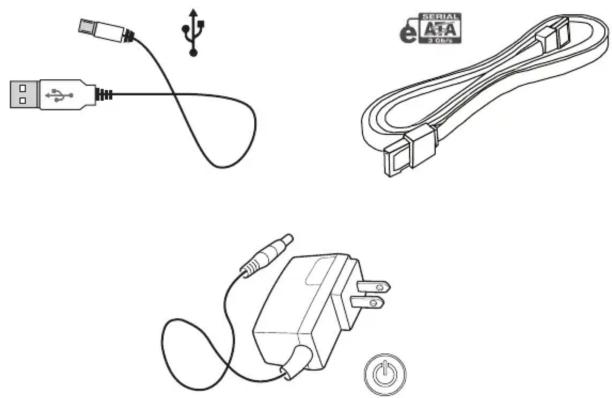
natural_image
Three technical line drawings of connected cables: USB plug, cable with switch, and electrical plug (no text or symbols)- Connect your available/preferred interface to the drive and the computer.
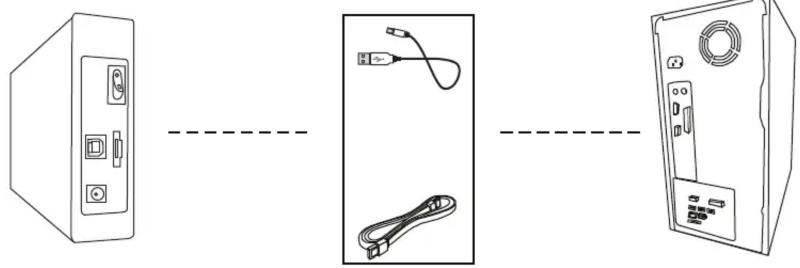
natural_image
Diagram showing three connected devices: a front panel, a cable connector, and a server unit (no text or symbols present)- Connect the unit's AC adapter.
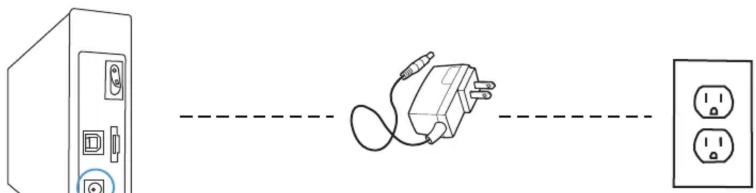
natural_image
Diagram showing connection between a server unit, a plug-in socket, and two power outlets (no text or symbols present)- Turn your unit on.
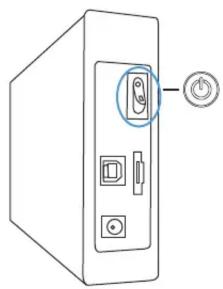
natural_image
Diagram of a computer tower panel with a button and power button, no text or symbols present- Restart your computer. Your computer should detect the unit automatically.
- Your external drive is ready to use!
Troubleshooting/FAQs
My Computer is not detecting the drive.
*Always check your disk management utility first; instead of device manager. 1. Make sure the data cable is securely connected at both ends. If you are still not able to find the drive in your disk management utility, switch to a different known-working cable.
2. Some Cavalry drives are preformatted for either Windows or Mac. If you are running an operating system that your unit is not preconfigured for, you will need to reformat your drive. For detailed instructions on how to reformat, visit our website: www.cavalrystorage.com/su_download.htm.
3. If you have multiple external hard drives, your computer may not be able to see your newest addition. Eject and/or power-off all connected external drives except your Cavalry unit. Then, if you're using Windows, try assigning a new drive letter to your Cavalry unit using Disk Management.
My unit does not match the one shown in this guide.
This is a general guide for new users. Your product may vary from what is shown here.
My unit came with an eSATA bracket, but I don't know how to install it.
An eSATA bracket installation guide can be found on our website at: www.cavalrystorage.com/su_download.htm.
My unit doesn't work with eSATA; only USB.
Many motherboards ship with eSATA disabled to save power, especially laptops. Make sure your eSATA ports are turned on in your BIOS before troubleshooting.
My unit is making loud noises. Is this normal?
We apologize for the inconvenience. In most cases, loud noises coming from the drive suggest that it is defective. Please contact us at: customersupport@cavalrystorage.com, so that we can help resolve the issue quickly.
Do I need to backup my Cavalry drive too?
Always backup your data on multiple drives. Hard drives are very sensitive, and sometimes fail without warning. Cavalry Storage is not responsible for any data loss.
I keep getting the "Device Can Perform Faster" message.
This means that your computer does not support USB 3.0. You will need to purchase an adapter card that allows you to use the USB 3.0 protocol. Our authorized parts retailer sells an excellent card for just this purpose; please contact us at customersupport@cavalrystorage.com for more information.
How do I create a drive that can be used on both Mac and Windows?
You need to format a drive specifically with the FAT32 file system. This can most easily be done on a Mac, in Disk Utility. Just select the drive you want to use. Then select "Erase>MS Dos (Fat)>Erase..." Once created, this disk will be usable by both operating systems!
Contact Us
Call: 800.238.4453 (toll-free, USA only)
805.426.1000
Email: customersupport@cavalrystorage.com
Website: www.cavalrystorage.com