
GXT14S - Mus TRUST - Gratis brugsanvisning og manual
Find enhedens vejledning gratis GXT14S TRUST i PDF-format.


Brugerspørgsmål om GXT14S TRUST
0 spørgsmål om dette apparat. Besvar dem du kender, eller stil dit eget.
Stil et nyt spørgsmål om dette apparat
Download vejledningen til din Mus i PDF-format gratis! Find din vejledning GXT14S - TRUST og tag din elektroniske enhed tilbage i hånden. På denne side er alle dokumenter nødvendige for brugen af din enhed offentliggjort. GXT14S af mærket TRUST.
BRUGSANVISNING GXT14S TRUST

1

natural_image
Illustration of a hand holding a CD or DVD disc, no text or symbols present2
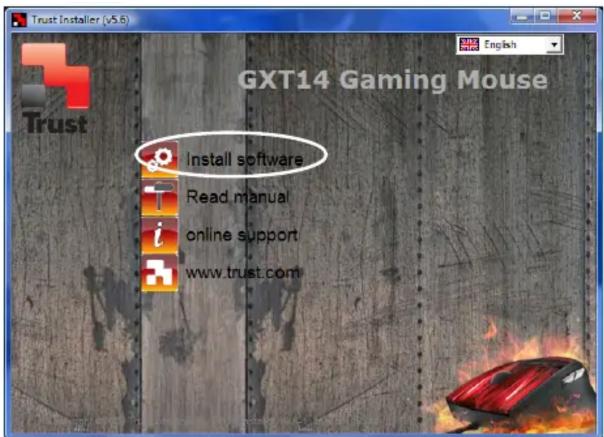
3
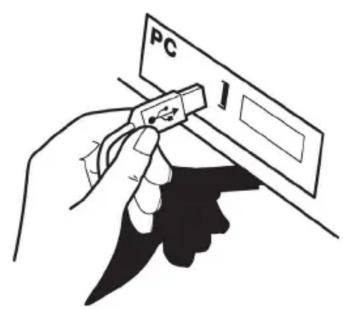
4
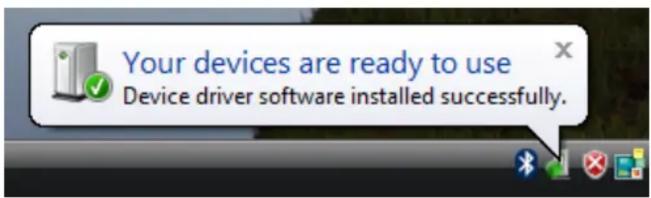
5


?
www.trust.com/16550/faq


1.0 Changing mouse buttons
1.1 Changing regular buttons
1.2 Advanced Functions
1.2.1 Combo
1.2.2 Basic command
1.2.3 Extra command
1.2.4 Media command
2.0 Saving/Load Profiles
2.1 Save Profiles
2.2 Load Profiles
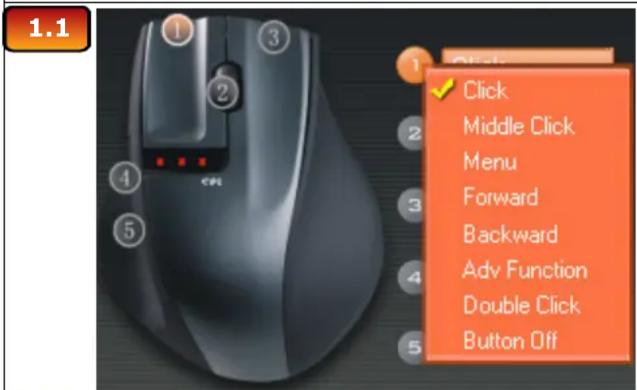
In the general section, you can re-assign your mouse buttons.
- Click on the button witch you want to re-assign (A)
- Click on the function you want to assign to the button
- Click on 'Apply' (C) The mouse is beeing updated
- Click on 'Close'
- Click on 'OK'

In the COMBO section, you can assign any Key or Keystroke to a mouse button.
- Click on the button witch you want to change (A)
- Click on 'Adv Function'
- Click on 'COMBO'
- You can now insert any keypress or key-combo.
- Click on 'OK'
- Click on 'Apply' (C) → The mouse is beeing updated
- Click on 'Close'
- Click on 'OK'

In the Basic Command section, you can assign basic windows commands to the mouse button.
- Click on the button witch you want to change (A)
- Click on 'Adv Function'
- Click on 'Choose Function' beneath 'Basic command'
- Select a command
- Click on 'OK'
- Click on 'Apply' (c) → The mouse is beeing updated
- Click on 'OK'

www.trust.com/16550/faq

1.2.3
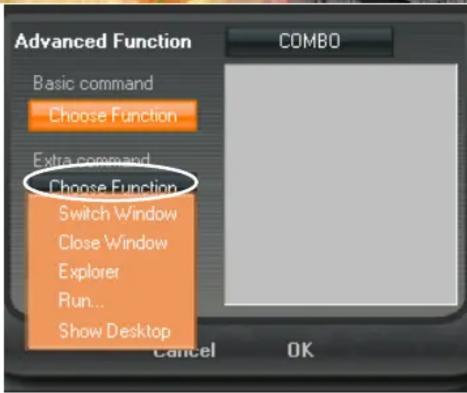
In the Extra Command section, you can assign extra windows commands to the mouse button.
- Click on the button witch you want to change (A)
- Click on 'Adv Function'
- Click on 'Choose Function' beneath 'Extra command'
- Select a command
- Click on 'OK'
- Click on 'Apply' (C) → The mouse is beeing updated
- Click on 'OK'
1.2.4

In the Media Command section, you can assign windows media commands to the mouse button.
- Click on the button witch you want to change (A)
- Click on 'Adv Function'
- Click on 'Choose Function' beneath 'Media command'
- Select a command
- Click on 'OK'
- Click on 'Apply' (C) → The mouse is beeing updated
- Click on 'OK'
2.1

In the Save/Load Options section, you can save and load different porfiles.
- Click on 'Save/Load Options' (B)
- Click on 'Save Profile' (1)
- Browse to the location where you want to save.
- Insert a profile name. for example 'Far_Cry2'(2)
- Click on 'Save'
- Click on 'OK'
2.2
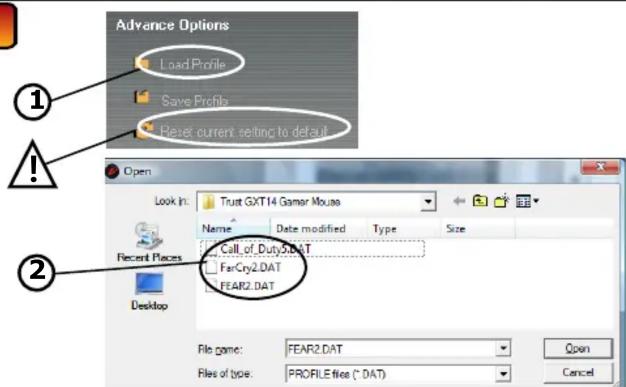
In the Save/Load Options section, you can save and load different porfiles.
- Click on 'Save/Load Options' (B)
- Click on 'Load Profile' (1)
- Browse to the location where the file is located. (2)
- Select the file witch you want to load.
- Click on 'Open'
- Click on 'Apply' (C) → The mouse is beeing updated

For default settings click 'Reset current setting to default' in the 'Save/Load Options' menu

www.trust.com/16550/faq



Mærke : TRUST
Model : GXT14S
Kategori : Mus