Video Capture and Recorder 100512 - Videooptager MuxLab - Gratis brugsanvisning og manual
Find enhedens vejledning gratis Video Capture and Recorder 100512 MuxLab i PDF-format.


Brugerspørgsmål om Video Capture and Recorder 100512 MuxLab
0 spørgsmål om dette apparat. Besvar dem du kender, eller stil dit eget.
Stil et nyt spørgsmål om dette apparat
Download vejledningen til din Videooptager i PDF-format gratis! Find din vejledning Video Capture and Recorder 100512 - MuxLab og tag din elektroniske enhed tilbage i hånden. På denne side er alle dokumenter nødvendige for brugen af din enhed offentliggjort. Video Capture and Recorder 100512 af mærket MuxLab.
BRUGSANVISNING Video Capture and Recorder 100512 MuxLab
Specifications
| Environment | HDMI 1.3 |
| Devices | Computers, Game Consoles, TV Set Top Boxes and other HDMI sources |
| Transmission | Transparcat to the user |
| Bandwidth | 148 MHz |
| Signals | HDMI 1.3 protocol and HDCP 1.4 |
| Connectors | Two (2) HDMI receptacles.One (1) USB Type A Connector.Two (2) 3.5mm jacks for Microphone and Headphone. |
| Cables not included. | |
| Supported HDMI Resolution | 720x480p(60), 720x576p(50), 1280x720p(50), 1280x720p(60), 1920x1080i(50), 1920x1080i(60), 1920x1080p(24), 1920x1080p(25), 1920x1080p(30), 1920x1080p(50), 1920x1080p(60) |
| Recording Resolution | 720x480p(60), 720x576p(50), 1280x720p(50), 1280x720p(60), 1920x1080i(50), 1920x1080i(60), 1920x1080p(24, 1920x1080p(25) 1920x1080p(30) |
| Audio Signal | Up to16bit 48KHz dual channel (via HDMI input interface) and 3.5m analog audio input |
| Recording Format | Video: MP4. Audio: AAC Stereo |
| Coding Format | H.264 (Video) and AAC (Audio) |
| Recording Quality | Highest: 16Mbps@1080p/30 |
| Maximum Storage Capacity | USB Flash Drive (≤64G), Mobile Hard Disk (≤2TB) |
| Power Supply | One (1) 110-240V/12VDC power supplies |
| Temperature | Operating: 0° to 40°C Storagc: -20° to 85°C Humidity: Up to 95% non-condensing |
| Enclosure | Metal |
| Dimensions | 4.8" x 2.9" x 0.6" (12.20 x 7.37 x 1.5 cm) |
| Weight | 0.6 lbs (0.27 kg) |
| Compliance | Rcgtulatory: FCC, CE, RoHS Flammability: 94V0 |
| Warranty | 1 year |
| Order Information | 100512 Video Capture & Recorder |

2321 Rue Cohen, Montreal, Quebec, Canada. H4R 2N7
Tel:(514)905-0588 Fax:(514)905-0589
Toll Free (North America): (877) 689-5228
E-mail: info@muxlab.com URL: www.muxlab.com
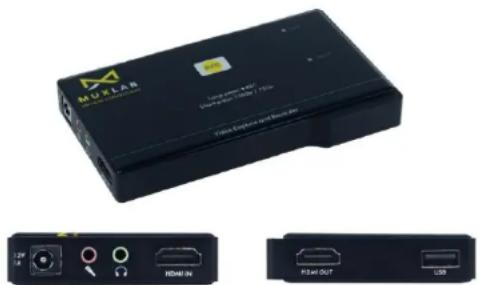
Video Capture and Recorder (100512) Quick Installation Guide
Overview
The Video Capture and Recorder (100512) allows the user to record from HDMI video sources to a USB Flash Drive or Removable Hard Drive. High definition video recording does not require a computer and can be recorded from a variety of HDMI source equipment like Computers, Game Consoles, TV Set Top Boxes, and other sources.
The maximum input resolution supported is 1080p/60 and the maximum recording resolution is 1080p/30. The unit supports microphone mixing, recording and a headphone output.
Operation is as easy as placing the device between an HDMI source and an optional display and simply pressing a button to start recording.
Applications
Applications include home video recording, video game capture, security and traffic recording, education/classroom systems, and medical systems.
Installation
- Identify the connectors on the product as indicated on the product labels.
- Connect the source to the HDMI Input of the Recorder.
- Connect the Display to the HDMI Output of the Recorder
- Connect a microphone to the 3.5mm Microphone input of the recorder. The microphone audio will be mixed with the HDMI Audio.
- Connect an Audio Headphone to the 3.5mm Headset output of the recorder.
- Insert a USB Flash Drive or removable hard drive to the USB Connector of the Recorder. The recorder supports FAT32 and NTFS Formats. If the drive is
formatted in FAT32 the video will be automatically split in 2GB file segments because of the limitation of FAT32. Formatting the drive in NTFS does not split the video file.
- Power up the unit by connecting the Power Supply to the unit first and then to the AC wall outlet.
- Quickly press the REC Button to select the recording resolution of 1080p or 720p.
- Press and hold the REC Button for 3 seconds to start the recording. The recording is started when the bottom LED line scrolls from left to right.
- To stop the recording, press and hold the REC button for 3 seconds. The recording is stopped when the bottom line flashes for 2 seconds.
Recording Resolution
| Television 1080p | Television 720p | ||
| Signal Sources Resolution | Record Resolution | Signal Sources Resolution | Record Resolution |
| 1080p/i(60) | 1080p(30) | 1080p/i(60) | 720p(60) |
| 1080p/i(50) | 1080p(25) | 1080p/i(50) | 720p(50) |
| 1080p(59) | 1080p(29,97) | 1080p(59) | 720p(59.94) |
| 1080p/i(30) | 1080p(30) | 1080p/i(30) | 720p(30) |
| 1080p/i(25) | 1080p(25) | 1080p/i(25) | 720p(25) |
| 1080p(29) | 1080p(29,97) | 1080p(29) | 720p(29.97) |
| 1080p(24) | 1080p(24) | 1080p(24) | 720p(24) |
| 1080p(23) | 1080p(23.98) | 1080p(23) | 720p(23.98) |
| 1080i(29) | 1080p(14.99) | 1080i(29) | 720p(29.97) |
| 1680x1050x60 or 1600x1024x60 or 1600x900x60 | 1680x1050x30 | 1680x1050x60 or 1600x1024x60 or 1600x900x60 | 720p(60) |
| 1400x900x60 or 1366x768x60 or 1360x765x60 | 1400x900x30 | 1400x900x60 or 1366x768x60 or 1360x765x60 | 720p(60) |
| 1280x1024x60 | 1280x1024x30 | 1280x1024x60 | 720p(60) |
| 1280x960x60 or 1280x800x60 or 1280x768x60 or 1152x864x60 | 1280x960x30 | 1280x960x60 or 1280x800x60 or 1280x768x60 or 1152x864x60 | 720p(60) |
| 1280x720x60 | 720p(60) | 1280x720x60 | None |
| 1280x720x59 | 720p(59.94) | 1280x720x59 | None |
| 1280x720x50 | 720p(50) | 1280x720x50 | None |
| 1152x674x60 | 720p(60) | 1152x674x60 | None |
| 1024x768x60 | 720p(60) | 1024x768x60 | None |
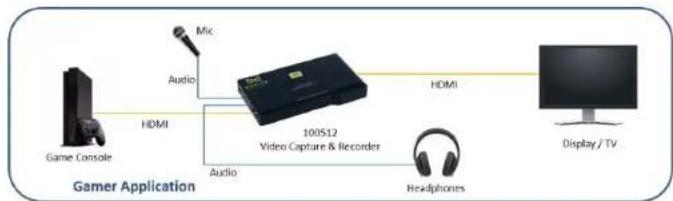
flowchart
graph LR
    A["Game Console"] -->|HDMI| B["100512 Video Capture & Recorder"]
    B -->|Audio| C["Micro"]
    B -->|Audio| D["Headphones"]
    B -->|Audio| E["Display/TV"]
    B -->|HDMI| F["Computer"]
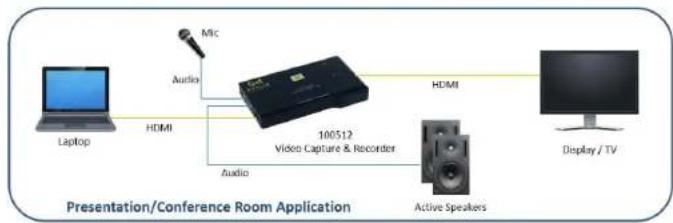
flowchart
graph LR
    A["Laptop"] -->|Audio| B["100512 Video Capture & Recorder"]
    B -->|Audio| C["Active Speakers"]
    B -->|HDMI| D["Display / TV"]
    B -->|MTC| E["Microphone"]
Troubleshooting
The following table describes some of the symptoms, probable causes and possible solutions in regard to the installation of the Video Capture and Recorder:
| Symptom | Probable Cause | Possible Solutions |
| No Image | No power | • Check power connections. |
| No Image | HDMI Cable | • Check the HDMI Cable. |
| No Image | Synchronization | • Check HDMI cable length. |
| Flickering Image | Synchronization | • Check HDMI cable length.• Check the HDMI Cable Quality. |
| Choppy sound | Synchronization | • Check HDMI cable length.• Check the HDMI Cable Quality. |
| Green or pink hue | DDC communication | • Power-cycle the HDMI Recorder. |
| Cannot record | Storage Problem | • Check that the storage is formatted as FAT32 or NTFS. |
| Cannot record | Storage Problem | • Check that the storage is not full. |
| Recorded Video not Working | Storage corrupted | • To avoid corrupting the USB Storage, unplug the power first before disconnecting or connecting the USB Storage. |
| Cannot record Computer Video and/or Audio | Computer configured in extended mode | • Choose video duplicate mode (Win+P) and for the audio select the recording unit for playback. |
| Microphone not heard | Microphone problem | • Check the microphone connection. |
If you still cannot diagnose the problem, please call MuxLab Customer Technical Support at 877-689-5228 (toll-free in North America) or (+1) 514-905-0588 (International).