APMP-1224 - Højttaler Bauhn - Gratis brugsanvisning og manual
Find enhedens vejledning gratis APMP-1224 Bauhn i PDF-format.


Brugerspørgsmål om APMP-1224 Bauhn
0 spørgsmål om dette apparat. Besvar dem du kender, eller stil dit eget.
Stil et nyt spørgsmål om dette apparat
Download vejledningen til din Højttaler i PDF-format gratis! Find din vejledning APMP-1224 - Bauhn og tag din elektroniske enhed tilbage i hånden. På denne side er alle dokumenter nødvendige for brugen af din enhed offentliggjort. APMP-1224 af mærket Bauhn.
BRUGSANVISNING APMP-1224 Bauhn
1 Product Overview
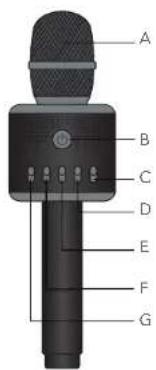
FRONT VIEW
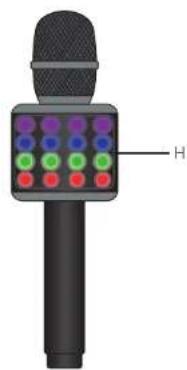
SIDE VIEW
A. Microphone
B. Power Button
C. Echo
D. Music Volume
E. Microsphere Volume
Γ. Bass
G. Treble
II. LCD lights
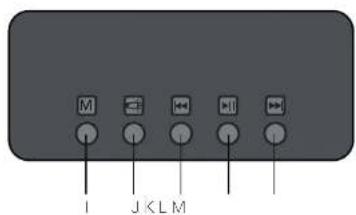
TOP VIEW
Moce (TF Card/B uetoctn®)
J. Turn LED Lights On/Off
K Previous Track
L. Pay/Pause
M. Next Track
N. Micro USB Input (for
charging unit)
C. Micro SD Card (TF Card)
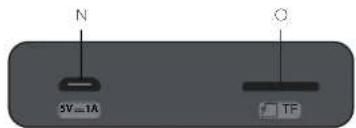
BOTTOM VIEW
Power On
Press the power button for 2 seconds to turn the microphone on/off. When on, a blue LED light will be it. (Press the LED light or/off button to turn the lights on/off).
2
3 Bluetooth® Connection
Open the Bluetooth® menu on your device (e.g. phone/tablet) and scan the Bluetooth® devices. Select 'APMP-1224' to connect. There will be a notification voice once successfully connected.
While singing, operations such as Play/Pause, Last Song/Next Song can be done on your device and/or on the microphone.
Press and hold the LED light On/Off button for 2s to turn on/off the karaoke accompaniment function.
Press and hold the Mode button for 2s to manually disconnect the existing paired device.
If you have two karaoke microphones, press and hold the Play/Pause button for 2s to turn on the karaoke party function. Once the two karaoke microphones are connected to each other, they can playback same songthrough Bluetooth TWS connection. This function doesn't support Micro SD (IF) mode.
NOTES:
Once the microphone has been connected to your device for the first time, it will connect automatically the following times. There's no need to pair again.
If you just want to listen to music via the microphone without singing, you can simply set the voice volume to the minimum setting.
If a Micro SD (TF) card is inserted, the microphone will switch to Micro SD (TF) card mode automatically; press the M button to switch to Bluetooth ^® mode.
Playing music via Micro SD
4
Insert a Micro SD (TP) card into the Micro SD (TF) port. The microphone will detect all of the .mp3 files and start playing them automatically. You can press the operation buttons to pause or switch songs. When playing songs via the Micro SD (TF) Card, you can control the voice volume by adjusting the music volume.
NOTE: The microphone supports up to 32GB Micro SD card or TF card. Please make sure the card is formatted as FAT32 format.
5
Charging
When battery is too low, the microphone will turn off automatically. Use the included Micro USB cable to charge. The red light will be lit during charging. Charging time is approximately 2-3 hours; the red light will be off when the microphone is fully charged.
Specifications
6
Bluetooth ^46
Yes
Battery capacity 3.7V 1200mAh
Operation time Up to 5 hours
Power input DC 5V, 1A
Size 75 x 74 x 262mm
Weight 440g
The Bluetooth word mark and logos are registered trademarks owned by Bluetooth SIG, Inc., and any use of such marks by Haros (IP) Holdings Pty Ltd. under license. Other trademarks and trade names are those of their respective owners.
#
Troubleshooting
No power
- Insert the supplied charging cable securely into the power output and ensure the power outlet is switched on.
No audio • Turn the microphone on and adjust the voice volume.
No reverb ellec.
- Adjust the echo button to the appropriate setting.
Noise when singing
- Move to a quieter location and ensure the mobile phone is close to the microphone during use.
Music keeps cropping out
- Move the microphone closer to the mobile phone.
Music is too quiet or not playing at all
- Adjust the volume on your phone.
Failed to connect to Bluetooth ^®
- Place the phone and microphone closer together. - Check the Bluetooth ^® menu on your phone to ensure it is connected to the correct Bluetooth ^® device. - Turn the microphone off then on to restart. On your device, turn Bluetooth ^® off then back on, and search again.
Give us a call
#
What? You mean this User Guide didn't have ALL the answers? Speak to us! We'd love to help you get up and running as quickly as possible. Call our After Sales Support on 1300 002 534. Operating hours: Monday-Friday, 8:30am-6pm; Saturday, 9am-6pm AEST
Your new product is ready to enjoy!
Well done, you made it.
Now sit back and relax... your new product is automatically covered by a 1-year warranty. How nice!