ARC-4038 - Harddisk Areca - Gratis brugsanvisning og manual
Find enhedens vejledning gratis ARC-4038 Areca i PDF-format.


Brugerspørgsmål om ARC-4038 Areca
0 spørgsmål om dette apparat. Besvar dem du kender, eller stil dit eget.
Stil et nyt spørgsmål om dette apparat
Download vejledningen til din Harddisk i PDF-format gratis! Find din vejledning ARC-4038 - Areca og tag din elektroniske enhed tilbage i hånden. På denne side er alle dokumenter nødvendige for brugen af din enhed offentliggjort. ARC-4038 af mærket Areca.
BRUGSANVISNING ARC-4038 Areca
Areca ARC-4038 series
8/12-Bays 12Gb/s SAS Tower JBOD Enclosure
natural_image
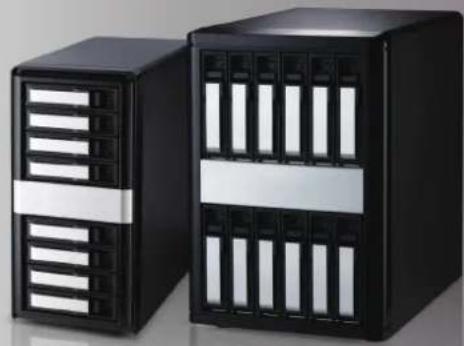
Two black server units with ventilation grilles and drive bays, no visible text or labelsStep 1: Unpack the ARC-4038 Unit
Inspect ARC-4038 JBOD enclosure. If it appears damaged, or if any items of the contents listed below are missing or damaged, please contact your dealer or distributor.
Checklist
- 1 x Power cord
• 1 x RJ11 to RS-232 DB9 cable
• 32/48 x drive mounting screws (4 per drive tray)
• 1 x ARC-4038 series quick installation guide
Step 2: Install SAS/SATA Drives
Secure the drive to the tray by four of the mounting screws.
Step 3: Slide the Drives into Enclosure
Step 4: Connect to Host Computer or Next JBOD
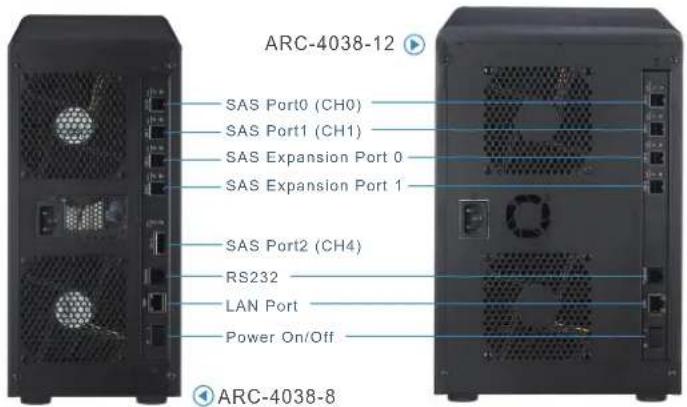
There are four SFF-8644 connectors and one SFF-8088 connector (8 bays only) on the rear of ARC-4038.
Host Port Connection
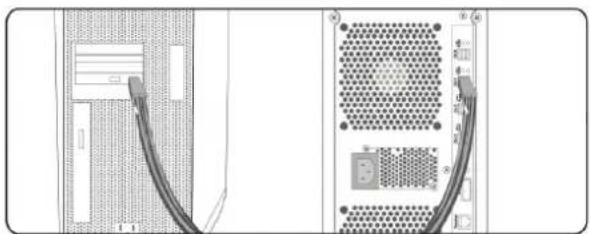
Connect ARC-4038 to a single host using a SFF-8644 cable.
natural_image
Diagram showing two cable connections from a device chassis, one with a connector and the other a server rack (no text or symbols present)Expansion Port Connection
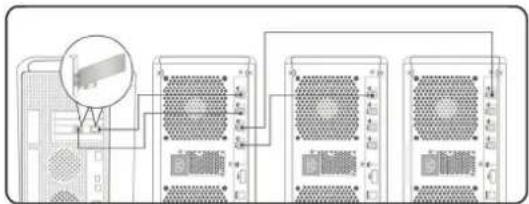
ARC-4038 contains two expansion ports. Expansion ports may support being attached to SAS initiator ports, SAS and/or SATA target ports, and to other JBOD.
Step 5: Connect RS232C Monitor Port
The ARC-4038 JBOD enclosure can be configured via a VT-100 compatible terminal or a PC running a VT-100 terminal emulation program. You can attach a serial (Character-Based) terminal or server com port to the SAS JBOD enclosure for access to the text-based setup menu.
Step 6: Power Up the JBOD Enclosure
Step 7: Configure JBOD Enclosure
The default configuration is suitable for general purposes. Please see the Command Line Interface (CLI) functions on the manual if you want to change the default configuration.
If you need more detail information, please download ARC-4038 user manual from the website below:
- http://www.areca.com.tw/products/12gsasjbod.htm
- http://www.areca.com.tw/support/main.htm
Product Features
ARC-4038-8
| Form Factor | Desktop 8-bay Desktop 12-bay | |
| Disk Port | 8 x 12Gb/s SAS/SATA 12 x 12Gb/s SAS/SATA | |
| External Port | 4 x SFF-8644 & 1 x SFF-8088 | 4 x SFF-8644 |
| Cooling Fan | 2 x 2700rpm 2 x 2700rpm | |
| Power Supply | 270W 400W | |
| Dimension(W/H/D) | 5.7 x 11.8 x 11.4 in (146x302x290 mm) | 8.1 x 12.2 x 11.4 in (206x310x290 mm) |
| Weight | 14.9 lbs / 6.8Kg | 20.8 lbs / 9.5Kg |
| Management | 1 x 6-pin UART RJ-11 connector / 1 x RJ-45 LAN connector | |



At the Heart of Storage
TEL:886-2-87974060 FAX: 886-2-87975970
Technical Support: support@areca.com.tw
Sales Information: sales@areca.com.tw