K5 SE - Tastatur Keychron - Gratis brugsanvisning og manual
Find enhedens vejledning gratis K5 SE Keychron i PDF-format.


Brugerspørgsmål om K5 SE Keychron
0 spørgsmål om dette apparat. Besvar dem du kender, eller stil dit eget.
Stil et nyt spørgsmål om dette apparat
Download vejledningen til din Tastatur i PDF-format gratis! Find din vejledning K5 SE - Keychron og tag din elektroniske enhed tilbage i hånden. På denne side er alle dokumenter nødvendige for brugen af din enhed offentliggjort. K5 SE af mærket Keychron.
BRUGSANVISNING K5 SE Keychron

Keychron
K5SE Bluetooth Mechanical Keyboard
IN THE BOX:
Keychron K5SE Bluetooth Mechanical Keyboard x 1
Type-C Cable * 1
Manual * 1
Quick Start Guide * 1
Extra Keycaps Set * 1
Quick Start Guide
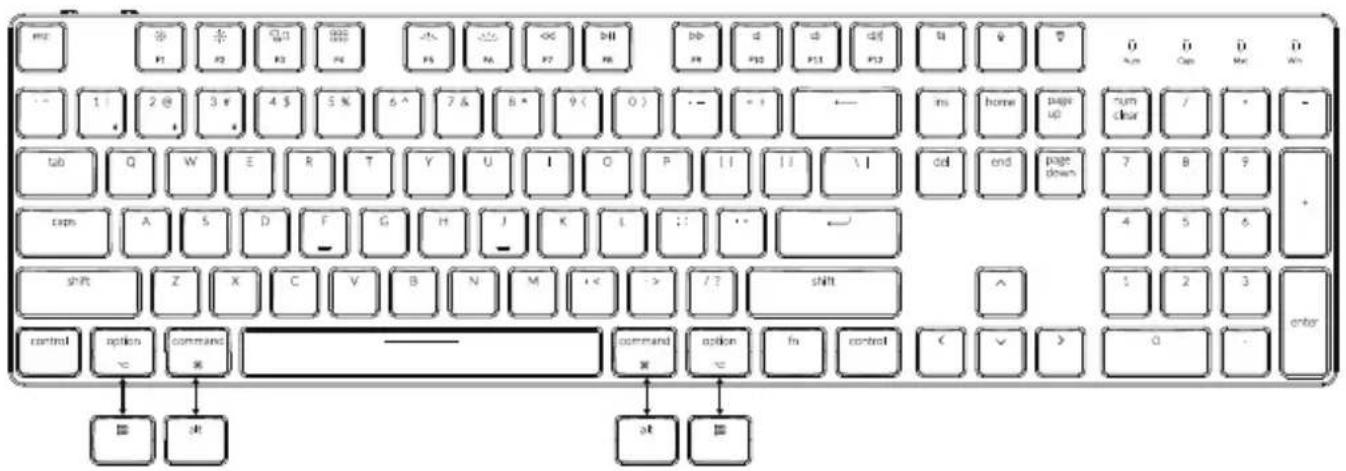
If you are a Windows user, please find the appropriate keycaps in the box, then follow the instructions below to find and replace the following keycaps.
Mac / Windows
![esc F1 F2 F3 F4 F5 F6 F7 F8 F9 F10 F11 F12 D Run D Cut O OK OK -- 1! 2@ 3# 4$ 5% 6^ 7& 8* 9( 0) -- *+ ← ins home page up num clear / · - tab Q W E R T Y U I Q P [I] [I] \ I del end page down 7 8 9 - caps A S D F G H J K L -- *+ ← 4 5 6 shift Z X C V B N M < - > /? shift control option command —— command option In control < ▼ > 0 · - ← 正 停](/content/2026/05/1013913/images/28e97dd9008523db9130208b1b40895f5d940446ddc8bf56227d1cee926efef7.jpg)
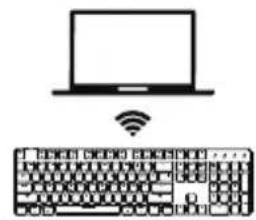
1 Connect Bluetooth
natural_image
Simple line drawing of a laptop connected to a keyboard with wireless signal icon above (no text or symbols)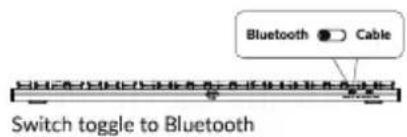
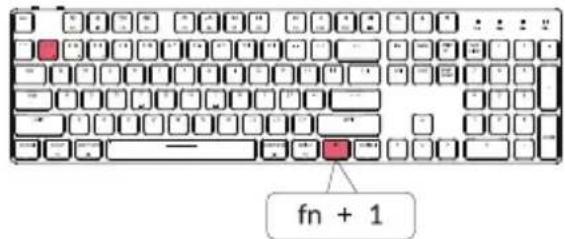
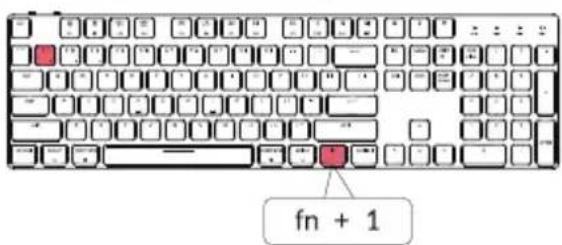
Press fn + 1 (for 4 seconds) and pair with device named Keychron K5SE
2 Connect Cable

3 Change Light effect
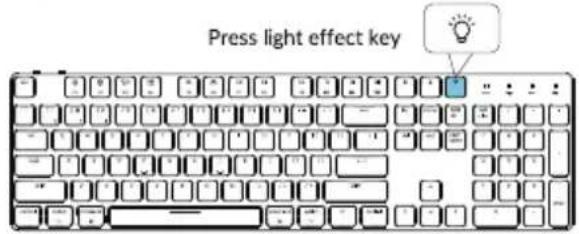
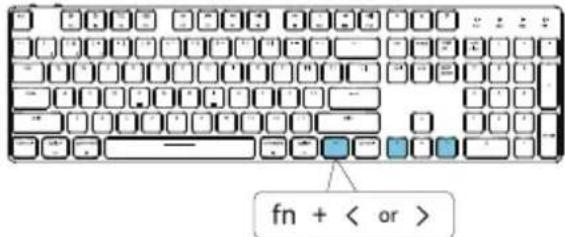
For RGB version - Press fn + right arrow / left arrow to change color
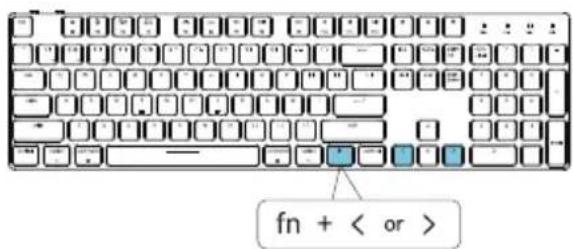
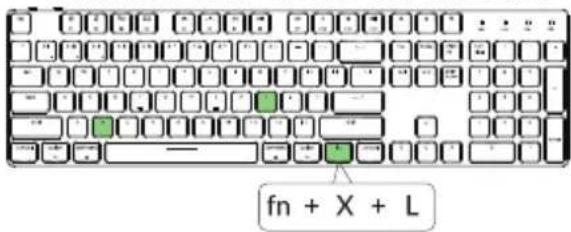
4 Switch between function and multimedia keys (F1-F12)
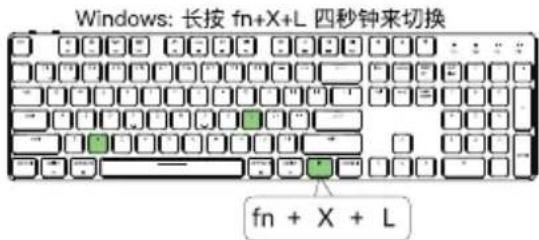
For Windows: Press fn + X + L (for 4 seconds) to switch

For Mac: Go to system settings > Keyboard > and enable the function keys.
*For F5 & F6 as function keys press fn + K + C (for 4 seconds) and use same shortcut to switch.

flowchart
graph LR
    A["Settings"] --> B["Keyboard"]
    B --> C["Enable the function keys"]
5 Disable Auto Sleep Mode
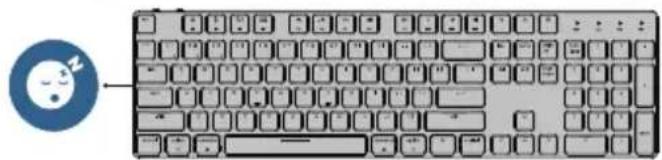
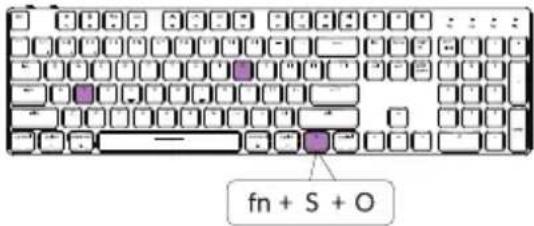
The keyboard goes to Auto Sleep Mode in 10 minutes of sitting idle to save battery
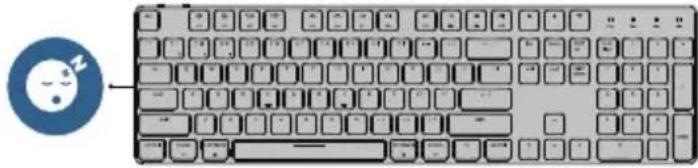
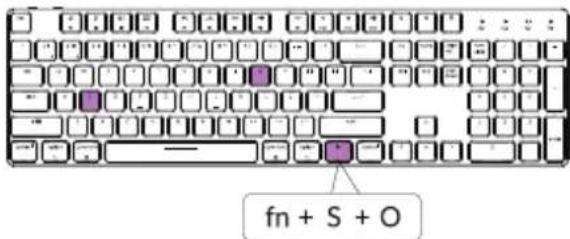
Press fn + S + O (for 4 seconds) to disable the Auto Sleep Mode. (If you want to go back to the Auto Sleep mode, press fn + S + O for 4 seconds again)
6 Activate Siri / Cortana
For Siri on Mac: Go to System preferences> Siri > select "Press Fn (Function) Space" option.
*Siri key only works on MacOS and does not work on iOS.

Settings


Siri

√ Press Fn (Function) Space
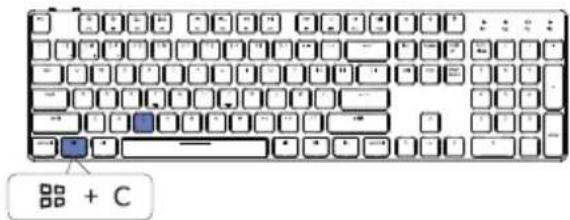
For Cortana on Windows: Select Start > Settings > Cortana and select the shortcut by pressing Windows key + C key.
*Windows Cortana is only available for Windows 10 and above OS. Cortana is only available in certain countries / regions and might not work everywhere.
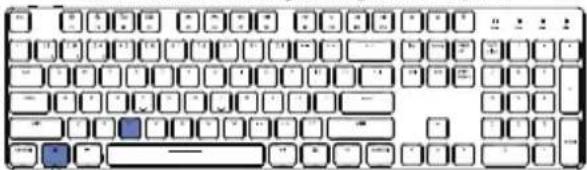
品 + C
K5SE BLUETOOTH MECHANICAL KEYBOARD SPECIFICATIONS
Number of keys: 104 key
Switch type: Mechanical
Battery: 2000mAh
Working time: Around 35 hours with the backlight on.
Charging time: Around 3 hours
Charging port: USB Type-C
Mode: Bluetooth/Wired
Bluetooth operating distance: Within 10 meters (open space)
Name of Bluetooth device: Keychron K5SE
Operating Environment: -10 to 50°C
Technical specifications can be subjected to change without notice we apologize for any inconvenience caused
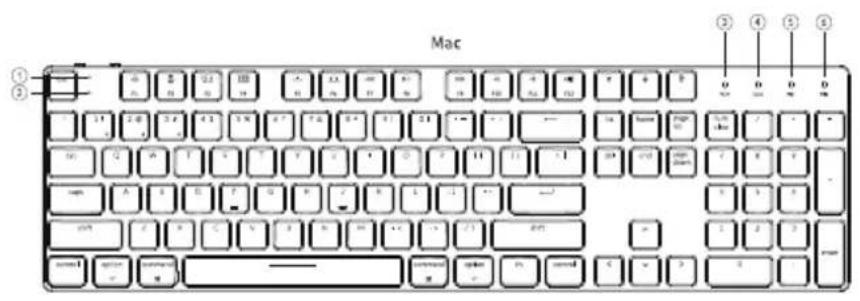
K5SE BLUETOOTH MECHANICAL KEYBOARD 104 KEY OVERVIEW
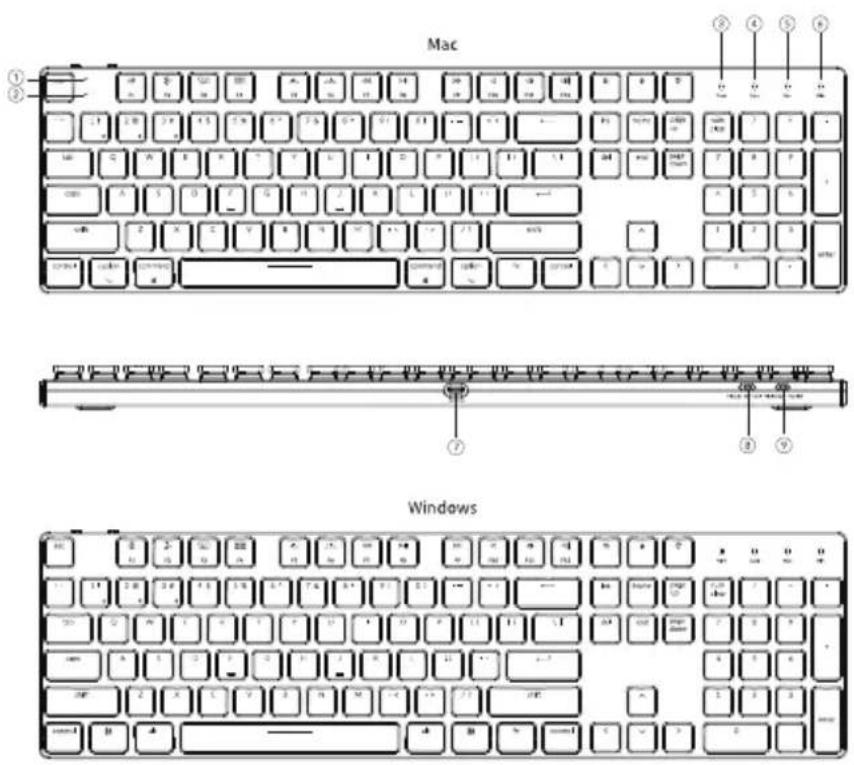
① Bluetooth Indicator
② Battery Indicator
③ Number Lock Indicator
④ Caps Lock Indicator
⑤ Mac OS Indicator
⑥ Windows OS Indicator
⑦ Type-C Port
⑧ Bluetooth OFF Cable (Mode Toggle Switch)
⑨ Win/Android Mac/iOS (OS Toggle Switch)
LED STATUS OVERVIEW
| LED Location | Function | Status |
| Battery indicator | Charging | Low battery - Blinking Red Charging - Static Red Fully charged - Static Green |
| Bluetooth indicator | Bluetooth | Pairing - Slow Blinking Paired - Light Off Switching - Fast Blinking |
FUNCTION DESCRIPTION:
CHARGING
Plug the cable into a USB port and plug the other end into the keyboard port. Charging Indicator: When battery is below 15%, a red battery blinking indicator will be triggered. A red light will stay on while charging; Fully charged in around 3 hours, a green battery indicator will appear.
*The Keychron keyboard is compatible with all USB ports. Please use a 5V 1A adapter or USB 3.0 for the best performance. The Keychron K5SE can be charged in Bluetooth/on/off mode.
** This product supports up to 5V charging voltage and 1A charging current. We are not responsible for any problems caused by improper charging.
BLUETOOTH/WIRED MODE (TOGGLE SWITCH)
WIRED MODE
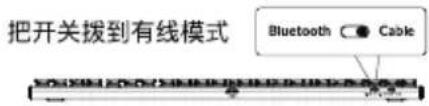
1.Switch the toggle switch to Cable option (it only works when a USB cable is plugged in).
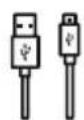
2. Connect our cable with your PC and keyboard.
3. Backlit will be turned on.
*Under Wired Mode, keyboard will not enter into Battery Saver Mode.
BLUETOOTH MODE
- Switch the keyboard to Bluetooth option.
- Backlit will be turned on.
- Hold "Fn+1" key for 4 seconds to activate Bluetooth pairing (the Bluetooth indicator fast flashes for 3 minutes to detect pairing.
- Search for the Bluetooth device "Keychron K5SE" on your device and connect it (the Bluetooth indicator goes off after successful pairing).
Note: This keyboard supports pairing up to 3 devices simultaneously via combination key
$$ " f n" +" 1" / " f n" +" 2" / " f n" +" 3". $$
*The Bluetooth indicator will continue to flash for 3 minutes.
**Slow or failed connections may exist due to different Bluetooth versions, please make sure all the settings are correct.
SWITCH BLUETOOTH DEVICES
Short press combination key "fn" + "1" / "fn" + "2" / "fn" + "3" to switch to other device.
RECONNECT:
-
Switch the keyboard to the Bluetooth option to activate the keyboard (the keyboard will connect to the last connected device by default).
-
The Bluetooth indicator flashes for 4 seconds and automatically pairs with the last paired device.
-
If the Bluetooth indicator is off, press any button to enter the connection again.
* The keyboard must have been paired with the device to perform this function.
TURN OFF THE KEYBOARD
Switch to "Off"
BATTERY SAVER
Under Bluetooth mode, the keyboard backlight turns off when it is inactive for 10 minutes. Tap any button to wake the keyboard. If want to disable this auto battery save mode, press fn+S+O for 4 seconds. Then if want to enter this power save mode again, press fn+S+O for 4 seconds.
BACKLIT SETTING
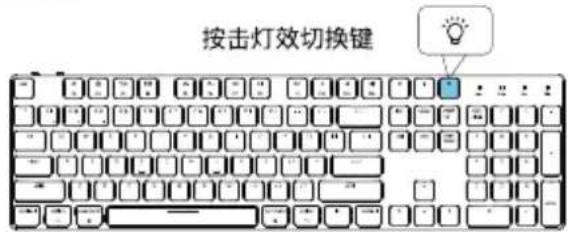
- Short press to switch between different types of lighting effects.
- When backlit is on, press □ button to switch among them. Short press fn and "left arrow" or fn and "right arrow" to adjust light colors. (For RGB version only)
OS SWITCH
1- MAC/iOS
Turn the switch to Mac/iOS when you are connected to a Mac or iOS operating system.
2-WINDOWS/ANDROID
Switch the toggle to Windows/Android when the keyboard is connected to a Windows or Android operating system.
*When using the Windows/Android mode, ☐ keys are used for "Windows" and "Alt" functions.
3-INPUT METHOD SWITCH
For iOS:
Input method switch: Ctrl + Space
Caps Lock: Caps (Enable General>Keyboards>Hardware Keyboard>Caps Lock Language Switch)
For Android:
Input method switch: Shift or Shift + Space
NOTE: Functions of certain multimedia key may be disabled due to compatibility, versions, brands and drivers of Windows/Android OS. We also recommend not to switch OS frequently as it may impact keyboard operations.
TROUBLESHOOTING
If unable to pair keyboard to device, confirm that the device you're trying to pair with is Bluetooth-capable. If so, restart the device and try pairing it with the keyboard again.
Note: On a Windows computer, a new Bluetooth connection will sometimes require additional software updates—a process that may still be ongoing after a message appears indicating a successful completion. Wait at least 20 minutes after pairing to make sure all updates are completed before restarting the computer.
Confirm that the device is configured to accept Bluetooth connections (Windows) and supports an external keyboard (HID profile).
Go to Bluetooth Devices > Open Settings and select the following: Allow Bluetooth devices to find this computer Allow Bluetooth devices to connect to this computer Alert me when a Bluetooth device wants to connect
My keyboard isn't working.
For the keyboard: Turn the keyboard off and back on. Turn Bluetooth off and restart the computer. (Windows) For the device: Go to Bluetooth settings and turn off Bluetooth and "forget" the keyboard. Restart the device and turn on Bluetooth to reconnect.
Bluetooth connection is interrupted even within 10 meter.
Check if the keyboard is resting on a metal surface that can interfere with the Bluetooth signal.
Third party input tools are not compatible with the keyboard.
Due to compatibility, versions, brands and drivers of Windows/Android OS, functions of third party input tools may be affected while using the keyboard. Please make sure your operating system and drivers are up to date.
Certain fn keys or multimedia keys does not work under Windows/Android mode.
Functions of certain multimedia keys may be disabled due to compatibility, versions, brands and drivers of Windows/Android OS.
Safety Precaution:
Keep the product, accessories and packaging parts out of reach of children to prevent any accidents and choking hazards.
Always keep the product dry to avoid corrosion.
Do not expose the product to extreme temperatures below -10°C (5°F) or above 50°C (131°F) to preserve the lifespan of the keyboard and battery.
Keychron, Inc.
Dover, DE 19901, United States
Find us at:
https://www.keychron.com
Support@keychron.com
f @keychron
@keychron
@keychronMK
Designed by Keychron
Made in China

Keychron
K5SE 蓝牙机械键盘
内容清单
Keychron K5SE 蓝牙机械键盘
USB线 x 1
拔键器×1
赠送键帽套装 × 1
说明书×1
快速上手指南 × 1
快速上手指南
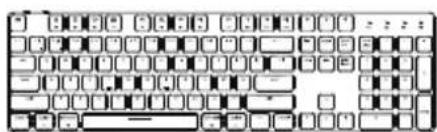
如果你是Windows用户,请在包装盒里找到如下的键帽,用拔键器拔下键盘上的对应键帽并且更换。
Mac / Windows
1 连接蓝牙
natural_image
Simple line drawing of a laptop connected to a keyboard with wireless signal icon above (no text or symbols)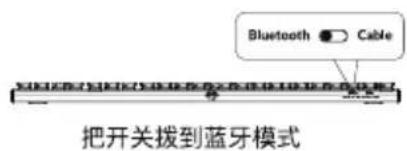
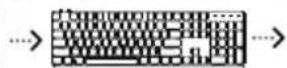
长按fn+1四秒使键盘进入配对模式,
键盘的配对名为:Keychron K5SE.
2 连接有线

+
3 变换灯效
RGB版本,按击fn和左右方向键来切换背光的颜色。 (适用于静态颜色模式)
4 在多媒体键和功能键之间切换
※/※/□□/□□/△/△/△/△/△/△/△/△
F1 F2 F3 F4 F5 F6 F7 F8 F9 F10 F11 F12
多媒体键
功能键
Mac: 进入系统偏好设置>>键盘>>打开“将 F1、F2 等键用作标准功能键” *想要把 F5、F6 设置为功能键,请长按 fn+K+C 四秒钟,同样的快捷键也可以切换回来。

系统偏好设置
键盘
将F1、F2等键用作标准功能键 选中必选项后,按下F1菜单使用中在各个按钮上将操作功能。
打开功能键
5 关闭自动休眠模式
如果静止 10 分钟不使用,键盘会自动进入休眠模式以省电。
natural_image
Illustration of a computer keyboard with a blue circular icon containing a sleeping face (no text or symbols on the keys)长按fn+S+O 四秒,以关闭自动休眠模式,再次长按,则重新开启自动休眠模式。
6 设置 Siri 和 Cortana
Mac: 系统偏好设置>>Siri>>选择“按下fn (function) - 空格” *Siri 功能只适用于 MacOS,不适用于 iOS.

Settings


Siri


Press Fn (Function) Space
Windows: 选择 开始>>设置>>Cortana,选择 Windows 键 加 C 键的快捷键组合。 *Cortana 功能只适用于 Windows 10 和更新的系统;另外因为地区的不同,功能也会不同。
K5SE键盘规格
按键: 104键
轴: 机械轴
电池: 2000mAh
工作时间: 当背光开启时, 大约35个小时
充电时间: 3小时
充电端口: USB Type-C
模式: 蓝牙/有线
蓝牙工作距离: 最长10米(开放空间)
蓝牙设备名称: Keychron K5SE
K5SE键盘概述

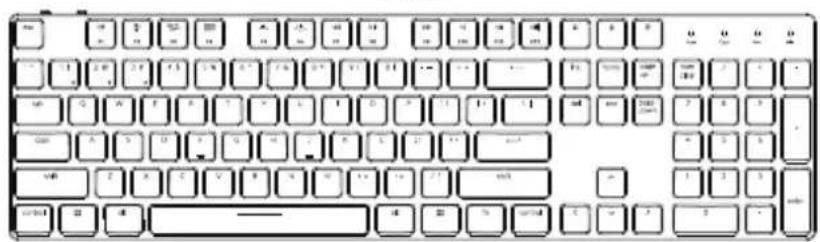
Windows
①蓝牙指示灯
②电池指示灯
③ 数字锁定指示灯
④ 大写锁定指示灯
⑤ Mac OS指示灯
⑥ Windows OS 指示灯
⑦ Type-C端口
⑧ Bluetooth OFF Cable (模式切换)
⑨ Win/Android Mac/iOS (OS切换)
功能说明
LED状态显示如下:
| 功能 | LED位置 | 状态 |
| 充电 | 电源指示灯 | 低电量-红灯闪烁充电-红灯长亮满电-绿灯 |
| 蓝牙 | 蓝牙指示灯 | 快闪-配对熄灭-连接成功慢闪-切换 |
充电
将电线插入USB端口,将另一端口插入键盘的端口
充电指示灯:电池电量低于 15% ,红色电池指示灯快速闪烁;充电时,红色电池指示灯常亮;在约3小时内完全充电,指示灯绿色长亮。
* Keychron K5SE键盘与所有USB端口兼容。要获得最佳信号和最快充电时间,建议采用USB3.0端口或5V-1A电源适配器。
* Keychron K5SE可在蓝牙 / 开 / 关模式下充电。
* 有线模式下,充电指示灯不会熄灭。
* 本产品最高支持5V充电电压,和1A充电电流。因不当充电而产生的问题,我们概不负责。
背光灯
-短按 □ 可切换背光效果。
- 短按fn+左方向键或fn+右方向键可调节背光颜色(仅适用于RGB版本)。
蓝牙/有线模式
有线模式
- 将键盘“模式切换”拨动到 Cable 位置(没插USB线的时候键盘无任何反应)
- 使用本产品USB Type-C线连接电脑即可使用
- 键盘背光灯将打开。
*在有线模式下,键盘不会自动进入省电模式。
蓝牙模式
- 将键盘“模式切换”拨动到BT位置。
2.键盘背光灯将打开。 - 长按“fn+1”键4秒激活蓝牙配对(蓝牙指示灯闪烁3分钟)
- 在你的装置上搜索蓝牙装置“Keychron K5SE”并连接它(配对成功后蓝牙指示灯熄灭)。
注意:此键盘支持通过组合键“fn+1”/“fn+2”/“fn+3”依次配对最多3台设备。
*因蓝牙版本较多等原因,初次连接可能出现连接缓慢或连接失败等问题,请耐心检查设备设置是否正确。
切换至蓝牙装置
短按组合键“fn+1”/“fn+2”/“fn+3”切换到其他装置。
* 切换过程可能会因切换频繁或切换速度过快,导致延迟,此时请耐心等待或重新切换。
回连
- 将键盘切换到Bluetooth位置启动键盘(键盘开机默认回连上次连接的设备)。
- 蓝牙指示灯快闪4秒,自动配对上一次配对的设备。
3.如蓝牙指示灯熄灭,可按任何按键再次进入回连状态。
*键盘必须曾经配对该装置才能实现此功能。
关闭键盘
将“模式切换”拨至OFF,此时本产品关闭所有模式,但可以进行正常充电。
省电模式
蓝牙状态下,键盘无操作10分钟后自动进入睡眠模式,背光熄灭,点击任意键即可唤醒键盘。当电量低于 15% ,电源指示闪烁红色,请及时充电。
系统切换
1 - MacOS / iOS
连接到Mac或iOS操作系统时,请将键盘左侧系统开关拨至Mac/IOS。
2-WINDOWS/安卓
当键盘连接到Windows或Android操作系统时,请将键盘左侧系统开关拨至Win/Android。
3—输入法切换
对于iOS:
输入法切换: Ctrl + Space
大写锁定: Caps(启用常规>键盘>硬件键盘>大写锁定拉丁开关)
对于安卓:
输入法切换: Shift 或者 Shift + Space
注: 由于Windows / 安卓OS的兼容性、版本、品牌和驱动程序, 某些多媒体键的功能可能不能被使用。我们还建议不要频繁切换操作系统, 因为它可能会影响键盘的操作。
疑难排解
我无法将键盘与我的装置配对。
答:确认您要配对的装置可使用蓝牙。
重新启动装置并尝试再次与键盘配对。
注意: 在Windows计算机上, 新的蓝牙连接有时需要额外的软件更新 - 在出现表示成功完成的消息后, 该过程可能仍在进行中。配对后至少等待20分钟, 以确保在重新启动计算机之前完成所有更新。
确认装置配置可接受蓝牙连接(Windows)并支持外部键盘(HID配置文件)。
转到蓝牙装置>打开设置,然后选择以下复选框:
允许蓝牙装置找到这台电脑
允许蓝牙装置连接到这台电脑
当蓝牙装置想要连接时提醒我
我的键盘无法使用。
答:关闭并重新打开键盘。
关闭蓝牙并重新启动计算机。
关于装置:
转到蓝牙设置并关闭蓝牙并“忘记”键盘。
重启装置,并打开蓝牙重新连接。
蓝牙连接或在10米内受干扰。
答: 检查键盘是否放在可能干扰蓝牙信号的金属表面上。
第三方输入工具与键盘不兼容
答:由于Windows /Android系统的兼容性、版本、品牌和驱动程序,第三方输入工具在使用键盘时或被影响。请确保你的作业系统和驱动程序为最新版本。
某些fn键或多媒体键在Windows/安卓模式下不起作用。
答:由于Windows /Android系统的兼容性,版本,品牌和驱动程序,某些多媒体键的功能可能不能被使用。
注意事项:
请勿将本产品,其配件和包装部件放在儿童接触到的地方,以防发生意外引致窒息。
请保持产品干燥,以免腐蚀。
请勿将产品暴露在低于-10℃(5°F)或高于50℃(131°F)的极端温度下,以维持键盘或电池的使用寿命。
Keychron, Inc.
Dover, DE 19901, United States
https://www.keychron.com
通过以下方式与我们联系
Support@keychron.com
@keychron
@keychron
@keychronMK
Keychron设计
中国制造
中国区总代:渴创技术(深圳)有限公司
执行标准:GB/T 14081-2010
售后热线:400-0766268
地址:深圳市龙岗区坂田街道大发埔社区
大发路24号文坑工业区2栋201