Alloy Mars 2 - Tastatur HYPERX - Gratis brugsanvisning og manual
Find enhedens vejledning gratis Alloy Mars 2 HYPERX i PDF-format.


Brugerspørgsmål om Alloy Mars 2 HYPERX
0 spørgsmål om dette apparat. Besvar dem du kender, eller stil dit eget.
Stil et nyt spørgsmål om dette apparat
Download vejledningen til din Tastatur i PDF-format gratis! Find din vejledning Alloy Mars 2 - HYPERX og tag din elektroniske enhed tilbage i hånden. På denne side er alle dokumenter nødvendige for brugen af din enhed offentliggjort. Alloy Mars 2 af mærket HYPERX.
BRUGSANVISNING Alloy Mars 2 HYPERX
Quick Start Guide
HyperX Alloy Mars 2
Keyboard Overview
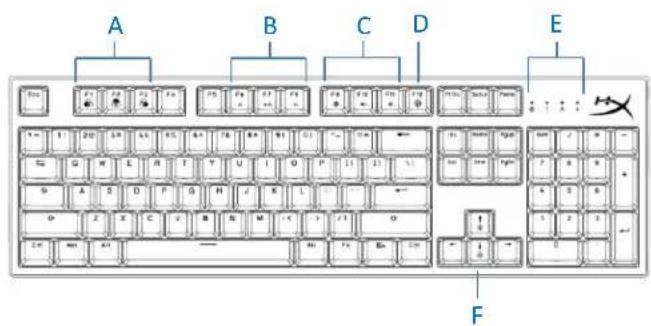
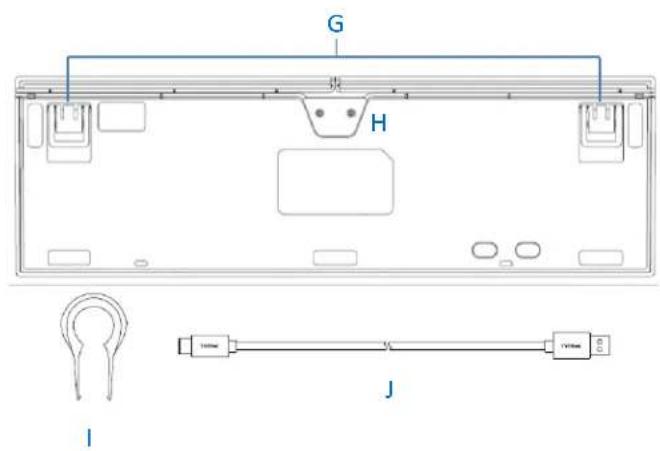
A- Onboard memory profile selection
B- Media keys
C- Volume control keys
D- Game Mode key
E- LED indicators
F- LED brightness control keys
G- Adjustable keyboard feet
H- USB-C port
I- Keycap puller
J- USB cable
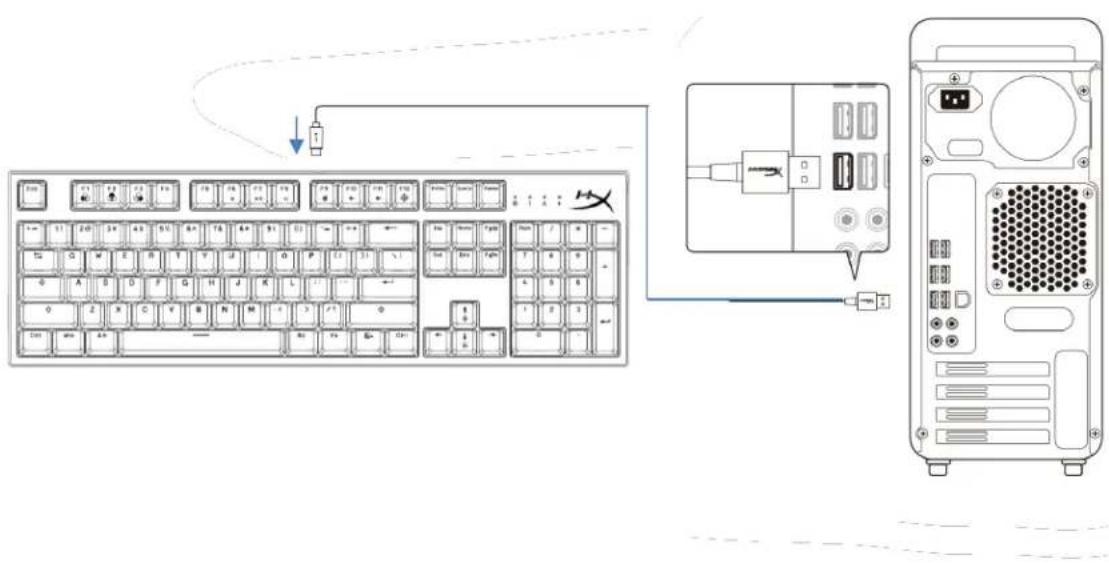
Installation
Function keys
Press "FN" and a function key at the same time to activate its secondary feature.
| FUNCTION KEYS | SECONDARY FEATURE | |
 | + [F1 Key] [F2 Key] [F3 Key] | Switch between the profiles saved to the onboard memory. |
 | + [F6 Key] [F7 Key] [F8 Key] | Skip back ([skip back sign]), play/pause ([play/pause sign]), or skip forward ([skip forward sign]) while listening to music or watching videos. |
 | + [F9 Key] [F10 Key] [F11 Key] | Mute ([mute sign]), decrease ([vol- sign]), or increase ([vol+ sign]) computer audio. |
 | + [F12 Key] | Enable Game Mode ([Game Mode sign]) to disable the Windows key and prevent accidental interruption during gaming. The Windows key will illuminate when Game Mode is enabled. |
 | + [Up Arrow] [Down Arrow] | Increase ([brightness+ sign]) or decrease ([brightness- sign]) the LED backlight brightness. There are 5 levels of brightness. |
 | + [Right Arrow] [Left Arrow] | Increase ([Right arrow]) or decrease ([Left arrow]) the speed of the lighting effect. There are 8 levels of speed. Refer to Lighting Effects table that support speed change. |
 | + [PrtSc] | Switch between 14 onboard lighting effects. |
 | + [ScrLk] | Switch LED color. Refer to Lighting Effects table that support color change. |
 | + [Esc] | Perform a factory reset on the keyboard. (Hold both keys for 5 seconds) |
Lighting Effects
| Order | Effect Name | Color Change | Speed Change |
| 1 | Wave | Y | Y |
| 2 | Color Cycle | N | Y |
| 3 | HyperX Flame | Y | Y |
| 4 | Breathing | Y | Y |
| 5 | Footprint | Y | Y |
| 6 | Solid Color | Y | N |
| 7 | Rainbow Wheel | N | Y |
| 8 | Random Lighting | N | Y |
| 9 | River | Y | Y |
| 10 | Radiation | Y | Y |
| 11 | Shadow | Y | Y |
| 12 | Mirror | Y | Y |
| 13 | Sine Wave | Y | Y |
| 14 | Raining | Y | Y |
LEDs Color Change Order
Red -> Orange -> Yellow -> Green -> Cyan -> Blue -> Purple -> White -> Multi Color
Questions or Setup Issues?
Contact the HyperX support team at hyperxgaming.com/support/keyboards