SAMSUNG SCC-C4237P - Accessoire barre de son

SCC-C4237P - Accessoire barre de son SAMSUNG - Bezplatný návod k obsluze

Najděte návod k zařízení zdarma SCC-C4237P SAMSUNG ve formátu PDF.

📄 180 stran Čeština CS Stáhnout 💬 Otázka AI 10 otázky ⚙️ Specifikace
Notice SAMSUNG SCC-C4237P - page 110
Zobrazit návod : Čeština CS English EN Polski PL Русский RU Türkçe TR
Pick your language and provide your email: we'll send you a specifically translated version.
Typ produktuBezpečnostní kamera s motorickým zoomem
ModelSCC-C4237P
Obrazový snímač1/4" Super HAD IT CCD
Efektivní rozlišení752 (H) × 582 (V) (PAL)
Rozlišení600 TV řádků
Optický zoom34x
Digitální zoomAž 544x (34x optický × 16x digitální)
Minimální osvětlení0,0001 Lux (Sens-Up), 0,01 Lux (den/noc)
Funkce den/nocAno (Auto / Externí / Den / Noc)
Vyvážení bíléATW1 / ATW2 / AWC / 3200K / 5600K
Kompenzace protisvětlaBLC (nastavení oblasti)
Video výstupKompozitní 1,0 Vp-p, 75 Ω, BNC
NapájeníDC 12 V ± 10 %, 600 mA
Spotřeba energieCca 7,2 W
KomunikaceRS-485 (9600 bps, 8 datových bitů, 1 stop bit, bez parity)
Zóny soukromíAž 12 zón
Detekce pohybuAno (s alarmovým výstupem)
Stabilizace obrazuDIS (digitální stabilizátor obrazu)
Rozměry (Š×V×H)Cca 67,5 × 67,5 × 128,5 mm
HmotnostCca 600 g
Provozní teplota-10 °C až +50 °C
Vlhkost20% – 80% (bez kondenzace)

Často kladené otázky - SCC-C4237P SAMSUNG

Jak napájet kameru SCC-C4237P?
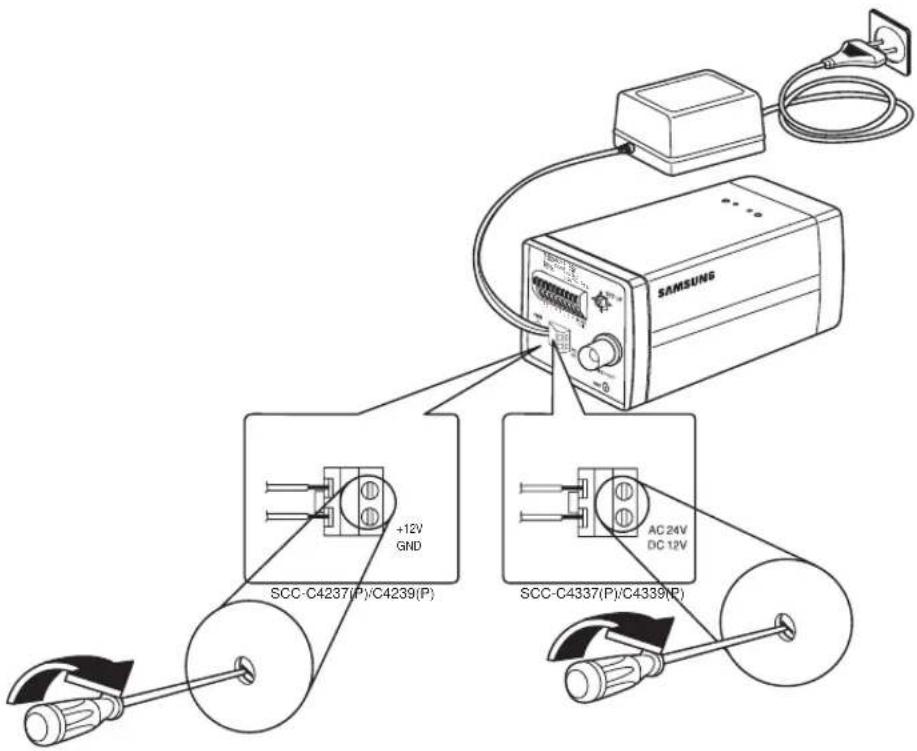
Připojte DC 12V 600mA napájecí adaptér (prodává se samostatně) ke svorce POWER na zadním panelu kamery. Ujistěte se, že přepínač výběru napájení je nastaven na DC 12V. Pomocí šroubováku připojte dva napájecí vodiče ke svorkám +12V a GND.
Jak nakonfigurovat režim den/noc?
Vstupte do nabídky OSD, přejděte na CAMERA SET > DAY/NIGHT. Můžete vybrat AUTO pro automatické přepínání podle jasu, DAY pro barevný režim, NIGHT pro černobílý režim nebo EXT pro externí spouštěcí událost. Upravte prahy a prodlevy podle potřeby.
Jak nastavit zóny soukromí?
V nabídce OSD přejděte na PRIVACY ZONE. Vyberte číslo zóny (1-12), poté upravte polohu a velikost zóny pomocí kláves ▲▼◀▶. Stiskněte ENTER pro potvrzení a SAVE pro uložení nastavení.
Jak provést obnovení továrního nastavení?
V nabídce OSD vyberte OTHER SET, poté zvolte FACTORY DEFAULT. Potvrďte pro resetování všech nastavení na výchozí tovární hodnoty, včetně PROFILE a CAMERA SET.
Jaký typ videosignálního kabelu je potřeba?
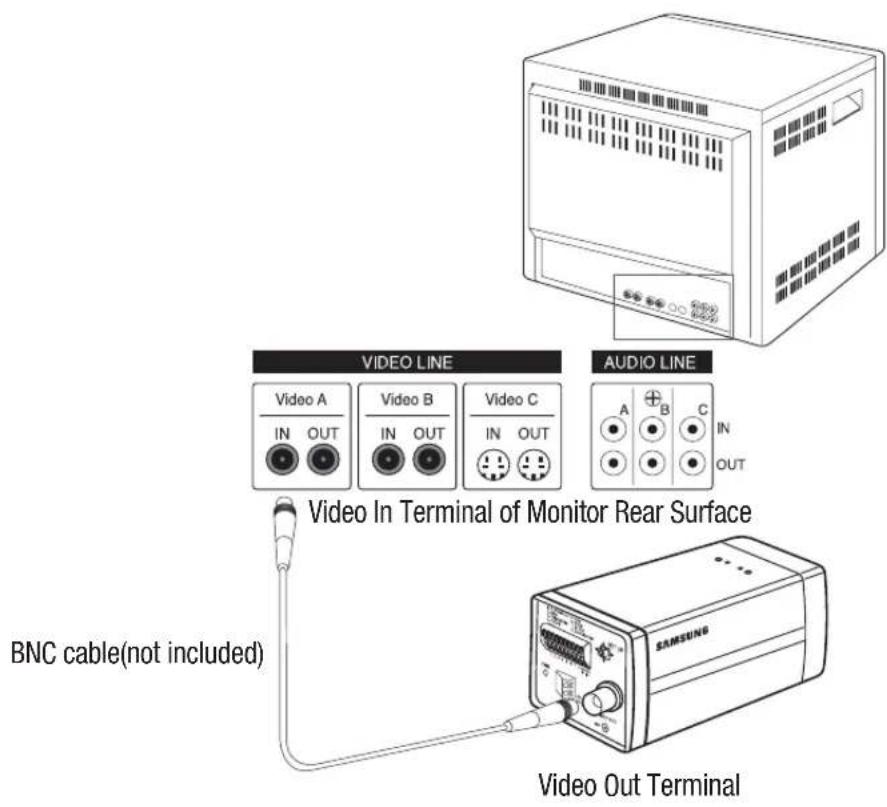
Použijte standardní BNC kabel (prodává se samostatně) pro připojení svorky VIDEO OUT na kameře k VIDEO IN na monitoru nebo DVR.
Jak ovládat kameru na dálku přes RS-485?
Připojte vodiče RS-485 DATA+ a DATA- z kamery ke kompatibilnímu ovladači. Nastavte protokol na SAMSUNG, adresu na 0 (nebo požadované ID) a přenosovou rychlost na 9600 v nabídce COMMUNICATION.
Jak čistit objektiv kamery?
Jemně otřete objektiv měkkým hadříkem nebo tkaninou na objektiv mírně navlhčenou ethanolem. Vyhněte se nadměrnému používání tekutin nebo abrazivních materiálů, aby nedošlo k poškození.
Proč není zobrazen žádný obraz?
Zkontrolujte napájení a ujistěte se, že svítí červená LED. Zkontrolujte připojení videosignálního kabelu k monitoru nebo DVR. Zkontrolujte, zda je sejmuto kryt objektivu. Ujistěte se, že nastavení kamery není v režimu NIGHT při nedostatečném osvětlení.
Jak upravit zoom a ostření?
Použijte nabídku OSD nebo externí ovládání. V CAMERA SET nastavte FOCUS MODE na AF (autofocus) nebo ONEAF. Zoom lze ovládat přes nabídku nebo externím napětím (viz manuál pro zapojení). Limit digitálního zoomu se nastavuje v DIGITAL ZOOM (až x16).
Mohu tuto kameru používat venku?
Kamera je určena pro vnitřní použití. Pro venkovní instalaci musí být umístěna v krytu odolném proti povětrnostním vlivům. Manuál doporučuje vnitřní použití; venkovní modely s vestavěným ventilátorem/topením jsou k dispozici samostatně.

Dotazy uživatelů ohledně SCC-C4237P SAMSUNG

0 otázka o tomto zařízení. Odpovězte na ty, které znáte, nebo položte vlastní.

Položte novou otázku o tomto zařízení

E-mail zůstává soukromý: slouží pouze k tomu, aby vás informoval, pokud někdo odpoví na vaši otázku.

Zatím žádné otázky. Buďte první, kdo se zeptá.

Stáhněte si návod pro váš Accessoire barre de son ve formátu PDF zdarma! Najděte svůj návod SCC-C4237P - SAMSUNG a vezměte svůj elektronický přístroj zpět do rukou. Na této stránce jsou zveřejněny všechny dokumenty potřebné k používání vašeho zařízení. SCC-C4237P značky SAMSUNG.

NÁVOD K OBSLUZE SCC-C4237P SAMSUNG

Power Zoom Camera User Manual

imagine the possibilities

Thanks you for purchasing this Samsung product.

To receive a more complete service, please visit our website

www.samsungsecurity.com

SAMSUNG SCC-C4237P - imagine the possibilities - 1

CAUTION

RISK OF ELECTRIC SHOCK. DO NOT OPEN

SAMSUNG SCC-C4237P - CAUTION - 1

CAUTION: TO REDUCE THE RISK OF ELECTRIC SHOCK, DO NOT REMOVE COVER (OR BACK) NO USER SERVICEABLE PARTS INSIDE. REFER SERVICING TO QUALIFIED SERVICE PERSONNEL.
SAMSUNG SCC-C4237P - CAUTION - 2

This symbol indicates that dangerous voltage consisting a risk of electric shock is present within this unit.

SAMSUNG SCC-C4237P - CAUTION - 3

This symbol indicates that there are important operating and maintenance instructions in the literature accompanying this unit.

WARNING

  • To reduce the risk of fire or electric shock, do not expose this appliance to rain or moisture.
  • To prevent injury, this apparatus must be securely attached to the floor/wall in accordance with the installation instructions.

WARNING

  1. Be sure to use only the standard adapter that is specified in the specification sheet.
    Using any other adapter could cause fire, electrical shock, or damage to the product.
  2. Incorrectly connecting the power supply or replacing battery may cause explosion, fi re, electric shock, or damage to the product.
  3. Do not connect multiple cameras to a single adapter. Exceeding the capacity may cause abnormal heat generation or fire.
  4. Securely plug the power cord into the power receptacle. Insecure connection may cause fi re.
  5. When installing the camera, fasten it securely and firmly. The fall of camera may cause personal injury.
  6. Do not place conductive objects (e.g. screwdrivers, coins, metal parts, etc.) or containers filled with water on top of the camera. Doing so may cause personal injury due to fire, electric shock, or falling objects.
  7. Do not install the unit in humid, dusty, or sooty locations. Doing so may cause

2\_ overview

fi re or electric shock.

  1. If any unusual smells or smoke come from the unit, stop using the product. In such case, immediately disconnect the power source and contact the service center. Continued use in such a condition may cause fire or electric shock.
  2. If this product fails to operate normally, contact the nearest service center. Never disassemble or modify this product in any way. (SAMSUNG is not liable for problems caused by unauthorized modifications or attempted repair.)
  3. When cleaning, do not spray water directly onto parts of the product. Doing so may cause fi re or electric shock.

CAUTION

  1. Do not drop objects on the product or apply strong blows to it. Keep away from a location subject to excessive vibration or magnetic interference.
  2. Do not install in a location subject to high temperature (over 50^ C), low temperature (below -10^ C), or high humidity. Doing so may cause fire or electric shock.
  3. If you want to relocate the already installed product, be sure to turn off the power and then move or reinstall it.
  4. Remove the power plug from the outlet when there is a lighting storm. Neglecting to do so may cause fire or damage to the product.
  5. Keep out of direct sunlight and heat radiation sources. It may cause fire.
  6. Install it in a place with good ventilation.
  7. Avoid aiming the camera directly towards extremely bright objects such as sun, as this may damage the CCD image sensor.
  8. Apparatus shall not be exposed to dripping or splashing and no objects filled with liquids, such as vases, shall be placed on the apparatus.
  9. The Mains plug is used as a disconnect device and shall stay readily operable at any time.
  10. When using the camera outdoors, moisture may occur inside the camera due to temperature difference between indoors and outdoors. For this reason, it is recommended to install the camera indoors. For outdoor use, use the camera with built-in fan and heater.

IMPORTANT SAFETY INSTRUCTIONS

  1. Read these instructions.
  2. Keep these instructions.
  3. Heed all warnings.

  4. Follow all instructions.

  5. Do not use this apparatus near water.

  6. Clean only with dry cloth.

  7. Do not block any ventilation openings. Install in accordance with the manufacturer's instructions.

  8. Do not install near any heat sources such as radiators, heat registers, or other apparatus (including amplifiers) that produce heat.

  9. Do not defeat the safety purpose of the polarized or grounding-type plug. A polarized plug has two blades with one wider than the other. A grounding type plug has two blades and a third grounding prong. The wide blade or the third prong is provided for your safety. If the provided plug does not fit into your outlet, consult an electrician for replacement of the obsolete outlet.

  10. Protect the power cord from being walked on or pinched particularly at plugs, convenience receptacles, and the point where they exit from the apparatus.

  11. Only use attachments/accessories specified by the manufacturer.

  12. Use only with the cart, stand, tripod, bracket, or table specified by the manufacturer, or sold with the apparatus. When a cart is used, use caution when moving the cart/ apparatus combination to avoid injury from tip-over.

  13. Unplug this apparatus during lightning storms or when unused for long periods of time.

  14. Refer all servicing to qualified service personnel. Servicing is required when the apparatus has been damaged in any way, such as powersupply cord or plug is damaged, liquid has been spilled or objects have fallen into the apparatus, the apparatus has been exposed to rain or moisture, does not operate normally, or has been dropped.

SAMSUNG SCC-C4237P - IMPORTANT SAFETY INSTRUCTIONS - 1

natural_image Symbolic icon of a person climbing a ladder, enclosed in a circle with no text or symbols

SAMSUNG SCC-C4237P - IMPORTANT SAFETY INSTRUCTIONS - 2

Apparatus shall not be exposed to dripping or splashing and no objects filled with liquids, such as vases, shall be placed on the apparatus

4\_ overview

OVERVIEW

2

4 Important Safety Instructions
5 Contents
6 Features
7 What's Included
7 Part Names and Functions

INSTALLATION & CONNECTION

11

11 Preparing Installation
11 Connecting the Cables

SETUP

14

14 Main Menu
15 Profi le
17 Camera Set
26 Intelligent Video
28 Privacy Zone
29 Preset
30 Other Set
31 Communication
31 System Info
32 Language

APPENDIX

33

33 Shortcut Keys
34 Specifications

FEATURES

  • With the state-of-the-art digital signal processing technology, full digital image processing and special algorithm of 600-line high resolution implemented.
  • High Sensitivity: It implements images of high sensitivity using the up-to-date Super-HAD IT CCD(SCC-C4237P/C4337P)/ExView-HAD PS CCD(SCC-C4239P/C4339P).
  • VPS(Virtual Progressive Scan): This is an advanced technology that reproduces a sharp progressive image. This is appropriate to high quality recording and file transfer via the Internet. (SCC-C4239P/C4339P only)
  • High performance surveillance camera, equipped with x34 zoom lens and digital zoom IC, enabling monitoring up to 544 times
  • WDR extends the contrast range as it takes a picture of each of dark and bright areas before compositing the two, which is useful if you take a picture of windows inside a building. Namely, it improves the picture quality of the outdoor scenery as well as indoor.(SCC-C4239P/C4339P only)
  • Low Illumination: It uses the digital signal technologies such as low illumination and Day/Night functions that make your camera identify objects even in the worst environment.
  • XDR (eXtended Dynamic Range): Actively controls the gamma compensation in the way it operates the ambient luminance contrast in a certain pixel unit to determine the optimal visibility.
  • Digital Power Synchronization: The full digital Line Lock function directly adjusts the vertical camera synchronization to enhance the operationability and reliability of this camera.(SCC-C4337P/C4339P only)
  • DAY/NIGHT: This function can make the IR Cut fi Itering function inactive under the illumination below the normal value.
  • White Balance to control the brightness to the illumination
  • Superior Backlight Adjustment: When an object has a bright illumination or sunlight behind it, this camera automatically improves the shaded object picture quality.
  • Auto Focus to automatically adjust the focus to the subject movement
  • Privacy zone to hide a specific area for personal privacy.

WHAT'S INCLUDED

Please check if your camera and accessories are all included in the product package.
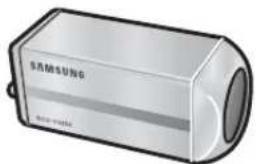
SAMSUNG SCC-C4237P - WHAT'S INCLUDED - 1

text_image S.光敏本型防尘 Non-photics

Camera

SAMSUNG SCC-C4237P - WHAT'S INCLUDED - 2

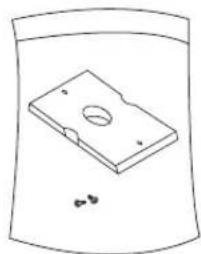
natural_image Simple line drawing of a rectangular electronic component with a circular hole and small dots, enclosed in a curved container (no text or symbols)

Camera Holder (Mount Adaptor) 2 Screws

SAMSUNG SCC-C4237P - WHAT'S INCLUDED - 3
User's Manual

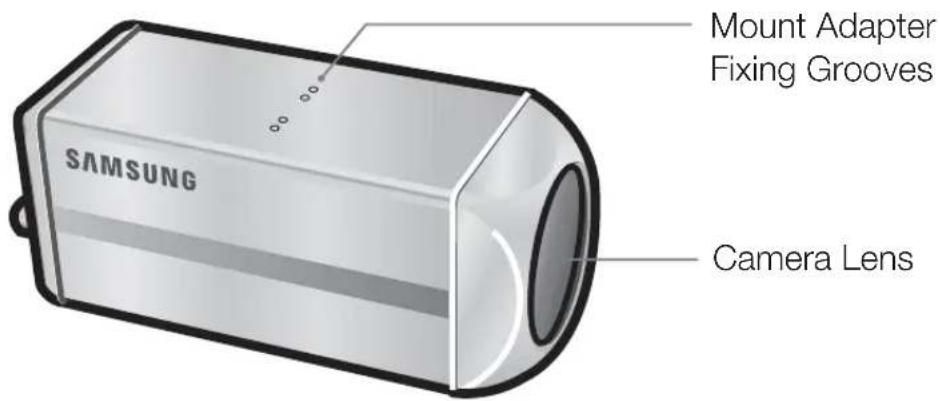
PART NAMES AND FUNCTIONS

SIDE VIEW
SAMSUNG SCC-C4237P - PART NAMES AND FUNCTIONS - 1

text_image Mount Adapter Fixing Grooves SAMSUNG Camera Lens

SAMSUNG SCC-C4237P - PART NAMES AND FUNCTIONS - 2

- Wipe out a dirty surface of the lens softly with a lens tissue or cloth to which you have applied ethanol.

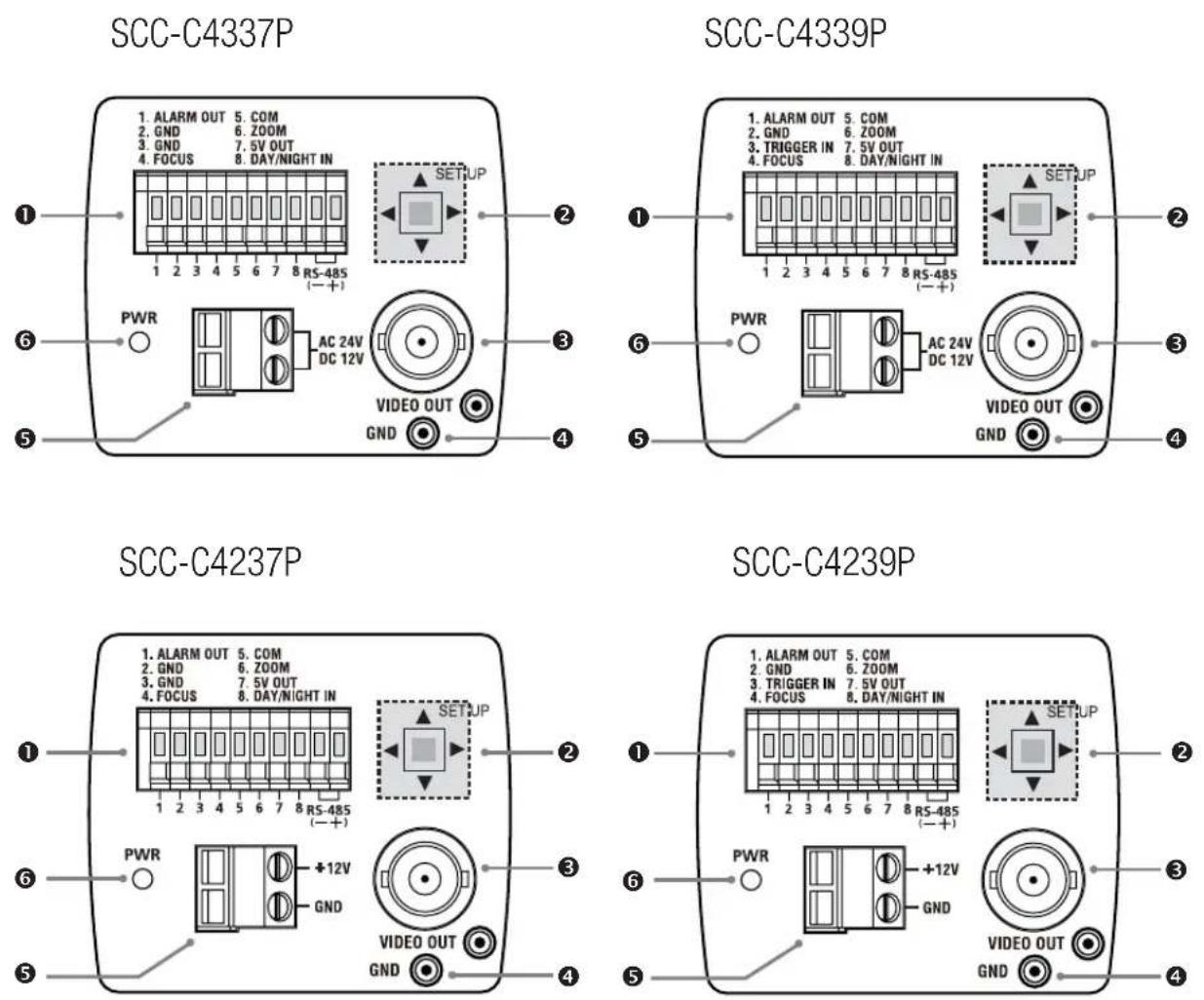
Rear Panel
SAMSUNG SCC-C4237P - PART NAMES AND FUNCTIONS - 3

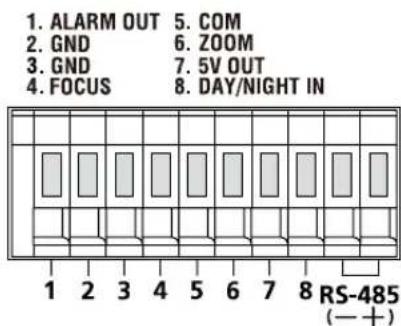
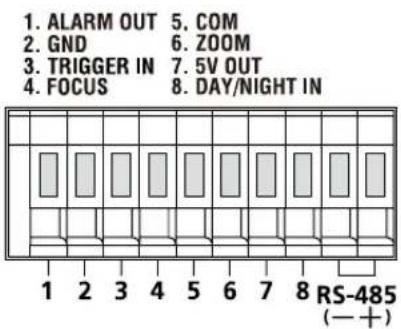
① Input/Output Connector

This connector has input and output ports for RS-485 control signals, DAY/NIGHT switching, and alarm output signals.
SAMSUNG SCC-C4237P - ① Input/Output Connector - 1

text_image 1. ALARM OUT 5. COM 2. GND 6. ZOOM 3. TRIGGER IN 7. 5V OUT 4. FOCUS 8. DAY/NIGHT IN RS-485 (—+)

SCC-C4239P/C4339P

SAMSUNG SCC-C4237P - ① Input/Output Connector - 2

text_image 1. ALARM OUT 5. COM 2. GND 6. ZOOM 3. GND 7. 5V OUT 4. FOCUS 8. DAY/NIGHT IN RS-485 (— +)

SCC-C4237P/C4337P

1. ALARM OUT

Alarm out jack for motion detection. (Open Collector, On Gnd)

2. GND

Grounding jack.

3. TRIGGER IN (SCC-C4239P/C4339P)

Displays the current still image when it receives the Trigger signal. (Normal Open Type)

4.5.6 FOCUS, COM, ZOOM

This port is used for ZOOM/FOCUS, MENU CONTROL, HOME RETURN, and ONEAF by using an external controller.

Depending on the input condition, 4 modes, A, B, C, and D are available. (SPECIAL - CTRL TYPE)

(Operation Voltage Range : +3V\~+13V, -3V\~-13V)

1) When the voltage is supplied to either ZOOM or FOCUS port

Function *1 CodeTele(Up)Wide(Down)Near(Left)Far(Right)
ZOOM Port FOCUS Port
A -6V +6V -6V +6V
B -6V +6V +6V -6V
C +6V -6V -6V +6V
D+6V -6V +6V -6V

*1: During MENU OFF, controls ZOOM/FOCUS and during MENU ON, changes the direction, Up/Down/Left/Right SETUP switch.
2) When the voltage is supplied to both ports

Function CodeENTER/AF *2 HOME RETURN *3
ZOOM PortFOCUS PortZOOM PortFOCUS Port
A -6V -6V +6V +6V
B -6V +6V +6V -6V
C +6V -6V -6V +6V
D+6V +6V -6V -6V

* 2 : For short voltage supply during MENU OFF, executes ONEAF and for more than 2 second
* 3 : For more than 2 second long voltage supply, moves to the PRESET 0(HOME) position.

7.5V OUT

Power supply jack for RS-485 JIG. Use within typical DC +5V 100mA.

8. DAY/NIGHT IN

This is a function to receive the external DAY/NIGHT signal from the sensor(option) and convert the signal into BW.

9. RS-485 DATA-

Jack for connection to RS-485 DATA- signal line.

10. RS-485 DATA+

Jack for connection to RS-485 DATA+ signal line.

② SETUP Switch

This switch is used to set the function or property. When this switch is pressed for at least 2 seconds, the MAIN MENU appears.

◀▶ (Left/Right) : By pressing this switch left or right, you can move left or right on the menu or change the displayed value.
▲▼ (Up/Down): By pressing this switch up or down, you can move up or down on the menu.
☐ : When you press this switch in the menu, the selected function is confirmed. To enter a submenu, press this button.

③ Video OUT Port

This is connected to the Video Input Port of the monitor and it outputs the Video signals.

④ GND

This is a grounding port.

⑤ Power Connection Port

This is connected to the Power cable.

⑥ Power Display LED

When the power is normally connected, the red LED lights.

PREPARING INSTALLATION

- To install and use the camera, first prepare the following cables.

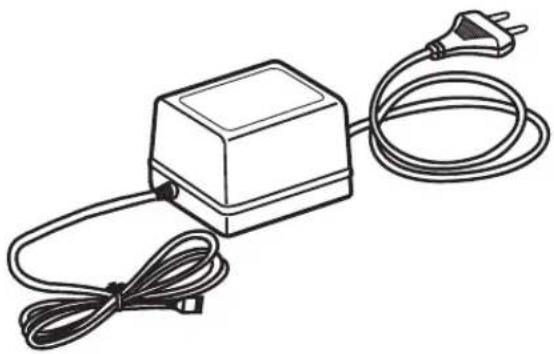
① POWER ADAPTER CABLE (SOLD SEPARATELY)

The requirements for the power adapter, which connects to the camera's POWER IN terminal, are as follows:

- SCC-C4237P/C4239P : DC 12V 600mA

- SCC-C4337P/C4339P: AC 24V 300mA

DC 12V 600mA
SAMSUNG SCC-C4237P - PREPARING INSTALLATION - 1

natural_image Line drawing of a rectangular electronic device with a coiled cable and power plug (no text or symbols)

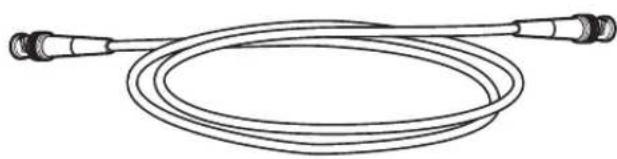
② VIDEO CABLE(SOLD SEPARATELY)

Use a BNC cable, such as the one shown below, to connect the camera's VIDEO OUT to the monitor.
SAMSUNG SCC-C4237P - PREPARING INSTALLATION - 2

natural_image Line drawing of a coiled cable with two connectors (no text or symbols)

INSTALLATION

  1. Connect one end of the BNC cable(not included) to the VIDEO OUT.
  2. Connect the other end of the BNC cable (not included) to the VIDEO IN of the monitor.
SAMSUNG SCC-C4237P - INSTALLATION - 1

text_image VIDEO LINE AUDIO LINE Video A IN OUT Video B IN OUT Video C IN OUT A B C IN OUT Video In Terminal of Monitor Rear Surface BNC cable(not included) SAMSUNG Video Out Terminal
  1. Plug in the power adapter(not included). Use a "minus" screwdriver to connect one part of the power adapter, which consists of two lines, to the POWER terminal of the camera as follows :
SAMSUNG SCC-C4237P - INSTALLATION - 2

text_image SAMSUNG +12V GND SCC-C4237(P)/C4239(P) AC 24V DC 12V

12_ installation & connection

  1. Determine the type of power supply and set the POWER SELECTION switch accordingly. Next, plug the power adapter into a wall outlet.
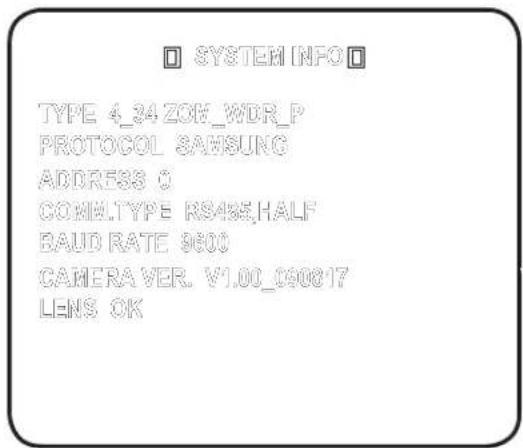
  2. If the camera operates normally, the following screen will be displayed for 5 seconds and then disappears.
SAMSUNG SCC-C4237P - INSTALLATION - 3

text_image SYSTEM INFO TYPE 4_34 ZOK_WDR_P PROTOCOL SAMSUNG ADDRESS 0 COMMULTYPE RS485.HALF BAUD RATE 9600 CAMERAVER. V1.00_090817 LENS OK
  1. The requirements for RS485 control is as follows :

  2. Signaling Speed: 9600 bps

  3. Data Bit : 8 bits
  4. Stop Bit : 1 bit
  5. Parity Bit : none

Using OSD icons

  • ◀▶: If these icons appear in the left and right corner of a menu item, you can use them move to the previous or next menu.
  • (EXIT): Exits the menu setup screen. Before exiting the setup screen, select to save your settings to the whole menus, or to cancel them.
  • (RET): Saves your settings and returns to the previous screen.
    • (HOME): Returns to the main menu.
  • (SAVE): Use this icon if you want to save your settings after you specified the mask area and privacy area, etc.

Once you saved your settings, the changes remain intact even if you select on exit.

  • (DEL): Use this icon if you want to delete a mask, or privacy area, etc. Once you deleted your settings, the deletions remain valid even if you select on exit.
  • ←: This icon appears in the right of a menu containing sub menu items.

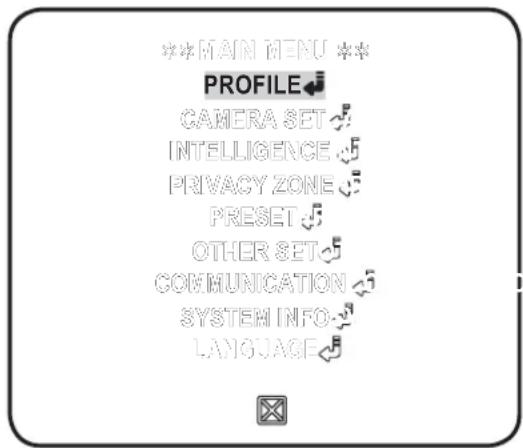
This is the first screen you ever see when you turn on the camera where you can set the camera environment to your needs.

- PROFILE

Select a mode appr--opriate to the camera installation environment.

- CAMERA SET

You can configure the camera settings.

• INTELLIGENCE

Offers motion detection and tracking functions.

- PRIVACY ZONE

You can configure the privacy settings.

- PRESET

You can set the PRESET POSITION.

- OTHER SET

You can reset the camera, or adjust the OSD color to your preference.
SAMSUNG SCC-C4237P - - OTHER SET - 1

text_image ***MAIN MENU PROFILE CAMERA SET INTELLIGENCE PRIVACY ZONE PRESET OTHER SET COMMUNICATION SYSTEM INFO LANGUAGE

• COMMUNICATION

Conf i gures the settings pertaining to RS-485 communication.

- SYSTEM INFO

Shows the system information such as the camera version or communication settings.

- LANGUAGE

Select a preferred one from the supported languages.

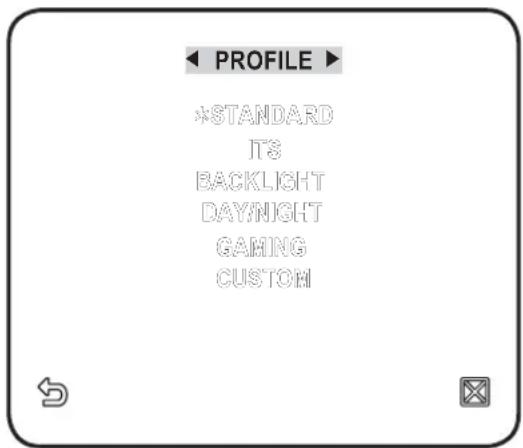
PROFILE

You can select one from the pre-determined confi gurations as appropriate to your specifi c camera installation environment.

Your selection on each item in PROFILE will affect all other settings of the camera.

- STANDARD

Automatically optimizes the camera settings to the normal environment.

• ITS

This setting enables you to analyze the traffic situation and take the traffic information at a glance.

- BACKLIGHT

This setting enables you to view a sharp background and object even in a severe backlight scene.
SAMSUNG SCC-C4237P - PROFILE - 1

text_image PROFILE *STANDARD ITS BACKLIGHT DAYNIGHT GAMING CUSTOM

- DAY/NIGHT

Automatically optimizes the camera settings to the day and night scene.

• GAMING

This automatically configures the settings so that you can work in a stable illumination condition as indoors.

- CUSTOM

Your change to any of the PROFILE settings will switch the display to CUSTOM.

CAMERA SETUP MENUSTANDARD ITS BACKLIGHT DAY/NIGHT GAMING
Parent MenuSub-menus
VPS OFFON OFF OFF OFF
IRISALC ALC ALC ALC ALC
ALC -----
LEVEL 00000
BACKLIGHT OFF OFF WDR OFF OFF
WDR -----
WEIGHTCustom SettingCustom SettingMEDIUMCustom SettingCustom Setting
WDR LEVELCustom SettingCustom Setting0Custom SettingCustom Setting
WHITE BALCustom Setting Custom Setting Custom Setting Custom Setting Custom SettingSetting
MOTION(F.FAST)---(F.FAST)---NORM(F.FAST)---SLOW
DNRMEDIUMMEDIUMMEDIUMMEDIUMMEDIUM
SHUTTEROFF OFF OFF OFF
SENSE UPAUTO X4AUTO X2AUTO X4AUTO X4AUTO X4
XDRMEDIUMMEDIUMMEDIUMMEDIUMMEDIUM
DAY/NIGHTAUTOAUTODAYAUTODAY
NIGHT-----
BURST OFF ON OFF OFF OFF
EXT-----
BURST-----
WHITE BALDAY DAY/NIGHT DAY DAY/NIGHT DAY
DAY-----
MODEATW2ATW1ATW1ATW1ATW1
RED 00000
BLUE 00000
NIGHT-----
BRIGHTNESS-MEDIUM-MEDIUM-
MODEOFFATW2OFFATW2OFF
RED-0-0-
BLUE-0-0-
DETAIL22222

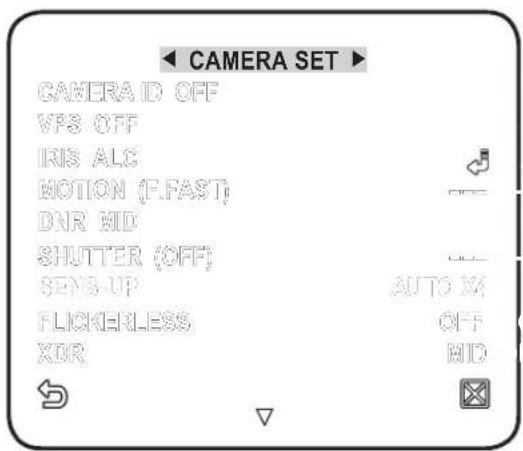
You can configure the general settings of the camera module.

  1. Select
    - . The Camera Setup menu appears.
  2. Change the settings as necessary, or select an item to check.
SAMSUNG SCC-C4237P - PROFILE - 2

text_image CAMERA SET CAMERA ID OFF VPS OFF IRIS ALC MOTION (E.FAST) DNR MID SHUTTER (OFF) SENS-UP AUTO M FLICKERLESS OFF XDR MID

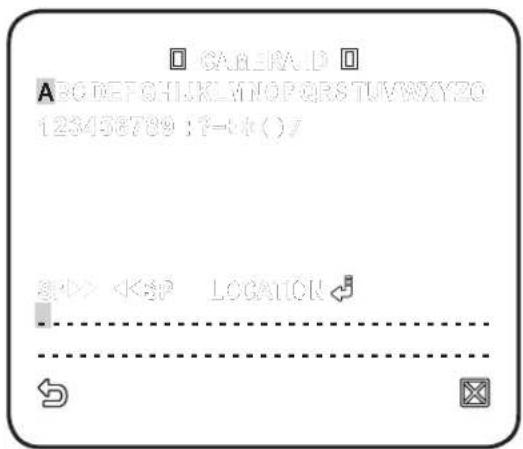
CAMERA ID

Provide the ID and location for a camera that displays on the screen.

  1. Select - .
  2. Use ▲▼◀▶ to select a desired character, then press [ENTER].

In the lower input box of the screen, the selected character will be entered.

■ You can enter up to 54 characters including alphabets, numbers and special characters.
- LOCATION : Specify the display position of the camera ID.
SAMSUNG SCC-C4237P - CAMERA ID - 1

text_image CABERA.D ABC DET CHIJKL MTOP QRS TUVWXYZO 123458789 : 7=+*()/ #P> 3. When done, press [ENTER]. The camera ID will be displayed in the specified position.

VPS

If you set it to , the camera images will be displayed in progressive mode. ![](images/d881dbcd02fc9f03eb368259d872ee3b08cc34637320bc0c5825f6a673066d55.jpg) ■ VPS is only available for SCC-C4239P and SCC-C4339P.

IRIS

The IRIS menu is useful if you set to adjust the intensity of radiation incoming to the camera. • ALC : Adjust the open and close of the iris. - LEVEL : Select an overall brightness level. - BLC : With set to , you can specify the BLC area. With AREA set to , you can specify the position and size. ![](images/860fdbd7a878a48ea7af4afe6dd42e871d1efc53da4f01091f3d98122d24b552.jpg)
text_image LEVEL [ 00] ----1 ---- BACKLIGHT BLC AREA USER
\- WDR : If you set to , you will see a menu where you can set the WDR options. Specify the shutter speed in WDR LEVEL, and, the composition level in . Select OUTDOOR, or INDOOR in . The WDR feature provides an extension of the gain range, which is useful, especially if you work on pictures both indoors and outdoors from inside of a building. ![](images/f23ae00cb318094cddbe6cbfccf7cf35eb4a03f834d6dff0c9d91c5db4c71bf3.jpg)
text_image LEVEL BACKLIGHT WEIGHT WDR LEVEL WHITE SAL WDR WDR WDR WDR WDR MID I O [ ] ... IN DOOR
Namely, it improves the sharpness of the picture in outdoor scenery as well as indoor. ![](images/ef6babdbfa78c84eee38e31617af308ec21a3770f917693dfc9e2ac4bdc8c814.jpg) As long as you use the VPS function, the WDR will not be available as the CCD read method differs accordingly. If you set VPS to ON, WDR will be set to accordingly. ■ WDR is only available for SCC-C4239P and SCC-C4339P. \- MANUAL: Adjust the iris level manually. ![](images/36021ef469cb004bfe445dc3bc0b6d313176338ee3fab1bf7f3798240a7df062.jpg) ■ The overall brightness target of a camera will be set to ALC level 0, while the iris can be adjusted manually. ![](images/c51943daebe1ce0419a4ae5aea052ac1dbdc673b3450faf8e183887717ee08a2.jpg)
text_image MANUAL LEVEL [ 00] ----1 ----

AGC

With this, you can adjust the AGC level of a camera. With AGC active, if the signal strength falls below the standard level, AGC will amplify the video signal to automatically improve the sensitivity. If is set to or mode, the menu will switch to . With the USER (◀) submenu selected, press [ENTER] to display the corresponding screen. In this mode, you can select from VERY LOW ![](images/5df1ac585780cb2d2a1db715cb42a9d9c004ab0b2850e402aabcf40b0b397844.jpg)
text_image < CAMERA SET > CAMERA ID OFF VPS OFF IRIS ALC AGC (VERY ---) DNR MID SHUTTER OFF SENS-UP OFF FLIGHTLESS OFF XDR MID
![](images/d97064ebf45d11a7096ad6d5be0853ce5c4f30088003aa785140528a50f7d28e.jpg) to VERY HIGH in 16 levels, enabling deeper, wider choices to your convenience. With the FIX (◀) submenu selected, press [ENTER] to display the corresponding screen. In this mode, you can select an individualized mode in 16 levels, regardless of the brightness. ![](images/e018b0ee6281318eadeb9df70186e1bdc9dfc6d2df0b3559a675dc749d37be2e.jpg) As long as the DAY/NIGHT menu is set to AUTO in Camera Setup, the AGC menu is not available. As long as FLICKERLESS is set to ON, the AGC mode is not available. If you set BACKLIGHT to WDR, the AGC fi x mode is not available.

MOTION

You can specify a level of AGC for controlling the camera motion. This is available only of the SENSE UP menu is set to AUTO. Select F.FAST if you want to monitor a very fast moving object in a low contrast scene, and S.SLOW if monitoring a very slow moving, inanimate object in the same condition. As long as DAY/NIGHT is set to , the menu is not available.

DNR

Reduces the noise on the camera image. The higher the level is, the greater the effect is. Set it to to specify the level.

SHUTTER

You can select a fixed fast electronic shutter speed in 7 options ranging from 1/120 to 1/10k, which is mostly used to take a picture of a fast moving object. As long as SENSE UP is set to AUTO, FIXED / FLICKERLESS to ON / BACKLIGHT to WDR, the SHUTTER menu is not available.

SENS-UP

![](images/48df7110aa9055d05d60d05e07d64731d0f27ffd506c89422abeb4aa021ec9b8.jpg)
text_image CAMERA SET > CAMERA ID OFF VPS OFF IRIS ALC AIC [VERY HIGH] == DNR MID SHUTTER 1/120 SENS UP (OFF) ... FLICKER LESS (OFF) == XDR MID
Automatically senses the darkness level at night or in a low contrast scene, and extends the accumulation time accordingly; you can select or for a bright and sharp image. ![](images/84148c4a982a40a8a0d966ca5aaf7c1aa0410d9f34fac51870c9236aaed5f274.jpg) If the SHUTTER menu is set to fixed electronic shutter mode, the SENSE UP menu will not be available. If FLICKERLESS is set to ON, or BACKLIGHT to WDR, the FIX mode of the SENSE UP menu is not available.

FLICKERLESS

This will prevent possible screen distortion due to a mismatch between the vertical sync frequency and the blinking frequency of the lighting; if set to , the shutter speed will be fixed to 1/120 second. If SHUTTER is set to FIX, SENSE UP to FIX, and AGC to FIX, the menu is not available.

XDR

This will correct a brightness difference between different scenes for the optimal visibility by calculating the ambient luminance contrast in a certain unit of pixels. The higher the value is, the higher the correction level is.

DAY/NIGHT

You can specify a recording mode according to the scene. 1. Select - . 2. Select a screen transition mode according to the illumination, and set options as appropriate. - DAY: Fixed to DAY mode, regardless of the scene. • NIGHT : Fixed to NIGHT mode, regardless of the scene. If BURST is set to , the burst signal will be output along with the black-and-white composite video signal. \- AUTO : According to the luminance, this will switch DAY to NIGHT mode, or vice versa. \- BURST : If set to s, the burst signal will not be output in NIGHT mode. \- DAY→NIGHT BRIGHTNESS : Specify the brightness level switching from COLOR to BW filter Adjusting from HIGH to LOW will cause to switch the filter in a darker screen. \- DAY→NIGHT DWELL TIME : Time required to determine the filter switch. \- NIGHT→DAY BRIGHTNESS : Specify the brightness level switching from BW to COLOR fi Iter. Adjusting from HIGH to LOW will cause to switch the filter in a darker screen. \- NIGHT→DAY DWELL TIME : Time required to determine the filter switch. \- MASK AREA: If there exists a bright spot light source in a night scene, you can specify the size and position as needed. This will prevent an error in switching fi Iter, or failure to determine the fi Iter switch in a night scene where a bright spot light source exists. Any excessively bright area in a night scene will be MASKed. ■ Youcan specify MASK 1 and 2 simultaneously. ![](images/dd3da8966ba60e20f5d7793da2f904496cc826b6dc608de3c1b4c9f1d8a3d56c.jpg)
text_image DAY/NIGHT WHITE BAL FOCUS MODE ZOOM SPEED DISPLAY ZOOM DIGITAL ZOOM DETAIL V-SYNC ACC COLOR SUP AUTO ONEAP 2 OFF OFF 2 INT=- M10
![](images/83407f699ed993839bef6cc1afb091f6eaa2e5629848612a984aef3964bfa97d.jpg)
text_image AUTO C BURST OFF DAY←NIGHT BRIGHTNESS MID DWELL TIME 2SEC NIGHT→DAY BRIGHTNESS MID DWELL TIME 3SEC MAS CAREA -1 2
![](images/a8521021033fa56aa9261733e48eef4f3afb5f4779266a25198156248ec6ed8d.jpg)
text_image MASK AREA
If is set to , the MASK AREA function is not available. - EXT : The interface to an external alarm enables an automatic switch between DAY and NIGHT mode. ![](images/9d302d5071c72ec6dad82340ddef6afa42367d54c706edc78427b8bf06f29d97.jpg) If you use an infrared light source while in AUTO mode, this may cause a failure in AUTO SWITCH or AUTO FOCUS.

WHITE BAL

If you need to adjust the color according to the ambient illumination, you can use the function. Illumination is generally referred to as color temperature, which is represented in a measurement of kelvin (K). Color temperatures for ordinary lighting are as follows: In the menu, you can set a mode for correcting the . - ATW1,2 : If you set the menu to or mode, this will monitor the change of the color temperature to correct the as needed. The following color temperature ranges are assured in individual modes: ATW1 : 2500K \~ 9300K (※1) ATW2 : 2000K \~ 10000K (suitable to sodium light source) (※2) ![](images/fd2ef994658c92af00b50be65bafff74f1afd022bb1dff8eb2bdd78b6aa97312.jpg)
other | Weather Type | Value | |---|---| | Blue sky | 10000K | | Rainy | 9000K | | Cloudy | 8000K | | Partly Cloudy | 7000K | | Sunny | 6000K | | Fluorescent lamp | 5000K | | Halogen lamp | 4000K | | Candlelight | 3000K | | Tungsten lamp | 2000K | | Light bulb | 1000K |
※1: With mode active in a color temperature environment ranging beyond between 2500K and 9300K, a proper white balance value may not be produced; if this is the case, you are recommended to use mode. ※2 : With mode active in a mostly single color environment, the display color and the actual one may differ; so select a mode as appropriate to your color temperature environment. 1. Select - . 2. Select a mode where you set the . \- DAY: You can set the RED, and BLUE value in DAY mode. The screen will be displayed in colors according to your settings. \- You can set the R-GAIN, and B-GAIN value only in mode. ![](images/9f100f435fa055cbf54e152085835dd2eb6ee2449ba7c58f20ef7ec952bffa29.jpg)
text_image WHITE BAL C DAYNIGHT DAY MODE AWC RED [ 00]----[ ----] BLUE [ 00]----[ ----] R-CAN [0064] B-CAN [0064]
\- NIGHT: You can set the according to the ambient illumination. If NIGHT mode is set to , the will operate in a mode specified in DAY mode at all times; otherwise, the screen will switch to a mode specified in . You can set the RED, BLUE and BRIGHTNESS value in DAY mode. The screen will be displayed in colors according to your settings. ![](images/f8177d9a0deb20cae3ff26411cd4cfc2e36c84cbeb5677526ab87de9a5df0e95.jpg)
text_image WHITE BAL DAYNIGHT BRIGHTNESS MODE AWC RED BLUE R-GAN B-GAN [00] [00] [00] [000] [000] [000]
3. According to the specified recording mode, select a mode with necessary options. - ATW1,2 : The camera can automatically adjust the color temperature in real time, according to the ambient conditions. (Color temperature range 1: 2500K \~ 9300K, 2 : 2000K \~ 10000K) - AWC : Pressing [ENTER] on a desired item will perform ATW once. ■ You can set the R-GAIN/B-GAIN value. • 3200K : Set the color temperature to 3200K. - 5600K : Set the color temperature to 5600K. - BRIGHTNESS : Specify a brightness level switching from DAY mode to NIGHR mode setting. - RED : Adjust the strength of the red color. - BLUE : Adjust the strength of the blue color. - R-GAIN/B-GAIN : Specify the current color temperature manually.

FOCUS MODE

You can select a focus mode according to the angle that you adjusted for camera recording. \- AF : This will monitor the screen continuously to focus automatically. If you adjust the focus manually, that will operate the same as in . This will also restore focus after the operation of zoom. \- ONEAF : Restores focus after the operation of zoom, and operates the same as in unless the operation of zoom is executed. \- MF : You can adjust the focus manually. ![](images/386f87173df031c4da4872de19de071c11930981df05533c4e5bd40d1b8f8a0e.jpg)
text_image DAYNIGHT AUTO WHITE BAL FOCUS MODE ONEAF ZOOM SPEED 2) DISPLAY ZOOM OFF DIGITAL ZOOM X10 DETAIL [2] V-SYNC INT AGC COLOR SUP MID
![](images/ee457c4c31733c0b52d8064b9b17c822f3c753e2ea9b3cf5cf03874d7c1786fb.jpg) While you are working on the following objects, may not work properly. If this is the case, use instead. - Very bright object, or dominant object in a dark scene - Object against the rear side of a moist or dirty glass - A scene where nearby and distant objects co-exist - White wall or single-colored object - Venetian blinds and other horizontally striped objects

ZOOM SPEED

You can adjust the zoom operation speed.

DISPLAY ZOOM

You can set to display the zoom status on the screen. It will disappear in about 3 seconds if the zoom factor has no further change.

DIGITAL ZOOM

You can set the maximum allowable digital zoom ratio. Digital Zoom will start operation after it is zoomed in to the maximum optical ratio of x34. If you set DIGITAL ZOOM to x16, you can take a shot at up to x544 (34x16). When you set DISPLAY ZOOM as on, you may see zoom value on the screen.

DETAIL

Used to adjust the vertical and horizontal distinction, respectively.

V-SYNC

You can set the V-SYNC mode. - If you select , the camera will use the internal synchronization. - If selecting , the camera will use an external power frequency for synchronization. The LL-PHASE can be adjusted as appropriate. ![](images/d7d1566bba062b46ea08c05324bb89fbec1bbf4b200e957c952bbed653c5464d.jpg) It's a must to use AC 24V power supply when you select line lock for SCC-C4337P and SCC-C4339P. ■ Line lock is not available for SCC-C4237P and SCC-C4239P.

AGC COLOR SUP

You can adjust the color reproduction range according to AGC.

REVERSE

You can reverse the video signal from left to right, upside down, or vice versa to your convenience. ![](images/e6247108ce35ec5da70e66294b3a0bdf8dbfa20ea1015394783983a2c97dd497.jpg)
text_image DAYNIGHT AUTO WHITE BAL FOCUS MODE ONEAF ZOOM SPEED [2] DISPLAY ZOOM OFF DIGITAL ZOOM X16 DETAIL [2] V-SYNC INT AGC COLOR SUP MID

POSI/NEGA

You can set the video brightness signal to normal or reverse.

PIP

You can view a main image with a sub image on the same screen. ![](images/2e6c4bfd32dcfba884229d6b98dfef1bc27d7e1ad8e30f3974ea2da06d7d3c4a.jpg) If more than one PRIVACY ZONE is specified, and PRIVACY SET to , the PIP function is not available. As long as SENSE UP is set to FIXED, PIP menu is not available. According to the luminance, PIP will disappear if the SENSE UP menu is set to AUTO.

DIS

If you set it to for a camera that is trembled or vibrated from an ambient change, this will automatically compensate for the flicker on the screen. ![](images/35b5b53915d39f6c9b3528e67120f28c61d69da5ab5b529ecfc57d3bb3ceed35.jpg) If you set to , the image will be enlarged with digital zoom as much area as compensated. If you set the digital zoom to a larger ratio than the actual enlargement for compensation, the function will be disabled. - may not work properly in the following images: Flat, i.e., no regular-patterned image / Low contrast scene / High frequency image taken under a fluorescent lamp / Regular-patterned image.

INTELLIGENT VIDEO

You can enable the motion detection and tracking functions. 1. Select
-. 2. Select each item and set appropriately.

MOTION

You can enable the motion detection and tracking functions. ![](images/abae14e97d09f7ee73e58672c75bf605a06f26d3ebb14143902e75d0ba428062.jpg)
text_image INTELLIGENCE MOTION OFF ADVANCED OFF MASK AREA 1 2 3 4 DISPLAY ON SENSITIVITY [ 4] | RESOLUTION .3 ALARM OUT
![](images/d553b0efb2c3dd75a8dd423064628b8d54e7a8c6de9b5e55c37ee6660e0f776f.jpg) If you set it to , the option of ADVANCED menu will not be available. In following situations, motion detection and tracking function may not work properly. - When there is sudden changes of brightness - When the device moves - When a certain object's movement fills most of the framing area - When there is difficulties in distinguishing the moving object and background

ADVANCED

You can detect motions and mark the video that contains such motion, and enables tracking of the movement. Selecting the option will mark a region if an existing object disappears, or a new object appears and fixed for a certain period of time. ![](images/ff83e2d127d2a8c7bc93945a740ebe61f9da70aa8f7fb1fcc13e32b0804dc752.jpg) In following situations, FIXED/MOVED detection may not work properly. - When multiple motions continue arbitrarily. - When the object that is fixed continues to move in the same position. - When a newly appearing object conceals another object that is moving.

MASK AREA

1. Select the number of the area to be masked that will be excluded from motion detection. 2. Select the mask number and set the mask size and its coverage. ![](images/0ba5493352df4ae43fde0018a3ebf14ebe01a39c8f81492ef4d34742c21a1b13.jpg)
text_image MASKAREA
![](images/7feb2a35f743fa04f4b183487caf73cbda1f05fa12b4ef6fd7b1a80383f48252.jpg)

DISPLAY

When selected , it displays the motion detected and detection of configured advanced function.

SENSITIVITY

Sets the sensitivity of motion sensor.

RESOLUTION

The bigger the resolution setting, the smaller the object that can be detected.

ALARM OUT

When selected , it outputs alarm signal when the motion is detected and on a detection of configured advanced function. ![](images/a1908fb416044684c3209299680193258a1c82def4945ea28ea5b349622f0c5f.jpg)
text_image ALARW OUT MOTION ON FIXEDMOVED ON

PRIVACY ZONE

You can set up to 12 privacy zones that will be hid for privacy of the subject when recording.

Zone Setup

1. Select
-. 2. Select the number of the zone and press [ENTER]. The Zone setup screen appears. 3. Select the and press [ENTER]. Using▲▼◀▶ to locate zoom position. 4. Select the . Select the pixel level for the SIZE and LOCATION settings. 5. Select the and press [ENTER]. Using▲▼◀▶, set the size of the privacy zone. 6. Select the and press [ENTER]. Using ▲▼◀▶, set the position of the privacy zone. 7. Save the changes and move to the previous screen and select the
Obsah Klikněte na název pro přístup k němu
Asistent návodu
Poháněno společností Anthropic
Čekání na vaši zprávu
Informace o produktu

Značka : SAMSUNG

Model : SCC-C4237P

Kategorie : Accessoire barre de son